Outlook add-in missing or turned off
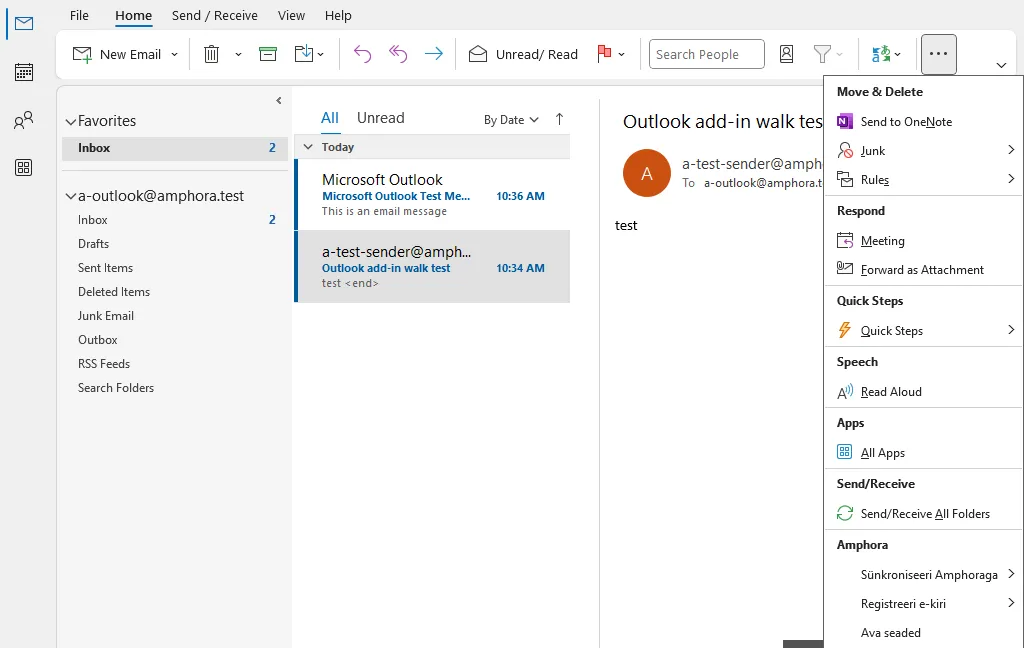
The Amphora Outlook add-in (Amphora Outlook Client) adds the group Amphora to Outlook's Home tab, with the buttons Sünkroniseeri Amphoraga, Registreeri e-kiri and Ava seaded. The group shows when a mail is selected. On a small screen it may sit under the ... button at the end of the ribbon. The most common problem is that these buttons have disappeared. Usually Outlook has turned the add-in off by itself. The steps on this page bring the add-in back.
- Where the add-in works
- Five quick checks
- Buttons gone: Outlook turned the add-in off
- The add-in is not in the list or does not load
- Buttons are there, but registering or synchronising does not work
- If nothing helped
Where the add-in works
The Amphora Outlook add-in works only in the Windows desktop app Outlook classic (Microsoft 365 or Office Outlook). This is the traditional Outlook with the File menu in the top left corner.
The add-in does not work:
- in the new Outlook (New Outlook);
- in Outlook opened in a web browser (Outlook on the web, outlook.office.com);
- on a Mac or on a phone.
The add-in needs Amphora Client installed and configured on the computer. Installing and configuring it is described in Workplace setup.
Five quick checks
Usually one of these five steps helps.
1. Are you using Outlook classic?
The new Outlook has no File menu in the top left corner. Microsoft 365 Outlook may have a New Outlook switch in the top right corner. If it is on, turn it off to go back to Outlook classic and open Outlook again. If there is neither a File menu nor a switch, ask your IT support for Outlook classic.
2. Restart Outlook completely
Close Outlook. Then open Task Manager (Ctrl+Shift+Esc) and check that Outlook is no longer running in the background. If it is, select it and press End task. Open Outlook again.
3. Is Amphora Client running?
The hidden icons of the taskbar must show an icon with a blue letter A. If the icon is missing, start Amphora Client from the Windows Start menu. Then close Outlook and open it again.
4. Is Amphora Client configured correctly?
If Amphora Client is not configured correctly, the registration profiles do not show under the Registreeri e-kiri button. To check the configuration, right-click any file on the desktop and choose Send to -> Amphora. If an error message appears, Amphora Client is configured wrongly. Configuring it is described in Workplace setup.
5. Was Outlook started as administrator?
Outlook started as administrator (Run as administrator) does not load the Amphora add-in. Close Outlook and open it the usual way, for example from the Start menu.
Buttons gone: Outlook turned the add-in off
Outlook may turn an add-in off by itself when the add-in slows Outlook down or after Outlook has crashed. The Amphora buttons then disappear from the ribbon.
To turn the add-in back on:
- In Outlook, open File -> Options -> Add-ins.
- Look at the list. AmphoraOutlookClient must be in the group Active Application Add-ins.
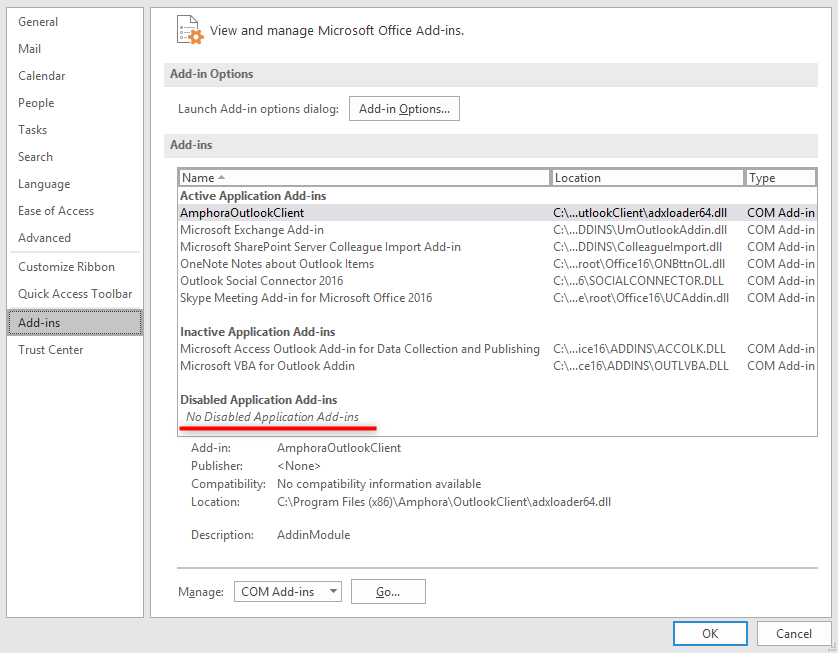
- If AmphoraOutlookClient is in the group Inactive Application Add-ins or Disabled Application Add-ins, choose COM Add-ins in the Manage field at the bottom and press Go....
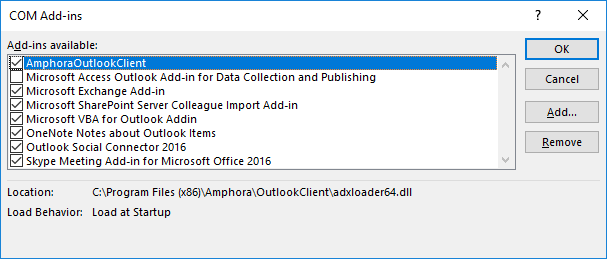
- In the window that opens, tick AmphoraOutlookClient and press OK.
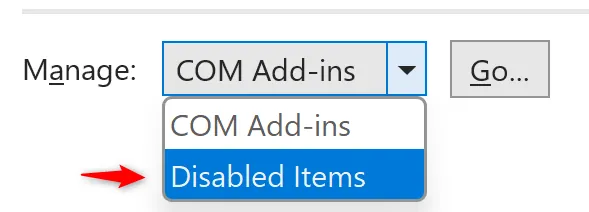
- If the add-in was in the group Disabled Application Add-ins, choose Disabled Items in the Manage field and press Go.... Select AmphoraOutlookClient, press Enable and close the window.
- Close Outlook completely and open it again.
If Outlook has marked the add-in as slow or disabled, File -> Info shows a Slow and Disabled COM Add-ins button. There you can enable AmphoraOutlookClient again or keep it always enabled. Outlook then no longer turns the add-in off for being slow.
NB!
If the tick disappears again after Outlook restarts, your organisation's IT policy may restrict add-ins. In that case, please contact your IT support.
The add-in is not in the list or does not load
In the COM Add-ins window, the selected add-in shows a Load Behavior line. For a working add-in it reads Load at Startup.
If AmphoraOutlookClient is missing from the list or the Load Behavior line shows an error, such as "Not loaded. A runtime error occurred during the loading of the COM Add-in.":
- Close Outlook.
- Open the folder C:\Program Files (x86)\Amphora\OutlookClient and run the file FixRegistration.cmd in that folder (double-click).
- Open Outlook again the usual way, not as administrator.
FixRegistration.cmd also runs without administrator rights. The add-in is then registered for your Windows user only.
If this did not help, reinstall Amphora Client and Amphora Outlook Client. A new Amphora Outlook Client needs a new Amphora Client as well. The installation files and instructions are in Workplace setup. Installing needs administrator rights on the computer.
Buttons are there, but registering or synchronising does not work
The buttons Registreeri e-kiri and Sünkroniseeri Amphoraga work through Amphora Client. When you register a mail, Amphora Client shows the message "E-kiri saadeti Amphorasse. Järgnevalt avaneb Amphora aken, kus saate e-kirja registreerimise lõpule viia." (the mail was sent to Amphora; an Amphora window opens where you finish the registration). Amphora then opens in the computer's default browser. If the browser shows the sign-in page, sign in.
If nothing happens when you press a button:
- check that Amphora Client is running (the blue A icon in the taskbar);
- open the Amphora Client settings (right-click the icon -> Settings -> Open Settings) and check that the Amphora address and user are correct;
- check whether the browser window with Amphora opened behind other windows (Alt+Tab).
Configuring the client is described in Workplace setup.
If nothing helped
Restart the computer and try again. If the buttons are still missing, please write to Amphora customer support at help@amphora.ee. Include:
- the Outlook version (File -> Office Account -> About Outlook);
- the Amphora Client and Amphora Outlook Client versions (in Windows Settings -> Apps -> Installed apps);
- what you did and what happened;
- a screenshot of the error message or of File -> Options -> Add-ins.
Last modified: 28 October 2026, 11:43:15