Amphora 15.0 Version Guide
- Version 15.0.0
- Publication and restriction addition for archived documents and letters
- Additional control added when publishing documents
- Fixed email log display when files are sent as temporary links
- History panel event added for sending files as temporary links
- File display fixed in Routing panel in Coordination tab
- Sending procedure and delegation tasks to Self-service Portal and Amphora internal environment changed
- Procedure task double completion - fix
- New column added to Trash module - series
- Create -> Next option is now not visible when default response form is unselected
- Invoice module enhancements
- Archive file composition now allows selecting all objects at once
- Archive file destruction fixed - when some object was located in multiple archive files
- Task display enhancement in Routing panel
- Quick menu Correspondence module form selection fixed
- Converted PDF file signing fixed
- Case module search enhanced - added Number column
- Email account SMTP port addition possibility added
- Admin - Additional controls added to "Number of members" column search in User Groups view
- PDF file conversion enhanced
- Document export enhanced
- New column and filter added to Cases tab in Public view
- Other
Version 15.0.0
Publication and restriction addition for archived documents and letters
Archived documents and letters (Correspondence module objects) can now be retroactively made public/non-public and additionally add/remove access restrictions. In addition, it is possible to make the main file and additional files public/non-public.
Archived objects can be found with global search (the Search also from archive checkbox must be enabled). It is also possible to open archived objects directly from the archive file.
In the archived object reading view, there is now an Change Access button.
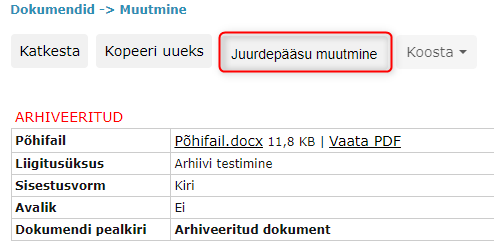 In the window that opens for document objects, it is possible to separately make metadata, main file, text editor content, and additional files public/non-public. In addition, it is possible to activate For internal use. At the top there is also a direct link to the object's public view.
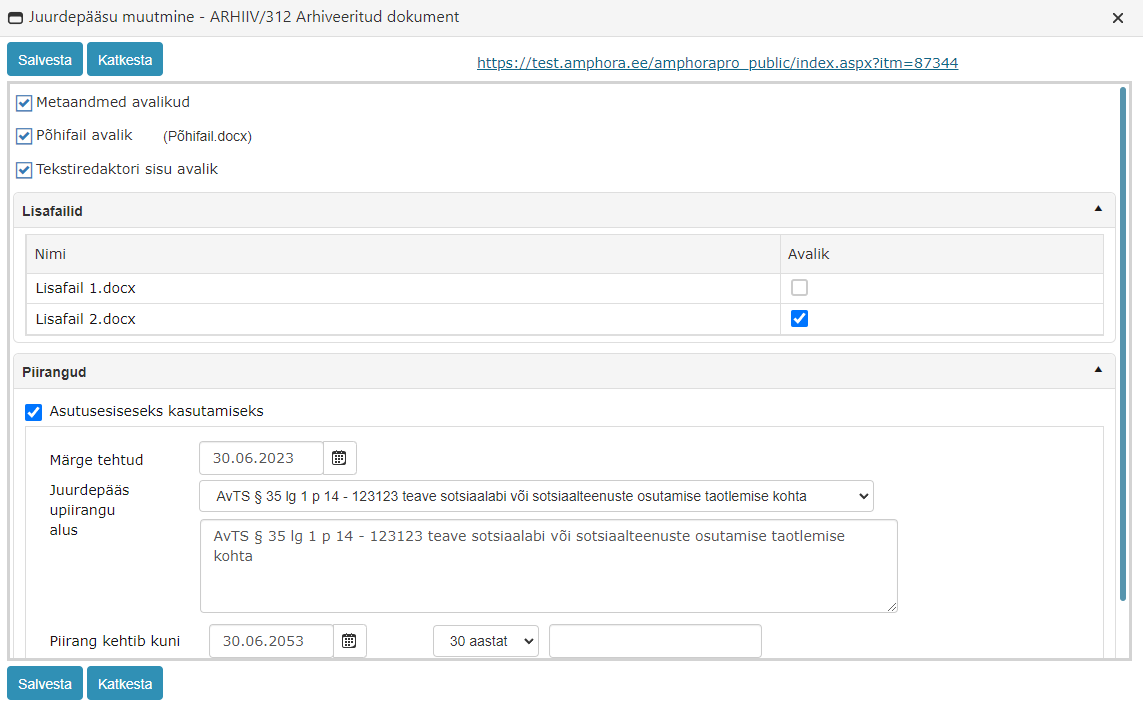 For Correspondence module objects, it is similarly possible to make metadata, additional files, and main file public/non-public and add or remove access restrictions. The only difference is that when publishing the main file, both the original file and related and response files are displayed. These can be published simultaneously.
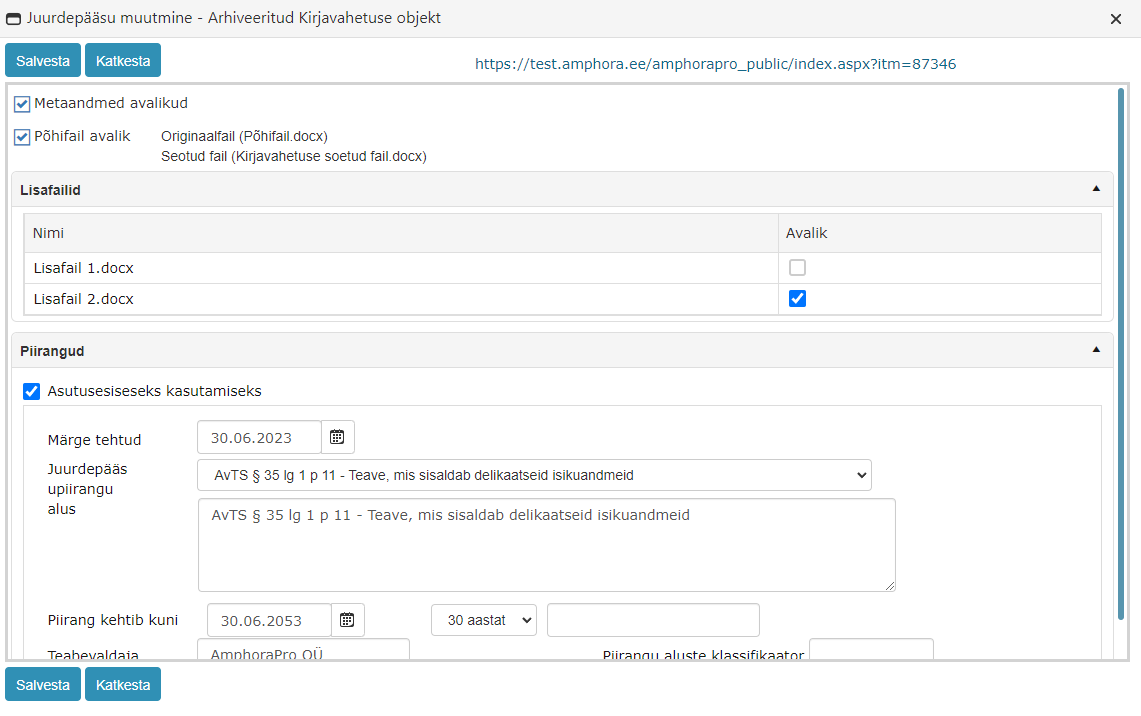 If dealing with a Correspondence module object that uses DHX form, then in addition it is possible to separately make DHX attachments public/non-public. For this, a separate DHX attachments panel has been added.
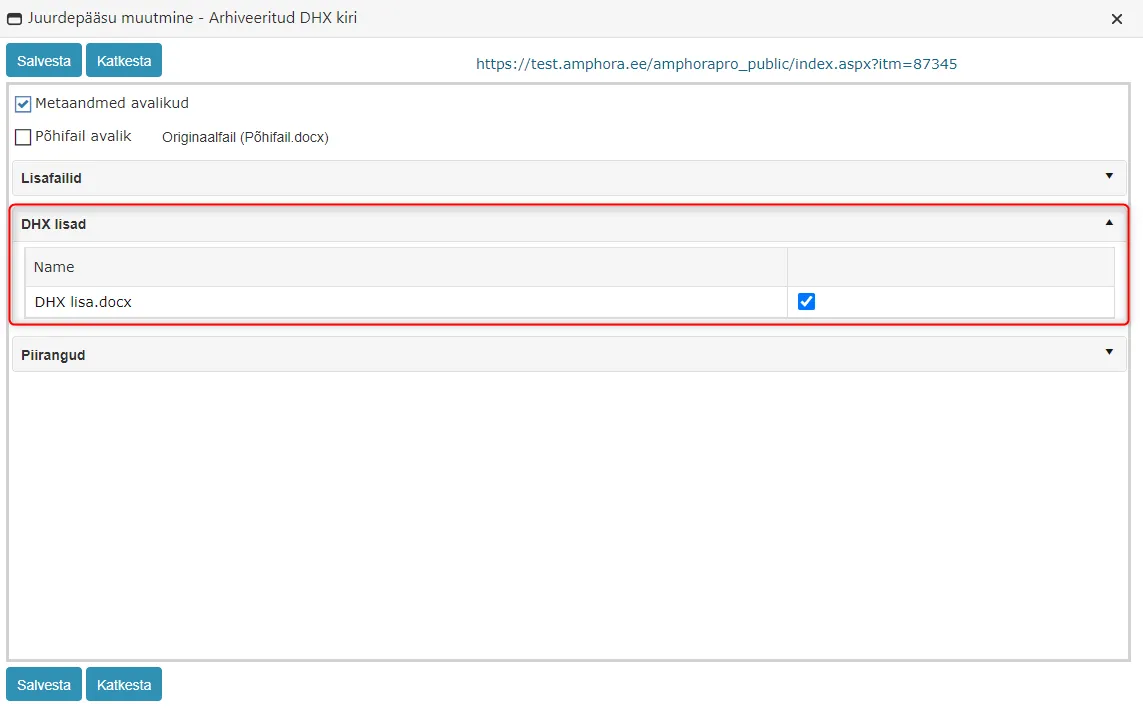 After pressing the save button, Amphora automatically saves all changes.
Amphora also adds a history event to the document's or letter's history panel, which displays more detailed information about the changes.
 ** This development was supported by Amphora client Pärnu City Government. **
** Thank you! **
** This development was supported by Amphora client Pärnu City Government. **
** Thank you! **
Additional control added when publishing documents
A new control has been added that checks that when publishing a document (Metadata public checkbox), at least one more condition would be met:
- Main file public
- Text editor content public
- Additional file public
- Activated for internal use
Each institution can decide for itself whether to enable this functionality or not. In the unit settings, it is possible to enable this functionality (disabled by default).
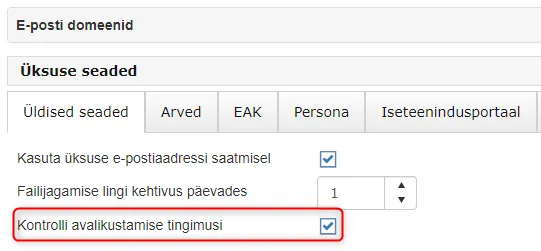 This control also works when publishing archived documents.
The purpose of this development is to prevent the publication of objects where there is very little information or it is completely missing.
** This development was supported by Amphora clients Harku Municipality Government and Rae Municipality Government. ** ** Thank you! **
Fixed email log display when files are sent as temporary links
In the previous version, we added new functionality to send files as temporary links via email. You can read more about this HERE.
For such emails, Amphora did not display email logs. This bug has been fixed in this version and now email logs are displayed just like regular emails.
History panel event added for sending files as temporary links
Now when files are sent as temporary links via email, Amphora also adds a corresponding history event to the history panel. As additional information, sender email addresses and Token are displayed.

File display fixed in Routing panel in Coordination tab
In version 14.9, we optimized the Routing panel. Thanks to this, opening the home page is now significantly faster, especially for users who have many tasks. During optimization, one bug was introduced - files were not visible in the Coordination tab (this problem did not exist in other tabs). In this version, this bug has been fixed and files are again visible in the Coordination tab.
Sending procedure and delegation tasks to Self-service Portal and Amphora internal environment changed
In the new 15.0 version, we changed the user/person selection when creating procedures/delegations.
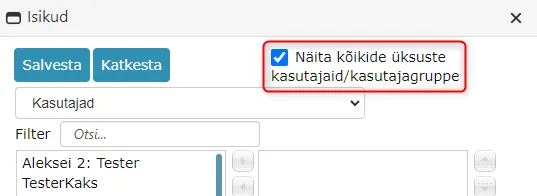
NB! When adding a procedure/delegation to an Amphora user, you must now always select from the dropdown menu "Users" or "Groups". If the user is not displayed in the default list, then activate the option "Show all units' users/user groups".
NB! Through the "Persons" selection, procedure/delegation is now always created to Amphora Self-service Portal!
Explanations
When creating a procedure/delegation in the person addition window, there are the following options - Users and Persons.
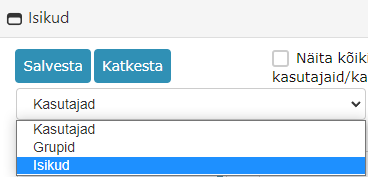 The Users selection displays only system users. In the future, when a user wants to send a task to an Amphora user so that this task would be visible in the Amphora internal environment and the task selection would have all four task types For signing, For information, For coordination, For completion - you must always select users directly under the Users selection.
In the subsidiary (School, Kindergarten) user view, by default, only users associated with their institution are visible in the Users selection. This can cause confusion because sometimes it is necessary to send a procedure to a user who is not associated with the same institution. For this, there is a Show all units' users/user groups checkbox, which makes absolutely all environment users visible.
 Under the Persons selection are both persons associated with system users and regular (external) persons. If a person is selected under the Persons selection, then first, the task type selection has only two options For signing and For information and second, this task is visible to the user only in the Amphora Self-service Portal. Previously, it was possible to select a person under the Persons selection who is associated with a system user, and the added task was visible both in the internal environment and in the self-service portal.
Why was such a change made?
Primarily to reduce data leakage. Previously, all user tasks were also visible in the Amphora Self-service Portal. When a user left work, their user was made inactive, but they could still log into the Amphora Self-service Portal. Thus, the person could view and download documents they had previously dealt with in the internal environment.
Procedure task double completion - fix
Previously, it was possible for a user/external person to complete a task multiple times. This could be done both in the Amphora internal environment Routing panel and in the Self-service Portal. The prerequisite was that the user/external person had Amphora open in multiple web browser tabs simultaneously. This bug caused many problems specifically with sequential execution procedures, because when a user/external person completed a task multiple times, the sequential execution procedure order was broken (tasks that should not have become active became active).
In version 15.0, this bug is now fixed. Both internal environment users and external persons can no longer complete a task multiple times.
New column added to Trash module - series
In the Trash module, it is now possible to see in which catalog the object was located before deletion. For this, we added a new column - Series. This enhancement gives the user a better overview and additionally the ability to search for objects from a specific series. The new column also has a search field (filter).

Create -> Next option is now not visible when default response form is unselected
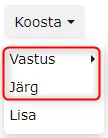
In form settings (Admin - Form setup), it is possible to define a default response form. In previous versions, when the default form was not selected, Amphora did not display the Create -> Response option, but displayed Create -> Next. However, Amphora should not have displayed the Next option either.
In the new version, the Create -> Next option is also hidden if no default response form is selected for the form.
Invoice module enhancements
- In the Purchase invoices tab, there is now a buyer institution filter. The dropdown menu selection contains all environment institutions that are associated with the unit. This way it is possible to filter out purchase invoices from a specific institution.
- In the Sales invoices tab, a new filter has been added - seller institution filter. Works on the same principle as the purchase invoice filter, but here filtering is done by seller institution.
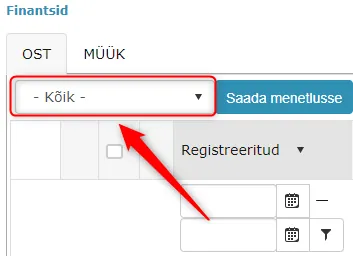
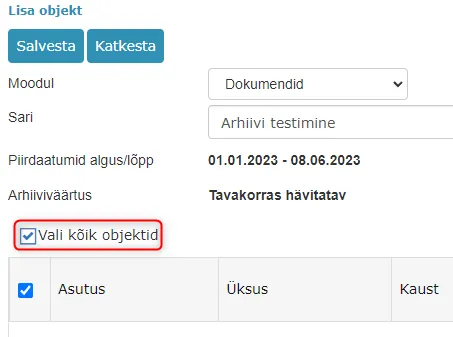
Archive file composition now allows selecting all objects at once
In the archive file object addition view, there is now a Select all objects checkbox, which allows selecting all objects that meet the given criteria. Previously, it was only possible to select objects page by page.
Archive file destruction fixed - when some object was located in multiple archive files
Previously, it was possible to create a situation where one object was located in multiple archive files. Thanks to this, such objects are currently present in environments. However, there was no corresponding control during destruction, and when trying to destroy archive files in previous versions where one object was in multiple archive files, Amphora displayed a timeout error message and the destruction remained incomplete. In version 15.0, the corresponding control has been added and this error should no longer occur during destruction.
Task display enhancement in Routing panel
From now on, Amphora no longer displays tasks in the Routing panel that are associated with deleted objects. If for some reason an object is in the trash and the task itself is not deleted, then such a task is no longer displayed to the user in the Routing panel.
Quick menu Correspondence module form selection fixed
NB! This fix has been made for environments that still register letters in the Correspondence module
The quick menu Correspondence module form selection did not work correctly in the previous version. Namely, Simple incoming, Simple outgoing, Document received via DHX, and Document sent via DHX form selection did not work. Instead of these forms, Amphora always selected the complex form.
Converted PDF file signing fixed
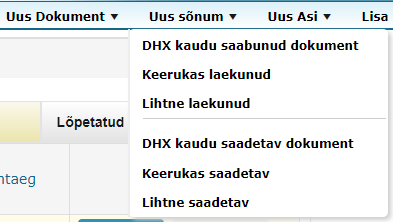
If you add a file such as docx, rtf, act, etc. to the main file, then Amphora automatically converts a PDF copy when saving. In the previous version, in some situations there was a problem with signing such files through procedures where more than one user signed. The problem could occur in a situation where one user signs first, then the document is modified (a new document version is created), and only then the next user signs within the task using IMAGE BUTTONS. As a result, two separate signature containers were created.
In this version, we added the necessary controls. This problem should no longer occur.
Case module search enhanced - added Number column
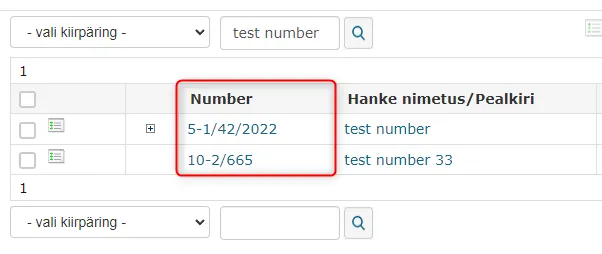
Previously, it was not possible to add a Number column to the search results table in the Cases module. Such support was missing in Amphora. Now it is possible to add a Number column to the Case search profile, thanks to which case numbers are visible in search results. In the search profile settings, the Number field name is Number (filled automatically) (Number).
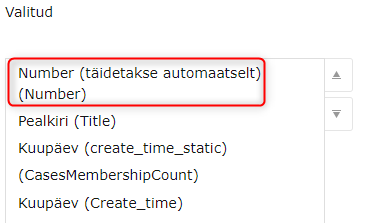 Example of Case module search results:
Email account SMTP port addition possibility added
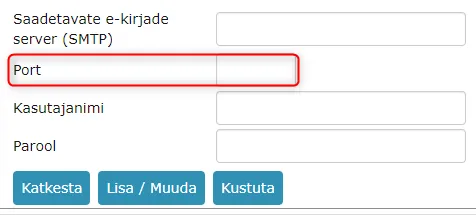
In email account settings, a new field called Port has appeared in SMTP settings. Now it is possible to manually specify the port, previously the default port was 25.
Admin - Additional controls added to "Number of members" column search in User Groups view
The number of user group members is a numeric value. Previously, when a user entered letters or some other symbols in the "Number of members" column search, Amphora displayed an error message on the entire screen. Now the necessary controls have been added that no longer bring up this error message and the search only works when a numeric value is entered in the search field.
PDF file conversion enhanced
PDF file conversion enhanced. Very rarely, a problem could occur where after saving the main file, PDF file conversion fails and Amphora previously added an empty PDF file. In the future, Amphora will no longer add an empty PDF file, the PDF file will simply not be added. With the next document save, Amphora will try to convert the PDF file again.
An empty PDF file should not be created because when creating a signing task, that empty PDF file would not be available in the selection. Previously, in some environments, due to this problem, an empty PDF file was signed.
Document export enhanced
The exported document XML file now includes routing panel and history panel data. In addition, restriction information has been enhanced - information controller and restriction grounds classifier data will be added to the XML file in the future.
New column and filter added to Cases tab in Public view
In the Public view Cases/Files tab, there is now a new column called Type. A filter has also been added - a dropdown menu selection where it is possible to select a specific type.
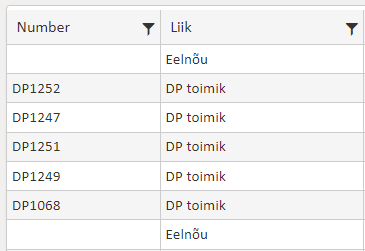
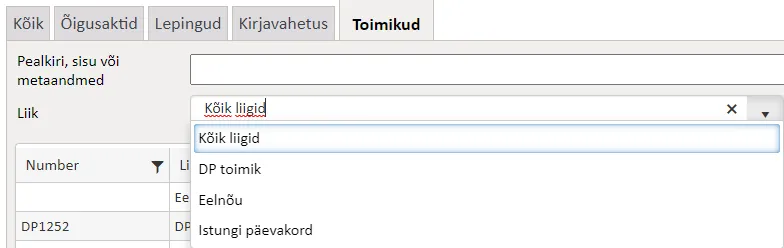 Where does Amphora get this type? In each form's settings (Admin - Form setup), there is a "Type in public view" option where it is possible to assign a public view type to the form. Case/File is registered with a specific form and that form's public view type is displayed in the public view.
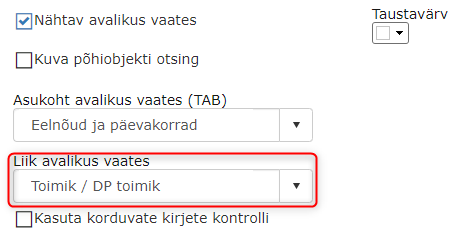 Citizens now have it much easier to search for specific cases/files/drafts thanks to this development. Previously, in the Cases/Files tab, it was only possible to search for objects by title.
** This development was supported by Amphora client Rae Municipality Government. ** ** Thank you! **
Other
- Added French language support. This can be selected in user personal settings, General settings tab.
- On the home page Calendar panel, period selection has been fixed. In previous versions, period selection did not work correctly.
- HTML template element ::CURUSERJOB:: (user position) did not work. In this version, we added a fix, now Amphora replaces this template element with the user's job title.
- Email registration enhanced. Some received emails contained empty url() elements in their content, which prevented working with this document in Amphora.
Last modified: 09 October 2026, 10:25:03