Amphora 14.6 Version Guide
- Version 14.6.0
- Archive module developments
a. Destruction enhancements
b. Destruction act HTML and DOCX template support
c. Destruction act template elements - Editing additional files with WebDav
- "Catalog" column added to purchase invoices table
- Unnecessary and excessive error message removed from Amphora Self-service Portal
- Process/delegation fixes
- Outbound delivery enhancement – sender is always institution in public view
- Mailgun data synchronization fixed
- Other changes
- Archive module developments
- Version 14.6.1
Version 14.6.0
Archive module developments
In this version, we continue with planned Archive module developments. These developments primarily concern destruction.
Destruction enhancements
We added three different tabs to the destruction view – ARCHIVE FILES PENDING DESTRUCTION, DESTRUCTION ACTS, DESTRUCTION HISTORY.
ARCHIVE FILES PENDING DESTRUCTION
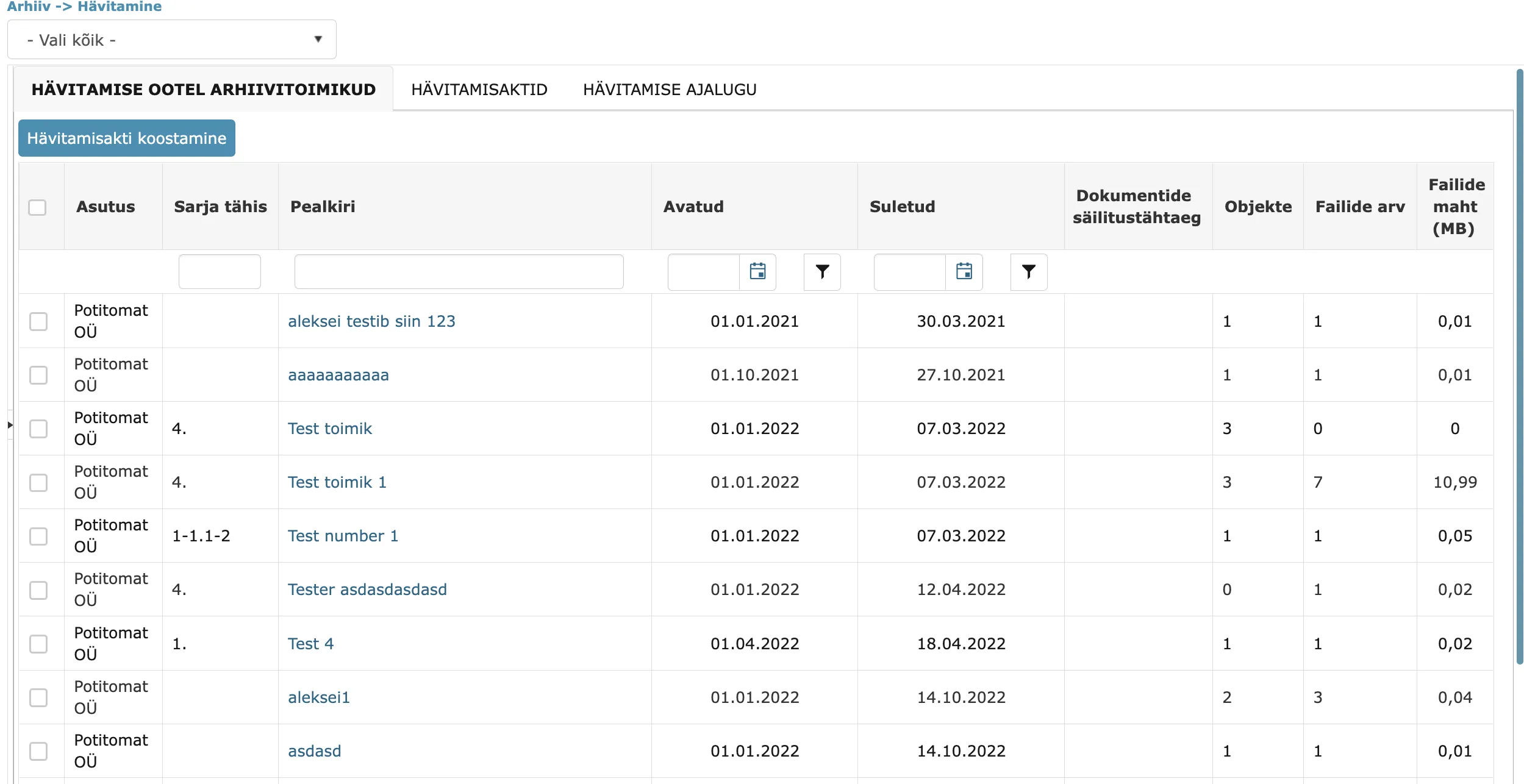 In the ARCHIVE FILES PENDING DESTRUCTION tab are archived archive files that are ready for destruction (Closed date is in the past and archive value is "Destroyable in simplified procedure" or "Destroyable in regular procedure"). It is possible to sort by each column and filter by "Series designation", "Title", "Opened" and "Closed" columns.
In the list view, each archived archive file has a checkbox, which allows selecting archive files that you want to add to the destruction act composition. It is possible to select per page.
Using the "Compose destruction act" button, you can start composing a destruction act. Destruction act composition can also be started without any archive file selected in the list view, since archive files can be selected separately in the destruction act composition view.
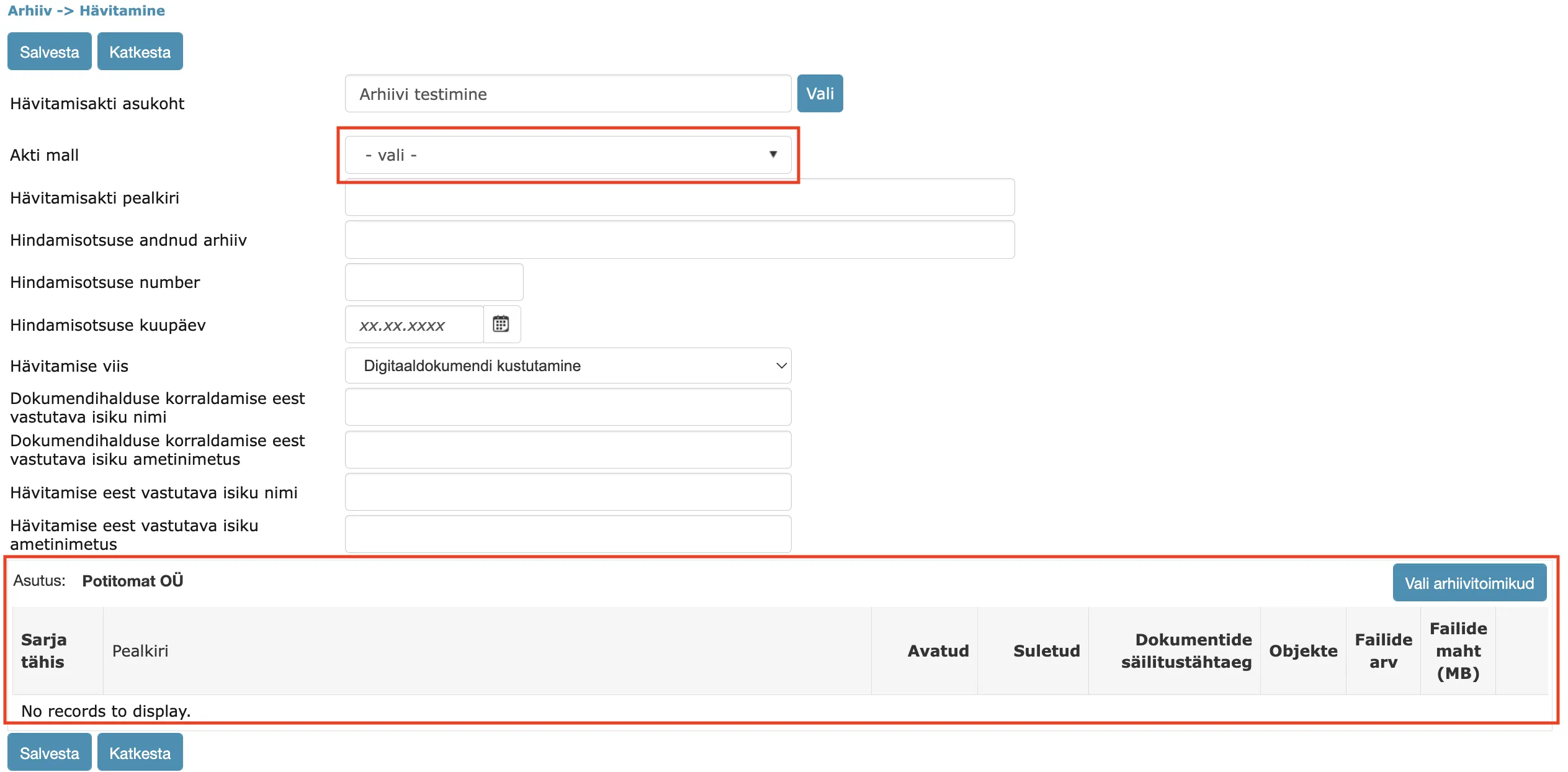 One new dropdown selection and one new panel have been added to the destruction act composition view – Template selection dropdown and Archive files addition panel.
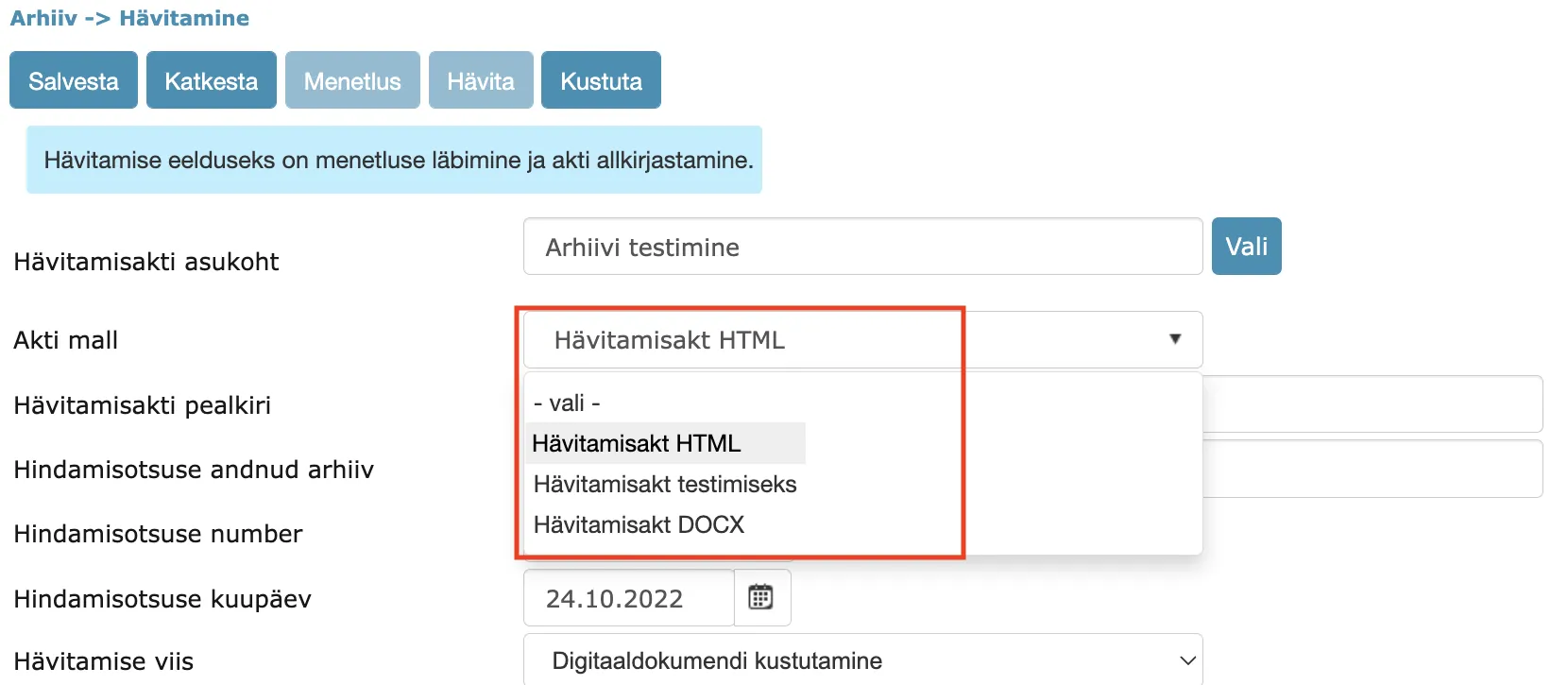
Destruction act templates can now be manually composed and added to Admin – Templates. Allowed template types are DOCX and HTML. If no template is selected, then Amphora automatically selects the default HTML template (same template as before). You can read more about destruction act templates HERE.
NB!
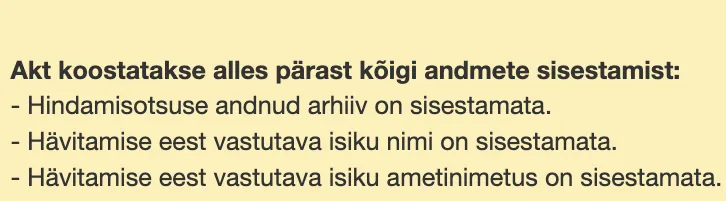
When composing a destruction act, all fields must be filled. If any field remains unfilled, then Amphora does not add the destruction act and displays a corresponding notification listing unfilled fields.
 In the archive files selection panel, it is possible to select archive files from different catalogs. However, the selection contains only one institution's archive files (Institution whose archive files are displayed in the selection is determined by the "Destruction act location" catalog).
DESTRUCTION ACTS
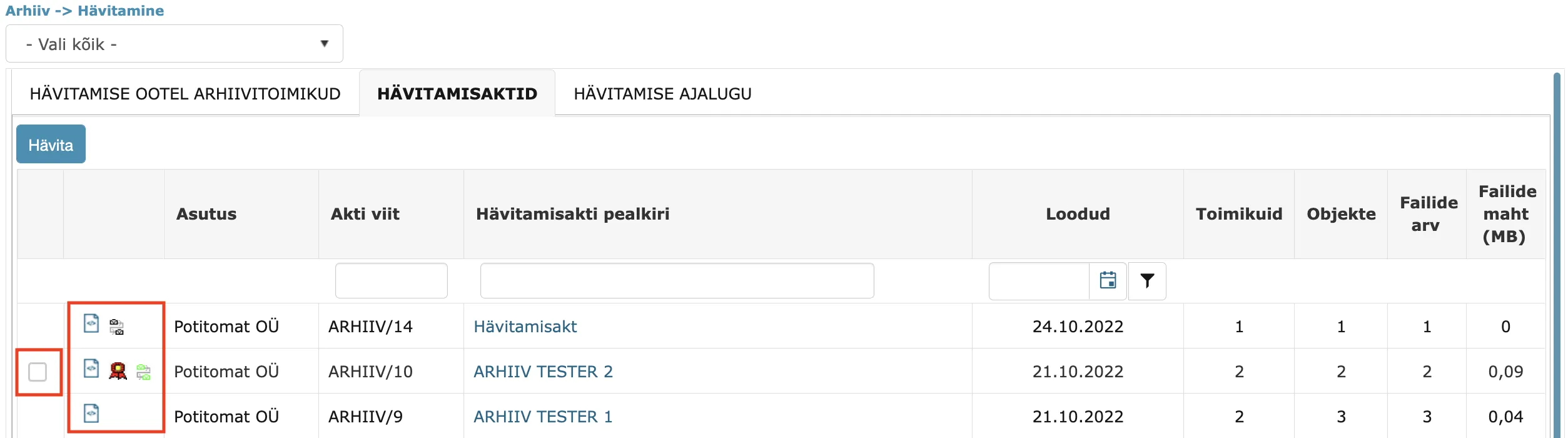 In the DESTRUCTION ACTS tab are already composed destruction acts that have not yet been destroyed. It is possible to sort by each column and filter by "Act reference", "Destruction act title" and "Created" columns.
In the destruction act list view, file and process icons are displayed in front of the destruction act. Clicking on the file icon allows opening/downloading the file in a preview window (HTML file – open in preview window, DOCX or signature container – download). Clicking on the process icon opens the process detail view in Amphora. Additionally, it is possible to hover the mouse cursor over the process icon to make process data visible.
Starting from version 14.6, a destruction act must be signed before destruction. If a signature container is missing, then Amphora does not allow destruction. The easiest way to get a signature is to send a process for signing with a task. This can now be done directly from the destruction act edit view.
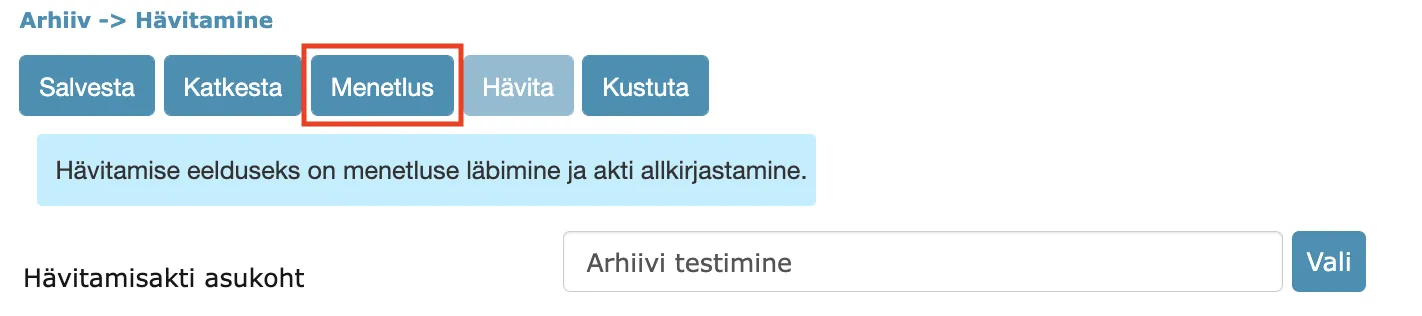 Before adding a process/signing a destruction act, it is still possible to change destruction act data, but once a process or signature is added, the ability to change disappears. Corresponding notifications are also displayed about this.
Destruction act actions are in progress and therefore act data cannot be changed.
Signed act cannot be changed. To change, signatures must be removed from the document.
When a destruction act is signed, the "Destroy" button becomes active in the destruction act detail view and the destruction act can be destroyed. Additionally, a checkbox appears in front of the destruction act in the list view and the destruction act can be destroyed directly from the list view.
DESTRUCTION HISTORY
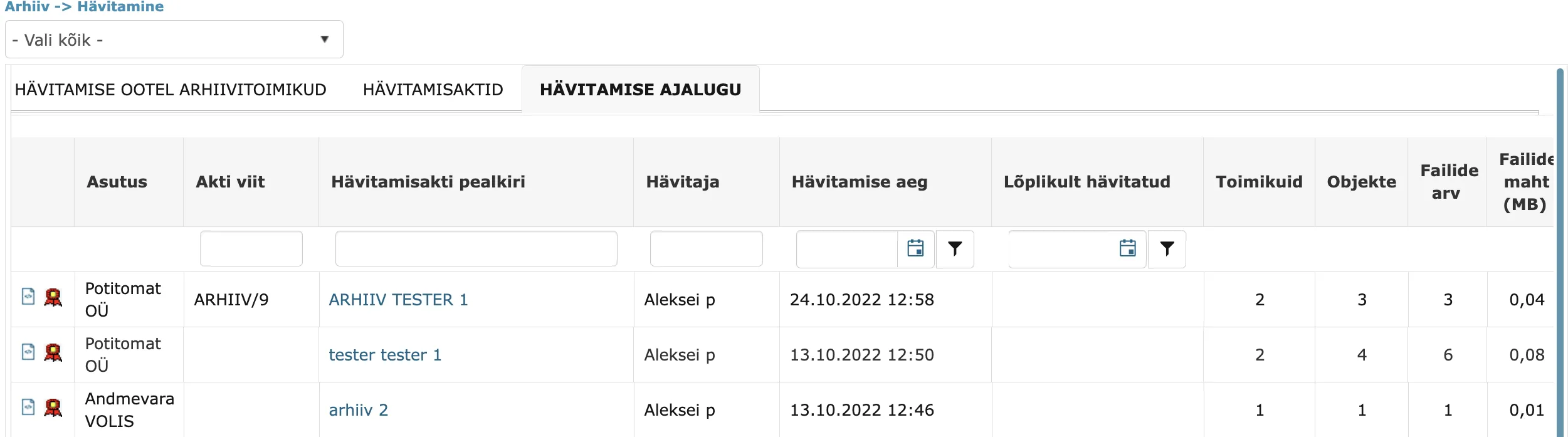 In the destruction history tab are already destroyed destruction acts. Final destruction is not yet implemented in version 14.6, this development should be expected in future versions. Therefore, in version 14.6, all destruction acts together with archive files can still be restored.
In the destruction history list view, you can similarly sort by columns and filter by "Act reference", "Destruction act title", "Destroyer", "Destruction time", "Finally destroyed" columns.
Similarly, in the list view, each destruction act has file icons (DOCX/HTML file icon and signature container icon).
Destruction act HTML and DOCX template support
Starting from version 14.6, it is possible to manually add destruction act templates. Supported file types – HTML and DOCX. Destruction act templates, like other templates, can be added to Admin – Templates. When adding a template, you must select Archive as the module and the template type must be either HTML or DOCX.
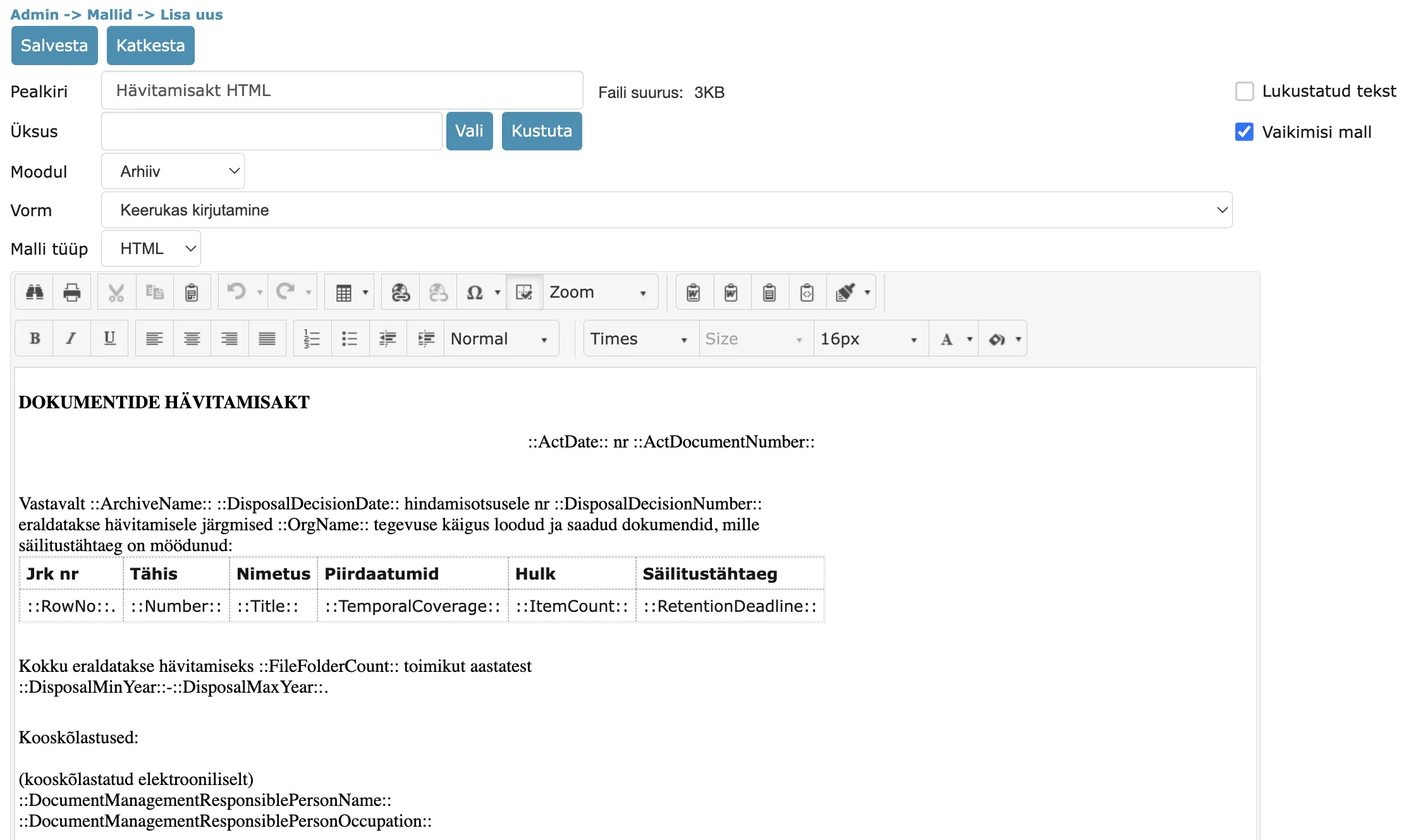 Once a template is added to Admin – Templates, it immediately appears in the template dropdown selection in the destruction act edit view.
Destruction act template elements
Generally static template elements
::CREATEDATE:: - destruction act last version creation date ::CREATEDATETIME:: - destruction act last version creation date with time ::CURDATE:: - current date ::CURDATETIME:: - current date with time ::CURTIME:: - current time ::CURUSER:: - logged in user first and last name ::CURUSERPHONE:: - logged in user phone number ::CURUSEREMAIL: - logged in user email address ::CURUSERORG:: - logged in user institution ::CURUSERJOB:: - logged in user job title
Template elements related to destruction act
::ActDocumentNumber:: - destruction act number ::ActDate:: - destruction act date ::ArchiveName:: - archive that gave the appraisal decision ::DisposalDecisionNumber:: - appraisal decision number ::DisposalDecisionDate:: - appraisal decision date ::OrgName:: - archive files institution name ::DisposalMethod:: - destruction method ::FileFolderCount:: - number of archive files ::DisposalResponsiblePersonName:: - name of person responsible for destruction ::DisposalResponsiblePersonOccupation:: - job title of person responsible for destruction ::DocumentManagementResponsiblePersonName:: - name of person responsible for document management organization ::DocumentManagementResponsiblePersonOccupation:: - job title of person responsible for document management organization ::DisposalMinYear:: - archive files earliest "From" date ::DisposalMaxYear:: - archive files latest "To" date
Template elements related to destruction act that work only in TABLE
::RowNo:: - archive file sequence number ::Number:: - archive file series designation ::Title:: - archive file title ::TemporalCoverage:: - archive file temporal coverage (From and To dates) ::TemporalCoverageYears:: - archive file temporal coverage (From and To years) ::ItemCount:: - number of archive file objects ::RetentionDeadline:: - retention deadline ::ParentId:: - archive file catalog ID ::OrgName:: - archive file institution name (determined by archive file catalog) ::OrgId:: - archive file institution ID ::RetentionDeadlineText:: - retention deadline in years with "years" text. Example "5 years" ::RetentionPeriodYears:: - retention deadline in years. For example "5" ::DateOpened:: - archive file Opened date ::DateClosed:: - archive file Closed date ::AppraisalDecisionReference:: - Reference to legal act (Taken from folder settings)
NB!
For these template elements to work correctly in HTML template table, you need to add template="true" to the table element composition, for example
<tr template="true">
    <td style="width:25px;padding:5px;">::RowNo::.</td>
    <td style="width:75px;padding:5px;">::Number::</td>
    <td style="width:250px;padding:5px;">::Title::</td>
</tr>
Editing additional files with WebDav
Main files could be edited in Amphora with WebDav software for a long time, but such support was missing in the Additional files panel. Starting from version 14.6, it is also possible to edit additional files with WebDav.
 Each additional file now has an "Edit" link, clicking on which opens the additional file for editing. The same rule applies as when editing main files – you can edit Word and Text files and after changes the document must be saved over. You can only edit additional files that are already saved – otherwise Amphora does not display the "Edit" link for the additional file.
** The implementation of this development was supported by Amphora client Viljandi City Government. ** ** Thank you! **
"Catalog" column added to purchase invoices table
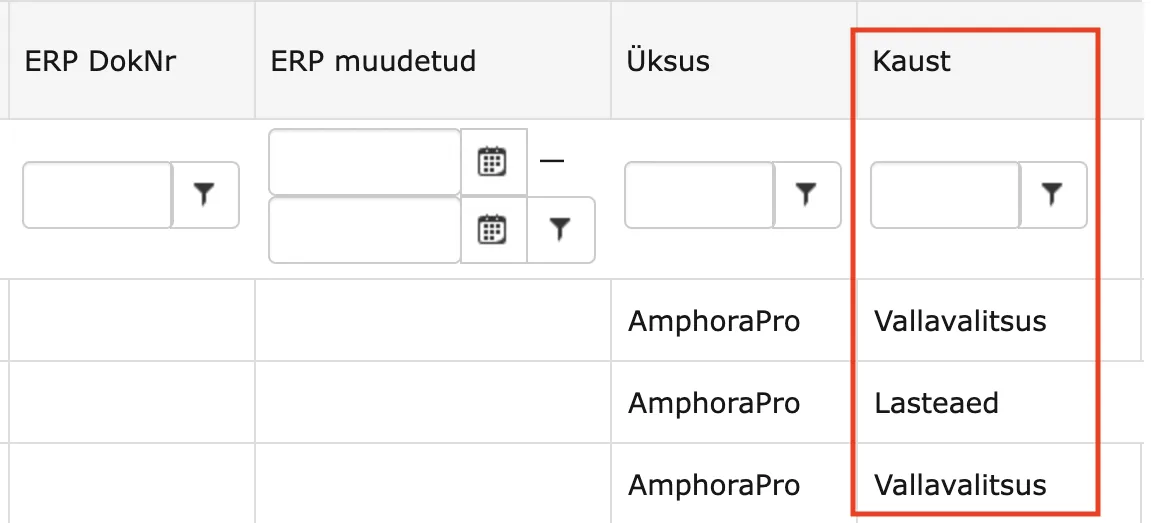
In the Invoices module, we added a new column to the purchase invoices list view in version 14.6 – "Catalog". Now it is possible to filter out (search for) specific catalog purchase invoices directly in the purchase invoices list view.
Unnecessary and excessive error message removed from Amphora Self-service Portal
Some Amphora Self-service Portal users complained that after completing their own process task, the following error message was displayed - Process cannot be started! Please contact your administrator!
This error message was displayed for documents that were uploaded to a catalog where automatic process was configured. Starting from version 14.6, Amphora no longer displays this error message to external persons.
Process/delegation fixes
- Fixed a bug in sequential execution process where a user could complete their own task multiple times. Each completion activated the next pending task, so a situation could occur where a sequential execution process had multiple active tasks (a sequential execution process can only have one active task). Such a problem could occur when a user used Amphora in multiple browser tabs and completed their task in both tabs.
- Enhanced sending task reminders. Namely, if a document related to process/delegation is deleted, then Amphora no longer sends reminder emails (in the previous version it did).
- "Publish after successful process completion" functionality did not work correctly in situations where a document had two or more processes/delegations. For example, if a document had two processes and the first to complete was a process that had "Publish after successful process completion" checkbox added, then Amphora did not make this document public because there was a check that in turn checked whether all processes were completed. In version 14.6, this check has been enhanced – now the specific process status is checked.
Outbound delivery enhancement – sender is always institution in public view
For outbound deliveries, in previous versions the public view displayed "individual" as sender in situations where a personal email address was selected as sender. This logic was not correct because the email was still sent from a specific institution's environment. In version 14.6, we made a change – all outbound deliveries now have the institution marked as sender in the public view (institution is selected by catalog unit), not "individual".

Mailgun data synchronization fixed
This fix is relevant in environments where Mailgun is activated and emails are sent out through Mailgun. Unit settings contain domain DNS records necessary for sending through Mailgun and email logs. In previous versions, some synchronization problems occurred, which resulted in domain DNS records being deleted and emails being sent out through SendGrid. In version 14.6, synchronization has been enhanced and domain DNS records should no longer disappear.
Other changes
- Updated Telerik components 2022.1.302 -> 2022.3.913. More details about updates can be read HERE.
Version 14.6.1
Archive module enhancements/changes
- Removed catalog tree in Archive -> Destruction view in "DESTRUCTION ACTS" and "DESTRUCTION HISTORY" tabs. Destruction acts are displayed in these tabs by institutions (there is a separate institution filter[1]), so displaying the catalog tree was not relevant.
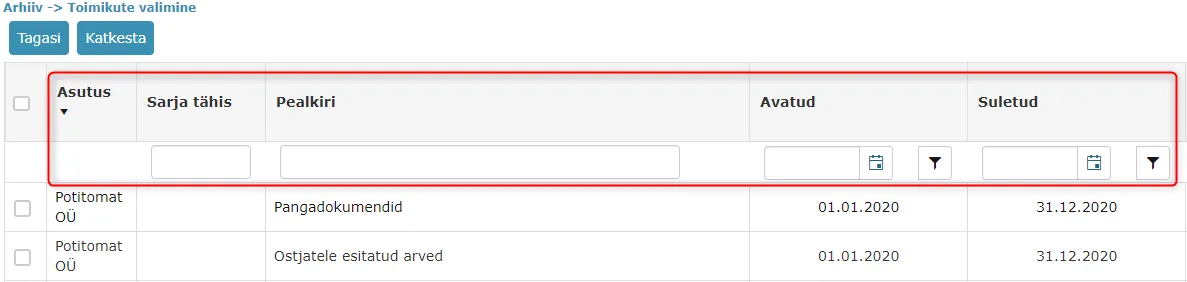
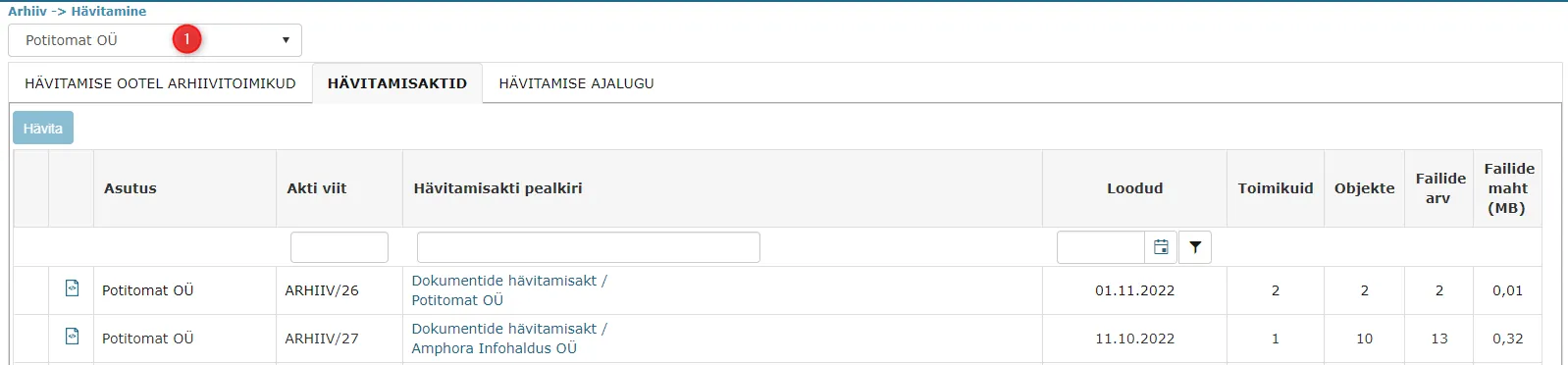 2. In destruction act detail view, it is possible to directly select archive files. We added column sorting and filtering support to the archive files addition view, which simplifies searching for archive files.
 3. We enhanced adding archive files to destruction act composition. The destruction act location catalog and archive file catalog no longer need to belong to the same institution. This change allows adding other institutions' (units') archive files to the destruction act composition. For example, Municipality creates a destruction act that it wants to save to its own active catalog tree, and adds an old catalog tree archive file to the destruction act composition. Previously, such a possibility did not exist.
NB!
Only one institution's archive files can be added to one destruction act composition.
Document template file deletion fixed
In previous versions, Amphora did not allow deleting a document DOCX template file from the main file location. When pressing the "Delete" button, the template file disappeared from the main file location, but when saving the document, Amphora added this template file back. This problem occurred only with template files.
In version 14.6.1, this bug has been fixed.
Last modified: 09 October 2026, 10:25:03