AmBot (coming soon)
Important
AmBot is coming soon: this guide describes a panel that will be introduced shortly.
Contents
- What AmBot is
- Opening and closing the panel
- Side bar and panels
- Chatting with AmBot a. Clearing a conversation
- Search
- Approvals
- Access
- Agents
- People - messages to colleagues
- API (advanced)
- If something does not work
What AmBot is
AmBot is a side panel in Amphora that opens on the right edge of every Amphora page. It brings three things together:
- AmBot - the Amphora assistant you can ask questions and give work to;
- People - end-to-end encrypted messages to colleagues in your organisation;
- approvals and access - you decide what agents may do on your behalf.
Opening and closing the panel
- The panel opens from the AmBot button at the right of the top menu (sparkles icon, before the language and skin links). Press it again, or press Esc, to close the panel.
- The panel remembers whether it was open: on the next page it is in the same state.
- The header shows the panel name and, below it, where you are in Amphora (for example "Tasks").
- A dot on the top-menu button means an approval or an unread message is waiting for you - even when the panel is closed.
- By default the panel takes a third of the window. The header button Full screen opens it across the whole window; the same button (Exit full screen) or Esc takes it back to a side panel. The browser remembers your choice.
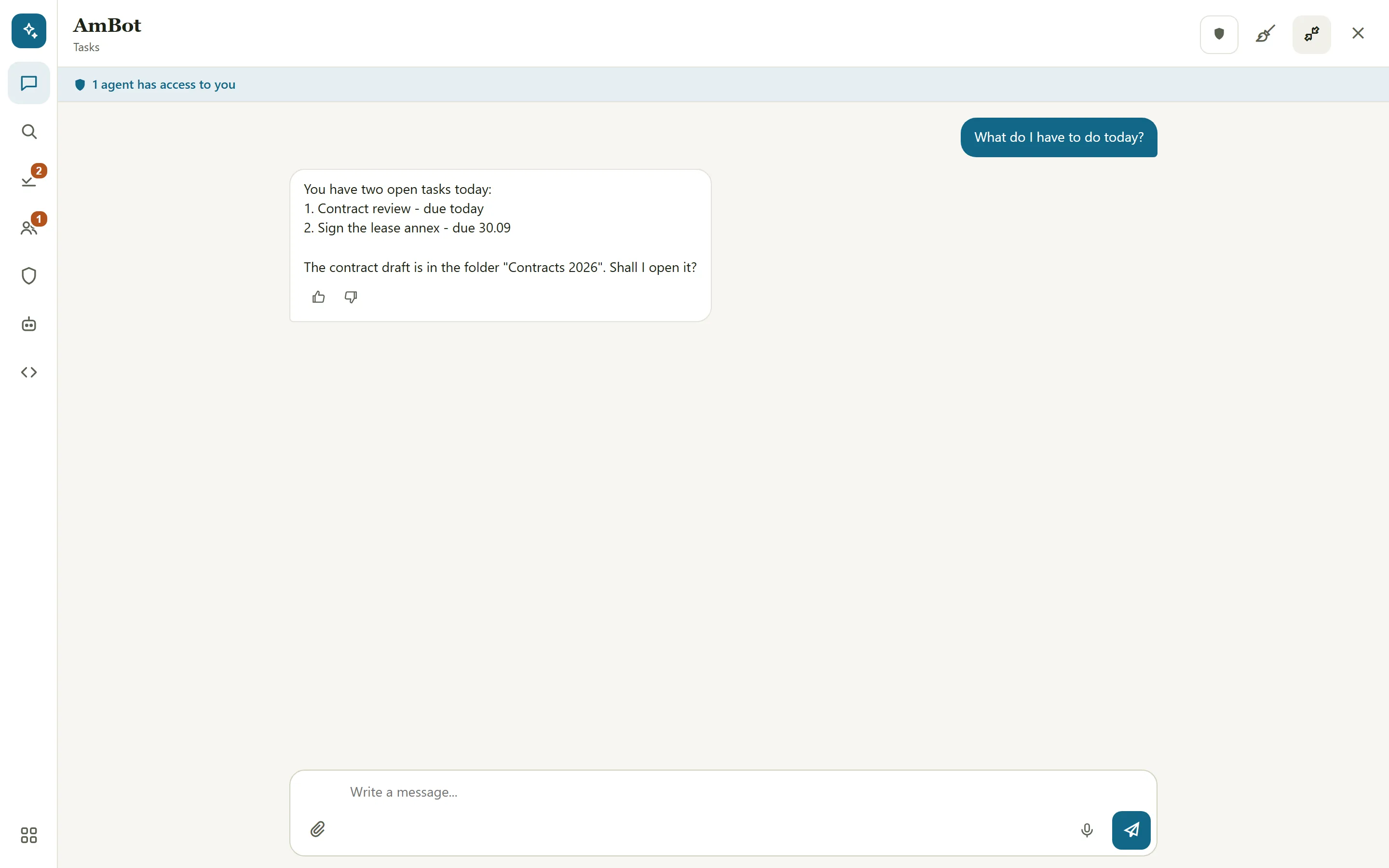
Side bar and panels
The side bar runs down the left edge of the panel. Each button opens one panel; the last button, All panels, shows them all.
| Panel | What you do there |
|---|---|
| Chat | talk to AmBot |
| Search | search documents by words or by meaning |
| Approvals | confirm or deny what agents want to do for you |
| People | write to colleagues |
| Access | see and change who has access on your behalf |
| Agents | see your organisation's agents (bots) and their status |
| API | browse the Amphora interfaces (advanced) |
By default the side bar holds Chat, Search, Approvals, People and Agents; Access and API are under All panels. Every panel except Chat can be removed from or added to the side bar: All panels -> the pin button. Your choice is remembered in your browser.
A number on a button shows how many items are waiting (Approvals) or how many messages are unread (People).
Chatting with AmBot
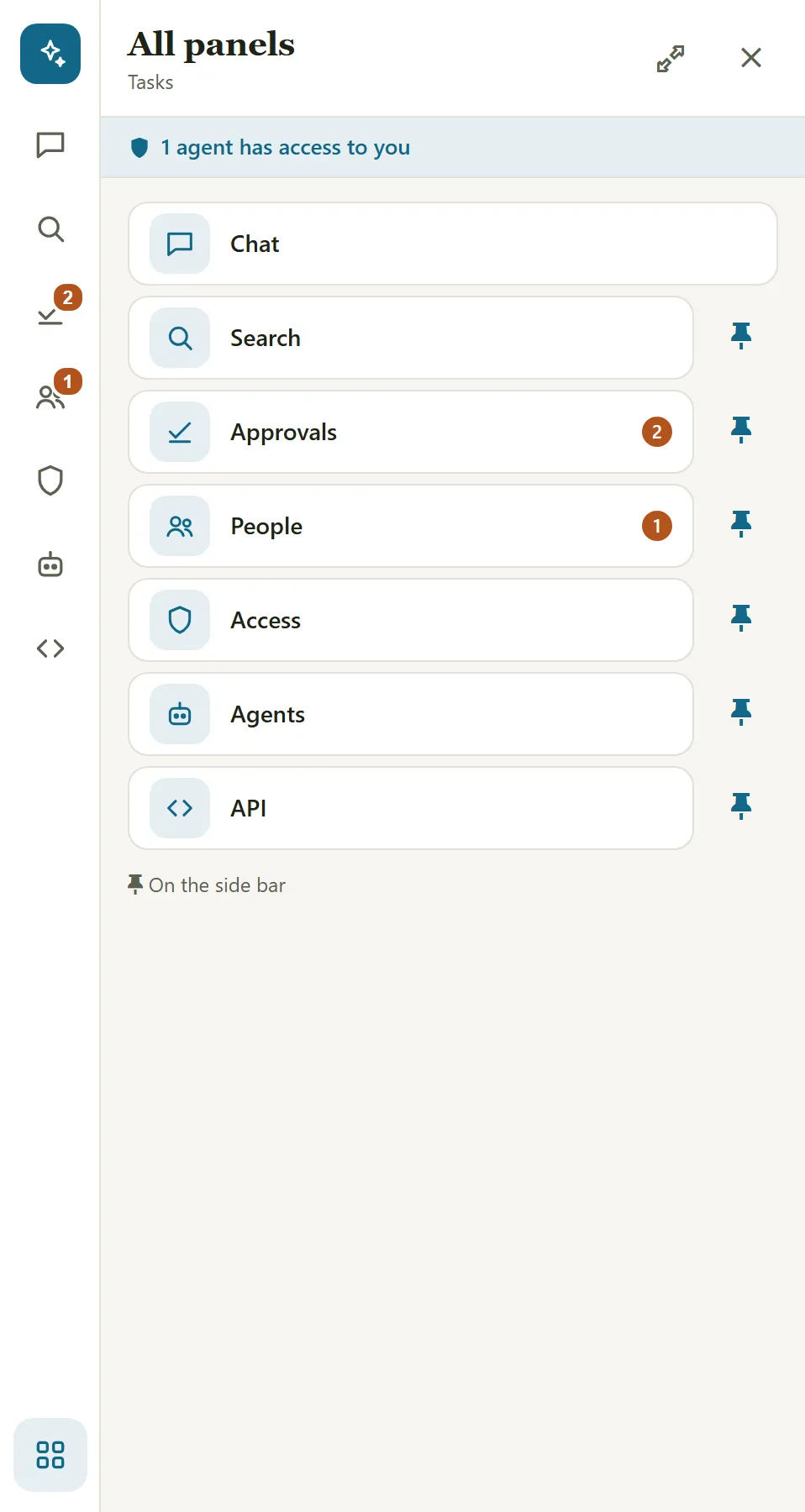
AmBot runs on your own Claude subscription. Connect it the first time:
- Press Connect Claude (or the shield button in the header -> Claude connection).
- Follow the steps on the card: install Claude Code, run
claude setup-tokenand paste the token into the field. - Press Connect. Amphora cannot read the token back; usage counts against your own plan.
Then:
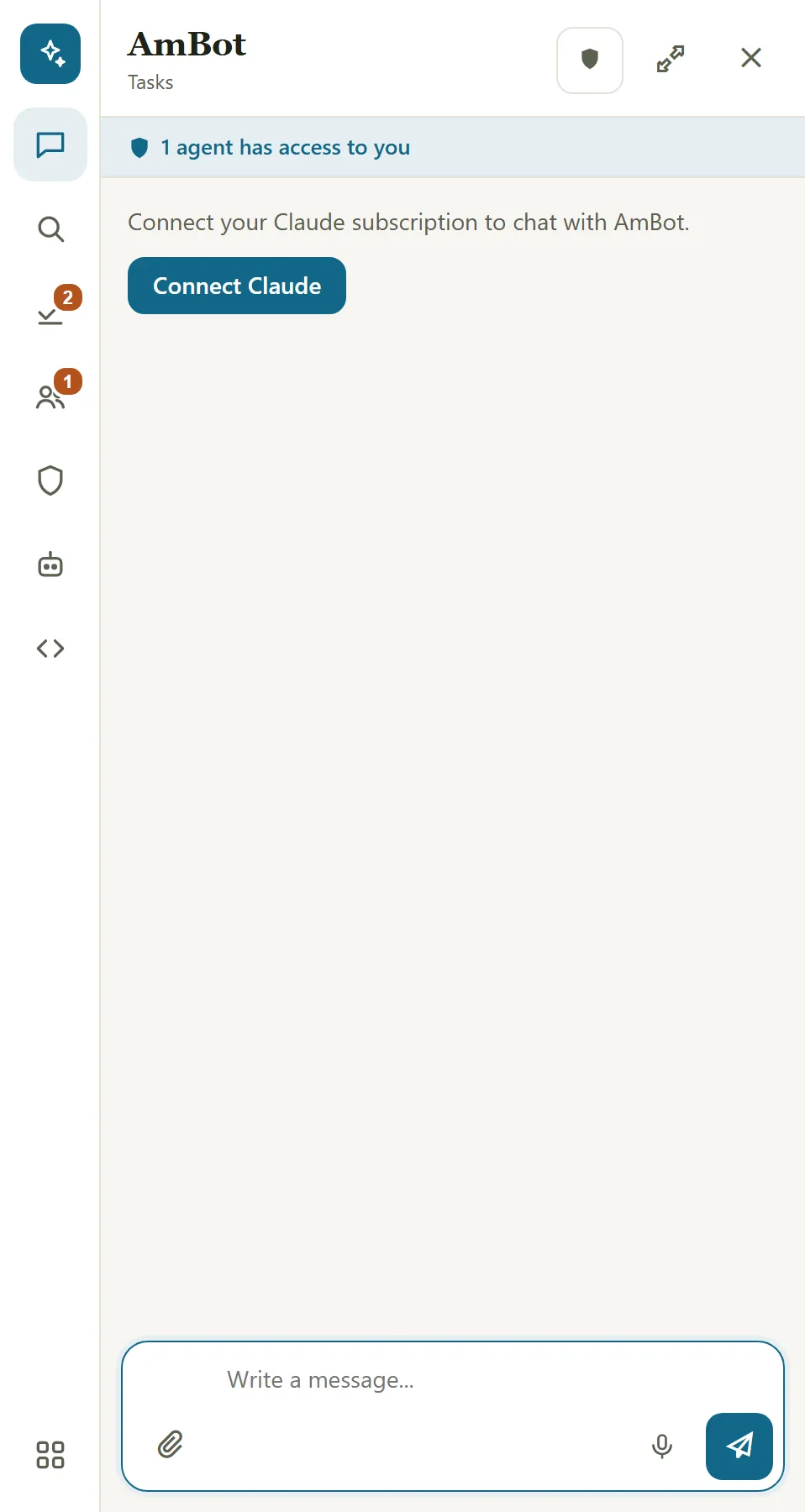
- Type a question and press Enter (new line: Shift+Enter). An empty chat offers two suggestions, for example "What do I have to do today?".
- The message box is three lines high and grows with the text up to 40% of the window height; with longer text you scroll inside the box.
- AmBot knows which Amphora page you are on, so you can also ask "Summarise what is open on my screen".
- Use the microphone button (Speak) to talk - currently in Estonian only: press, speak, press again (Stop recording). A recording can be up to 60 seconds. The text appears in the input field and you decide whether to send it.
- Attach a file with the paper clip button, by dragging or by pasting (up to 5 files, each up to 10 MB; documents, images, signed containers). Every file is checked for viruses ("Checking for viruses...") before it can be sent; a file with malware or one that could not be checked cannot be sent.
- Every AmBot answer has thumbs up and down; after rating you can add a comment. This helps make AmBot better.
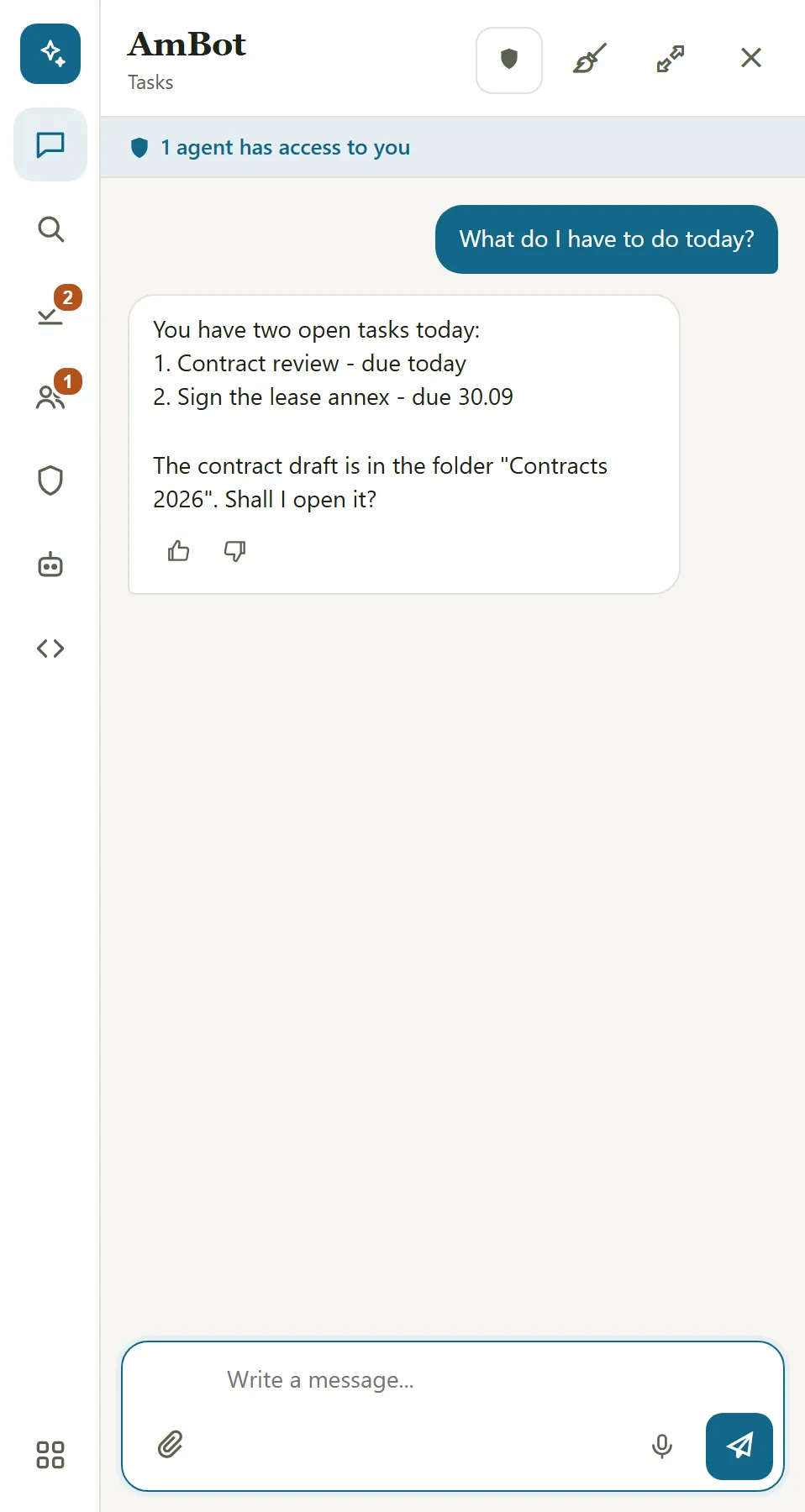
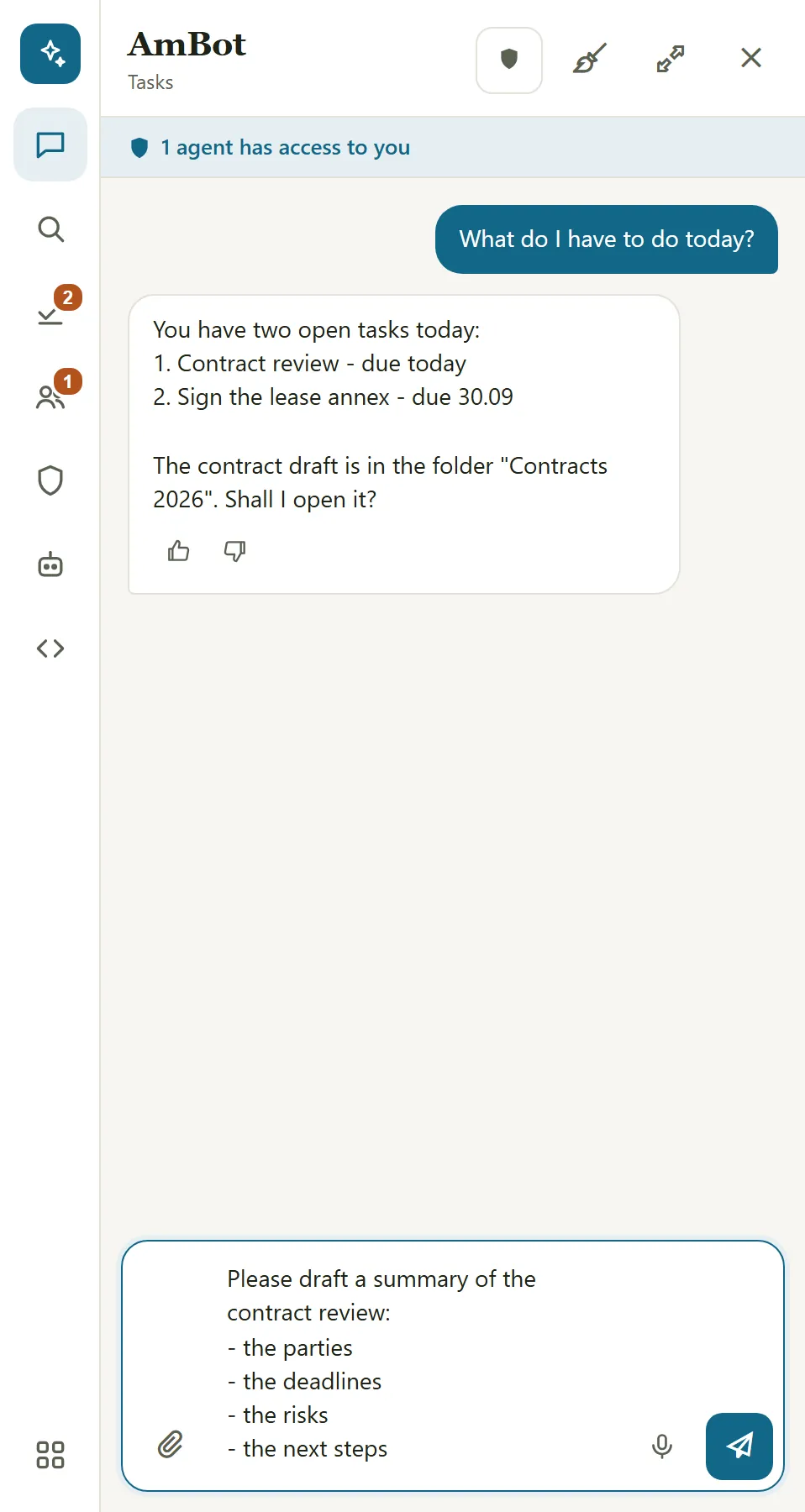
What AmBot can do. AmBot finds and reads documents, letters, cases, tasks, the calendar, persons and organisations; it can register and number, send for approval and signing, send out, archive and more - only as far as your own rights allow.
AmBot changes nothing without your permission. When AmBot wants to change or create something, it makes a proposal that you confirm or cancel (see Approvals).
Clearing a conversation
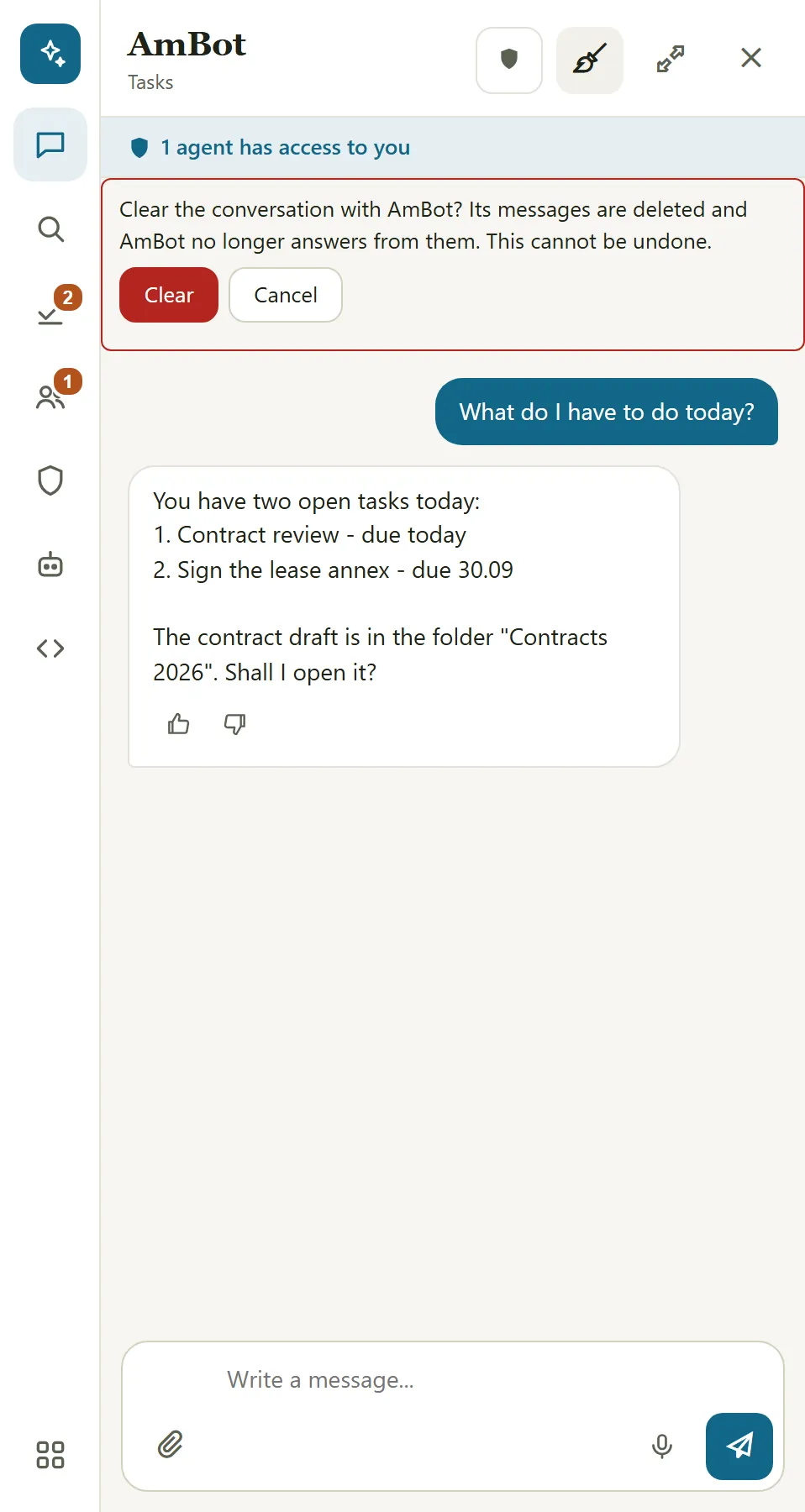
When a conversation has messages, the header has a broom button Clear conversation. The panel asks first: Clear deletes that conversation's messages and AmBot no longer answers from them - your next question starts from a clean slate. Cancel keeps everything. Clearing cannot be undone.
- You can clear a conversation with another agent the same way. If bot-hub keeps the conversation, the panel says it cannot be cleared here.
- What an agent did on your behalf stays in the log (see Access - What ... did).
Search
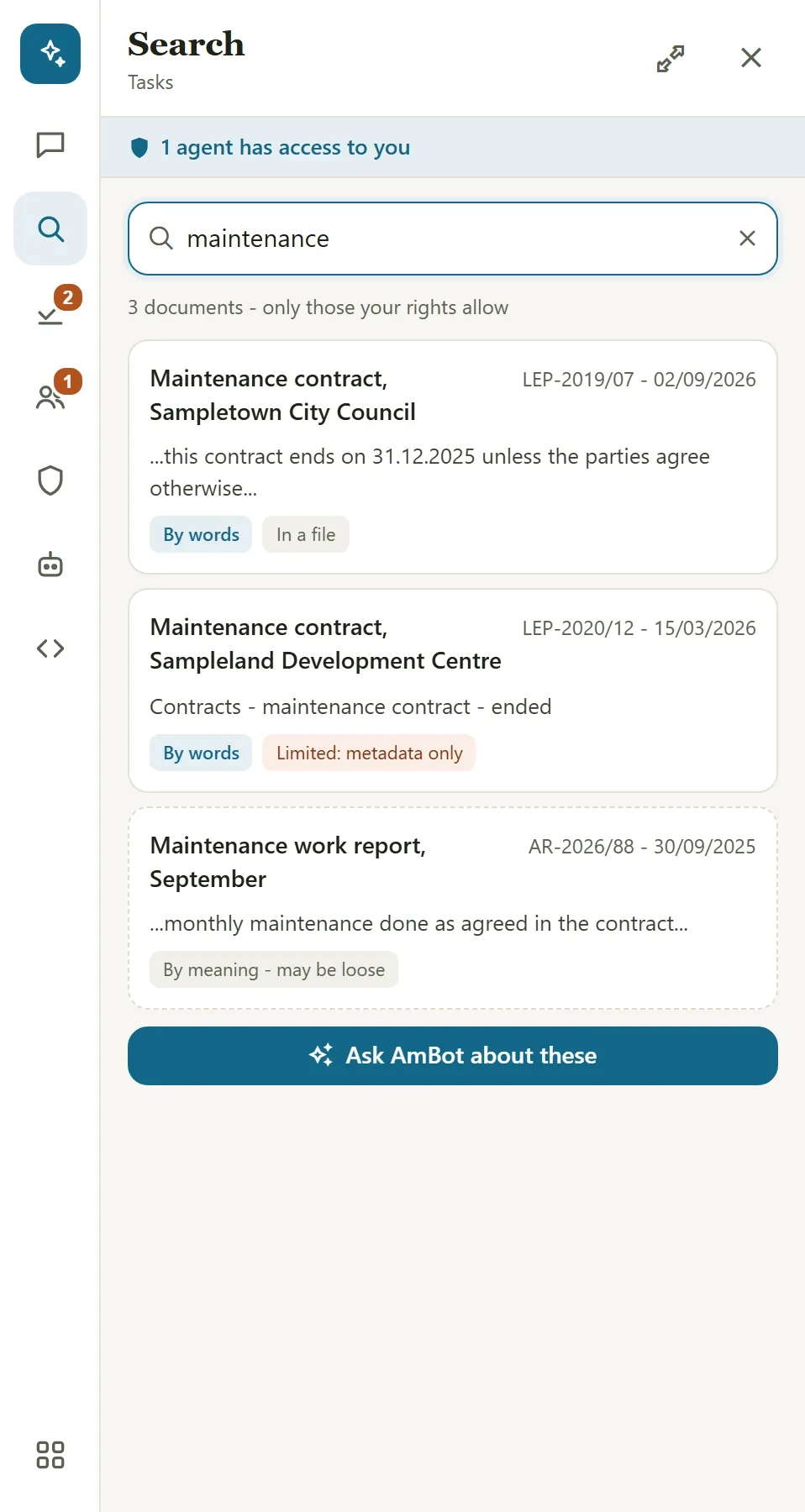
Type at least two letters. Results come by words and by meaning (By words and By meaning - may be loose).
You see only documents your rights allow; the label Limited: metadata only means you see the document's data but not the file content.
The Ask AmBot about these button takes the search into the chat.
Approvals
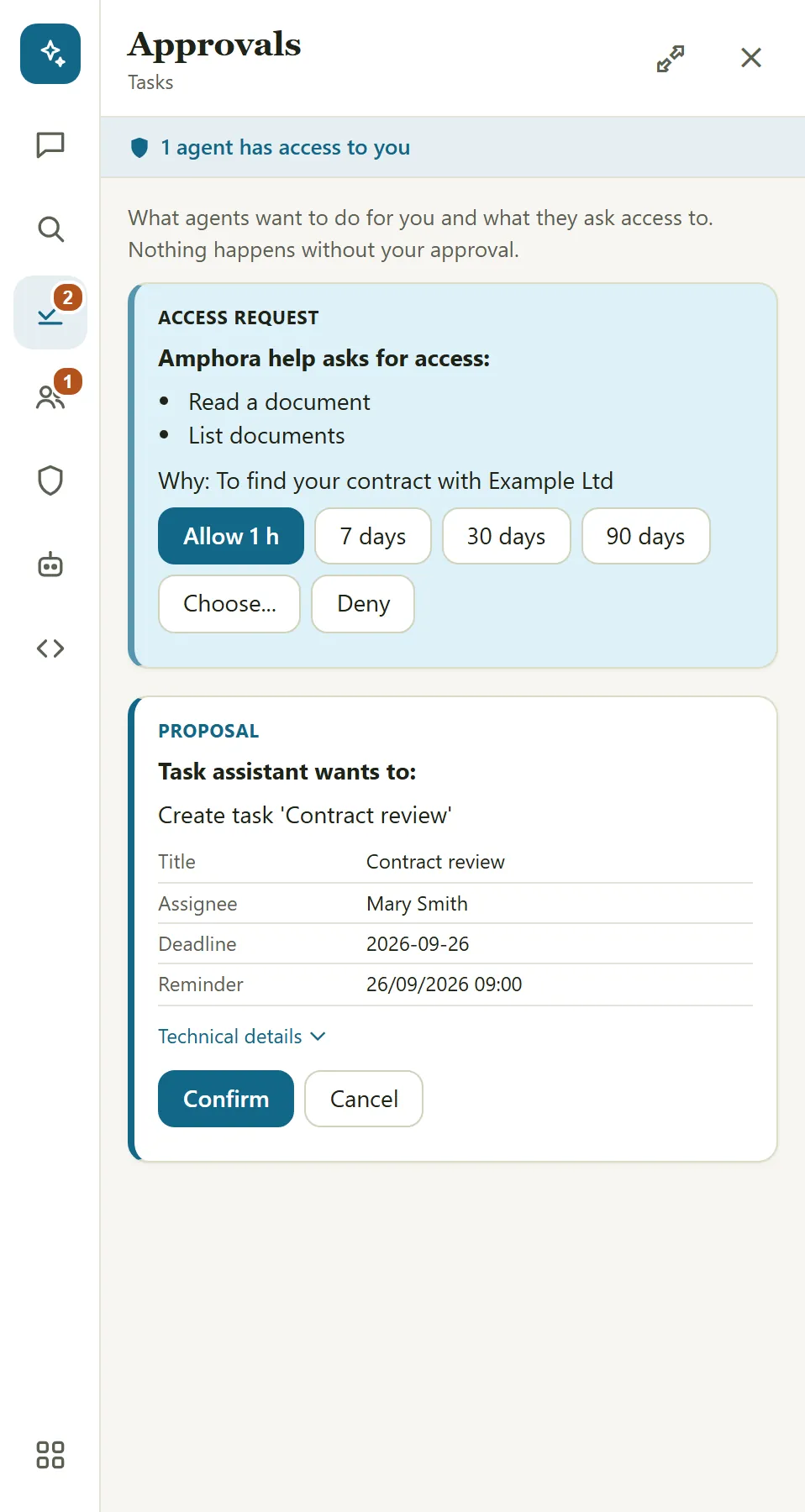
Everything agents want to do for you is here. Nothing happens without your approval.
- Proposal: the agent describes what it wants to do (for example "Create task 'Contract review'"), and below it are the data it will use (Title, Assignee, Deadline ...). Check the data and press Confirm or Cancel. Afterwards you see the result ("Done", "Failed"). Technical details shows, if you want, the request as it goes to the Amphora interface.
- Access request: the agent asks permission to act on your behalf - a list of rights and the reason. Choose how long you allow it (Allow 1 h, 7, 30 or 90 days), Choose... for specific rights, or Deny.
Access
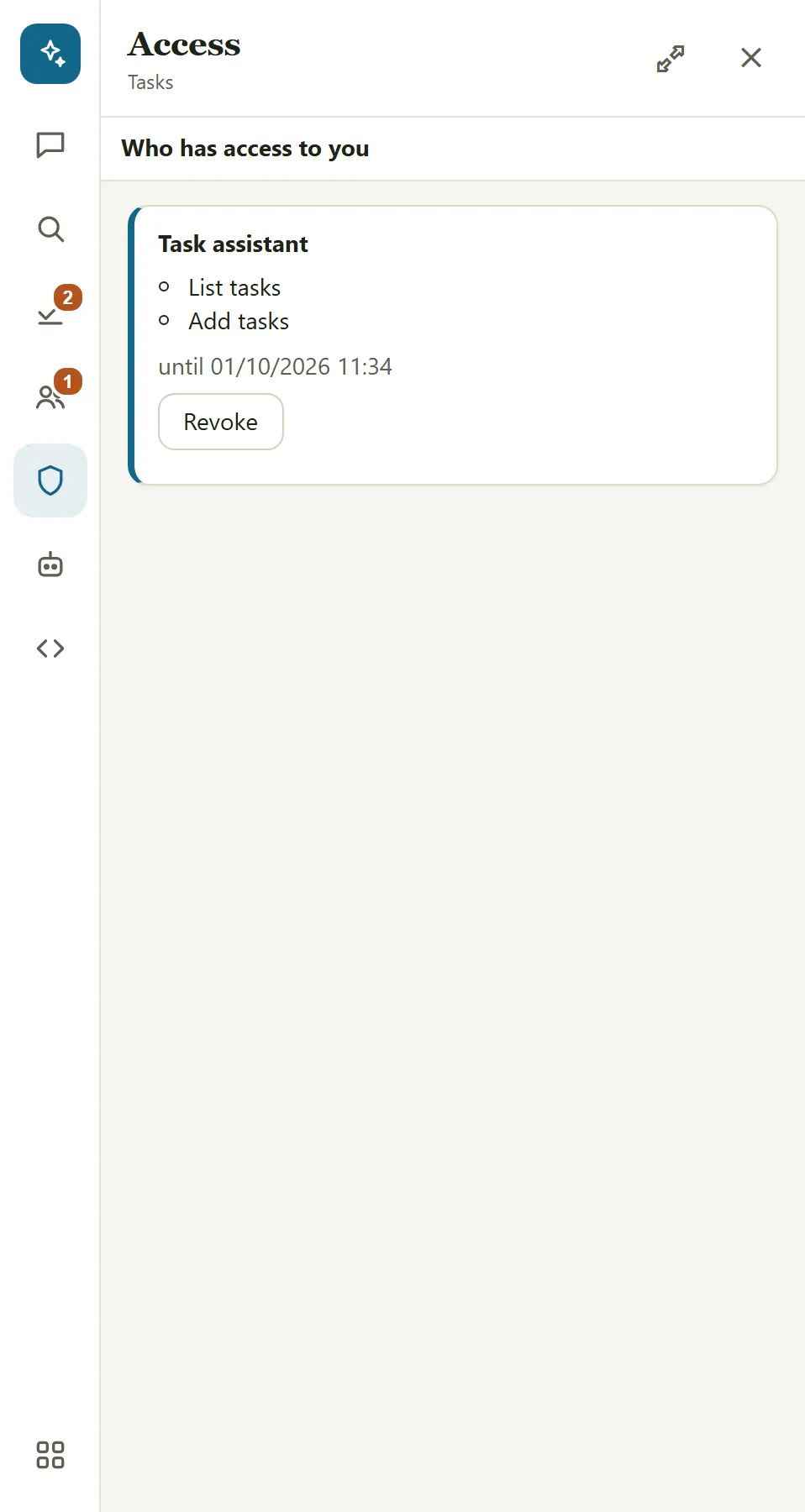
Who has access to you lists every agent you have given access to: which rights and until when. Revoke removes the access at once.
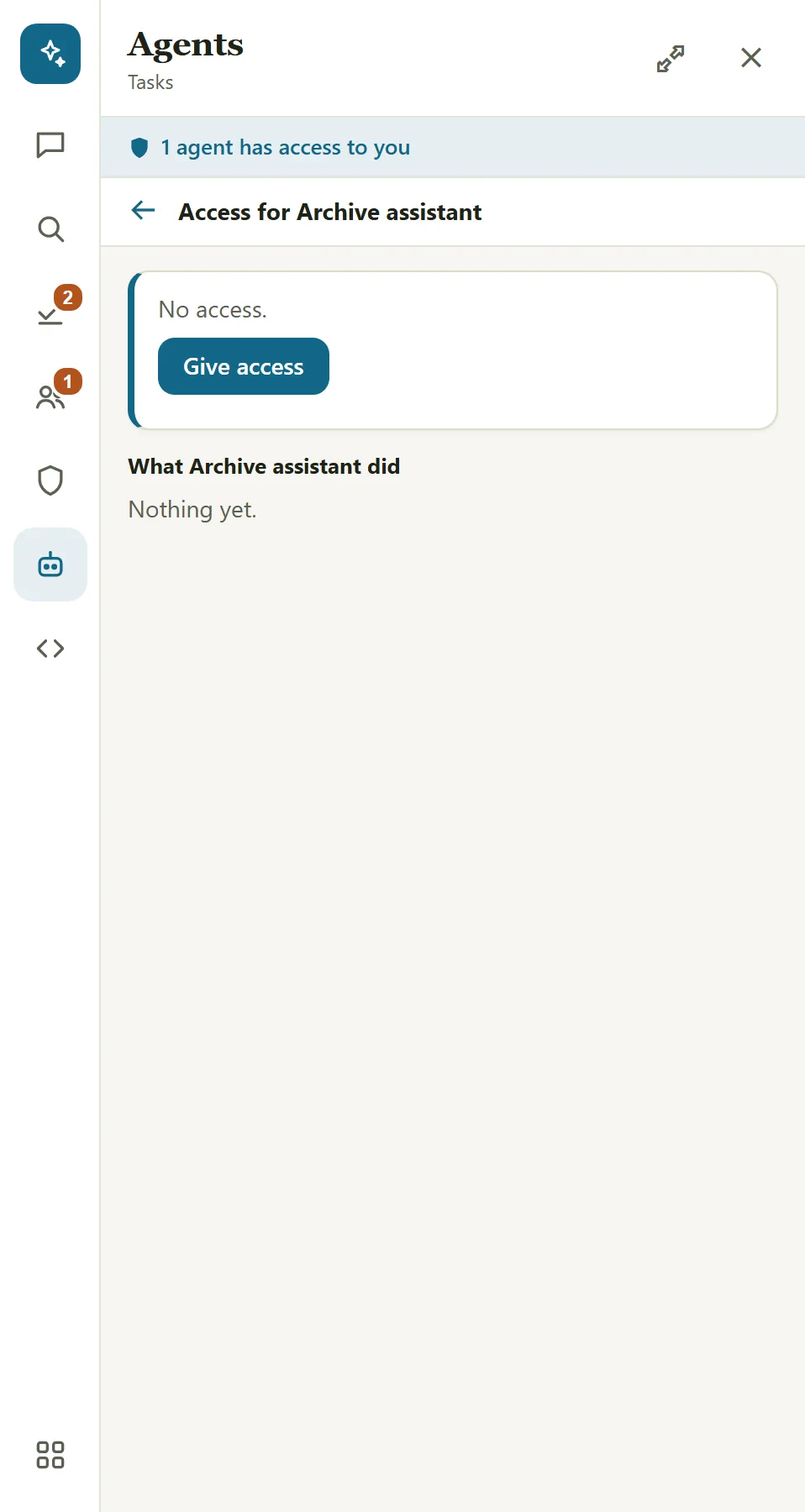
On an agent (shield button in the chat header) you also see what the agent has done on your behalf, and you can give new access:
- choose the rights (only from your own rights);
- choose the duration: 1 hour, 7 days (default), 30 or 90 days, or Until date (at most 90 days);
- Ask me before changes is on by default: every change comes to you for approval first.
Agents
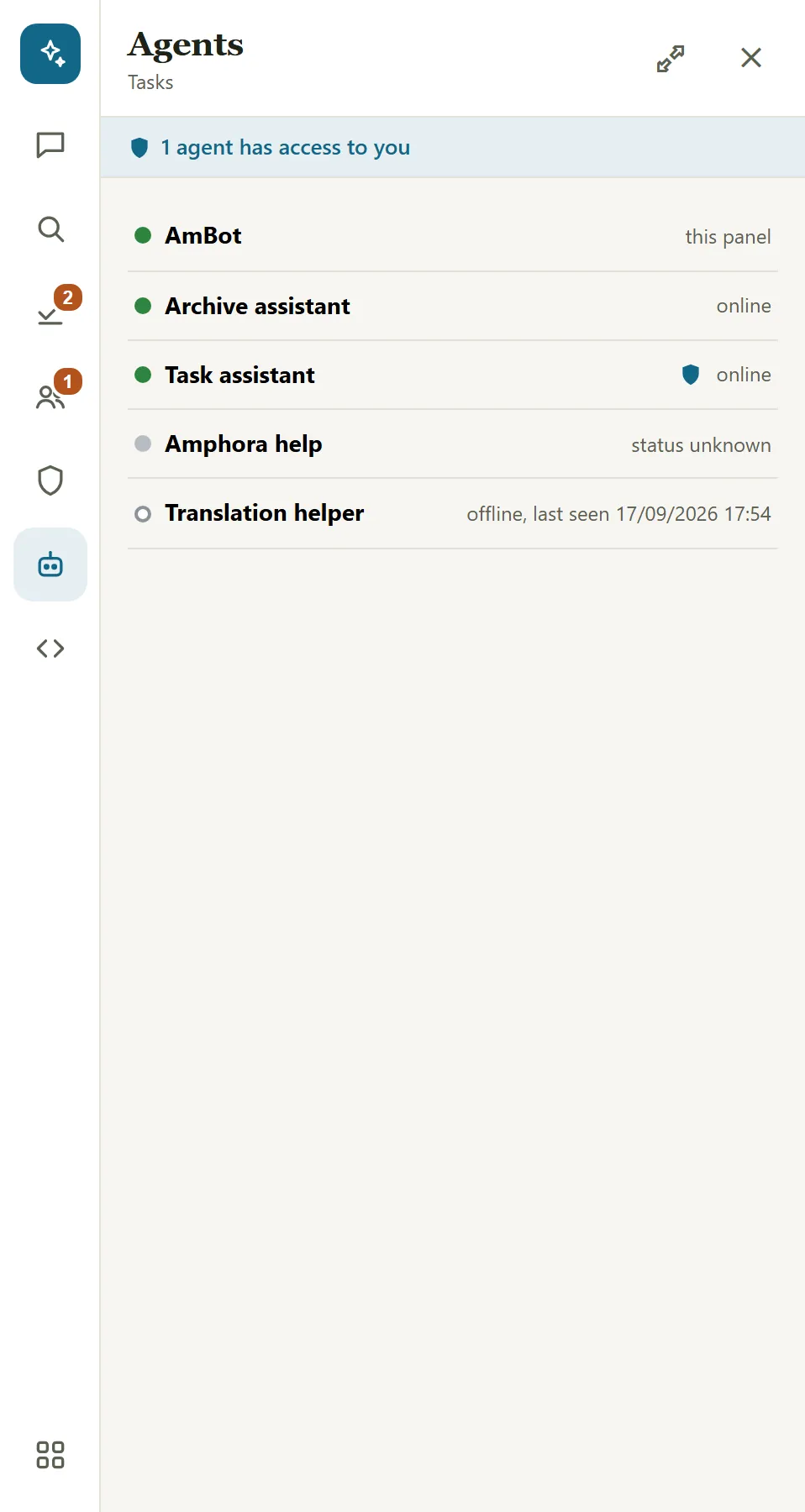
Your organisation's agents (bots) and their status: a green dot is online, grey is status unknown, an empty circle is offline (with the time last seen). A shield mark shows that the agent has access from you.
When an agent cannot be opened, the reason is shown: "not open to you" or "needs an ID-card, Mobile-ID or Smart-ID login".
People - messages to colleagues
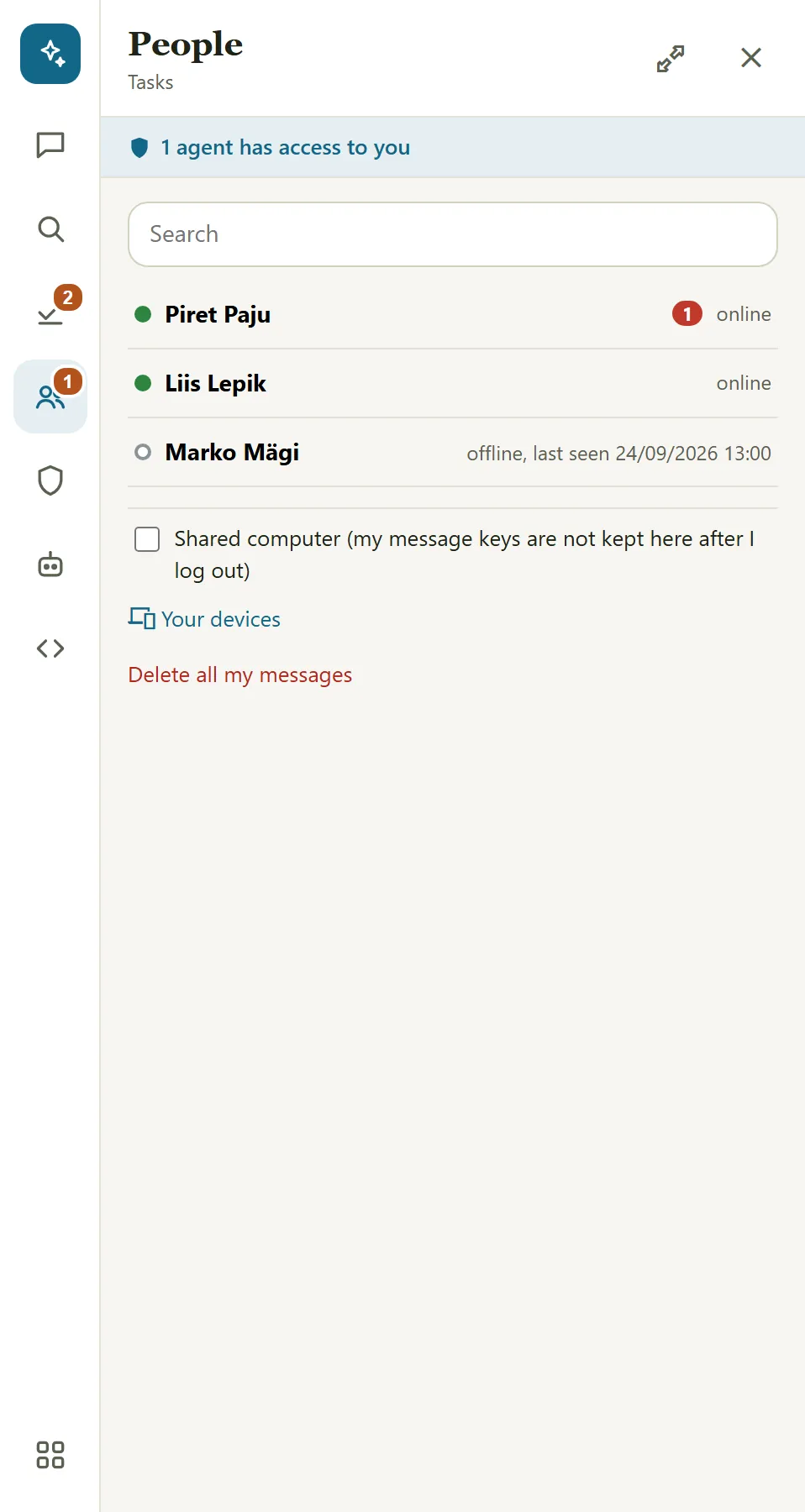
The People panel lists the active users of your organisation. A green dot means the colleague is online; a number shows unread messages. Two letters are enough to search.
Messages are end-to-end encrypted. A message is encrypted in your browser and only the sender and the recipient can read it. Amphora stores messages only in encrypted form and deletes them after 7 days.
- To write to a colleague, log in to Amphora with ID-card, Mobile-ID, Smart-ID or GovSSO. With any other login the panel tells you this is needed.
- The colleague must have logged in the same way and opened AmBot at least once. If they have not, the panel tells you why the message cannot be sent.
- A message reaches the colleague within seconds. Up to 4000 characters; files cannot be sent to colleagues.
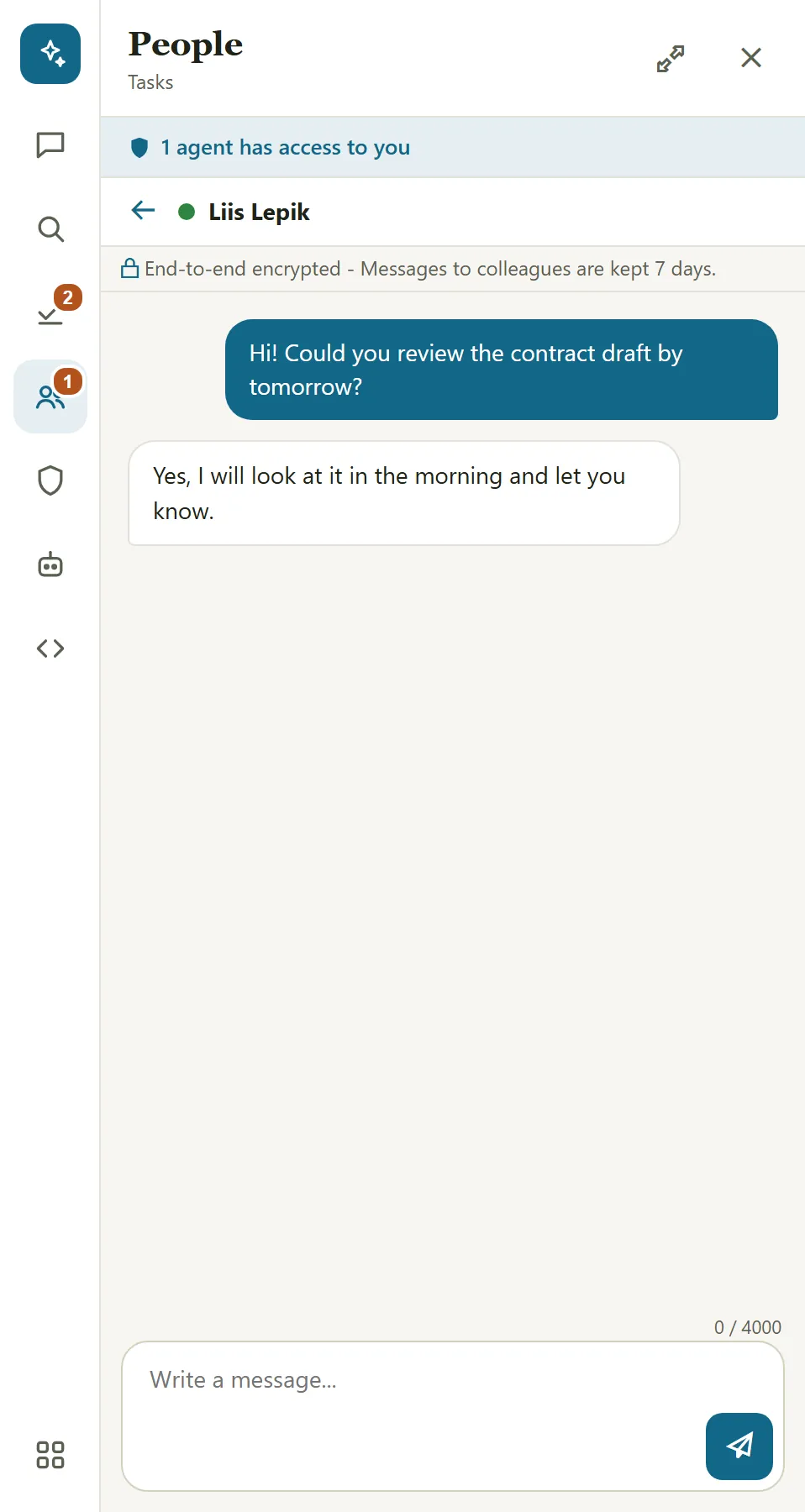
New device. Your browser is a "device". When a colleague has a new device (for example a new computer), the panel shows it before your message is encrypted for it. Check it and press Send to these devices. If you do not recognise the device, press Cancel and ask the colleague.
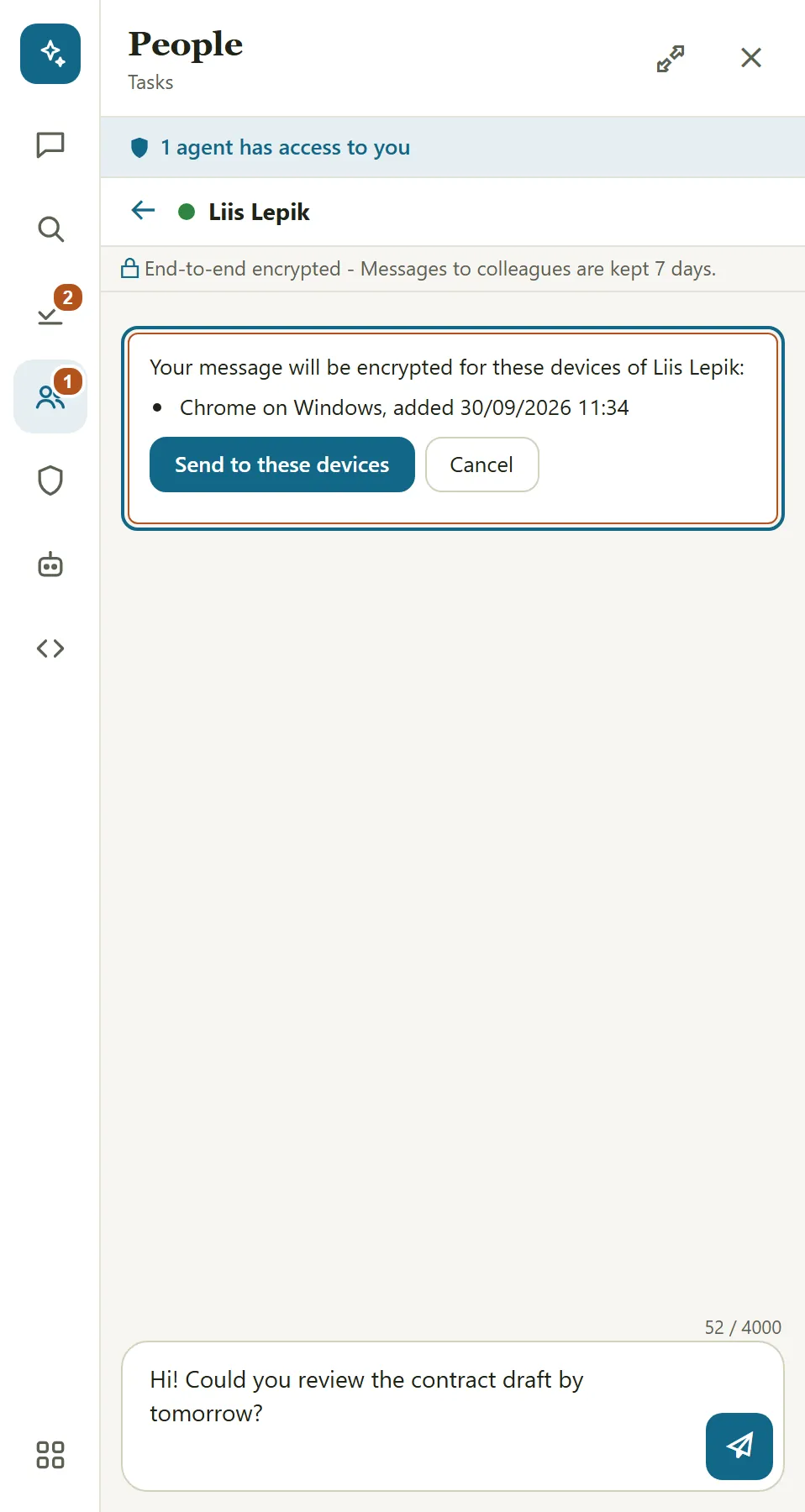
Your devices. At the bottom of the People panel:
- Your devices - the browsers your messages are encrypted for. Remove a device you do not recognise or no longer use.
- Shared computer - turn on for a computer others use too: the keys in this browser are removed when you log out. The checkbox appears once this browser is registered as a device (after your first encrypted conversation).
- Delete all my messages - deletes the messages you sent and hides the messages sent to you; your chats with agents lose their text as well. This cannot be undone.
Important
A new device cannot see old messages: they were encrypted for your earlier devices. Such messages are marked "Encrypted for your other devices only".
If a message carries a warning ("This message failed its check and is not shown" with the reason), the message was changed or does not come from the sender. Its content is not shown. Report this to your administrator.
API (advanced)
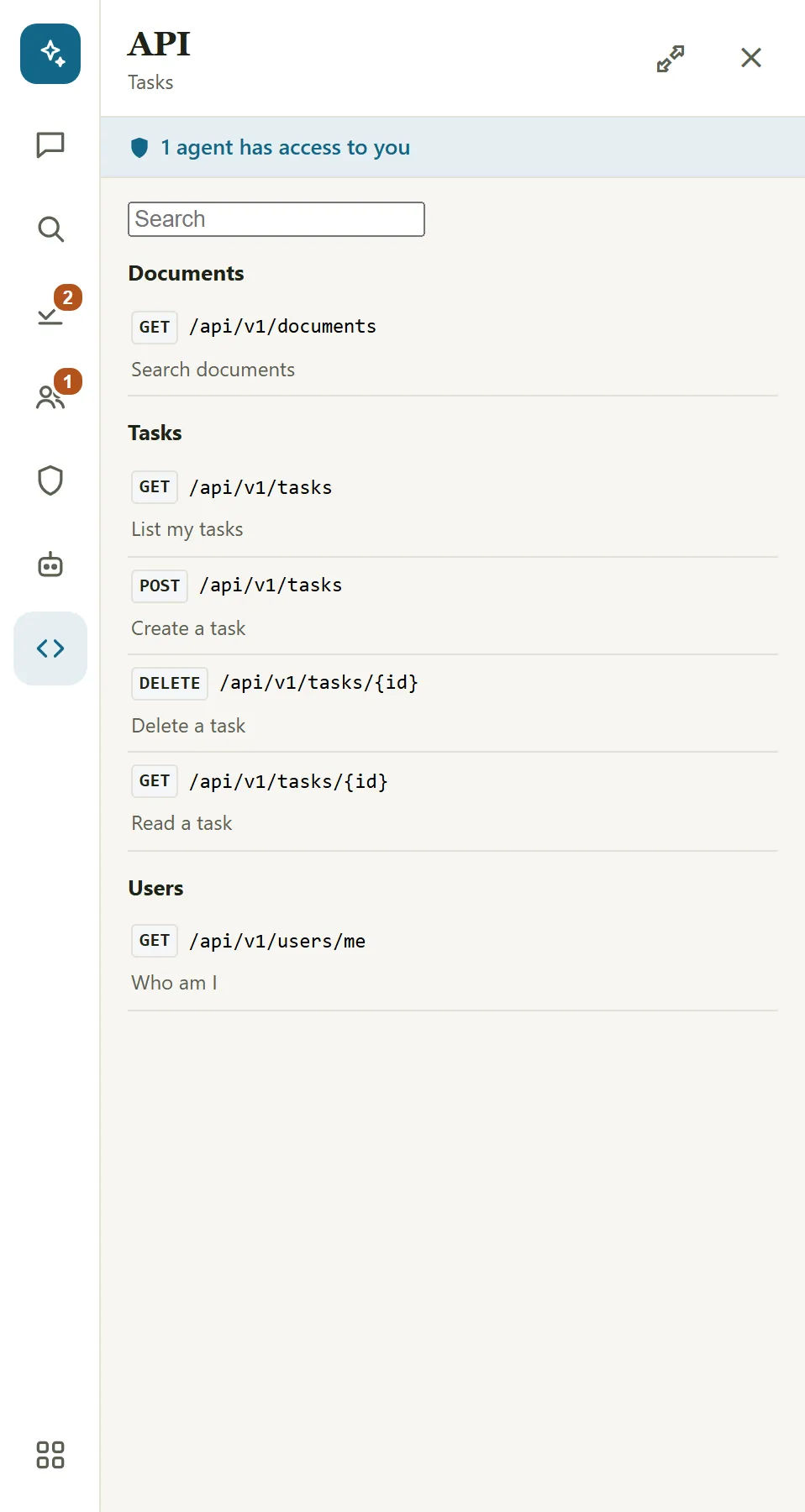
The API panel lists the Amphora interfaces. You can run read requests from a form and see the result as a table; changes always go as a proposal to Approvals.
If something does not work
| What you see | What to do |
|---|---|
| "Connect your Claude subscription to chat with AmBot." | connect Claude (see Chatting with AmBot) |
| "To write to colleagues, log in with ID-card, Mobile-ID or Smart-ID." | log out and log in again with strong authentication |
| "... has not opened AmBot after an ID-card, Mobile-ID or Smart-ID login yet" | the colleague must open AmBot once after a strong login |
| "Encrypted messages are not set up on this server yet." | contact your administrator |
| "Your Amphora session has ended - reload the page" | reload the page and log in |
| "Document search is not set up for this organisation yet." | contact your administrator |
| "The server key that vouches for devices has changed." | if your administrator has announced it, press Accept the new key; otherwise ask your administrator first |
| "Encrypted messages do not work in this browser." | contact your administrator |
| "Too many messages - wait a minute and try again." | wait a minute |
| "This conversation is kept by bot-hub and cannot be cleared here." | contact your administrator |
| No microphone button | speech to text is not set up on this server, or does not support your Amphora language |
| "The recording is too long." | speak for shorter - up to 60 seconds at a time |
Last modified: 13 October 2026, 15:49:15