Public View (document register)
Contents
- Introduction
- Page layout
- Searching
- Tabs and columns
- Browsing results
- Document view
- File preview and download
- Documents with access restrictions
- Submitting a request for information
- Command palette and keyboard shortcuts
- Recently viewed
- Adjusting the view
- Old links and the old public view
Important
The public view is in Estonian only. This guide quotes the Estonian labels as they appear on the page, with the English meaning in brackets.
Introduction
The public view is an organization's public document register: anyone can see the organization's published documents, legal acts, contracts, letters and cases, and submit a request for information about a document with an access restriction. No login is needed.
The address has the form atp.amphora.ee/organisation/ (for example a municipality's own). The organization's website usually links to it.
The public view shows only what the organization has made public in Amphora. What is published, and how, is set by the organization's administrator - see Public View (administrator).
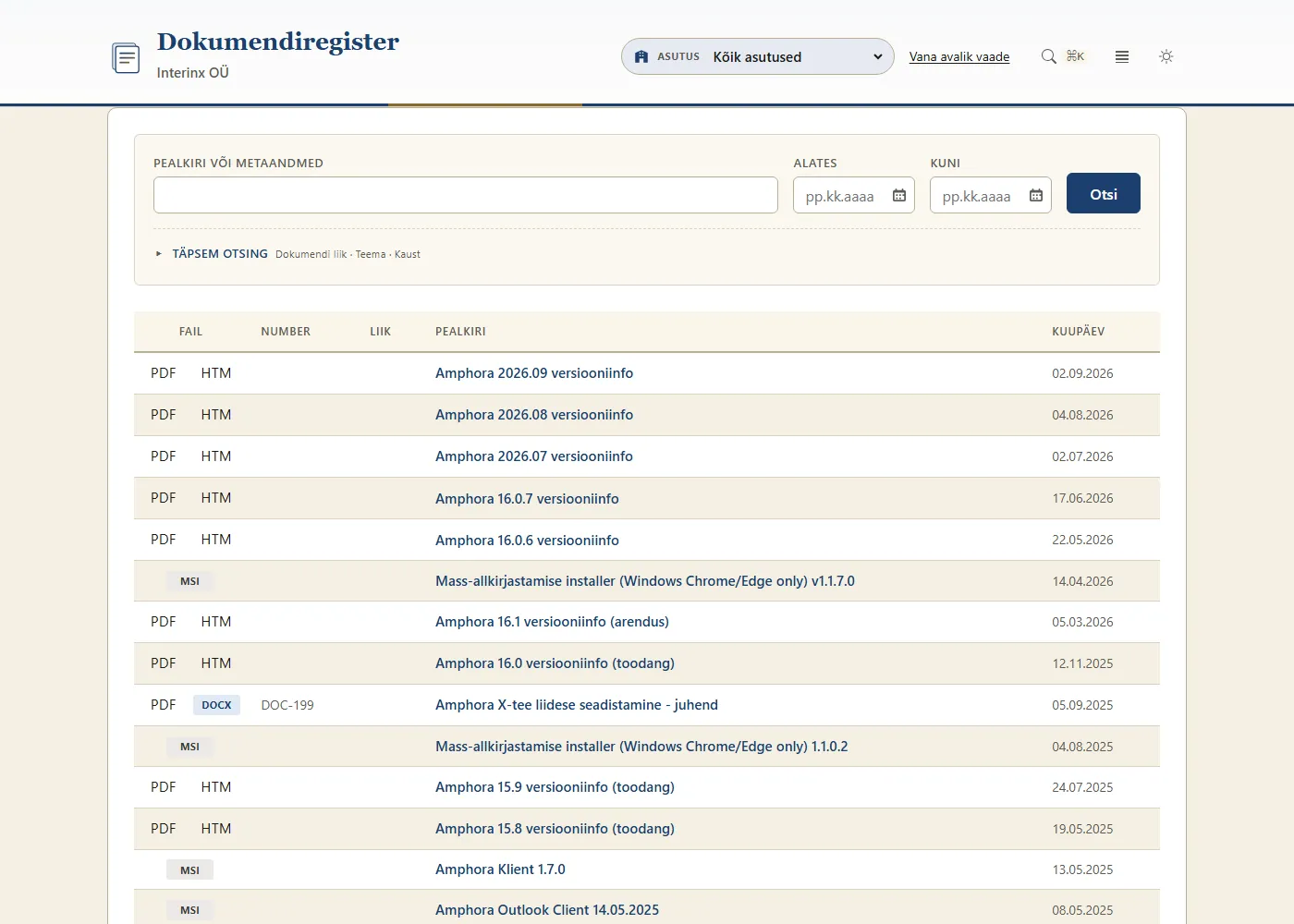
Page layout
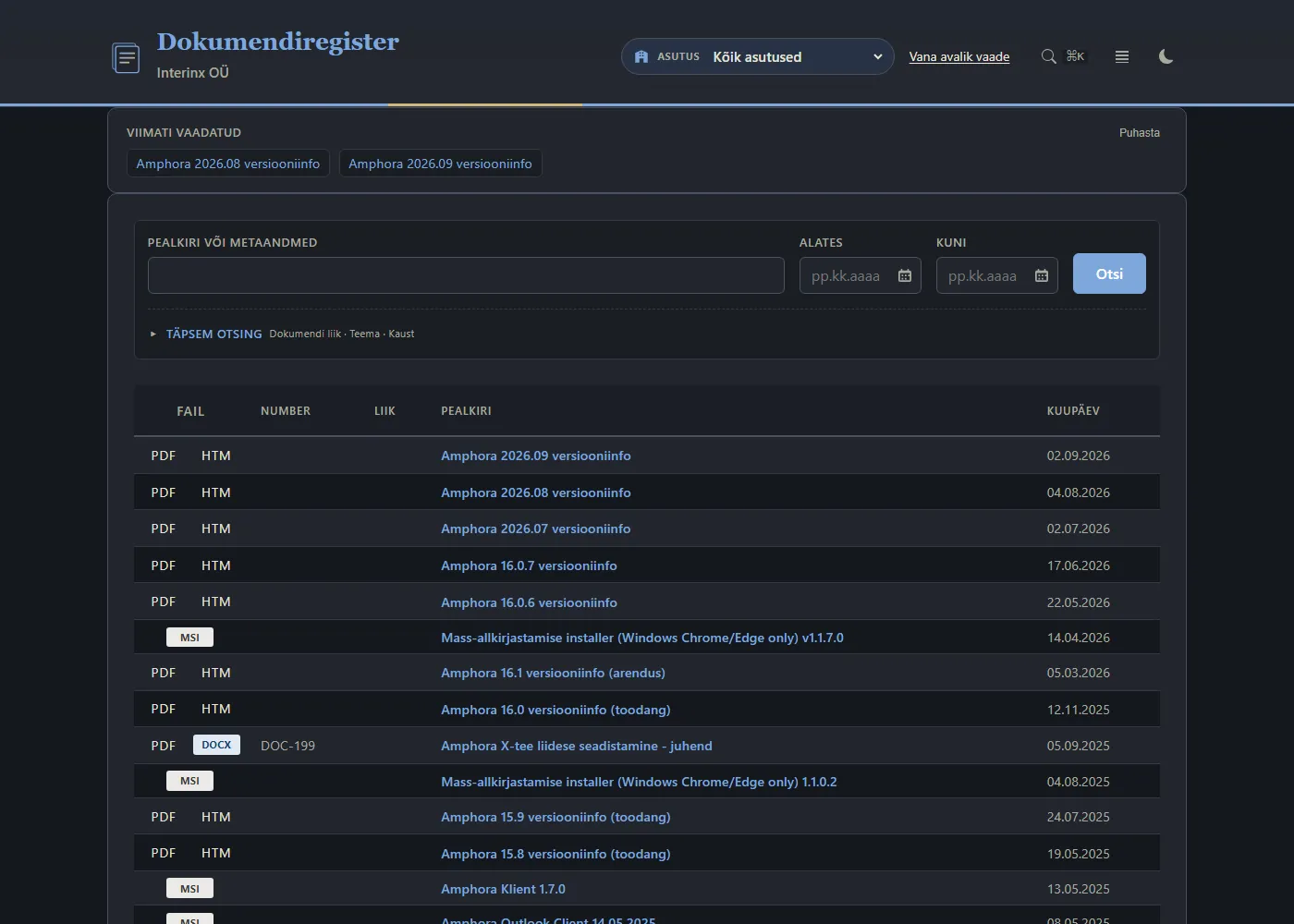
Header
- Dokumendiregister (Document register) and the organization's name - always takes you to the front page.
- Asutus (Organization) - when the register holds several organizations (for example sub-organizations), choose whose documents to show. Kõik asutused (All organizations) shows all. If the organization has a default organization set, the register opens with that one.
- Vana avalik vaade (Old public view) - a link to the previous public view (if the organization still has it).
- Three buttons: the command palette (Ctrl+K), display density and the dark/light theme (see Command palette and keyboard shortcuts and Adjusting the view).
Content
- Tabs - records are grouped by kind (see Tabs and columns).
- Search block - the search field, a date range and Täpsem otsing (Advanced search).
- Viimati vaadatud (Recently viewed) - records you opened last (see Recently viewed).
- The results table and the page selector.
Footer
- The organization's contacts: Infotelefon (phone) and E-post (e-mail). When an organization is selected in the header, its contacts are shown.
- Portaali abi (Portal help): Kasutusjuhend (User guide), Ligipääsetavus (Accessibility), Andmekaitse (Data protection) and Teabenõue (Request for information; when the organization has set an e-mail address).
- Õiguslik alus (Legal basis): under the Public Information Act, the public view publishes only the metadata and documents of records set as public.
Searching
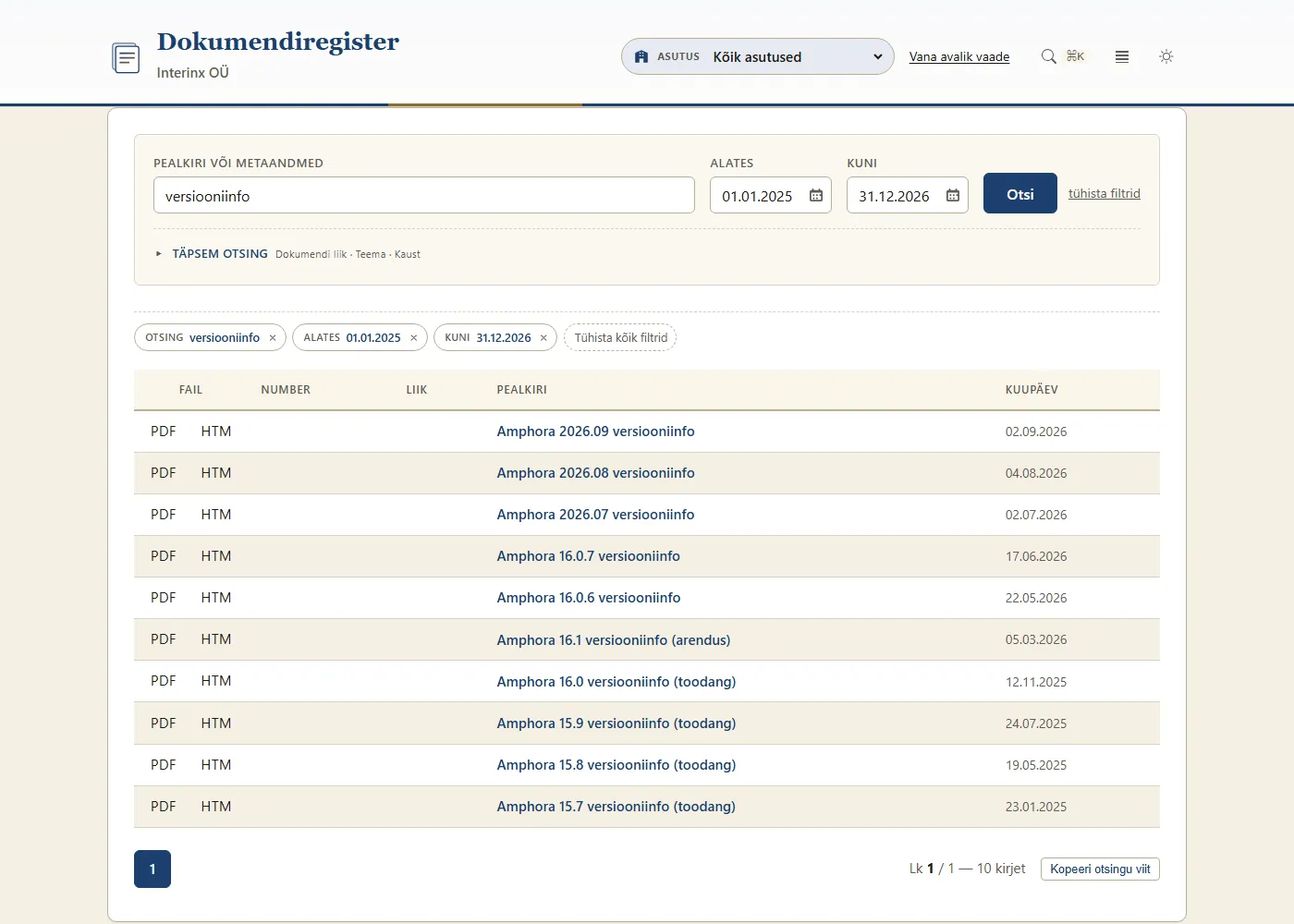
- Type a word, part of a word or a number in the Pealkiri või metaandmed (Title or metadata) field and press Otsi (Search) or Enter.
- Optionally choose a date range: Alates (From) and Kuni (To), as dd.mm.yyyy, for example 22.04.2026; the calendar button opens a calendar.
Search finds records whose title or number (registry number) contains the text - case does not matter and part of a word is enough. For example, "ehit" finds both "Ehitusluba" and "ehitusloa väljaandmine". On the Kõik (All) tab it also searches the document type and the party; on the legal acts, contracts and letters tabs also the party or sender/recipient. File contents are not searched.
Advanced search
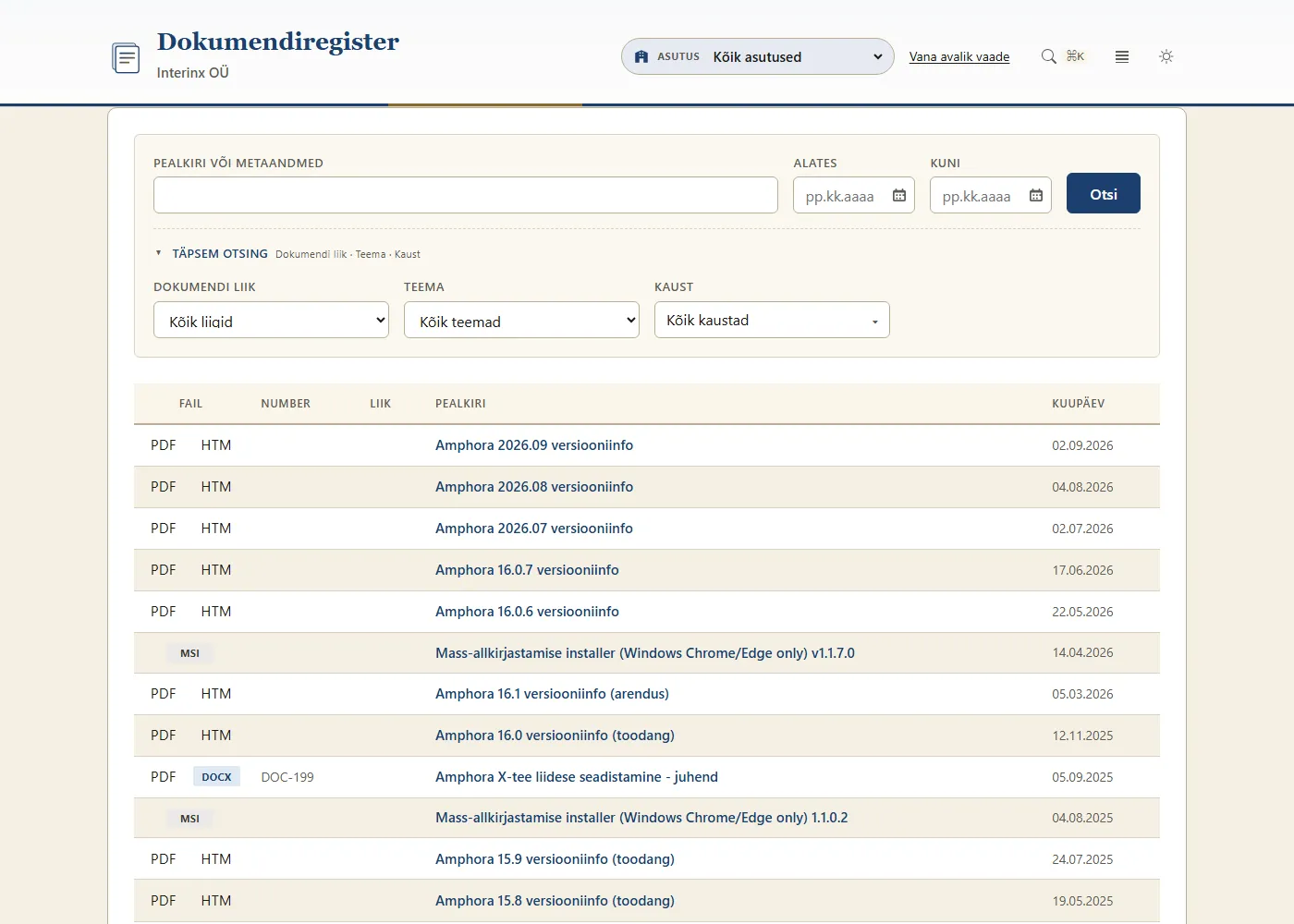
Press Täpsem otsing to see more filters:
- Dokumendi liik (Document type; Kõik liigid = all types);
- Teema (Topic; Kõik teemad);
- Kaust (Folder; Kõik kaustad) - you can also type the folder name;
- on the Õigusaktid (Legal acts) tab also Akti andja (Issuer; Kõik andjad);
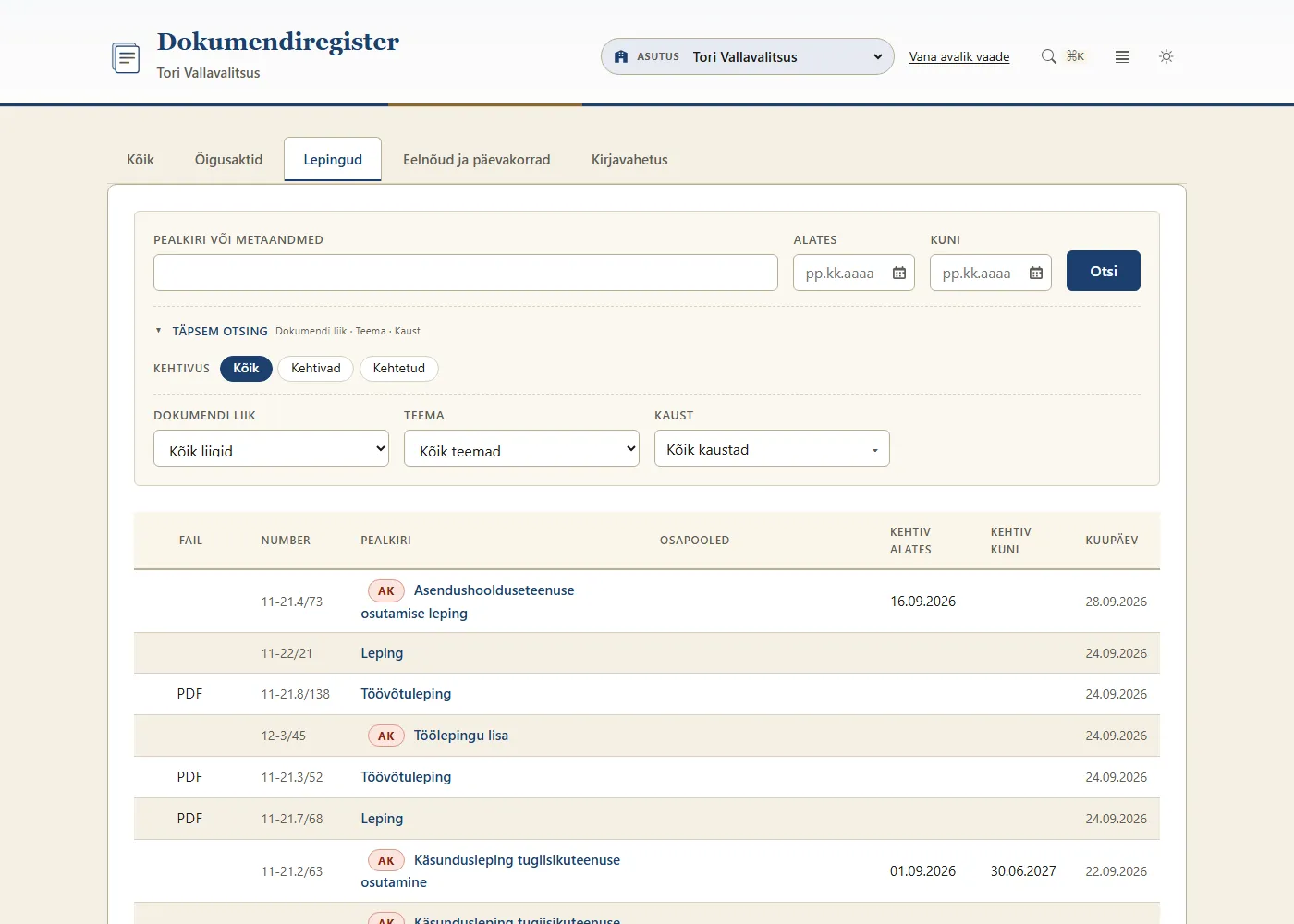
- on the Lepingud (Contracts) tab Kehtivus (Validity): Kõik, Kehtivad (valid), Kehtetud (expired);
- on the letters tab Suund (Direction: Kõik, Saabunud received, Saadetud sent) and Vastamine (Reply: Kõik, Vastatud answered, Vastamata unanswered).
On every tab except Kõik, Advanced search is open from the start; on Kõik it opens by itself when one of its filters is set.
Active filters
The selected filters appear as tags under the search form (for example Otsing, Liik, Teema, Kaust, Alates, Kuni). A tag's cross removes only that filter; Tühista kõik filtrid (Clear all filters) removes them all.
If Alates is later than Kuni, the public view says the date range is reversed - swap the dates. When nothing is found, the table is replaced by Ühtegi kirjet ei leitud. (No records found.)
Some organizations show no list until a search word is entered or a filter is chosen: the table is then replaced by "Dokumentide leidmiseks sisestage otsingusõna või valige filter ja vajutage Otsi." (To find documents, enter a search word or choose a filter and press Otsi.)
Tabs and columns
The tabs group records by kind. Tab names can differ between organizations, and a tab with no records is not shown. Default names and columns:
| Tab | Columns |
|---|---|
| Kõik (All) | Fail, Number, Liik, Pealkiri, Kuupäev |
| Õigusaktid (Legal acts) | Fail, Akti nr, Pealkiri, Akti andja, Liik, Akti kuupäev, Kehtiv alates |
| Lepingud (Contracts) | Fail, Number, Pealkiri, Osapooled, Kehtiv alates, Kehtiv kuni, Kuupäev |
| Eelnõud ja päevakorrad (Drafts and agendas - cases) | Number, Liik, Pealkiri, Kuupäev |
| Kirjavahetus (Correspondence) | Fail, Viit, Pealkiri, Saaja / Saatja, Vastutaja, Suund, Kuupäev |
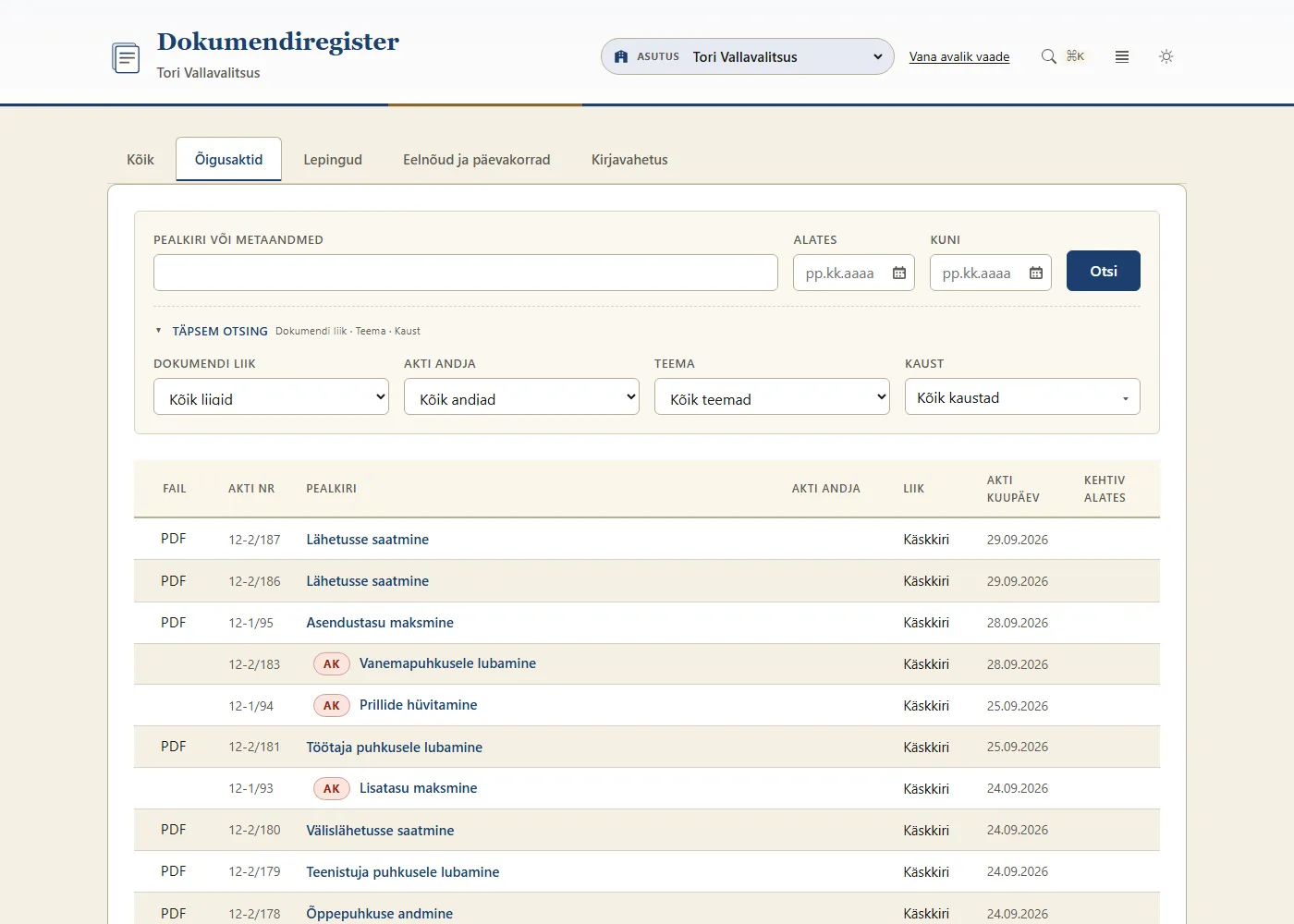
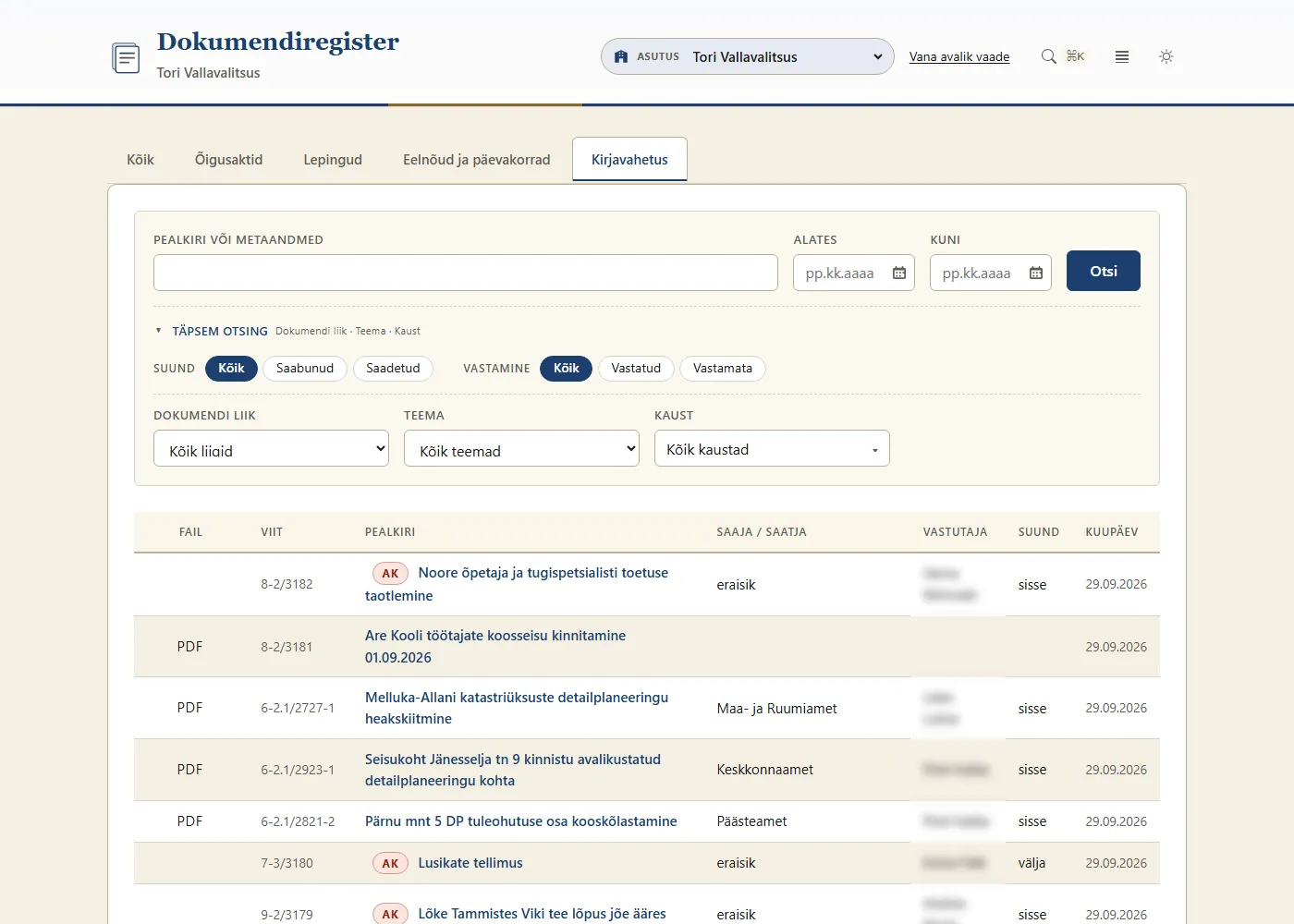
Number, Akti nr and Viit are the record's registry number - see the Glossary.
Browsing results
- Results are sorted by date by default, newest first.
- Sorting: press a column heading - the first press sorts ascending, the second descending, the third restores the default order. The legal acts' Liik and Akti andja and the contracts' Osapooled columns cannot be sorted.
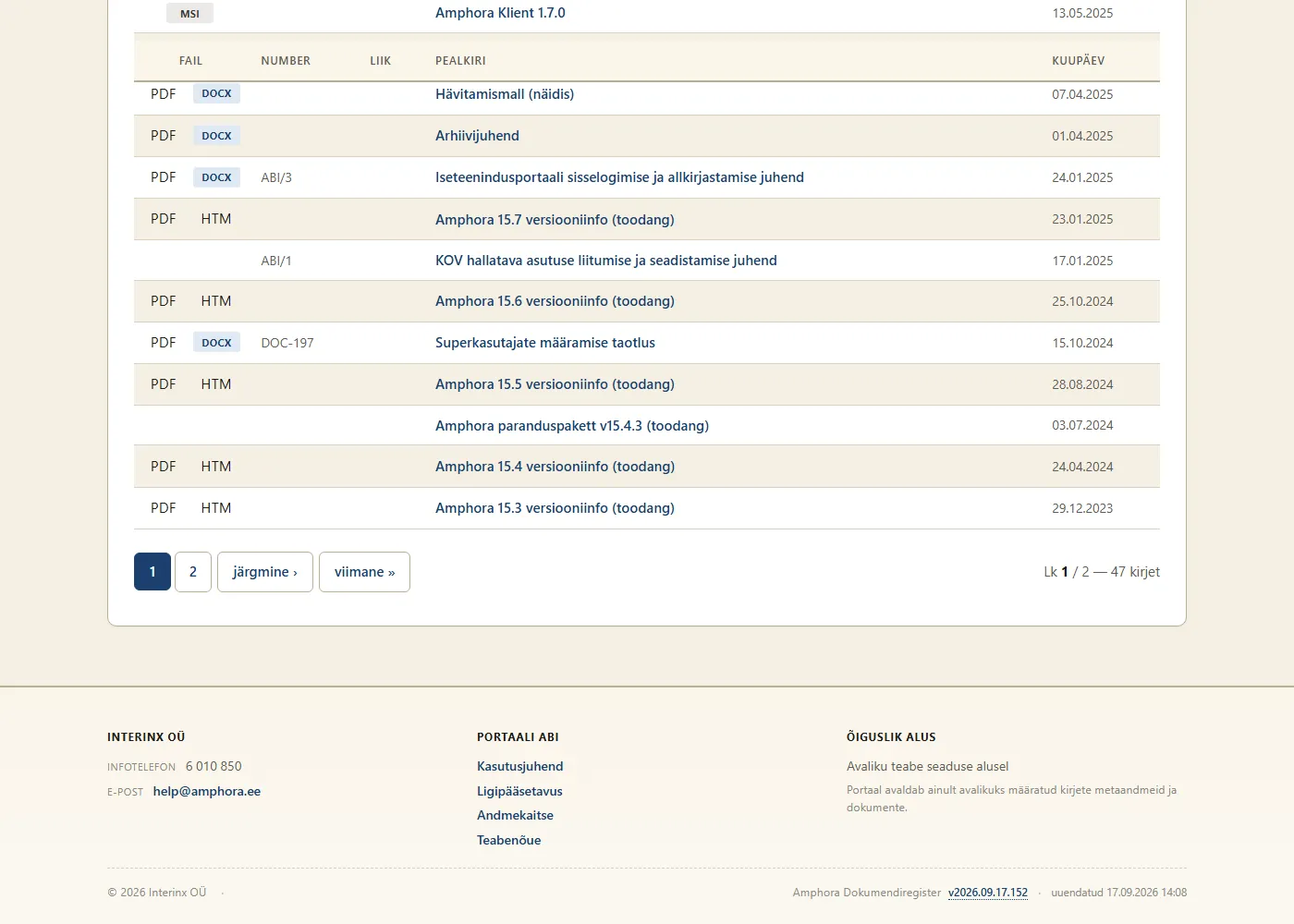
- The Fail (File) column has file buttons: PDF and the other buttons open a preview; a file that cannot be previewed is downloaded (see File preview and download).
- The AK mark before the title shows a record with an access restriction (see Documents with access restrictions).
- Pages: « esimene (first), ‹ eelmine (previous), page numbers, järgmine › (next), viimane » (last).
- Kopeeri otsingu viit (Copy search link) copies the link to the current search with all its filters - send it by e-mail or put it on a website, and it opens exactly the same result.
Document view
Press a record's title to open the document view.
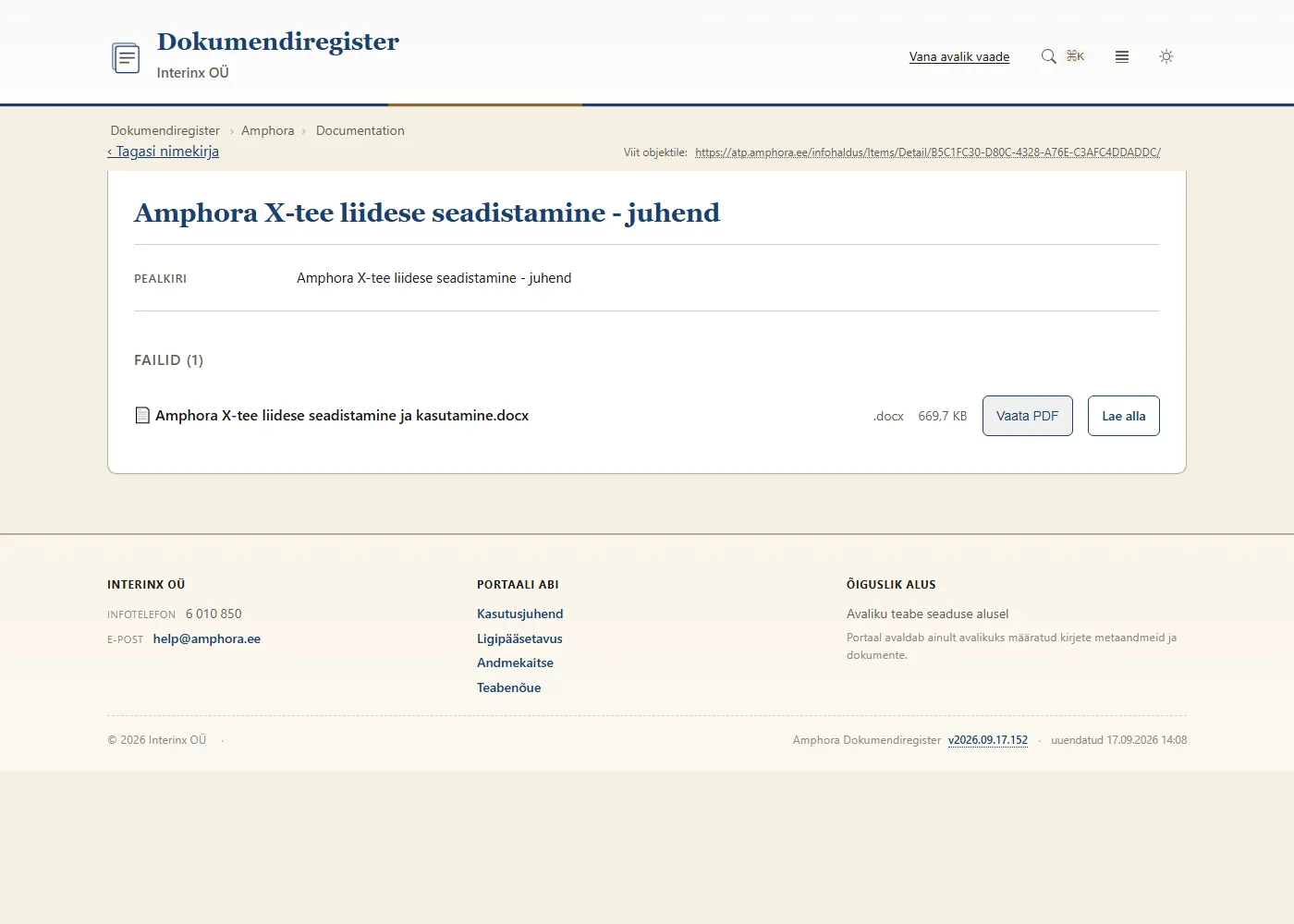
- Viit objektile (Link to this record) - the document's permanent link. It always opens the current (latest) version of the document, even if a new version is made later. A copy icon appears next to the link, the number and e-mail addresses when the mouse is over them.
- Metadata - for example Number, Liik (type), Registreeritud (registered), Registreerija (registrar), Üksus (unit), Teema (topic), Kaust (folder), Dokumendi kuupäev (document date), Kehtiv alates/kuni (valid from/to), Osapool (party), Sisukokkuvõte (summary), Märksõnad (keywords). Which fields are shown depends on the document's form and the organization's settings.
- Saatmine ja menetlus (Sending and handling) - the letter's direction, sender and recipient, author, Vastutaja (responsible person), time sent and received, Vastamise tähtaeg (reply deadline), time answered, Seosviit (the other party's number - see the Glossary), delivery method and signers.
- The panels Vastutaja (Responsible person), Osapooled (Parties), Asjad (Cases the document belongs to), Seosed (Related documents and letters), Saatmine ja edastused (Deliveries with status and resolution) and Redaktsioonid (Versions) - when the organization has made them public on the form and they have data. A case's view also has Seotud dokumendid (Related documents).
- Files - see File preview and download.
- Tagasi nimekirja (Back to list) returns to the same tab, search, filters and page - even after you have opened related documents in between. If the document was opened from a case's view, it first returns to the case. If the document was opened from a direct link, it goes to the register's front page.
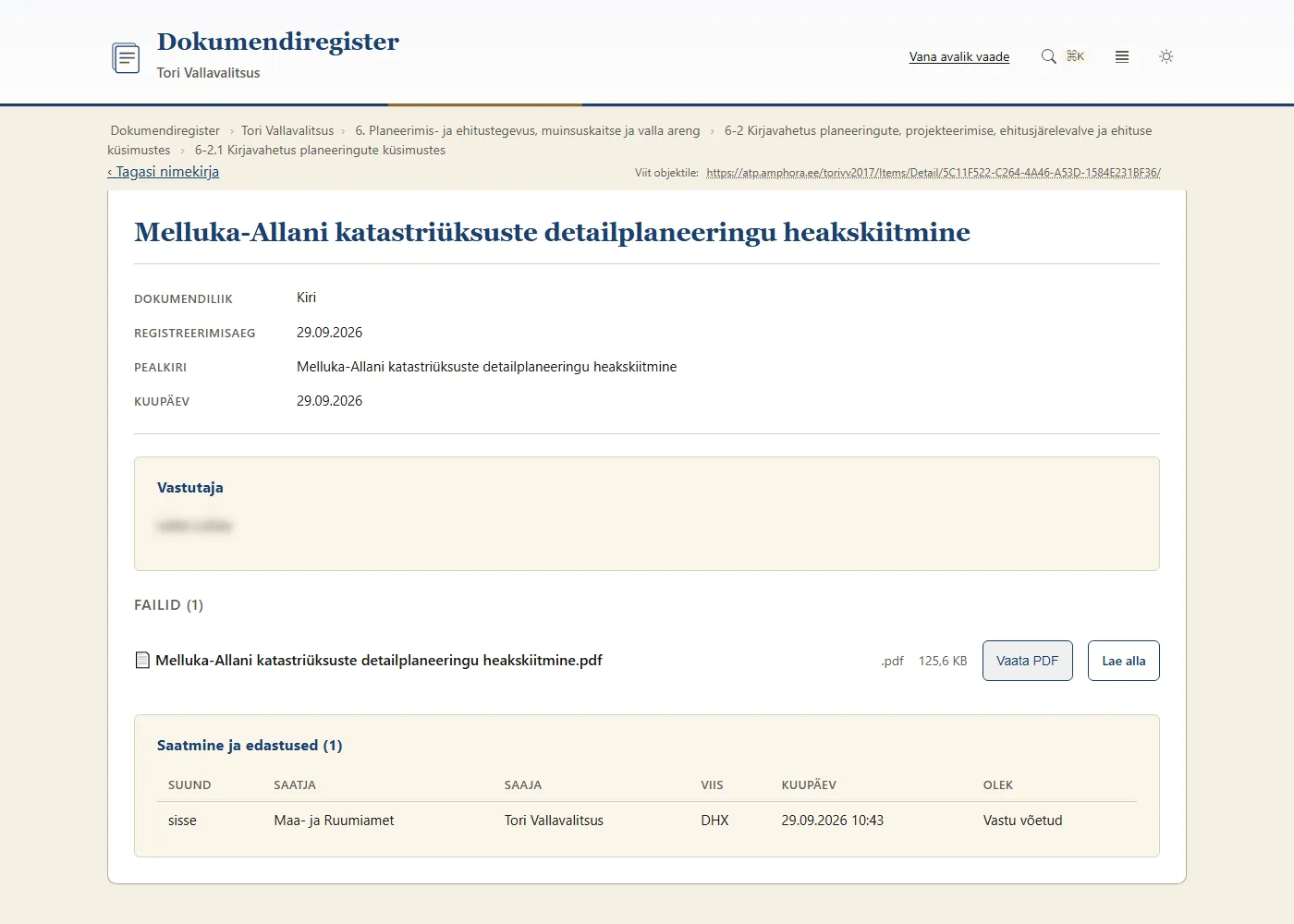
File preview and download
- PDF, HTML, image and text files (for example TXT, CSV, SVG) can be previewed in the public view: in the document view with Vaata PDF, Vaata HTML or Eelvaade (Preview), in the list with the file button (for example PDF). In the preview window, ↗ opens the file in a new tab; Esc or ✕ closes the window.
- When a PDF copy of the document exists (for example of a Word file), the list shows two buttons: PDF opens the preview and the other (for example DOCX) downloads the original file. In the document view, such a file's row has Vaata PDF and Lae alla.
- Lae alla (Download) saves the file to your computer. Word, Excel and other office files are not previewed; they are downloaded.
- A file marked Allkirjastatud (Signed) is a digitally signed container (.asice, .asics, .bdoc, .ddoc, .edoc). It is downloaded whole; open it on your computer with the DigiDoc4 application.
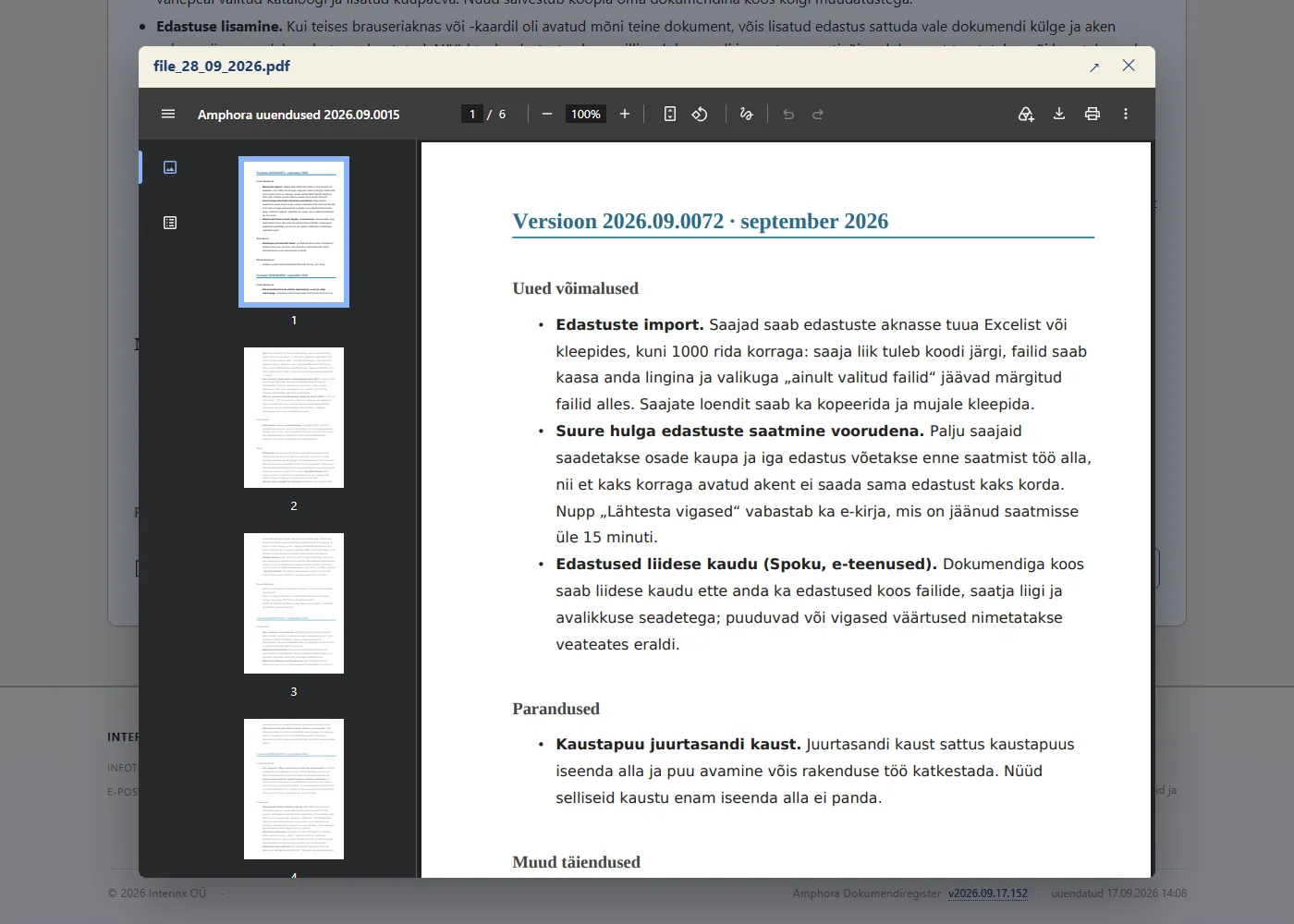
Documents with access restrictions
Records with an access restriction carry the AK mark (asutusesiseseks kasutamiseks - for internal use). Only their basic data, folder location and the restriction's data are shown; files and extra panels are not shown.
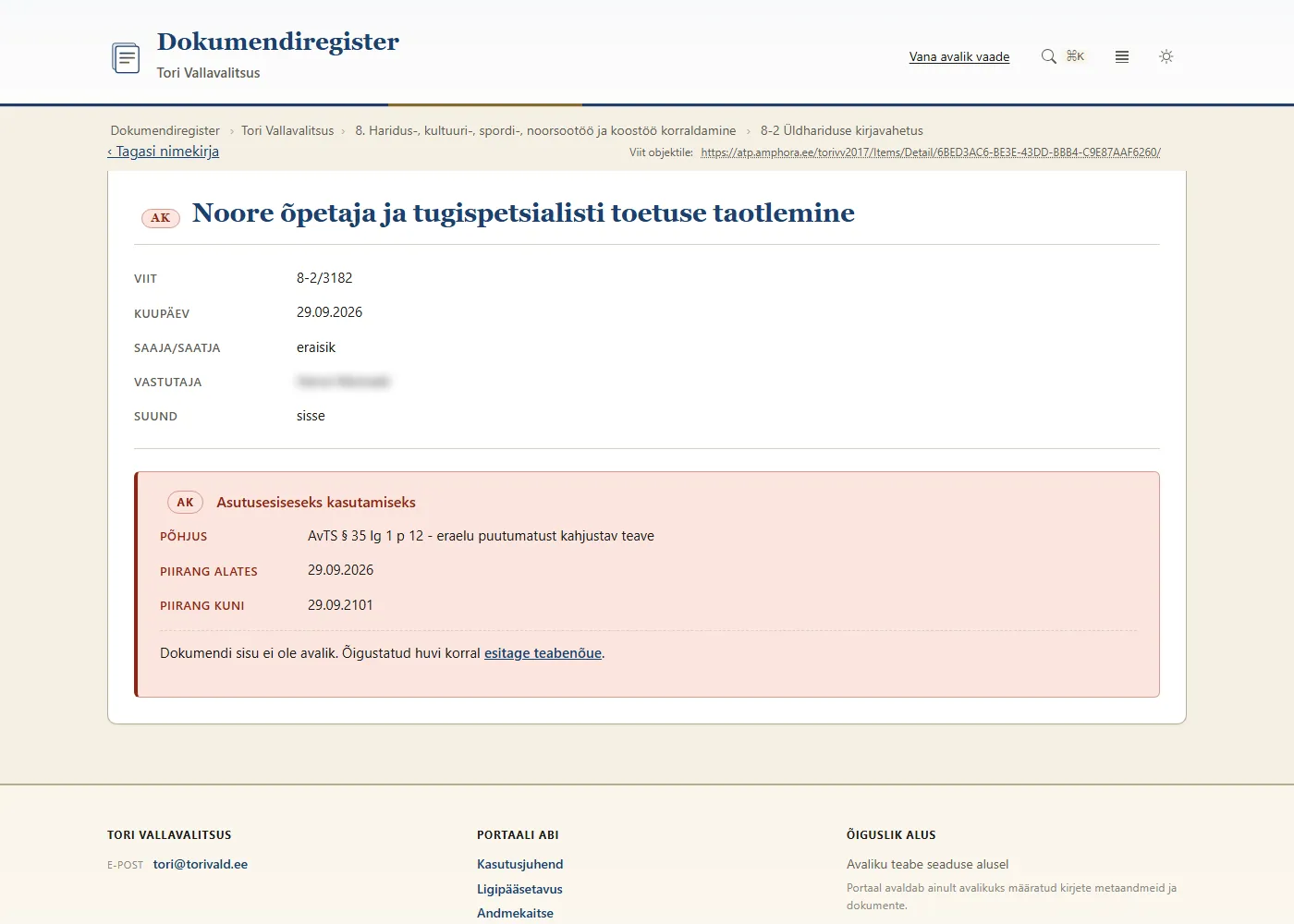
In the document view, below the metadata, is the restriction block headed Asutusesiseseks kasutamiseks (For internal use):
- Põhjus (Reason) and Piirangu alus (Legal basis);
- Piirang alates and Piirang kuni (Restricted from / until);
- Piirangu kehtestaja (Set by) and Piirangu viit (Restriction reference).
Below it is the text "Dokumendi sisu ei ole avalik." (The document's content is not public.) and the link esitage teabenõue (submit a request for information; see Submitting a request for information). If the organization has not set up the request form, there is an instruction to send the request to the organization instead - its contacts are in the page footer.
A restricted record's basic data are the registry number, type, title and date; for a legal act also the act date and valid from, for a contract valid from and to; for a letter also the other party's number, recipient/sender, delivery method, responsible person, reply deadline and direction. Those with a value are shown. Instead of a private person's name there is usually eraisik (private person).
Submitting a request for information
If you have a legitimate interest, you can submit a request for information to the organization about a document with an access restriction. A general request (not about a specific document) can be submitted with the Teabenõue link in the footer - it goes to the organization's general e-mail address.
- Open the document and press esitage teabenõue.
- The top of the form shows the document the request is about (for example Viit, Kuupäev, Piirang).
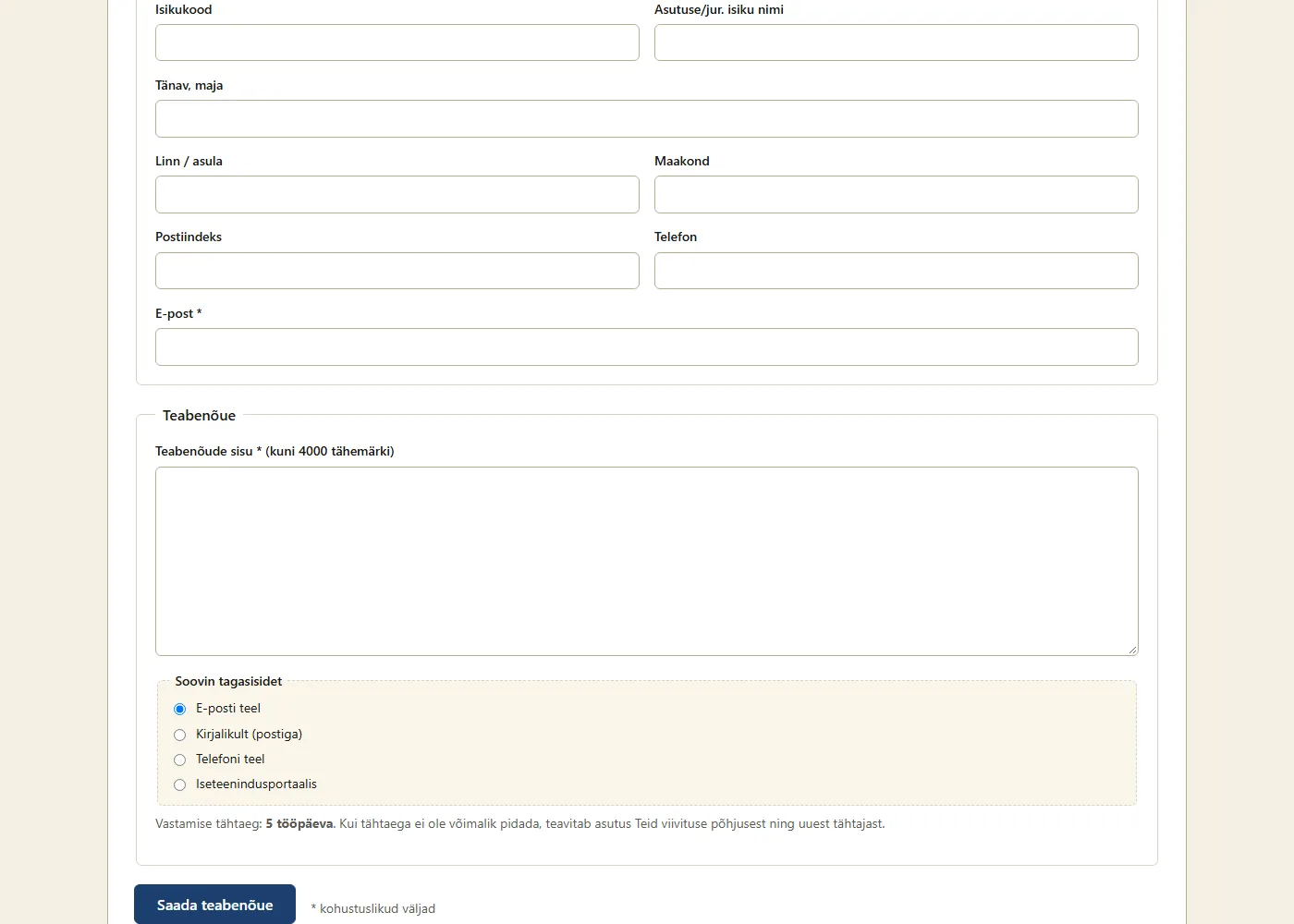
- Fill in Saatja andmed (Sender's details): Eesnimi (first name), Perekonnanimi (surname) and E-post (e-mail) are required; you can also add your personal identification code, organization name, address and phone.
- Write the Teabenõude sisu (Request; required, up to 4000 characters).
- Under Soovin tagasisidet (I want a reply), choose how: E-posti teel (by e-mail; the default), Kirjalikult (postiga) (by post), Telefoni teel (by phone) or Iseteenindusportaalis (in the self-service portal).
- Press Saada teabenõue (Send request).
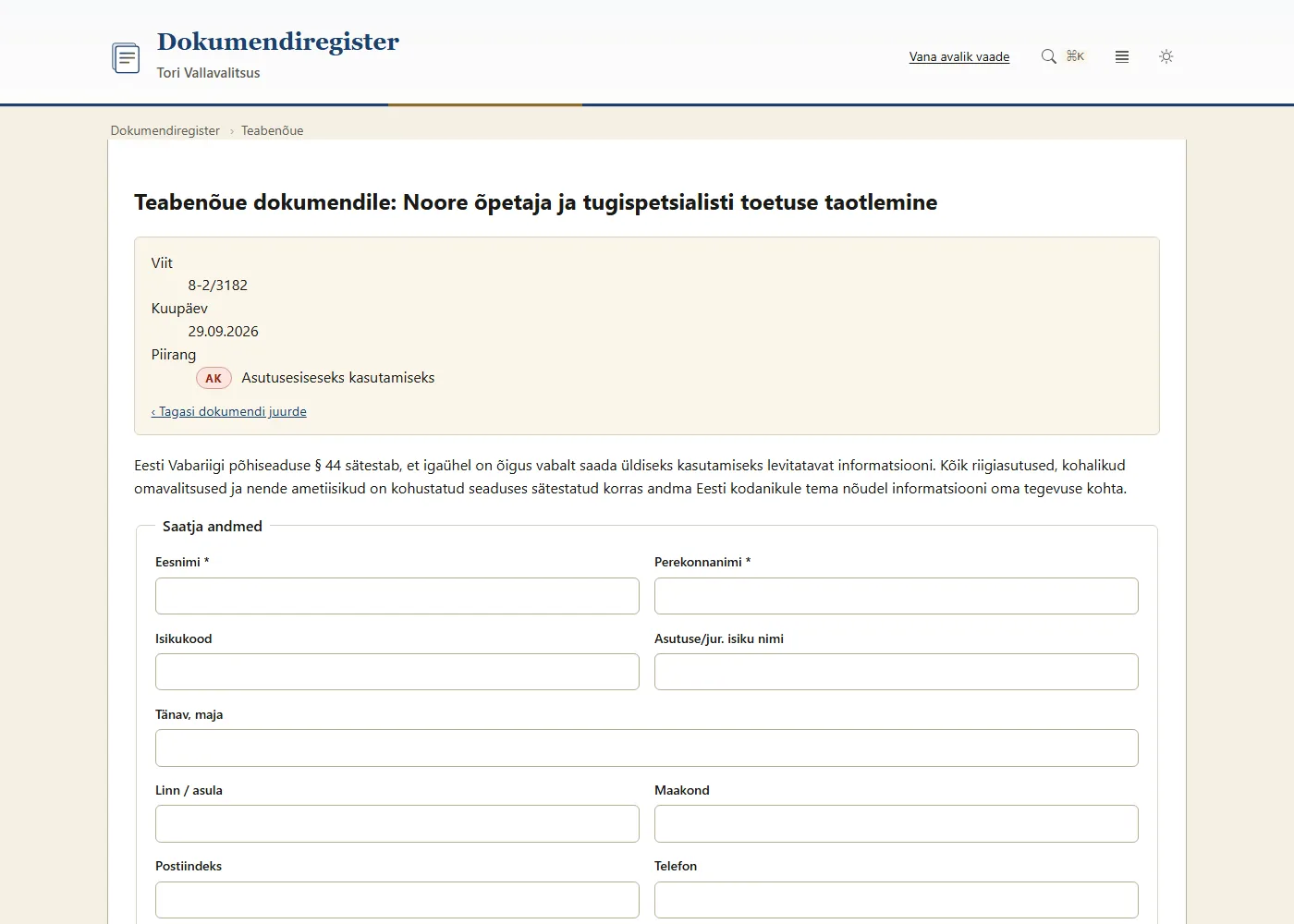
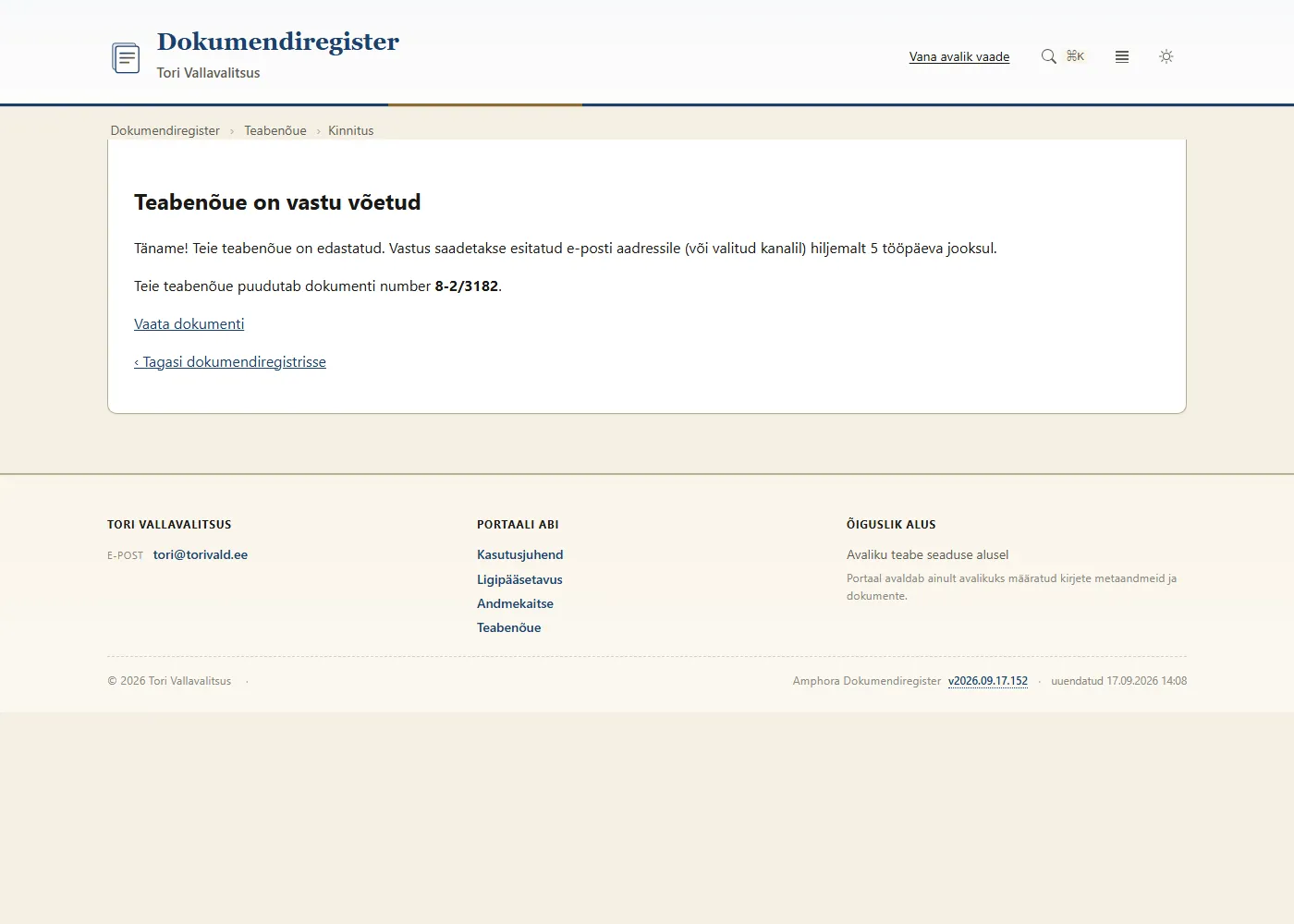
The request is sent to the e-mail address of the organization (unit) the document belongs to. The confirmation page Teabenõue on vastu võetud (Request received) shows the number of the document the request is about - keep it. The reply deadline is 5 working days; if it cannot be met, the organization tells you the reason for the delay and the new deadline.
Command palette and keyboard shortcuts
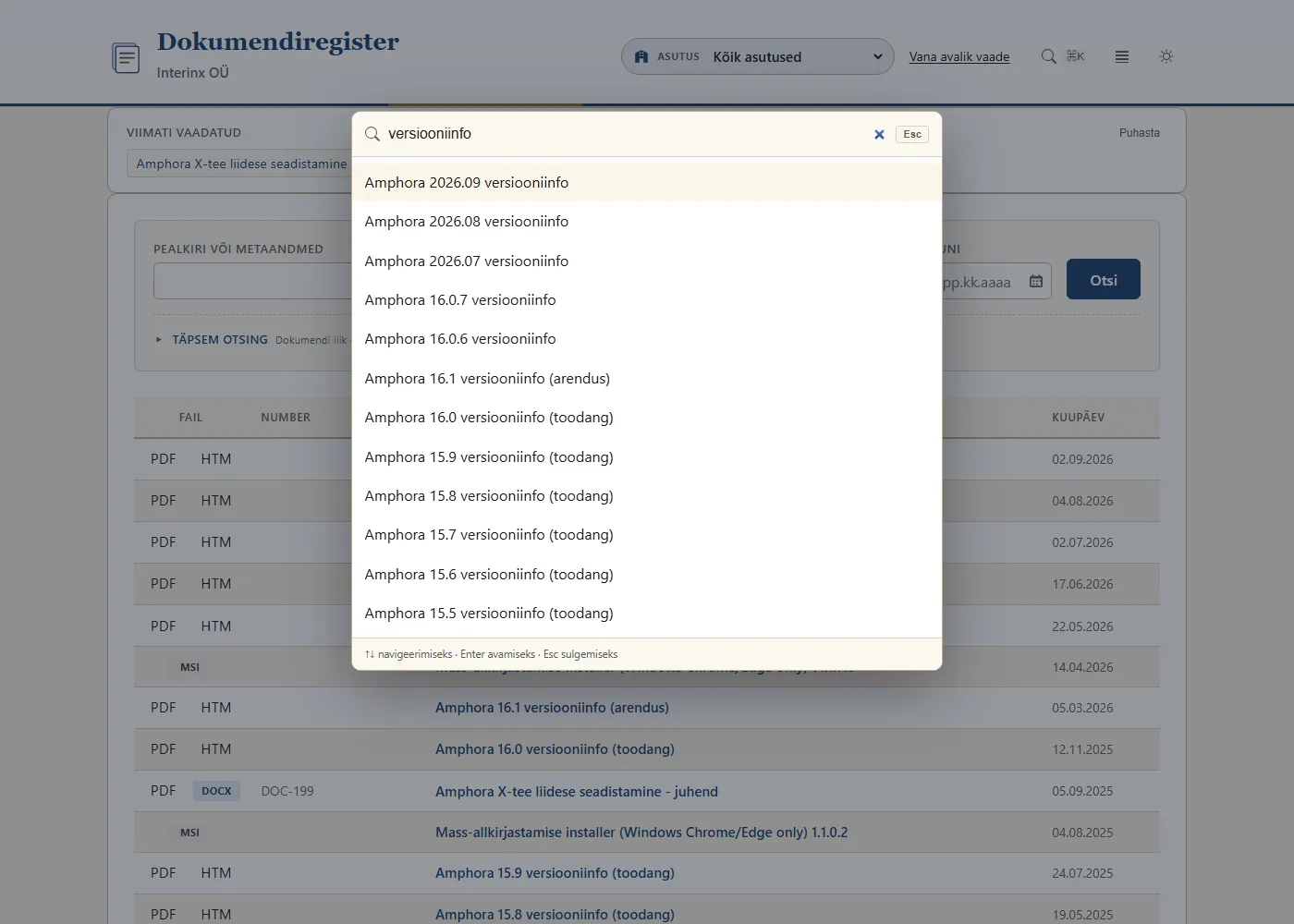
The command palette (Ctrl+K, ⌘+K on a Mac, or the header button) is a quick search: type a title or number, choose a result with the arrow keys, and Enter opens the document. An empty palette lists your recently viewed records.
| Key | Action |
|---|---|
| Ctrl+K / ⌘+K | open the command palette |
| / | move the cursor to the search field |
| j / k | next / previous row in the results table (lower case) |
| Enter | open the selected document |
| Esc | close the command palette or the preview |
Recently viewed
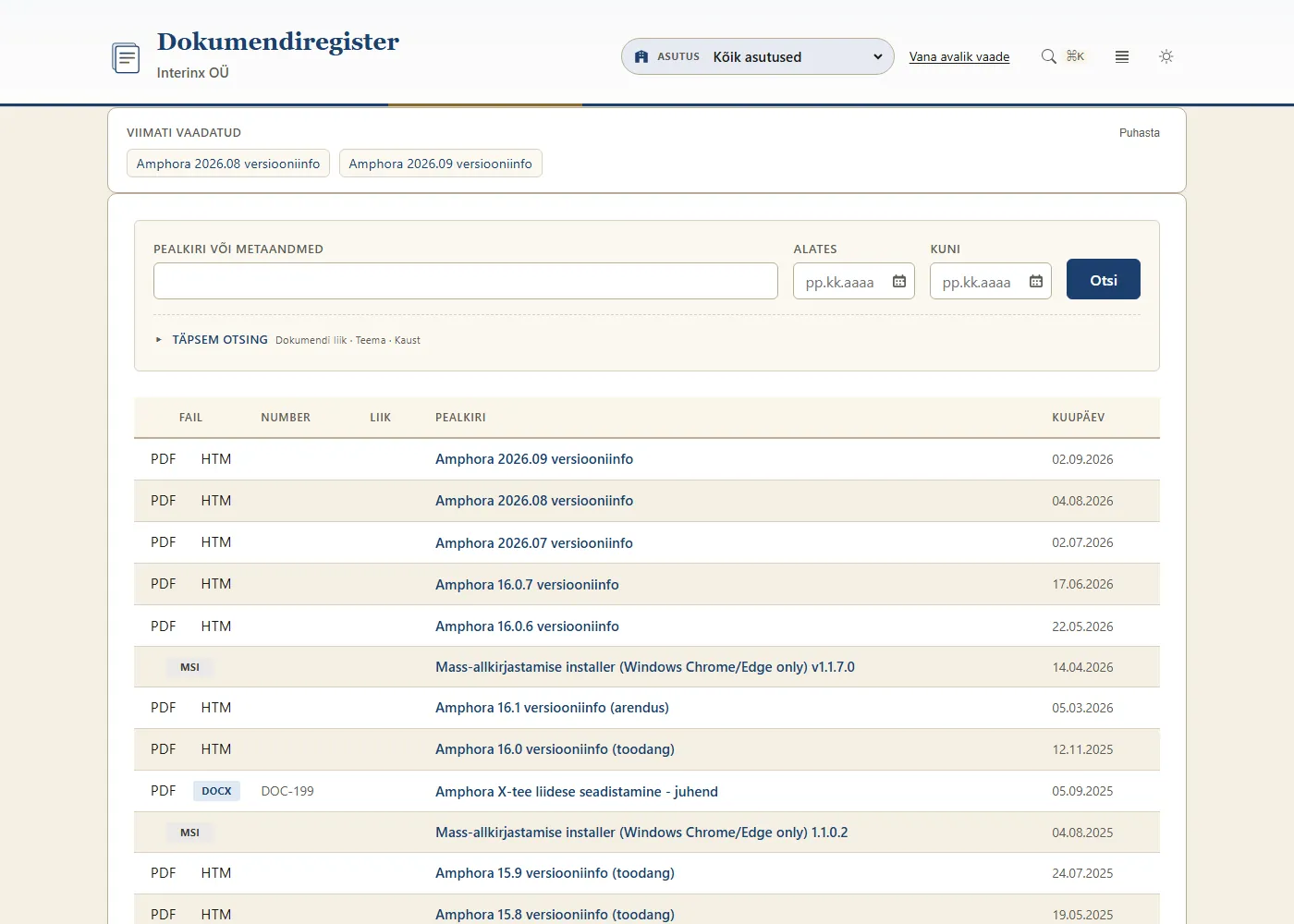
The front page has a Viimati vaadatud (Recently viewed) block with the last five records you opened. The list lives only in your browser - it is not stored on the server and nobody else sees it. Puhasta (Clear) empties it.
Adjusting the view
- Display density - switches between a normal and a compact table (the compact one fits more rows on the screen).
- Dark/light theme - switches between a dark and a light look. At first the public view follows your device's setting.
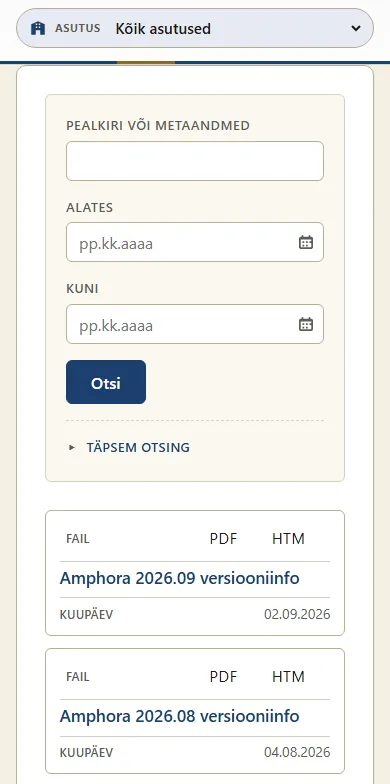
Your choices are remembered in the browser. The public view also works on a phone: the table rows turn into cards.
Old links and the old public view
Old links to documents, files and searches (of the form index.aspx?itm=...), for example on an organization's website or in the news, keep working - they are redirected to the new public view automatically. Instead of an old link to a folder, use the new form atp.amphora.ee/organisation/?f=folder_ID (see Public View (administrator)).
The open-data JSON download of the old public view (Avaandmed) is not available in the new public view.
If the organization still has the old public view, the header has a Vana avalik vaade link.
Last modified: 24 October 2026, 11:09:12