Amphora 15.7 Version Guide
Version 15.7.0
Responding to multiple documents at once
In previous versions, it was possible to respond to only one received ("Incoming" direction transmission) document at a time. This could be done from the received document (through Transmissions panel/Create - Response) or when registering a new document through the "Association with main document" panel. Amphora added only one "Outgoing" direction transmission to the response document and marked the original document as answered (added "Response date").
In version 15.7.0, the ability to respond to multiple documents at once was added. If there are multiple received documents in one response document chain, then it is now possible to respond to these documents at once within one document. This functionality may be useful in situations where emails are sent to many addressees at once, recipients send responses, these are registered in Amphora, and later you can compose and send a response to everyone at once.
When adding a new response document (Incoming - Outgoing direction), there is now a document selection dropdown in the Transmissions panel (1). The selection displays document data that has "Incoming" direction transmission:
- number
- title
- registered date
- transmission method
- email address (if available)
- status (Answered or Unanswered)
The document being responded to is immediately selected and this checkbox cannot be removed (in the example image, document with number 1-1/43-1). In the dropdown, you can select specific documents or all documents at once (2). When the desired documents are selected, you need to press the OK button (3). Then Amphora adds transmissions. By default, the "unanswered" checkbox is added, which means that only documents that have not been answered are displayed in the dropdown (missing "Response date" or response relationship) (4). If the "unanswered" checkbox is removed, then documents that have already been answered are also displayed in the dropdown (if necessary, you can compose a response again).
The selection is not mandatory - response documents can still be added as before.

Selected document transmissions can be modified and deleted. When deleting a transmission, Amphora does not remove the "Response date" from the original documents, so the document status remains answered.
When responding to multiple documents at once, you can select different transmission methods and sending occurs as before - using the Send button.
This development was supported by Amphora clients Rae Municipality Government and Harku Municipality Government. Thank you!
Enhanced Spoku and E-service AddDocument service output
The AddDocument service registers documents received from Spoku and other systems in Amphora. After registration, a response is sent back in XML format (whether registration succeeded, registered document data).
In this version, we also added case/file ID to the output, if Amphora added the document to case composition or created a new case during document registration. Case ID is added in this format:
<AddDocumentResponse>
    <AddDocumentResult>
        <CaseId>95788</CaseId>
    </AddDocumentResult>
</AddDocumentResponse>
This development was supported by Amphora client Rae Municipality Government. Thank you!
Added possibility to chat with client support directly in Amphora environment
In this version, we added the possibility to chat with client support to all Amphora environments. During the chat with client support, it is possible to call a client support specialist and share your screen while using Amphora as usual. It is possible to start a conversation with Amphora client support directly in the Amphora environment. The ability to communicate with client support makes Amphora users' lives easier, as it is possible to communicate with client support in real time without having to call the client support number. This functionality is currently (in version 15.7.0) available to all Amphora users, including subsidiary users.
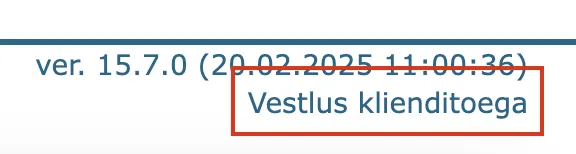
On the Amphora page in the bottom right corner (below the Amphora version) there is a link Chat with client support, clicking on which opens the client support chat view.
Link location:
Client support chat view:
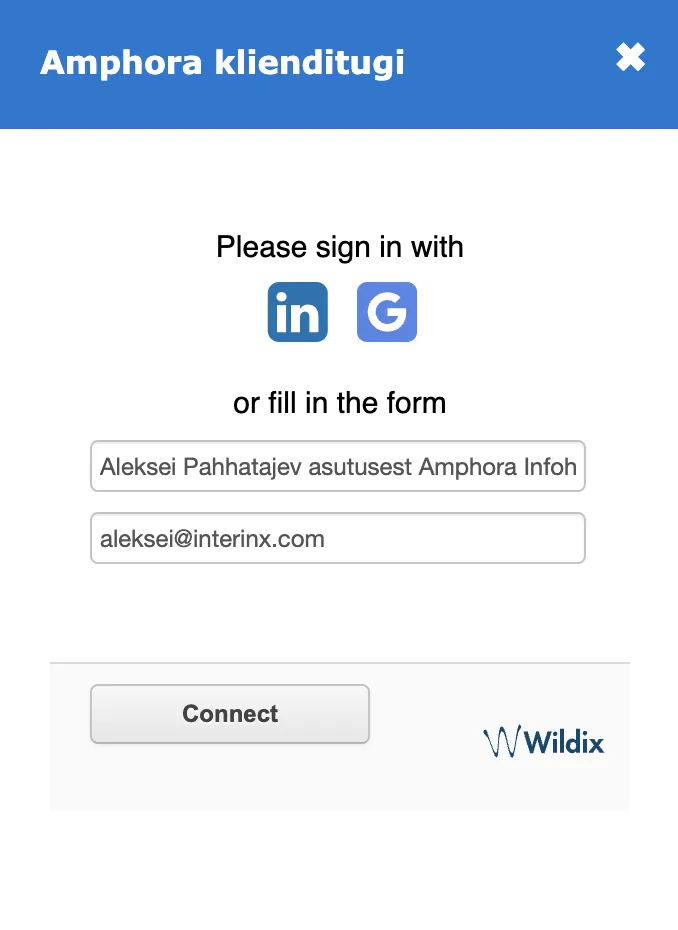
In the client support chat view, Amphora pre-fills two fields - name and email address. The name field includes the user's first and last name along with the institution name (institution associated with the user), e.g., "Aleksei Pahhatajev from institution Amphora Infohandus OÜ". The institution name is added so that the client support specialist can immediately identify and open the correct Amphora environment. The email address field includes the user's email address.
NB!
Pre-filled data can be changed, but we do not recommend doing this, as it may make problem investigation and answering questions more difficult.
Pressing the Connect button creates a connection with a client support specialist. This may take some time, as client support specialists may be busy.
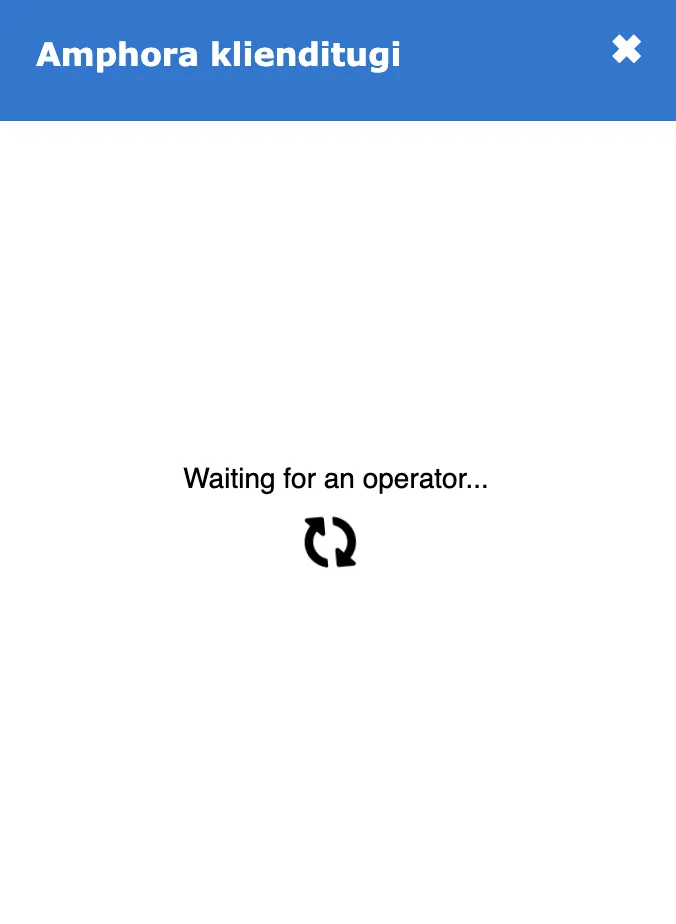 When the client support specialist accepts the chat, the following view opens:
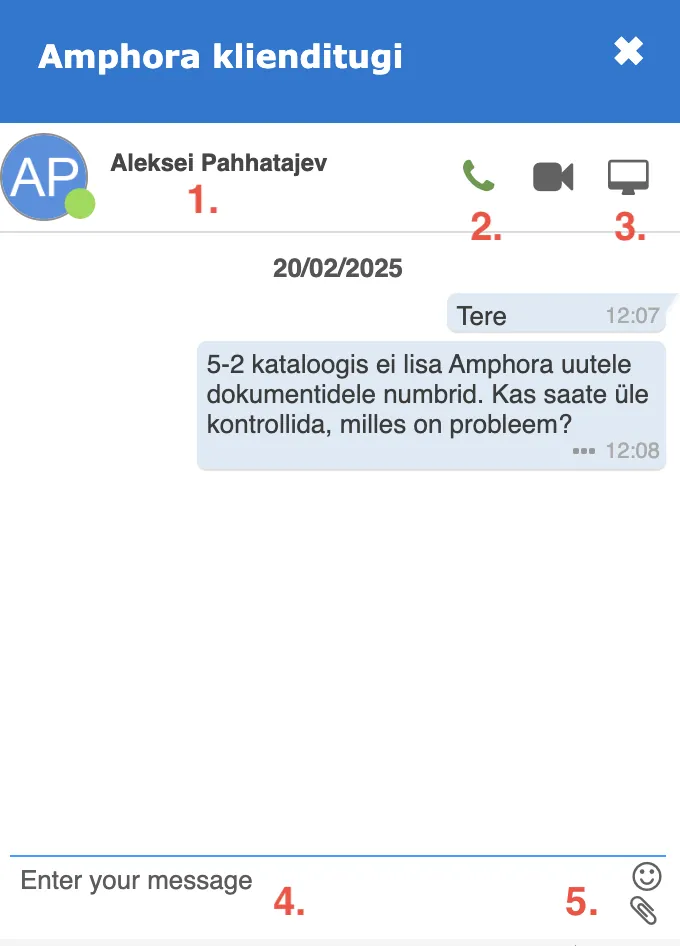
- Client support specialist first and last name.
- Call (call initiation) button.
- Screen sharing button.
- Text input field. After entering text, press the ENTER key on the keyboard.
- File/image selection option.
To end the chat, close it with "x".
NB!
With the client support chat view open, you can continue working in Amphora. The client support chat view remains open (for example, after saving a document).
Since this is a pilot project and client support specialists' workload may be very high initially, please be understanding.
Added file viewing/downloading logs
Starting from this version, Amphora logs the opening (in PDF preview window) and downloading of files (both main files and additional files). For this, we added a new log type "File download". File opening/downloading is logged in every view - object editing and reading views (Documents, Correspondence, Case view, Invoices), module list views, search results, and other views.
File opening/downloading logs are visible in Admin - Institution settings - Logs view.
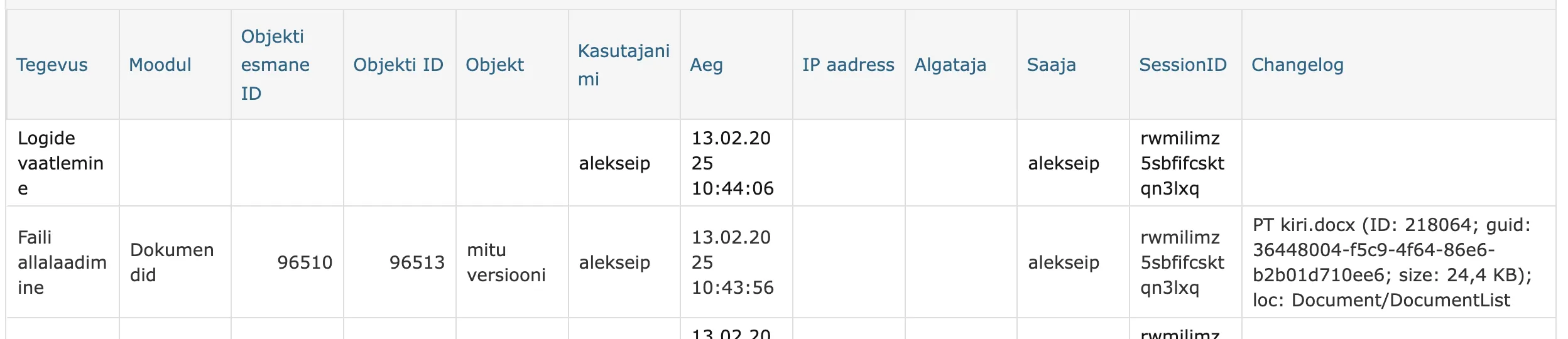
The logs table has three important columns:
- Object ID - unique number of the object whose file was opened/downloaded. Helps better identify the specific object.
- Username - user who opened/downloaded the file.
- Changelog - additional info column that contains both the opened/downloaded file name and its ID with location (loc).
Changed maximum character size for translations
Translations are located in Amphora Admin module - Translations view. Translations are used throughout the Amphora environment and administrators can change them. Important translations that administrators may change are email notification texts (procedure and delegation task email notifications) or Self-service Portal login page text. Since such translations can be long, we changed the maximum character size - previously it was 1000 characters, now it is 3000.
Fixed series Info presentation sorting
Using Info presentation (Admin - Info presentation), it is possible to add allowed forms to specific series, change data displayed in list view, and configure sorting. You can read more about this HERE.
In previous versions, document sorting in series related to Info presentation did not work correctly. Namely, the series with Info presentation had a faulty initial opening (first page) because the sorting parameter did not work. This bug has been fixed in this version.
Version 15.7.1
Login page change
The login page change affects municipal and municipal union Amphora environments that have already joined or will join the State Authentication Service in the future (technical name GovSSO). You can read more about the State Authentication Service HERE.
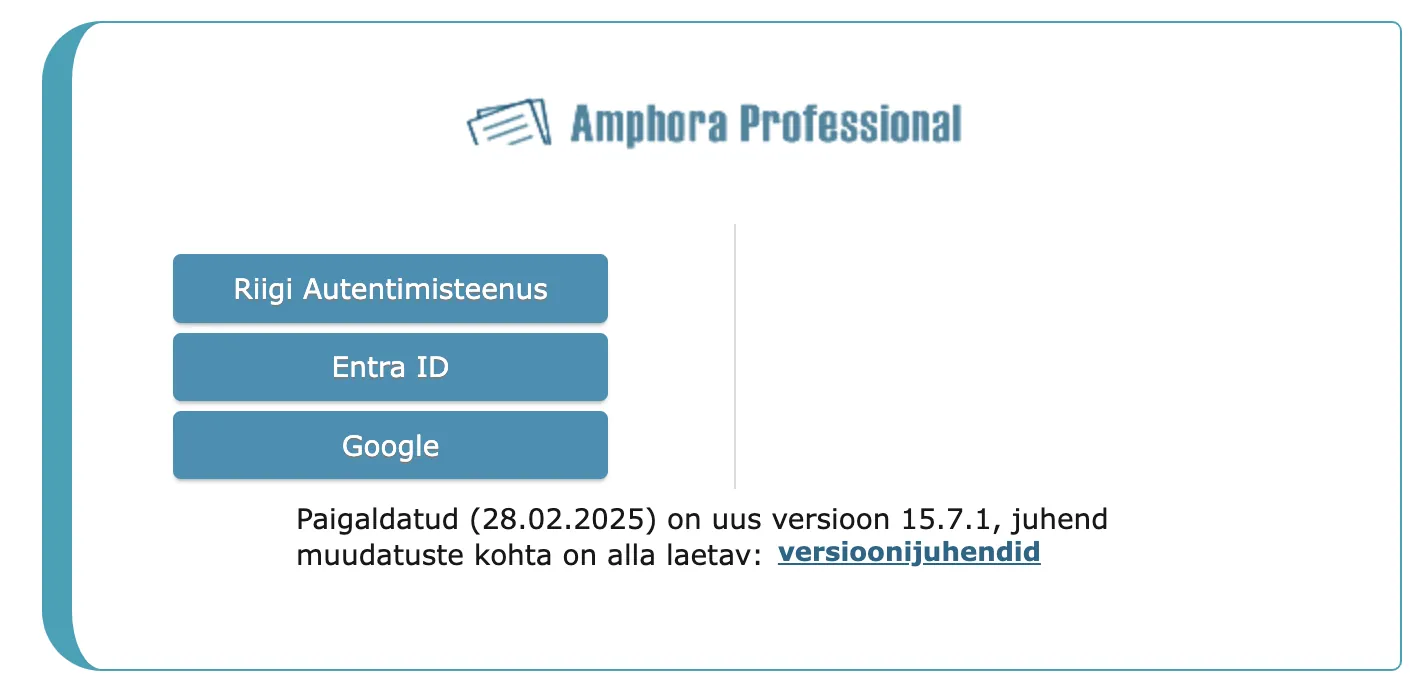
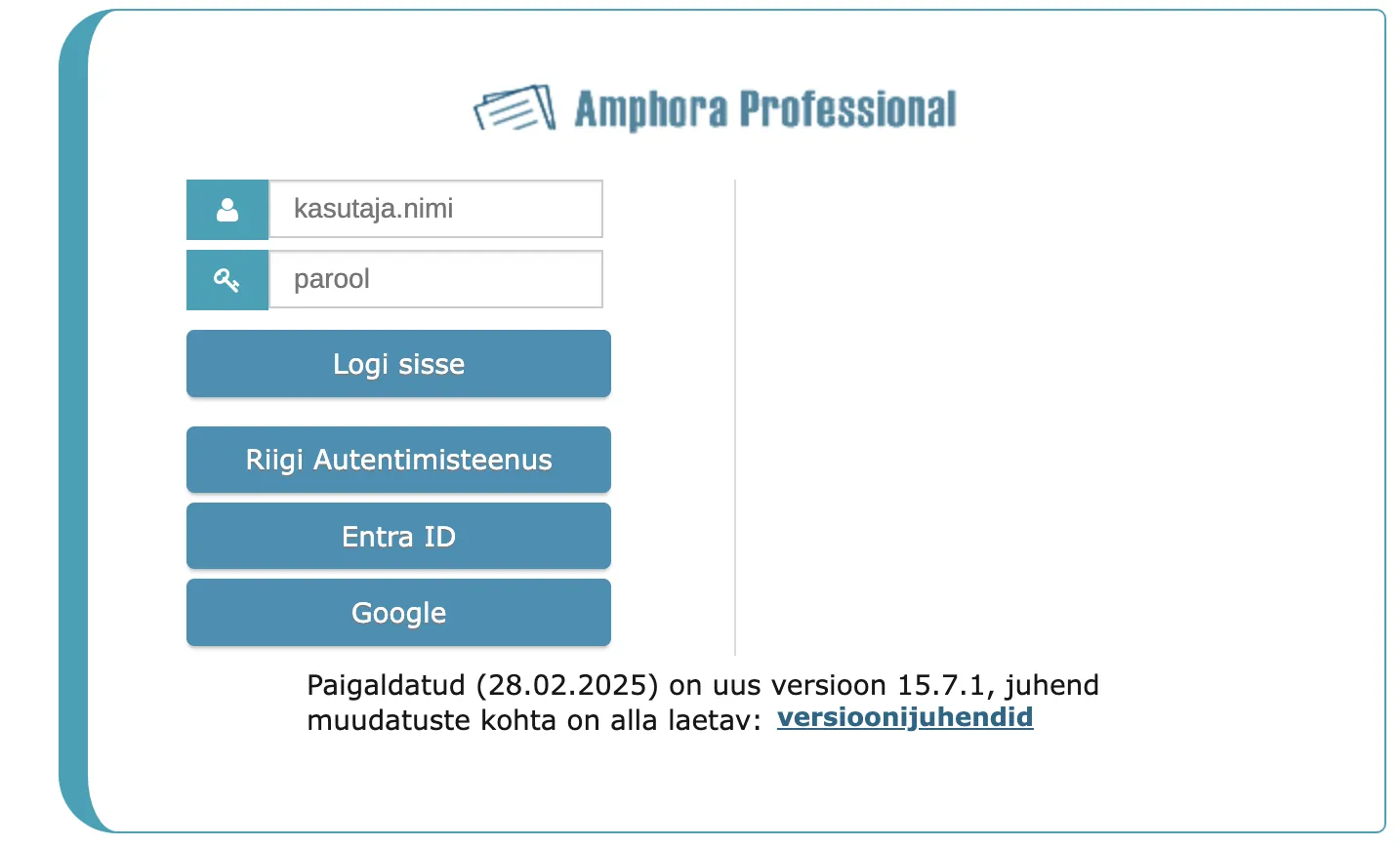
If the State Authentication Service is activated in the Amphora environment (Admin → Institution settings → GovSSO authentication setup → "GovSSO login active" checkbox), then ID-card, Mobile-ID, and Smart-ID login buttons are no longer displayed on the login page. Even if the option "Hide ID, MiD and SmartID login when GovSSO active" is not activated, these buttons are no longer visible on the login page. Username and password fields are displayed if "Admin → Institution settings → General settings → "Activate form-based authentication (username/password)" is enabled.
The login page looks like this (State Authentication Service, Entra ID, and Google buttons remain). "Activate form-based authentication (username/password)" is enabled:
"Activate form-based authentication (username/password)" is disabled:
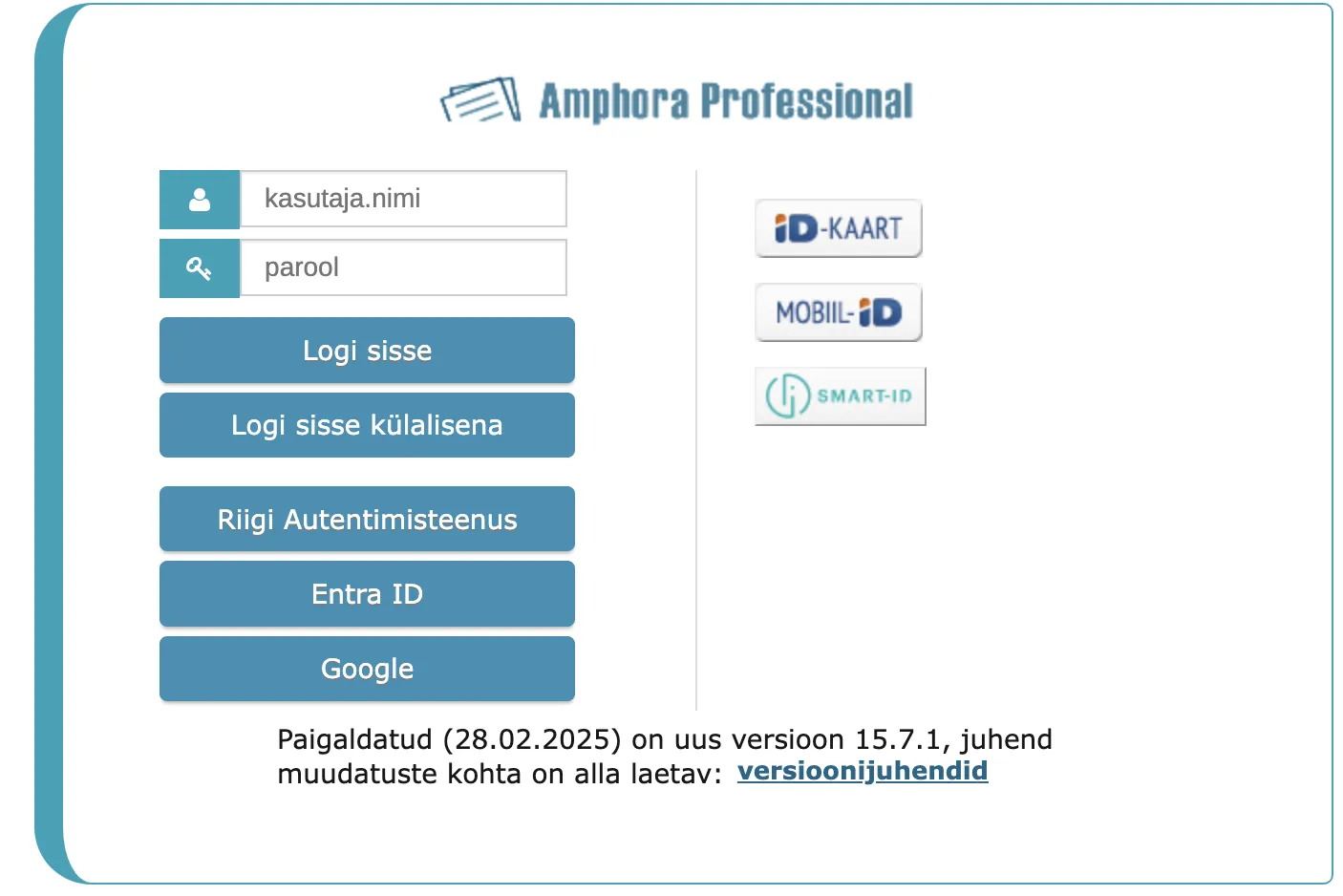
If it is not possible to log in with the State Authentication Service or some other method (for example, due to a technical failure when the State Authentication Service is down), you can still log in using the old ID-card, Mobile-ID, or Smart-ID buttons (provided that Admin → Institution settings → General settings → "Hide ID, MID and SmartID login when GovSSO active" is enabled) or username and password (provided that Admin → Institution settings → General settings → "Activate form-based authentication (username/password)" is enabled). So it is possible to open the login page from previous versions. For this, you need to use the Amphora environment link in the form environment_url/login.aspx. For example https://server.amphora.ee/training/login.aspx
NB!
In Amphora environments where the State Authentication Service is not activated, the old login page is still used.
Optimization-related fixes
- Archiving optimization. Previously, there was a risk of locking when archiving large (500+ objects) archive files and others could not use Amphora at the same time. Now archiving has been optimized and locking problems should no longer occur even when archiving large archive files.
- Relationship selection window optimization. We have optimized the display of various objects in the relationship selection window. Relationship search and selection in the Relationships panel could sometimes be a bit slow. The time gain is about 0.5 seconds.
Version 15.7.2
Home page Routing panel optimization
Some users in the Amphora environment had slow home page opening. This was caused by the Routing panel and database queries used to display the user's tasks. In this version, we made these queries more efficient. Test results showed that home page opening became up to 80% faster.
WebDAV file editing opening logs fixed
In version 15.7.0, we enhanced file viewing and downloading logs. We added a log entry for opening files for editing with WebDAV (File download log).
It turned out that Amphora could add too many log entries during one file editing, although it should actually add only one. A new log entry appeared with each file save. If the user saved the file multiple times (e.g., by repeatedly pressing CTRL + S), a new log entry was added with each save.
In the future, Amphora adds only one log entry when opening a file for editing with WebDAV.
Fixed file download error in Self-service Portal
In version 15.7.0, a file download error appeared in the Self-service Portal. The error could occur when logging into the Self-service Portal and downloading a file for the first time. Instead of downloading the file, the Amphora login page opened.
This error has been fixed in version 15.7.2.
Last modified: 09 October 2026, 10:25:03