Amphora 15.8 Version Guide
- Version 15.8.0
- New Amphora Client and Amphora Outlook Client
- New mass-signing software
- Removed Alert error messages
- Fixed marking rejected procedure as done when starting new procedure with same persons
- Making form main file public/non-public
- Making form public/non-public
- Fixed changing access restriction and publication settings on archived objects
- Enhanced publication of archived objects
- Other changes
Version 15.8.0
New Amphora Client and Amphora Outlook Client
New Amphora Client (ver. 1.7.0) and Amphora Outlook Client (ver 2.9.0) are ready.
New Amphora Client software can be downloaded HERE. New Amphora Outlook Client software can be downloaded HERE.
Main fix - sender data has been fixed for some emails. Previously, Amphora could display sender data in the transmissions panel as /O=EXCHANGELABS/OU=EXCHANGE ADMINISTRATIVE GROUP, but now correct sender data is displayed for every email.
Installing the new Amphora Outlook client also requires installing the new Amphora client. Existing software can be removed in Windows under Settings - Apps - Installed Apps.
You can read about Amphora Client configuration HERE. You can read about Amphora Outlook Client HERE.
NB!
If Amphora buttons are not visible in Outlook after installing Amphora Outlook Client, then you need to open C:\Program Files (x86)\Amphora\OutlookClient and run FixRegistration.cmd.
New mass-signing software
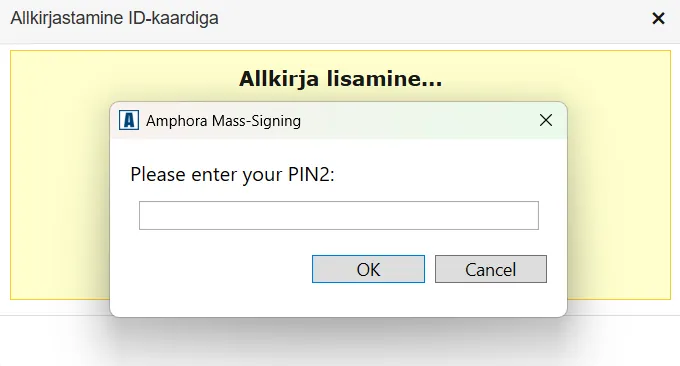
New mass-signing software is ready (software version 1.1.0.1 and extension version 0.0.1.8). The new mass-signing software works only on Windows operating system and in Google Chrome and Microsoft Edge web browsers.
New mass-signing software can be downloaded HERE.
Fixes: 1. During installation, Google Chrome web browser extension is now automatically added. Previously, the extension had to be added manually. 2. Error message is no longer displayed before entering PIN2. 3. Entra ID (Azure AD) Windows users can now mass-sign. Previously, the following error message was displayed - Method C_GetTokenInfo returned CKR_TOKEN_NOT_PRESENT.
Mass-signing also works in Microsoft Edge web browser. For this, you need to manually add the web browser extension. The required web browser extension is located HERE.
NB!
If old mass-signing software and web browser extension are installed on the computer, they must be removed before installing the new version. Old mass-signing software no longer works in version 15.8.0.
Mass-signing software can be removed in Windows under Settings - Apps - Installed Apps. After removing the old mass-signing software, you need to check whether the old web browser extension has been removed or not and remove it manually if necessary. This can be done at chrome://extensions (Google Chrome) and edge://extensions (Microsoft Edge) - copy the link and enter it in the web browser address bar. Extension name - Amphora Extension, version 0.0.1.5.
Removed Alert error messages
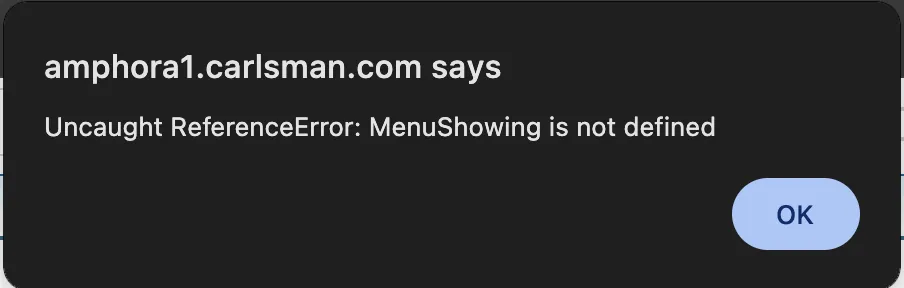
In version 15.7, due to Telerik component updates, Alert error messages appeared as a result of some actions. These did not directly prevent work, but were inconvenient because they required an additional click from the user (pressing the OK button).
Some actions that caused Alert error message display:
- opening user group from user view
- searches in Institutions and Persons, Documents and Cases modules
- form deletion
- several other actions.
In this version, we have tried to remove all such Alert error messages. If there is still some action that causes Amphora to display an Alert error message, please contact our client support.
Alert error message example:
Fixed marking rejected procedure as done when starting new procedure with same persons
In Amphora, it is possible to reject Coordination or Signing tasks. For signing tasks, you can use the Do not sign button, while for coordination tasks, you need to select the position No or Dissenting opinion.
When rejecting a task, Amphora automatically creates a new task for the original procedure or delegation initiator.
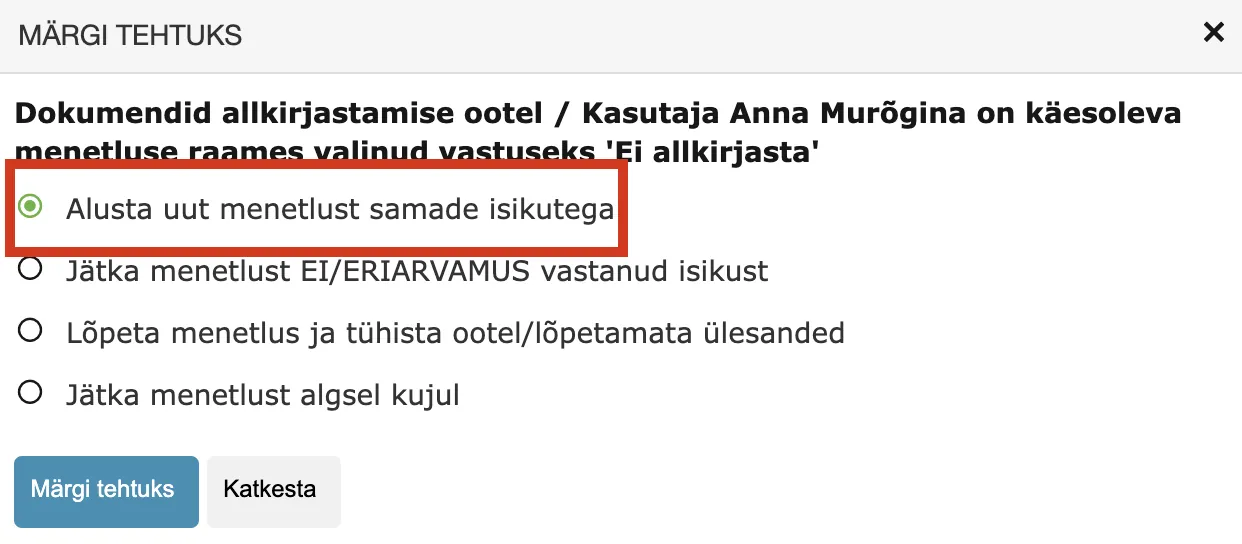
In previous versions, there could be a problem with the Start new procedure with same persons option. In certain cases, Amphora could add excessive tasks that were not related to a specific document, causing duplicate tasks to appear in the user's Routing panel.
This bug has been fixed in this version.
Making form main file public/non-public
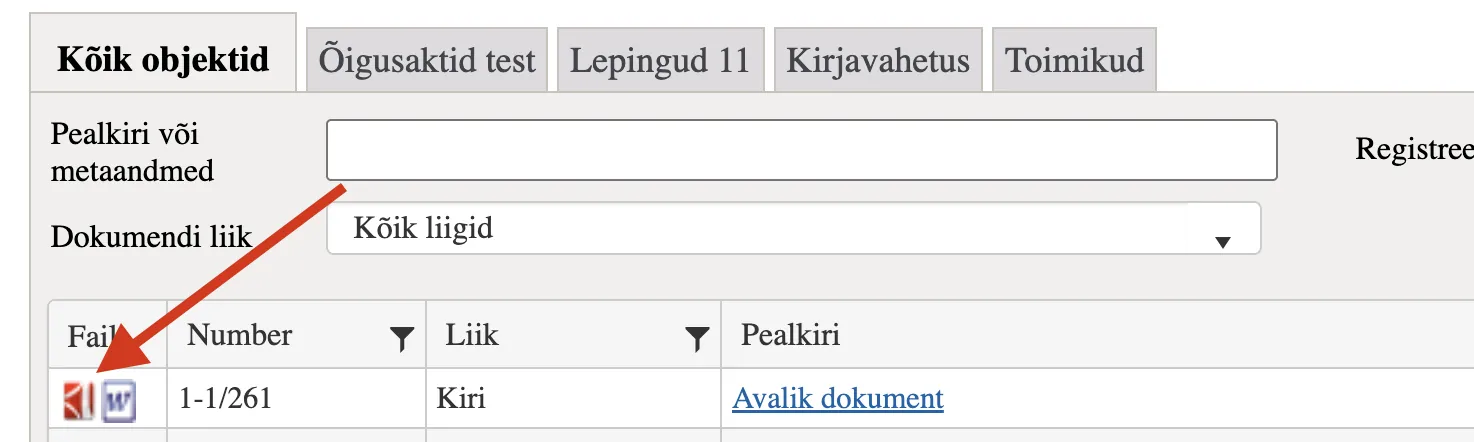
Under Admin → Form setup, each document form can specify whether the main file is visible in the public view or not. In this version, we made improvements to the main file publication and non-publication logic at the form level.
The previous problem was that main file visibility changed only in the document detail view, but the change did not apply in the Public view list view – the main file could still be displayed there (or vice versa, not displayed). Now the change applies correctly in both views.
Making form public/non-public
Under Admin → Form setup, it is possible to specify whether the form is visible in the public view or not. For this, there is an option Visible in public view in the form settings. If this option is not marked, then objects registered with this form are not visible in the public view.
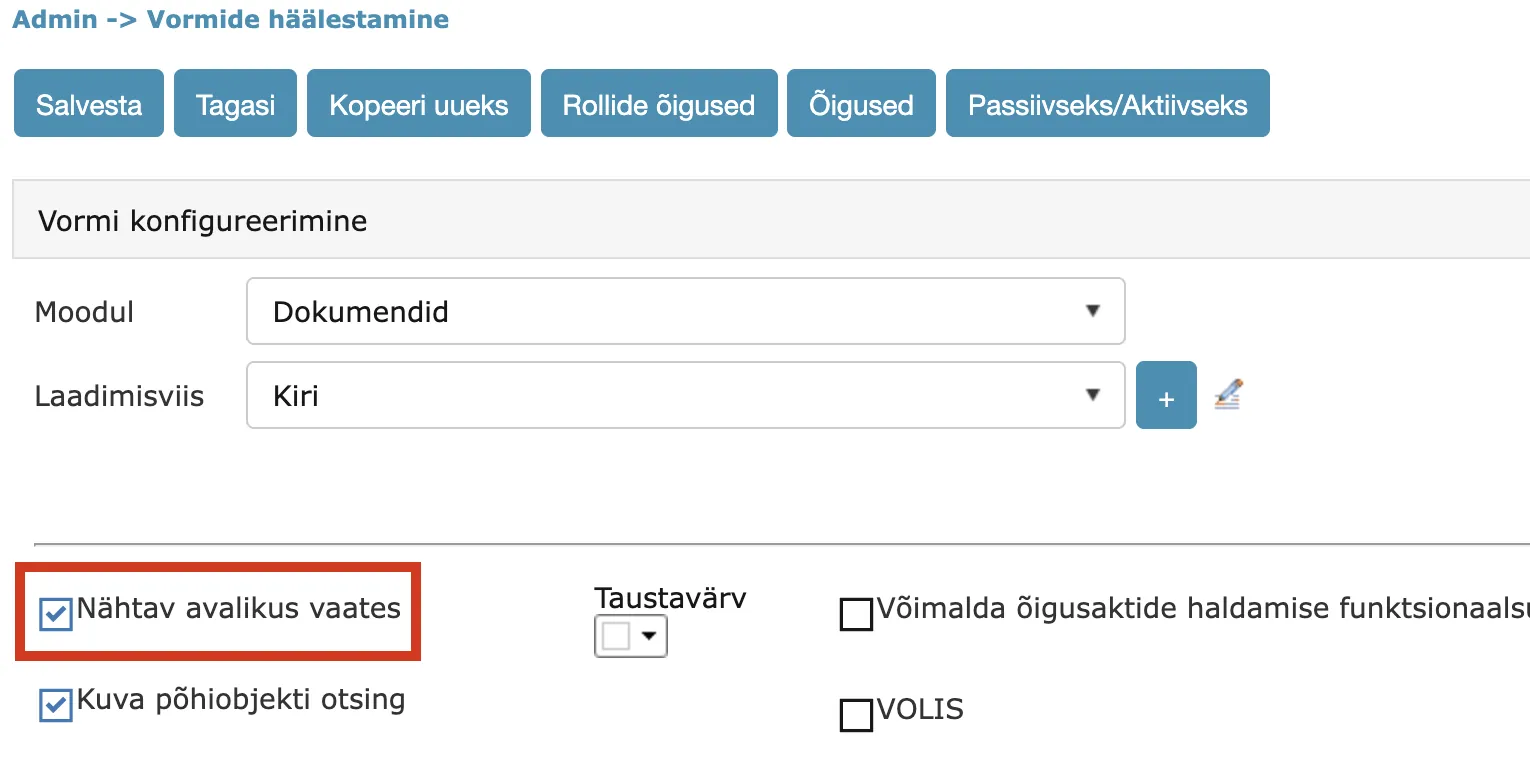
In this version, we have changed the object publication logic at the form level. In previous versions, the problem was that when the Visible in public view checkbox was added or removed, the visibility of objects related to this form changed only in the object detail view (i.e., through the object's direct link in the Public view), but not in the Public view list view.
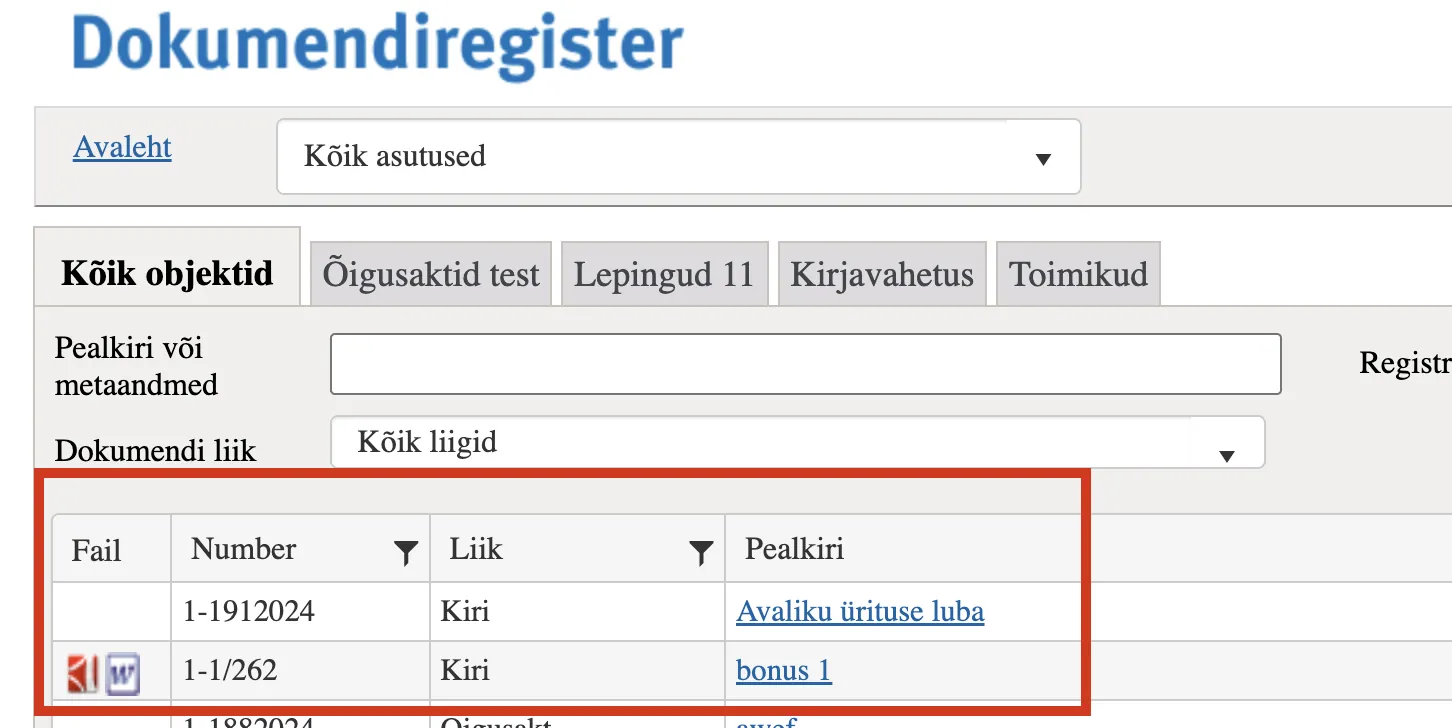
For example, when the checkbox was removed, objects with this form were still visible in the Public view list view (although data was not visible when opened). In this version, this bug has been fixed and the change now applies correctly in the list view as well.
Fixed changing access restriction and publication settings on archived objects
For archived objects, it is possible to retroactively change access restriction-related settings (basis, period, information controller) and also publication settings (metadata, files). For this, there is a Change Access button in the archived object view.
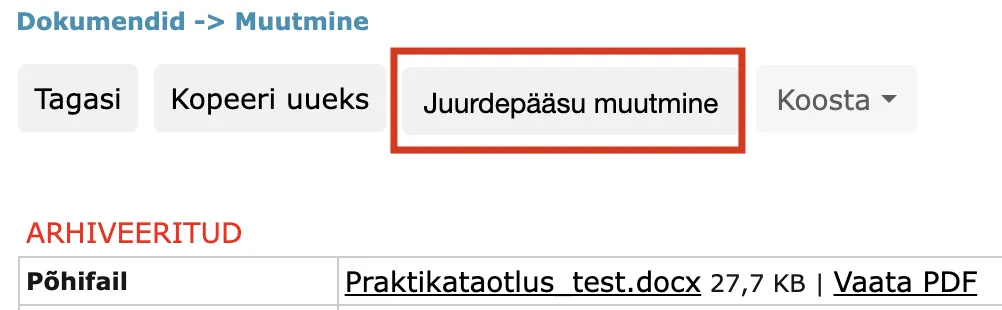
Clicking this button opens a separate window in Amphora. In previous versions, opening the window failed if the object lacked a main file. Therefore, it was not possible to change access restriction or publication settings on objects that lacked a main file.
This bug has been fixed in version 15.8.0.
Enhanced publication of archived objects
In this version, we added a new setting: it is now possible to specify whether archived objects are visible in the public view or not. At the time of archiving, objects are automatically removed from the public view if archived object publication is deactivated in the environment settings.
NB!
By default, archived objects are not visible in the Public view in any environment. This setting has been created to avoid displaying unnecessary data in the public view.
Since the setting cannot be changed through the user interface, please contact our client support if you wish to publish archived objects.
Other changes
- Fixed text editor element title in Eservice.asmx service GetDocument method output - previously it incorrectly displayed "Responsible person", now it is "Text editor" (exact text depends on environment translations).
<fields>
    <label>Text editor</label>
    <localizedlabel>Editor</localizedlabel>
    <type>Amphora</type>
    <field>
        <localizedlabel>Name</localizedlabel>
        <value>Texteditor.htm</value>
    </field>
…
</fields>
- Automatic verification of Mailgun domain DNS records on Mailgun server when DNS records are still unconfirmed (previously we had to manually start the check on Mailgun server). You can read more about Mailgun HERE.
- Telerik component update: 2025.1.218-> 2025.1.416.
Last modified: 17 October 2026, 11:05:57