Changing Numbers
- Directories with Valid Counter
- Directories without Valid Counter
- Numbers from Attachments or Cases, Reply Letter Numbers
To enable number changes, the following policies must be enabled:
- Change document number
- Change letter number
By default, these policies are disabled for all groups. We recommend adding these policies only to the Administrator group.
Directories with Valid Counter
If a directory has a valid counter, then when registering a document or letter, an option appears next to the number (Automatically, Manually). Additionally, the number that the document should receive according to the counter is displayed.
 * Automatically – the document or letter gets a number according to the counter.
* Manually – fields appear where the user can enter the document or letter number themselves (prefix, value, suffix). When adding a number manually, Amphora checks whether a document or letter with the same number already exists. If one does, Amphora shows a warning listing the objects that already have this number. Pressing Save again saves the document with the same number; a case cannot be given a number that is already in use. The check applies within the specific module.
* Automatically – the document or letter gets a number according to the counter.
* Manually – fields appear where the user can enter the document or letter number themselves (prefix, value, suffix). When adding a number manually, Amphora checks whether a document or letter with the same number already exists. If one does, Amphora shows a warning listing the objects that already have this number. Pressing Save again saves the document with the same number; a case cannot be given a number that is already in use. The check applies within the specific module.
When the user selects one of these options (Automatically or Manually), this option is always remembered. For a different option to be remembered, you need to select a different option when registering the document. That is, if you make a selection, then the next time this same option will be selected by default.
 * Prefix – directory number. In exceptional cases, it may be a different value.
* Value – sequential number.
* Suffix – value at the end of the number. Usually the year or the last two digits of the year are entered.
* Prefix – directory number. In exceptional cases, it may be a different value.
* Value – sequential number.
* Suffix – value at the end of the number. Usually the year or the last two digits of the year are entered.
Unlike counter settings, when adding a number manually, it is not necessarily required to add / at the end of the prefix and before the suffix. Amphora automatically adds this symbol. However, if this symbol is added by the user, it will not be displayed twice.
The number can always be changed afterwards. A Change button appears next to the number.
 Clicking the Change button opens a window where you can change the number.
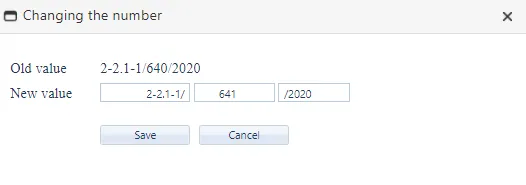 After making changes, you need to press the Save button.
Important
You do not need to save the document or letter itself for the new number to persist!
After each number change, an event is created in the history panel showing who changed the number and what the number was before the change.
 ***
***
Directories without Valid Counter
If a directory does not have a valid counter, then the Automatically option is not available. The prefix, value, and suffix fields are immediately visible. These fields are not mandatory, so they do not need to be filled. In this case, the document or letter remains without a number, and if reopened, the number fields are still available.
Number fields on document forms:
 Number fields on letter forms:
 If a directory does not have a valid counter, then all users who have the right to register documents or letters can add numbers to documents and letters and change them later. The Change document number and Change letter number policies are not needed for this.
Numbers from Attachments or Cases, Reply Letter Numbers
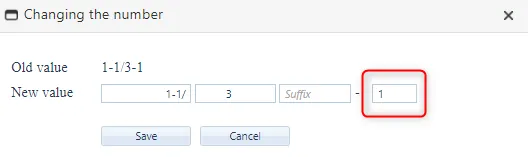
Additionally, it is possible to change numbers that were created when registering attachments or through cases. The same applies to reply letter numbers. These numbers usually have -number at the end of the number.
For reply letters, it is not possible to delete the -1 number from the end. If this number already exists, it can only be changed.
 ***
***
Last changed: 28. July 2020, 14:26:49
Last modified: 09 October 2026, 09:39:13