Searches
Under Searches, it is possible to create different search forms according to previously created and defined document forms. Based on the order entry form, it is possible to create a separate order search form.
Adding a new search profile
Open the Admin module submenu form Admin -> Searches.
To add a new search profile, click the Add new button. The form Admin -> Searches -> Add new opens.
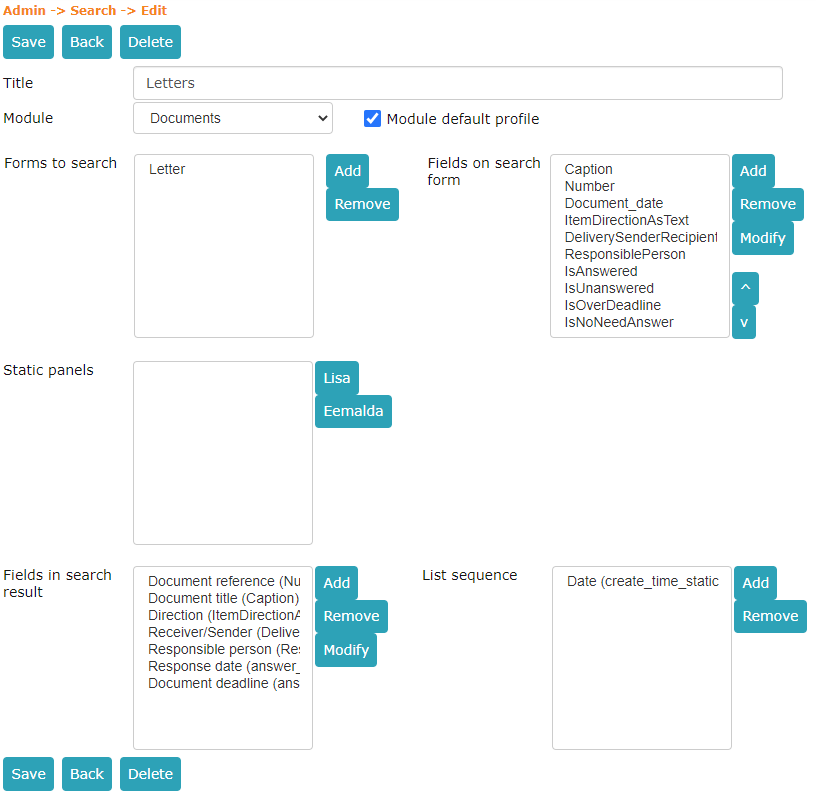 Write a title for the search profile to be created and select the module by clicking the arrow button in the Module field, which opens a dropdown menu.
If you need to make this search profile the default profile, check the box Module default profile.
Select forms to search from by clicking the Add button located next to the Forms to search from field box. The form Select forms opens.
NB!
From version 14.5, it is also possible to select Case forms.
Select the desired forms by clicking on the form name and then the > button. To remove a selected form, go to the Selected box, click on the form name to be removed and then the < button.
Forms selected, click the Save button.
The previous sequence of actions also applies to the following fields:
- Select search form fields by clicking the Add button located next to the Fields displayed on search form field box.
- Select static panels by clicking the Add button located next to the Static panels field.
- Select fields visible in search results by clicking the Add button located next to the Fields visible in search results field box.
- Select fields by which search results are sorted by clicking the Add button located next to the List order field box.
To save the search profile, click the Save button.
The form Admin -> Searches opens, showing the added search profile title in the list.
Modifying a search profile
Open the Admin module submenu form Admin -> Searches.
Select the search profile to modify by clicking on the profile title. The form Admin -> Searches -> Edit opens. Make the necessary changes and then click the Save button.
To make a search profile the default profile, click the ! button (1) (there can be only one default search profile in one module).
To move the profile up or down in the list, click the " " buttons (2).
To delete a profile, check the box next to the search profile title (4), then click the trash icon (3).
To select all search profiles in the list, check the box in the Title field. (5)
To filter the search profile list, click the arrow button in the Module field on the Admin -> Searches form, which opens a dropdown menu (6).
 ***
***
Adding a print view
To add a print view, first select the radio button Print views, then Add new.
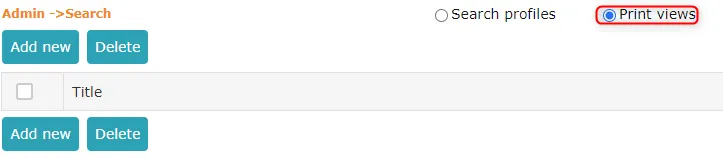 Enter the print view title, select the module, forms, fields to be displayed as columns, and list order. To save, click Save.
Modifying a print view
To modify a print view, open Admin -> Searches, select Print views and click on the print view title. In the opened view, it is possible to add or remove selected elements (form, fields). To save, click Save.
Search field "Initial creation"
It is possible to add the field Initial creation (create_time_orig) to the Documents module search profile. This field allows searching for documents by their initial creation date, which simplifies searching for documents from a specific period.
Search fields "Is valid" and "Is not valid"
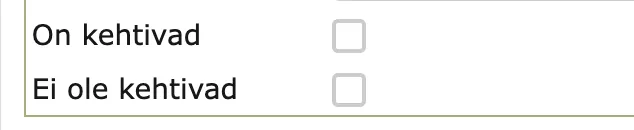
It is possible to add the fields Is valid (IsValid) and Is not valid (IsNotValid) to the search profile. These fields allow searching for valid and invalid documents (for example, contracts).
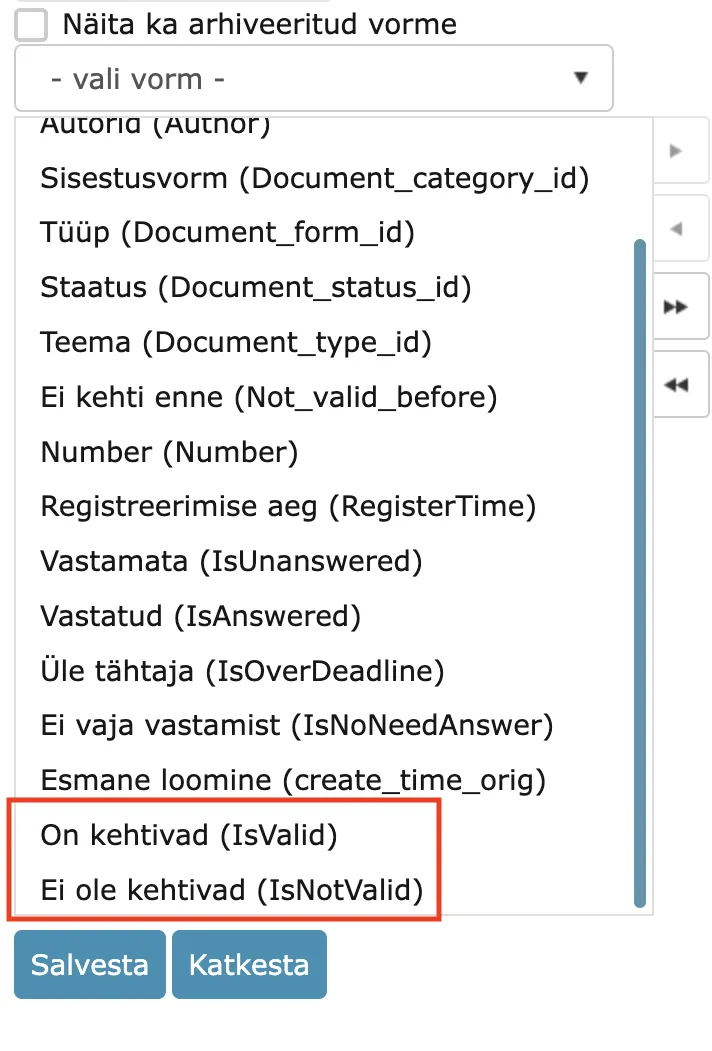
Amphora considers the Valid until (Not_valid_after) form field value. If this field is missing from the document form, the search does not account for those documents.
Valid documents are those where:
- Valid until date is in the future or missing.
- Entry into force date is in the past or missing.
Number column for Case module search profile
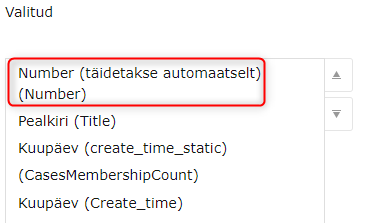
It is possible to add a Number column to the Case module search profile, which makes case numbers visible in search results. In the search profile settings, the field name is Number (filled automatically) (Number).
Last modified: 08 October 2026, 07:32:29