Amphora 16.0 Version Guide
- Version 16.0.0
- New global search
a. Functionality
b. Rules - New Parties panel for documents
a. Adding parties
b. Parties table
c. Actions with parties
d. Comparison with the old Parties panel - New Self-Service Portal
- Document and case number (reference) changing enhanced
- Procedure/delegation detail view enhanced
- New address entry functionality
- Person and institution group selection when creating a delivery fixed
- Information about replying to a document in the history panel
- DOCX template enhancements and fixes
- Institutions module fixes
- Added a list of users with mass-signing licenses
- Optimization-related changes
- Form version publishing settings fixed
- Invoices module changes
- Sending email file links enhanced
- Other changes
- New global search
- Version 16.0.2
- Version 16.0.3
- Version 16.0.4
- Version 16.0.6
- New form field types added — InAds and InAds KÜ
- "Web title" field is now used when sending email
- Procedure email notifications are no longer sent to passive users
- Deleting form dropdown options enhanced
- New task email notification placeholder added
- Marking tasks as done in the "All" tab fixed
- DOCX support added for session agenda protocol template elements
- Notification email logic fixed when sending to Self-Service via the Deliveries panel
- Improved reliability of auxiliary services
- Downloading of IMAP mailbox messages fixed
- Case/file procedure notification attachment functionality fixed
- PersonChooser(List) form field types fixed
- Signing changes and fixes
- Parties panel fixes and changes
- Spoku and E-service technical changes
- Fixes and other changes
- Version 16.0.7
- Removing a system relationship on a document
- Downloading the WebDAV installer in Chrome
- Mandatory fields on a self-service application
- Check added when opening the delivery window
- Resolving a document editing conflict
- Document saving check when working in several windows
- Automatic optimization of large images in the text editor
- Form reading view generation enhanced
- Other changes
Version 16.0.0
New global search
Global search allows searching the Amphora environment for objects by their metadata, files, and text editor content.
The new global search, which becomes available to Amphora clients starting from version 16.0, is significantly faster and offers additional search options.
Functionality
The new global search looks like this:

-
The Advanced button opens a panel where you can choose search modes.
-
The ? icon opens the new global search guide in a separate window.
-
Legacy search activates the old global search. Initially this option is available in all environments, but over time it will be removed.
-
When By reference is activated, Amphora searches only by the objects' reference.
-
When Exact search is activated, Amphora searches by exactly the entered search phrase. For example, if the search phrase consists of multiple words such as "Employment contract Janis", only those objects where the words appear in exactly that order — in the metadata, file content, or text editor content — are shown in the search results.
-
When Search archive too is activated, Amphora also searches archived objects.
NB! Search modes can be combined. Several modes can be active at the same time. For example: By reference and Search archive too — Amphora searches by the objects' reference among both active and archived objects.
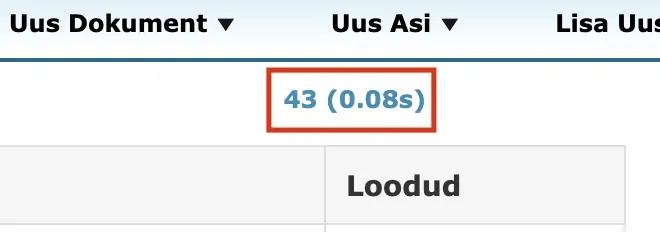
The search results now also display the time spent on the search in seconds, next to the result count.
Rules
Symbols that can be used in the new global search:
-
OR | contract OR act OR protocol | Searches for objects that contain at least one of the words/numbers.
-
- (minus icon) | Janis -employment | Searches for objects that contain the word "Janis" but not the word "employment". It is important that there is no space after the minus icon.
-
"" | "Employment contract annex" | Searches for objects by an exact phrase, where the order and spelling of the words/numbers matters.
-
A search with a single number does not work (example: 8). A word must always be included as well — Viljandi 8.
These rules can be combined. Some examples:
-
Employment contract -annex -Janis | Searches for objects that contain the word "Employment contract" but not the words "annex" and "Janis".
-
contract OR act OR protocol | Searches for objects that contain at least one of the words between the OR words.
-
"Employment contract annex" -Janis | Searches for objects that contain the exact phrase "Employment contract annex" but not the word "Janis".
-
"Employment contract annex" Janis | Searches for objects that contain the exact phrase "Employment contract annex" as well as the separate word "Janis".
-
Municipal government protocol OR municipal council protocol | Searches for objects that contain the words "Municipal government" and "protocol", and either "protocol" or "municipal council". Formula: Word1 + Word4 + (Word2 or Word3).
New Parties panel for documents
The Parties panel allows adding parties to documents (e.g., contracts) — both institutions (organizations) and natural persons. In the new Parties panel, adding parties has been made faster and more convenient.
Adding parties
Adding an institution:
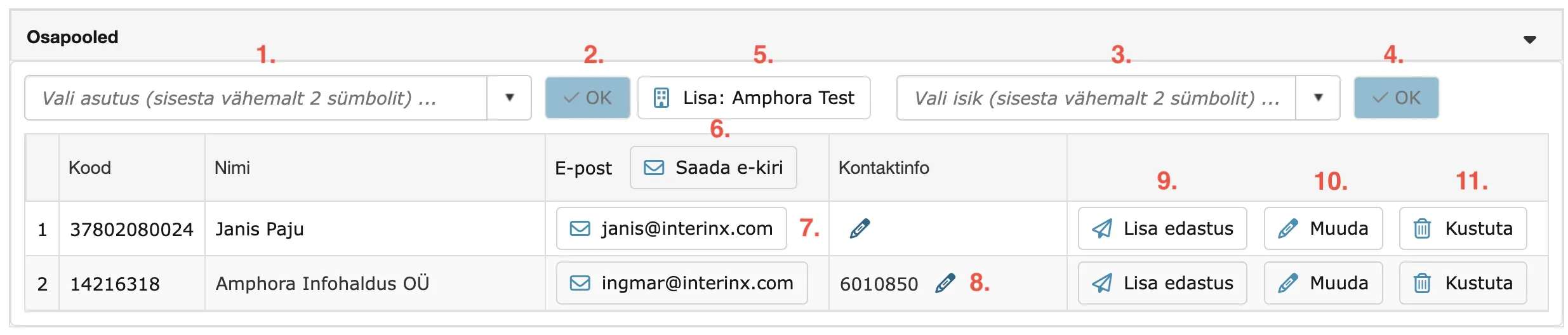
- Enter at least 2 characters into the left-hand "Select institution" search field (1)
- Choose a suitable institution from the dropdown
- Click the checkmark button (or press the ENTER key) to add the institution (2)
Adding a person:
- Enter at least 2 characters into the right-hand "Select person" search field (3)
- Choose a suitable person from the dropdown
- Click the checkmark button (or press the ENTER key) to add the person (4)
You can also add the main institution right away. To do so, click the "Add: Institution name" button (5).
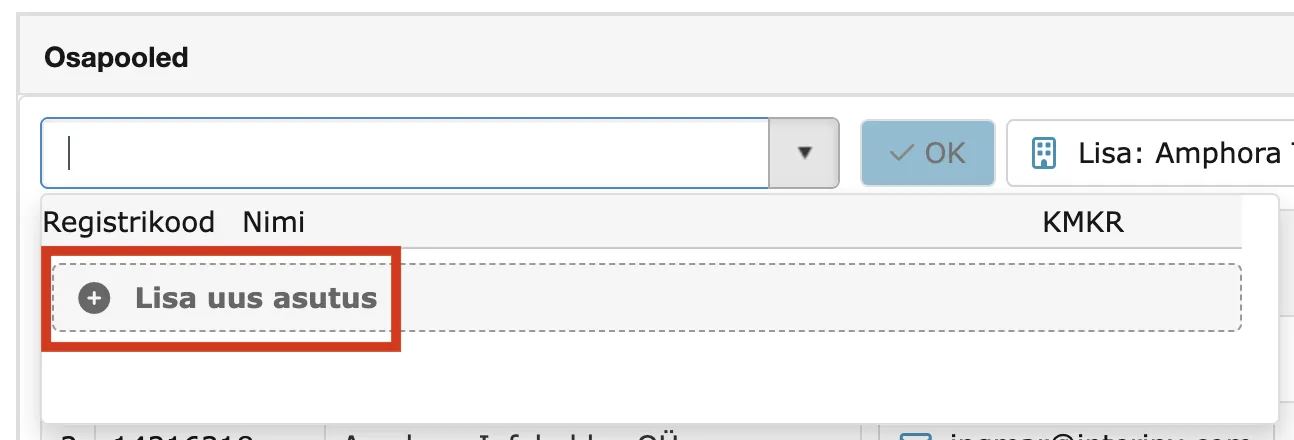
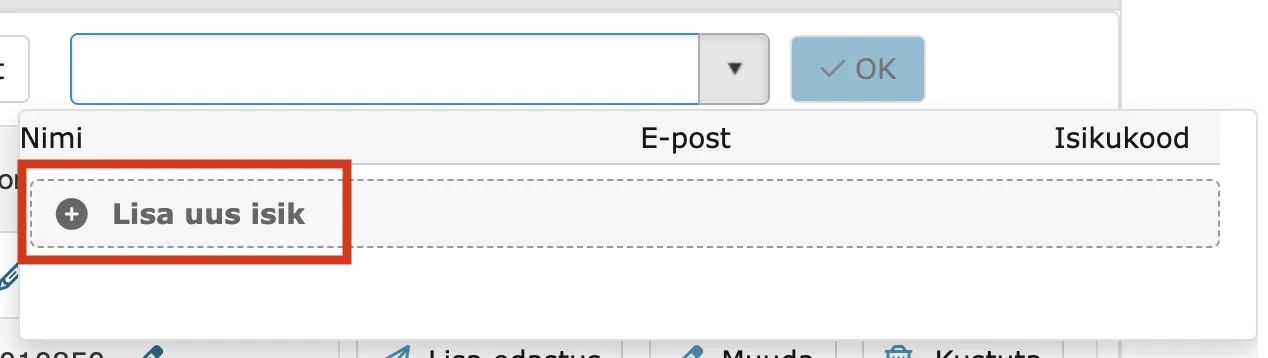
If the required person or institution does not exist, you can add a new one. Clicking "+ Add new" when adding an institution or person takes you to the institution/person creation view in Amphora.
Institution (the Business Register can be used when adding an institution):
Person:
NB! After adding a person or institution, Amphora saves the added person or institution to the corresponding module (the Persons or Institutions module). From then on, these persons and institutions can be selected from the list.
Parties table
The added parties are displayed in a table with the following columns:
- Code – The institution's registry code or the person's personal code
- Name – The institution's business name or the person's name
- Email – Email address (if added)
- Contact info – Phone number
Actions with parties
Each party row has the following action buttons:
- Envelope icon with the email address – the option to send an email to the party (7). It is sent via the @-icon functionality. After sending, Amphora adds a delivery to the Deliveries panel.
- Pencil next to the contact details – change the phone number directly in the Parties panel (8).
- Add delivery button – adds a new "Outgoing" direction delivery with the party's data (9).
- Pencil Edit icon – opens the editing view of the party (person or institution), where the party's data can be edited directly (10).
- Trash icon – remove the party from the document (11).
In addition, it is possible to compose and send an email to all parties at once. To do so, click the "Send email" button (6).
Comparison with the old Parties panel
The new Parties panel makes it much easier to look up and select the right party — the search is fast, and the search dropdown immediately displays the institution's or person's detailed data.
In the new Parties panel, it is possible to add a new institution or person so that the institution or person is retained in the Amphora environment (in the Persons and Institutions modules respectively). The old Parties panel did not have this option.
It is significantly easier to send emails to parties or forward documents directly to the Self-Service Portal.
Since all parties are now linked to either the Institutions or Persons module, there is no risk of a private individual's data appearing in the public view.
New Self-Service Portal
In version 16.0, a newly designed Self-Service Portal has been completed. The old Self-Service Portal functionality is retained, and new functionality has also been added. You can read more about the new Self-Service Portal in a separate guide, which you can find HERE.
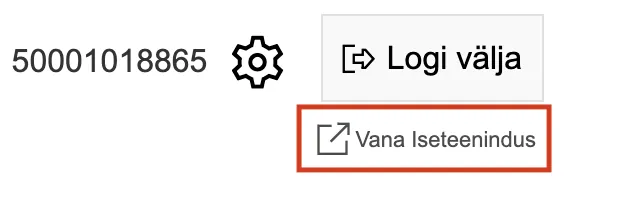
In case of problems or if desired, the old Self-Service Portal can also be opened.
Link to the old Self-Service Portal on the login page:

Link to the old Self-Service Portal in the internal environment:
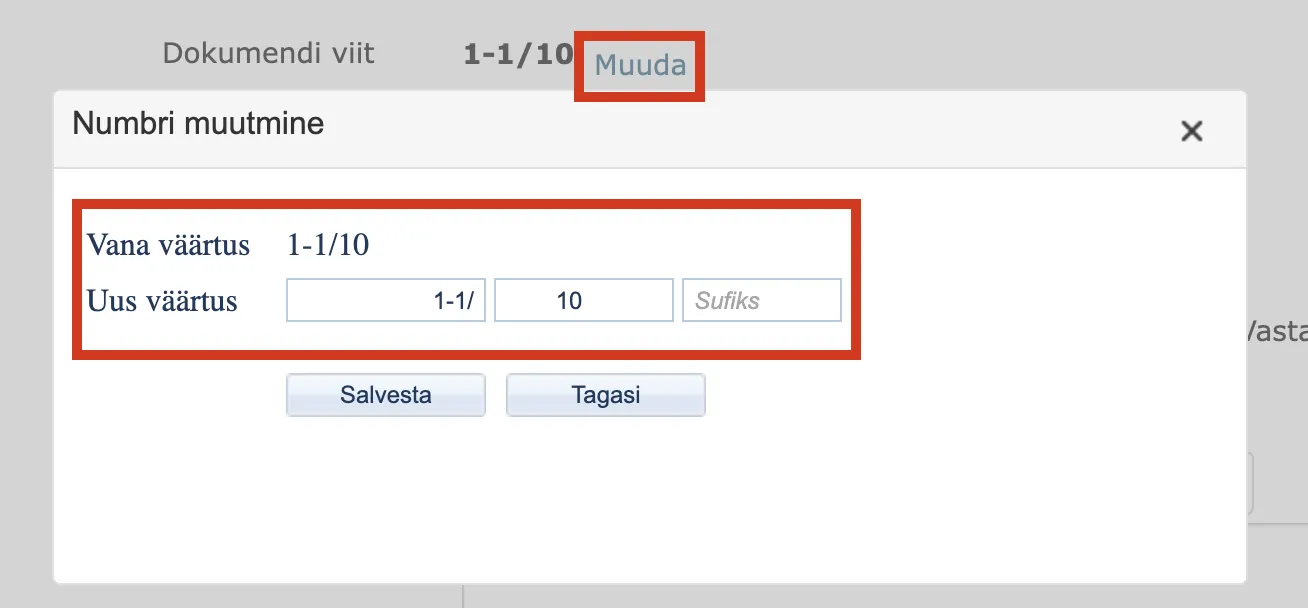
Document and case number (reference) changing enhanced
-
In earlier versions, there was no check on the new number when changing or manually entering a document number. A user could enter a number that was already in use within the same period in the same unit's catalogs, which created a risk of duplicate numbers. In version 16.0, this check has been added.
-
For cases, the opposite problem occurred — the check was too strict. When manually entering a number, the numbers of other institutions were also checked, and if a case with the same number already existed, Amphora did not allow it to be added. In version 16.0, this check has been relaxed (it checks within the catalogs of the specific institution).
Procedure/delegation detail view enhanced
Functionality for properly completing tasks has been added to the procedure/delegation detail view. This enhancement primarily affects Signing and Coordination tasks.
For signing task:

In previous versions, it was not possible to complete a signing task in the procedure/delegation detail view in such a way that the user also added a signature. The task could be marked as done without the user having added a signature. With the Sign button, a signing window opens where you can choose the signing method and sign the document (the same functionality offered by the Sign button in the Forwardings panel on the front page).
For coordination task:

For For information and For completion tasks, a Mark as done button has been added:

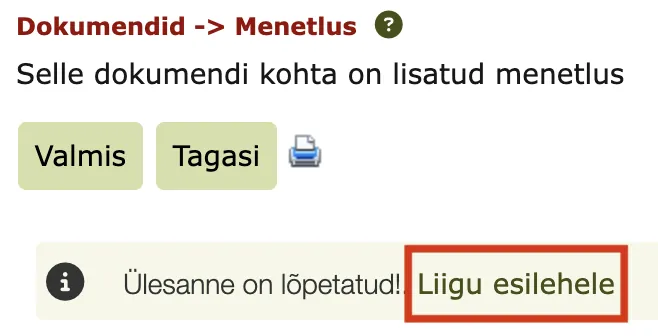
After completing a task, the user is shown a corresponding notification and is offered the option to open the front page via a direct link, where other incomplete and completed tasks are located.
New address entry functionality
Address entry has changed in the institution and person detail view. A separate panel has been added for entering an address, from which the address can be searched directly.

NB! The new address panel is only visible when the institution's/person's country is set to Estonia.
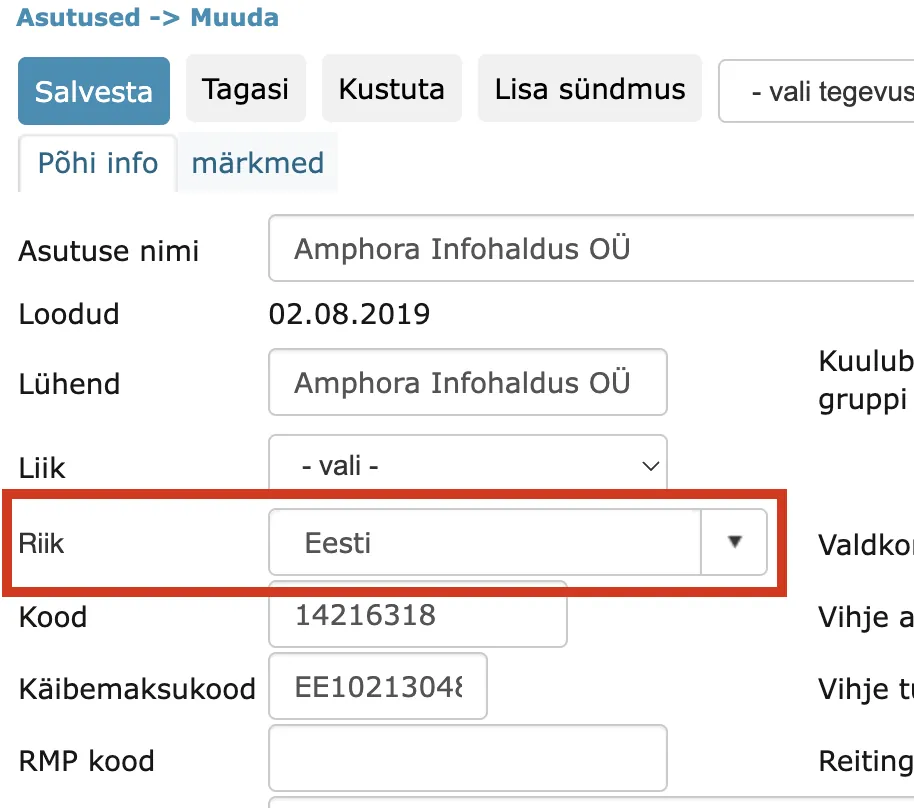
Adding an address has been made much more convenient. Unlike the previous solution, where the user had to enter all address fields separately, it is now possible to select the correct address together with the postal code.
Next to the selected address there is now a map icon, clicking on which opens the exact location of the address on a map.
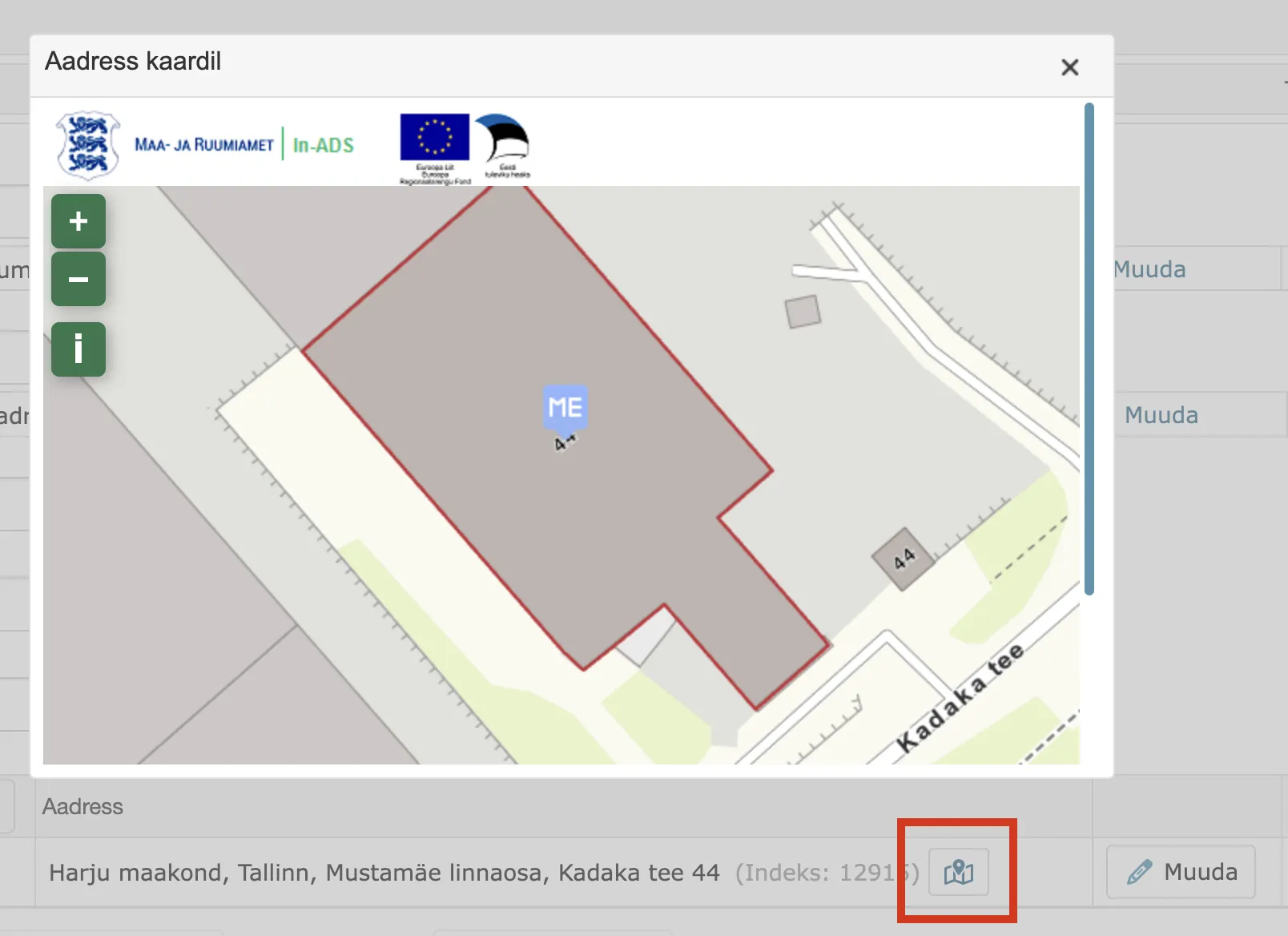
Previously entered addresses of institutions and persons still use the old solution, and this does not change.
NB! An address added to an institution via the Business Register is added in the new format.
Person and institution group selection when creating a delivery fixed
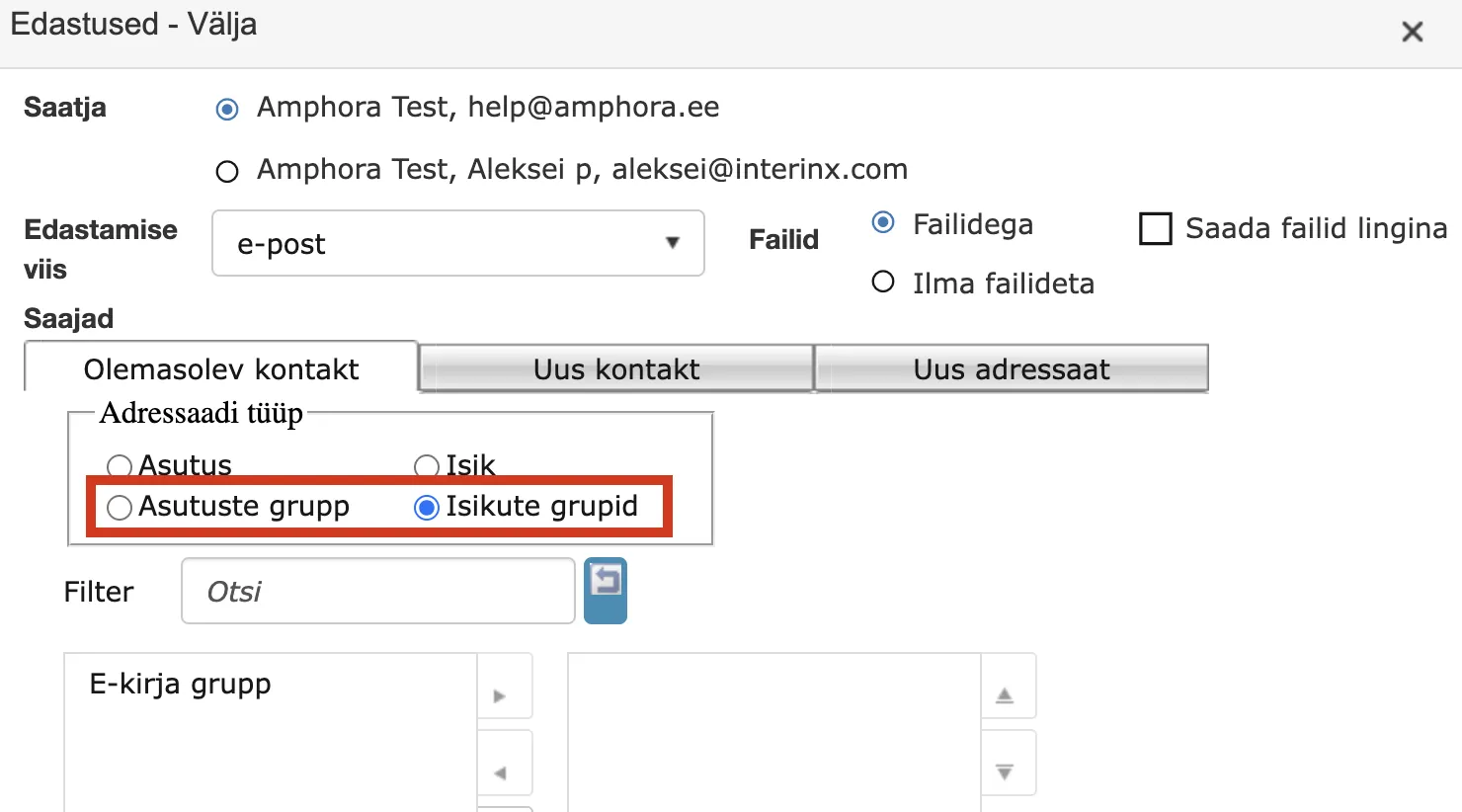
When adding an outgoing delivery (Add sending), it is possible to select a group of persons or institutions as the recipient. Institution groups can be added and edited in the Institutions module – Groups view, and person groups can be added and edited in the Persons module – Groups view.
In previous versions, it was not possible to select person or institution groups for the "email" sending method if the persons or institutions in those groups did not have a personal code/registry code. This requirement was not correct, because for sending email the presence of an email address matters, not the presence of a personal code/registry code. From now on, for the "email" delivery method it is also possible to select groups where the persons or institutions do not have personal codes/registry codes.
Information about replying to a document in the history panel
In earlier versions, there was no information about which document a reply was made from and with which document. The reply relationships were present in the Relationships panel, but precise information about which document was used to reply to which document was missing.
In this version we added this information to the history panel. An "Reply to message" history event is added to the initiating document, with additional information containing the text "Reply" together with the reply document's number and the document ID. A "Document loading" history event is created on the reply document, with additional information containing the text "Replied" together with the initiating document's number and the document ID.

DOCX template enhancements and fixes
-
A new DOCX template element has been added – ::ItemFiles::. The template element adds all of the document's additional files, separating them with commas.
Example: Additional_file_number_1.docx, Additional_file_number_2.docx, Additional_file_number_3.docx -
DOCX template processing has been enhanced – the detection of template tags has been optimized. This change was made primarily to improve performance.
-
File saving has been optimized – previously, especially when filling templates, excessive file copies were created (up to 3 copies + a pdf for them could be created). Normal loading created up to 2 copies per file. The change was made to improve performance.
Institutions module fixes
-
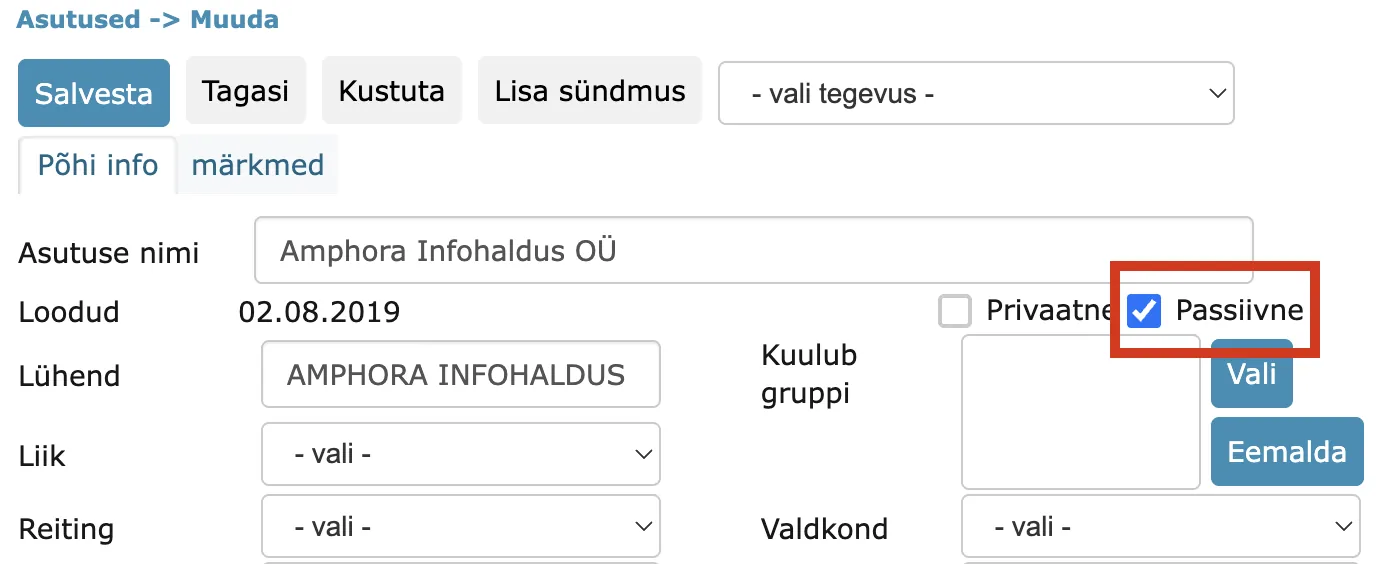
Making an institution active has been fixed. In previous versions, it was possible to make an institution passive (Institutions module – institution detail view), but it was no longer possible to make it active again. Starting from this version, this option is available.
NB! Passive institutions are not visible in the various institution selections (Deliveries panel, Admin module, etc.).
-
Passive institutions are no longer visible in the Institutions module's list of active institutions (the list that opens by default). To see passive institutions, click the "Passive institutions" button, and the list of passive institutions opens.

Added a list of users with mass-signing licenses
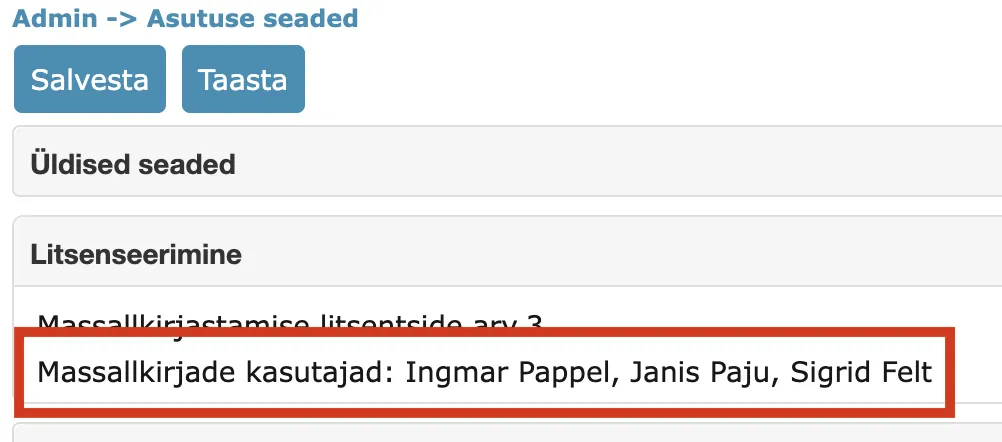
In earlier versions, it was very difficult to understand which user had a mass-signing license activated. In the Admin – Organization settings – Licensing panel, Amphora displayed only the number of mass-signing licenses, but there was no information about who had these licenses activated or whether they were activated at all.
Starting from version 16.0, the Admin – Organization settings – Licensing panel displays, in addition to the number of mass-signing licenses, the names of the employees who have a mass-signing license activated.
Optimization-related changes
- Optimized the final deletion process of an object or version – it caused a lock in the database and Amphora froze. This problem occurs especially during archiving, where there is mass deletion of versions.
- Optimized document modification when a template is used – in connection with filling the template, the metadata in the database was updated again; the optimization concerns only updating the file relationship.
- Optimized the composition of a disposal act when a template is used. In connection with filling the template, the metadata in the database was updated again, and the optimization concerns only updating the file relationship.
- Indexing of metadata and files has been moved to the database side and solved with the database's own means – it is no longer indexed by an external Amphora service; instead, the Tika service is used (which speeds up index creation and thereby also search speed). Index creation has also been enhanced (decoding of encoded symbols, removal of technical HTML text, etc.).
Form version publishing settings fixed
Documents received via Spoku or E-service (E-service) may have more than one form version. Amphora adds a new version when changes have been made to the received document's form – some form field has been changed or removed.
In previous versions, each form version could have a different publishing configuration. For example, on the second-to-last form version the main file was not allowed in the public view, but in the last version it was. Thus, documents with the second-to-last version did not have the main file visible in the public view, even though the main file was allowed in the public view in the last version.
In this version we added a new rule: the publishing settings of the latest form version automatically extend to all form versions.
Invoices module changes
- Editing an invoice row has been optimized – only the edited row is updated. Previously all rows were checked, which sometimes made editing a single row slow.
- Archiving support has been added to the VAT classifier in invoice accounting entries – new ones cannot be added, but old ones are displayed. Editing via the interface has also been added in Admin → Tables.
Sending email file links enhanced
In Amphora, it is possible to send files by email with a temporary link. You can read more about this HERE.
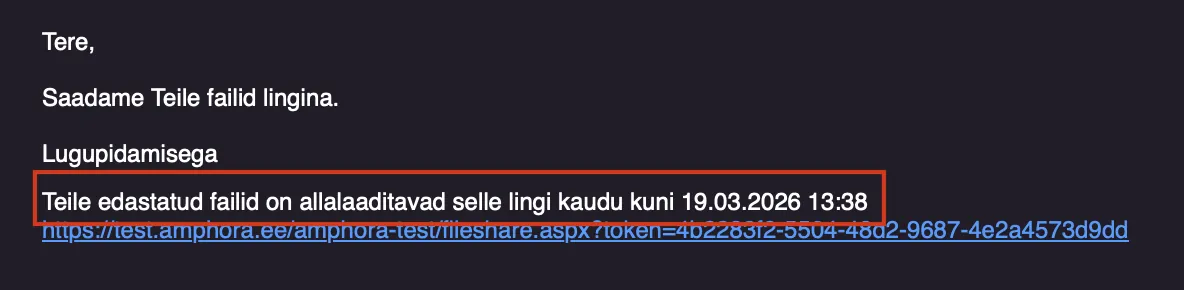
In this version, the option was added to add static text after the email content and before the file link. The text can be added or edited in the Admin – Translations menu under the keyword FileShareFooter. If the corresponding translation is empty, no text is added before the file link. By default, the translation of this keyword is empty.
You may add informative text so that the recipient can better understand where the files are located and what they need to do. Since these are temporary file links, it is worth adding an end date with a time until which these files can be opened and downloaded via the link – use #1 for this.
Example of the FileShareFooter keyword translation text:

Example in the email:
Other changes
- Fixed permission checking in super user mode – in some situations it did not allow objects to be seen (for example, series selection in various modules).
- The E-service and Spoku services now also add the service name to the comment of the document creation history event (so it is possible to unambiguously identify through which service the document arrived).

- E-service AddDocument supports more delivery data – transmitting address data did not work previously.
- Fixed downloading of a case's additional files in the public view – the files were visible, but could not be opened or downloaded. PDF files can be opened directly by clicking the file icon.
- Removed a duplicate history event for replying to a document – previously, 2 reply entries were created in the history panel of the source document.
- Fixed the default VAT percentage when composing an invoice – on 2026 invoices it was 22%, but it must be 24%.
- On the authentication page, a click lock has been added to the image buttons (ID-card, Smart-ID, Mobile-ID). This blocks a double-click and prevents possible authentication problems.
- The content of the Registers module is now visible only to super users. If a user has been given access to the Registers module via a user group but is not a super user, the module is visible, but when opening it Amphora displays a corresponding notification – No access! Super user mode is required!
- EMKIS interface refactoring – it now supports registering documents into the module. It uses the Eservice.asmx service.
- In the organization settings, the email operator selection now also displays "Entra ID" – users cannot configure it themselves, they must contact user support.
NB! For this operator, email logs are not available! - Telerik component update: 2025.3.825 → 2026.1.225.
Version 16.0.2
Form configuration view enhanced
The Admin - Form configuration list view has been enhanced in version 16.0.2.

- A "Self-Service Portal" filter has been added. When the checkmark is turned on, the list displays forms that are visible in the Self-Service Portal (the "Self-Service" option is marked in the form settings).
- A form name search field has been added. Forms can be searched by name.
- A new "Institution" column has been added. The column displays the institution name, which is determined based on the form's default catalog. This way, the list view immediately shows which institution's form it is. If the form has no default catalog, nothing is displayed in the column.
- A Module dropdown filter has been added.
Filters and searches can be combined with each other.
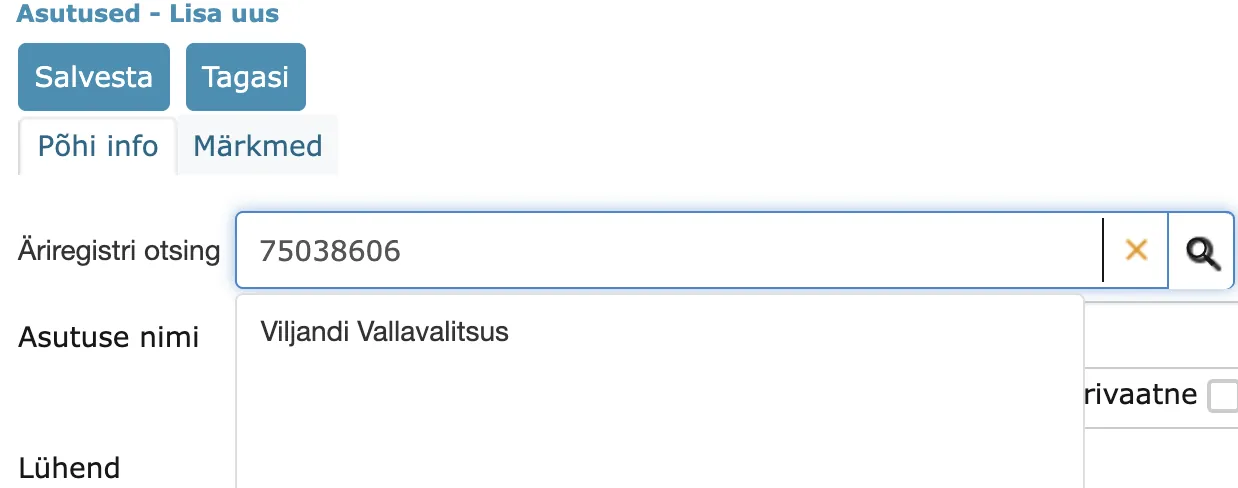
Institution search from the Business Register by registry code fixed
When adding a new institution in the Institutions module, the institution search from the Business Register by registry code has been fixed. In earlier versions, entering a registry code displayed an error message in Amphora.
Logic for adding a delivery to a party enhanced
In version 16.0.0 we changed the "Parties" panel and its functionality. It is now possible to add an outgoing-direction delivery to each party. In version 16.0.0, it was possible to add only one delivery per party. In version 16.0.2, we enhanced the logic for adding a delivery:
- If the delivery added to a party has the "Unsent" status, a new delivery cannot be added.
- If the delivery added to a party has the "Sent" status, a new delivery can be added.
Version 16.0.3
Enhancements/fixes
Signing in Self-Service has been fixed: 1. An incoming-direction delivery is no longer created. A delivery is created only when an application is submitted. 2. When signing with an ID card, the signature was not saved but the task was marked as done. Now signing with an ID card has been fixed.
Version 16.0.4
Enhancements/fixes
- Fixed the DHX notification about new entries – when logging in under another user in the same browser window, the previous user's notification was initially still displayed.
- Fixed the deletion and public-view display of a document's earlier versions – a check has been added so that if the entry also exists in the public view, the document is also removed from there. In versions 16.0.0–16.0.3, deleted document versions were displayed separately in the public view (they could not be opened).
- Enhanced person selection in the Parties panel – support for selecting from among all persons has been added, and it is no longer tied to the user's permissions. The Parties panel query now works independently. Previously, only persons added by a user of the same institution could be found in the selection.

- Enhanced adding and editing of persons and institutions in the Parties panel when the user does not have access to those modules (the Institution or Person module is not enabled in the user group settings). From now on, module access is not required when adding/editing persons or institutions via the Parties panel.
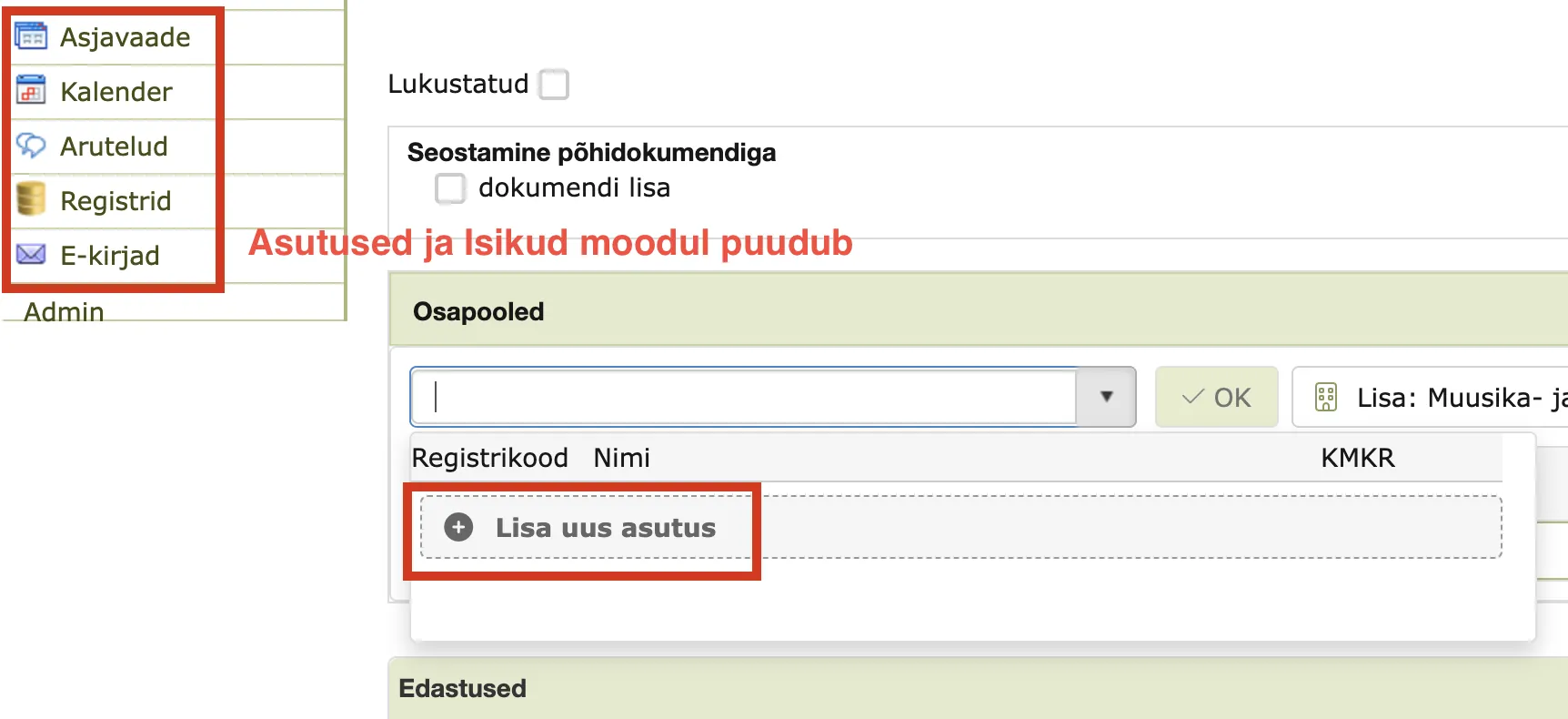
- Fixed returning to the document view when adding/editing a person or institution in the Parties panel – if the default open-in-read-view policy was enabled (documents open by default in read view), the document was erroneously displayed in read view.
- Fixed the operation of the "OK" button in the Parties panel – if a party was selected in the dropdown but the "OK" button was not clicked immediately, then after the page loaded (for example, selecting a series or adding a file) the "OK" button became inactive and could no longer be selected.
- Fixed the search for acts and contracts in the public view – previously it gave an empty result.
Version 16.0.6
New form field types added — InAds and InAds KÜ
In this version, new form field types have been added, intended for searching a property's address and cadastral reference.
Added form fields:
- InAds – Land and Spatial Development Board (Maa- ja Ruumiamet) address search form field (buildings/structures).
- InAds KÜ – Land and Spatial Development Board cadastral unit search form field.
Both fields support an interactive map (map icon) and are compatible with Gateways (Admin – Gateways) – based on the selected address/cadastral unit, GET/REST queries can be run and the query results automatically linked to other form fields. You can read more about Gateways HERE.

Example of a form where a GET/REST service is configured:
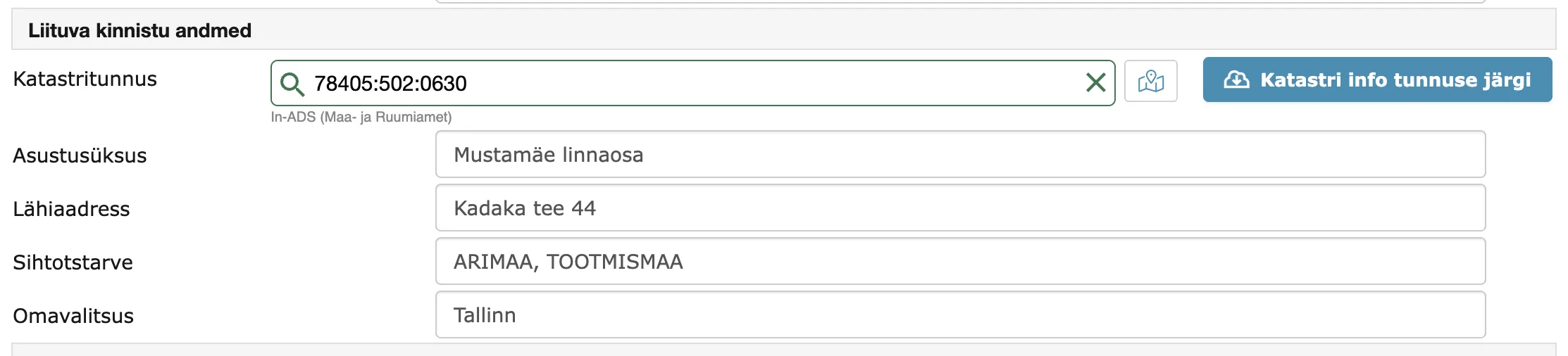
When adding an address or cadastral reference and clicking the "Cadastral info by reference" button, Amphora takes the data from the received query response and adds it to the form fields based on the rules entered under Gateways.
"Web title" field is now used when sending email
Sending a document by email has been enhanced in this version: the email title is now taken from the "Web title" field. Previously this field was the internal environment title field.
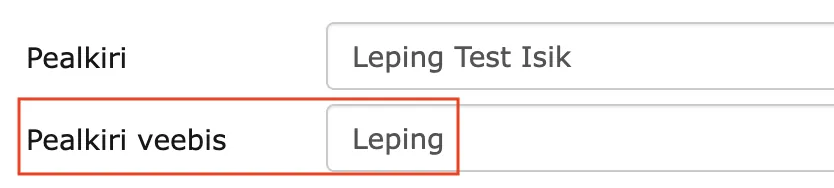
This is a common rule that cannot be changed in the settings and applies both when sending email via the Deliveries panel and via the @-icon.
If the "Web title" field has not been made visible in the Amphora environment (this can be done in the Admin -> Organization settings -> General settings menu with the "Use the Web title functionality in the Documents module" checkmark), the internal environment title field is used.
Procedure email notifications are no longer sent to passive users
In earlier versions, there was a problem where a task email notification was sent to a passive user in a sequential-execution procedure. This situation occurred when a user was made passive before the activation of a sequential-execution procedure task (status Pending -> Incomplete).
In this version, the bug has been fixed. When activating a sequential-execution procedure task, the user's status is now checked, and if the user is passive, no email notification is sent.
NB! If a user is made passive and they have incomplete or pending tasks, we recommend assigning a substitute to that user. All of the passive user's tasks are routed to the substitute, and an email notification is sent when new tasks are activated.
Deleting form dropdown options enhanced
Starting from this version, Amphora no longer allows deleting a form dropdown option if that option is in use on at least one document. Previously this was possible, and it could in turn cause data loss — after deleting a form dropdown option, an ID number was displayed in the document view instead of the option.
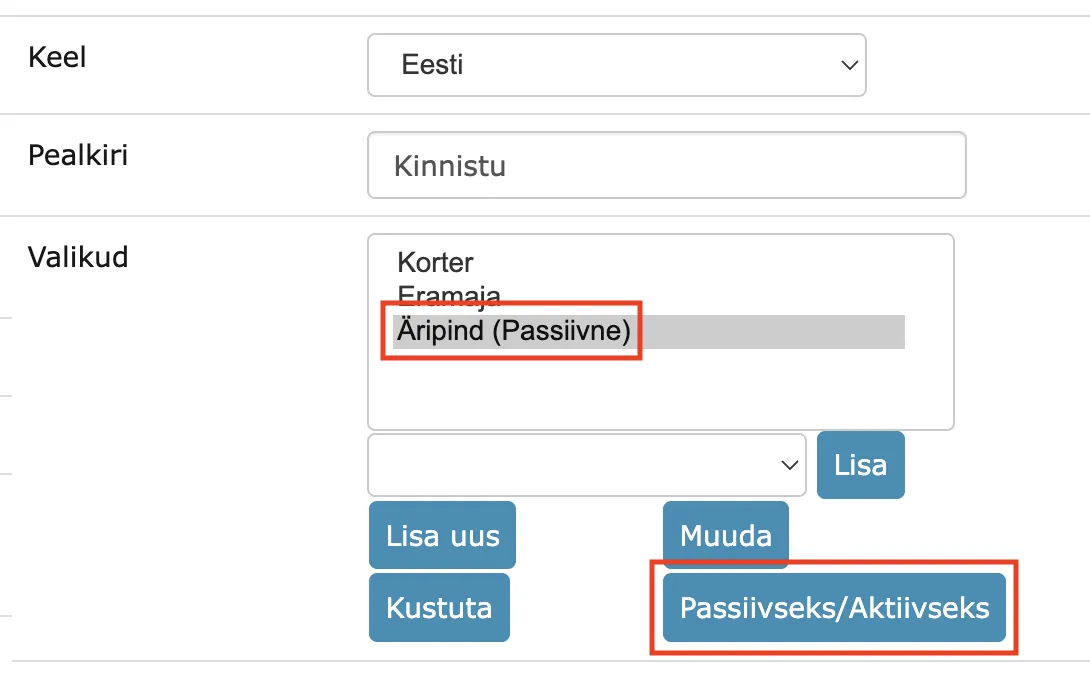
Instead of deleting a form dropdown option, the option should be made passive. A passive option is no longer visible in the selection when registering a new document, but on already registered documents it remains visible if it had been selected previously.
New task email notification placeholder added
The content of the email notification can be customized directly in the Amphora environment using the placeholders provided for this purpose. In this version, a new placeholder #10 was added – Task type (for signing, for completion, for information, for coordination).
The email notification content can be edited in the Admin -> Translations view. The corresponding keywords are Task_ProcessTaskAdded, ExternalPersonEmailBody, and ExternalPersonTakeNoticeEmailBody (the last two are Self-Service Portal notifications).
Both HTML and CSS can be used when composing the notification content, which makes it possible to design email notifications in many different ways.
All currently existing placeholders:
- #1 – Task name
- #2 – Start date (dd.MM.yyyy)
- #3 – Deadline (dd.MM.yyyy)
- #4 – Task description
- #5 – URL link to the procedure (clickable)
- #6 – Procedure/document description
- #7 – Static URL to the procedure
- #10 – Task type
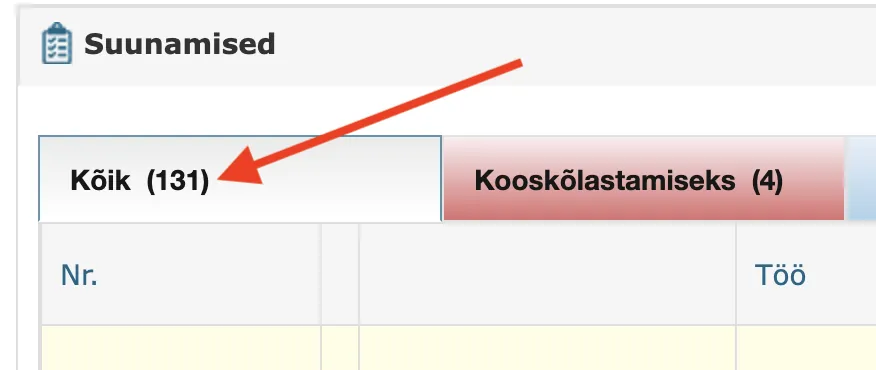
Marking tasks as done in the "All" tab fixed
Marking tasks as done in the "All" tab of the Forwardings panel on the front page has been fixed. The problem occurred with tasks located on the second or a later page. After marking a task as done, the first page's tasks were displayed in the Forwardings panel, even though the second page was active before marking it as done. In this version, the bug has been fixed, and from now on Amphora displays the active page's tasks after marking a task as done.
DOCX support added for session agenda protocol template elements
In the Documents module, the session agenda protocol template elements ::PAEVAKORRAD::, ::PAEVAKORRAD2::, and ::PAEVAKORRAD3:: can now also be used in DOCX templates. Previously, for these template elements only HTML — that is, the text editor format — was supported.
This change makes it possible to create session agenda protocols directly in DOCX format using loading forms. This simplifies the design of a document created in DOCX format.
Notification email logic fixed when sending to Self-Service via the Deliveries panel
Via the Deliveries panel, it is possible to send a document to an external person either for signing or for information. You can read more about this in the Self-Service Portal guide.
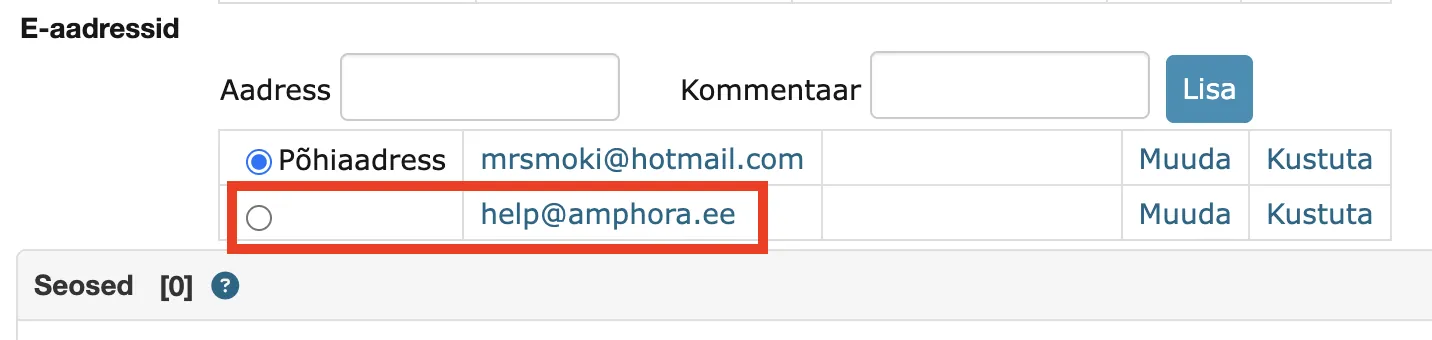
In addition to persons already in the system, it is possible to add a person's data manually (the "New Recipient" tab). In that case, the personal code field is mandatory. When sending the document (creating the procedure), Amphora looks up the person by personal code.
Changed email logic: previously Amphora always sent the email notification to the email address associated with the person, so the manually entered email address was not used. Starting from this version, the email notification is sent to the email address entered in the "New Recipient" tab.
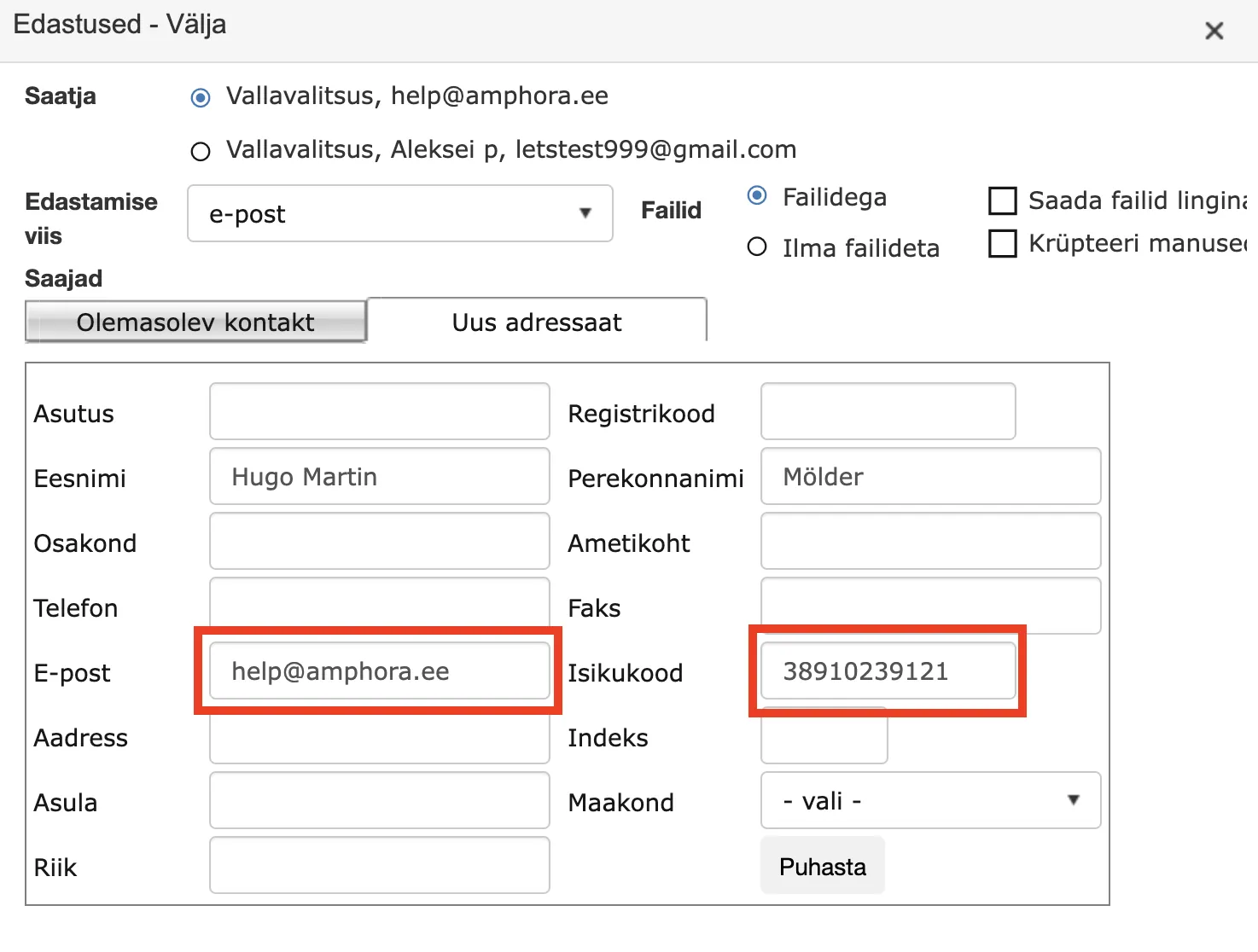
In addition, Amphora adds the manually entered email address to the existing person's associated email addresses (it is not replaced, but added as an additional email address), if that email address is not already associated with that person.
Improved reliability of auxiliary services
Universal configuration support for services has been added – all auxiliary services (conversion, encryption, signing) now run on a common address (*.svc.amphora.ee). If the main server does not respond, the system automatically switches to a backup server. When the main server recovers, traffic automatically switches back. This ensures greater reliability – document conversion, signing, and encryption work without interruption even in case of server failures.
Downloading of IMAP mailbox messages fixed
A header check of up to 500 older emails has been added to ensure that mailbox messages are also downloaded when older emails with UID values exist in between. Previously, syncing was interrupted as soon as one email older than 30 days was detected. Downloading without a time limit has also been enabled.
IMAP mailbox emails are visible in the Emails module.
Case/file procedure notification attachment functionality fixed
When creating a procedure, it is possible to add an "Attachment" checkmark, as a result of which Amphora sends the party an email notification with an attachment. Unlike in the Documents module, this functionality did not work correctly in the Case view module in previous versions. If the user added the "Attachment" checkmark when creating the procedure, Amphora did not send the task email notification.
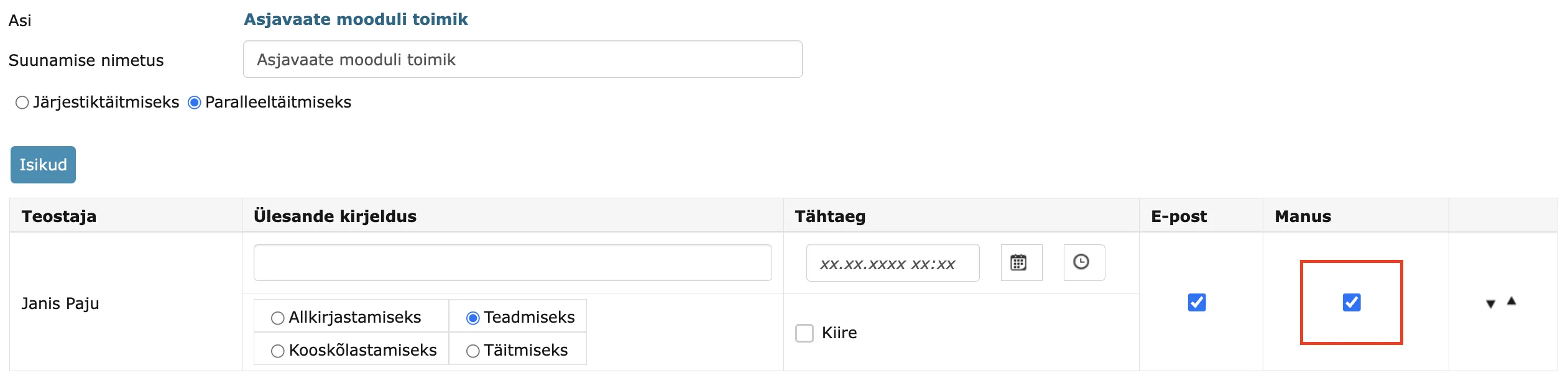
Starting from this version, Amphora sends the email notification regardless of whether the "Attachment" checkmark is added or not. Only the case/file signature container is sent as an attachment — additional files are not sent separately.
PersonChooser(List) form field types fixed
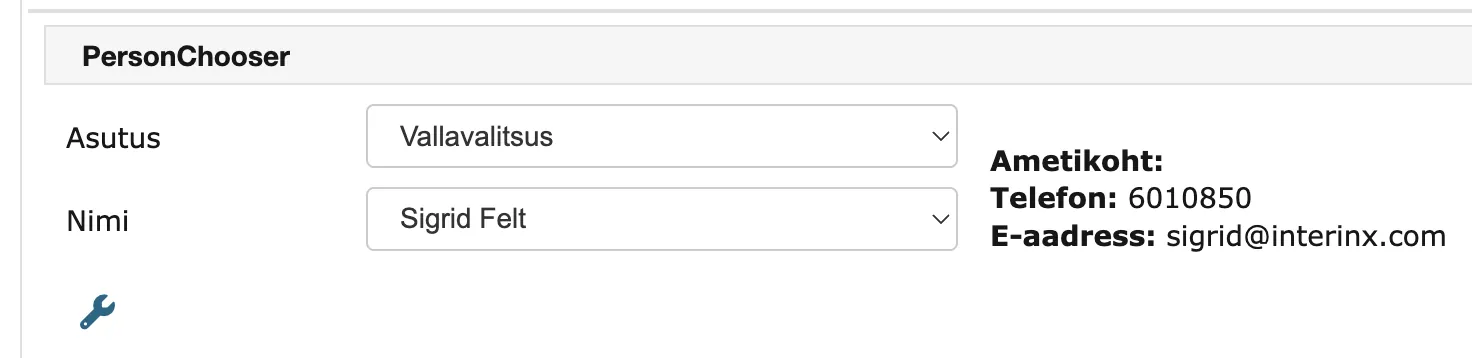
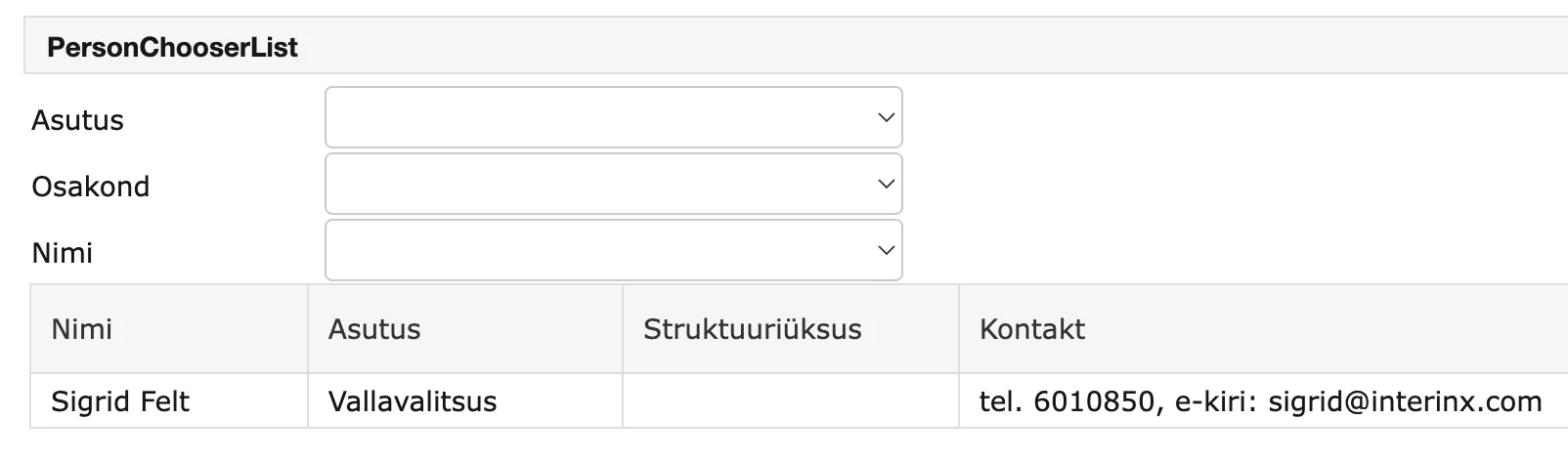
The PersonChooser and PersonChooserList form fields allow selecting persons associated with a specific institution. In this version, a bug has been fixed that caused active system persons associated with a passive user to be missing from the selection.
Since this is a person selection, the check must occur at the person level, not the user level. From now on, all active persons are displayed in the selection. Passive persons are still not displayed in the selection.
PersonChooser field:
PersonChooserList field:
Signing changes and fixes
- When creating a new signature container (when signing), all symbols forbidden in the Windows file system are removed from file names to ensure that signing works.
- Fixed the problem of a document being signed simultaneously by multiple users. This was a bug that had been causing problems in users' work for a longer time. The bug occurred, for example, when signing within a parallel-execution procedure/delegation. Since the order does not matter in a parallel-execution procedure, a situation could arise where two users started signing at the same time and, as a result, two separate signature containers were created in Amphora instead of one. In version 16.0.6, this bug has been fixed – two separate signature containers are no longer created.
Parties panel fixes and changes
- Fix to displaying parties in the Public View. If a manually entered party's code (registry code/personal code) is "-", then "private individual" is now displayed in the Public View instead of the party's name.
- Fixed the closed state of the Parties panel when adding a new party. In some situations, the Parties panel remained closed, and it was not possible to see the selected parties or add new ones. In this version, this bug has been fixed.
Faulty Parties panel:
 Correct Parties panel:

- When registering a new document from Outlook, extra parties could be added to the document even when the Parties panel was not made visible on the form being registered (for example, on the Letter form). This happened in a situation where the user saved a document with the Parties panel and immediately afterwards started registering a new document from Outlook. Amphora remembered the saved document's Party selections and automatically added them to the new document. In this version, this bug has been fixed.
Spoku and E-service technical changes
- Enhanced the error handling of the GetDocumentInfo and GetDocumentStatus services – a technical error message is now issued when a technical error occurs while identifying the document from the database.
- Enhanced the error handling of the E-service and Spoku service AddFileToDocument – in case of an error, an error message is issued and the partial document version is canceled, with a log entry added.
Fixes and other changes
- Fixed global search: a single " (quotation mark) symbol in the search phrase no longer causes an error message. Starting from version 16.0, Amphora displayed an error message if there was a single quotation mark symbol in the search phrase.
- Fixed adding a new institution. If the institution's e-invoice operator was Finbite, Amphora did not automatically create a relationship with that operator when adding the institution. Now the Finbite operator is selected immediately after adding the institution.
- Enhancement to the reference change check. If there is no valid counter in that series when changing the reference, the uniqueness check is not applied.
- Optimized signing with large files – optimization of server memory usage and, in connection with that, avoidance of error messages. Tested with ~600 MB files.
- Fix to DOCX template filling for reserved XML symbols (&, <, >, ", '). On all DOCX templates, template elements are from now on replaced with the symbols in their correct form, not with their entities.
- Fixed adding the reply date to a document when composing a reply. The problem could occur in a situation where the original document had multiple versions and a reply document was composed for it – in that case, the reply date was not added to the original document.
Version 16.0.7
Removing a system relationship on a document
When a document was created as another document's reply letter, follow-up letter or annex, a (system) relationship was created between them automatically, and it could not previously be removed through the user interface. A user can now remove such a relationship from the document's relationships panel themselves by clicking the Delete link.

When the relationship is removed, the document becomes independent and receives a new reference from the counter. The new reference is shown to the user before the action is confirmed.
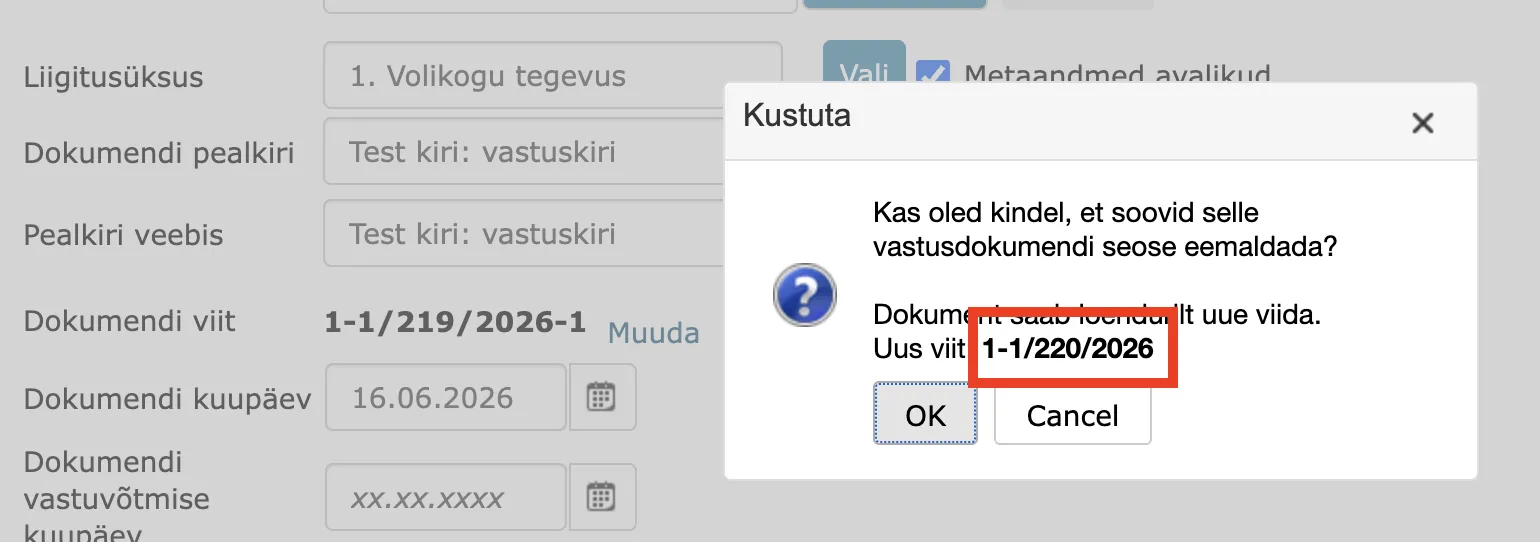
This functionality can be turned on with the user group policy "Deleting a system relationship" (the policy is turned off for all user groups by default).
Downloading the WebDAV installer in Chrome
The WebDAV protocol helper program needed for editing a file directly (the "Modify" button) did not always download correctly in Chrome (Windows) when the helper program was not installed on the user's computer. The installer download now starts correctly and the user can install the helper program in Chrome without trouble.
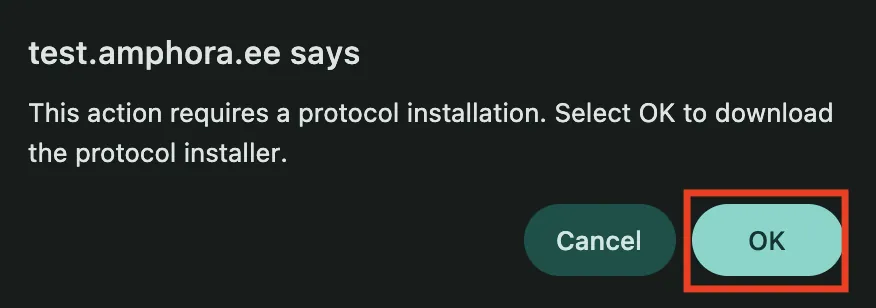
Mandatory fields on a self-service application
On a self-service form, mandatory fields can now be set at two levels: some fields must be filled in already when the form is saved, others only when the form is submitted. This is configured in Admin - Form configuration, under the form's settings. The field settings have two checkboxes: Mandatory field - the field must be filled in when the form is submitted, and Mandatory field on registration - the field must be filled in when the form is saved.
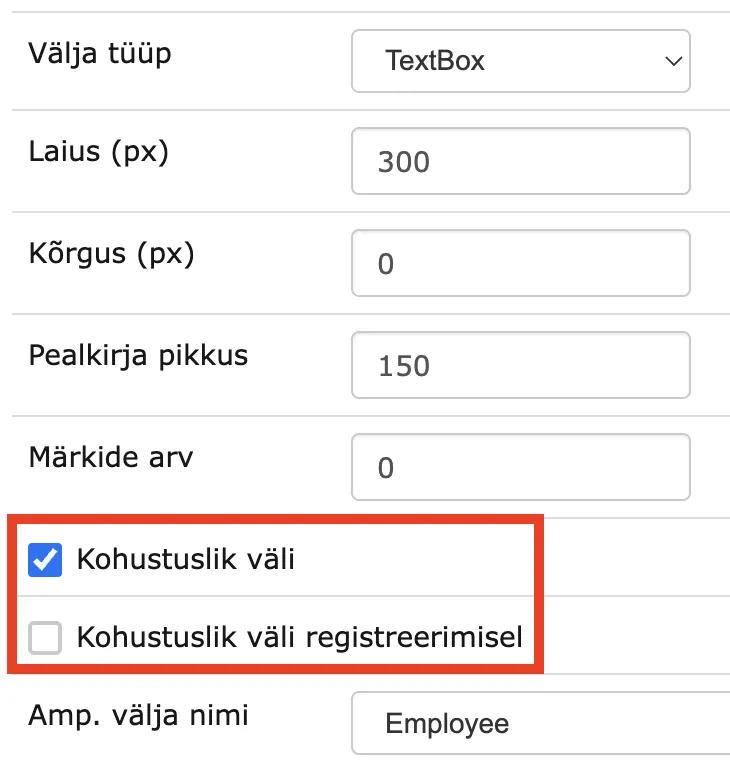
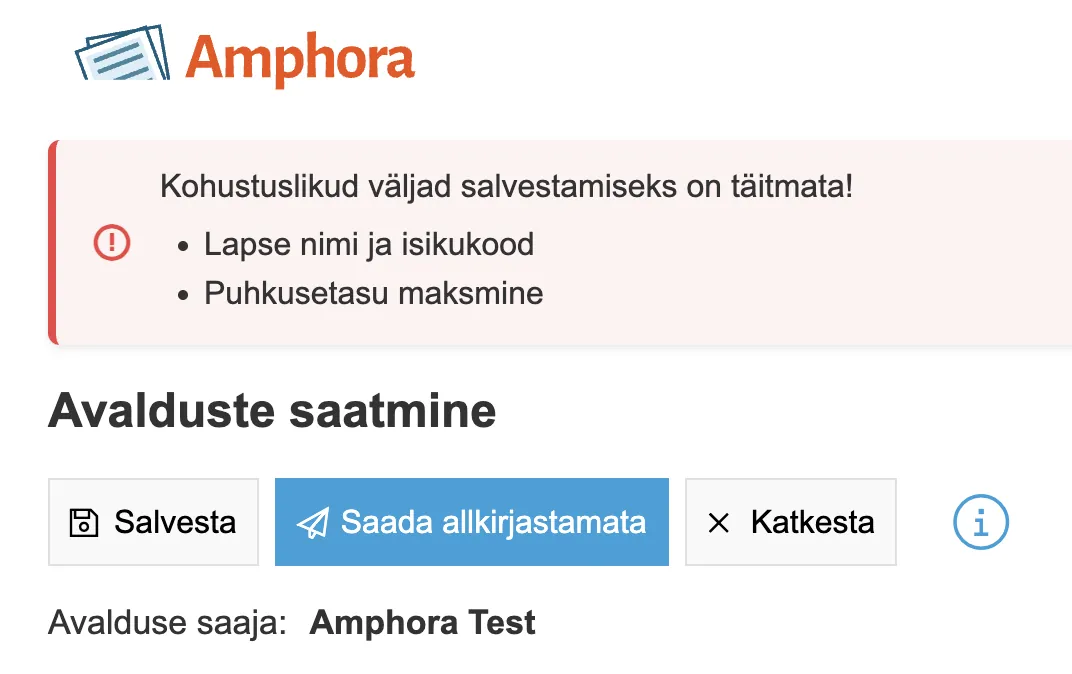
This lets the user save the form as a draft along the way even when all the fields required for submission are not yet filled in. The form can only be submitted once the fields that are mandatory on submission have been filled in as well.
If a mandatory field is empty, it is highlighted and the action cannot be completed.
A checkbox (field type - CheckBox) that the user must tick before submitting the form can also be set as mandatory. That suits recording a consent or a confirmation, for example.
Check added when opening the delivery window
When a user has one document open and opens another document in the same session in another browser window or tab, the session's active document changes.
If the user then returns to the first document and tries to open, modify or add a delivery there, Amphora detects that the active document has changed in the meantime and displays a notice. The action is not allowed.
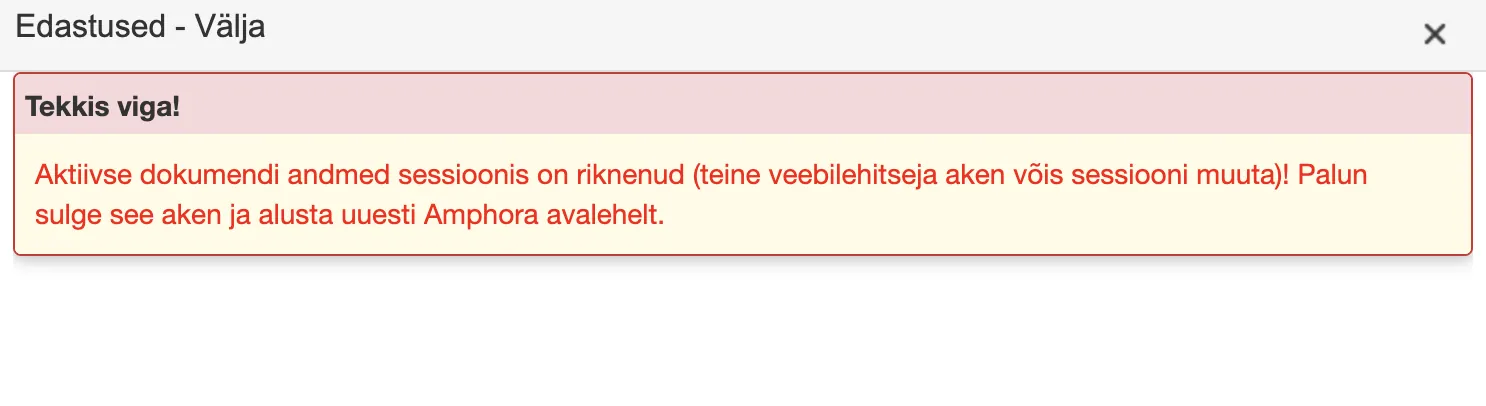
This prevents changes from being saved to the wrong document by mistake. The message asks the user to close the window and start the action again.
Resolving a document editing conflict
When several users edit the same document at the same time, Amphora now warns on saving that the document has already been changed since it was opened. Previously a later save could overwrite another user's changes unnoticed.
The message shows who has changed which fields in the meantime, and offers the button "Load the newest version and keep my changes", which loads the newest version of the document together with the changes the user made themselves.
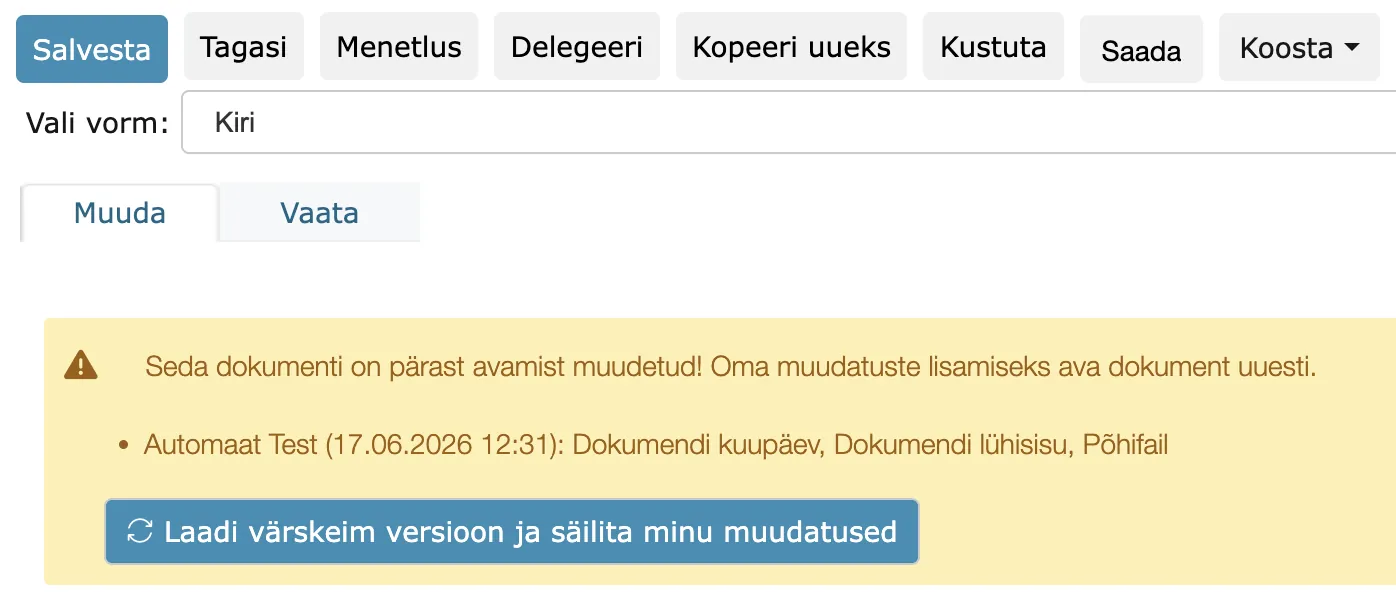
If another user has changed the same field in the meantime, their value is kept and the user is asked to check it. This way a user no longer accidentally overwrites a document saved by another user.
Document saving check when working in several windows
When a user has several Amphora windows or tabs open at once and another document is open in one of them, saving in one window could previously apply the changes to the wrong document by mistake.
On saving, Amphora now checks whether the document open in that window is still the same document the user started editing. If the user has opened another document in another window or tab in the meantime, saving is stopped and the user is notified. This way one document's changes are not accidentally carried over to another document.
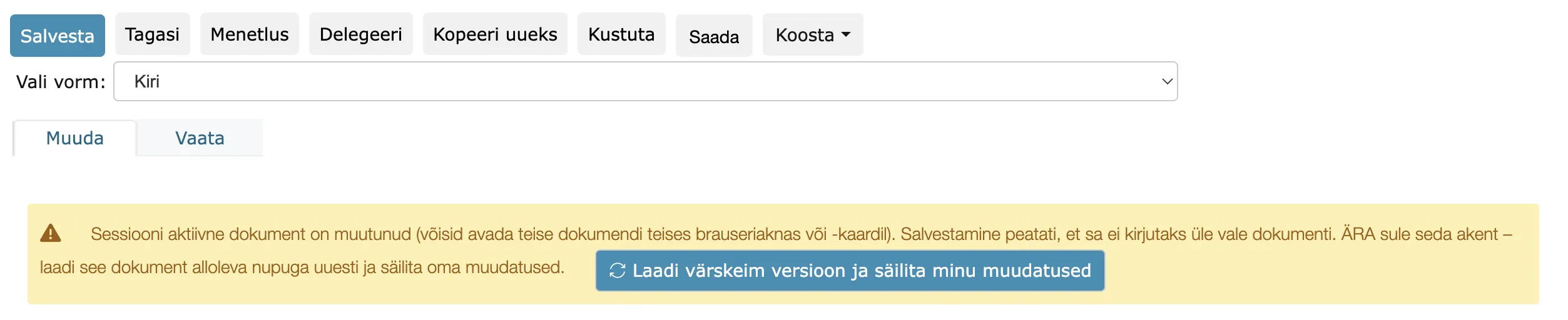
Automatic optimization of large images in the text editor
A user may copy content together with images into the text editor. Such images can be several megabytes in size, which increases the size of the document and affects Amphora's speed, above all when working with that document.
On saving, Amphora now tidies up the text editor's content automatically: images that are too large are reduced to at most 200 KB, while smaller images (e.g. logos) are left unchanged.
The user does not have to do anything themselves - the size of the saved content decreases and Amphora works faster and more reliably.
Form reading view generation enhanced
When a new form is added or an existing form is modified (Admin - Form configuration), Amphora generates a reading view file for the form, which lets users open the document in the reading view.
In this version, generation of the form's reading view file has been fixed. If the form's content (for example field names) contained special characters not valid in XML, generating the reading view file could fail and documents with that form could not be opened in the reading view. Such characters are now removed automatically and the reading view file is created correctly.
Other changes
- Publishing has been moved to a background service and made asynchronous - saving a document is faster for the user.
- Fixed an error that occurred when checking emails: if the same email already existed in the mailbox, the error message is now shown in full and the earlier error no longer occurs.
- When adding sales invoices through the ERP service, the payment reference (PaymentId) is now automatically set to the invoice number, including a number received from an Amphora counter. Before the invoice is sent, it is checked that PaymentId is set. This way a sales invoice always has a correct payment reference and sending the invoice is not held up by a missing one.
Last modified: 07 October 2026, 15:42:46