Legal Acts Editor (akt-editor)
- What is akt-editor
- Creating a draft document
- Opening a draft in akt-editor
- akt-editor user interface
- Editing text and adding elements
a. Formatting
b. Adding elements
c. Using the structure tree - Compliance validation (schema)
- Saving
- Automatic draft (autosave)
- PDF preview
- Generating the legal act from the draft
- Advantages of the web-based akt-editor
- Difference from VexPro
- Possible issues
1. What is Akt-editor
Akt-editor (Legal Acts Editor) is a browser-based editor built
into Amphora for editing .akt files — legal act drafts and legal acts.
Unlike the previous solution, there is no need to install VexPro or
Amphora Client: the editor opens directly in the web browser, inside
the Amphora window.
Important
Using akt-editor is not mandatory. The existing VexPro / WebDav ("Edit") solution remains available in parallel and continues to work. We recommend first getting familiar with the new editor calmly — for example, trying it on a non-critical or sample document — before you start composing actual documents with it.
akt-editor can be used when:
- the Legal Acts system has been adopted;
- the document's form is a legal act form (e.g. Government Regulation Draft, Government Regulation);
- the main file has the .akt extension; and
- the organization has akt-editor enabled (configured by Amphora customer support).
Important
Amphora form fields (e.g. Title on the document form) continue to be edited in the Amphora document view, not in akt-editor. akt-editor is for editing the legal act's content (preamble, points, signatories, etc.).
2. Creating a draft document
The draft is created in the usual way (see also Legal Acts system):
- Select Documents → New Document → form Government Regulation Draft.
- An .akt template is automatically created in place of the main file; the catalog 2-4 Government Legal Act Drafts is selected.
- Fill in Title (and Presenter, if needed) and click Load.
After saving, a Muuda akt-editoris (Edit in akt-editor) link appears on the main-file row alongside the usual links.

3. Opening a draft in akt-editor
A document can be opened in akt-editor in two ways:
For an existing (saved) document, click the Muuda akt-editoris (Edit in akt-editor) link on the main-file row.
For a new document, use the button at the top of the form, Salvesta ja ava akt-editoris (Save and open in akt-editor) — this saves the document and opens the editor in one step. (The editor cannot be opened on an unsaved document; in that case the Ava akt-editoris (Open in akt-editor) link is greyed out and shows the tooltip "Save the document before opening it in akt-editor.")
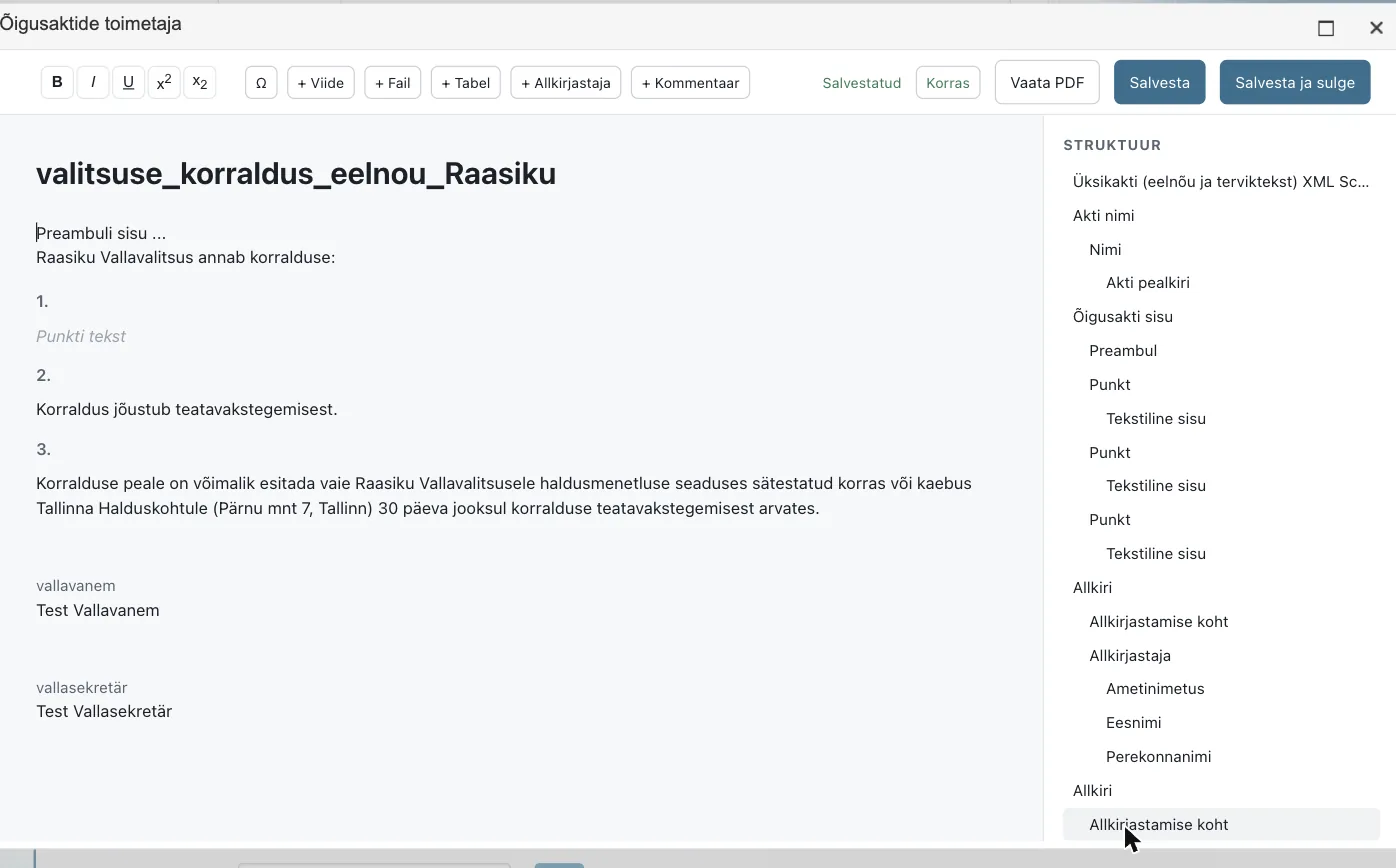
The editor opens in a modal window over the same window (not in a new tab — so no parallel Amphora sessions are created) with the title Õigusaktide toimetaja (Legal Acts Editor). The window can be moved, enlarged/maximised and restored back. While loading, a loading message is shown until the document opens.
4. akt-editor user interface
Inside Amphora (in the modal window), the editor has a simplified layout: the document content on the left, and on the right a panel containing the Struktuur (Structure, the element tree), the list Lubatud lisatavad elemendid (Allowed elements to add), and the ↑ ↓ Eemalda (Remove) buttons (the latter appear when scrolling further down the right panel).
- Formatting toolbar: B (bold), I (italic), U (underline), super-/subscript, and Ω (special character).
- Adding elements: structural elements from the Lubatud lisatavad elemendid (Allowed elements to add) panel; reference/file/table/signatory/comment via the toolbar + buttons (see Adding elements).
- Save status: the indicator shows Salvestatud (Saved, green) or Salvestamata muudatused (Unsaved changes).
- Buttons: Vaata PDF (View PDF), Salvesta (Save) and Salvesta ja sulge (Save and close).
- Formatting toolbar — for formatting text.
- Element buttons — for adding allowed elements.
- Document content view — for entering and editing text.
- Structure — the element tree, for reordering and deleting.
- Save buttons — View PDF / Save / Save and close.
5. Editing text and adding elements
Click in the content and edit the text (preamble, points, signatories, etc.). Elements are added from the Lubatud lisatavad elemendid (Allowed elements to add) list or via the toolbar + buttons (see below).
Formatting
Select the text and click the desired button on the formatting toolbar: B, I, U, super-/subscript. To add a special character, click Ω and choose the character.

Adding elements
Legal act structural elements (part, point, subpoint, text content) are added via the Lubatud lisatavad elemendid (Allowed elements to add) list on the right; references, files, tables, signatories and comments via the toolbar + buttons.
Adding a structural element in the correct order:
- In the structure tree (or by clicking in the content), select the element after which you want to add the new one.
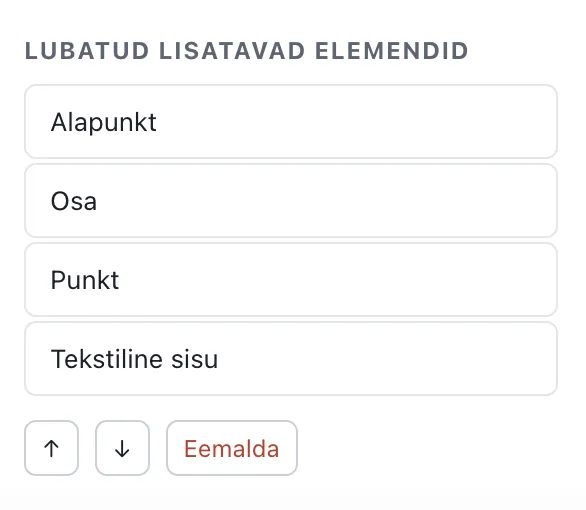
- The Lubatud lisatavad elemendid (Allowed elements to add) list (below the structure tree — scroll down the right panel if needed) shows only the elements that are allowed to be added at the selected position (e.g. after a point: Part, Point, Text content).
- Click the desired element — it is added immediately after the selected element with default text, and points are automatically renumbered.
A reference, file, table, signatory or comment is added via the toolbar buttons:
- + Viide (Reference) — opens the "Lisa viide" (Add reference) window (display text; Väline (URL) (External (URL)) or Dokumendisisene (In-document); URL).
- + Tabel (Table) — opens the "Lisa tabel" (Add table) window (number of rows and columns → Loo tabel (Create table)).
- + Kommentaar (Comment) — adds a comment together with the author and date.
- + Allkirjastaja (Signatory) — opens a dropdown with predefined signatories (the list starts empty); choose the appropriate one. To add a new signatory manually, choose + Sisesta käsitsi… (Enter manually…) (see below).
- + Fail (File) — allows attaching a file to the document.
Adding a signatory:
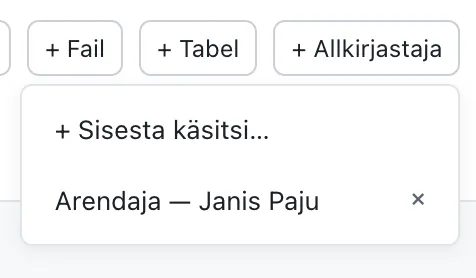
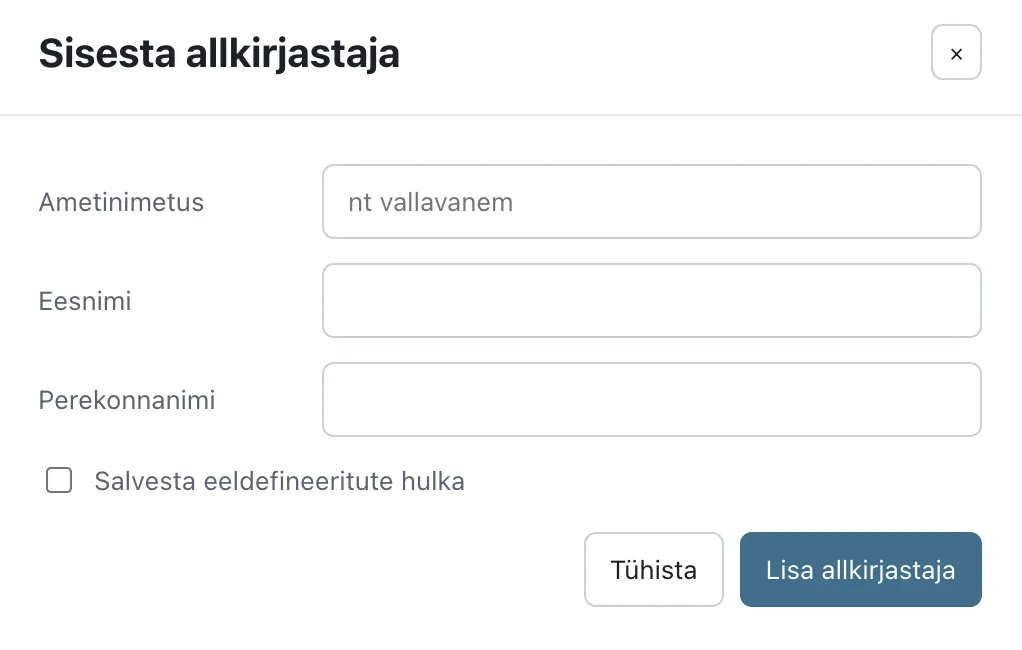
Adding a new signatory manually: choose + Allkirjastaja → + Sisesta käsitsi… (Signatory → Enter manually…). The "Sisesta allkirjastaja" (Enter signatory) window opens, where you fill in Ametinimetus (Job title), Eesnimi (First name) and Perekonnanimi (Last name). If you check "Salvesta eeldefineeritute hulka" (Save among predefined), the signatory is also added to the list of predefined signatories and can be chosen from the dropdown afterwards. Finally, click Lisa allkirjastaja (Add signatory).
Predefined signatories are stored in the web browser: they are available on the same computer in the same browser, not on another computer or in another browser. In addition, an entered signatory can be removed from the list by clicking the (x) icon next to the signatory.
Important
The Lubatud lisatavad elemendid (Allowed elements to add) list depends on the selected position — only the elements allowed by the legal act schema at that position are shown. This keeps the document's structure correct and points in the right order.
Using the structure tree
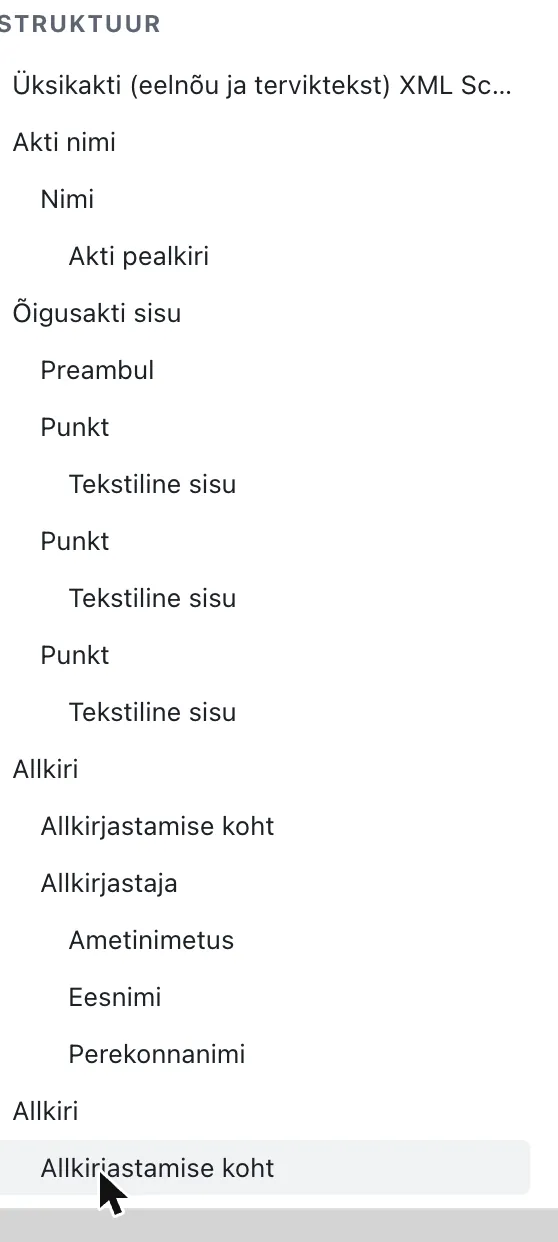
The Struktuur (Structure) panel on the right shows the hierarchy (tree) of the document's elements: the act's name, the legal act content (preamble, points), signatures, etc. Clicking an element in the structure tree highlights the corresponding place in the document content — making it easy to navigate a long document and verify that the structure is correct.
Elements can be moved and deleted using the buttons below the structure tree and the Lubatud lisatavad elemendid (Allowed elements to add) list (see the image above). The buttons act on the selected element:
- ↑ / ↓ — move the selected element up or down in the document (e.g. to change the order of points).
- Eemalda (Remove) — deletes the selected element together with all its sub-elements.
An element can also be deleted with the Backspace or Delete key, but use the ↑ / ↓ buttons to move it.
6. Compliance validation (schema)
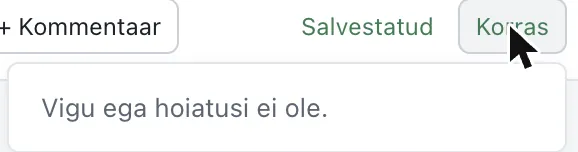
akt-editor checks the document's compliance with the legal act schema. If there are no errors or warnings, the status Korras (OK) is shown along with the message "Vigu ega hoiatusi ei ole." (No errors or warnings.). If there are errors, attention is drawn to the places that need correcting.
7. Saving
- Salvesta (Save) — saves the changes to the document's .akt main file. The editor stays open, and the save indicator switches back to "Salvestatud" (Saved).
- Salvesta ja sulge (Save and close) — saves and closes the editor window; the Amphora document view refreshes automatically.
- If you close the window with unsaved changes, the editor shows the "Salvestamata muudatused" (Unsaved changes) window with the options Salvesta ja sulge (Save and close), Sulge salvestamata (Close without saving) and Tühista (Cancel), so that work is not lost by accident.
Important
Every Salvesta (Save) creates a new version of the main .akt file; earlier versions stay in the document's file versions. Work in between is protected by the automatic draft (see Automatic draft).
8. Automatic draft (autosave)
The editor automatically saves changes as a draft (in the background, both in the browser and on the server) — so work is not lost if the session expires, the internet connection drops, or the tab is closed. The draft does not create a new version (a version is only created when Salvesta (Save) is clicked).
If you reopen the document and an unsaved draft is found, the editor shows the question "Taasta salvestamata muudatused?" (Restore unsaved changes?) — Taasta (Restore) loads the draft, Loobu (Discard) sets it aside. After clicking Salvesta (Save), the draft is deleted.
9. PDF preview
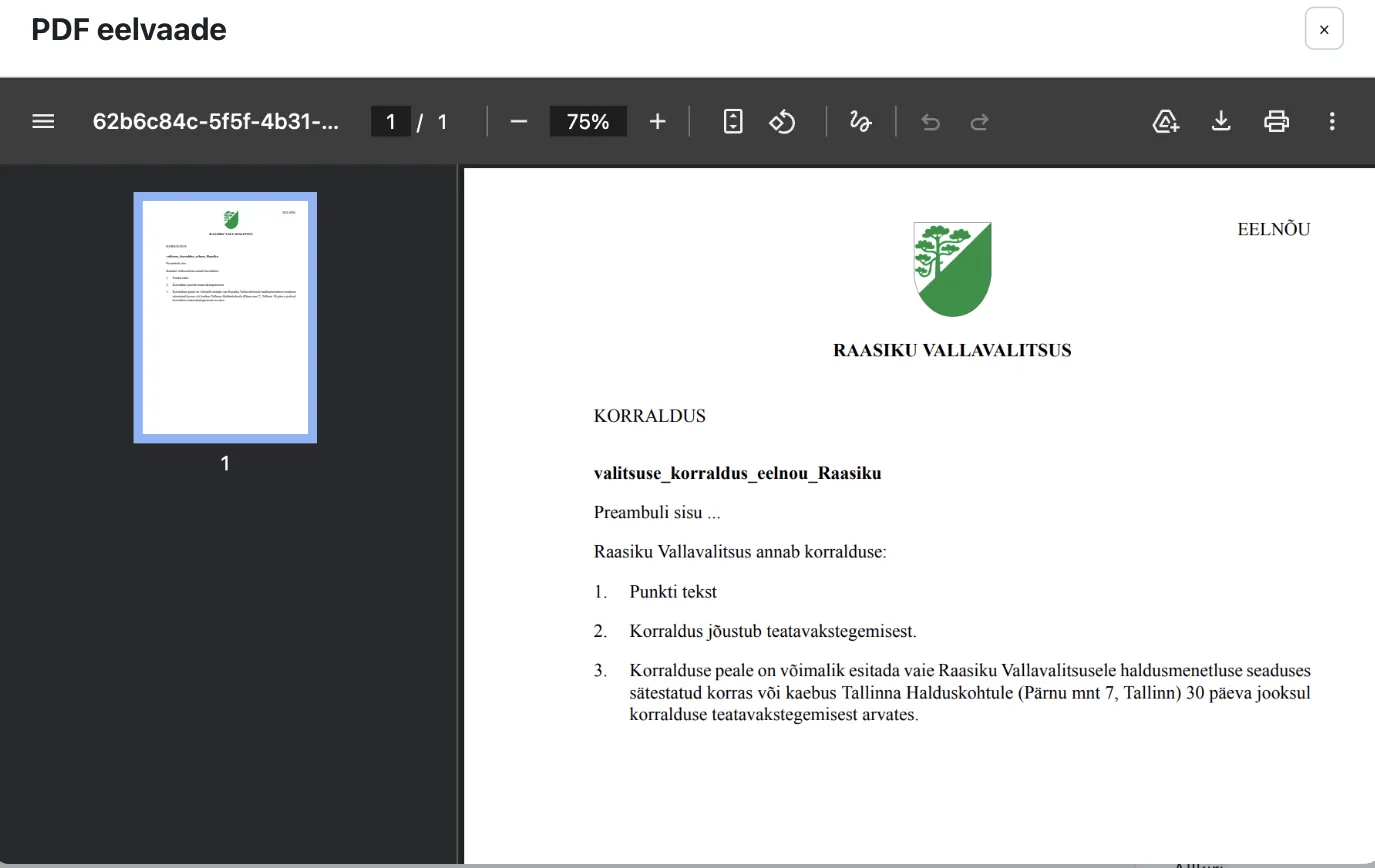
Click Vaata PDF (View PDF) — akt-editor generates a PDF according to the legal act's print template and shows a preview in a window (PDF eelvaade, PDF preview). The PDF can be downloaded from the preview window's toolbar.
Important
The coat of arms and organization name in the header come from the organization's print template and are organization-specific in production.
10. Generating the legal act from the draft
When the draft is ready, you can click Genereeri õigusakt (Generate
legal act) in the Amphora document view. A new Government Regulation
document is created, the draft's data is transferred into it, the catalog
2-3 Government Regulations is selected, and the document automatically
gets a number (e.g. 2-3/2026/2). The generated legal act can
likewise be edited in akt-editor and its PDF viewed. (See
Legal Acts system for details.)

11. Advantages of the web-based akt-editor
akt-editor is a web-based counterpart to the existing VexPro software. The web-based solution has several advantages over VexPro (the Windows desktop application):
- No installation needed. VexPro is a separate Windows program
(
.exe) that must be installed on every workstation together with the Java Runtime Environment (JRE). akt-editor opens directly in the web browser — there is nothing for the user to install. - Works in any modern browser and on any device. VexPro is Windows-based; akt-editor does not depend on the operating system (Windows, macOS, Linux) — only a modern web browser is needed.
- Always up to date, updated centrally. The VexPro version has to be updated separately on every workstation. akt-editor is updated centrally on the server — all users get the new version and fixes at once, with nothing to do on the workstation.
- Seamlessly integrated with Amphora. The editor opens inside the Amphora window and does not require saving/opening the file locally (VexPro required configuring a local working directory). Changes are saved directly to the Amphora document.
- Better protection for your work. The automatic draft (autosave) preserves work even if the session or connection drops; content does not remain on the local computer.
- Easier to develop and extend. akt-editor is based on modern web technology, so new capabilities and fixes can be added more quickly. VexPro relies on older Java desktop technology and outdated libraries.
12. Difference from VexPro
| akt-editor | VexPro ("Edit") | |
|---|---|---|
| Technology | web application (browser) | Java desktop application (.exe) |
| Operating system | any (browser) | Windows only |
| Installation | not needed | installation + Java (JRE) on every workstation |
| Updates | central (server) | separately on every workstation |
| Opening | Muuda akt-editoris (Edit in akt-editor) link | Muuda (Edit) link |
| File location | Amphora document (server) | local working directory |
| Saving | Salvesta (Save) button (+ automatic draft) | save in VexPro + in Amphora |
| Numbering | automatic | automatic |
| Vaata PDF (View PDF) preview | Genereeri PDF fail (Generate PDF file) |
The VexPro path remains available; akt-editor is a new, simpler alternative.
13. Possible issues
"Dokumenti muutis vahepeal keegi teine" (someone else changed the document)
This message appears on save when the document was changed in the meantime, is locked, or has another user's unsaved draft. Your changes are not saved, so that the other user's work is not overwritten. Copy your change aside if needed, reload the document and make the change again.
The editor doesn't open
If the modal window doesn't open, contact your environment administrator or Amphora customer support.
Last modified: 24 October 2026, 11:09:12