Microsoft Outlook 365 Mailbox Configuration
- Amphora Access to Office 365 Mailbox
a. Application Addition
b. Application Data
c. App registrations
d. Enterprise applications
e. Application Rights
f. Application Password – Certificates & secrets
g. Exchange Configuration
This is a technical guide and is intended for IT personnel. Amphora end users should forward this guide to their IT staff.
Amphora Access to Office 365 Mailbox
The guide is based on this example: EXAMPLE Since Amphora doesn't use email sending via API, SMTP rights don't need to be enabled.
The following data needs to be added to Amphora settings later (these need to be registered in your Amphora environment to ensure access to office365 mailboxes):
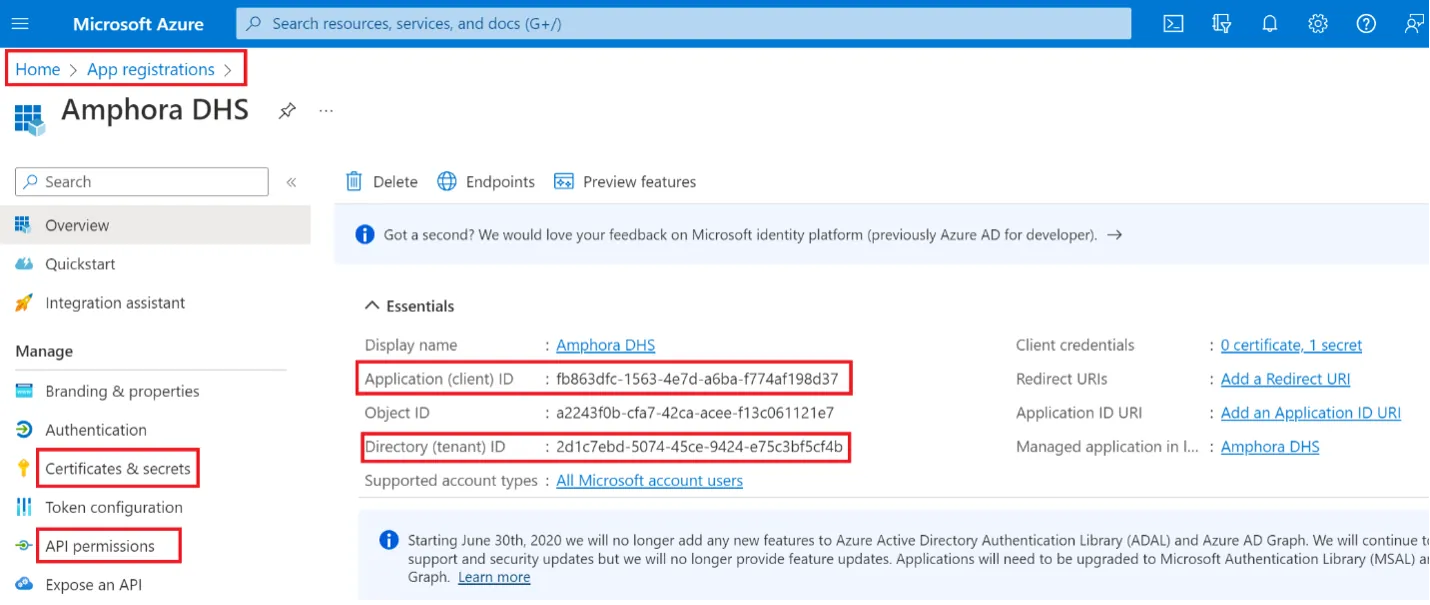
- Application (client) ID - fb863dfc-1563-4e7d-a6ba-f774af198d37
- Tenant ID - 2d1c7ebd-5074-45ce-9424-e75c3bf5cf4b
- Client secret - XXXXXXXXXXXXXXXXXX
NB!
These are sample data.
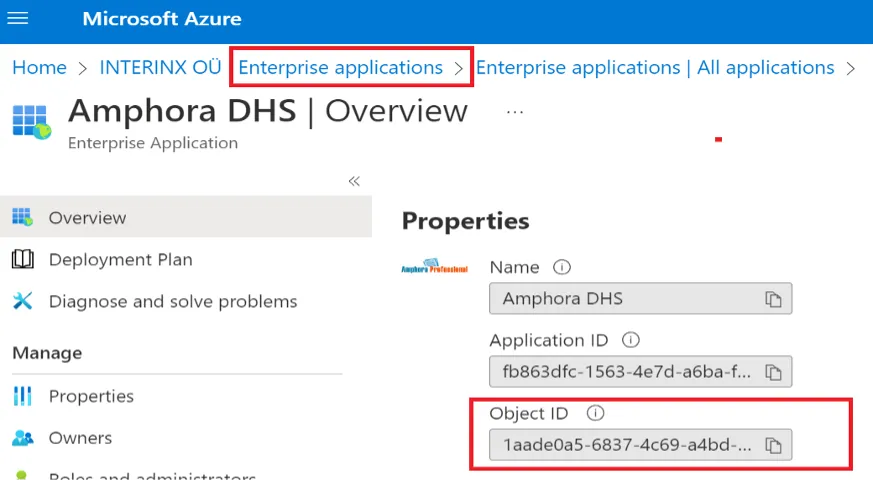
When configuring Exchange, you also need to remember the Object ID, but this needs to be taken from the Enterprise view.
Your application data should be sent to Amphora customer support email help@amphora.ee. Amphora customer support will handle the Amphora-side configuration.
Application Addition
First, you need to add a new application in Azure - App registrations -> New registration The application name is not important, but should contain a reference to Amphora.
Application Data
Application data is visible in the local view (App registrations) and Enterprise Application view.
App registrations
This image shows the local view. In this view, you can set permissions and get Application ID and Tenant ID values from here.
Enterprise applications
The Object ID here needs to be remembered, as Exchange permissions configuration is based on this.
Application Rights
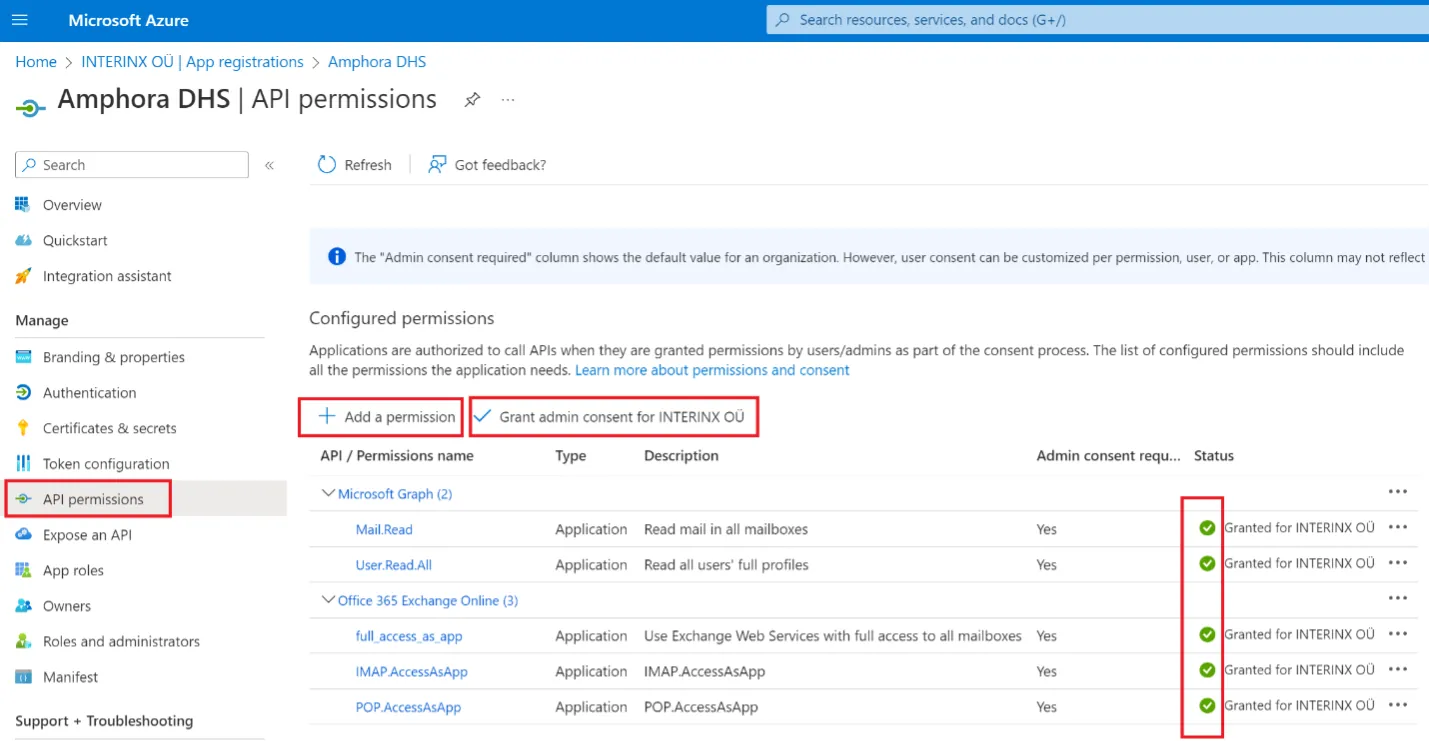
Give the application the permissions shown in the image and then click "Grant admin consent for ..". This ensures correct status of permissions.
Application Password – Certificates & secrets
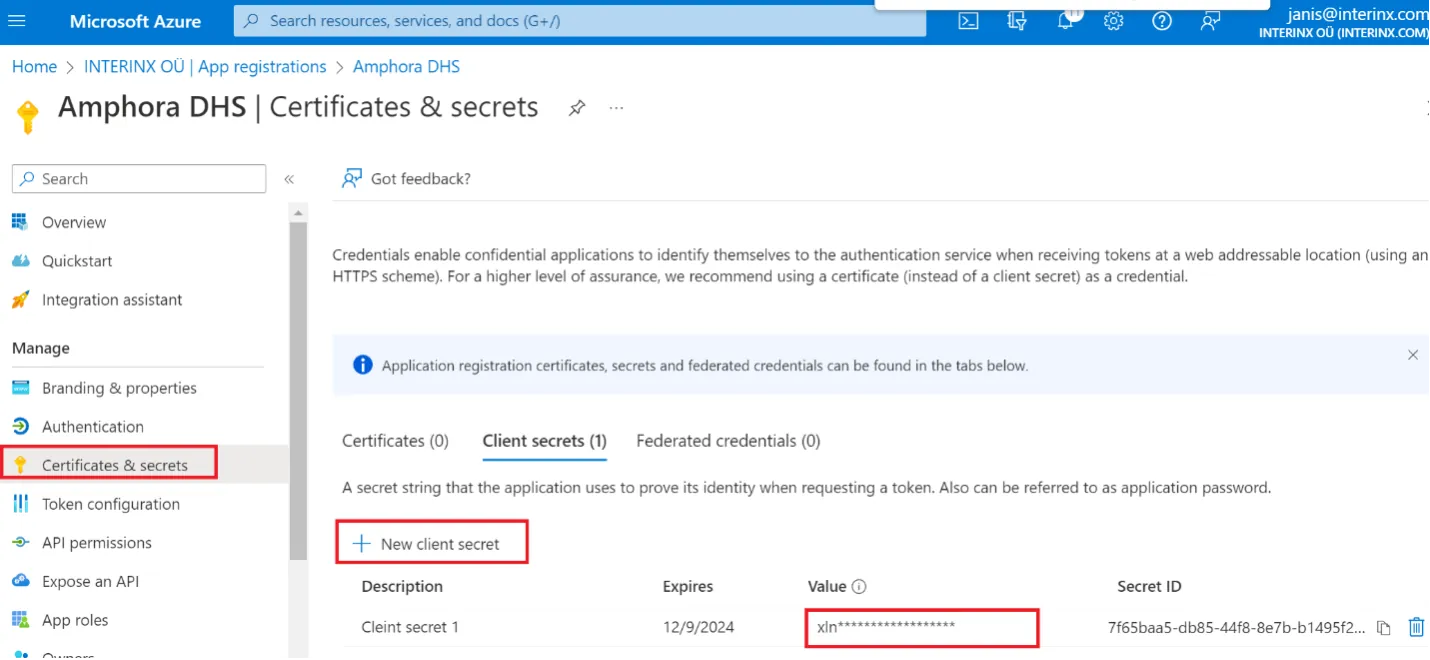
Generate a password for the created application. After initial registration, the password is visible, but not later. The password needs to be added to Amphora later, so it should be remembered immediately. The password value is needed, not the Secret ID!
Exchange Configuration
Add a new user (Service Principal). Can be configured with Powershell scripts.
- New-ServicePrincipal -AppId ApplicationID -ServiceId ObjectID -DisplayName AmphoraDHS
Example: New-ServicePrincipal -AppId fb863dfc-1563-4e7d-a6ba-f774af198d37 -ServiceId 1aade0a5-6837-4c69-a4bd-25a3f7772c1d -DisplayName AmphoraDHS
Add access for the created user to each mailbox that needs to be used in Amphora (run script for each mailbox).
- Add-MailboxPermission -Identity mailbox@yourdomain.com -User ObjectID -AccessRights FullAccess
Example (access to one mailbox): Add-MailboxPermission -Identity tester@carlsman.com -User 1aade0a5-6837-4c69-a4bd-25a3f7772c1d -AccessRights FullAccess
Last modified: 09 October 2026, 10:25:03