Calendar
- Calendar overview
- Day view
- Week view
- Month view
- Year view
- 5-day view
- Agenda view
- Calendar functionality
- Creating calendar events
Calendar overview
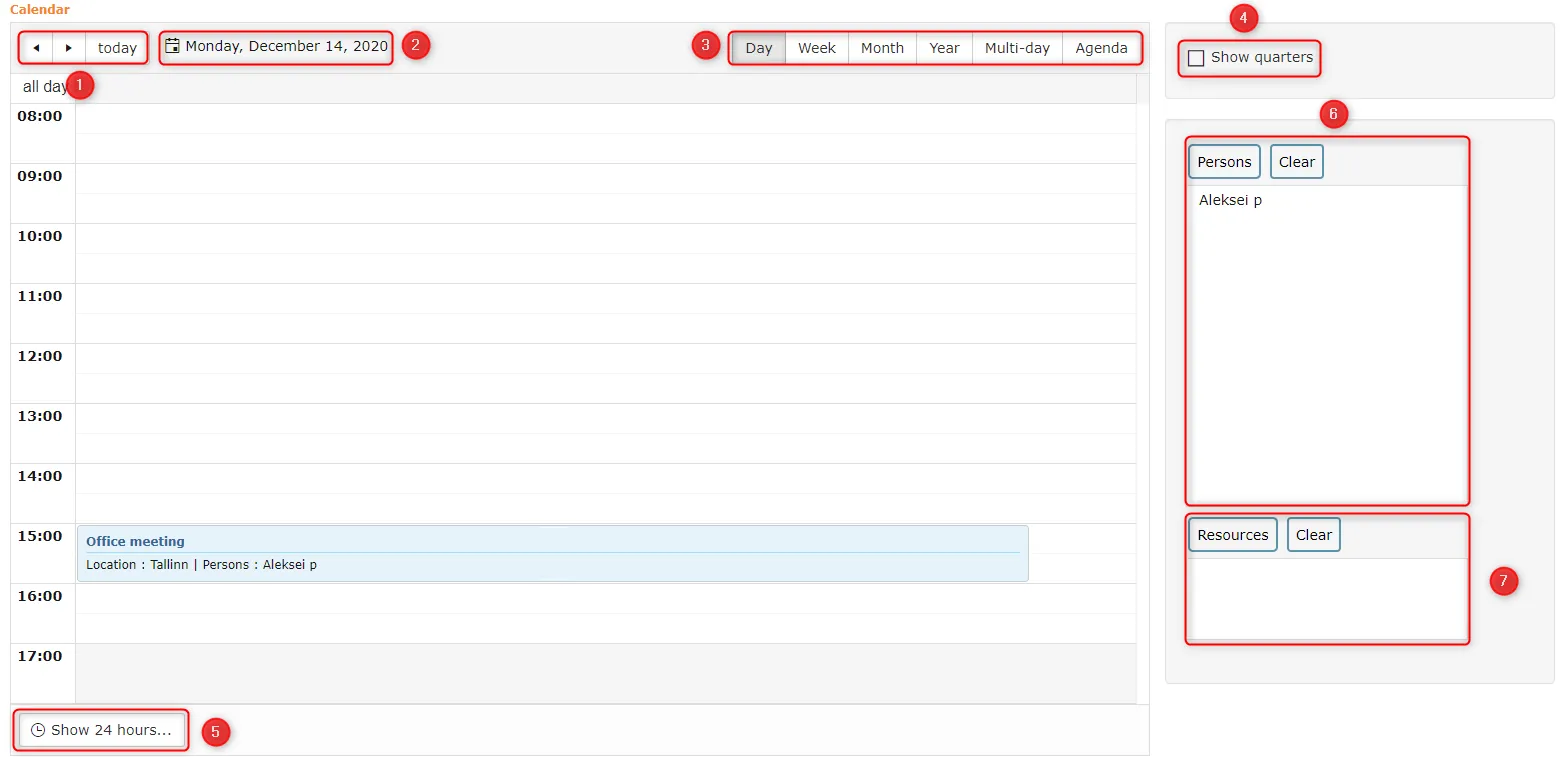 1. With arrows
  you can go to the previous/next day. Clicking Today automatically selects today's date.
2. By clicking on the date, you can select a date.
you can go to the previous/next day. Clicking Today automatically selects today's date.
2. By clicking on the date, you can select a date.
{: loading=lazy }3. It is possible to select calendar view (Day, Week, Month, Year, 5-day and Agenda view). Agenda view shows all calendar events within 7 days.
-
By default, the events list does not distinguish whether an event ended at :45 or :00 (same situation for :15 and :30). Show quarters makes the list distinguish between :45 and :00 and :15 and :30.
 5. By default, day and week view is 8:00 to 18:00. But with the Show 24 hours button, it is possible to open the entire day (24 hours).
6. People. When opening calendar events, the viewer user is selected by default. With the People button you can change which people's events are displayed. Selected users can be removed by clicking the Clear button.
7. Resources. Resources can include, for example, different rooms that people want to book for events. With the Resources button you can select which resource events are displayed.
5. By default, day and week view is 8:00 to 18:00. But with the Show 24 hours button, it is possible to open the entire day (24 hours).
6. People. When opening calendar events, the viewer user is selected by default. With the People button you can change which people's events are displayed. Selected users can be removed by clicking the Clear button.
7. Resources. Resources can include, for example, different rooms that people want to book for events. With the Resources button you can select which resource events are displayed.
In the calendar list, it is possible to modify/delete events by right-clicking on the event and then Edit/Delete.
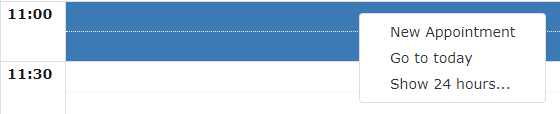
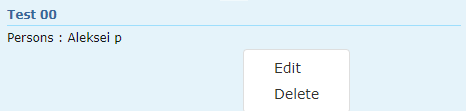 Right-clicking on an empty space in the list opens the following options:
 Calendar events can be made longer or shorter directly in the list view. At the edges of the event (top and bottom), a stretching mouse icon appears (
 ).
).
Multiple calendar events at the same time:
 The Calendar module has 6 different views in total. These are: Day view, Week view, Month view, Year view, 5-day view and Agenda view.
Day view
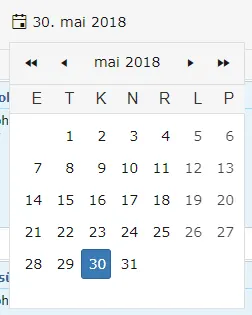
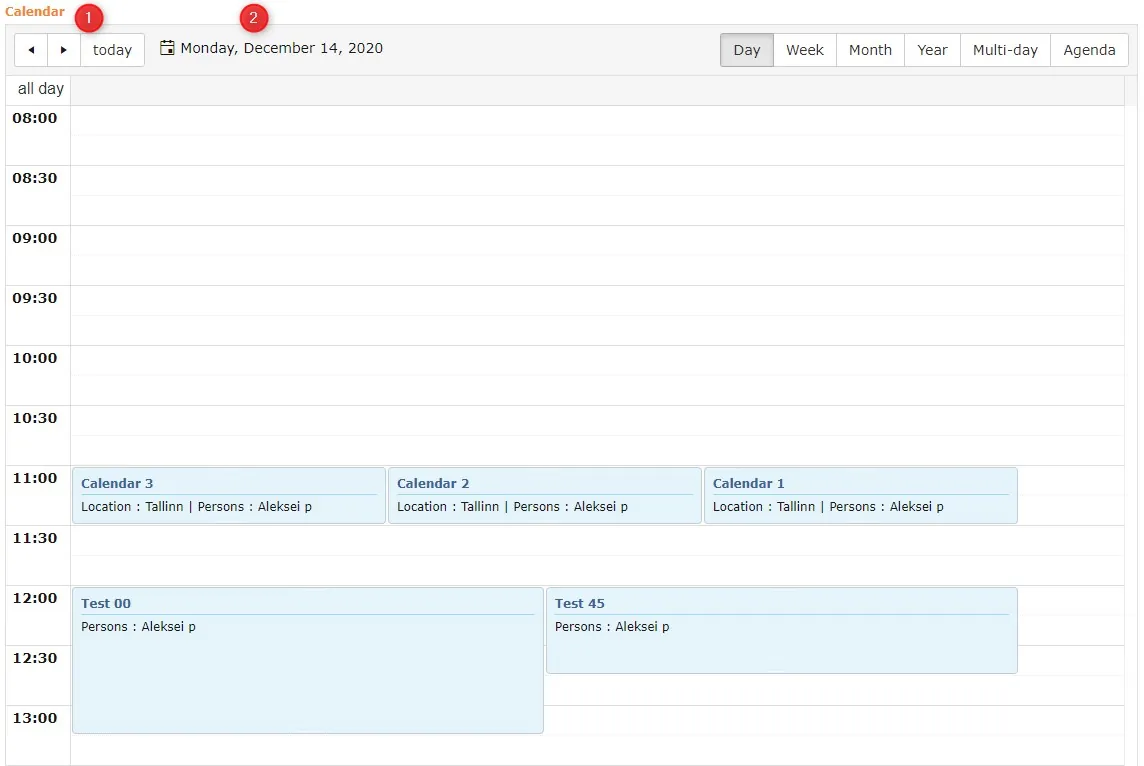 1. With arrows left and right, it is possible to select the previous or next day. The Today button always directs to today.
2. Clicking on the date opens a calendar from which you can select a specific day.
1. With arrows left and right, it is possible to select the previous or next day. The Today button always directs to today.
2. Clicking on the date opens a calendar from which you can select a specific day.
 ***
***
Week view
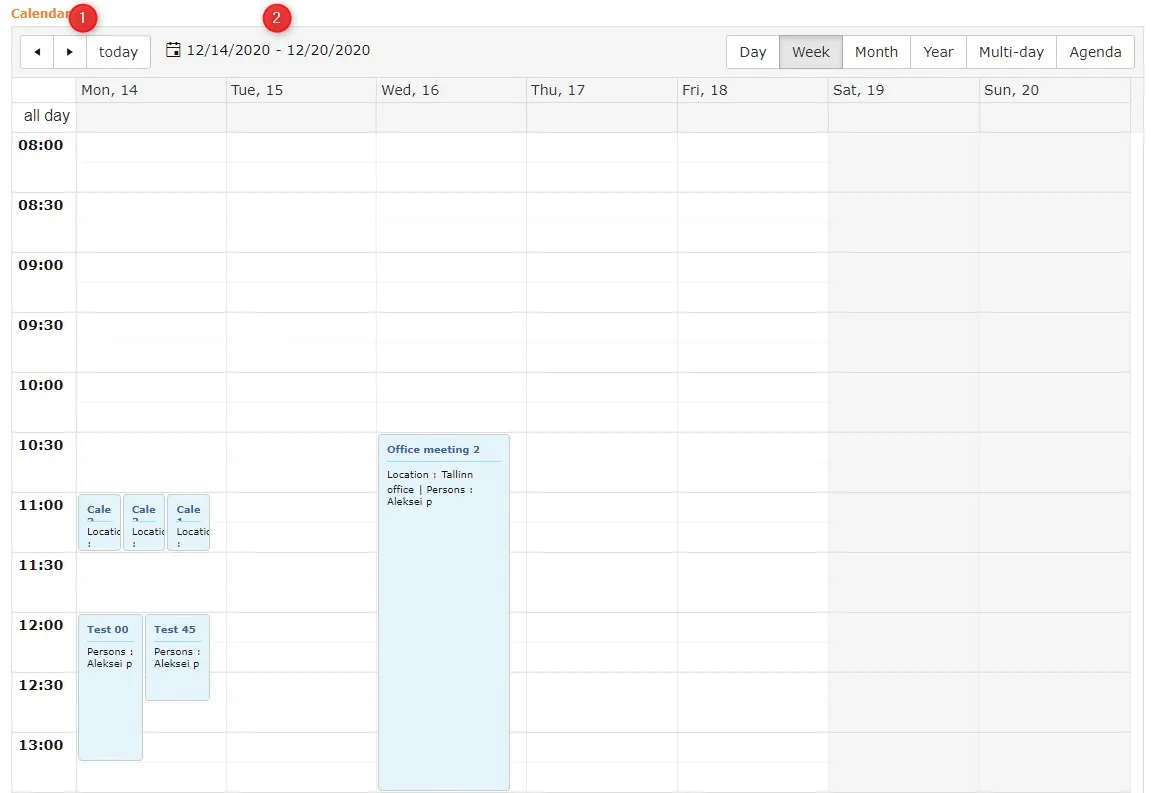 1. With arrows left and right, you can select the previous or next week. The Today button always directs to the current week.
2. Selecting a date opens that date's week.
1. With arrows left and right, you can select the previous or next week. The Today button always directs to the current week.
2. Selecting a date opens that date's week.
Month view
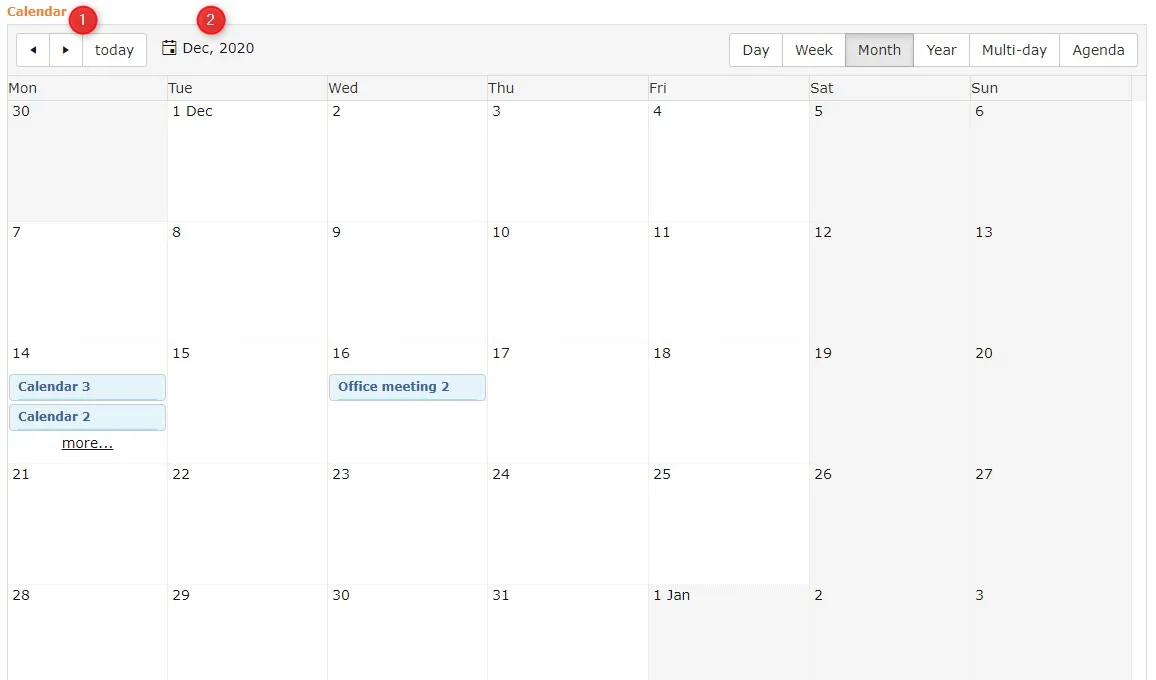 1. With arrows left and right, you can select the previous or next month. The Today button always directs to the current month.
2. Selecting a date opens that date's month.
1. With arrows left and right, you can select the previous or next month. The Today button always directs to the current month.
2. Selecting a date opens that date's month.
Year view
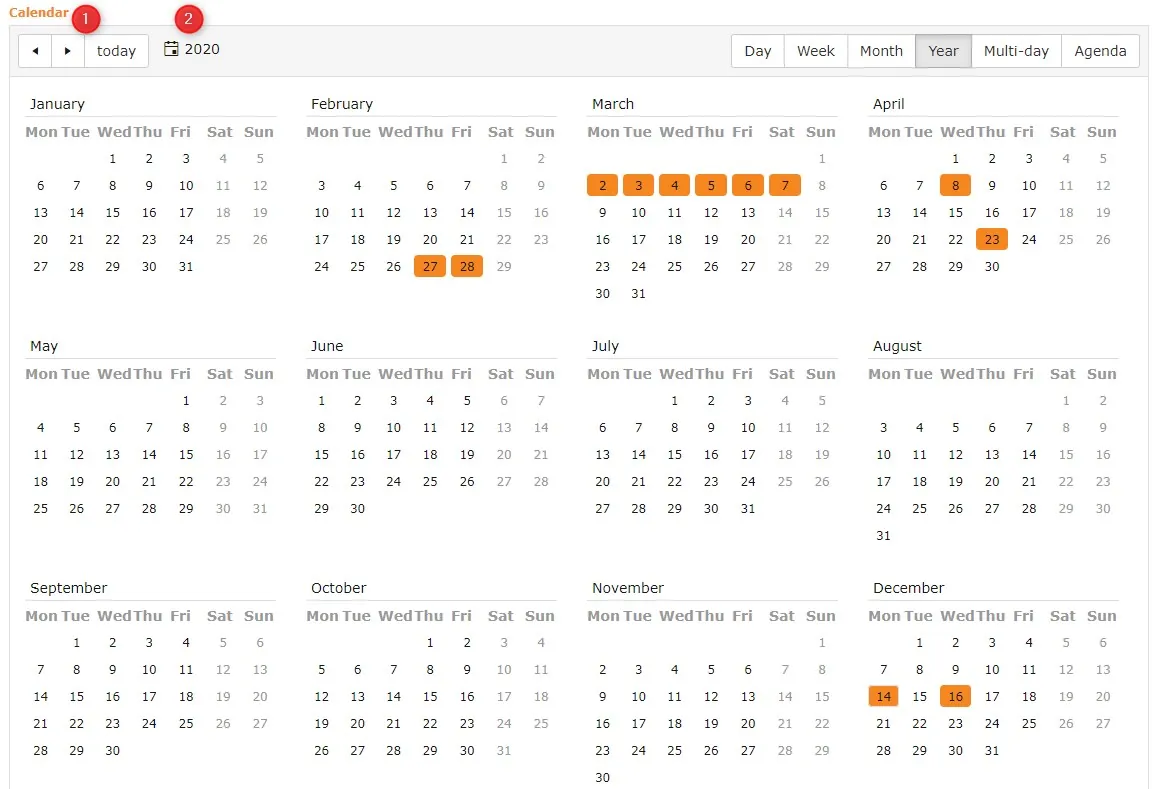 1. With arrows left and right, you can select the previous or next year. The Today button always directs to the current year.
2. Selecting a date opens that date's year.
1. With arrows left and right, you can select the previous or next year. The Today button always directs to the current year.
2. Selecting a date opens that date's year.
Dates with orange background have 1 or more events. When you move the mouse cursor over an orange date, all event titles become visible.
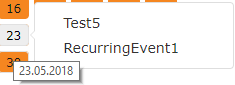 You can click on a date and then Amphora takes you to the day view.
5-day view
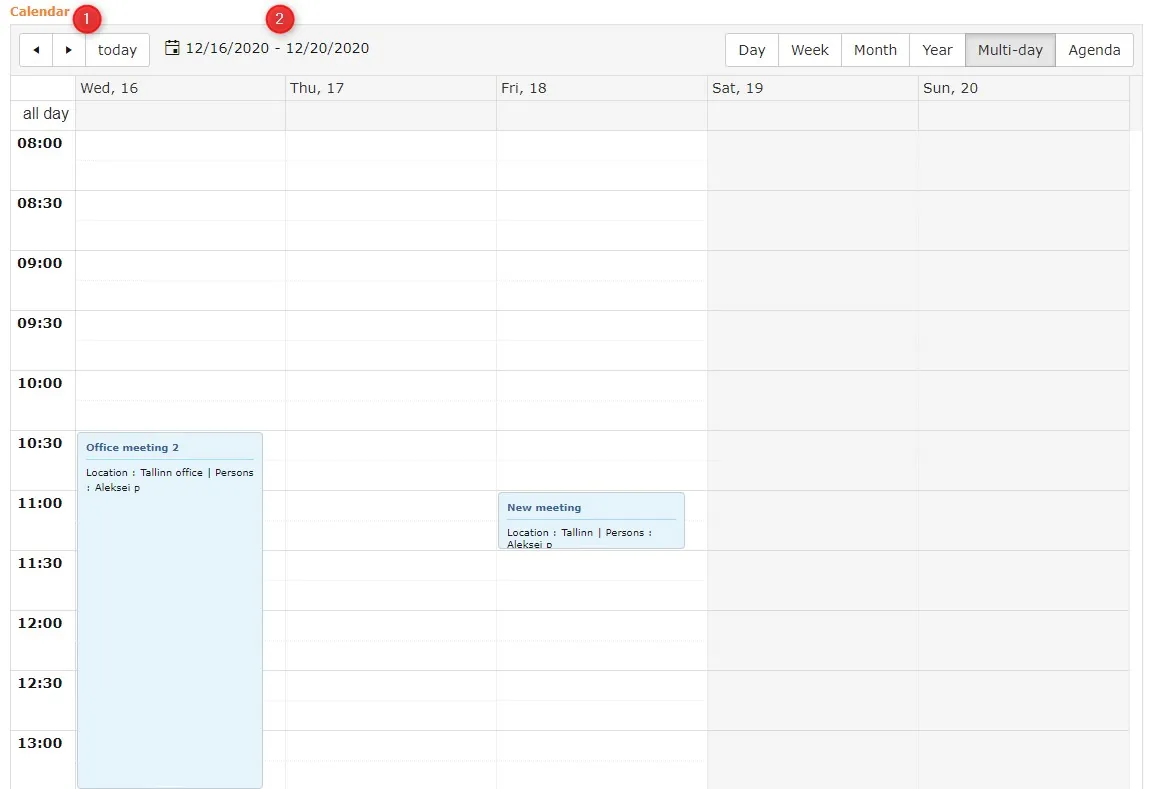 The 5-day view is similar to the week view, but instead of 7 days there are only 5 days and these 5 days don't necessarily have to be days from one week.
- With arrows left and right, you can select the previous or next 5 days.
For example: currently the 5-day period is 30.05.2018 – 03.06.2018. We click and the 5-day period changes to 25.05.2018 – 29.05.2018. If we use
  , then the 5-day period changes to 04.06.2018 – 08.06.2018.
With the Today button, a 5-day period opens where the start date is today's date. - You can select the start date for the 5-day period.
Agenda view
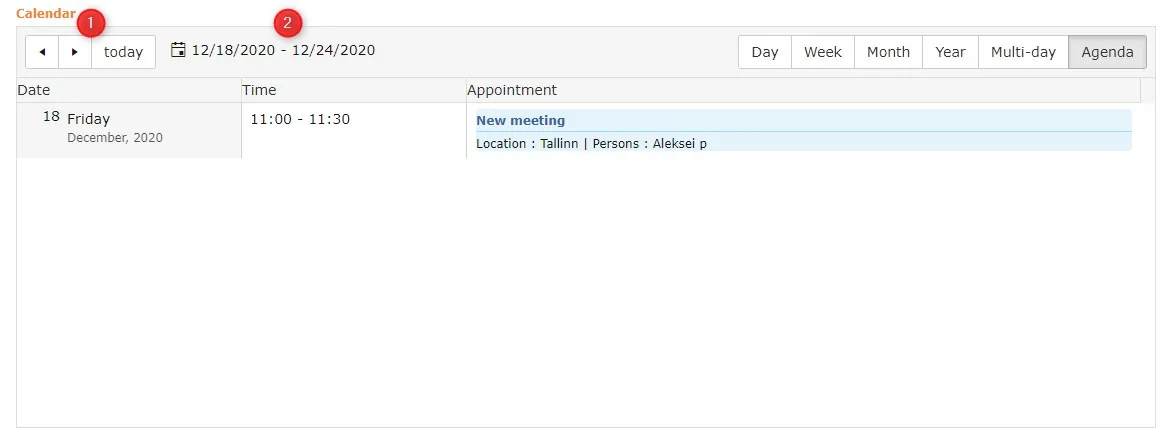 Agenda view shows all calendar events during 7 days starting from the selected date.
- With arrows left and right, you can select different periods of 7 days.
For example: currently the 7-day period is 30.05.2018 – 05.06.2018. We click and the 7-day period changes to 23.05.2018 – 29.05.2018. If we use
  , then the 7-day period changes to 06.06.2018 – 12.06.2018.
With the Today button, a 7-day period opens where the start date is today's date. - You can select the start date for the 7-day period.
Calendar functionality
In every calendar view (except Year view), it is possible to right-click on an event. The modification and deletion options open.
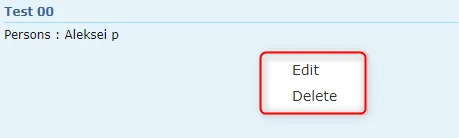 * Edit – takes you to the event modification view where you can change data.
* Delete – deletes the given event.
* Edit – takes you to the event modification view where you can change data.
* Delete – deletes the given event.
Show 24 hours button. By default, the calendar shows 8:00 - 18:00. With the Show 24 hours button, it is possible to open the entire day (24 hours).
 When the 24-hour day is open, it is possible to return to the workday view.
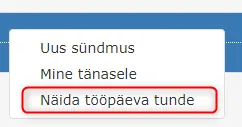
 In Day, Week, Month and 5-day views, it is possible to right-click on an empty space in the calendar. The options are as follows:
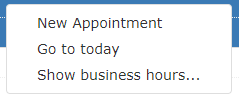 * New event – opens the event addition form.
* Go to today – opens today's day/week/month/5-day period (if today is the period's start date).
* Show 24 hours – opens 24-hour view (default is 8:00 – 18:00). If 24-hour view is open, then the option Show workday hours is available. These buttons are not in Month view.
* New event – opens the event addition form.
* Go to today – opens today's day/week/month/5-day period (if today is the period's start date).
* Show 24 hours – opens 24-hour view (default is 8:00 – 18:00). If 24-hour view is open, then the option Show workday hours is available. These buttons are not in Month view.
 In Day, Week and 5-day views, it is possible to directly change event start and end times. At the event edges (top and bottom edge), a stretching mouse icon appears (
 ).
).
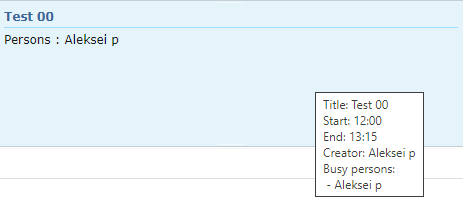
When moving the mouse over an event, it is possible to see information about the event (title, start and end, creator and selected people). This is useful, for example, when there are many events at the same time in week or 5-day view and you cannot read that data from the calendar view.
This is similarly very useful in Month view.
 Show quarters option: When we turn on this functionality, :30 times appear in the calendar list and you can see if an event ends at :15 or :45. By default, the calendar view does not distinguish if an event ends at :15 and :30 (same story for :45 and :00).
 This functionality works in Day, Week and 5-day views.
Creating calendar events
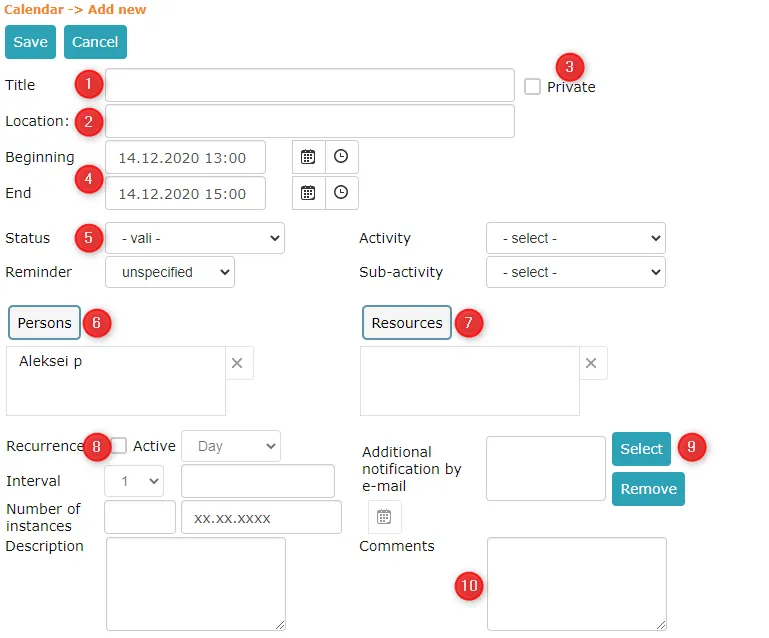
- Calendar event title.
- Event location. It is possible to mark where the event takes place.
- A calendar event can be made private. A private calendar event means that only the event creator and selected people can open, modify and delete it. Other users will see the event in the calendar, but instead of the title there will be [Busy] and they cannot do anything with it.
- Here employees must mark the event start and end. From the clock icon
 it is also possible to select the exact time when the event starts and ends.
 - Calendar event status, reminder, activity and sub-activity.
-
By clicking the People button, it is possible to select people who are related to this event. In the My organization's events displayed on the front page, all organization-related events are visible to all organization people regardless of whether they are added under the event People.
Important
You should definitely not select all people every time.
-
Resource selection. Resources can include, for example, different rooms that people want to book for events. Resources that can be used when creating calendar events can be created under Admin -> Organization settings.
- It is possible to repeat a calendar event. For this, you need to check Repetition and make the corresponding setting. For example, if some meeting takes place every Monday at 10, then this functionality is very helpful.
- It is possible to send an additional notification about the calendar event. By clicking the Select button, a view opens where it is possible to add email addresses, both from existing ones and by adding manually.
- Comment field. If there is a need to add a comment or additional information, it should be added here.
Last updated: 11. August 2020, 09:48:10
Last modified: 17 October 2026, 11:05:57