Organizations
The Organizations module contains all organizations added to the Amphora environment. Organizations are very important in Amphora as they are used in many places. For example, in contract forms' parties panel, purchase and sales invoice forms, letter forms.
Organizations List
Clicking on the Organizations module opens the organizations list.
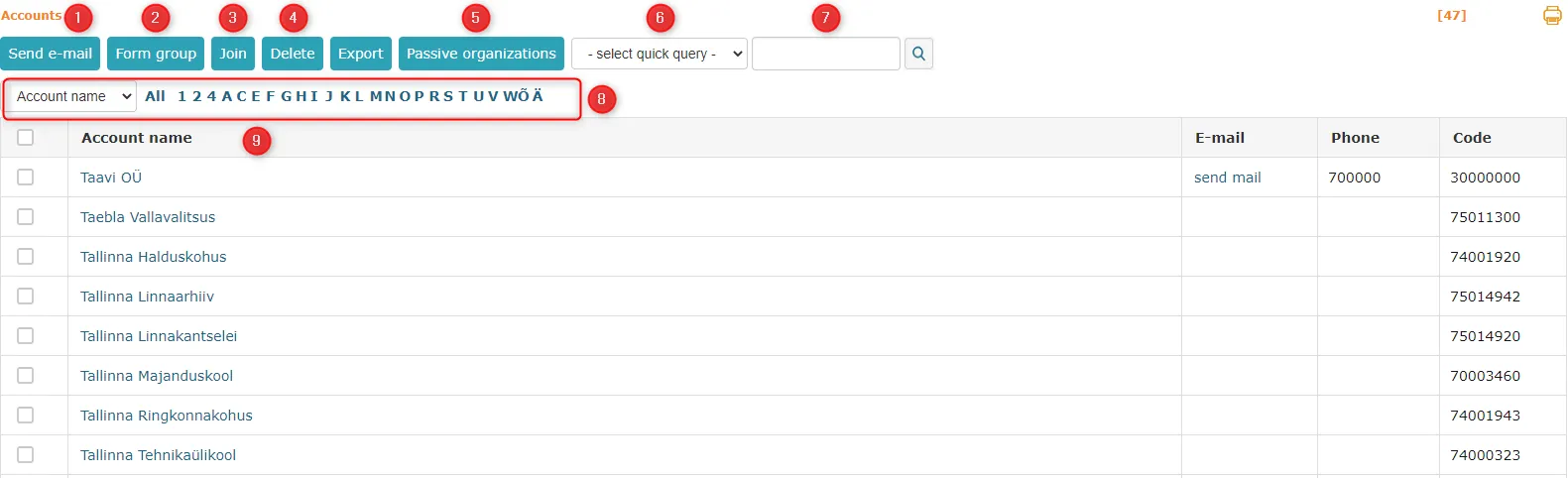 1. The Send Email button allows you to send an email to all persons within the organization. If the organization has no persons, sending an email will not succeed.
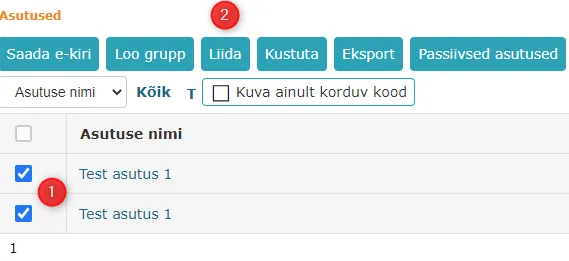
{: loading=lazy }2. The **Create Group** button allows you to create an organization group directly from the list view. You can select 1 or more organizations. To do this, check the box in front of the organization(s) and click this button.
{: loading=lazy }3. Organizations can be merged. This can be done using the **Merge** button. More details about this can be read [HERE](#MergingOrganizations).
- The Delete button allows you to delete organizations. Check the box in front of the organization and click this button.
- Clicking the Inactive Organizations button opens the list of inactive organizations. If there are no inactive organizations, this list is empty.
-
Search quick queries significantly simplify work. By default, no quick queries exist, but they can be added. To do this, go to Organizations -> Search, enter a new quick query name, and make the desired selections under advanced search.
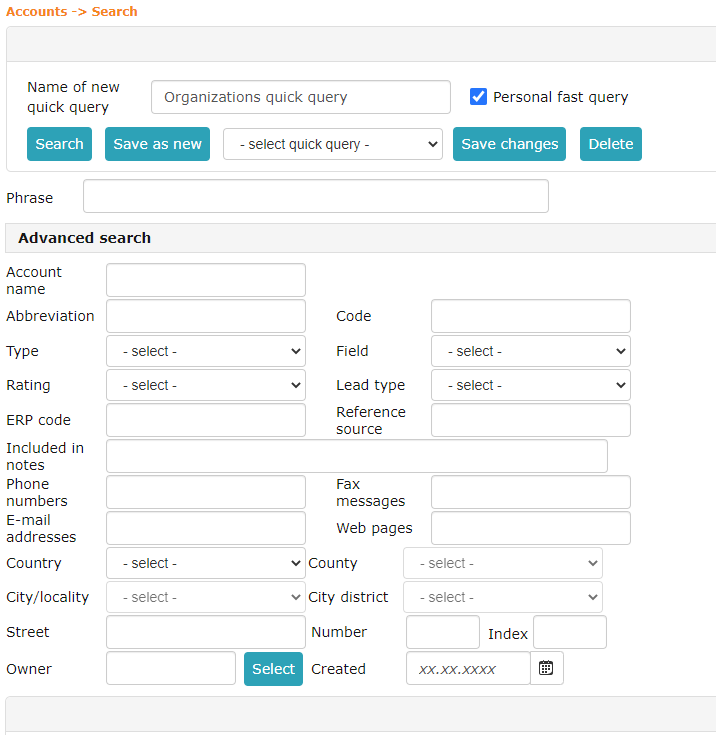 Quick queries can be personal and visible to everyone. If the checkbox Personal Quick Query is checked when creating a search quick query, this quick query is visible only to the user who created it.
 -
Search field. Here you can search for organizations. You can search by organization name, email address, address, phone number, website address, etc.
- Organization filtering. You can filter by organization name, email address, and owner's first letter. Make the desired selection from the dropdown menu and click on the letter (only relevant letters are available in the selection).
- Organizations list. The list displays organizations with data (organization name, direct email address link, phone number, and type). You can sort by each column by clicking on the column header.
Adding Organization
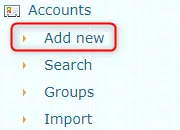
A new organization can be added using the Add New button.
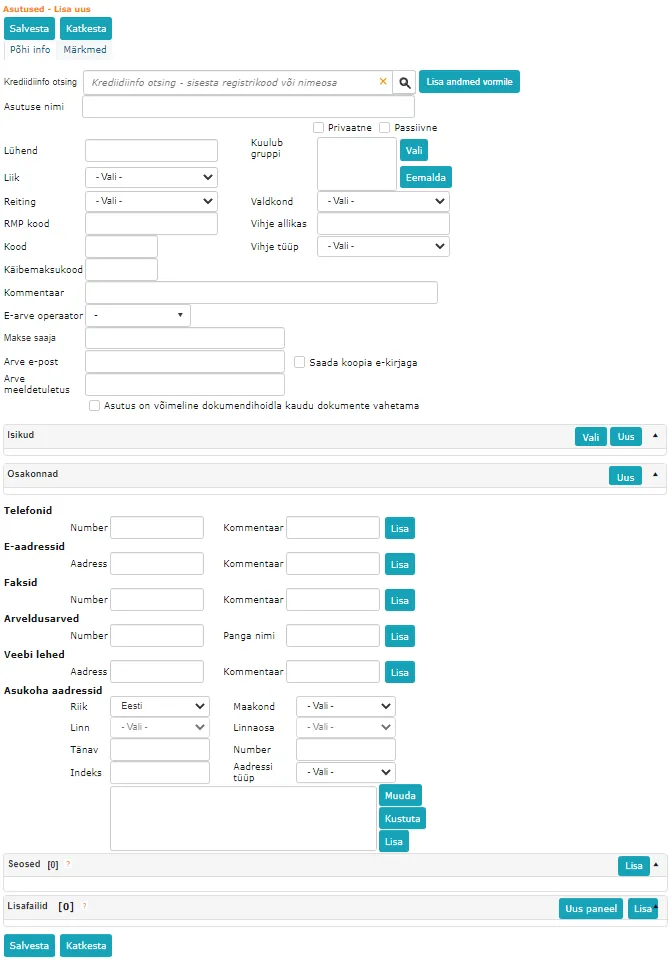
 There are 2 options for adding an organization: manually add the organization or search for it in the Business Registry.
Manual Addition
When adding manually, you must fill in all necessary fields yourself. For Phones, Email Addresses, Faxes, Bank Accounts, Websites, Location Addresses fields, you must click the Add button after entering the information.
 Business Registry search by name
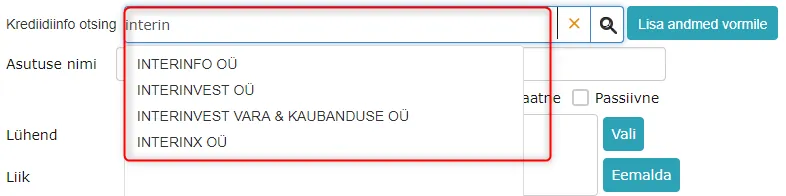
Business Registry search is very useful when adding an organization. You need to write the organization name or part of the organization name in the search field. All possible options appear below, and you need to select the correct organization from them.
 Business Registry search by registry code
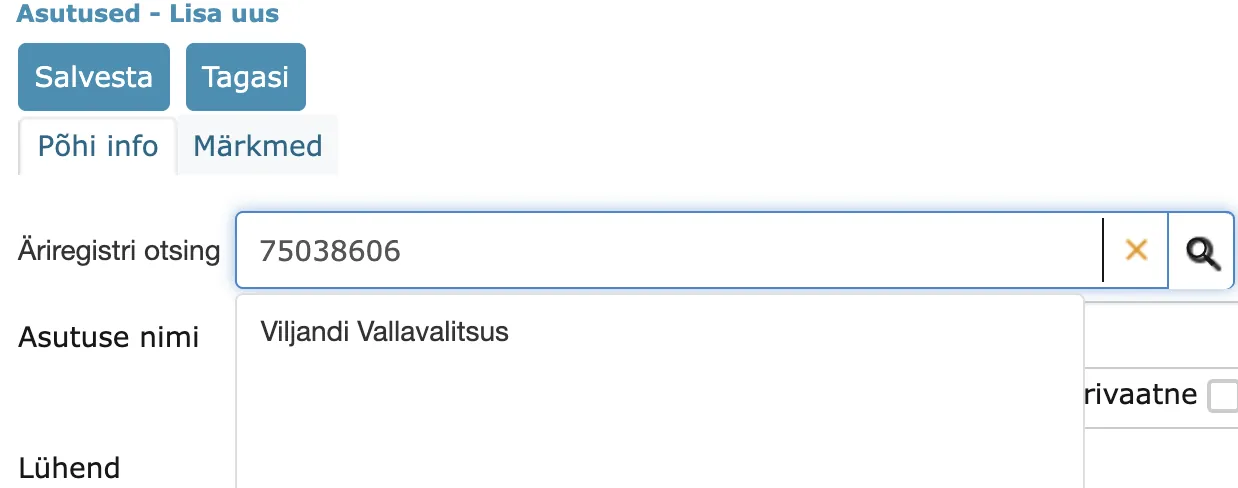
You can also search for an organization from the Business Registry by registry code. Enter the organization's registry code in the search field and select the appropriate result.
When a selection is made, Amphora displays the organization's data. You should double-check that it's the correct organization and then click the Add Data to Form button.
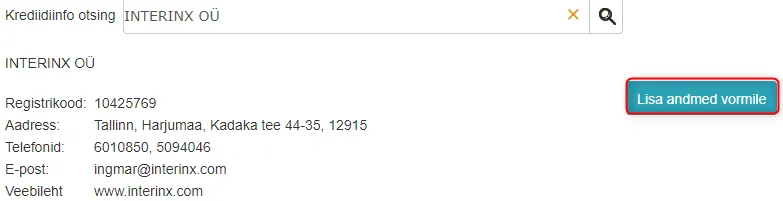 When data is added to the form, click the Save button.
Organization Groups
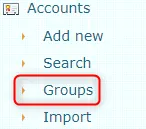
Organizations can be added to groups. This can be done both in the organizations list view and in the Groups view. The Groups view is located under the Organizations module.
 The
The  button allows you to create a new organization group in the Groups view.
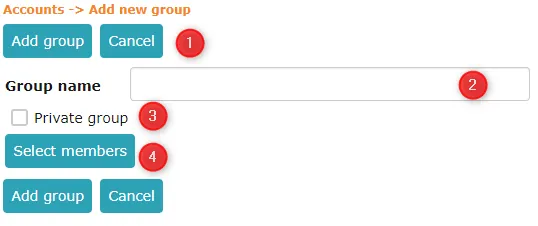 1. The Add Group button allows you to save a new group. The Back button allows you to cancel group creation.
2. Organization group name.
3. The organization group can be made private. A private group is only visible to the user who added this group.
4. The Select Members button allows you to select organizations.
1. The Add Group button allows you to save a new group. The Back button allows you to cancel group creation.
2. Organization group name.
3. The organization group can be made private. A private group is only visible to the user who added this group.
4. The Select Members button allows you to select organizations.
The  button allows you to delete existing groups. To do this, check the box in front of the desired group and click this button.
Organization groups are worth creating when you want to send emails to specific organizations. When an organization group is created with organizations, it's possible to select these organizations all at once when sending emails.
Sending an email from an organization group addresses it to the main email addresses of the organizations' contact persons, not to the organization's own email address. An organization without contact persons is left out without a message. If no organization in the group has contact persons, no email window opens and Amphora shows no message.
Merging Organizations
The organization merging functionality helps solve problems where there are multiple duplicate organizations in the Amphora environment (for example, Ministry of Finance) and all these organizations are visible everywhere in selections. Users always question which organization to select.
In the Organizations module, we activated the Merge button.
 To merge organizations, you need to check the boxes in front of organizations and click the Merge button.
"Show only duplicate code" is a filter that, when enabled, displays only organizations whose registry codes are duplicated. Organizations are then also sorted by registry code. The filter facilitates finding duplicate organizations.
 The organization merging view looks like this:
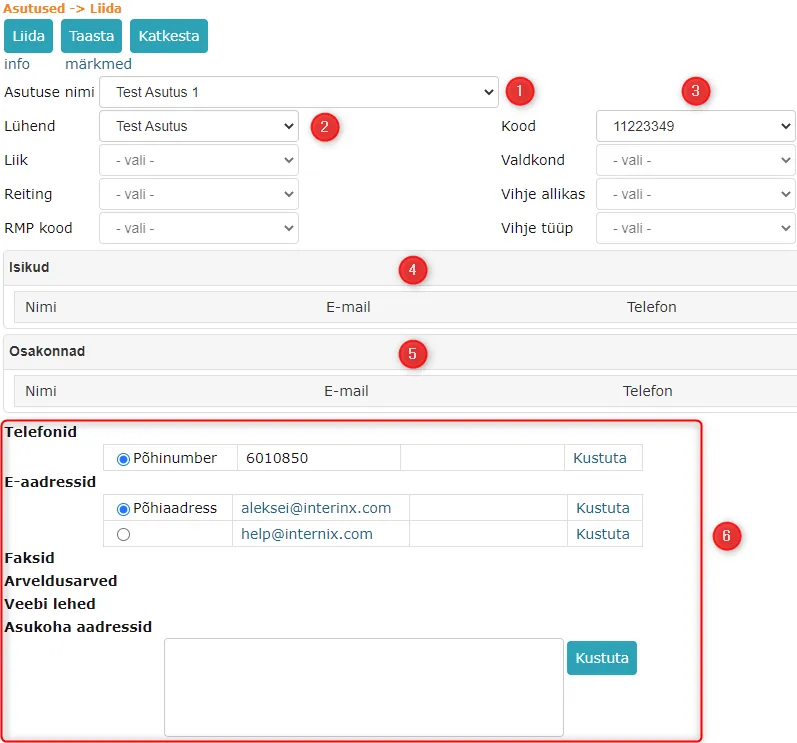 1. Organization name selection. If the organizations being merged have different names, then the "Organization Name" dropdown displays all these names and the user can choose which name the merged organization will have.
2. Abbreviation selection. Similarly, the selection contains abbreviations of all organizations being merged, from which one abbreviation must be selected.
3. Registry code selection. Registry codes of all organizations being merged.
4. If persons have been added to the organizations being merged, then all organizations' persons are displayed in this panel. If necessary, persons can be removed.
5. If departments have been added to the organizations being merged, then all organizations' departments are displayed in this panel. If necessary, departments can be removed.
6. Contact information of merged organizations. Contact information of all organizations being merged is displayed, and by default (primary data), the data of the first organization being merged in the list is selected. If necessary, the primary data can be changed.
1. Organization name selection. If the organizations being merged have different names, then the "Organization Name" dropdown displays all these names and the user can choose which name the merged organization will have.
2. Abbreviation selection. Similarly, the selection contains abbreviations of all organizations being merged, from which one abbreviation must be selected.
3. Registry code selection. Registry codes of all organizations being merged.
4. If persons have been added to the organizations being merged, then all organizations' persons are displayed in this panel. If necessary, persons can be removed.
5. If departments have been added to the organizations being merged, then all organizations' departments are displayed in this panel. If necessary, departments can be removed.
6. Contact information of merged organizations. Contact information of all organizations being merged is displayed, and by default (primary data), the data of the first organization being merged in the list is selected. If necessary, the primary data can be changed.
The dropdown is locked if there are no options available in it.
When all data has been reviewed and correct selections made, click the Merge button.
In the new organization's history panel, you can see which organizations were merged. Merged organizations can be opened but cannot be modified.
 All merged organizations become inactive organizations. These organizations are not visible in the Organizations module list view and are similarly not visible or selectable elsewhere.
Organization Detail View Data
In the organization detail view, the Persons panel displays the total number of persons and the Departments panel displays the total number of departments. This simplifies reviewing organization data.
Activating and Deactivating Organization
In the organization detail view, you can make an organization passive. An organization that has been made passive can also be changed back to active.
NB!
Passive organizations are not visible in various organization selections (Forwarding panel, Admin module, etc.).
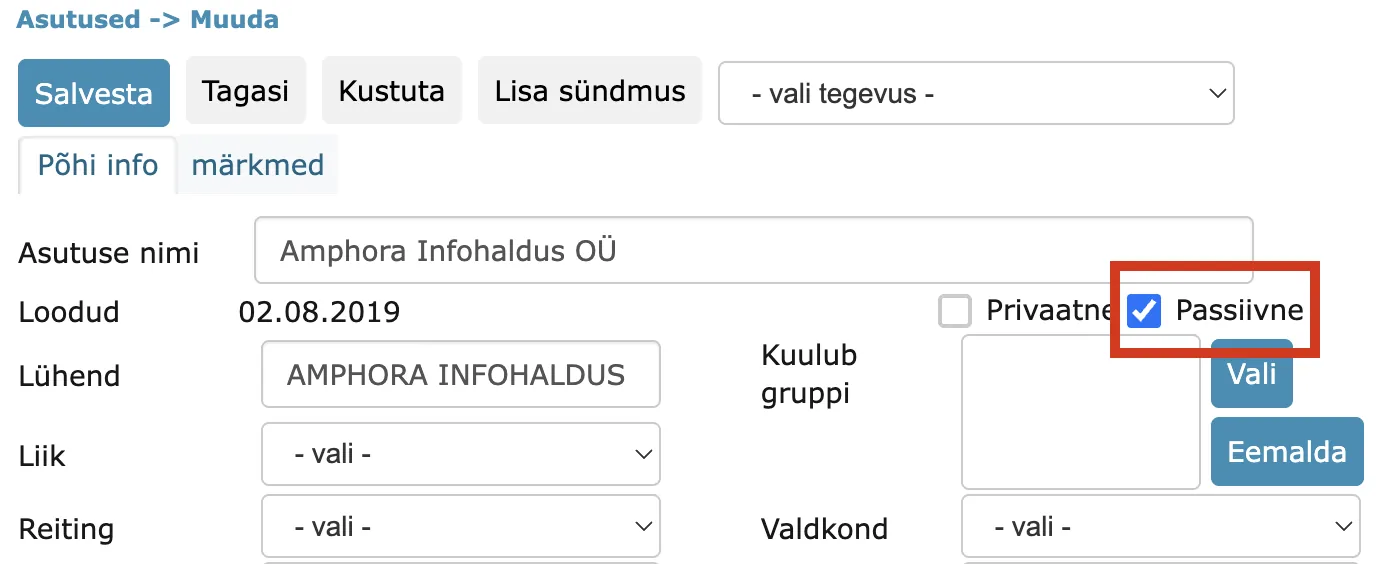
Passive organizations are not visible in the active organizations list. To view passive organizations, click the Inactive Organizations button.

Last modified: 09 October 2026, 06:46:08