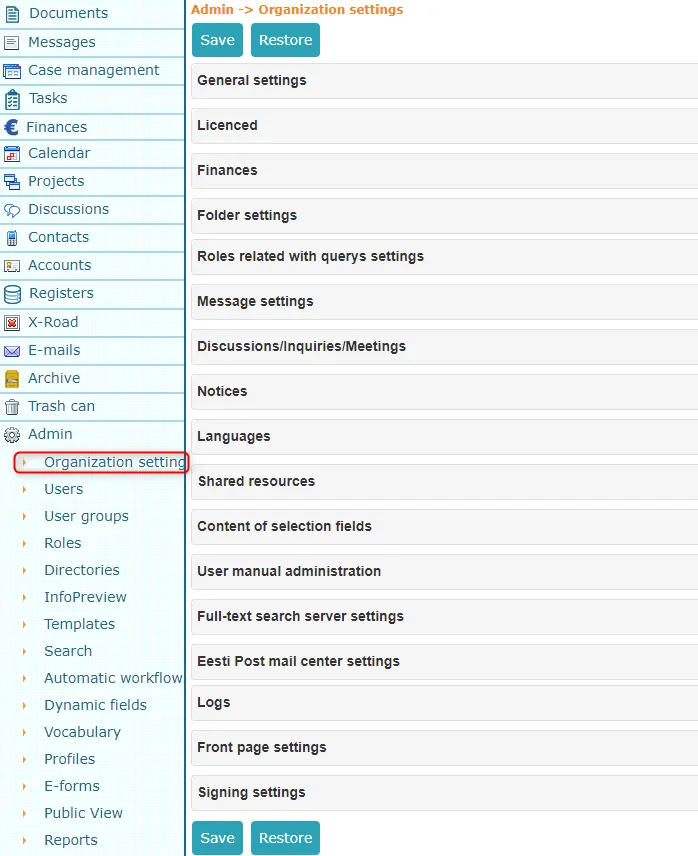
Organization Settings
- General settings
- Licensing
- Finance
- Folder settings
- Message settings
- Discussions/Surveys/Meetings
- Notifications
- Languages
- Shared resources
- Optional field content
- Logs
- Homepage settings
- Signing settings
- Unit settings
- Main users
Under Organization settings, you can make configurations that are available to all users within the installation according to their permissions. Organization settings allow you to define metadata version, make language choices, and describe various notification texts. Here you can, for example, add different email registration profiles (whether incoming email is registered in Documents or Correspondence module) and monitor user activities in the system under logs.
 ***
***
General settings
General settings combine system settings for various functions, the activation of which extends to the entire Amphora environment, meaning these settings are usable for all users in a specific organization.
Under general settings, you can enable or disable the following settings:
- Use metadata versioning - adding a new version when saving (even when files themselves have not been changed and only metadata has been modified). Without the "checkbox," the system saves an old version of the document only when the document content is changed or reloaded. With the 'checkbox,' the system preserves the old version of the document even when only changing the document name or moving the document to another folder.
- Show document/case editing form when saving document/case! - when saving a new document or case, its editing form is displayed.
- Show message edit form when saving message! - when saving a new message, its edit form is displayed.
- Do not show default form initially when entering case/document! - when adding a new case/document, a dropdown menu with form selection is displayed.
- Do not differentiate case objects by types - case objects are not differentiated by types (sub-panels with object types are missing, e.g., legal act loading, protocol loading, etc.).
- Copy case objects when copying a case - when copying a case, the objects added to the case are copied (copied objects are located in the same folder as the original objects).
- Copy case objects to the same folder as the case when copying - when copying a case, the objects added to the case are copied to the copied case folder.
- Do not remember folder (doc/msg/case) - when adding a new document, message, or case, no default folder is selected.
- Show documents from unit subfolders (doc). - when selecting a unit in the register view, objects from subfolders are displayed.
- Use DigiDoc container for sending files when sending documents and cases - when sending, sent objects are added to a DigiDoc container.
- Show predicted number for new document, message, or case - when adding a new document, case, or message, a red notification about the expected number is displayed (requires configured counter).
- Activate Active Directory authentication - allows domain users with Active Directory support to log into Amphora without entering username and password. Additionally requires AD user field modification under Admin -> Users.
- Activate form-based authentication (username/password) - allows logging into Amphora with username and password (when disabled, it's only possible to log into Amphora with ID card, Mobile-ID, or Smart-ID). Requires the user to have personal code and mobile phone number configured.
- Activate Google authentication - allows logging into Amphora with Google account, see here.
- Show Amphora client support contact information - client support contact information is displayed at the bottom of Amphora.
- Use 'Web title' functionality in Documents module - a Web title field appears on the document form (allows creating a separate title for Public View).
- Use 'Web title' functionality in Correspondence module - a Web title field appears on the message form (allows creating a separate title for Public View).
- Use 'Web title' functionality in Case View module - a Web title field appears on the case form (allows creating a separate title for Public View).
- Document conversion when publishing - documents (public files) are automatically converted to PDF/html format in public view, while internal view may be in doc format.
- Automatically add new document or message to case composition in the same folder - if there is a case (file) in the folder, messages and/or documents added to the case folder are automatically added to the case composition.
- Use WebDAV for file modification - document files can be opened directly from the web browser using WebDAV software.
- Send PDF copy for signing - by default, when creating a process/delegation, selects the generated PDF copy of the document's main file.
- Party registration code/personal code is mandatory - Amphora does not allow adding organizations/persons without registration code/personal code in the Parties panel.
- Add document automatically to archive file - enables automatic addition of documents to suitable archive file composition when registering or modifying documents, read more here.
- Check publishing rules (located in Admin -> Unit settings) - when this functionality is enabled, Amphora checks when publishing a document that at least one of the following conditions is met: the main file is public, the text editor content is public, an attachment is public, or the document is marked for internal use. Disabled by default. This check also applies when publishing archived documents.
Sort folder objects:
- By entry date - objects are ordered by entry date (newer ones first).
- By counter prefix/number - objects are ordered by counter prefix and number.
- By counter number - objects are ordered only by counter number.
- By counter number and object creation year - ordered by object creation year and counter number (current year objects are first).
Folder tree width (%) - determines the width of the folder tree in the register view.
AK restriction default duration - automatically fills the selected criterion Restriction in force till on the Restrictions panel when AK marking is made on a document.
When selecting message/document recipient and contract parties, show first - you can choose whether Organizations or Persons. (In recipient and contract party selection, either organizations or persons are displayed first).
Send reminder about incomplete task (option 1) times from deadline expiry, every (option 2) days - allows configuring reminder sending:
- option 1 determines the number of times (1-10, selecting 0 means no reminder is sent);
- option 2 determines the day interval (1-7);
Amphora address - web address from which Amphora is used.
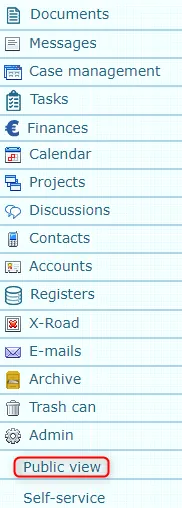
Amphora public view address - web address where the organization's public view related to Amphora is located (public document register). The public view can be accessed by clicking the Public view link:
Web title
Web title is intended for Amphora users who need to publish organization documents and want to use different formatting for titles in public web and internal environment.
This functionality allows using organization-specific keywords for title addition in the internal environment while leaving the public web with a title without keywords.
Example of titling the same document:
- In internal environment Title field - Detailed plan approval in Roosna, School building construction, second discussion;
- In public view Web title field - Detailed plan approval.
Licensing
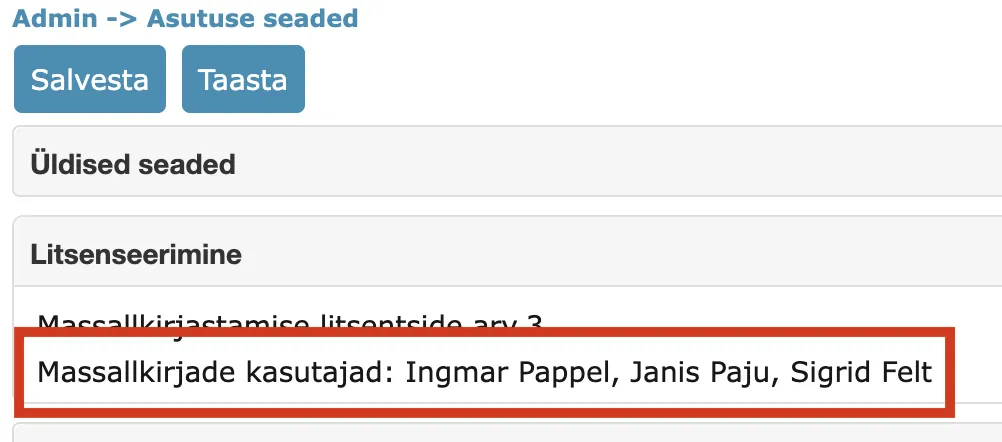
Displays the organization's mass signing license count. Read more from the mass signing guide.
In addition to the license count, the names of employees who have an active mass signing license are also displayed.
Finance
This panel allows configuring the folder where e-invoices arriving automatically in Amphora should go. Use the Select button to choose the folder.
 ***
***
Folder settings
This panel allows configuring restrictions for folder tree display. Select module from the left dropdown menu, select role from the middle dropdown menu, and then select the module display type for the selected role from the right dropdown menu (hidden, closed, partially open, fully open). Press the Add button. To save, press the Save button.
Message settings
Here you can enable/disable automatic date transfer to reply messages for messages, i.e., the ability to copy the sending and arrival date of an incoming message to a reply message and display messages and documents in one register.
Discussions/Surveys/Meetings
This panel allows configuring the default form for meeting protocols.
Notifications
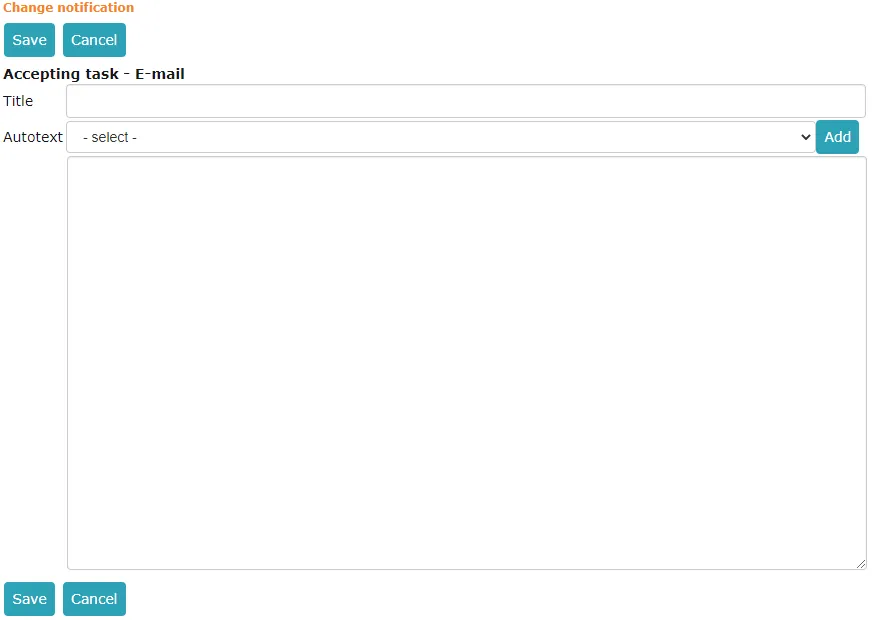
This panel allows sending notifications when corresponding events occur, either as internal Amphora notifications or emails. SMS sending functionality is no longer in use. To configure notification sending, click on the notification type after the corresponding event and fill in the required fields.
 ***
***
Languages
In this panel, you can select the organization's environment language.
Shared resources
The panel allows adding resources to the organization (e.g., car, meeting room, computer, etc.). Additionally, it is possible to link resource(s) to certain user(s) or user group(s).
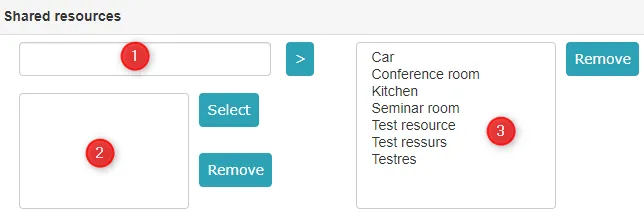 1. Resource field where you need to write the resource to be added and press the arrow (>).
2. Adding persons/user groups. Press Select where a view opens where you can select users or groups. Selected users/groups appear in this box.
3. List of added resources. Resources can be removed using the corresponding button.
1. Resource field where you need to write the resource to be added and press the arrow (>).
2. Adding persons/user groups. Press Select where a view opens where you can select users or groups. Selected users/groups appear in this box.
3. List of added resources. Resources can be removed using the corresponding button.
Optional field content
With default fields, you can add predefined values to form fields. To configure default field content:
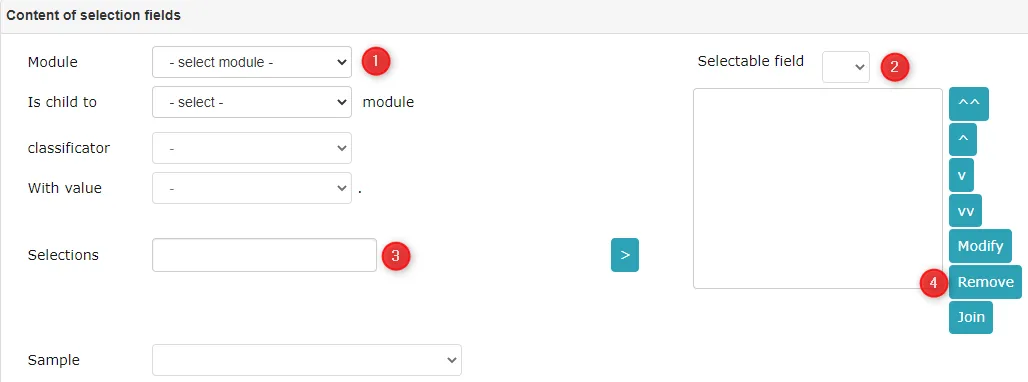 1. Select the module whose fields to configure from the dropdown menu by pressing the arrow button on the corresponding field.
2. Select the field whose options to view/modify/add. To do this, press the arrow button on the Option field, which opens a dropdown menu.
3. Once selected, the field's options are displayed in the box below. If the box is empty, it means the field has not been configured. To do this, write the option that should be on the selected field in the Options field and then press the > button.
4. The added option is displayed in the options box. Options can be removed by pressing the Remove button and modified/combined.
1. Select the module whose fields to configure from the dropdown menu by pressing the arrow button on the corresponding field.
2. Select the field whose options to view/modify/add. To do this, press the arrow button on the Option field, which opens a dropdown menu.
3. Once selected, the field's options are displayed in the box below. If the box is empty, it means the field has not been configured. To do this, write the option that should be on the selected field in the Options field and then press the > button.
4. The added option is displayed in the options box. Options can be removed by pressing the Remove button and modified/combined.
If desired, you can also change the position of options in the box (first, one place up, one place down, last). There are arrows for this, located to the right of the box. To save changes, press the Save button.
The Remove button is not active if dealing with a system classifier. This means it is no longer possible to remove system classifiers. Previously, removing system classifiers could cause important document data to be lost. Additionally, it is not possible to remove JPP bases that are linked to folders (Default JPP in Folder settings). It is also not possible to delete access restriction bases that are set as default for a folder.
When deleting a classifier, Amphora adds a log entry about it. Logs are visible in Admin -> Organization settings -> Logs.
 ***
***
Logs
Amphora includes the ability to view information about system-related activities - time, activity frequency over a period, etc.
Amphora also logs changes to Admin -- Organization settings. This allows identifying what changes have been made to the settings. Logs are visible through the user interface (Admin -- Organization settings -- Logs).
The logs view can be opened by pressing the View logs button. This button is located on the right side of the Logs panel.
 When opening the log view, today's date is immediately selected (Start and End dates). These can always be changed by the user.
The logs view has the following search filters for finding different logs - Action(1), Period (Start and End dates) (2), and Filter field (3).
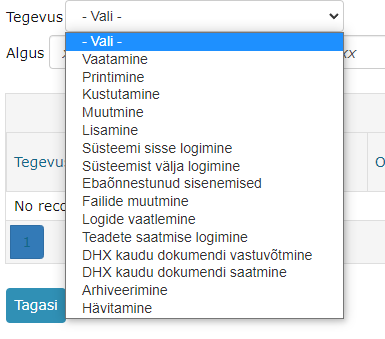
 1. Action dropdown menu - selection of different actions. When an action selection is made, Amphora displays only logs related to that action in search results. When no action selection is made, Amphora displays logs of all actions in search results. List of actions:
 2. Period of logs to search. Both date fields (Start and End) are mandatory. Start - from which date Amphora searches for logs. End - until which date Amphora searches for logs.
3. Filter or Search phrase field. Here you can enter, for example, document title, document ID, username, organization name, person name, etc., depending on what you want to find logs for. The Filter field is not mandatory, but if this field is empty, Amphora searches all possible logs.
2. Period of logs to search. Both date fields (Start and End) are mandatory. Start - from which date Amphora searches for logs. End - until which date Amphora searches for logs.
3. Filter or Search phrase field. Here you can enter, for example, document title, document ID, username, organization name, person name, etc., depending on what you want to find logs for. The Filter field is not mandatory, but if this field is empty, Amphora searches all possible logs.
Search results have a limit. Amphora can display a maximum of up to 1000 log entries.
Some examples:
- All activities of a specific user for one day. Actions selection is not made because we want logs for all activities. Period is today and the user name is entered in the Filter field.
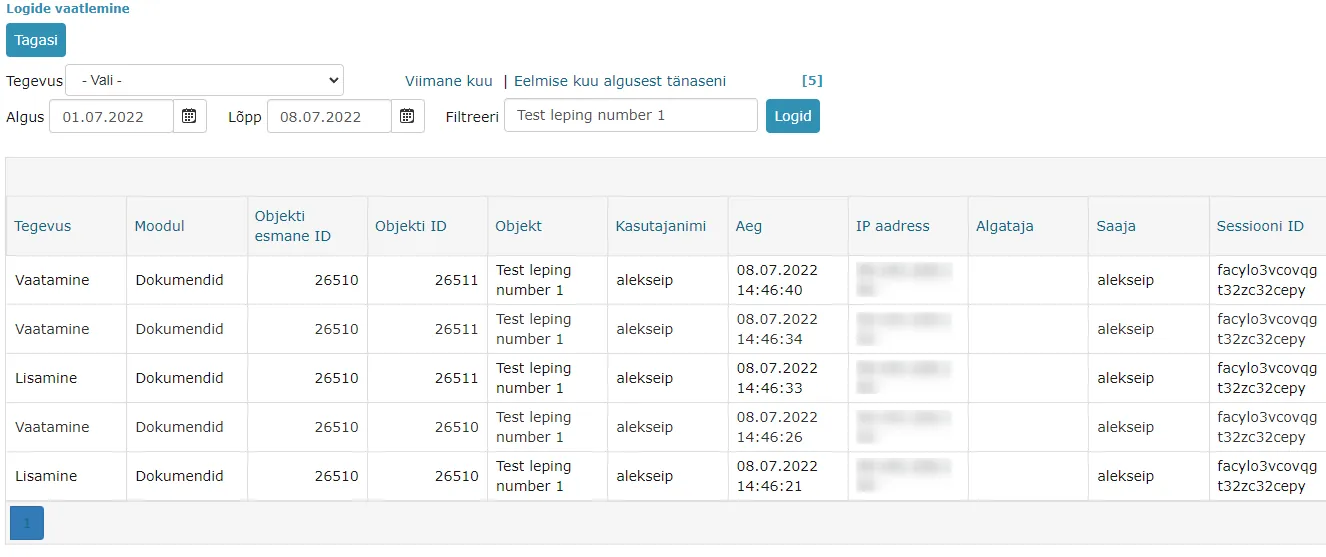
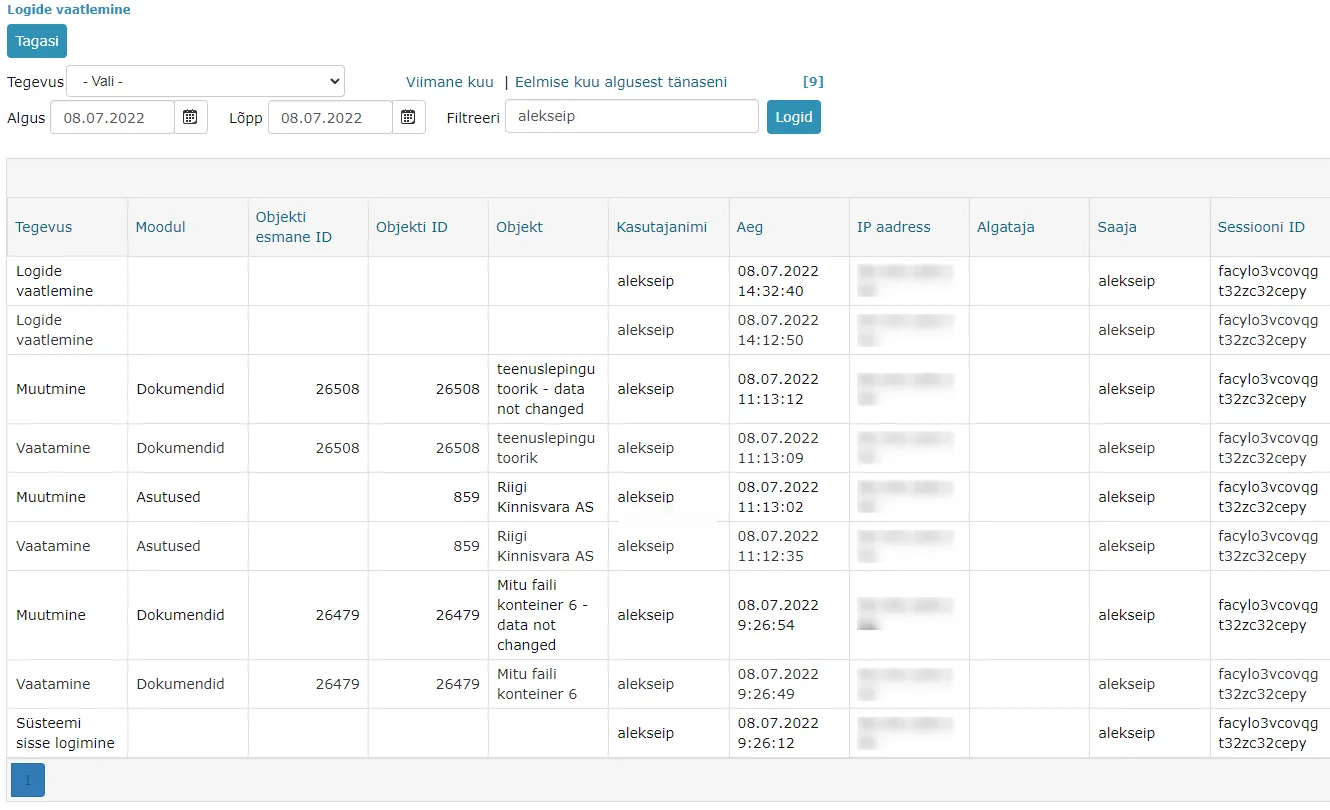 2. Logs for one specific document (by document title). Actions selection is not made because again we want logs for all activities. Period in this example is 01.07 - 08.07, but if you want to find all logs for a specific document, you should enter the document creation date as the Start date. Document title is entered in the Filter field.
  3. Logs for one specific document (by document ID). The only difference compared to title-based search (2) is that you need to enter the Document ID instead of the Document title in the Filter field. Title-based search is not always accurate because there may be multiple documents with the same title. Document ID is a unique number, so the search is accurate.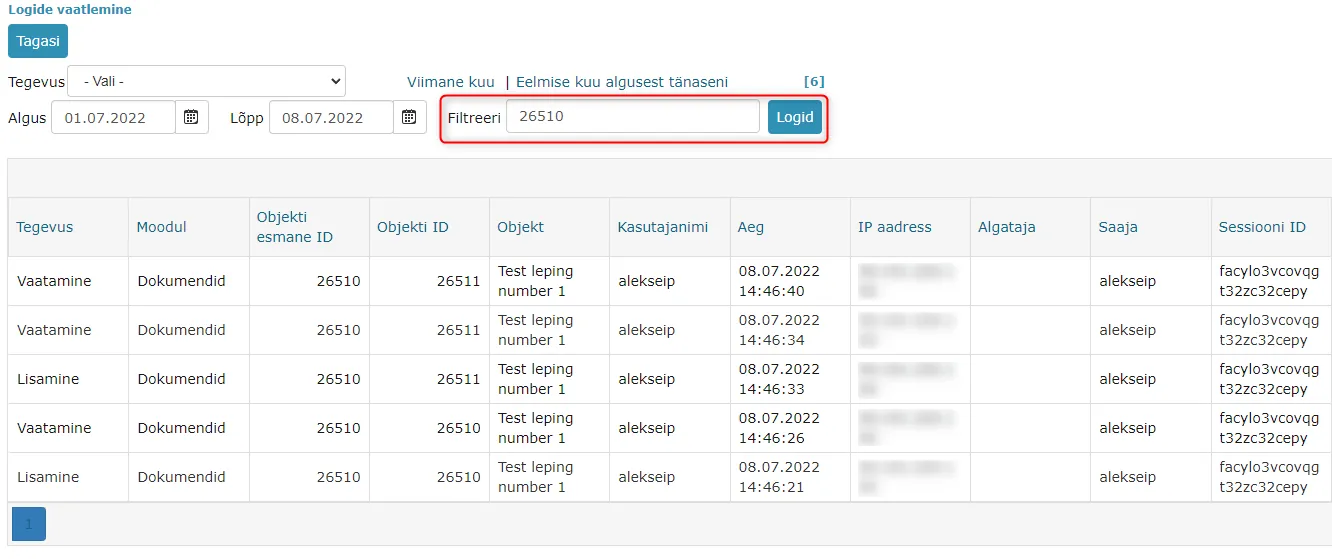
- Logs for all versions of one specific document (by document GUID). In addition to text and the object ID, the Filter field also supports the document GUID. The GUID is the document's permanent identifier and does not change when a new version is created, so searching by GUID finds the log events of all versions of the same document at once and there is no need to look up the first version ID separately. The document GUID can be found in the document's direct link - see Document ID (identifier).
NB!
Since each document version has a different ID, it is recommended to search by the document's first version ID. This way the search finds logs for all document versions. You can read more about document ID [HERE](../enduser_documents#Id).
File viewing and downloading logs
Amphora logs the opening of files (both main files and attachments) in the PDF preview window and downloading. For this purpose, a log type "File download" has been created. Amphora logs file opening and downloading in every view -- object modification and reading view, module list view, search results and other views.
File opening and downloading logs are visible in the Admin - Organization settings - Logs view.
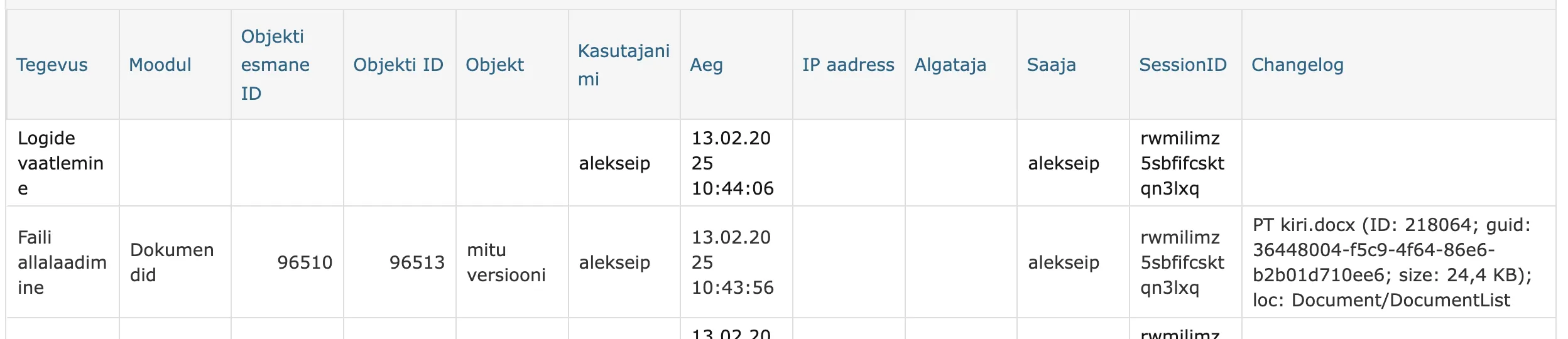
The logs table has three important columns:
- Object ID -- the unique number of the object whose file was opened/downloaded. Helps identify the specific object.
- Username -- the user who opened/downloaded the file.
- Changelog -- additional information column containing the name of the opened/downloaded file and its ID with location (loc).
Homepage settings
This functionality no longer works. See homepage user guide.
Signing settings
This panel stores signing service authentication data.
Important
This setting is predefined and you should definitely not change the values of these fields.
Unit settings
Unit settings are located under a separate link in the Admin module. Under Unit settings, there are various configurations, including setting up main users.
In the unit selection, only those organizations are shown for which the user has Administration rights. The Unit settings link is associated with the Modify directories/units policy.
When saving data, Amphora displays a notification at the top: "Changes have been saved!".
NB!
The remaining unit settings (e.g., publishing, counters, module selections) are still located on the unit modification form.
Main users
In the Amphora environment, main users can be displayed for the entire environment (main organization) or for a specific sub-organization. The main users list is visible to all users. The list includes the main user's first and last name, associated organization, email address, and phone number.
Main user configuration is located in Admin -- Unit settings -- Main users tab. Both individual users and user groups can be added as main users. The display order of main users can be changed using the arrow icons.
If the main organization has no main users, Amphora displays a corresponding message when opening the main users list. If a sub-organization has its own main users, Amphora displays that sub-organization's main users list. Otherwise, the main organization's main users are displayed.
Amphora client support information is visible only to main users. Regular users should contact their main user.
Last modified: 17 October 2026, 11:05:57