Amphora 14.3 Version Guide
- Version 14.3.0
- New document DOCX template elements – related case template elements
- Response document feedback functionality
a. Setup
b. Translations - File versioning when editing with WebDav fixed
- Closing file opened with WebDav now removes document lock
- Deleting classifiers (Admin -> Institution settings -> Choice field content) enhanced
- Unit settings panel and change logs
- Institution logs view change – current day logs are immediately visible upon opening
- Fixed adding comment by task substitute
- Changing recipient email address in outbound delivery afterwards – enhanced
Version 14.3.0
New document DOCX template elements – related case template elements
Added new document DOCX template elements that allow transferring the content of case fields related to the document to the template. The new template elements look like this:
::case.amp_field_name::
where amp_field_name is the "Amphora field name" of the case form field. The "Amphora field names" of form fields can be found in Admin -> Form setup.
The new template elements work in situations where the document is related to only one case. If there are multiple cases related to the document or the case is missing, then when saving the document, these template elements are replaced with an empty value.
For Amphora to replace template elements with the correct field value, a new document can be added both from the case edit view (Case objects panel) and directly from the Documents module. The main thing is that when saving the document, there should be a relationship with one case.
Related case template elements make sense to use when the case form has fields whose information should ultimately reach the case object (document) template. For example, the case form has real estate information and when creating a new contract, the real estate information should reach the contract template.
** The implementation of this development was supported by Amphora client Kohila Maja OÜ ** ** Thank you! **
Response document feedback functionality
The new feedback functionality allows sending a feedback question email X hours later to response documents that have in turn been sent by email. If feedback email sending is activated and correctly configured, then every time a document with an initiative document relationship is sent out by email, a feedback email is created, which Amphora sends out X hours later. For example, a survey link can be added to the feedback email content, where email recipients can rate your institution's service quality.
The feedback email is sent under the following conditions:
- Feedback email sending is activated
- It must be a response document
- It is an outbound delivery where the delivery method is "email"
- The response was sent after feedback activation.
When a feedback email is created, Amphora displays a (feedback) link in the status column of the deliveries panel. Hovering the mouse cursor over the link opens a tooltip where there is information about sending the feedback email.
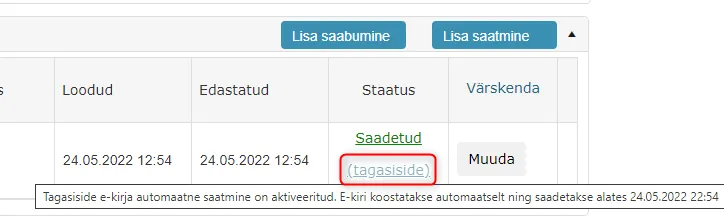 The (feedback) link becomes clickable after the feedback email is sent out. Clicking on the link opens a window where the sent email logs are displayed.
A log about feedback is also created, which is visible in Admin -> Logs view (the "View other users' logs" policy needs to be enabled for these logs to be visible). The log content includes the feedback email sending date and time, title, and sender and recipient email addresses.
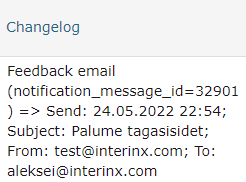 A new history event also appears in the document history panel.

Setup
First, you need to create a new feedback template. This can be done in Admin -> Templates -> Add new button.
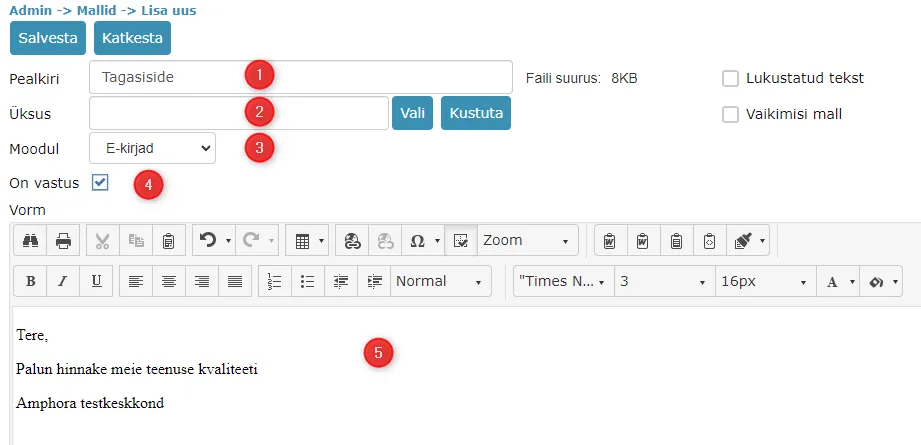 1. Template title
2. Unit does not need to be selected. This selection should be left empty
3. Module must be selected as Emails
4. When Emails is selected as the module, Amphora automatically adds the Is response checkbox. This checkbox is not mandatory.
5. Feedback email content
When creating the template, template elements cannot currently be used. The text must be static.
Feedback functionality configuration is unit-based. In the unit (Admin -> Catalogs) settings there are Unit settings, where in turn there is a Feedback tab.
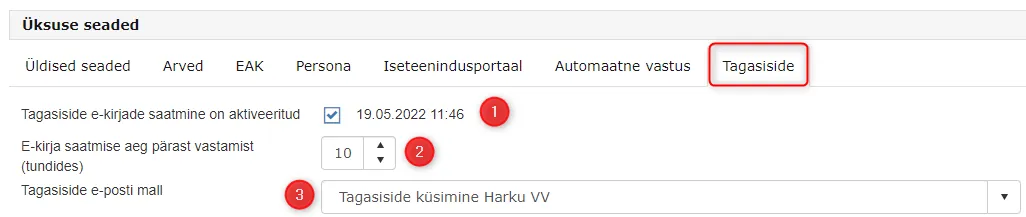 1. Feedback email sending is activated – the added checkbox activates feedback email sending. The date and time shows when this checkbox was added
2. Email sending time after response (in hours) – here you can specify after how many hours after sending the response the feedback email is sent. The number of hours must not be negative and zero (Amphora does not allow adding), so immediate sending is not allowed
3. Feedback email template – template selection used as email content. The previously added template should be selected here
Translations
Three new translations were added in connection with this development:
- HISTORY_GENERATE_FEEDBACK_EMAIL – Text displayed in the document history panel. Default translation – "Feedback email composition"
- Email_Feedback_Subject – feedback email title. Default translation – "Please provide feedback"
- DeliveryFeedbackLink – feedback email link in deliveries panel. Default translation – "(feedback)"
** The implementation of this development was supported by Amphora client Harku Municipality ** ** Thank you! **
File versioning when editing with WebDav fixed
When opening a file for editing with WebDav, Amphora adds a lock to the document. The document lock can be removed by a user with Admin rights. In previous versions, a situation could occur where one user opens a file for editing with WebDav, Amphora adds a lock to the document, and during file editing another user removes the lock, changes the document metadata for example, and saves over the document. In such a situation, Amphora did not save the first user's file changes because a new document version had been created in the meantime and file versioning broke.
In version 14.3.0, file versioning has been fixed and in the future, in such situations, Amphora can save file changes correctly.
Closing file opened with WebDav now removes document lock
Users sometimes open a file with WebDav but don't change anything and close the opened file with the X. In previous versions, Amphora did not remove the document lock in such situations, which prevented other users from working with this document. In version 14.3.0, we made a change so that when closing a file opened with WebDav, Amphora immediately removes the document lock.
Deleting classifiers (Admin -> Institution settings -> Choice field content) enhanced
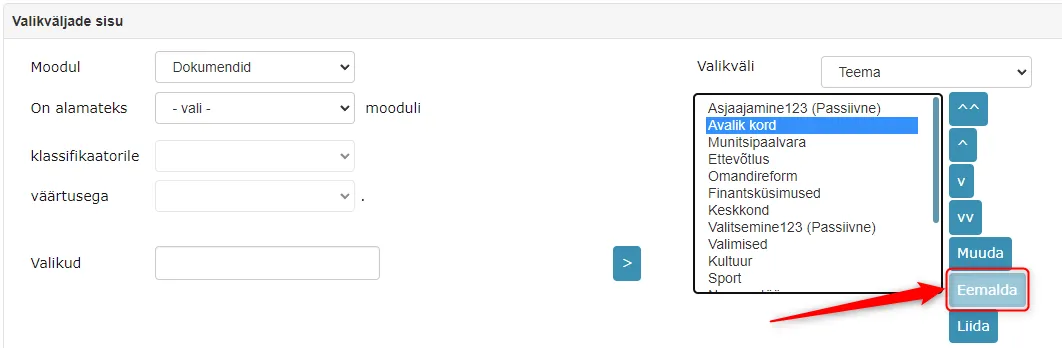
- When deleting a classifier, Amphora now adds a log about it. Logs are visible in Admin -> Institution settings -> Logs.
 2. The "Remove" button is no longer active if it is a system classifier. This means that from now on it is no longer possible to remove system classifiers. Previously, when removing system classifiers, important data at the document level could be lost.
Unit settings panel and change logs
In unit settings (Admin -> Catalogs) there is a Unit settings panel. We made this panel a bit more compact. Now there are separate tabs and thanks to this, you don't need to scroll down with the mouse to find the desired setting.
 We also added change logs for the Unit settings panel. Changes made in all panels (except Self-service portal panel) are logged and logs are visible in Admin -> Institution settings -> Logs view.
Institution logs view change – current day logs are immediately visible upon opening
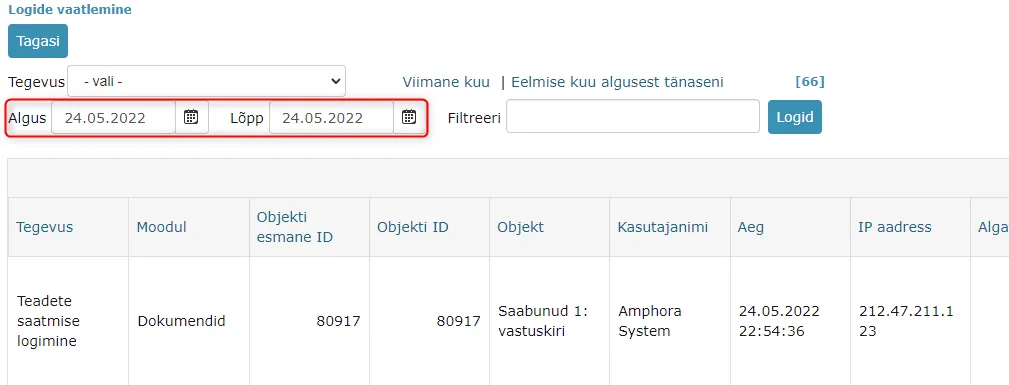
Institution logs are located in Admin -> Institution settings -> Logs. Clicking the "View logs" button in the Logs panel opens the institution logs view, where the Start and End dates are now immediately selected. Amphora now immediately displays the current day's logs.
Logs view opened on 24.05.2022:
Fixed adding comment by task substitute
In previous versions, the following problem occurred. If a process or delegation task had a substitute and the substitute added a comment to the task in the process/delegation detail view, then after saving the comment, the task disappeared from the substitute's Routing panel. So the substitute could no longer complete this task and the task was only visible to the user being substituted.
This bug was fixed in this version. From now on, when adding a comment, the task no longer disappears from the substitute's Routing panel.
Changing recipient email address in outbound delivery afterwards – enhanced
If it is an outbound delivery with Sent status where the delivery method is email, then according to the rule, Amphora does not allow changing the recipient email address of this delivery. If this email was sent directly from the Amphora environment, then the recipient data really doesn't need to be changed. But if it is an email that was sent externally from Amphora and later registered from Outlook/Emails module, then such an email must have the ability to change the recipient email address. In this version, we added such a possibility.
Last modified: 09 October 2026, 10:25:03