Info Presentation
Info Presentation allows you to configure the display of Documents and Case View documents in the registry view.
Adding New Info Presentation Profile
Open the Admin -> Info Presentation form from the Admin module submenu.
To add a new info presentation, click the Add New button. The Admin -> Info Presentation -> Add New form opens.
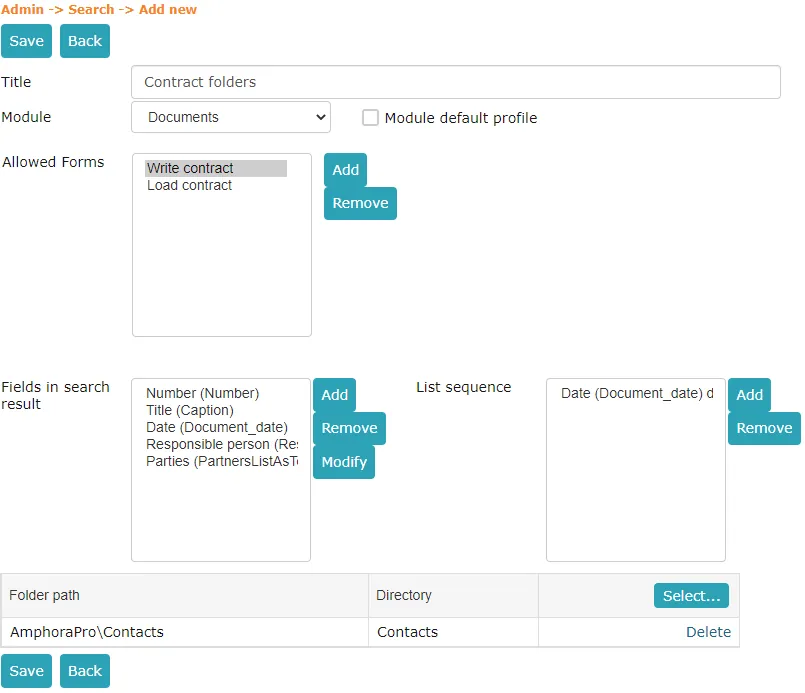 Write the title and select the module from the dropdown.
If you want to make this info presentation the default profile, check the Module Default Profile box.
Allowed Forms
Select forms that the info presentation should work with by clicking the Add button located next to the Allowed Forms field box. The Select Forms form opens. Select all desired forms by clicking on the form name and then the > button. Forms selected, click the Save button.
To remove a selected form, go to the Selected box, click on the field name to be removed, and then the < button. Fields selected, click the Save button.
Fields Visible in Search Results
Select fields that this info presentation should display by clicking the Add button located next to the Fields Visible in Search Results field box. The Select Fields form opens. Select desired fields by clicking on the field name and then the > button.
To remove a selected field, go to the Selected box, click on the field name to be removed, and then the < button. Fields selected, click the Save button.
List Order
Select fields by which ordering should occur by clicking the Add button located next to the List Order field box. The Select Fields form opens. Select desired fields by clicking on the field name, then select in the dropdown whether to sort in ascending or descending order, and then click the > button.
To remove a selected field, go to the Selected box, click on the field name to be removed, and then the < button. Fields selected, click the Save button.
To save the search profile, click the Save button.
Last modified: 07 October 2026, 15:42:46