X-Road Interface
- Data Registry Service Configuration
- Using the MTA Debt Inquiry Service
- Configuring the MTA Debt Inquiry Service
- Additional Info
Amphora allows using X-Road services and carrying their results onto a document form. This example describes configuring the Tax and Customs Board (MTA) debt inquiry service in Amphora. Other X-Road services can be used in a similar manner. A gateway is essentially a data registry that can be accessed via X-Road. Under gateways, you can also configure data retrieval from other X-Road services that return simple data — meaning they can carry different data fields from a single record onto the document form. The interface does not currently support list management, so it is not possible to add data arriving as a collection onto the document form.
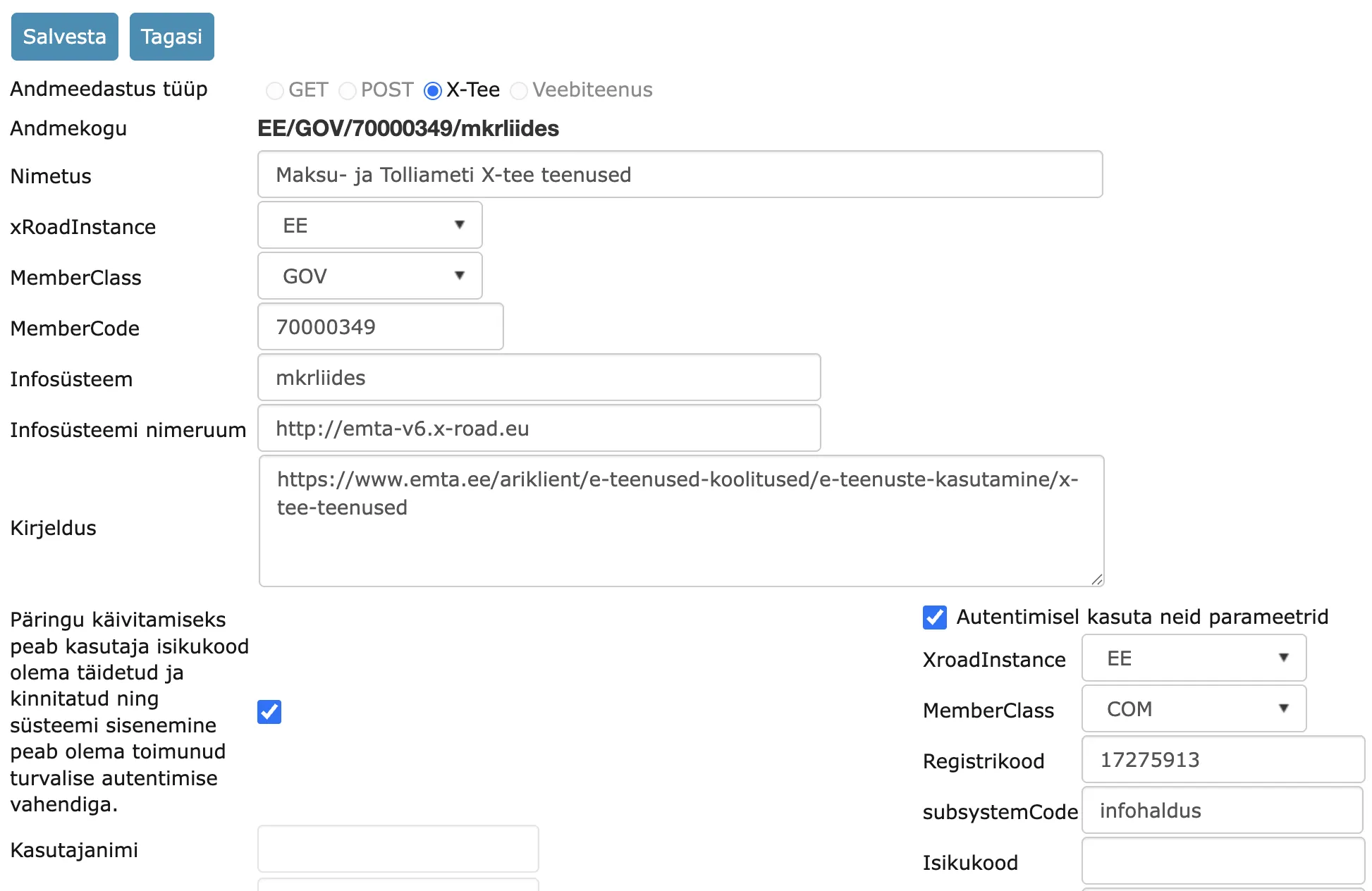
To begin, you need to know the parameters of the data registry being used:
- xRoadInstance – whether production, test, or development (EE / ee-test / ee-dev)
- MemberCode – the service provider's registration code
- MemberClass (Organization type) – GOV / COM / NGO / NNE
- Subsystem (subsystemCode) – the service provider's service subsystem in the security server
- Subsystem namespace – in most cases left empty, but for some services it may be necessary to configure a namespace for processing the response, which can be obtained from the service provider's service description.
On the lower right side, you need to specify the data of the organization making the query. Here you need to enter the Amphora security server and subsystem data. This data can be found in this document or obtained from Amphora support. Leave the personal identification code empty — then the X-Road query will be made using the personal identification code of the user who launches the service in Amphora. This part of the data is always the same for using all X-Road services.
Once the service provider's service and the querying organization's general data are in place, the service input and output parameters can be configured in the "Queries/services" section at the bottom of the page. Currently, WSDL upload is not possible and the service list and parameters cannot yet be automatically detected. We will update this in future versions when there is interest in using X-Road services.
Next, you need to configure the service(s) that need to be used.
Select "Add new query", then a new window opens where you enter the service data. A more detailed description is in the next section.
Data Registry Service Configuration
Below is an example of configuring the debt inquiry service "vpt". This part is the same in production and test environments. You can activate a requirement that a user who is not authenticated with a username and password cannot launch the service. This can be activated/deactivated separately for each service.
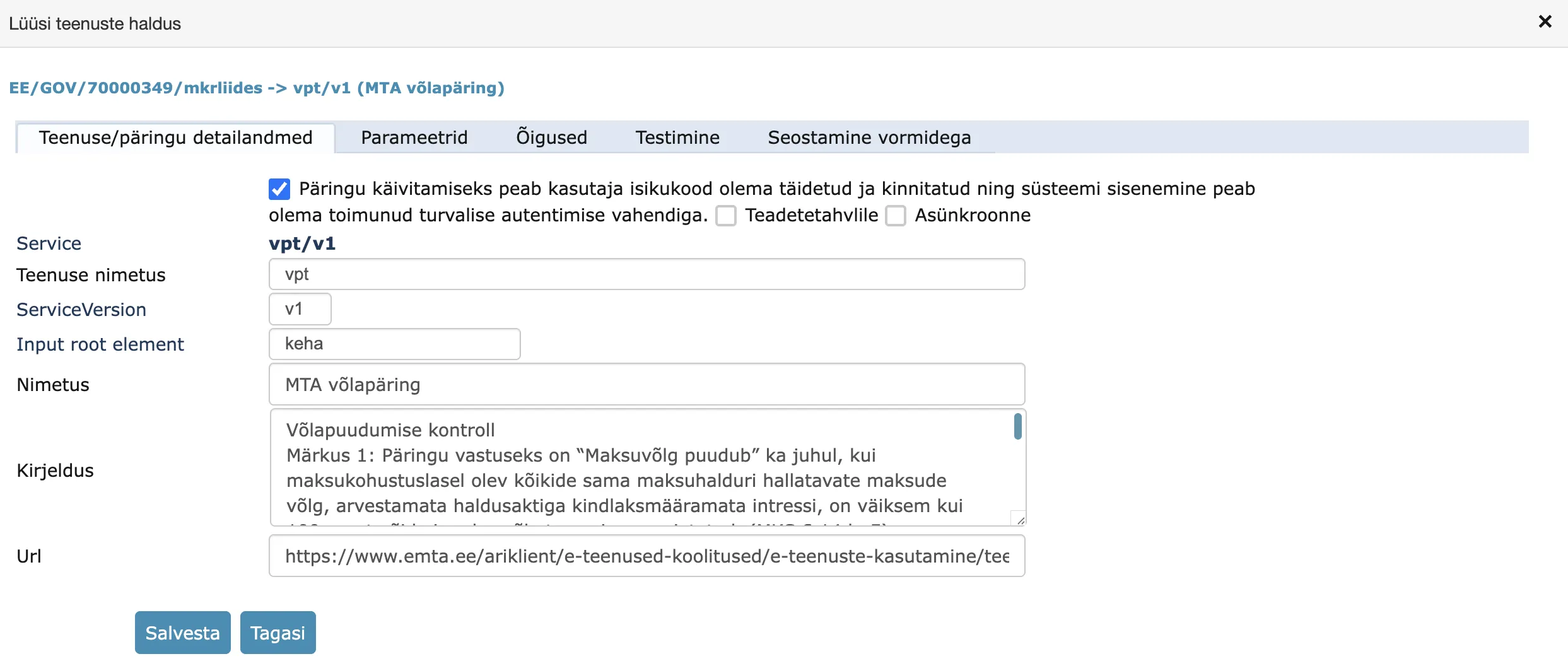
First page – service details
Important data on the first page:
- Service name – "vpt", the exact name provided by the service provider
- ServiceVersion – "v1" (service version, v1 in most cases)
- Input root element – "keha" (if response processing does not work without it, specifying the root element name helps)
- Title – "Debt inquiry" (free text, this is also displayed as the link name on the form when the service needs to be launched)
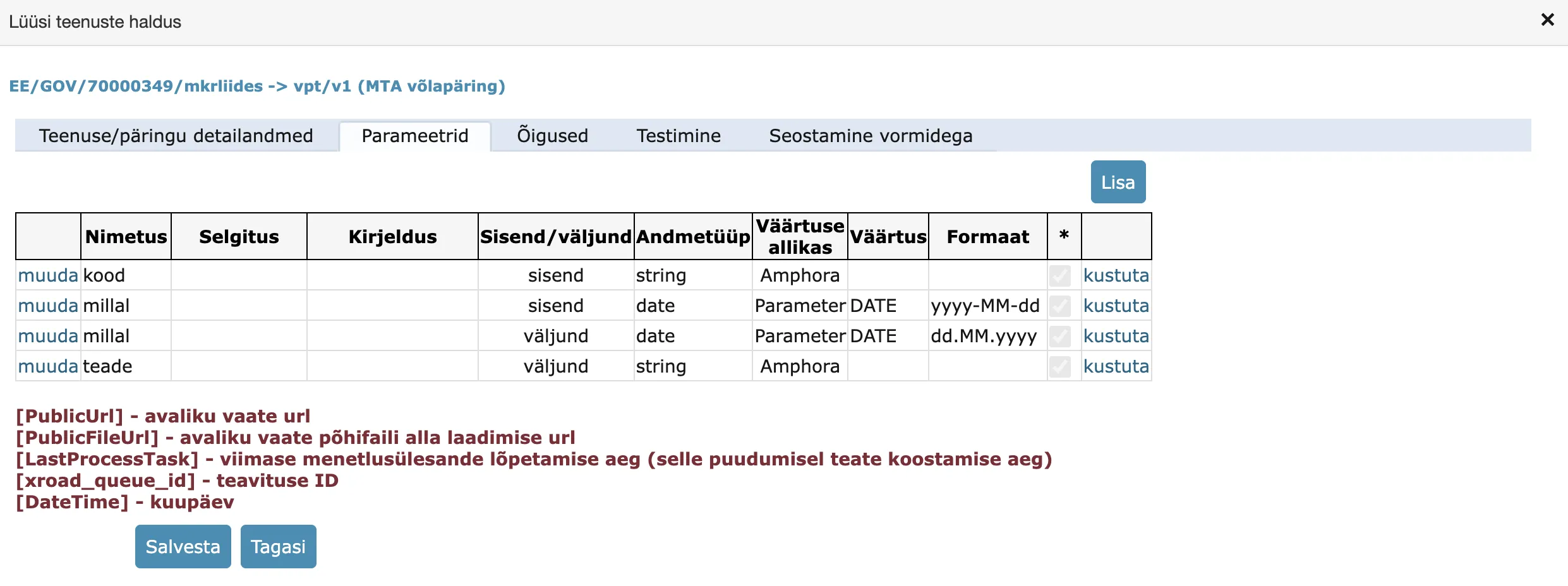
Second page – parameters
Defines the service inputs and outputs, i.e., the parameters. The service inputs are a code and a date, and the same parameters are also in the output. For the date, we use the launch date (DATE) and a specific format required by the service.
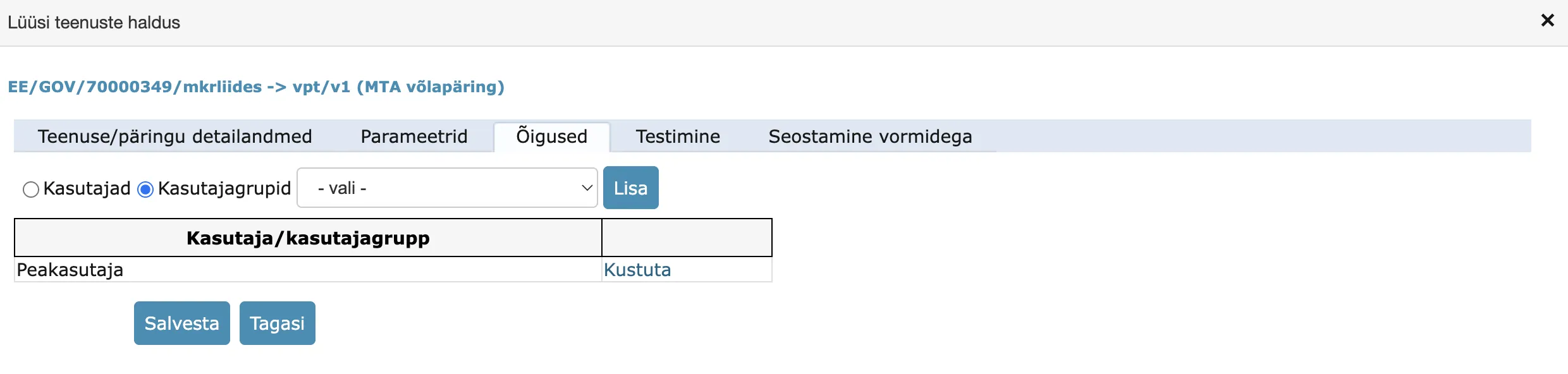
Third page – rights
Defines at the user or group level who can see and launch the service. If no restriction is needed, leave it empty.
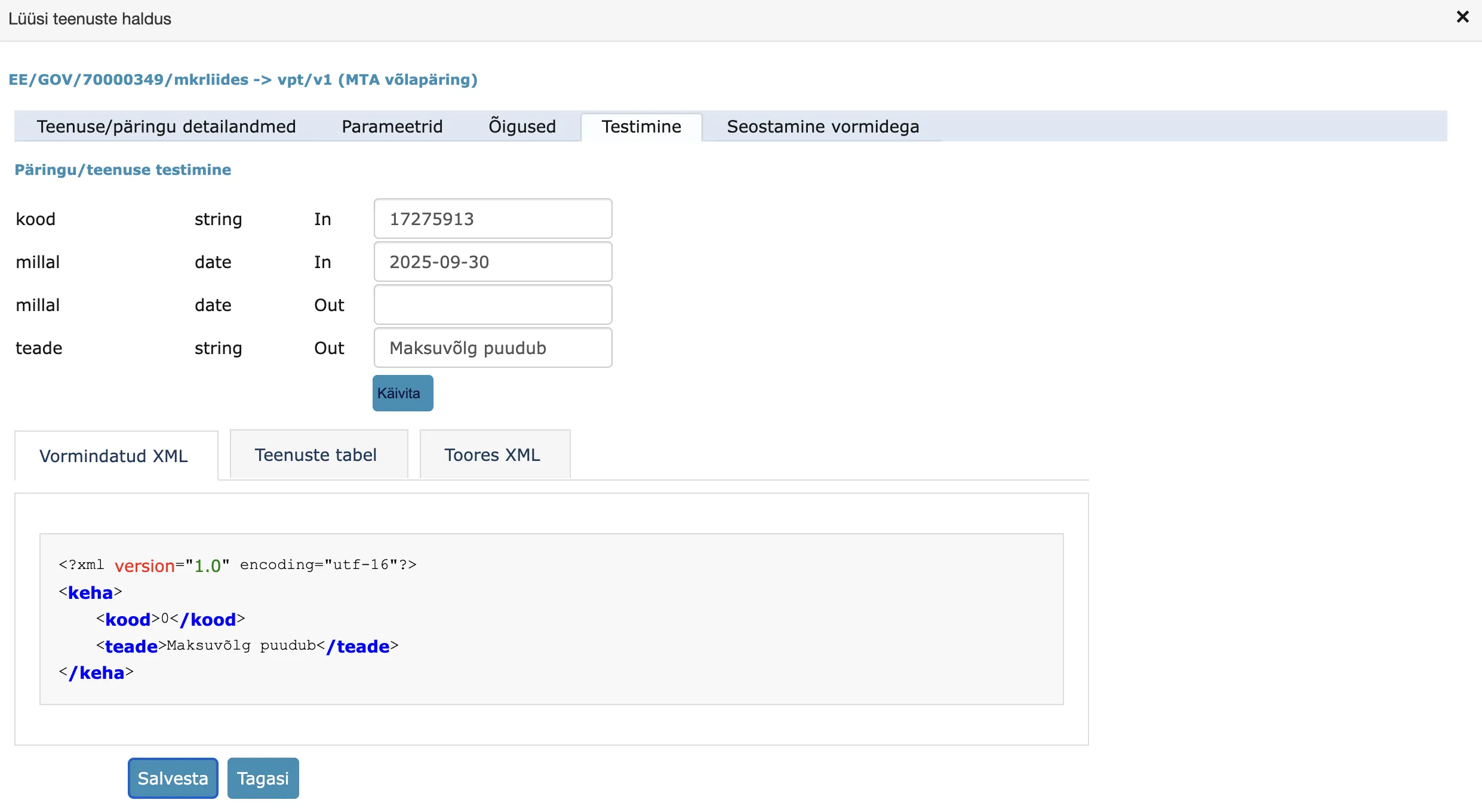
Fourth page – testing
You can test the service settings by launching a test run. Before launching, the service and data registry (gateway) data should be saved.
First fill in the inputs and then launch.
Fifth page – linking to forms
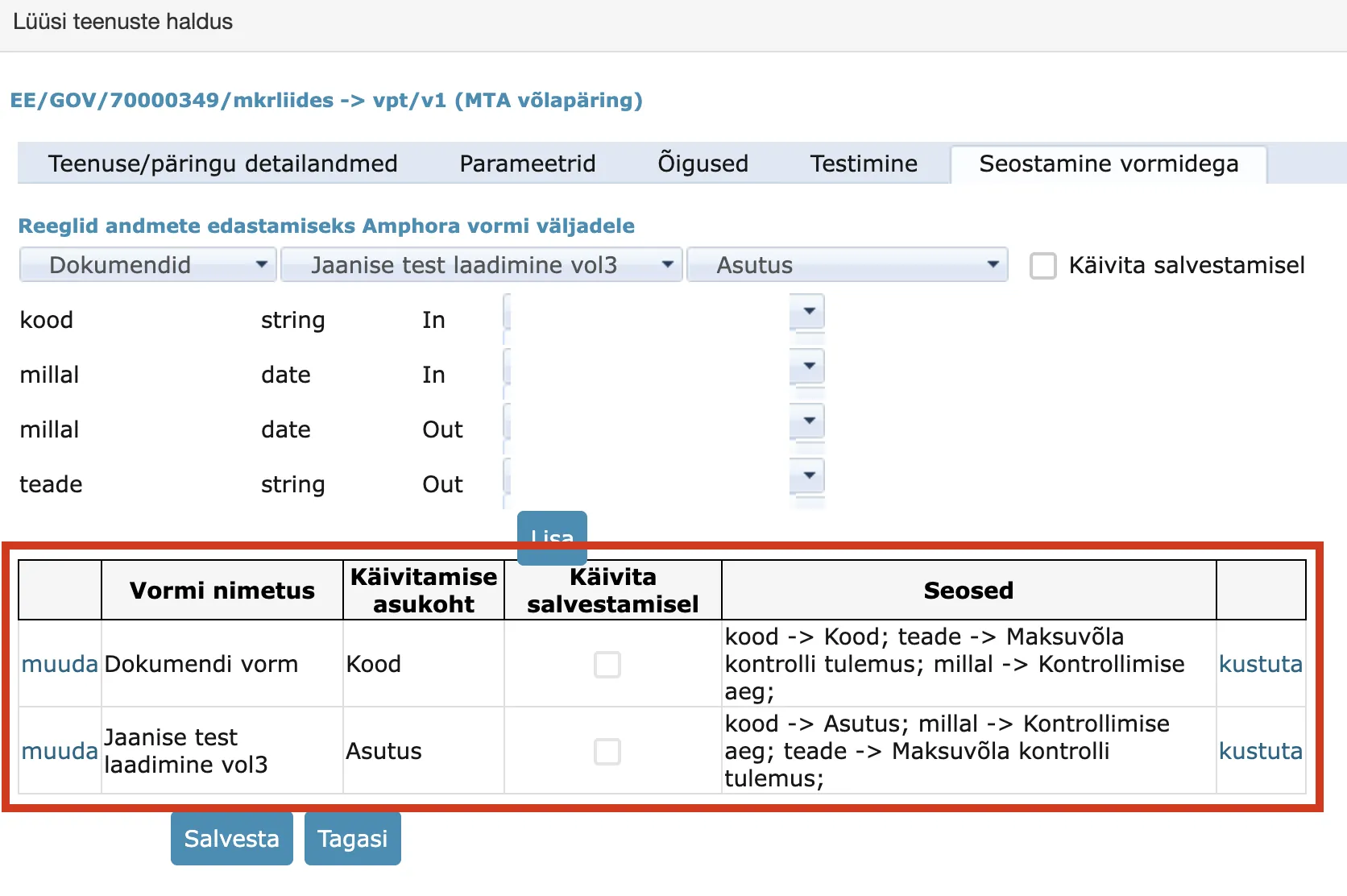
If testing was successful, you can continue linking the service to the necessary form(s). Here, the service is configured for the document form "Jaanise test laadimine vol3" and attached to the "Organization" element. The Organization field is a text box where the organization's registration code is meant to be entered. The query result is placed into the "Verification time" and "Tax debt verification result" fields. The Add button finalizes the form-service linkage. Leave the "Launch on save" checkbox unchecked.
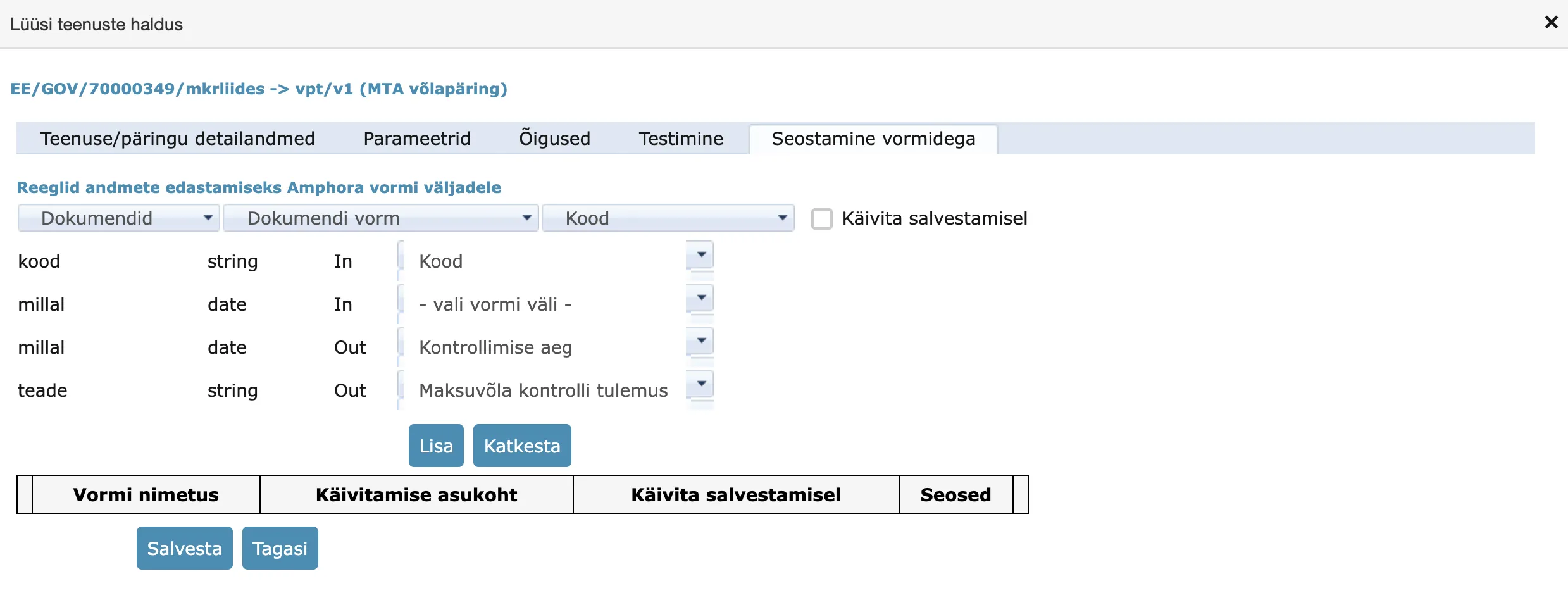
This completes the service configuration — make sure to save the changes in the gateway detail view.
Then try creating a new document using the Document form.
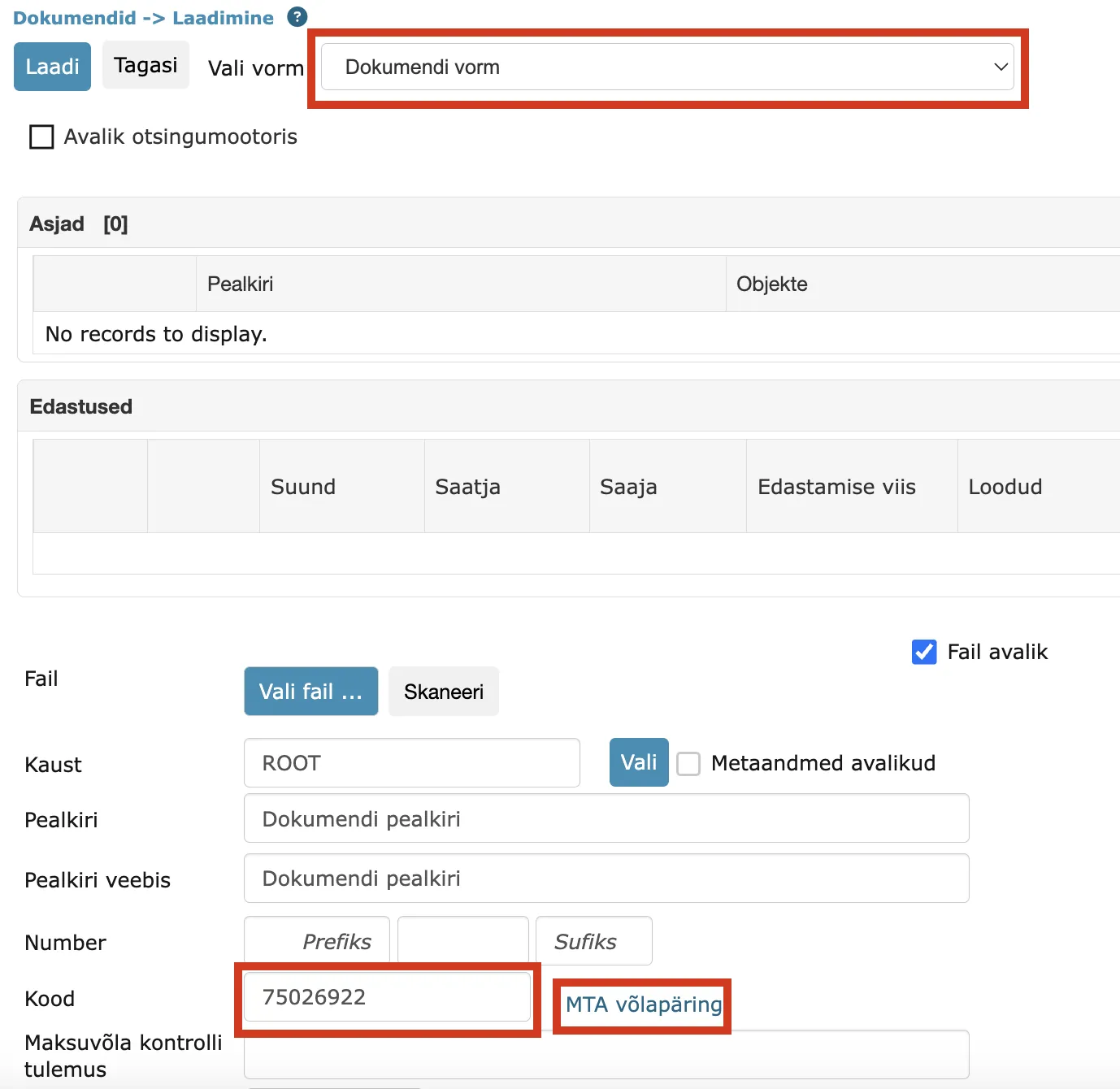
Launch the X-Road service from the "Debt inquiry" link. A new window appears showing which gateway query was launched.
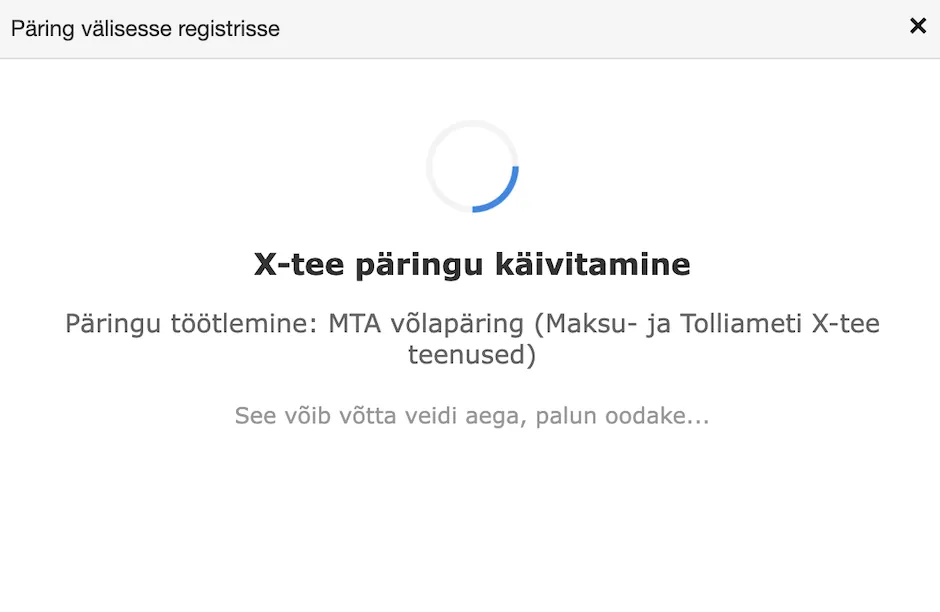
When the query finishes, the content of the notification window changes.
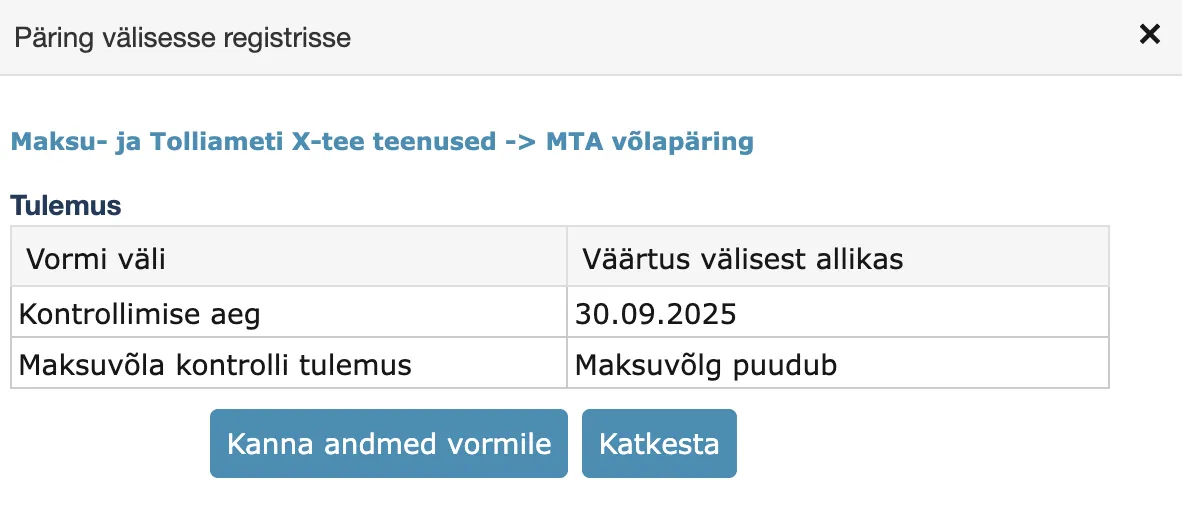
If you select "Carry data to form", the received responses are placed into the form fields that were configured earlier.
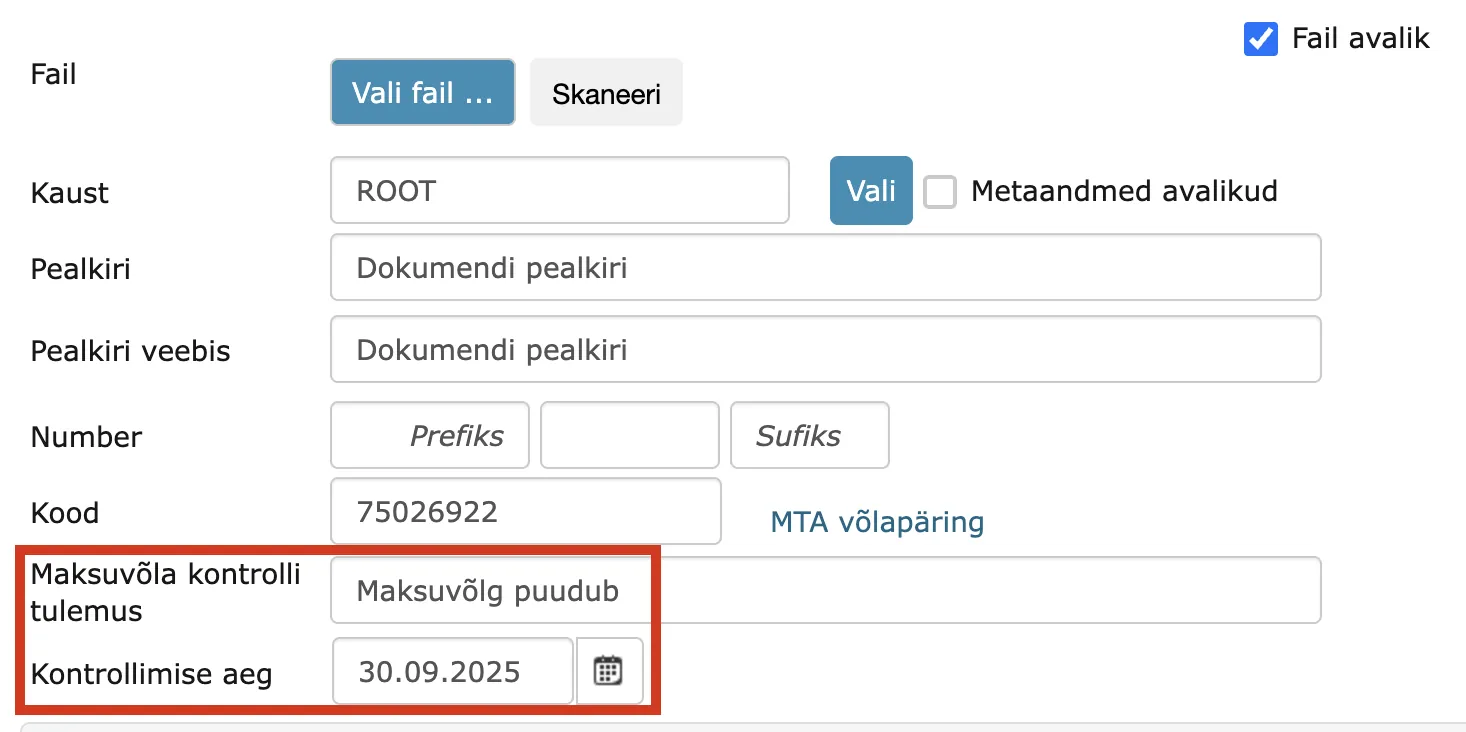
If the document was previously saved, the query launch info also appears on the document's History panel. Additionally, the info always goes to the system log. This allows you to verify who launched the query.
Using the MTA Debt Inquiry Service
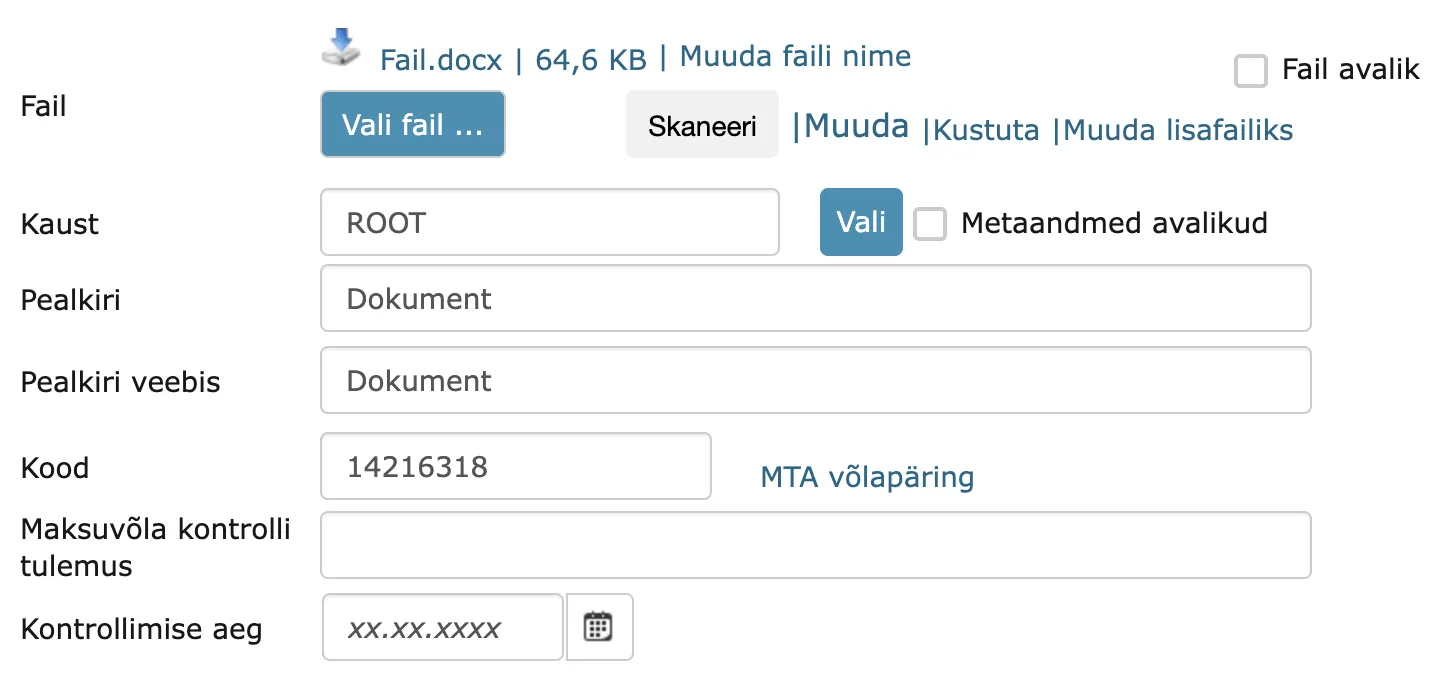
The MTA debt inquiry service can be launched both before and after the document's first save. To launch the service, enter the registration code or personal identification code in the form field linked to the "code" element and click the "MTA debt inquiry" link.
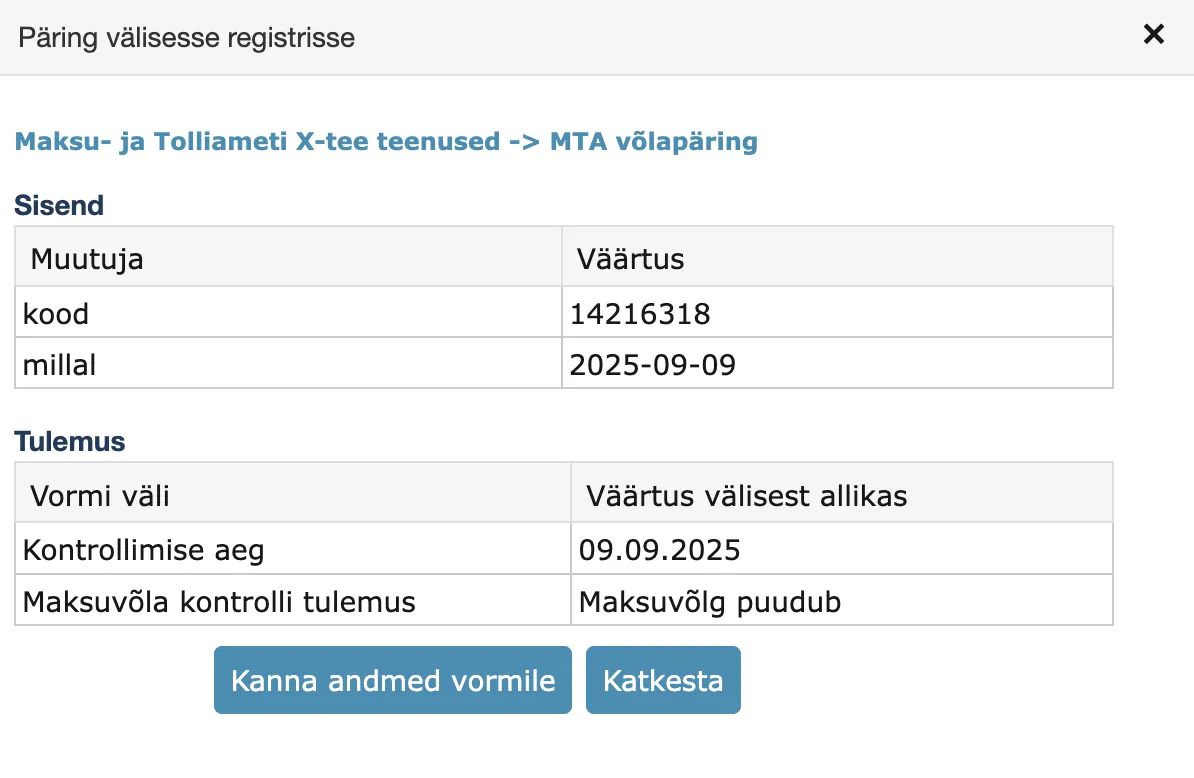
When the query finishes, a window opens with input data and the result. You can read more about the service's input and output on the EMTA website.
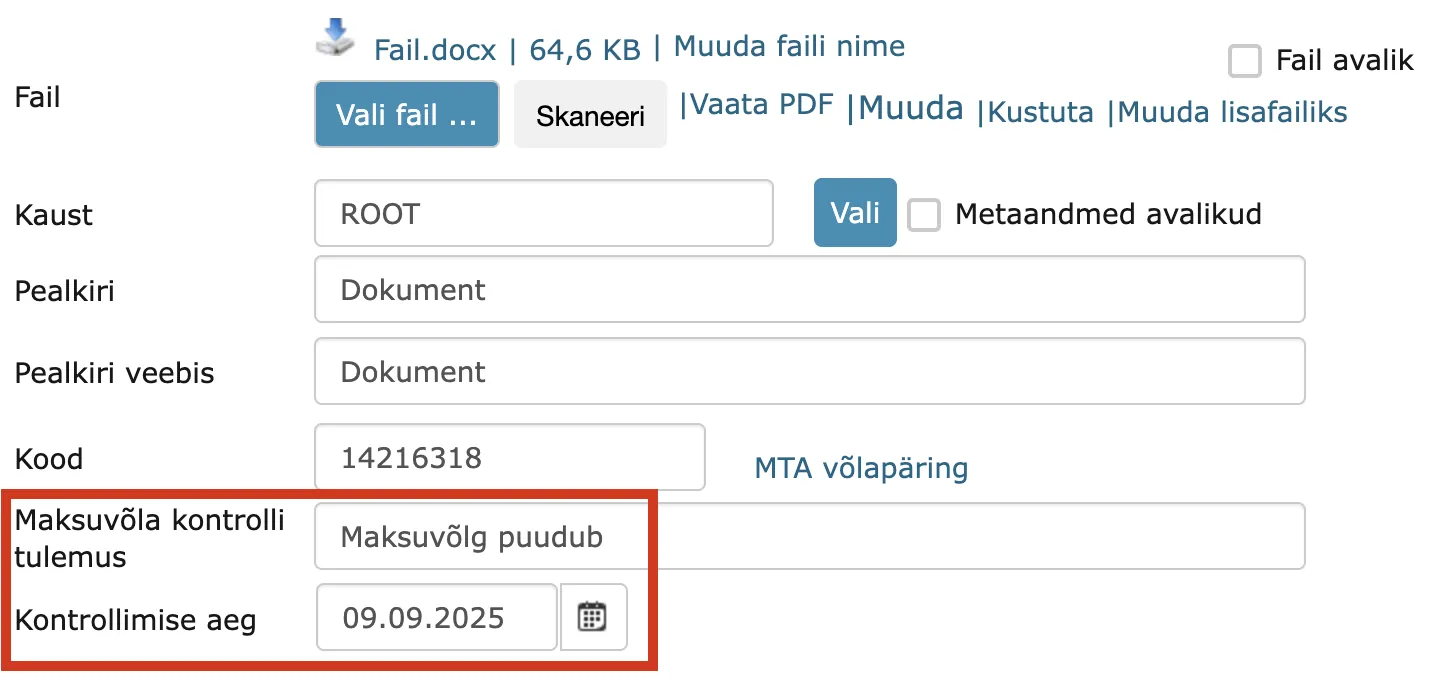
If you select "Carry data to form", the received responses are placed into the form fields that were configured earlier.
If the document was previously saved, the query launch info also appears on the document's History panel. Additionally, the info always goes to the system log, which allows you to verify who launched the query.
NB!
The MTA debt inquiry service is an alternative to the public website.
Configuring the MTA Debt Inquiry Service
Before configuring, make sure the form to which you want to link the MTA debt inquiry service has three fields:
- A registration code/personal identification code text field (TextBox) mandatory
- A service launch date field (Date)
- A service result text field (TextBox)
The service launch date and service result fields are not mandatory.

The MTA debt inquiry service can be configured to form(s) in the Admin -> Gateways view. In the gateways list, open "EE/GOV/70000349/mkrliides", then scroll down and in the "Queries/services" table, open the service "vpt/v1" with the title "MTA debt inquiry".
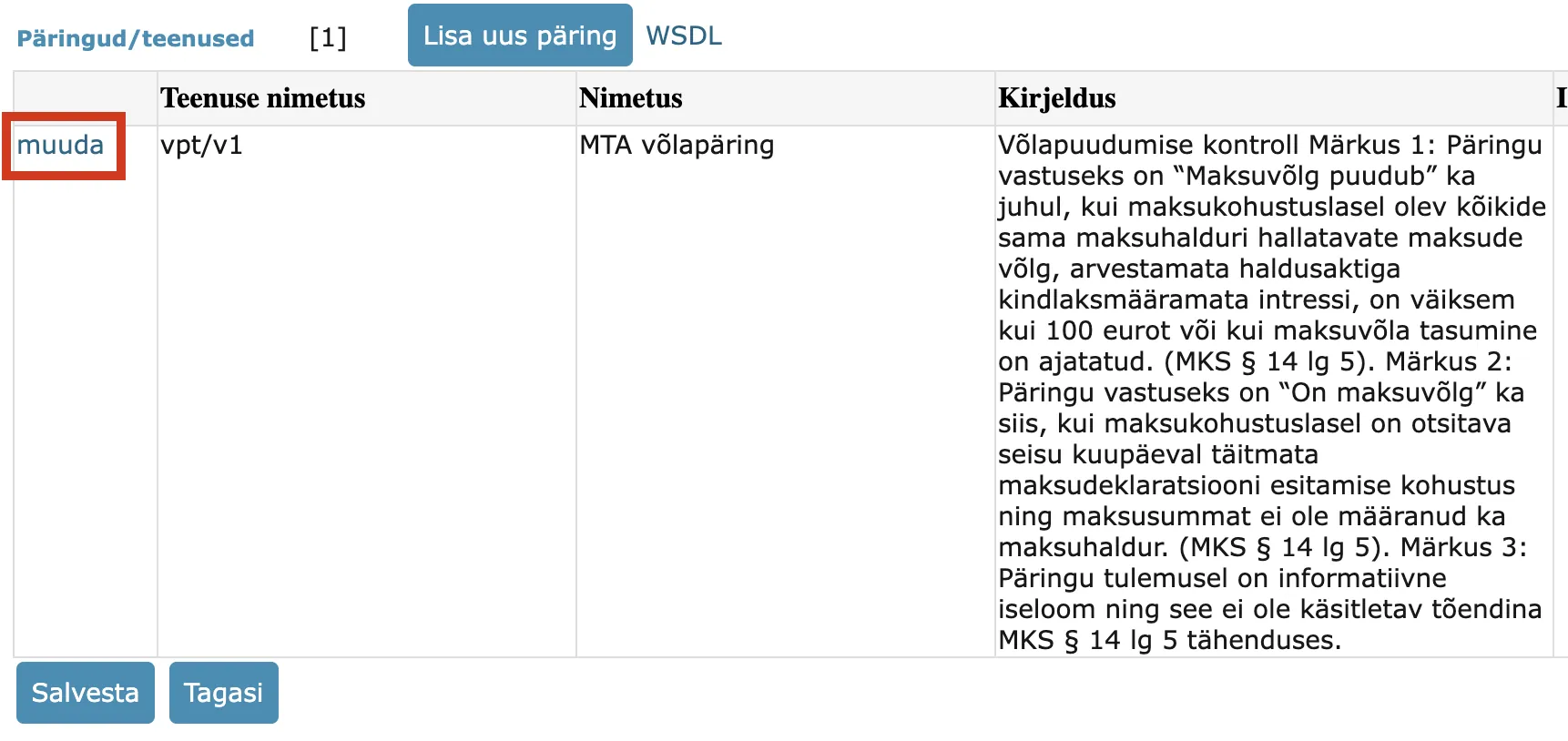
In the service window, open the "Link to form" tab and make the necessary settings.
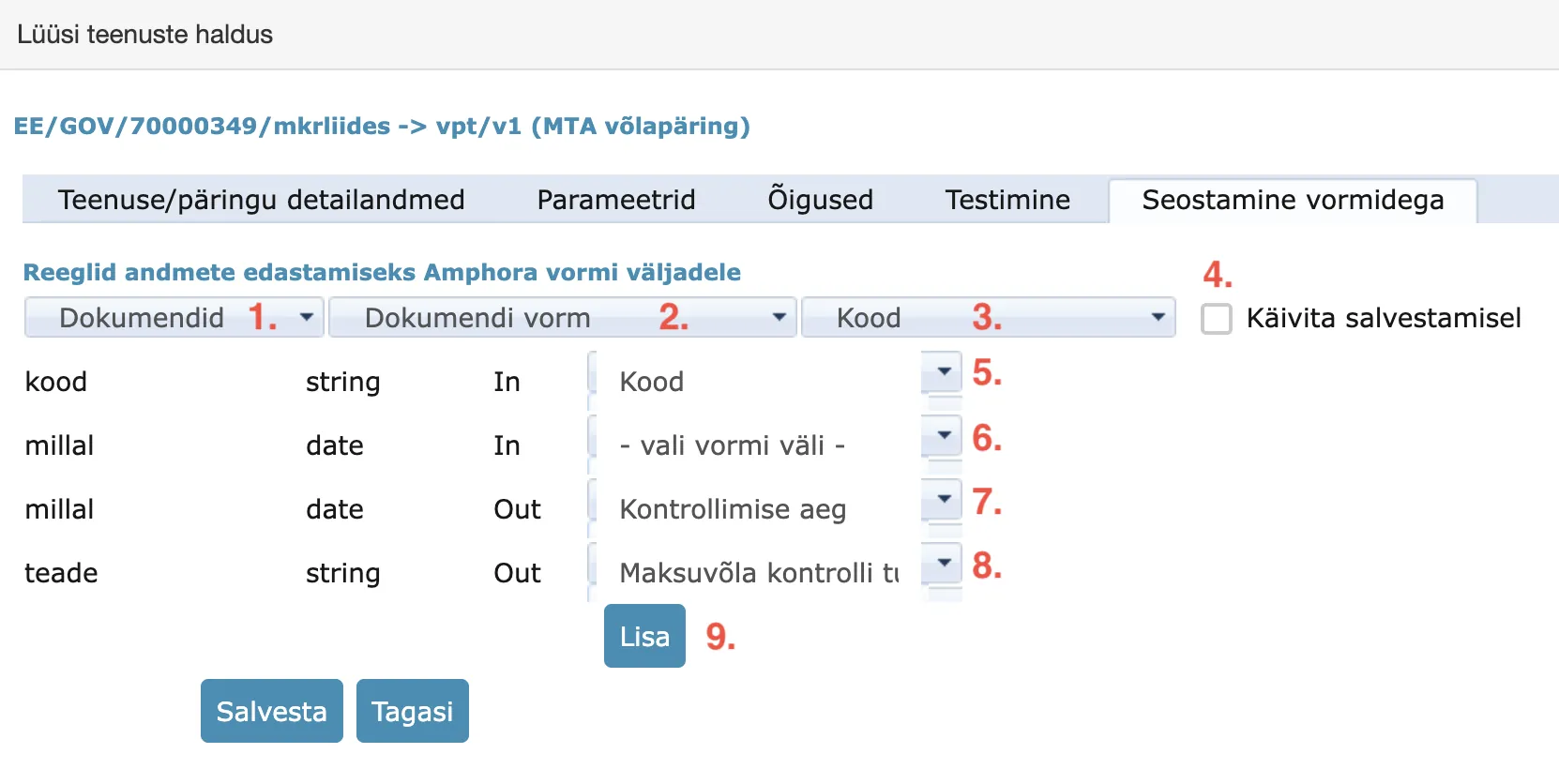
- Form module selection: you must select the Documents module.
- Form selection: the form to which the MTA debt inquiry service is added.
- Form field name: the field from which the service can be launched. It is recommended to add it to the registration code/personal identification code field.
- The "Launch on save" checkbox must not be checked.
- The "code" element must be linked to the form field where the organization's registration code or personal identification code is entered.
- The "date" (IN-direction) element does not need to be linked to a form field — Amphora adds the correct date automatically.
- The "date" (OUT-direction) element must be linked to the form field where the service launch date is added.
- The "message" element must be linked to the form field where the service launch result is added as text.
- The Add button saves the service-form linkage.
After adding the service-form linkage, it appears on the "Link to form" tab. If needed, you can modify or delete the existing linkage ("edit" and "delete" links).
NB!
If main users cannot see the Gateways link in the Admin module, the Gateways policy needs to be enabled in the user group.
Additional Info
This example is for EMTA X-Road services. listMethods is a technical service and can be configured for testing service access. In this example, the important service is "vpt/v1".
Test environment configuration example
MemberClass values
Needed when configuring a gateway (data registry). * GOV - Government organization * COM - Private enterprise (commercial entity) * NGO - Non-profit organization (NGO, foundation) * NEE – Private individual
Last modified: 07 October 2026, 15:42:46