Amphora 15.5 Version Guide
- Version 15.5.0
- Catalog preview data now shows complete counter number
- Running reports directly in "Admin – Reports" view
- HTML text support added to form elements
- Fixed file name display in transmissions panel and transmission detailed settings
- Institution detail view improvements/changes
- Rights changes for created catalogs/units
- Admin – User groups rights changes
- "Out of office" functionality enhanced
- Other changes
- Version 15.5.1
- Displaying environment and institution administrators
a. General information
b. Configuration
c. Displaying Amphora client support data - Unit settings moved to Admin module under separate link
- Superuser mode activation/deactivation for administrators
- Additional service ordering possibility added
- Fixed data publication functionality when changing catalog
- Rights control changed when displaying catalog tree in Admin module
- Person group addition fix
- Fixed sending notification to Self-service user in sequential procedures
- User rights calculation enhanced
- Passive users now have PASSIVE marking in registration profile
- Added new DOCX template elements
- Spoku and E-service changes/enhancements
- Locking user personal code field
- Other changes
- Displaying environment and institution administrators
Version 15.5.0
Catalog preview data now shows complete counter number
In the Admin – Catalogs view, you can click on a catalog/unit and Amphora displays the detailed data of this catalog on the right side. Counter-related data is also displayed. Previously, Amphora displayed only the counter value (sequence number), but now the entire number is visible.
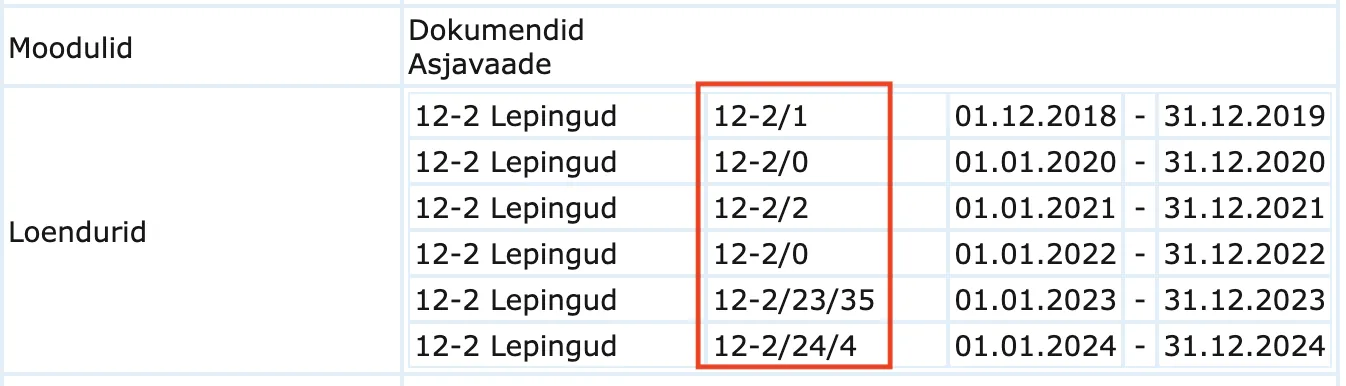
This change simplifies checking catalog counters, especially when the counter composition includes, for example, a year.
Running reports directly in "Admin – Reports" view
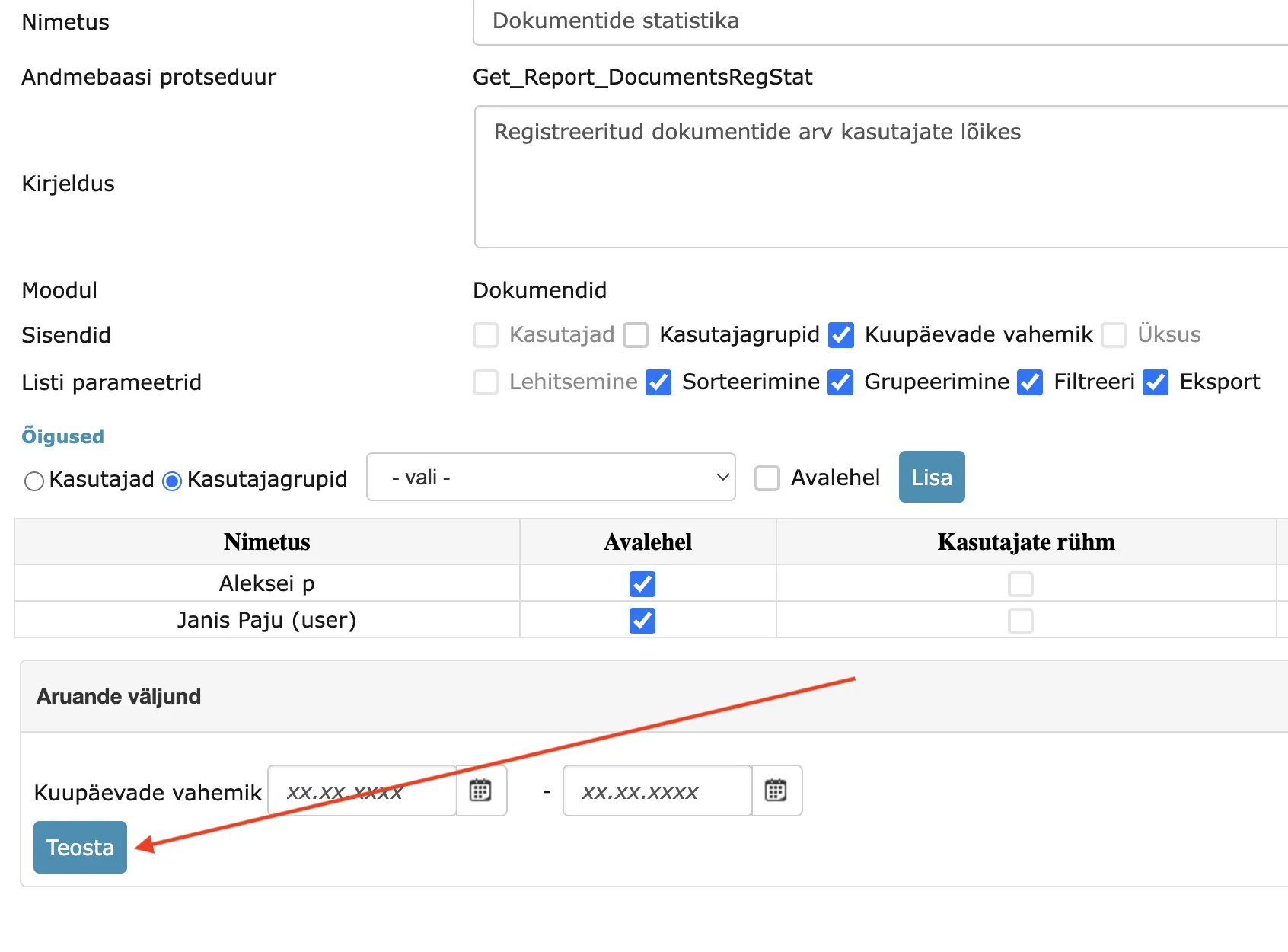
In previous versions, it was possible to run reports either in a specific module (for example, directly in the Documents module – Documents -> Reports) or on the home page Reports panel. Starting from version 15.5, reports can be run directly in the Admin – Reports view. The user does not need to have report running rights to run a report. Having Admin – Reports running rights is sufficient (user group policy Report management).
HTML text support added to form elements
It is now possible to use individual HTML tags in form element names – for example, the <br> tag (new line element). In previous versions, it was also possible to use individual HTML tags and there were no problems in the form editing view, but in the reading view, Amphora displayed an error message and form data was not visible. Such problems occurred primarily with Spoku forms.
Error message example:

Fixed file name display in transmissions panel and transmission detailed settings
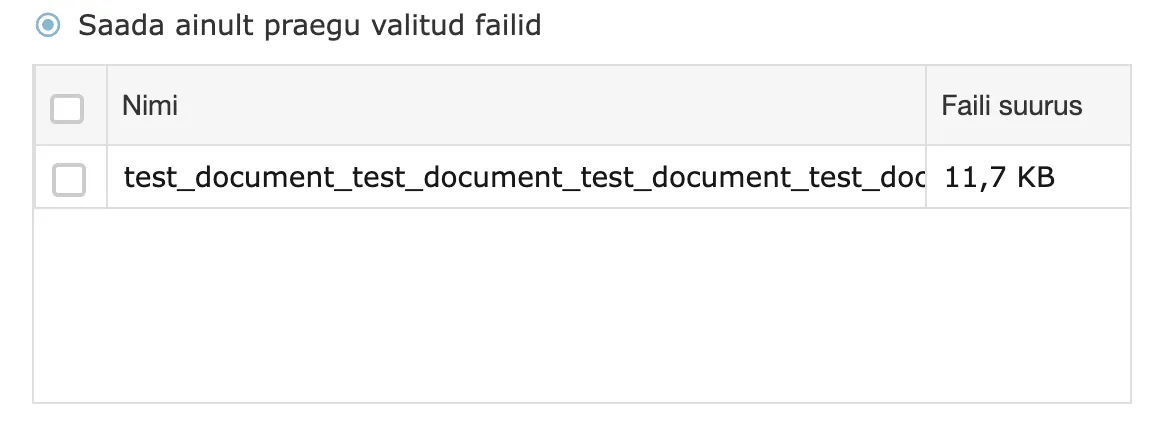
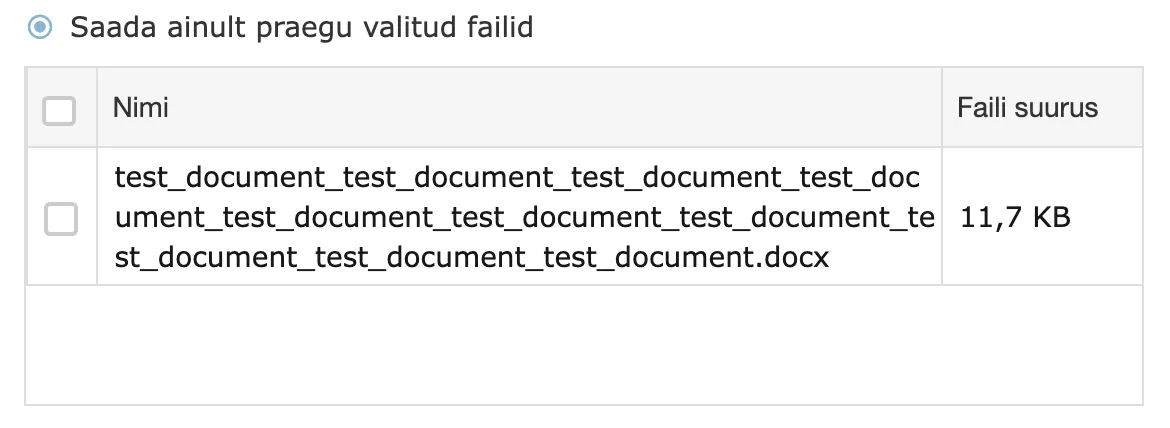
The problem occurred with files where the name lacked spaces and the file name was at least 50 characters long. Amphora could not correctly display the file name, part of the name was hidden. In this version, this bug has been fixed and now the entire file name is visible both in the transmissions panel and in the transmission detailed settings.
Before version 15.5
Transmission detail view:

Transmission detailed settings (File selection):
Starting from version 15.5
Transmission detail view:

Transmission detailed settings (File selection):
Institution detail view improvements/changes
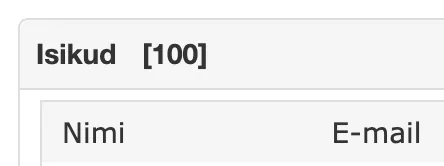
- Institution detail view now displays the total number of persons in the Persons panel.
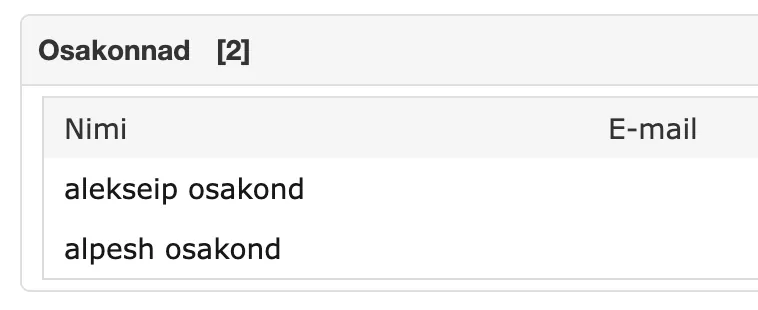
- Institution detail view now displays the total number of departments in the Departments panel.
- Institution saving process made more reliable and faster - previously it was delete/add for updating person relationships, but now only changed relationships are added and deleted. Unnecessary operations have been removed.
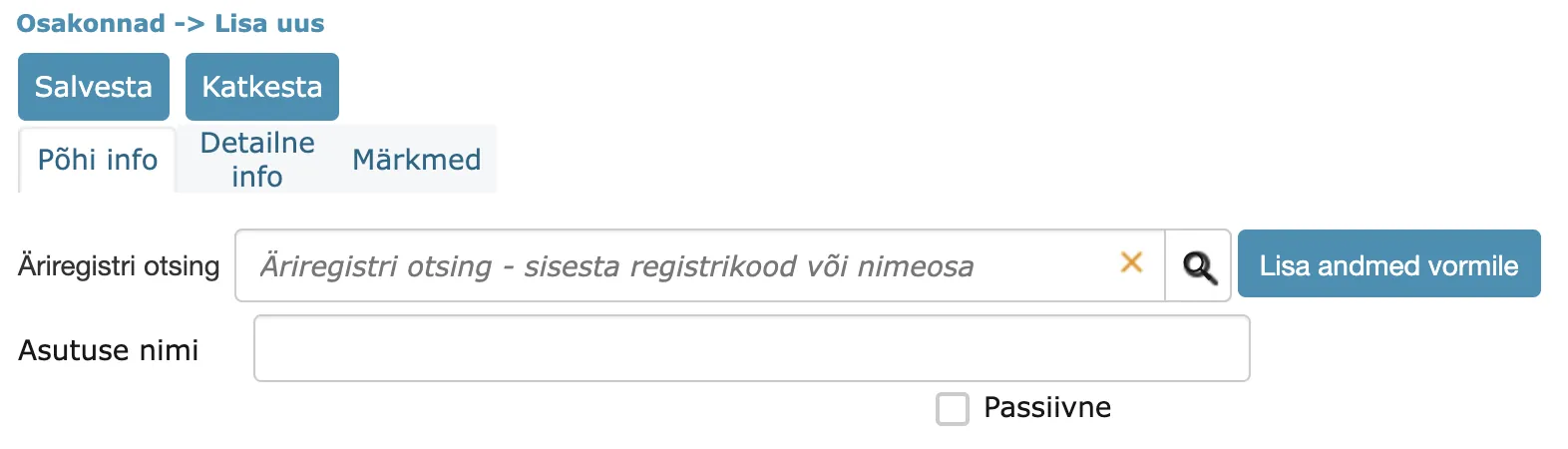
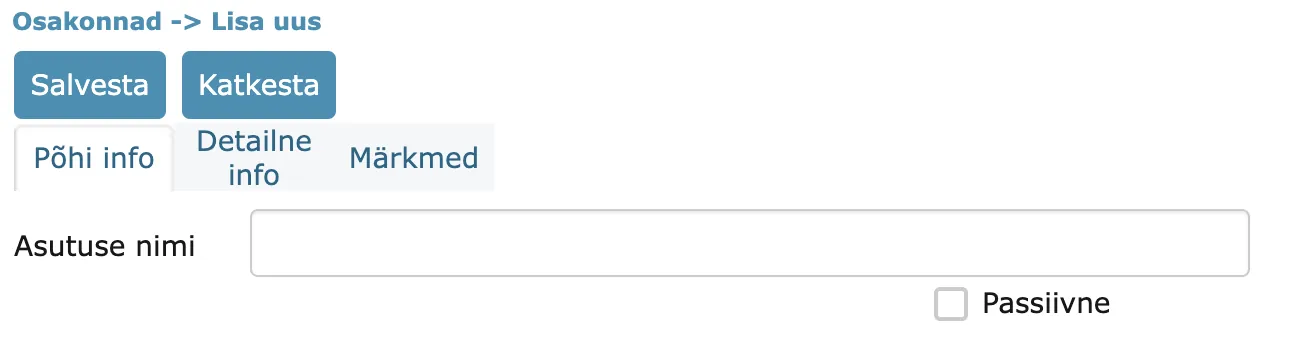
- We removed the business registry search from the department addition form. This was unnecessary functionality.
Before:
After:
Rights changes for created catalogs/units
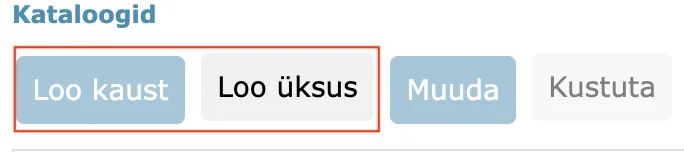
Previously, Amphora automatically added catalog/unit administration rights to the user who added this catalog/unit. This in turn caused a problem in situations where the catalog/unit creator went to work at another institution and after changing rights, the added catalog/unit rights remained. Starting from version 15.5, the rights logic has been changed. After adding a catalog/unit, the user has administration rights for only 24 hours. After that, the administration rights disappear automatically. Therefore, rights must be added manually in the future (this mainly refers to adding a subsidiary unit, because if the user adds a new catalog and the unit right already exists, then a separate catalog right does not need to be added).
Admin – User groups rights changes
In version 15.5, the user group display logic (rights) also changed. Namely, previously user groups created by the user were always visible to the user. Even in situations where, for example, the user went to work at another institution and their rights in Amphora changed (initially the user worked at the municipality, later went to work at a subsidiary). Now Amphora displays to the user only those user groups that are related to units where the user has administration rights (so the user no longer sees anything unnecessary).
"Out of office" functionality enhanced
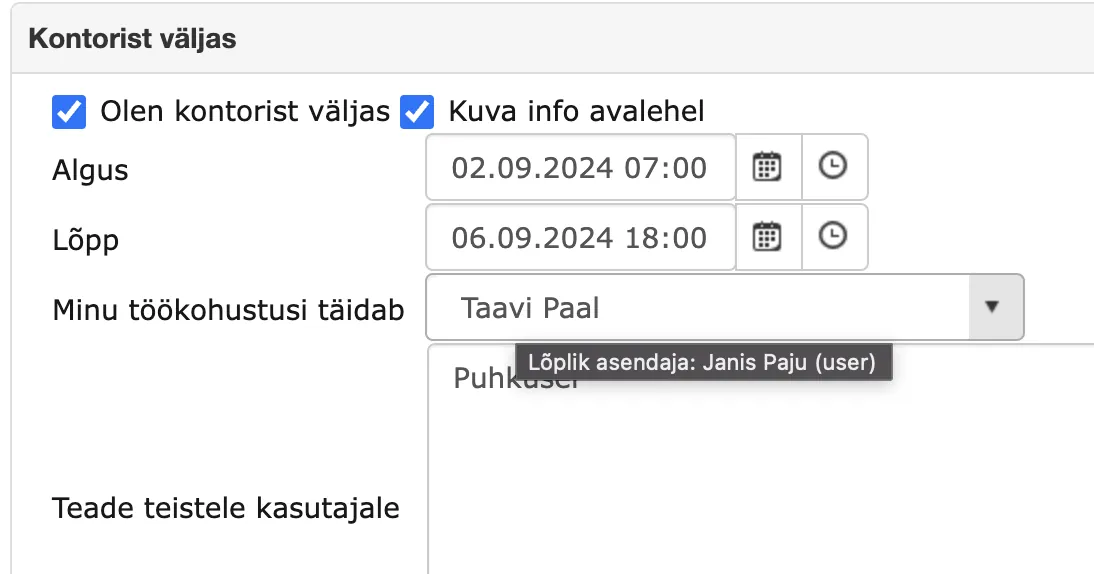
The out of office functionality now supports multiple (infinite) depth substitute assignment. This means that substitute -> substitute support is now available (if the user's substitute has a substitute in turn, etc.). If circular referencing occurs, the process is interrupted and no substitute is displayed at all. In the Admin view, when hovering over the substitute dropdown, the final substitute is visible if it does not match the selected substitute (substitute has a substitute in turn, etc.). This in turn makes identifying the final substitute much easier.
Other changes
- Telerik components update 2024.3.805. You can read more HERE.
- Authentication statistics report enhanced. Now also considers GovSSO authentication. You can read more about the GovSSO authentication service HERE.
- Archive fix - in case search, fixed case object series archive value selection control. Expired relationships are no longer considered and the series is taken from the case object's latest version).
- Invisible symbols are removed from the party code field when saving: TAB, CR, LF (caused problems during publication, where private person's name became public). In addition, previously entered party data is automatically organized regarding these symbols.
Version 15.5.1
Displaying environment and institution administrators
Administrator information display has now been added to Amphora environments.
General information
Starting from version 15.5.1, it is possible to display administrators of either the entire environment (main institution) or a specific subsidiary in the Amphora environment. The purpose of this functionality is so that main institution regular users and subsidiary users know who to contact for usage-related questions.
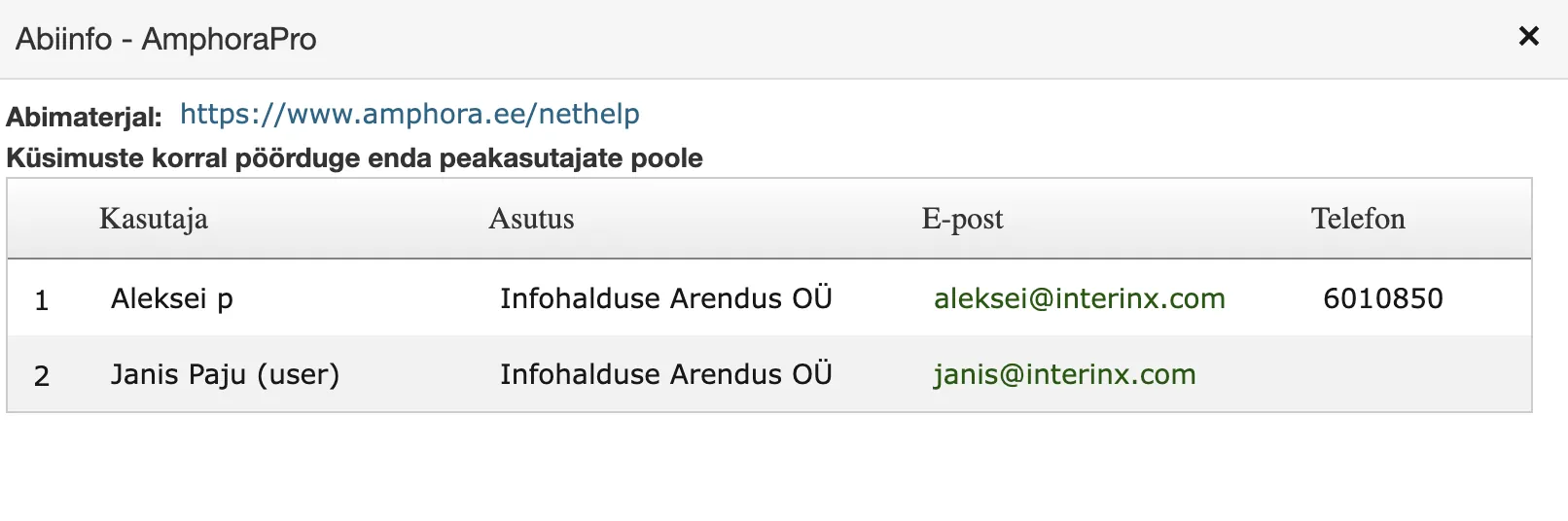
The list of administrators is visible to all users. The list contains the following administrator data: 1. First and Last name 2. Institution associated with the user 3. Email address 4. Phone number (Phone field, not GSM)
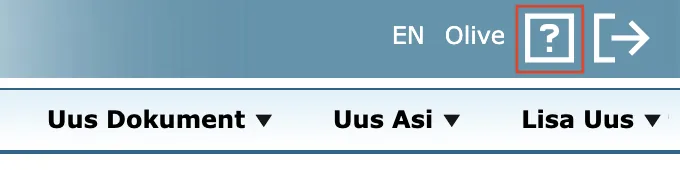
? icon which allows opening the administrators list:
Administrators list:
Configuration
Environment or institution administrators can configure themselves who Amphora displays in the administrators list. The configuration is located in Admin – Unit settings – Administrators tab.
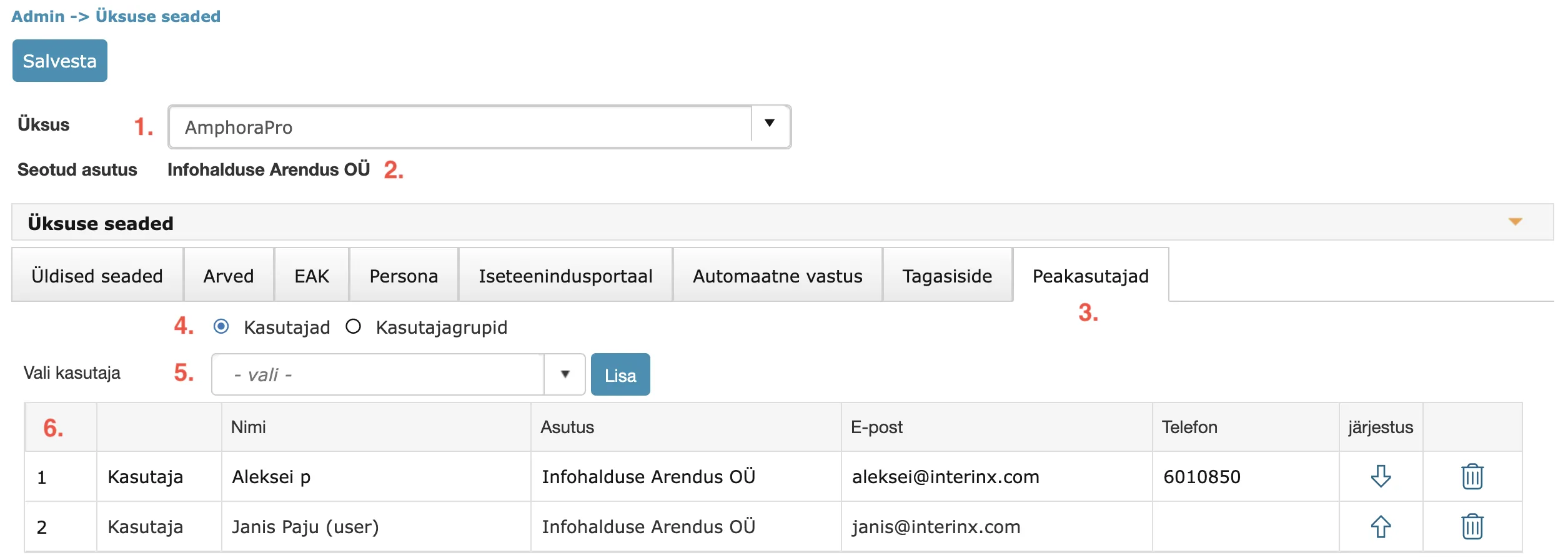
- Unit selection. Administrators who administer more institutions have more units in the selection. You need to select the unit to which you want to add administrators. Administration rights are necessary for the unit to be available in the selection.
- Institution associated with the unit.
- Different tabs for different settings. To configure administrators, you need to open the Administrators tab.
- Users or User groups selection. You can add both individual users and user groups as administrators. For user groups, all users belonging to this group are displayed in the administrators list (simplifies selection, can add at once).
- Users or user groups selection dropdown (depends on selection 4).
- Table with users and user groups data. Using arrow icons, you can change the display order and using the trash icon, you can delete users/user groups.When saving data, Amphora displays the corresponding notification:
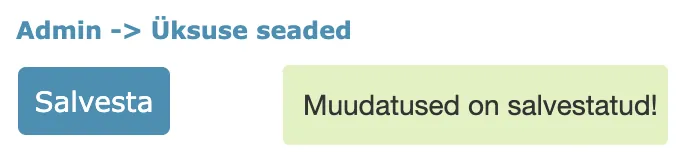
If the main institution lacks administrators, then when opening the administrators list, Amphora displays the following message:

Clicking on the "INSTITUTION ADMINISTRATORS NOT SET! #1" link opens the administrator configuration guide.
If the main institution has administrators but the subsidiary lacks its own administrators, then Amphora displays the main institution's administrators list to this subsidiary's users. However, if the subsidiary has its own administrators, then Amphora displays this subsidiary's administrators list.
Displaying Amphora client support data
Amphora client support data (bottom left corner) was previously visible to all users. In connection with the administrators functionality, we changed the Amphora client support data display logic. Now Amphora client support data is visible only to administrators (those users who are added under administrators in Unit settings). Regular users must now contact their administrator if they have questions about using Amphora.
Regular users view (missing phone number and email address):
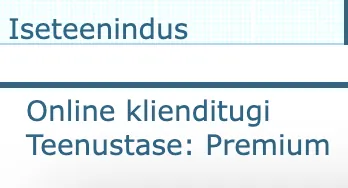
Administrators view:

Unit settings moved to Admin module under separate link
Starting from version 15.5.1, unit settings have been moved under a separate link in the Admin module. Since more and more settings are appearing under unit settings, we decided to separate these settings from the unit so that Amphora does not save other unit data in addition to unit settings every time it saves.
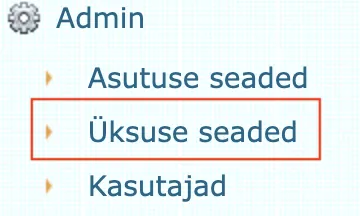
The unit settings view does not differ from what was in previous versions. A new setting has been added – Administrators. You can read more about this HERE.
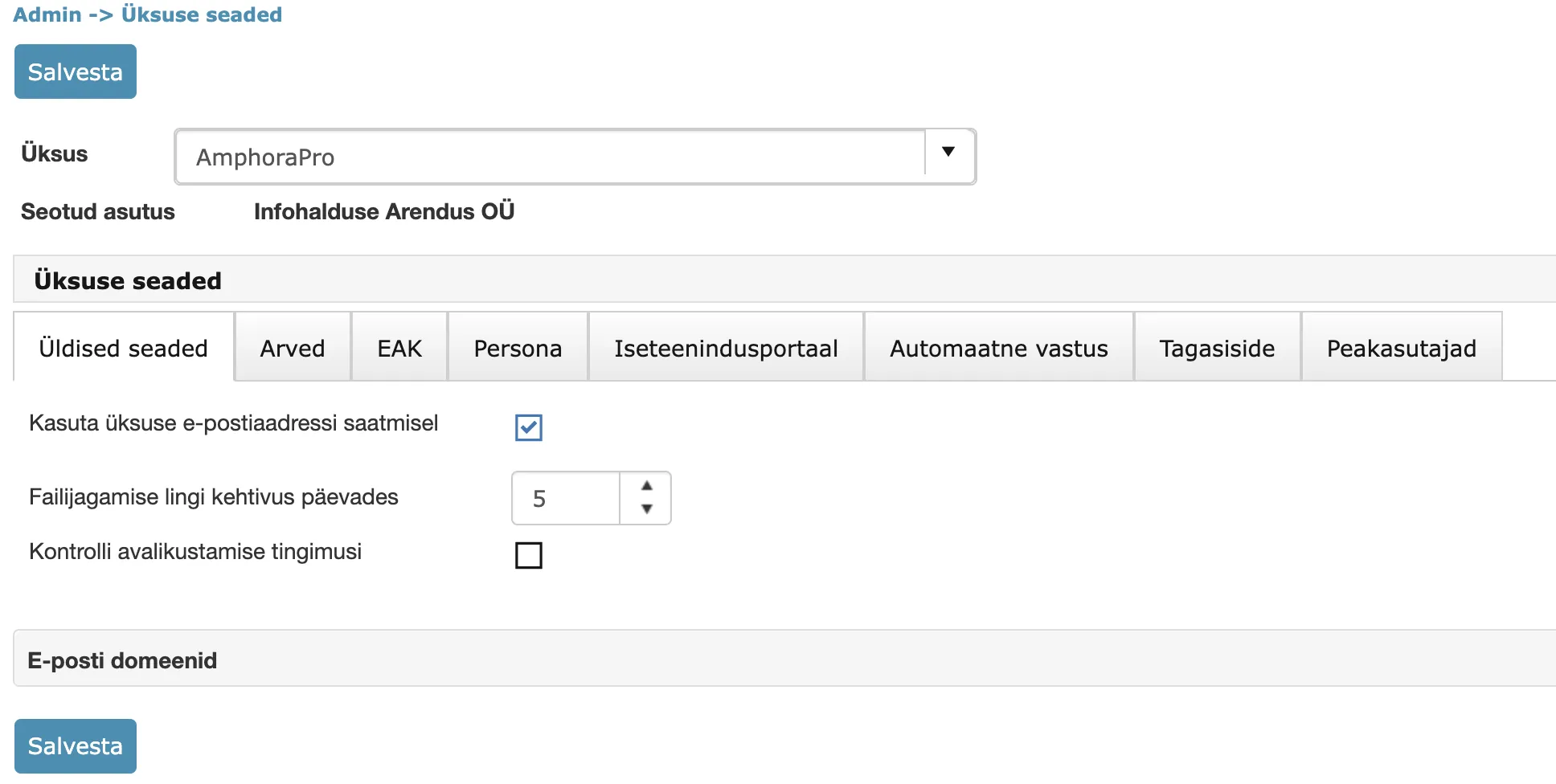
The unit selection contains only those institutions for which the user has Administration rights. The Unit settings link is associated with the Catalogs/units modification policy. If this policy is enabled, then the link is visible.
When saving data, Amphora displays the text Changes have been saved! at the top, which allows the user to immediately understand that changes have been saved.
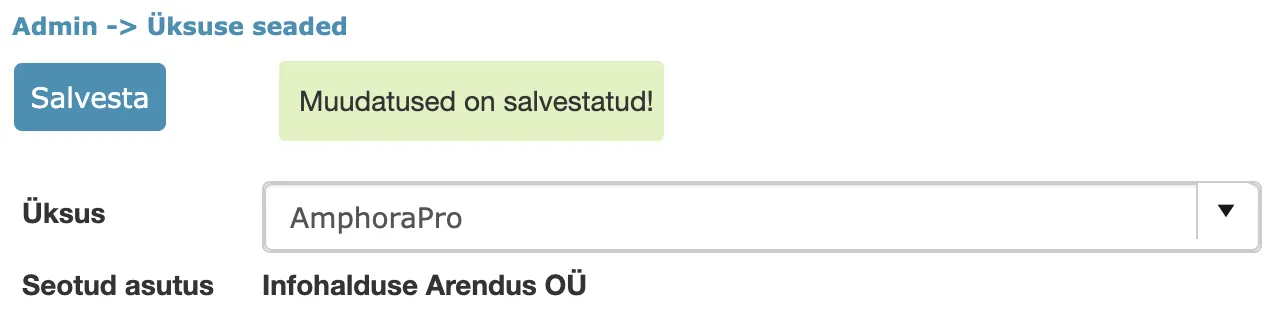
NB!
Other unit settings (for example, publication, counters, module selections) are still located in the unit modification form.
Superuser mode activation/deactivation for administrators
Amphora has had superuser mode for a long time, but previously it was not possible to activate and deactivate it through the user interface. This mode could only be activated and deactivated by Amphora client support.
The advantage of superuser mode over regular administrator/main user is that superuser users can bypass rights control in many places – subsidiary catalogs and documents have administration rights by default. In addition, superuser users can delete procedures/delegations created by other users. Superuser mode is definitely necessary for environment administrators who occasionally need to help subsidiary users.
In connection with adding this functionality, it makes sense to review the rights of main institution administrators. Namely, currently many main institution administrators have subsidiary administration rights. This in turn makes managing their own institution's data (searches, reports, list view) complicated, because subsidiary documents are everywhere. Now it is possible to remove subsidiary administration rights and when the subsidiary needs help, you can enable superuser mode and subsidiary data is immediately visible. After that, you can deactivate superuser mode.
NB!
For an administrator to have the superuser mode option, you need to inform Amphora client support about this. By default, this functionality is not available to the user. In addition, the administrator must have a Confirmed personal code.
Superuser mode can be activated like this (icon is active when the user has confirmed personal code):

When superuser mode is activated, the icon color changes to red and the icon itself also changes. In addition, Amphora also displays a notification – You are using Amphora in superuser mode.

To deactivate superuser mode, you need to click on the red "crown" icon (located in the top right corner).
Additional service ordering possibility added
In the future, it will be possible to order various additional services directly in the Amphora environment. It is no longer necessary to contact Amphora client support for this. Administrators can occasionally check what services are currently available and decide whether this service is needed or not. This can be done in Admin – Additional services.
All services that can be ordered immediately will start appearing in the Additional services view. You can order a service by clicking the "Order" button. If the service is already ordered, then the "Order" button disappears.
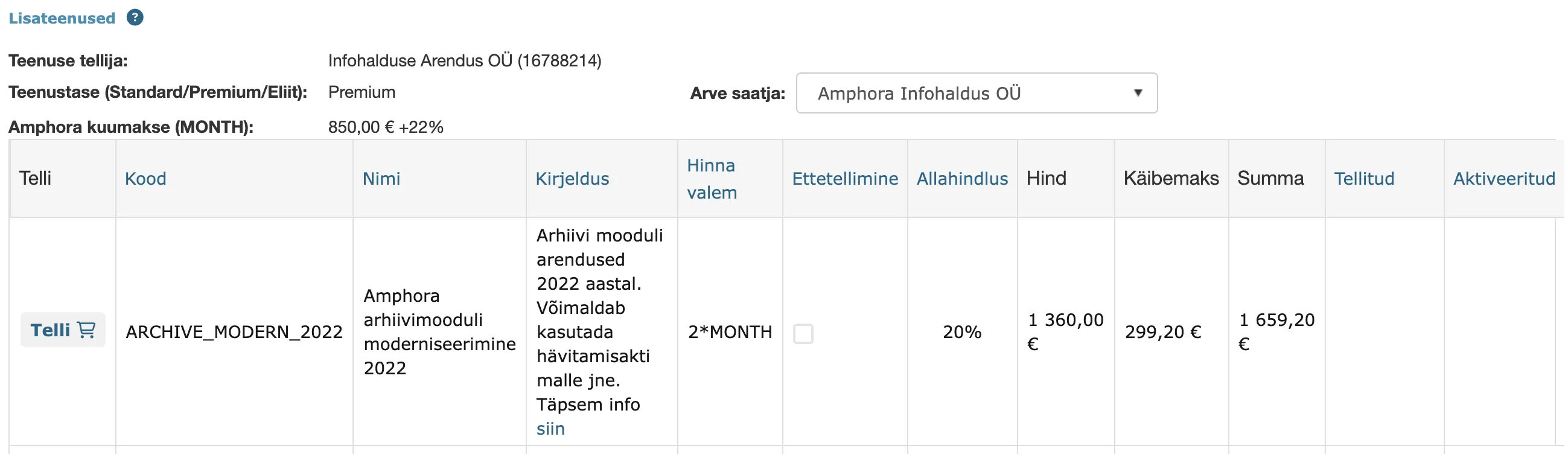
The services table contains all information about the service – name, description (guide link if necessary), price (and related discounts and VAT). If the service is ordered, then Amphora also fills in the ordering (Ordered) and activation (Activated) date.
You can read more about additional services HERE.
NB!
The service activation fee is ONE-TIME! No monthly fee is added unless there is a separate note about this in the service description.
Fixed data publication functionality when changing catalog
In the catalog modification view (Admin - Catalogs), it is possible to specify whether the catalog is public by default or not - Public catalog checkbox. When adding/removing the checkbox, Amphora displays a confirmation window asking whether the user wants to publish/remove from public view all objects in this catalog.
Publication confirmation window:
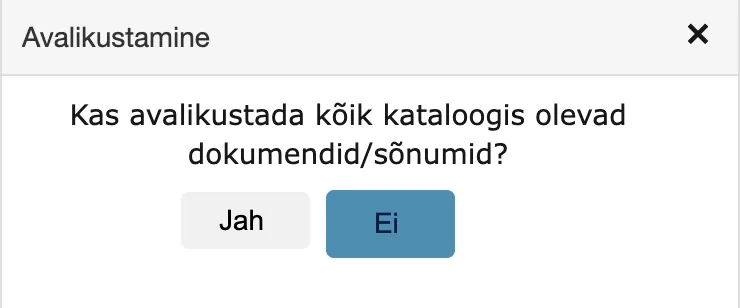
Non-publication confirmation window:
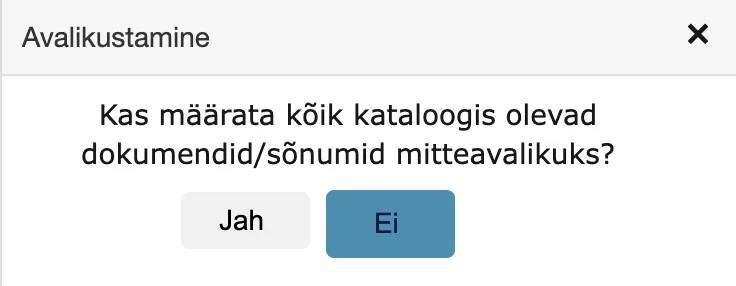
In previous versions, Amphora displayed a confirmation window, but nothing happened with a "Yes" response. Objects did not become public/non-public. This bug has been fixed in this version.
Rights control changed when displaying catalog tree in Admin module
In the Admin module, only those units and catalogs for which the user has Administration rights are now visible. Units and catalogs with weaker rights (for example, Reading or Modification) are not visible. The purpose of the change is so that users cannot make unnecessary settings/modifications. For example, if a user has Modification rights added to unit X, then this user should not be able to add/change unit X rights for both themselves and other users (theoretically, this user could have added Administration rights to another user, although they themselves have a lesser right).
The new Admin module rights control is applied in the following places – Unit settings, Users, User groups, Catalogs. So in places where sensitive settings can be made.
In other modules (for example, Documents or Case view modules), rights work the same way as before. At least Addition rights are needed to see a unit or catalog.
Person group addition fix
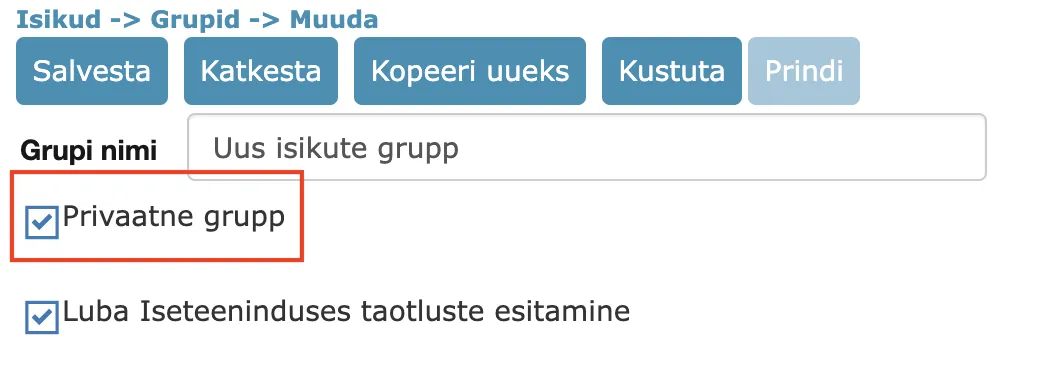
In the person group modification view, there is a Private group checkbox that allows making the group visible only to the group creator. In previous versions, it was not possible to add this checkbox (the option was not active) when creating a new group. The same problem was also with an already created group – the creator could not add the Private group checkbox retrospectively. This bug has been fixed in version 15.5.1.
Fixed sending notification to Self-service user in sequential procedures
Sending notifications to Self-service users has been fixed in this version. The bug occurred in a situation where a system person (associated with an Amphora user) was selected and the user associated with this person had task email notifications disabled.
User rights calculation enhanced
In certain situations, when adding or changing user personal rights, it could happen that these rights did not apply immediately. This bug has been fixed in this version. In the future, when saving user data, Amphora updates the user's series rights and the new rights should apply immediately after saving.
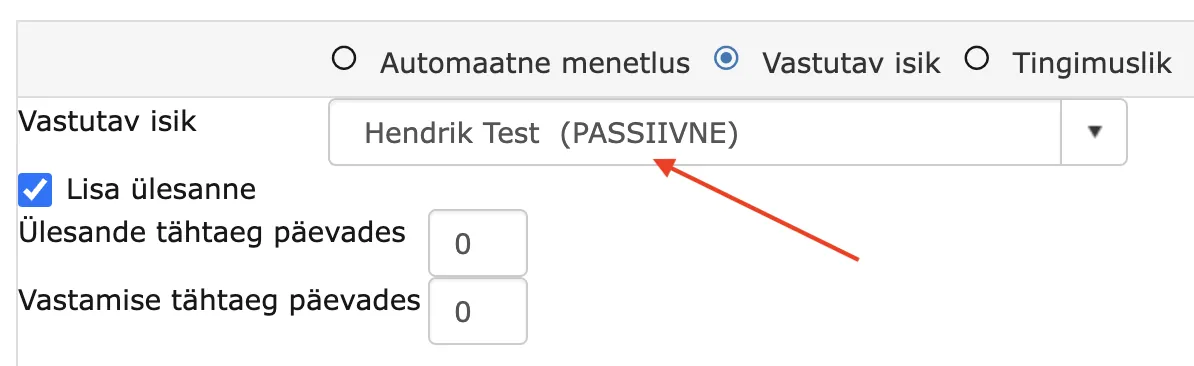
Passive users now have PASSIVE marking in registration profile
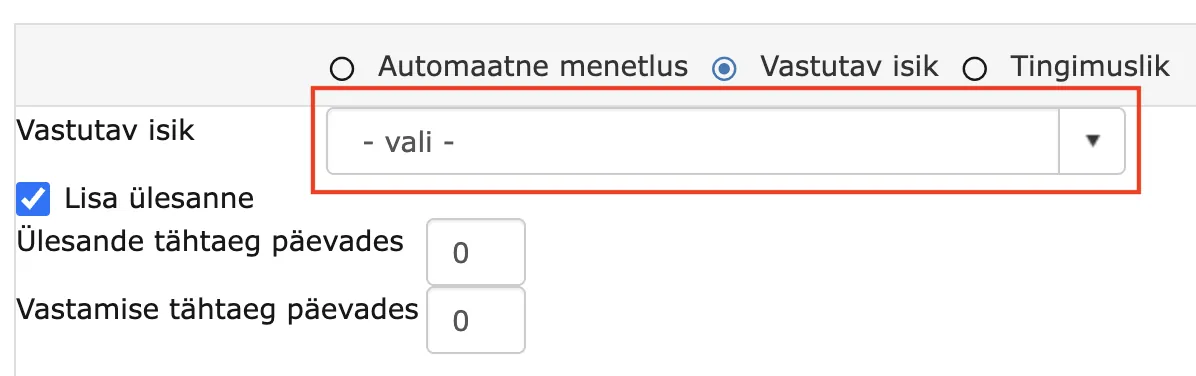
In the registration profile, it is possible to assign a responsible person (user). Passive users are not visible in the selection, but a previously added user may become passive. In previous versions, Amphora did not display the passive user at all, the selection was empty. Now Amphora displays the passive user's name with a PASSIVE marking. This change allows the administrator to quickly identify problematic settings.
Before:
Starting from version 15.5.1:
Added new DOCX template elements
New DOCX template elements are related to access restriction data.
::ACLSTART:: - Marking made date. ::ACLEND:: - Restriction valid until date. ::ACLCAUSE:: - Access restriction basis. ::ACLOWNER:: - Information controller.
Spoku and E-service changes/enhancements
- When adding main files (including signature containers) and additional files through Spoku and E-service services, additional control has been added if the file name should contain symbols forbidden for the file system (txtCaption). As a rule, these are invisible symbols or Windows reserved symbols **(< > : " / \ | ? *)**, Amphora will automatically remove these in the future. Example – sent file name Contract:>nr2.asice, registered in Amphora as Contractnr2.asice.
- Enhancement of error messages when adding Spoku documents - if forms with HTML markup inside are sent, then previously there was an ambiguous error message, but in the future you will get more precise information.
- Added value absence control to Spoku title composition - if there was an empty element in XML where input was missing and this was used in title composition. Example -
<element />.
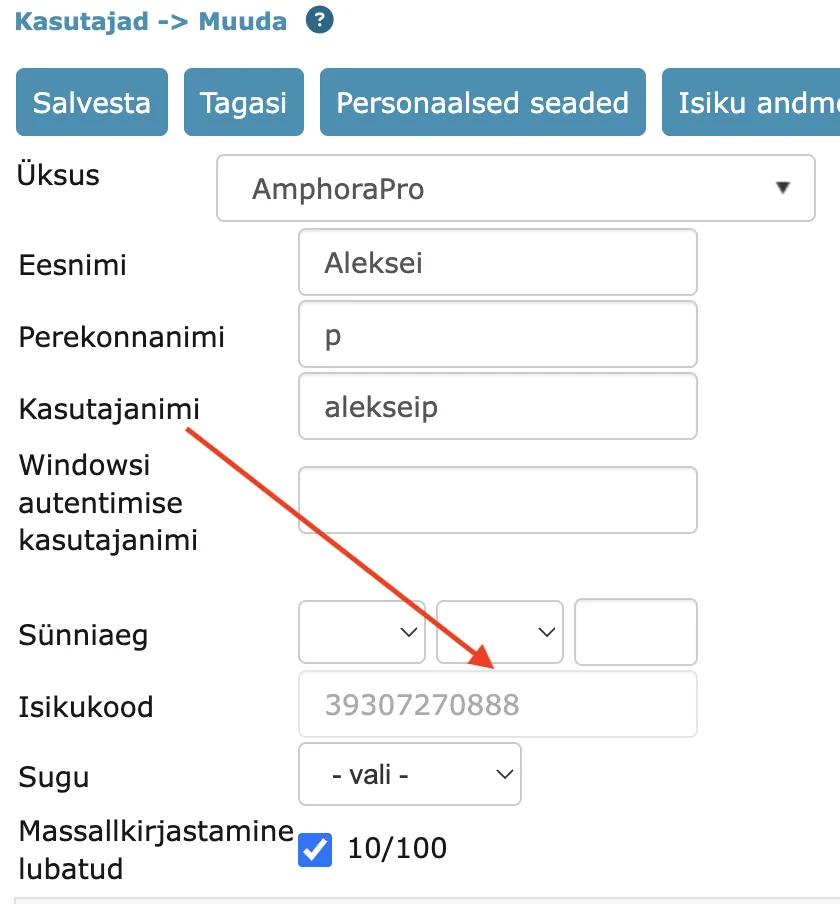
Locking user personal code field
Support for locking the user's and system person's personal code field associated with the user has been added. If the user logs in at least once with ID-card/Mobile-ID/Smart-ID/GovSSO, then Amphora locks this user's and the system person's personal code field associated with the user. This functionality has been added so that users do not accidentally change their personal code and do not have problems with authentication.
Other changes
- Optimized display of history events for procedures/delegations. Sometimes the query could take up to 1 second. This optimization makes opening the procedure/delegation detail view slightly faster.
- Fixed updating summary text when modifying invoices, which is used in global search results. When the invoice number or recipient changes, text updating is necessary.
Last modified: 09 October 2026, 10:25:03