Case View
- Creating cases
- Modifying and deleting cases
- Adding and changing case number
- Changing the order of case objects
- Case forwarding and coordination
Case or Document Package view allows grouping documents according to theme or cases (processes or events) in real life (for example, initial letter + response letters on a topic or documentation related to one legal act).
Creating cases
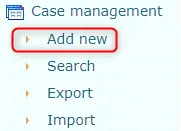
To add a case, click the Add new button from the Case View menu.
 In the opened form, fill in the required fields and click the Save button.
To add documents to the case, select from the dropdown menu in the objects panel accordingly Document upload (if you are adding a document that is on your computer), Document writing (if you are creating a document in Amphora itself).
 If you are adding an object that has been previously saved to the Amphora environment, select Add existing object.
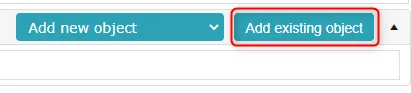
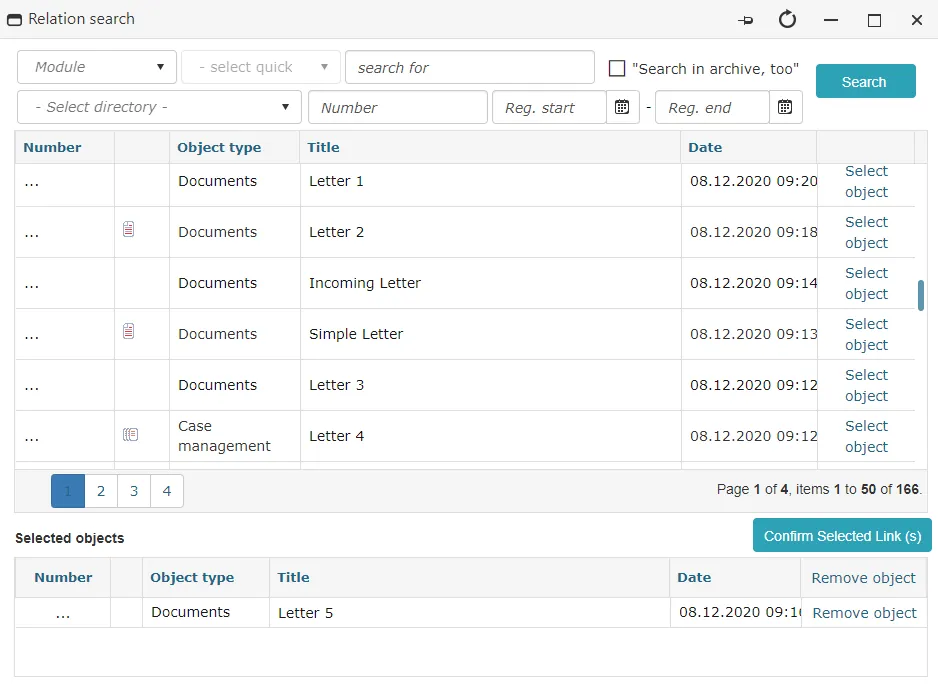
 After adding objects to the case composition, the user must definitely click Save.
Already added case objects show file icons, which when clicked allow opening files in preview window or downloading files. Text editor content is similarly openable at case objects.
The case objects panel also displays the object's creation date (the date of the object's initial creation). Additionally, Amphora displays the name of the object's original creator.
A document appendix (created from the main document, or written as a new document linked to the main document as an appendix) gets the main document's number and a relation to it. If the main document is in a case, the saved appendix is added to the same case automatically.
A new case can also be created from a saved document: click New case on the document's Cases panel. The case form opens with the document title as the case title. Choose a catalog and save. Amphora returns to the document: the new case is on the Cases panel and the document is already in the case, without saving the document again. Clicking the case title on the panel opens the case form.
Modifying and deleting cases
To modify a case, open the case (click on the case title), make necessary changes and click the Save button. Delete the case from the modification form (open the case by clicking on its title and click the Delete button).
When deleting, the user is asked for deletion confirmation.
Adding and changing case number
A number can be manually added to a case, and an existing number can be changed retroactively. When registering a new case, the number is automatically added according to the counter, but it can also be entered manually if needed.
Existing number:
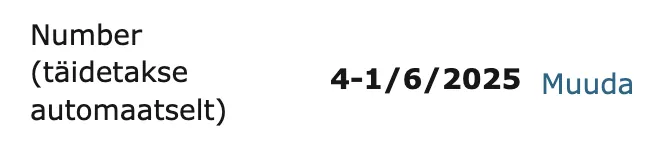
Existing number change window:
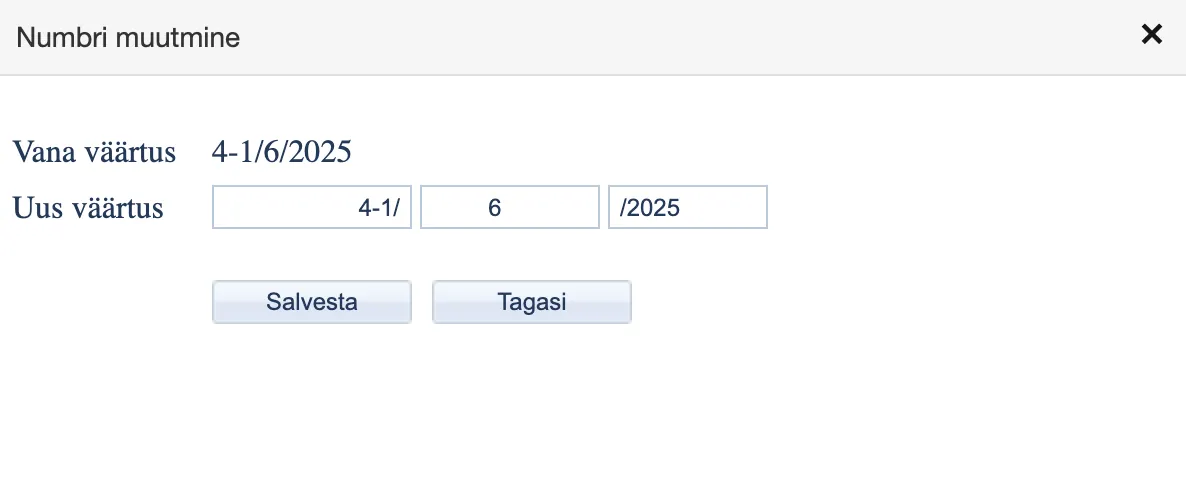
A number already used in the same counter is refused: the window says the number is already in use, and the case keeps its old number. Pressing Save again does not change it either.
Initial case registration (automatic and manual modes):

NB!
When changing the case number, the numbers of case objects are not automatically changed. If needed, those numbers must be changed separately.
Changing the order of case objects
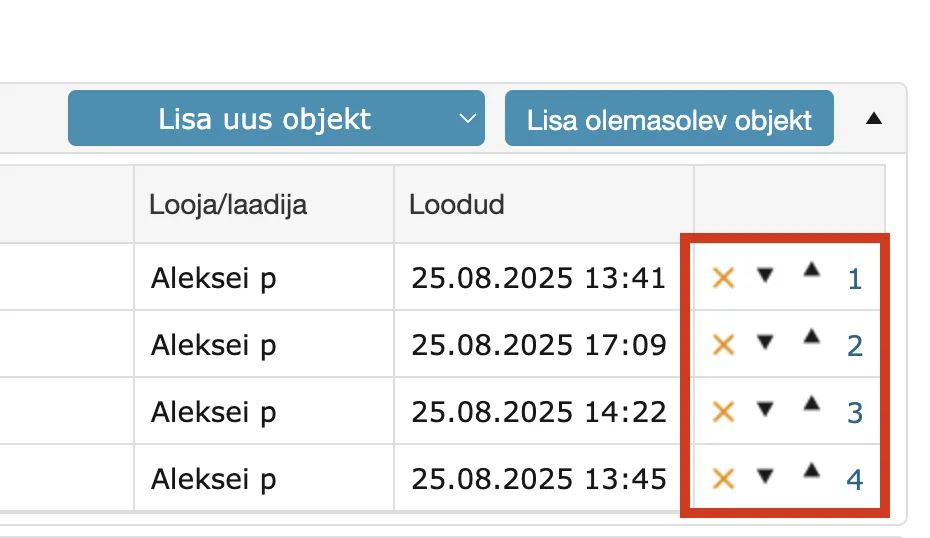
In the Case/File view, the order of case objects can be changed. The order can be changed using arrows as well as the order number.
Case forwarding and coordination
After entering a case, it is possible to forward it to other users for coordination (or to others for completion).
To start coordination, open the case and click the Procedure button. It is also possible to do this in list view. For this, check the box in front of the case and click the  button. In the opened form, select People to whom the case is sent, Task description of what should be done with the case and Deadline for how long there is time to complete the task.
Exporting case data
In the Case View module, the list of cases in a catalog can be exported. Search results and quick query results can also be exported.
To export case data, select a catalog, perform a search, or run a quick query and click the print icon.
In the print view, there are two export buttons -- Excel and Word. All columns visible on the screen are exported.
Adding rights to Case View module objects
Separate rights can be added to Case View module objects for specific users or user groups. To do this, the Rights panel must be enabled in the form settings (Admin - Form configuration).
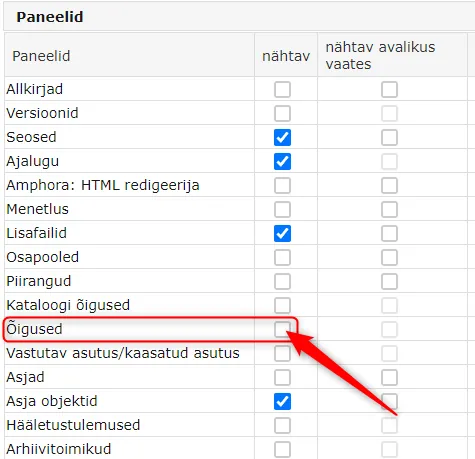
A Rights panel appears in the object view created with the same form. Using the Add button, users or user groups can be selected and the desired right can be assigned to them. After adding rights, the object must be saved.

NB!
A right added through the Rights panel is stronger than a user's personal or user group right. It is sensible to use this functionality in situations where a user has a denied right to a catalog, but needs to be able to modify or view one specific object.
Last modified: 08 October 2026, 17:34:09