Front Page
- Forwardings panel
- Files sent from elsewhere
- Calendar
- Birthdays
- Out of office
- Favorites
- Reports
- Active discussions
- Front page settings
- Quick menu
The Front page consolidates the most important information for the user: all tasks assigned to the user, calendar events, reports, information about selected documents, etc.
Forwardings panel
The Forwardings panel is visible on the front page when at least one object has been sent to the user that they need to handle (either procedure or delegation). In such cases, the Forwardings panel is open by default.
Important
The Forwardings panel database queries have been optimized. Test results showed that opening the front page is up to 80% faster than in previous versions.
All completed tasks appear under the Completed tab. Completed tasks are kept under the Completed tab for three months after being marked as done.
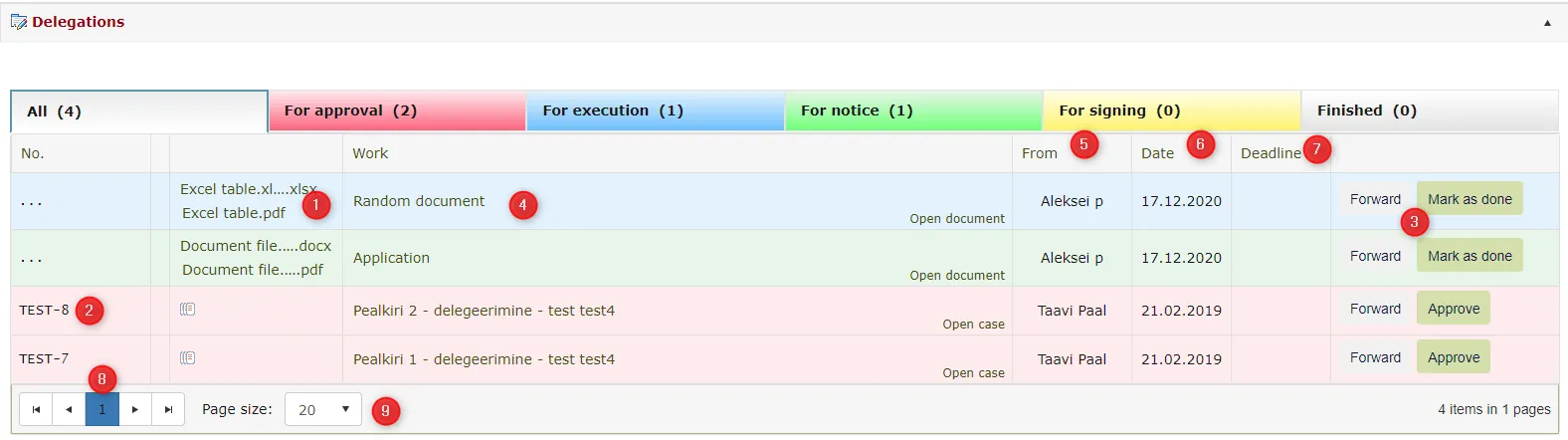 1. By clicking on the document file name, you can open the file. See also Displaying attachments.
-
If you want a document preview, place the mouse cursor on the number, after which the document preview opens.
-
By clicking the Forward button, the forwarding view opens where you can select the task type (procedure or delegation) and the persons to forward the task to. In case of a procedure, different types of tasks can be sent to different users (e.g., For signing, For information). Amphora remembers the user's selection.
-
By clicking on the title in the Work column, the task description opens for the user.
-
From whom – this column shows the person who initiated the forwarding.
-
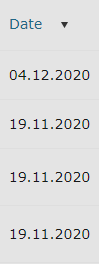
Date – this column shows the date when the forwarding was initiated.
-
Deadline – this column shows the deadline by when the task should be completed. When the deadline is exceeded, the date turns red.
-
Page selection. It is possible to select pages using numbers and left-right arrows.

 buttons allow moving 1 step left and right.

 buttons allow moving to the very first and last page.
 -
Page size selection. By default, there are 20 objects per page.
The upper bar of the Forwardings panel is divided into:
- All - shows all forwardings at once.
- For coordination – this subsection contains forwardings that require coordination. By priority, this is the most urgent forwarded task, as waiting for coordination blocks other people's work.
- For completion – this subsection contains forwarded tasks that require completion.
- For information – this subsection contains forwardings that are not urgent and are rather informational and do not require giving coordination or completing tasks.
- For signing - this subsection contains forwardings sent for getting signatures. For signing, you can use either the Sign button or quick signing picture buttons.
- Completed - here are all tasks completed by the user (procedures, delegations). The user can see in hindsight what tasks they have completed and if necessary, open those objects.
The All subsection shows all forwardings at once, but distinguishes them by colors:
 - for coordination
 - for completion
 - for information
 - for signing
In the For signing panel, there is a Sign selected button. With this button, it is possible to sign multiple documents at once. The user can choose which documents need to be signed.
It is possible to sign all documents at once.
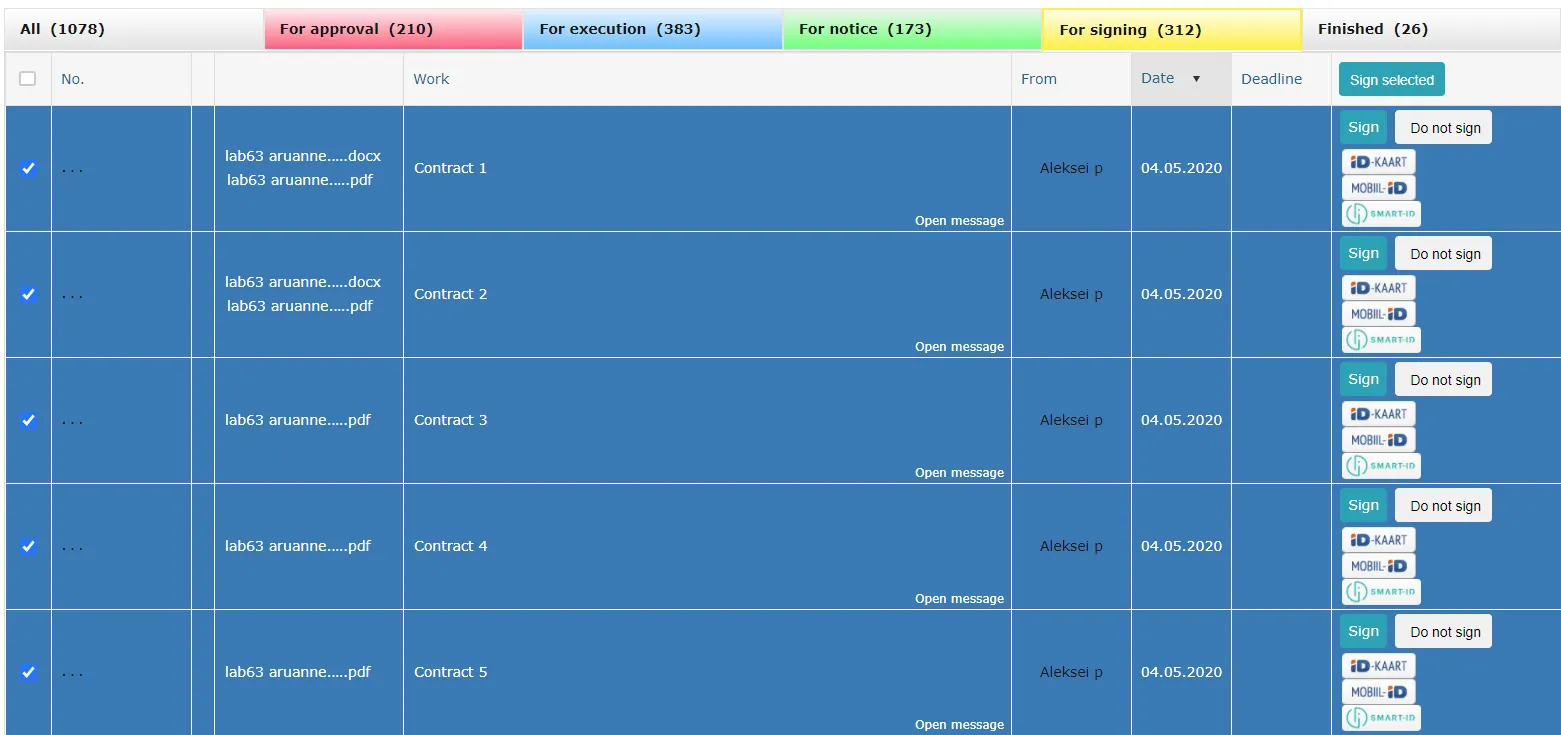 More detailed information about mass signing is in the Mass signing guide.
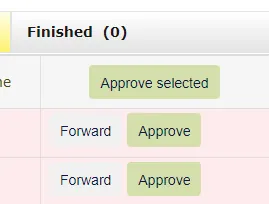
The Forwardings panel also has a Coordinate selected button. With this button, it is possible to coordinate all tasks sent for coordination at once.
By clicking the button, a dialog window opens. When coordinating at once, the coordination position is YES.
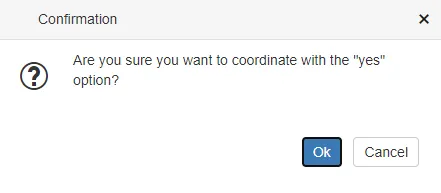
Sorting in forwardings panel
It is possible to sort by number, task title, from whom, date and deadline. To sort, click on the column name. The first click sorts ascending, the second click sorts descending and the third click removes sorting. To illustrate sorting, a corresponding arrow is displayed under the column title.
Signature container data in files column
In the Forwardings panel files column, deconstructed signature containers with their data are also displayed. The signature container is always in the first position in the file list. The container can be downloaded by clicking on its name. When hovering the mouse cursor over the container name, Amphora displays the signer names and signing dates.
NB!
If a document has multiple deconstructed signature containers, Amphora displays all containers.
Displaying attachments
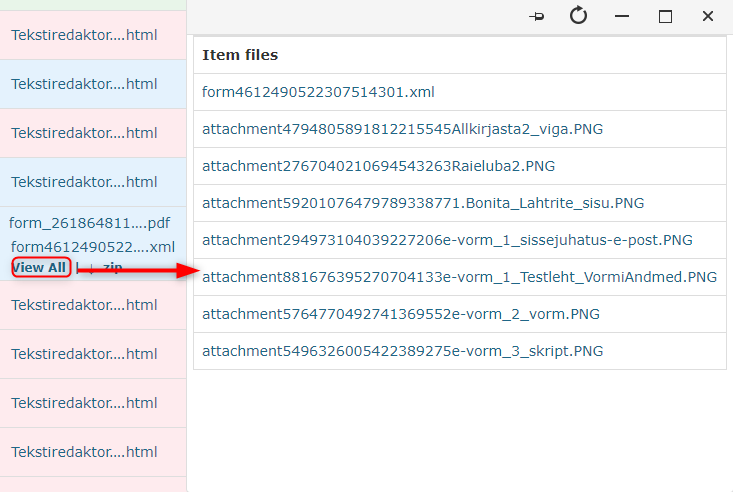
Attachments are displayed in the same column. With three or more attachments, the first attachment is shown with a View all link below it. This link opens the attachments window where all attachments are available.
PDF file preview
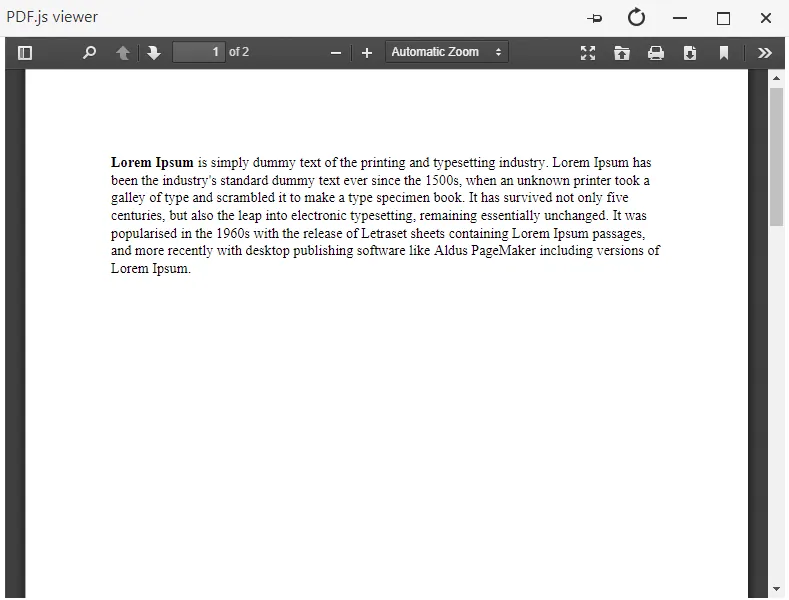
A separate preview has been made for PDF files. To open the preview window, click on the file name with .pdf extension.
Completing multiple tasks
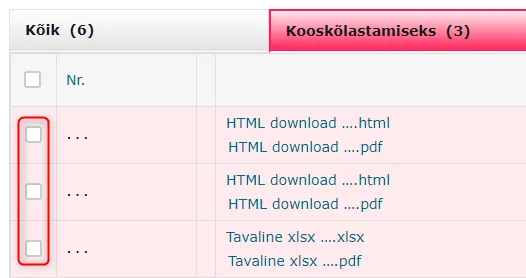
Tasks can also be completed in batches. The user can select tasks that need to be completed and do them all at once.
Displaying sender name on Forwardings panel tasks
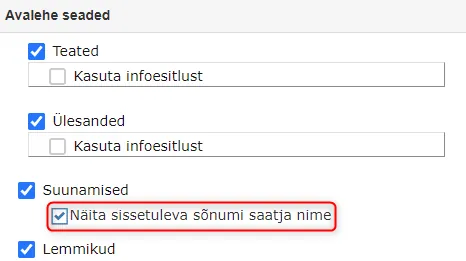
In version 14.1.0, the ability to display the sender organization and/or person name of incoming documents (Incoming direction forwarding) in the Forwardings panel was added. Sender data is displayed in the Work column. If the sender data has both organization and person name, then the data is displayed as – Person name (Organization name).
 This is configurable functionality. The setting is located in Admin -> Organization settings -> Front page settings, "Show incoming message sender name" checkbox.
Procedure/delegation detail view
In the procedure/delegation detail view, work tasks can be properly completed.
Signing task:

The Sign button opens the signing window where you can select the signing method and sign the document.
Coordination task:

For Information and For Completion tasks, the Mark as done button should be clicked:

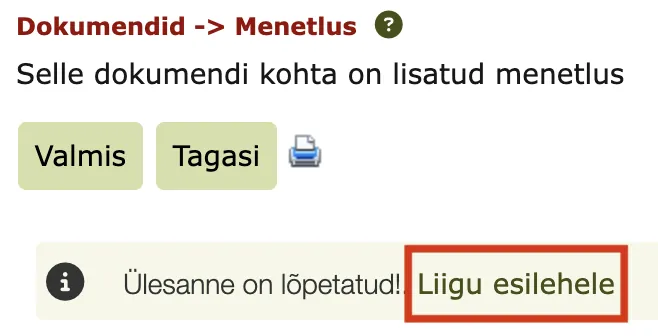
After completing the task, Amphora displays a notification and offers a direct link to the front page where other tasks are located.
Files sent from elsewhere
This panel displays documents that have been sent to Amphora using MS Office client application.
 1. File selection and saving location. With the Add/select files button, it is possible to select a file that should be uploaded to Amphora. With the Save button, the given file is added to the list view below.
Files can also be added directly from the computer using Amphora Client software.
-
With the Save as document button, it is possible to save the file as a document.
-
With the Save as outgoing letter button, it is possible to save the file as an outgoing letter.
-
With the Save as incoming letter button, it is possible to save the file as an incoming letter.
-
From the
 icon, it is possible to directly modify the file. WebDav software is required for this.
 -
From the
 icon, it is possible to delete the file from Amphora.
 -
Page selection buttons. Additionally, it is possible to select how many objects to display on one page at once.
Calendar
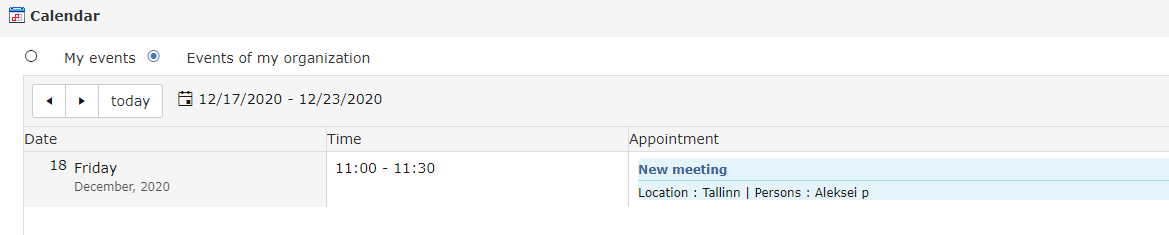
The Calendar panel shows all calendar events during 7 days. By default, the start date is today, but the start date can be changed.
The Calendar panel has two options - My events and My organization's events. My events - calendar events where the user viewing this panel is designated as a participant. My organization's events - calendar events that have been added by a user from the same unit. The user viewing the calendar panel does not need to be designated as a participant.
 ***
***
Birthdays
The Birthdays panel displays user birthdays. Birthday data is taken from the user's personal code (provided that the personal code field is filled in the user data).
The Birthdays panel does not display birthdays of users who have hidden their birthday (birthday can be hidden under Admin -> Personal settings -> General settings).
Birthdays are also displayed seven days in advance.
 ***
***
Out of office
This column displays users who have marked themselves as out of office (out of office appears to users one day before the day from which the user has marked themselves as out of office). This time, how much before out of office appears to users, cannot be made longer (e.g., a week before) because it is a database procedure that is the same for all environments.
Amphora only displays users associated with the user's unit. If the user has rights to another organization's unit (at least reading rights), users from that unit are also displayed.
If a user has designated a substitute, then tasks directed to them go to both that user and the substitute for completion. The substitute gains visibility of all uncompleted tasks of the substituted person that were created from the Out of office panel's Start date.
 ***
***
Favorites
The Favorites panel displays those objects that the user has added to favorites in the registry view. By clicking on the trash icon, it is deleted only from the favorites panel (the object remains in the registry view).
 ***
***
Reports
To see and use reports, click on the Reports panel. Reports are used for report management and compilation.
The user is displayed on the front page, for example, my uncompleted procedures report (the user sees all their uncompleted tasks).
Important
If a report is open and at the same time the Reports panel is closed (click on the panel), then when opening the panel again, that report is no longer displayed.
 See Amphora reports guide.
Active discussions
The Active discussions panel displays discussions that are not yet finished.
 ***
***
Front page settings
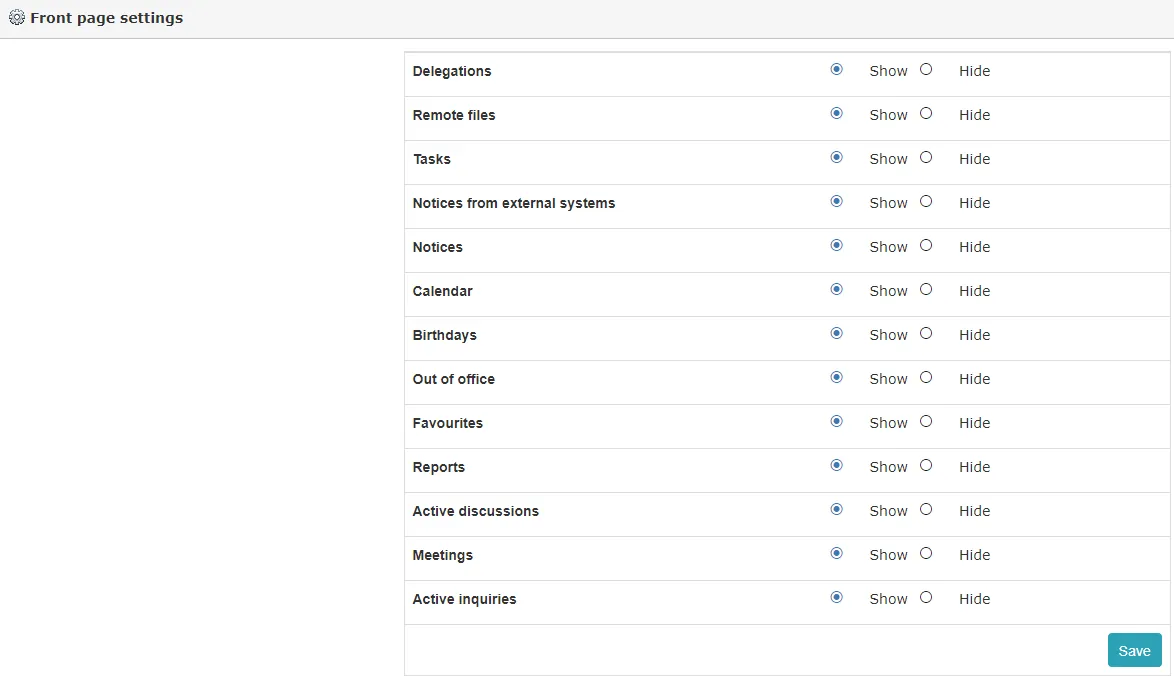
Each user can choose which panels are visible to them.
 ***
***
Quick menu
The quick menu is located in the upper right. From the menu, it is possible to select the language of use, the visual style of the environment, open the help menu and log out of the system.
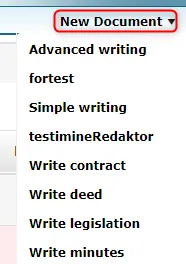
 By moving the mouse over New Document or New Case, all forms of the respective module open immediately. So it is possible to select the right form and immediately start registering an object.
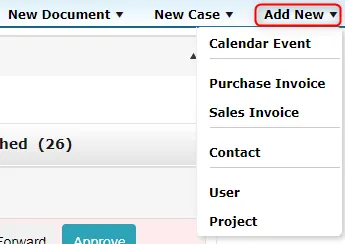
 In the Add New selection, there are: adding calendar events, adding purchase and sales invoices, adding people and organizations, adding users and catalogs.
 If your Amphora environment has the New letter option between New Document and New Case menu options in the upper right, then your environment has not yet switched to the Letters in documents module development.
Procedure and delegation person selection
When creating a procedure or delegation, the party selection window has a checkbox Show users/user groups from all units. Amphora remembers this selection. If the user activates the selection, then the next time a procedure/delegation is created, this selection is also activated.
Additionally, tasks associated with deleted objects have been removed from the Forwardings panel. If an object is in the recycle bin, the task associated with it is no longer displayed to the user.
Last modified: 09 October 2026, 15:15:48