E-mails
- E-mails
- Sending emails with multiple email addresses
- Recipient email address validation
- Email response templates
- Sending files as a temporary link
- Email sending size limit
E-mails
In the E-mails module, it is possible to view your sent letters. If the user or user group does not have an email account configured, then sent letters are located in the Sent folder under the Local folders tree.
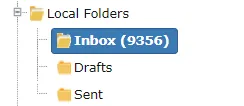 The E-mails module can be used as an email client. For this, however, you need to configure an email account either directly for the user or for the user group the user belongs to. When an email account is configured, it is possible to register emails directly from the E-mails module to Amphora. All emails will start arriving in Amphora.
Images in email content are converted to base64 format and these images are visible in the text editor. This applies to both IMAP and POP3 protocols.
To configure your email account in Amphora, you need to contact your organization's IT department or Amphora client support.
See also email configuration guide.
When an email account is configured, an email address folder with subfolders is created.
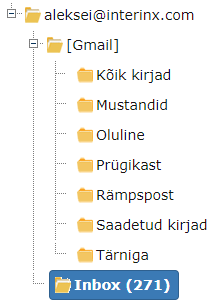 The subfolder selection depends on whether the email account is configured with IMAP or POP3.
 1. Can compose and send email.
2. With this button, you can check whether new letters have arrived at the email address. An email account should be configured in Amphora for this.
3. With this button, you can delete emails. You need to check the box in front of the email or emails (1) and click the Delete button (2).
{: loading=lazy }4. With the Register button, it is possible to register emails directly to Amphora. To register an email, you need to check the box in front of the desired email and then select the appropriate registration profile.
If your environment uses correspondence in documents module functionality, then to register a letter you should use the Incoming letter (document) profile. Otherwise, you should select the Correspondence profile.
{: loading=lazy }Registration profiles can be added if needed. For this, you need to contact your Amphora environment administrator.
- Email search. Here it is possible to search by both title and email content.
- If the checkbox is present, then Amphora only displays emails that have not been opened.
- If the checkbox is present, then Amphora only displays emails that have attachments.
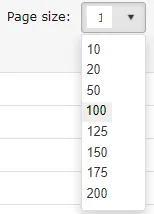
- Number of pages. By default, 20 emails are displayed on one page, but this number can be changed. The selection includes the following numbers:
 It is also possible to track your sent letter's path. For this, you need to open the Sent folder, open the desired letter and next to the Letter header button there is a small envelope icon. You need to click on the envelope icon.
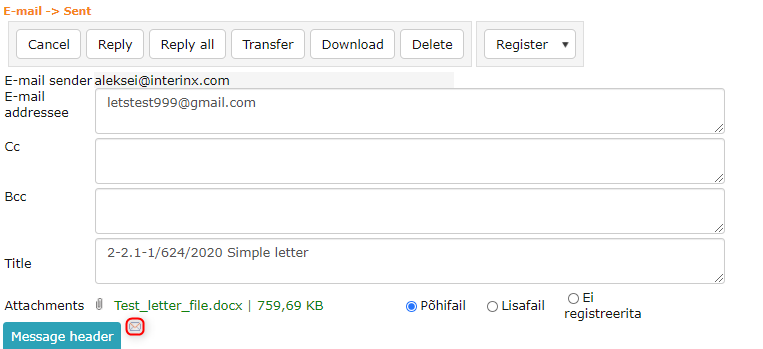 A new window opens with information about the sent email.
 ***
***
Sending emails with multiple email addresses
To send emails from Amphora with multiple email addresses, you need to add an email address to a person in the People module. For this, you need to go to People -> select the person to whom you need to add an email address (click on the person's name) -> in the E-addresses panel, enter a new email address and click the Add button.
 The email is sent with exactly the email address that is selected.
Important
The main address should always be set to your personal email address. Notifications are sent to the main address.
Recipient email address validation
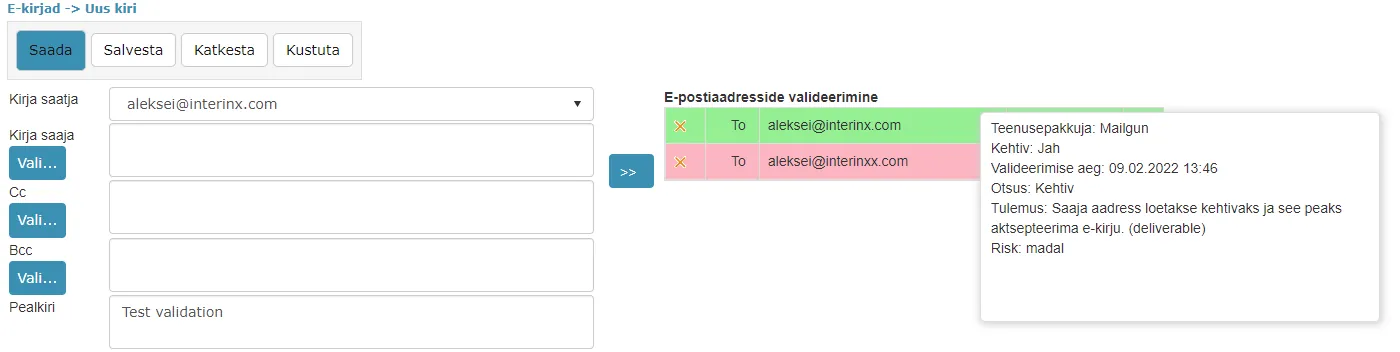
In the @ icon view and in the E-mails module when composing an email, it is possible to validate recipient email addresses (check if it is a valid email address). Validation results may not always be 100% accurate, but such checking helps to early detect, for example, a typo in the recipient's email address domain.
 ***
***
Email response templates
Email module response templates can be used directly in the E-mails module when responding to emails. When composing a response, the template text is displayed in the text editor. These templates only work when composing responses and do not work when composing new emails.
Email templates can be used, for example, to send standard responses to email senders. The ::SOURCE.EDITOR:: template element works from template elements, which allows transferring the original email content to the response text editor.
Email templates can be added in Admin -> Templates -> Add new.
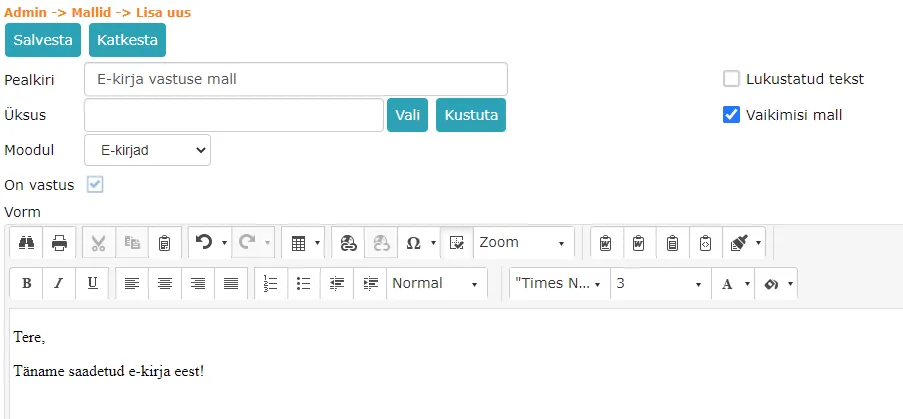
In the template addition view, you must definitely enter the template title, select E-mails as the module and Default template must be selected. If default template is not selected, then the added template cannot be used.
This is what a correctly configured email template looks like:
 ***
***
Sending files as a temporary link
Amphora allows sending files via email as a temporary link instead of an attachment. When sending as a link, you can control how long the sent files are available to the recipient. Additionally, large files can be sent since attachment size limits do not apply.
Files as a link can be sent via the Forwardings panel, @ icon, and E-mails module.
Configuration: In Unit settings (General settings), you can set the number of days the sent link is valid. The minimum value is 1.
Sending via the Forwardings panel:
In the Forwardings panel window, there is a Send files as link checkbox. This is only visible when the With files option is selected and the forwarding method is E-mail.
NB!
The Send files as link checkbox is selected by default when the attachment size exceeds 25 MB.
Sending from the E-mails module / @ icon:
The Send files as link checkbox appears only after at least one file has been added. When the checkbox is selected, Amphora places the necessary link in the text editor. By default, the link is added at the end of the text. The template element ::FileShareUrl:: can be used to place the link at the desired location.
Managing sent links:
When the forwarding status is sent and the Send files as link checkbox was selected, an icon appears next to the files. Using the right mouse button, the following actions are available:
- Activate -- reactivating the link
- Deactivate -- making the link inactive
- Extend -- extending the link validity (the number of days is taken from unit settings)
Viewing and downloading files:
The recipient opens the link to view the file list along with basic information about the sender. Each file can be downloaded separately. Additionally, there is a link to download all files as a ZIP. The link expiration date with time is also visible.
For the first viewing and each file's first download, Amphora adds a history event to the document.
Email sending size limit
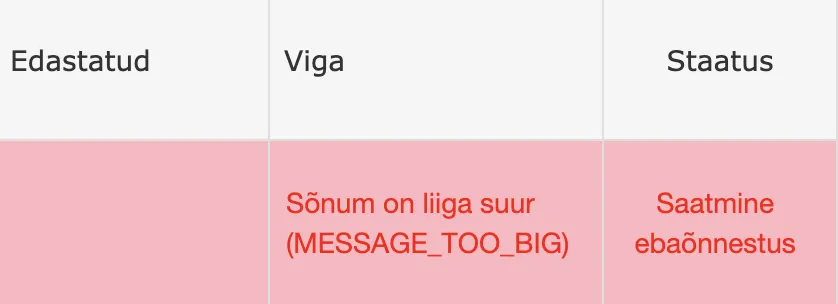
Amphora does not allow sending emails whose total size (attachment + content) exceeds 25 MB. Before sending, Amphora checks the total size and displays an error message if the limit is exceeded.
NB!
This limit only applies when sending via Mailgun.
Last modified: 17 October 2026, 11:05:57