Projects
Creating a new project
 You can add a new project using the Add new button under the module or the Add new button located at the top. With the Reset button, you can remove all search conditions.
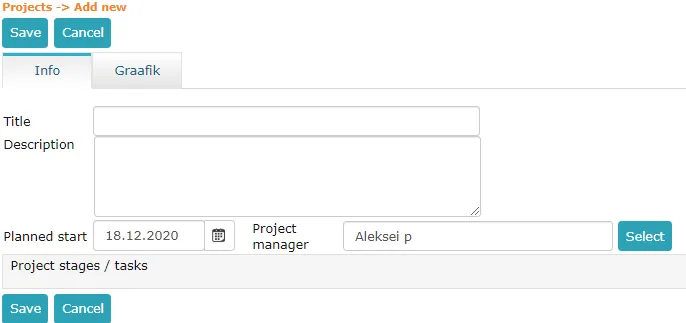
 When adding a project, you need to enter: project title, project description, planned start and project manager.
 ***
***
Project stages/tasks
For each project, it is possible to add stages and tasks. This can be done by clicking the Add button in the Project stages/tasks panel.
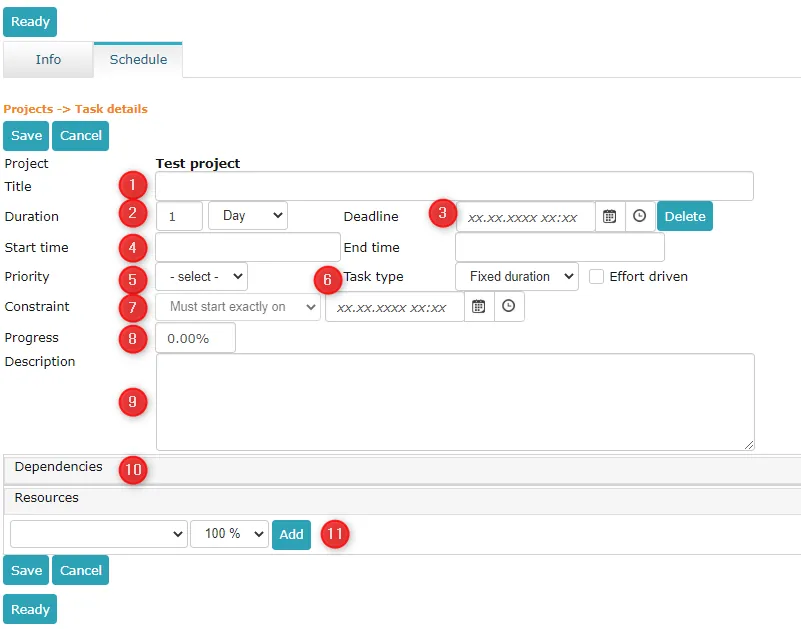 1. Stage/task title.
2. Duration of this stage/task. You can write the number yourself and the options are: Hour, Day, Week and Month. There is one small nuance here. Only working days are counted under duration. So if a stage/task starts on Friday and the duration is 2 days, then it applies until the end of Monday.
3. Stage/task deadline.
4. Start time and End time are not editable fields. These are filled automatically, taking into account the stage/task duration and constraint date (#7).
5. The worker can choose the stage/task priority. The options are: low, normal and high.
6. Task type. The options are: fixed duration, fixed work and fixed resource.
7. Constraint date. Here you need to add the exact date when this stage/task starts. You can also add time (default is 07:00). This is a mandatory field.
8. Stage/task progress. Progress can be changed both in edit view and schedule view.
9. Stage/task description.
10. Relations can be added after saving the stage/task in edit view and schedule view.
1. Stage/task title.
2. Duration of this stage/task. You can write the number yourself and the options are: Hour, Day, Week and Month. There is one small nuance here. Only working days are counted under duration. So if a stage/task starts on Friday and the duration is 2 days, then it applies until the end of Monday.
3. Stage/task deadline.
4. Start time and End time are not editable fields. These are filled automatically, taking into account the stage/task duration and constraint date (#7).
5. The worker can choose the stage/task priority. The options are: low, normal and high.
6. Task type. The options are: fixed duration, fixed work and fixed resource.
7. Constraint date. Here you need to add the exact date when this stage/task starts. You can also add time (default is 07:00). This is a mandatory field.
8. Stage/task progress. Progress can be changed both in edit view and schedule view.
9. Stage/task description.
10. Relations can be added after saving the stage/task in edit view and schedule view.
In edit view, you need to select the task to create a relation with. All tasks are available in the selection.
You can choose task start and end. The options are: Start – Start, Start – End, End – Start and End – End. The first choice is for the task being added, the second is for the task to which this relation needs to be created.
11. Workers associated with this stage/task. You need to mark the % of time the worker spends on this task.
Schedule view
Schedule view:
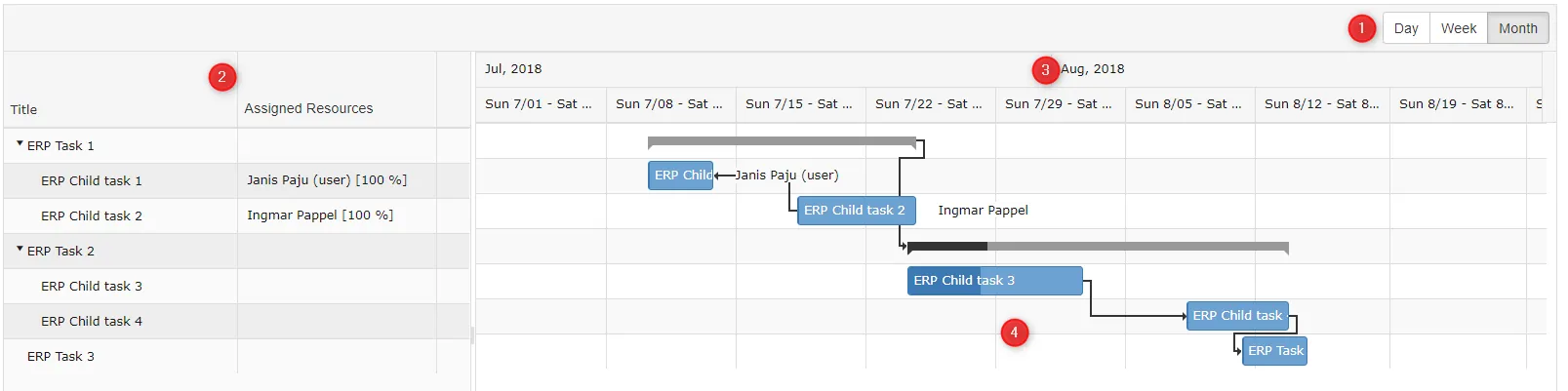 1. Done button takes the user back to list view.
2. With the Add button, you can add a new stage/task. You don't have to go to the Info tab for this.
3. The selection has three different views: day view, week view and month view.
4. Information about stages/tasks. There are 2 columns in total that display title and resources (workers associated with tasks and % is their workload).
5. Schedule with different days.
6. Red line shows current time.
1. Done button takes the user back to list view.
2. With the Add button, you can add a new stage/task. You don't have to go to the Info tab for this.
3. The selection has three different views: day view, week view and month view.
4. Information about stages/tasks. There are 2 columns in total that display title and resources (workers associated with tasks and % is their workload).
5. Schedule with different days.
6. Red line shows current time.
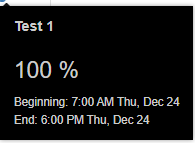
When we drag the mouse cursor over a task in the schedule view, information about that task opens.
 Additionally, it is possible to delete a task directly from the schedule view. You need to click on the black cross located on the right side of the task.
 If a task is light blue, it means the task progress is 0%. If dark blue color appears on the task, it means the task has already made some progress. In schedule view, you can change task progress. Under the task there is a
  icon that can be moved left and right.
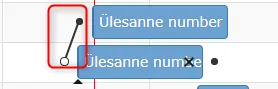
In schedule view, you can add dependencies. On the right and left side of the task, there are black circles.
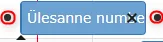 From the black circle, you need to drag a line with the mouse to another task's black circle.
 ***
***
Last modified: 07 October 2026, 15:42:46