General Guides
General guides section contains topics that are not related to any specific module.
PDF file preview
In the Documents and Correspondence registry views, it is possible to open .PDF files in a separate window - the file preview. To do this, you need to click on the .PDF file icon  .
.
The same functionality is also available in the Forwarding panel, but there you need to click on the name of the file with .PDF extension.
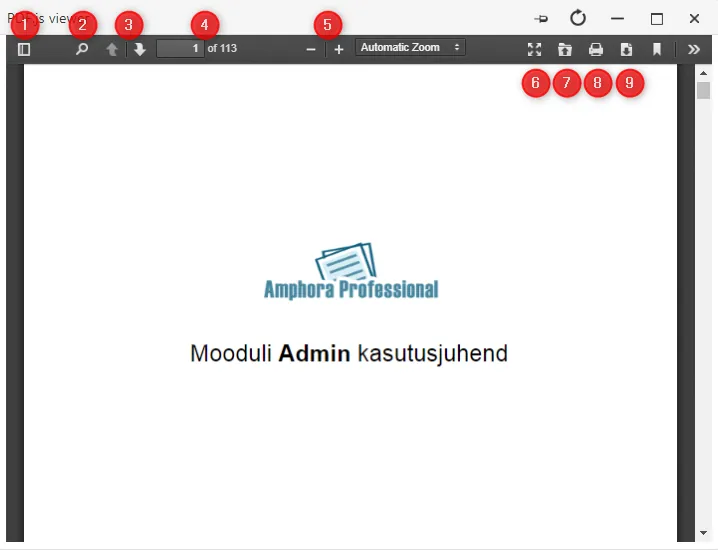 1. All pages selection opens.
{: loading=lazy }2. Search button. In this window it is possible to search for words or phrases.
- Page navigation (forward-backward).
- Manual page selection. Additionally shows which page the reader is currently on and how many pages there are in total.
- You can make text larger and smaller (zoom-out and zoom-in).
- Full screen option.
- Option to open another .PDF file in this preview window.
- Print button. With this button it is possible to print the given file.
- Download button. Downloads the given file.
Additionally, there is a  button with some more options.
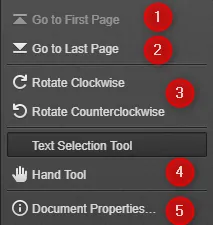 1. Takes you to the very first page.
2. Takes you to the very last page.
3. With these buttons it is possible to rotate the image.
4. "Hand tool" - by clicking with the mouse on the screen you can move left-right and up-down. No need to use mouse scrolling.
5. File data.
File conversion
In Amphora it is possible to convert created documents to all the most common text file formats: RTF, DOC, HTML, PDF, ODT, DOCX.
Document conversion buttons 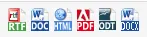 are located next to the Versions panel.
 ***
***
Workflows and delegations
For objects in Documents, Correspondence, Cases and Invoices modules, it is possible to create workflow either through processing or delegation.
Processing and delegation can be done both from object edit view and from registry view.
In edit view, you need to click the corresponding button.
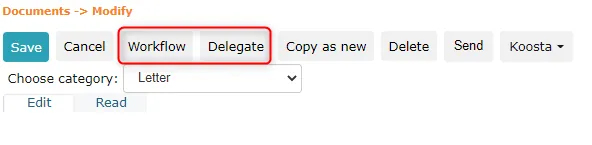 In registry view, you need to check the object you want to create workflow for, and click either processing or delegation button.
 Difference between processing and delegation:
 Processing - User can send object to processing circle. For each person the user adds, different task type can be assigned (for completion, for information, for coordination or for signing).
 Delegation - User can add same task type for all persons.
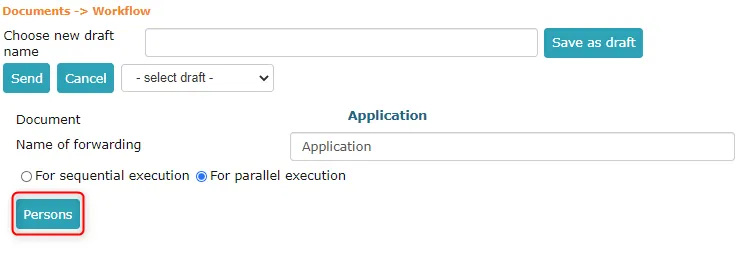
First you need to select the person(s) to whom you want to send the workflow. For this, you need to click the Persons button in processing or delegation creation view.
Important
If desired, you can change the processing name, by default it is the object title.
 Then you need to fill the task creation fields (layout differs between processing and delegation creation).
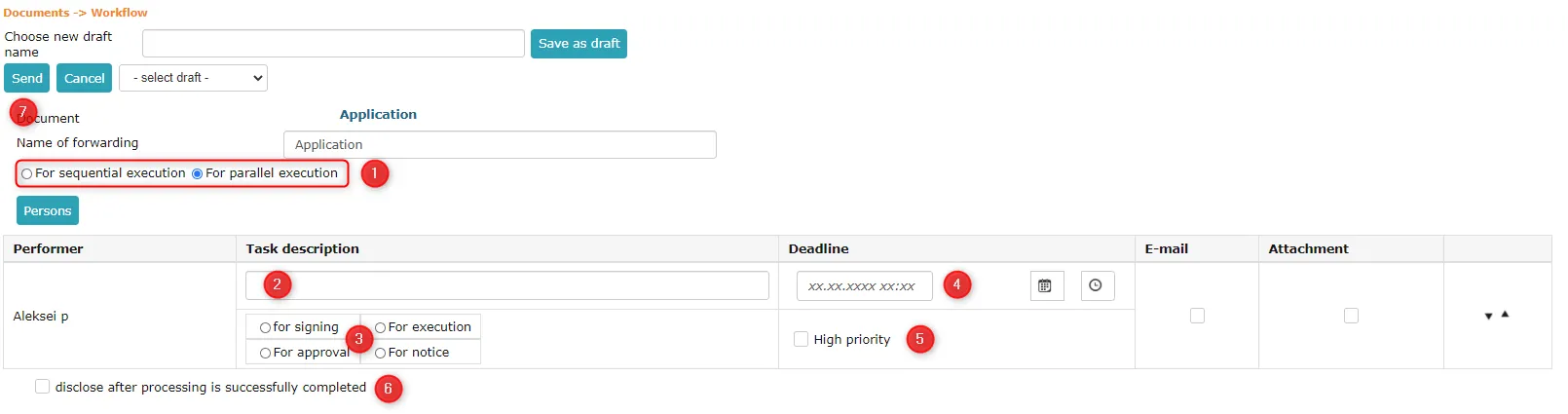 1. Processing type (only for processing) - either sequential execution or parallel execution
* **Sequential execution** processing means that task completion within the processing happens in order: the next person gets the task when the previous ones have completed it.
* **Parallel execution** processing means that all parties get the task immediately after processing creation.
-
Task description - recommended to fill, but can be left empty
-
Task type
- For signing - Sends task for signing. Requires file(s) presence. Task recipient gets editing rights to the object for the duration of the task, if previously had lower rights.
- For completion - Sends task for completion. Task recipient gets editing rights to the object for the duration of the task, if previously had lower rights.
- For coordination - Sends task for coordination. Task recipient gets reading rights to the object for the duration of the task, if previously had lower rights. A coordination task cannot be completed without selecting a decision (Yes/No/Dissenting opinion).
- For information - Sends task for information. Task recipient gets reading rights to the object for the duration of the task, if previously had lower rights.
Important
Invoices can only be sent for coordination.
-
Task deadline - can be left empty
-
You can select whether the task is urgent. If Urgent is checked, then in the Forwarding panel there is a ! icon next to the task. It is also possible to select reminder when sending documents, letters or case objects, if under policies the corresponding modules have Add reminder to task policy turned on.
-
For documents and letters, you can publish in public view after successful completion of processing, if this checkbox is enabled.
-
Send button - sends the processing/delegation
Signing task completion
Amphora completes a signing task only when the user's signature actually exists on the document. If adding the signature fails for any reason, Amphora does not complete the task and the user can sign again later.
Error message display
Error messages (Server Error) are displayed in a separate box that does not interfere with continued work in Amphora. The error box has two buttons -- Back to homepage and Back to login page. Amphora logs all error messages.
For superusers, Amphora displays an explanatory text and technical information (Stack Trace) when an error occurs. For regular users, only a message about the error occurrence and the error ID (ERROR_LOG_ID) is displayed.
NB!
When contacting client support, please send the error ID (ERROR_LOG_ID).
Last modified: 17 October 2026, 11:05:57