Amphora 15.6 Version Guide
- Version 15.6.0
- PDF conversion support for additional files in Documents module
- Fixed forwarding of next procedures/delegations
- Server error display changed
- File encryption in Transmissions panel
- Fixed object display in Superuser mode
- GovSSO authentication improvements/changes
- Document writing form improvements
- New report "All unfinished tasks by external parties"
- Other changes
- Version 15.6.1
- Version 15.6.2
- Version 15.6.3
Version 15.6.0
PDF conversion support for additional files in Documents module
In version 15.6.0, the ability to convert additional files to PDF has been created. Previously, such capability existed only in the Documents module. In the Additional files panel, it is now possible to convert files of different formats (for example .docx, .rtf) to PDF. It is only possible to convert to PDF format, other formats are not supported.
Before conversion, additional files must be uploaded and the document saved. After that, a Convert to PDF link appears on each additional file row (except PDF files).
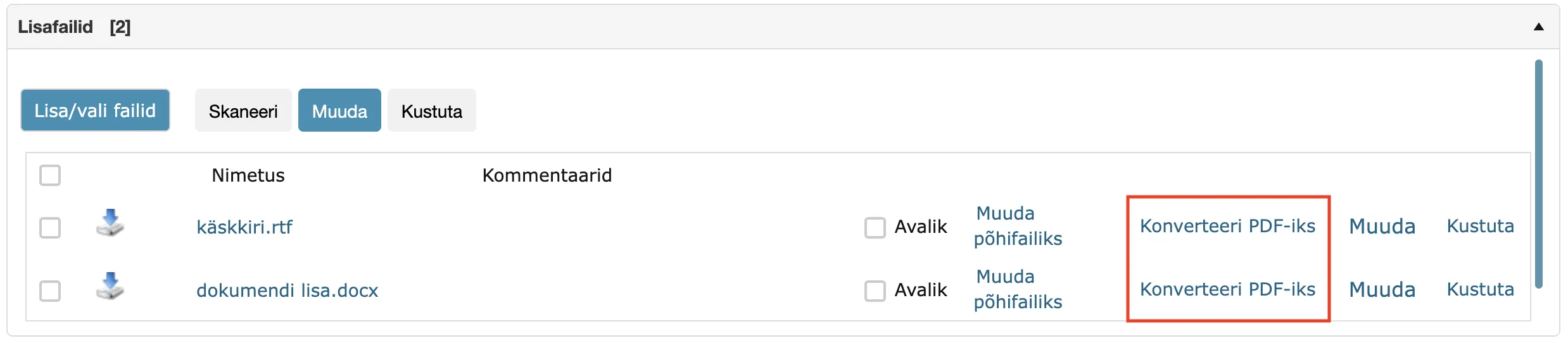
Clicking the Convert to PDF link creates a new document version in Amphora. This event is also visible in the history panel along with the converted additional file name. After conversion, there is no need to save the document separately.

Additional information about additional file conversion:
- If the document has a signature container containing an additional file in original format (for example .docx .rtf), then after converting the additional file, the signature container remains.
- If additional files in other formats (for example .docx .rtf) are sent for signing with procedure/delegation, then after converting them to PDF, Amphora does not add the converted files to the signature container when signing.
** This development was supported by Amphora client Harku Municipality Government. ** ** Thank you! **
Fixed forwarding of next procedures/delegations
In version 14.7, conditional next procedure/delegation functionality was added. You can read more about this HERE.
Recently, a bug emerged that was related to forwarding next procedures/delegations. Namely, when a next procedure/delegation was forwarded (not the original procedure/delegation), then the forwarded procedure/delegation was created with "Pending" status and this status did not change. The user to whom the task was forwarded did not receive notification and did not see this task in their Routing panel.
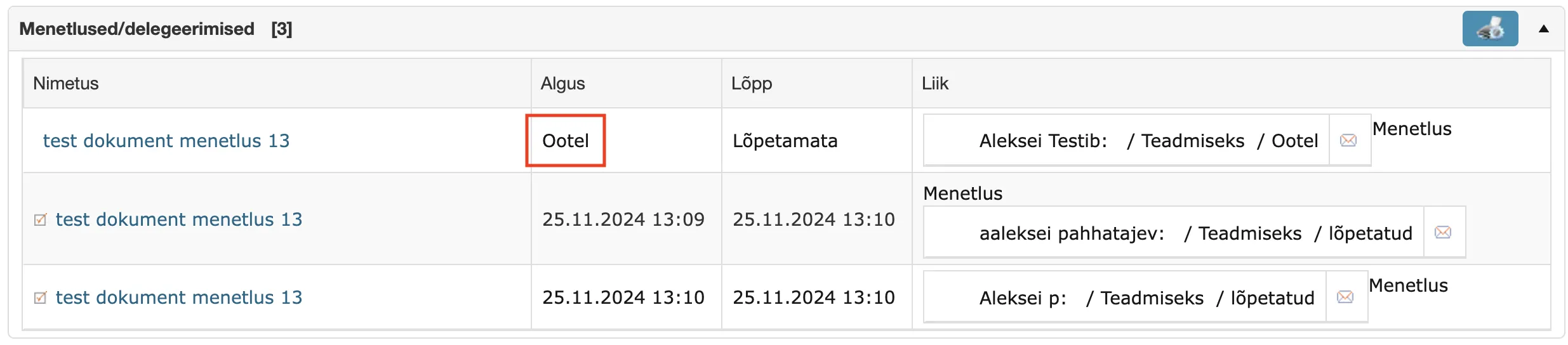
This bug has been fixed in this version. The forwarded procedure/delegation immediately becomes active (instead of "Pending" status, there is the procedure/delegation activation date), Amphora sends notification to the user and the task becomes visible in the Routing panel.
Server error display changed
In previous versions, displaying Amphora error messages (Server Error) was problematic for users. An error could occur as a result of some specific action and Amphora displayed this error message over the entire screen. Often, after displaying the error message, it was no longer possible to open Amphora and continue working.
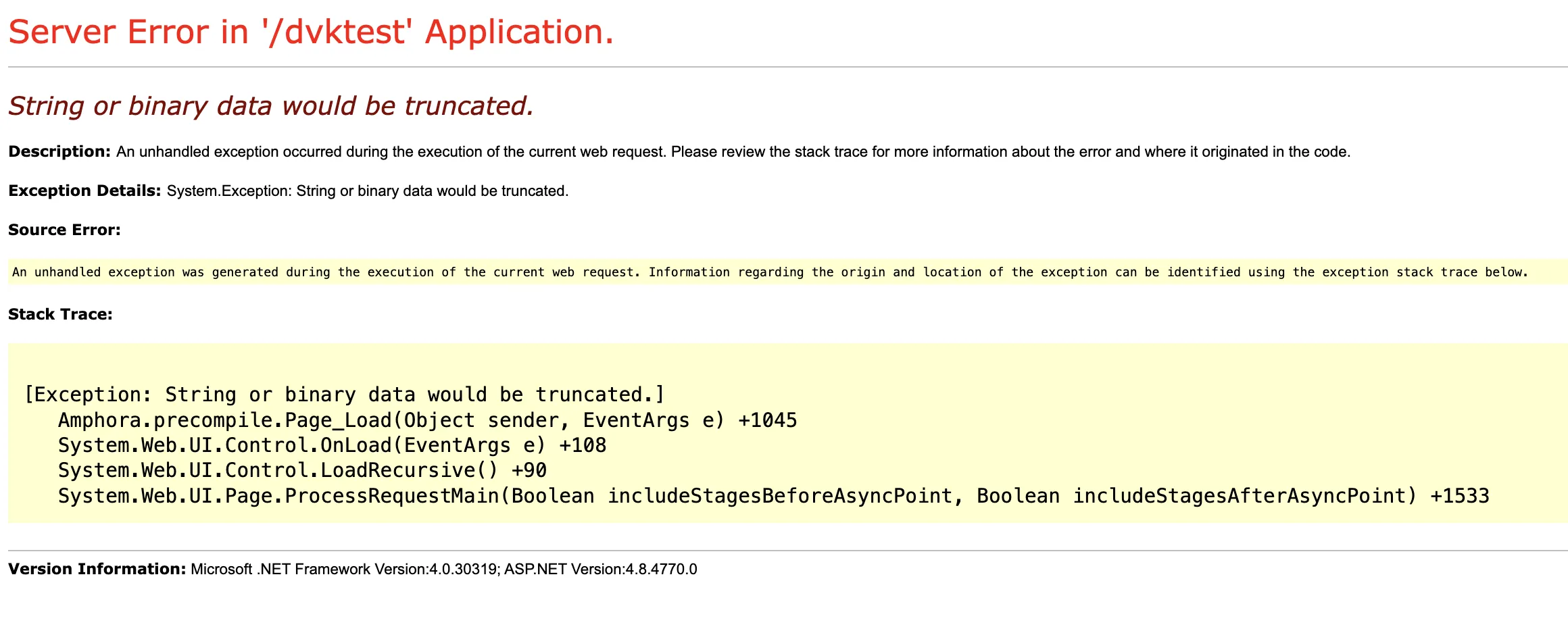
In this version, the display of such error messages has been changed. Now these error messages are displayed in a separate box and this does not interfere with continuing to work in Amphora. The error box has two buttons - Back to home page and Back to login page. In addition, Amphora logs all error messages.
For superusers, Amphora displays both the error explanation text and the methods that were called before the error occurred (technical information that helps identify the error - Stack Trace) in case of an error. The error ID (ERROR_LOG_ID) is also displayed.
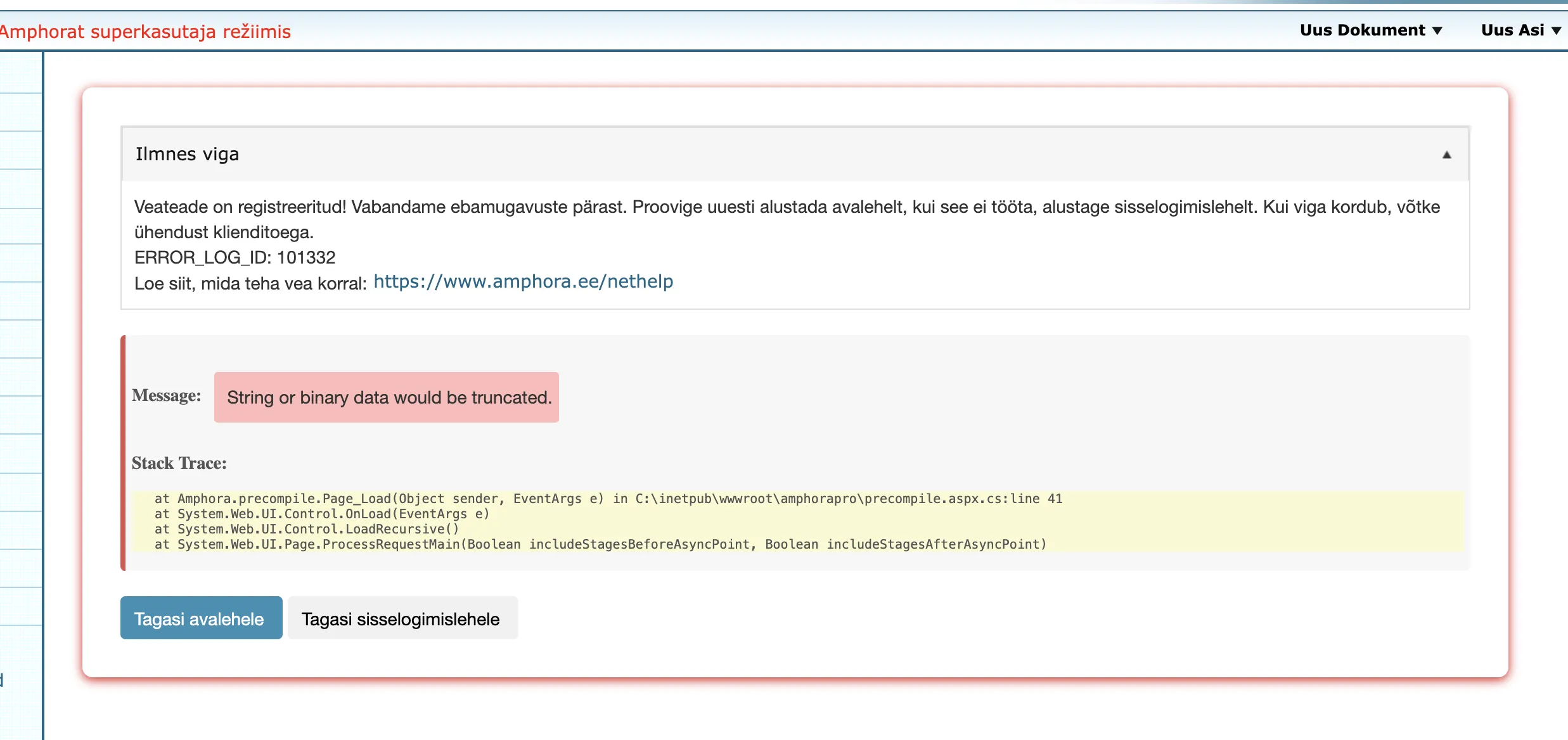
For regular users, Amphora displays only a message that an error occurred and the error ID.
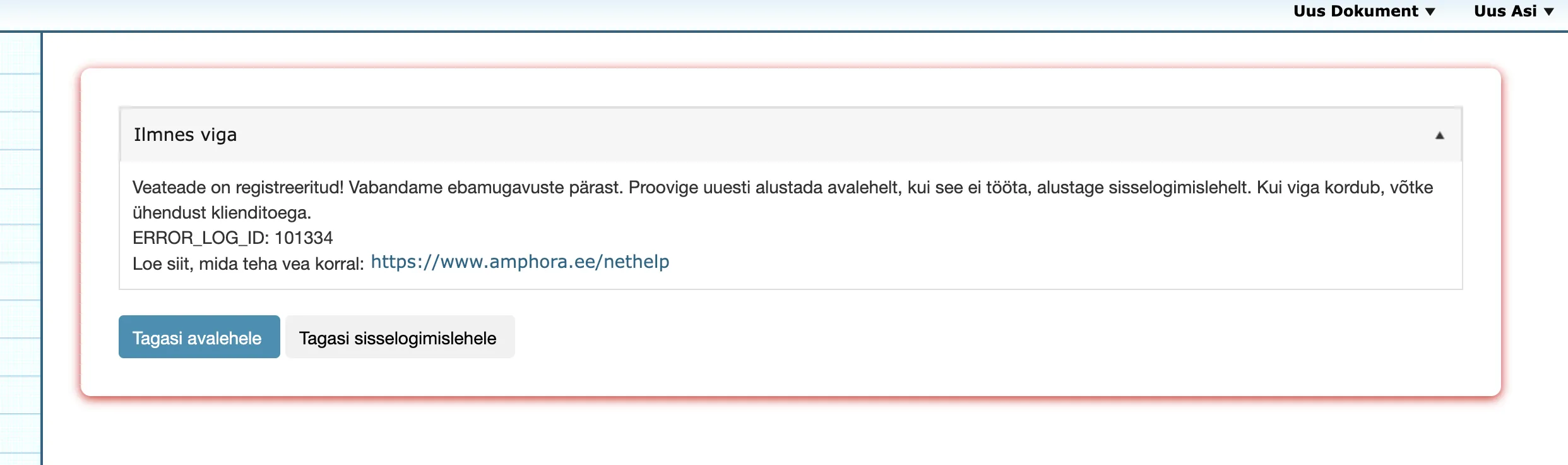
For three errors, Amphora also displays the error description to regular users.
- Failed to load viewstate - error message may occur when the user double-clicks or uses external Amphora buttons (for example F5).
- Timeout expired - error message occurs when some process takes more time than allocated.
- String or binary data would be truncated - error message occurs when, for example, the number of characters in an entered value is greater than allowed. Such an error message appears quite rarely, since we have already added additional controls in many places. For such an error message, you should contact Amphora client support.
NB!
When contacting client support, please send the error ID (ERROR_LOG_ID).
File encryption in Transmissions panel
Document encryption helps protect file content from prying eyes: encrypted documents (with .cdoc extension) can only be opened with their ID-card by those who have been given permission to do so. For everyone else, the document content remains protected.
When sending email through the Transmissions panel, there is now the possibility to encrypt attachments. When creating transmissions with "Outgoing" direction, there is a checkbox Encrypt attachments. If the Encrypt attachments checkbox option is present but disabled (cannot be activated), this means that this functionality has not been ordered.
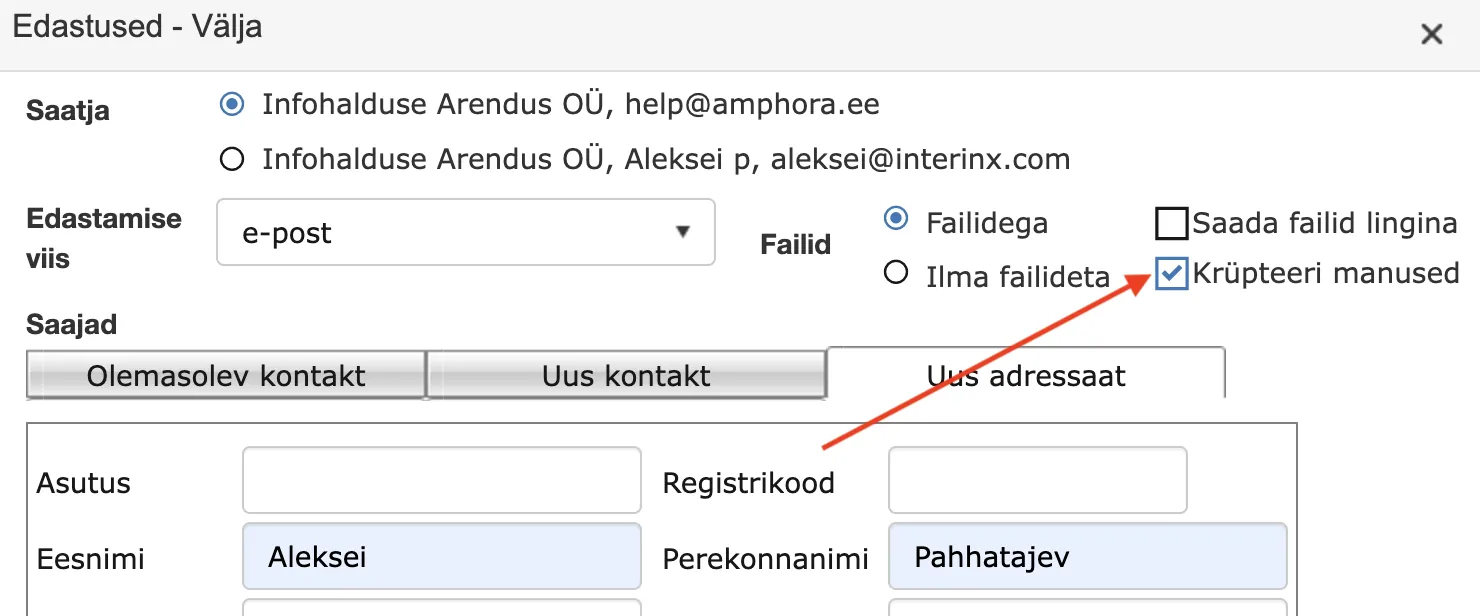
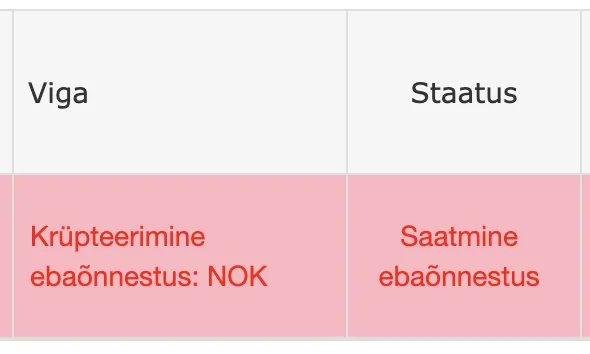
In this version, only personal code encryption is supported. For encrypted container creation to succeed, the recipient must have a correct personal code. When saving the transmission, a restriction has been added that does not allow saving a transmission where the "Encrypt attachments" checkbox is added but the recipient's personal code is missing. If it is an incorrect personal code, then Amphora displays the corresponding error message when sending the email.
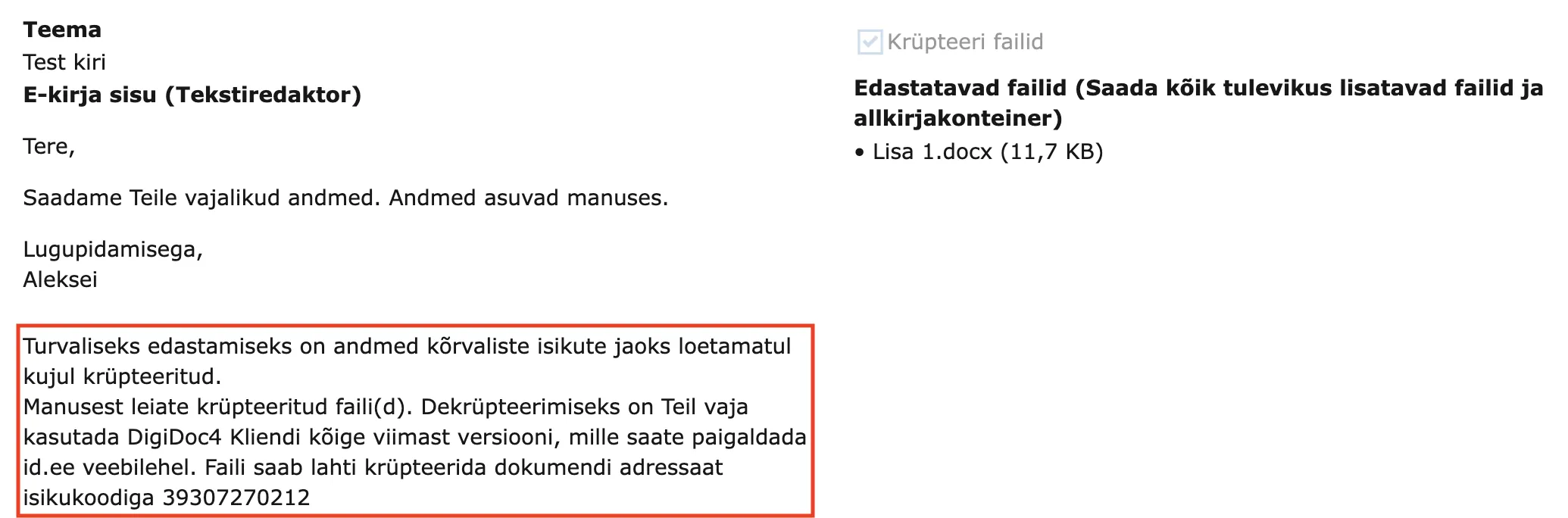
You can also encrypt selectively – for example, select the main file and specific additional files from the document that you want to transmit in encrypted form. Sending encrypted containers only works with "email" transmission method and only in the Transmissions panel. In addition, Amphora adds additional text to the email content. The default text is in the image below, but this text can be changed under Admin - Translations (keyword - EncryptEmailFooter).
This is a paid service with a one-time cost of one quarter of work fee (price formula - 0.25*monthly fee). You can order and activate this functionality under Additional services.
Fixed object display in Superuser mode
In the previous version, Superuser mode did give the user access to all environment catalogs, but objects (documents, letters, files) in those catalogs were not visible. In this version, we fixed this problem. In the future, Amphora adds Administration rights to all objects for users in Superuser mode.
A similar problem existed with Archive module objects (archive files). These were also not visible to users with superuser mode.
This problem only occurred for users who lacked subsidiary (other institutions) rights and had superuser mode enabled.
GovSSO authentication improvements/changes
- In some environments, Amphora did not open the correct public view link (link Public view in the left menu) for users who logged in through GovSSO. In version 15.6, this bug has been fixed and now Amphora opens the correct public view link with the default selected institution.
- Signing button display has been fixed in the Self-service Portal. The problem occurred when a user logged into the Amphora internal environment through GovSSO and then opened the Self-service Portal from the left menu (Self-service link).
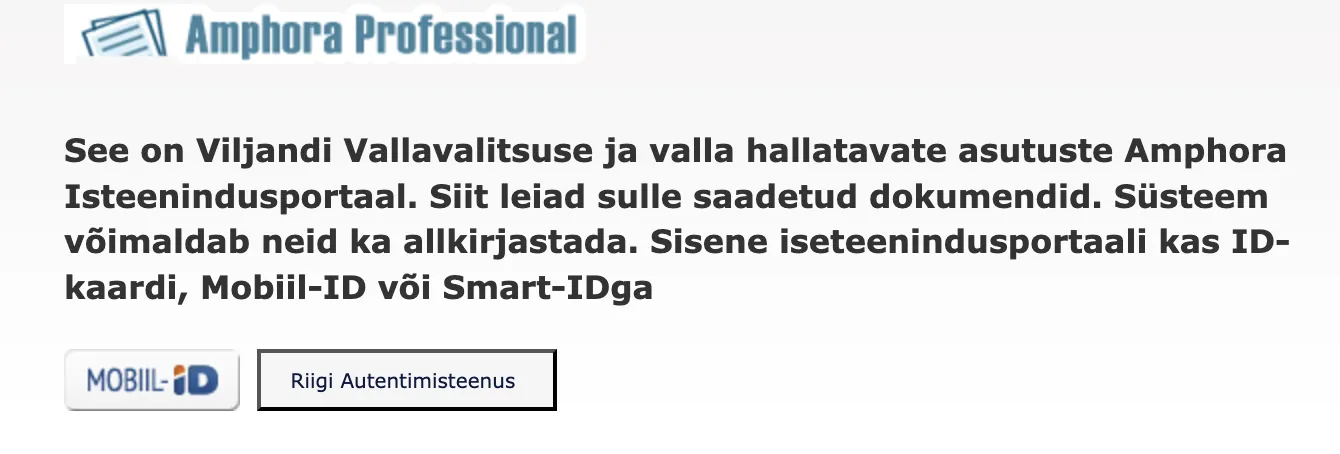
- In environments where GovSSO authentication is activated and other authentication buttons are hidden, the "Mobile-ID" button is now displayed on the Self-service Portal login page in addition to the "State Authentication Service" button. We made the "Mobile-ID" button visible so that persons can log in with Mobile-ID without problems. Logging in with Mobile-ID through "State Authentication Service" requires that the person's mobile number is added to Amphora. When logging in with the "Mobile-ID" button, the person's mobile number is not checked.
Document writing form improvements
Document writing forms had problems when composing responses or next documents. First, Amphora always displayed the wrong predicted number, but after saving, Amphora added the correct response document number to the document. Second, the default template selection was buggy. The template was selected, but the text editor was empty (Document writing form templates are located in the text editor). Both bugs have been fixed in version 15.6.
New report "All unfinished tasks by external parties"
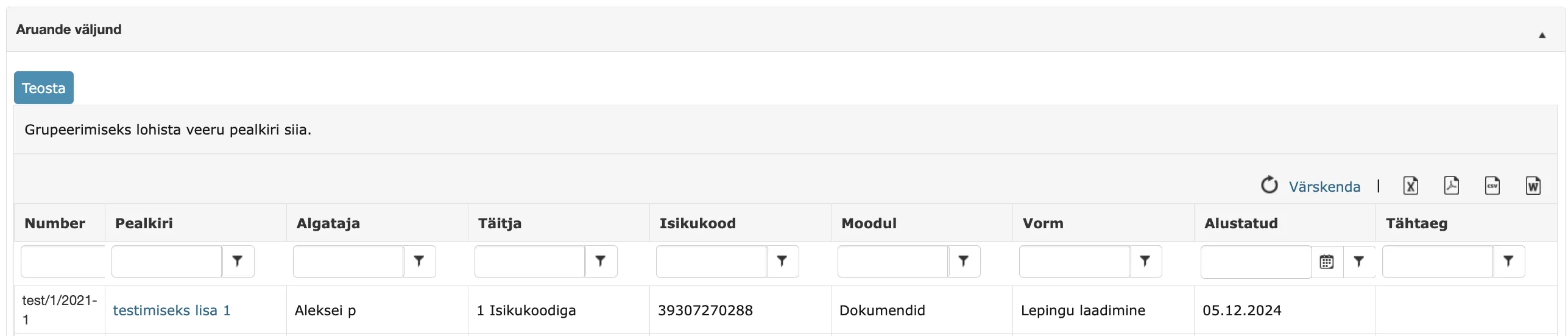
In this version, a new report "All unfinished tasks by external parties" has been added, which outputs all unfinished tasks by external parties (external person, Self-service Portal task). Report results can be filtered, sorted, grouped and exported to Excel, CSV, PDF and DOC formats. The report has the following columns:
- Number - object number
- Title - object title
- Initiator - procedure initiator name
- Executor - external party name who has not marked the task as completed
- Personal code - external party personal code
- Module - object module
- Form - form with which the object is registered
- Started - procedure original date
- Deadline - procedure deadline
** This development was supported by Amphora client Ahhaa. ** ** Thank you! **
Other changes
- The Services link has been removed from the Admin module. This was outdated functionality. It was used to control DVK operation, but this is not needed for DHX.
- Sending emails through Mailgun now also supports other subdomains (the "mg." prefix is no longer mandatory). It turned out that some domains already use this and therefore a more flexible solution is needed (amphora.ee example => mg1.amphora.ee).
- For invoice accounting, the possibility to present VAT with comma (two places after comma, e.g. 25.5%) has been added. Necessary for example for Finnish invoices.
- In institution settings (Admin - Institution settings - GovSSO authentication setup), the GovSSO password is no longer visible - only the first 3 symbols are displayed. The change has been made for security considerations.
- Telerik components update 2024.4.1114. You can read more HERE.
Version 15.6.1
Document response deadline policy change 30 days > 15 days
Following the amendment of the law on responding to memoranda and requests for explanation and on submitting collective addresses, we replaced the policy "Dokumendi vastamistähtaja automaattäitmine (+30 päeva)" (automatic response deadline, +30 days) with the policy "Dokumendi vastamistähtaja automaattäitmine (+15 päeva)" (+15 days). If the policy is switched on for a user group, Amphora gives documents a 15-day execution/response deadline. Amphora also counts the current day (a document registered on 06.01.2025 gets the deadline 20.01.2025).
Version 15.6.2
Fix for adding access restriction "Restriction valid until" date
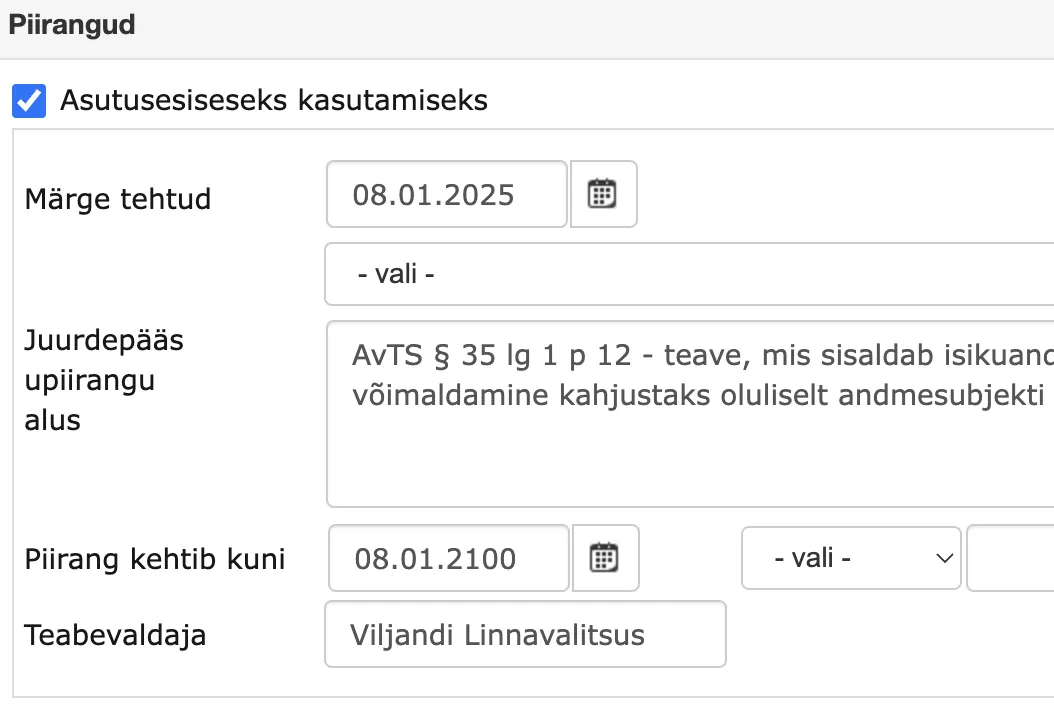
From 01.01.2025, documents registered in catalogs with a 75-year default access restriction, and reply or follow-up documents of documents with a 75-year restriction, got an empty "Restriction in force till" date, because the latest allowed date was 31.12.2099. Version 15.6.2 fixes this: the latest allowed date is now 31.12.2499.
After version 15.6.2:
Version 15.6.3
Email sending improvements
- Fixed attachment naming for emails sent from Amphora environment. Certain file names (which had both diacritics and symbols) changed their names when sending emails (for example - MiGRkZC5jZG9j_=), the file extension was lost and these files could not be opened. This problem occurred in version 15.6 in connection with updating the NuGet package RestSharp.
- Fixed bug where Amphora could send out emails without content, even though the document had text editor content filled/comment to recipient added. This was a very rare bug. In version 15.6.3, we added control before sending out emails - if content is missing for some reason, Amphora checks for content presence in the document (text editor content/comment to recipient) and automatically adds it if it exists.
Enhanced Mobile-ID/Smart-ID authentication when username contains @ symbol
In previous versions, Amphora did not allow Smart-ID/Mobile-ID users whose username contained the @ symbol to log in. If the user had a username that was, for example, an email address, then during login Amphora displayed the following message:
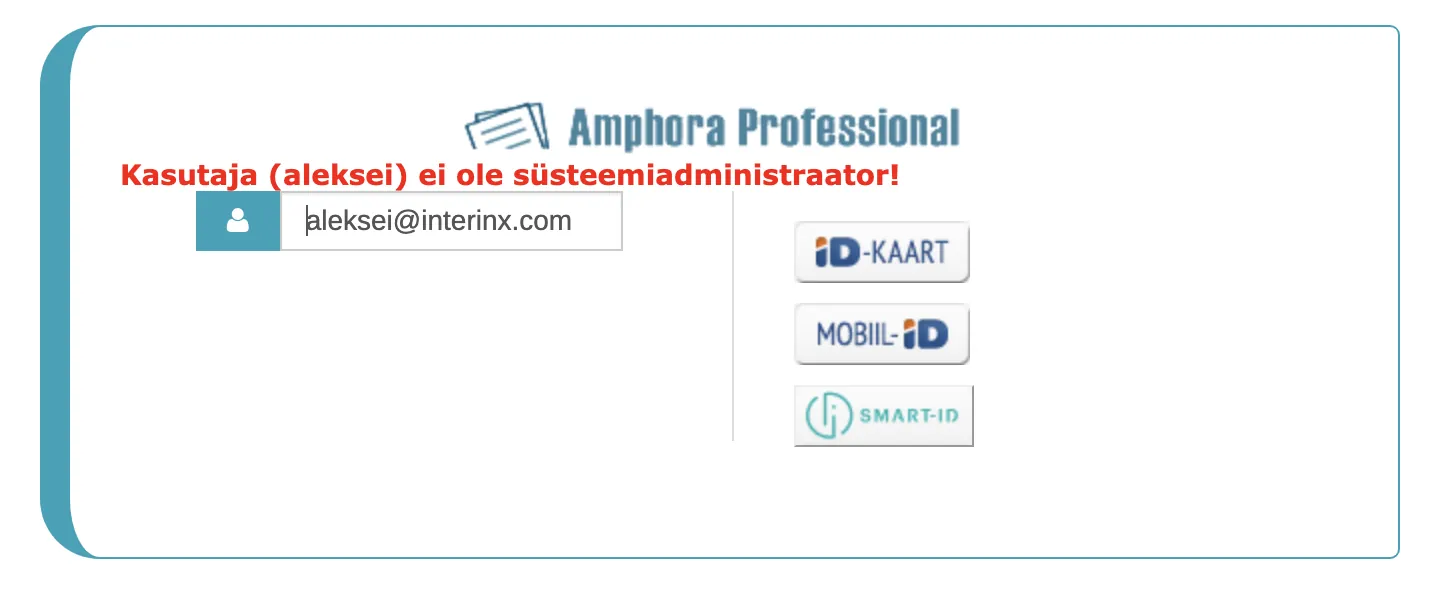
In version 15.6.3, we removed the @ symbol control. In the future, it will be possible to log into the Amphora environment with such usernames.
Last modified: 17 October 2026, 11:05:57