Text editor
- What the text editor is
- Toolbar
- Pasting from Word, Excel and the web
- Images
- Tables
- Links
- Saving
- Possible problems
1. What the text editor is
The text editor is the field on Amphora forms where you write formatted text: headings, lists, tables, links and images. Amphora stores the text editor content as HTML.
The same text editor is used in these places:
- the document writing form (Documents → Write new) and the saved document card;
- the e-mail sending window;
- HTML templates (Admin → Templates, see Templates);
- self-service texts (Admin → Unit settings, see Self-service portal).
Draft legal acts (.akt files) are edited in a separate editor, see Legal Acts Editor (akt-editor).
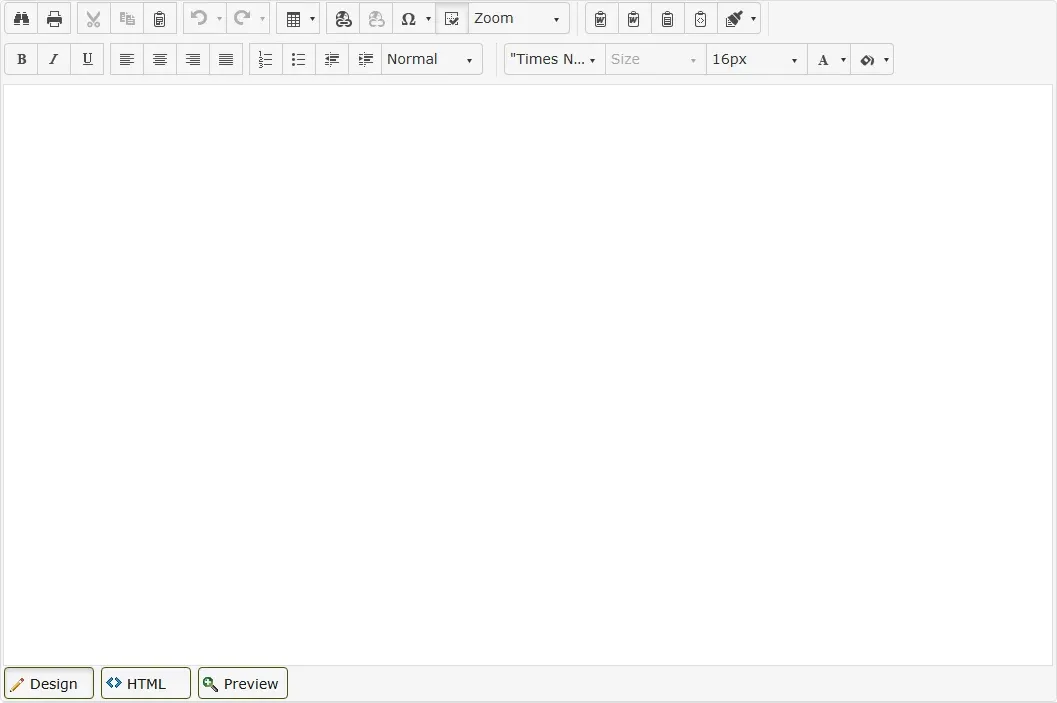
Below the text editor are three tabs:
- Design – the normal working view;
- HTML – the HTML code of the text;
- Preview – a preview.
On the document card, a checkbox above the text editor sets whether the text editor content is shown in the public view.
Important
The text editor's tooltips, dialogs and messages are in English in every Amphora interface language.
2. Toolbar
A button's name appears when you hover over it. The toolbar is the same everywhere the text editor is used.
| Button | What it does |
|---|---|
| Find And Replace | Opens the find and replace dialog (tabs Find and Replace). Ctrl+F does not open it. |
| Starts printing the text editor content. | |
| Cut, Copy | Cuts or copies the selected text. The buttons are active only when text is selected. |
| Paste | Shows the message "Please use Ctrl+V to Paste". To paste text, press Ctrl+V. |
| Undo, Redo | Undoes or redoes the last change. The arrow opens the list of changes. Ctrl+Z and Ctrl+Y also work. |
| Insert Table | Inserts a table, see Tables. |
| Hyperlink Manager, Remove Link | Adds or removes a link, see Links. |
| Insert Symbol | Inserts a special character (e.g. €). |
| Show/Hide Border | Shows or hides table guide lines. It does not change the saved text. |
| Zoom | Changes the zoom of the text in the text editor (10–500%). |
| Paste from Word, Paste from Word, strip font, Paste Plain Text, Paste As Html | Special paste modes, see Pasting. |
| Format Stripper | Removes formatting from the selected text. The arrow lets you choose what to remove, see Pasting. |
| Bold, Italic, Underline | Bold, italic, underlined. Ctrl+B, Ctrl+I and Ctrl+U also work. |
| Alignment buttons | Align the paragraph left, centre, right or justified. |
| Lists and indents | Numbered list, bulleted list, decrease and increase indent. |
| Paragraph Style | Paragraph style: Normal, Heading 1 to Heading 6 and others. |
| Font Name, Size, Real font size | Font and font size. The default is Times New Roman, 16px. |
| Foreground Color, Background Color | Text colour and background colour. |
The default font for new text is Times New Roman, size 16px.
Enter starts a new paragraph. Shift+Enter starts a new line within the same paragraph.
The text editor has no button for inserting images. See Images.
3. Pasting from Word, Excel and the web
To paste text, press Ctrl+V. The toolbar Paste button does not paste.
Pasting from Word
When you paste text from Word with Ctrl+V, the text editor asks: "The content you are trying to paste has MS Word formatting. Would you like to clean it?"
- OK removes Word's extra formatting. Headings, lists, bold and italic, colours, fonts, font sizes and tables (including merged cells) are kept. We recommend OK.
- Cancel pastes the text with all of Word's formatting. The text looks the same, but the HTML code is several times longer.
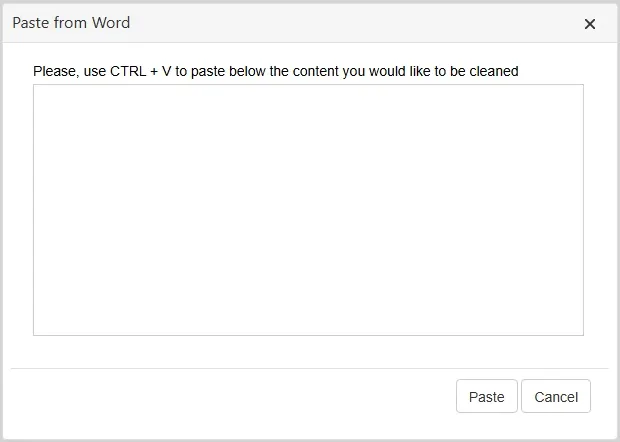
You can also paste Word text with the toolbar buttons. The button opens a window: paste the text into it with Ctrl+V, then click Paste.
| Button | Result |
|---|---|
| Paste from Word | Same result as Ctrl+V and OK, without the question. |
| Paste from Word, strip font | Fonts and font sizes are removed; other formatting is kept. |
| Paste Plain Text | Only the text is pasted, without formatting or images. |
| Paste As Html | The pasted HTML code is shown as text. Not for pasting ordinary text. |
A long Word document (e.g. 40 pages) can be pasted at once. Pasting and saving take a few seconds.
Pasting from Excel
Excel cells are pasted as a table. Cell fill colours, Excel borders and bold text are not kept. If needed, add them after pasting through the table properties (see Tables). Pasting from Excel shows no question.
Pasting from a web page
Headings, lists and links are kept. An image from a web page keeps pointing to its original web address; no copy of the image is stored in the text editor.
Removing formatting
The Format Stripper button removes formatting from pasted text. Select the text first, then choose from the arrow what to remove:
- All – removes all formatting; text and headings are kept;
- Css – removes fonts and colours; tables, lists and bold are kept;
- Span Elements – removes fonts and colours.
4. Images
The text editor has no button for inserting images. To add an image, paste it:
- copy the image (e.g. a screenshot or an image in Word) and press Ctrl+V in the text editor;
- or copy the image file in Windows File Explorer and press Ctrl+V in the text editor.
The pasted image is stored as part of the text editor content. This is also how you add the organisation's logo to a document or e-mail text. Adding a logo to a template is described in Templates.
When a document is saved or an e-mail is sent, Amphora makes large images smaller:
- an image over 150 KB is stored as JPEG;
- an image wider than 1024 pixels is scaled down to 1024 pixels wide.
An image in the e-mail text is sent inside the e-mail, not as an attachment.
Important
Please note:
- If a large PNG image has a transparent background, the transparent area turns black on saving. To avoid this, use an image with a white background or a smaller image.
- If you resize an image in the text editor, it is back at its original size after saving. Resize the image before pasting.
- If you paste text from Word together with an image, the image points to a file on your computer and other users do not see it. Copy the image from Word on its own and paste it separately.
- If one text holds both a pasted image and an image from a web page, saving can drop table borders, width, cell background colour and font size.
5. Tables
To insert a table, click the arrow on the Insert Table button and pick the number of rows and columns in the grid (up to 8 × 8). For a larger or more detailed table, choose Table Wizard.
A new table has a thin grey border.
To change a table, right-click a table cell. The menu lets you insert and delete rows and columns, merge and split cells, and open the cell (Cell Properties) or table properties (Table Properties).
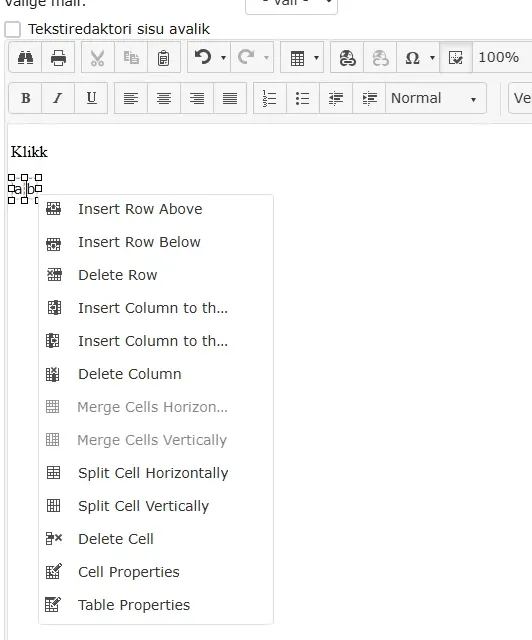
A wide table (e.g. 10 columns) is kept on pasting and saving.
6. Links
To add a link, select the text and click Hyperlink Manager. The window has three tabs:
- Hyperlink – web address (URL), how it opens (Target) and a hint (Tooltip);
- Anchor – an anchor in the same text;
- E-mail – a link that makes an e-mail address clickable in the text.
To remove a link, select the linked text and click Remove Link.
A link does not open when clicked in the text editor. When the saved document is viewed, the link is clickable.
7. Saving
The text editor content is saved with the form, using the Save button.
Important
The text editor does not save text automatically. If your session has expired, clicking Save does not save the text and Amphora shows no message. Please save now and then while writing a long text. After a long break, copy the text before saving (Ctrl+A, Ctrl+C).
Saving a document without changes does not create a new version.
8. Possible problems
| Problem | Solution |
|---|---|
| The Paste button does not paste | Use Ctrl+V. |
| Pasting from Word asks "Would you like to clean it?" | Click OK. |
| Excel table colours and borders are lost | Add them through Table Properties and Cell Properties. |
| Other users do not see an image pasted from Word | Copy the image from Word on its own and paste it again. |
| An image's transparent background turned black | Use an image with a white background or a smaller image. |
| An image's size reverted after saving | Resize the image before pasting. |
| The text was gone after saving | Most likely the session had expired. Log in again and paste the text if you had copied it. |
| The font list shows "Calibra" | To use the Calibri font, choose Calibri. |
| The text editor buttons and messages are in English | The text editor interface is in English. |
Last modified: 12 October 2026, 13:51:23