Persons
- Persons List
- Adding Regular Person
- Modifying System Person
- Marking Person as Passive
- Person Groups
- Adding Address
The Persons module contains all organization persons, both system and regular.
- System person – a person connected to a specific user. When a new user is added, a new system person is created automatically. Such a person is easily distinguishable in the list view. In the System column, such a person has an x symbol.
- Regular person – a person not connected to a user and probably not an employee of the given organization. This person is added separately so that letters or external system tasks can be sent to them.
The Persons module is visible only to users whose user group has this module enabled.
Persons List
Clicking on the Persons module opens the persons list.
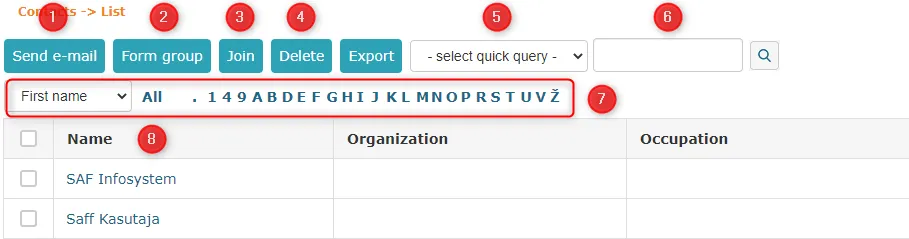 1. The Send Email button allows you to send an email to a specific person or persons. Check the box in front of the person(s) and click this button.
{: loading=lazy }2. In Amphora, it's possible to create person groups. The **Create Group** button allows you to create different groups directly from the persons list view. Check the boxes in front of persons and click this button.
{: loading=lazy }3. Persons can also be merged. This can be done using the **Merge** button.
- The Delete button allows you to delete persons. System persons cannot be deleted. When deleting system persons, the following notification appears: System user cannot be deleted!
Only regular persons can be deleted. Check the box in front of the user and click the Delete button. -
Search quick queries significantly simplify work. By default, no quick queries exist, but they can be added. To do this, go to Persons -> Search, enter a new quick query name, and make desired selections under advanced search.
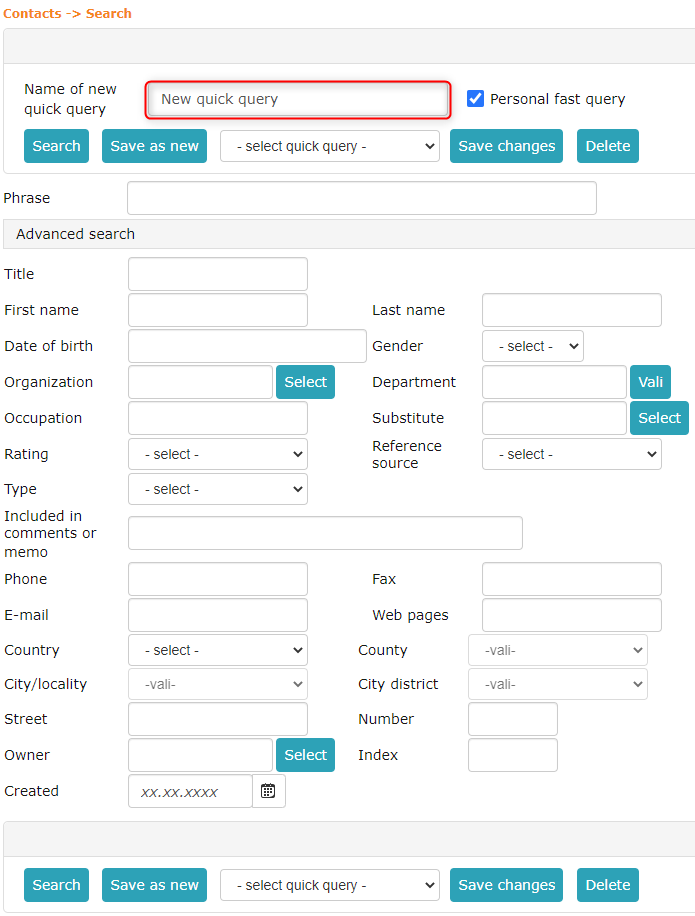 Quick queries can be personal and visible to everyone. If the checkbox Personal Quick Query is checked when creating a search quick query, this quick query is visible only to the user who created it.
 -
Search field. Here you can search for persons. You can search by first name, last name, organization, position, phone, and email.
- Person filtering. You can filter persons by first letter of first name, last name, organization, and email address. Make the desired selection from the dropdown menu and click on the letter (only relevant letters are available in the selection).
- Persons list. The list displays persons with data (first and last name, organization, position, email address, phone, and whether the person is system or not). You can sort by each column by clicking on the column header.
Adding Regular Person
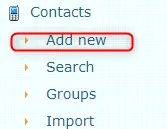
To add a new person, click the Add New button.
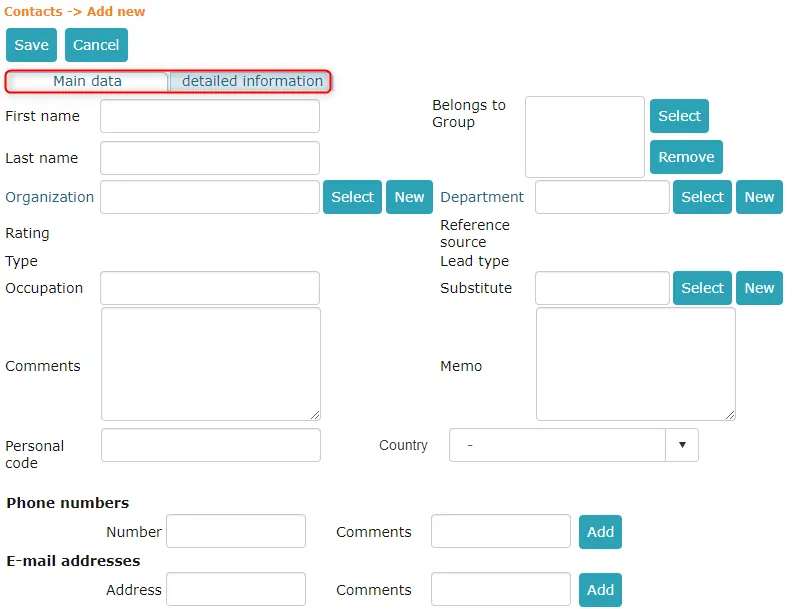
 By default, the person's basic info opens, but detailed info is also available with more fields. However, basic info is sufficient when adding a regular person.
These persons are typically added when they don't work in this organization but need to be regularly sent emails or tasks. For this, Amphora has a self-service portal. You can read about process tasks in the self-service portal in the corresponding guide.
When adding persons, it's essential to enter first name, last name, email address. Personal ID code is only needed if process tasks are planned to be sent to this person. You can also add to person groups.
Important
When filling in Phone, Email addresses (also Faxes, Websites, MSN, Location addresses) fields (1), you must click the Add button (2). After this, an entry appears below the field.
 Basic Info
 Detailed Info
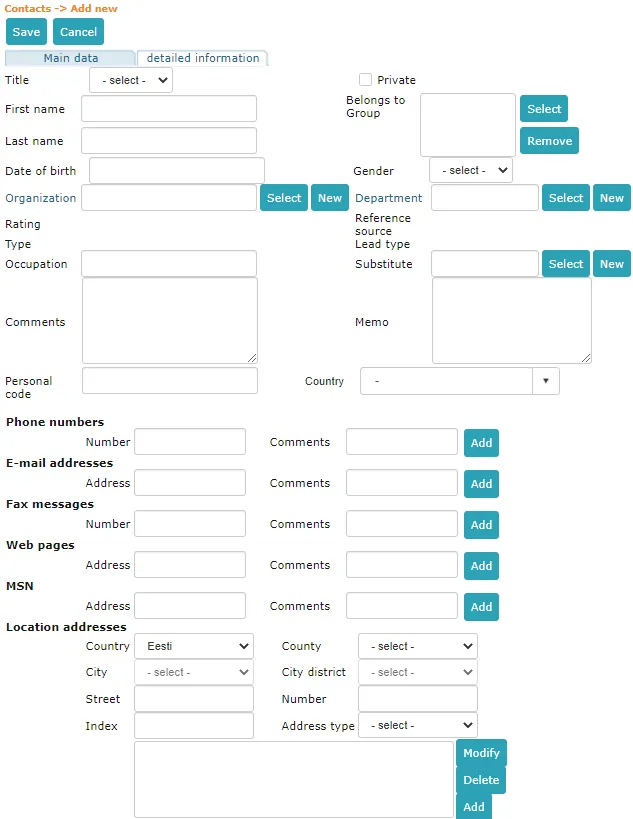 When the necessary data is entered, click the Save button.
Important
Added persons are visible only to users in the same unit. So if a sub-organization user adds a person, this person is visible only to users who have rights to that sub-organization.
Modifying System Person
A system person is created together with a user and this person cannot be deleted. All data for a system person comes from the user by default. However, it's possible to add organization, department, or create a group for a system person.
If a user wants to send emails with multiple different email addresses (sometimes with one, sometimes with another), then in the person modification view, additional addresses should be added in addition to the primary address. The primary address is the email address that is always selected by default for the user when wanting to send an email. All email notifications and emails go to this address as well. The additional address is only available for selection when sending emails.
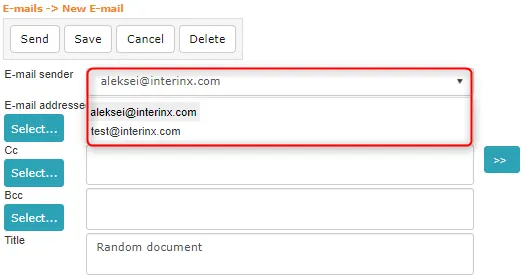 In this picture, aleksei@interinx.com is the primary address and test@interinx.com is the additional address.
Marking Person as Passive
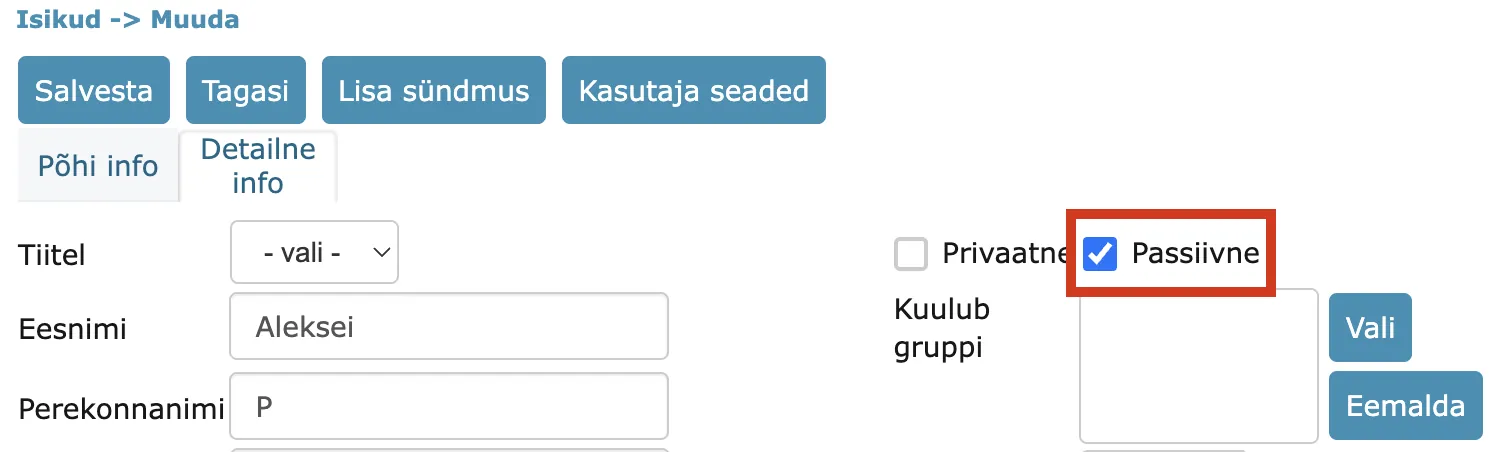
In the Persons module, a person can be marked as passive. Both standalone persons and persons linked to a user can be marked as passive. A person linked to a user can only be marked as passive if the associated user is passive.
A passive person is not selectable in process, delegation, or PersonChooser type fields. Passive persons cannot log into the Amphora Self-Service Portal.
A person can be marked as passive in the Persons module, in the Detailed Info view.
Person Groups
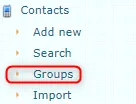
Person groups can be added both from the persons list view and from the Groups view. All person groups are located under Persons module -> Groups.
 The
The  button allows you to add a new group.
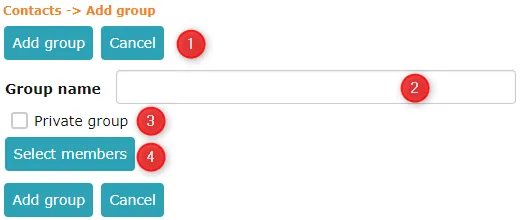 1. The Add Group button allows you to create a new group. The Back button allows you to cancel group creation.
2. Person group name.
3. Here you can choose whether the given group is private or not. A private group is visible only to the user who created this group. By default, the Private Group checkbox is unchecked.
4. The Select Members button allows you to select persons who will belong to this group.
1. The Add Group button allows you to create a new group. The Back button allows you to cancel group creation.
2. Person group name.
3. Here you can choose whether the given group is private or not. A private group is visible only to the user who created this group. By default, the Private Group checkbox is unchecked.
4. The Select Members button allows you to select persons who will belong to this group.
Person groups are worth creating when you want to send emails to specific persons. When a person group is created with persons, it's possible to select these persons all at once when sending emails. Person groups are also useful when creating automated processes.
Adding Address
In the organization and person detail view, there is a separate panel for entering addresses where you can search for an address directly.

NB!
The new address panel is only visible when the country of the organization/person is set to Estonia.
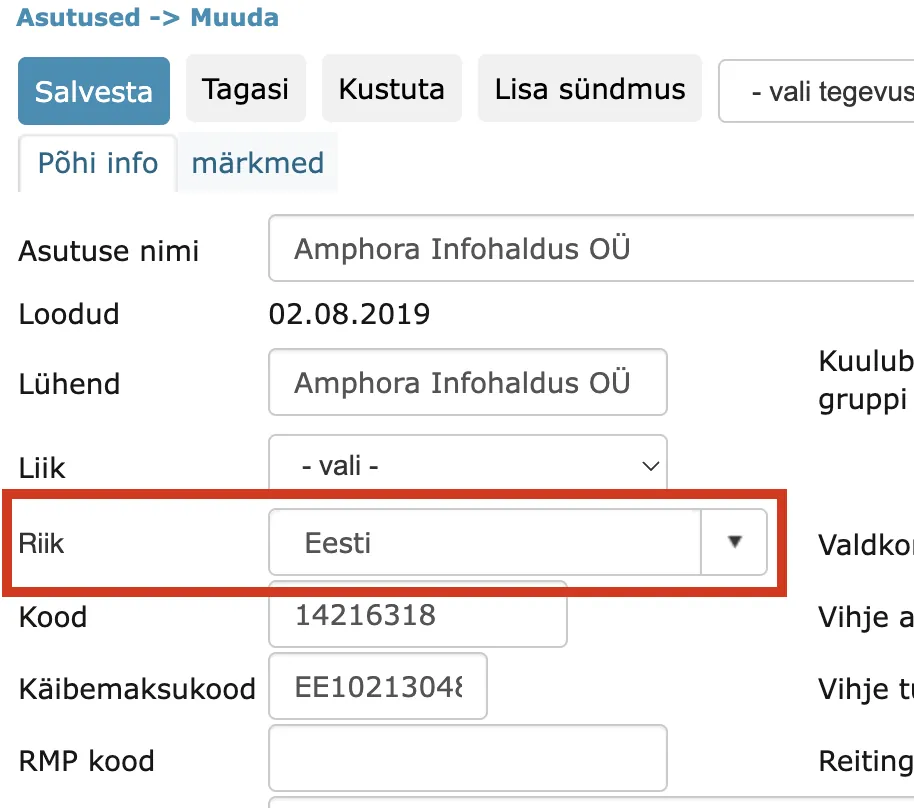
Unlike the previous solution where users had to enter all address fields separately, you can now select the correct address including postal code directly through search.
Next to the selected address, there is a map icon which, when clicked, opens the exact location of the address on a map.
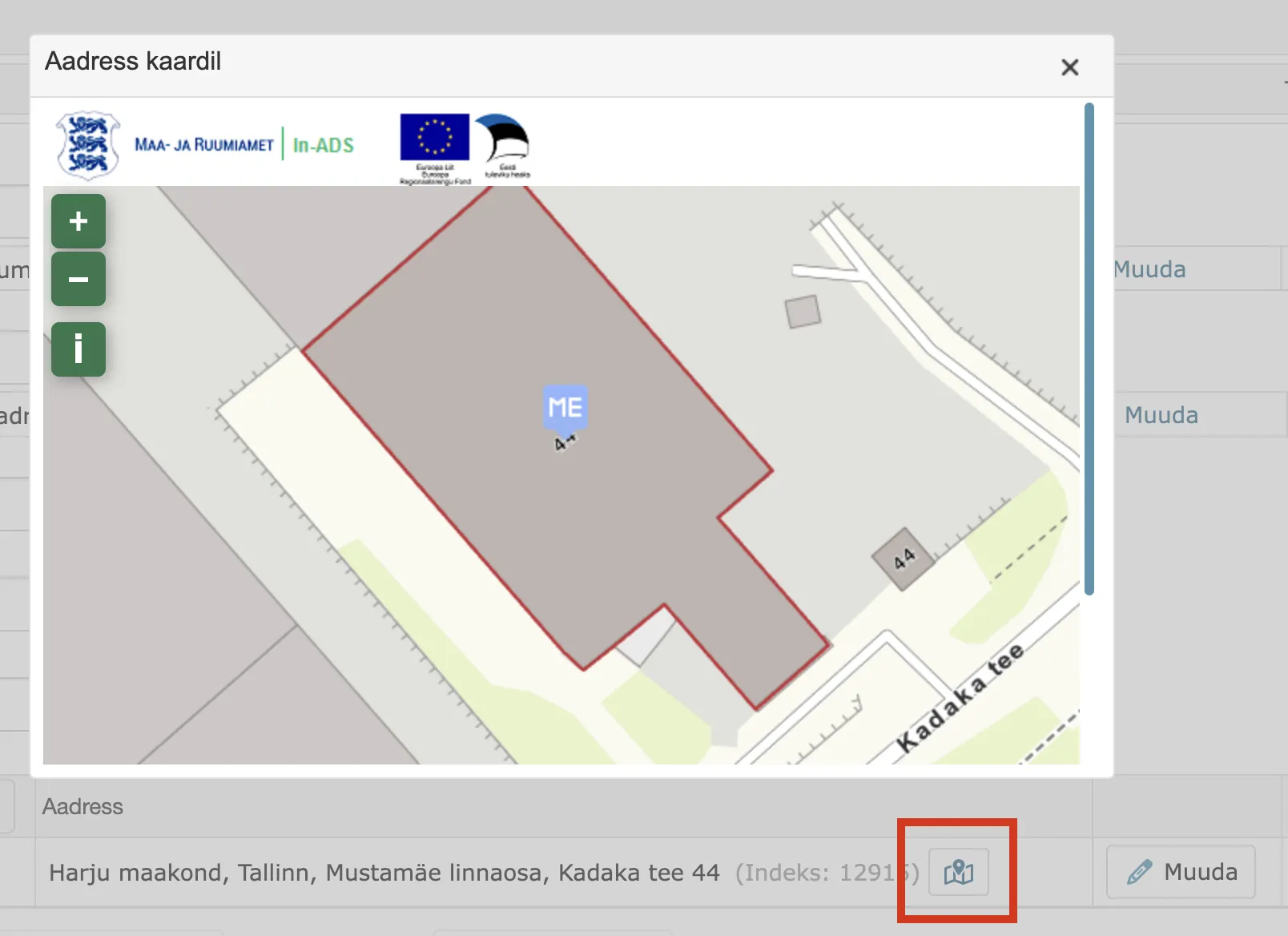
Previously entered organization and person addresses continue to use the old solution.
NB!
Organizations added through the Business Registry are given an address in the new format.
Last modified: 07 October 2026, 15:42:46