Google Account Authentication
Amphora has the capability for Google account authentication (login). Users can link their Amphora user account with a Google account and log into Amphora using their Google account.
Google account authentication is only available for Premium and Elite levels. This must first be enabled in organization settings under Admin -> Organization settings -> General settings -> "Activate Google authentication (Only for Premium and Elite users)"
To link with a Google account, open Admin module -> Personal settings -> Authentication and SSO panel.
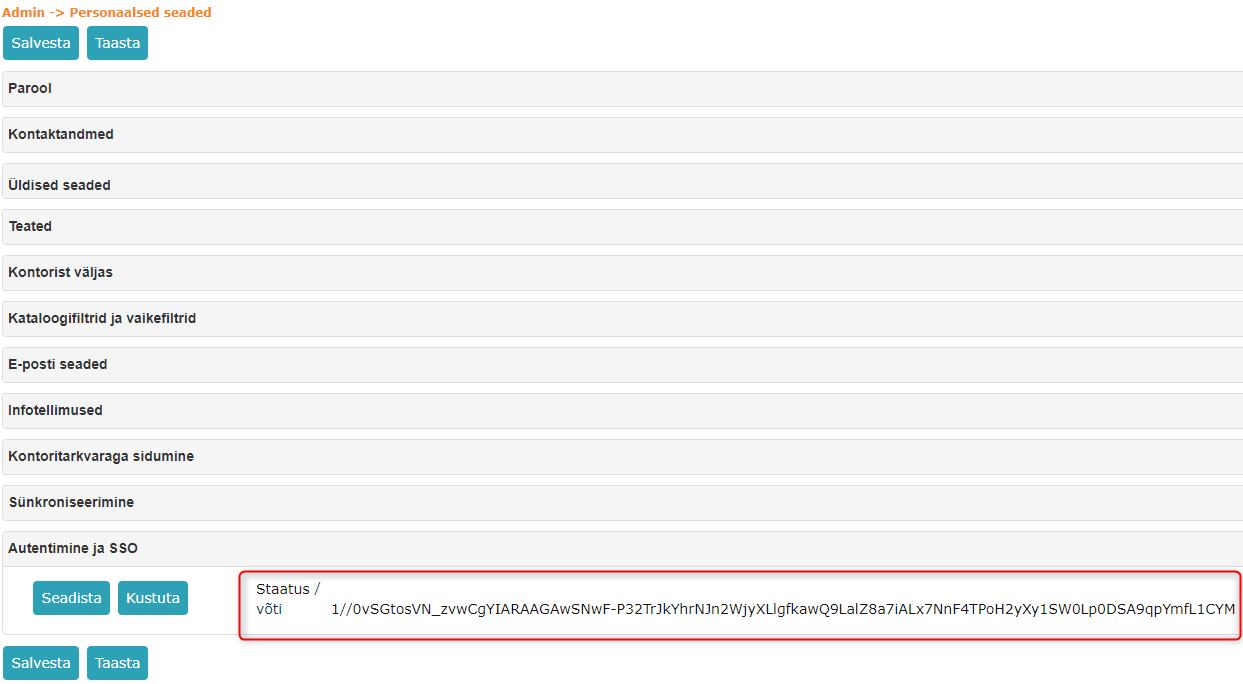
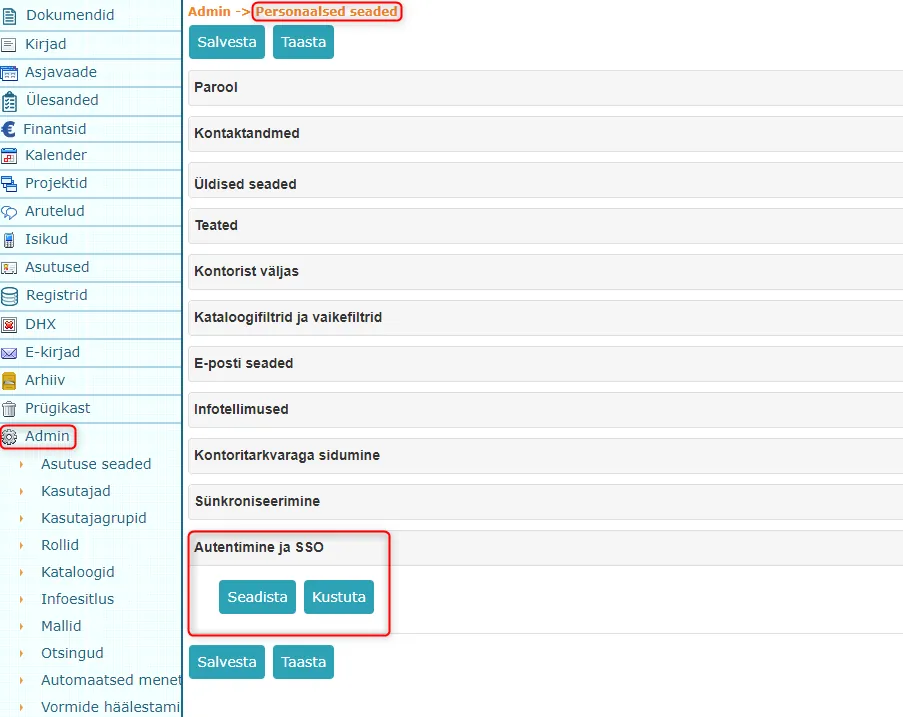 Clicking the Configure button opens the Google account selection/addition view, where you need to select an existing Google account or add a new one. Once this is done, the user is redirected back to Amphora and the Status key becomes visible.
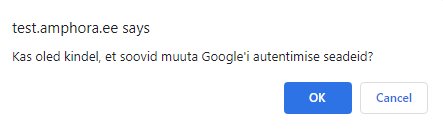
 If the Amphora user is already linked with a Google account, Amphora will display a confirmation window when adding a new configuration.
 When the status key is visible, you need to click the Save button at the top or bottom.
NB!
Currently, it is not possible to remove an already added Google account through the user interface. Please contact Amphora customer support regarding this issue.
NB!
We recommend that before enabling this configuration, you definitely explain to users that they should enable two-factor authentication on their Google accounts.
Last modified: 07 October 2026, 15:42:46