Public View
- Data to be published
- Comparison table of publishable fields
- List of data for publishing
- Setting default values for access restrictions
- Titling
- Automatic conversion of published documents
- Publishing archived objects
- Document publishing rules
- Public view functionality
- Opening public view
- Filtering by folder in public view
- Public view reports
Data to be published
The organization's document register is a digitally maintained database in accordance with the Public Information Act (hereinafter: PIA) requirements for registering documents received by and created in the organization and for ensuring access to them, which must be maintained by state or local government institutions or public law legal entities. Organizations (information holders) are obliged to register documents created and received in the performance of their duties in the document register. The document register must ensure access to registered digital documents without access restrictions (effective from 01.01.2009) or contain location references for paper-based or other medium documents.
The document register must ensure public access to:
- metadata describing documents
- digital documents without access restrictions
Access is not provided to documents containing personal data or trade secrets. However, basic data describing these documents must be published.
To ensure better access to public information and finding necessary documents, the document register keeper must enable access to the document register on the public web, create a content guide and user guide to facilitate document finding, and ensure document finding based on basic data with an IT search system with full-text search1.
Full-text search involves finding information from the public view of the document register, not from the content of registered documents, as the document register also contains documents with access restrictions, which cannot be accessed through the document register2. If access restrictions are imposed on documents, this does not give grounds to not display the existence of documents with access restrictions in the public view of the document register or on the public web3. Documents with access restrictions must be registered in the general order and data about these documents must be visible in the public view of the document register.
The document register must also contain information about the basis and deadline for access restrictions for documents with access restrictions. Access to such documents is not provided through the document register.
Important
Documents with access restrictions registered in Amphora are visible in the public view only with partial metadata: registry number, type, title, date and the restriction's data; for a letter also recipient/sender (eraisik for a private person), delivery method, responsible person, reply deadline and direction. This is also the case when publicity is assigned to both document metadata and files for a given series! Therefore, ALL necessary metadata must be entered in Amphora for the organization's internal workflow; this data is visible only to authorized users from the internal view.
Here it should be noted that when publishing the document register (setting up the public view), both the Public Information Act and the Personal Data Protection Act must be harmonized. While on one hand smooth and effective access to organization documents must be ensured for citizens, on the other hand privacy and protection of individuals must be ensured. The Public Information Act requires entering data about the letter sender into the document register, but at the same time the individual's right to privacy must be respected. Therefore, if a person's name who submitted an application for social benefits is in the public part of the document register, and although the document itself has access restrictions, data about the person's private life may be read from some document registers, and in such cases the access restriction on the document may lose its purpose4.
Important
Initials should not be used for documents with access restrictions in Amphora's internal view, as in this case documents concerning that person cannot be found by their name! As a letter's recipient/sender, Amphora shows eraisik (private person) in the public view when the letter has an access restriction, has no organization, or came via ADIT; as a contract party, a private person is always shown as eraisik. A document's author is shown as entered in Amphora.
Therefore, when registering documents, the person's full data should be used, which can be used in Amphora's internal view for daily work.
According to Public Information Act § 12, the data about incoming and outgoing documents that must be visible in the public view are as follows:
| Data | Handling |
|---|---|
| 1) from whom received or to whom issued | the mentioned information is treated as data provided in Administrative Procedure Act § 28 section 2 point 1 (sender's or recipient's name or designation) |
| 2) date of receipt or issue | the mentioned information is treated as data provided in Administrative Procedure Act § 28 section 2 point 2 (date of receipt or sending) |
| 3) in what way the document was received or issued (email, mail, fax, courier or handed over personally) | the mentioned information is treated as data provided in Administrative Procedure Act § 28 section 2 point 9 (in what way the document was received or issued – email, mail, fax, courier or handed over personally) |
| 4) document details | the mentioned information is treated as data provided in Administrative Procedure Act § 28 section 2 points 5, 7 and 10 (document title or brief content summary, date and time if necessary, and reference marked by document sender) NB! Mandatory details are: document issuer's name or designation (author), document date, text, signature or signatures |
| 5) document type (application, memorandum, resolution, information request, letter, etc.) | the mentioned information is treated as data provided in Administrative Procedure Act § 28 section 2 point 4 (document type - application, memorandum, resolution, information request, letter, etc.) |
| 6) access restrictions applicable to the document. | the mentioned information is treated as data provided in Administrative Procedure Act § 28 section 2 point 11 (access restrictions – time of establishment, basis, deadline, declaring access restrictions invalid and other relevant data). If the public part of the document register shows only "For internal use" or "With access restrictions" as access restrictions for the document, then an explanation must be added to the document register user guide about which document series have access restrictions and on what basis. NB! In Amphora, it is possible to pre-configure access restriction bases that can be selected when registering documents and are automatically visible in the public view. |
| (4) For received documents requiring resolution or response, the document register also includes the legally required resolution or response deadline, responsible for organizing response preparation or resolution structural unit name and official or employee name who prepares the response.* | The mentioned information is usable in the document register as a process, when assigning a responsible person (person responsible for response preparation or resolution) a workflow is initiated |
When interpreting the Public Information Act, it is necessary to rely on the list that is clearly stated regarding data to be registered in the document register; also more general requirements such as "Document details" must be considered. It is stated that at least the following data including "document details" are entered in the document register, but their list is not specified. Details are divided into mandatory and recommended, the comparison table below includes a comment containing a publication proposal. It is clear that one cannot proceed from the assumption that all mandatory details must be visible in the public view. A mandatory document detail is text (content), where publication or non-publication must always be considered based on its content.
According to the Data Protection Inspectorate's guidelines5 it must be based on the principle that public access through the document register is provided only to digital documents!
The objective is to oblige information holders to publish inter-institutional digital correspondence, i.e., documents that have been received or sent by email. There is no obligation to scan paper-based documents received and they do not need to be published through the document register.
Since providing access to information through the document register (active publication) poses a greater threat to individual privacy than passive publication (requesting information through information requests), the inspectorate recommends considering whether public interest outweighs the individual's right to privacy before publishing information containing personal data through the document register6.
Based on the fact that documents containing individuals' names usually also contain the person's contact information (phone number, home address), if access restrictions cannot be imposed on the content of these documents, they still do not fall under publication through the document register. For such documents, we recommend considering imposing access restrictions based on Public Information Act § 35 section 1 point 12.
The Data Protection Inspectorate is of the position that publishing individual contact information (phone number, home address) to an indefinite number of third parties may harm the individual's privacy7.
Sources used:
1, 4 Public Information Act [last checked 30.08.2018]
2, 3, 5, 6, 7 General Guide to the Public Information Act [last checked 30.08.2018]
Comparison table of publishable fields
The table below describes Amphora data fields compared to the presentation of metadata from the Public Information Act and the document management metadata list.
The comparison results of this table help in configuring publishable data and serve as a basis for Amphora's future terminology harmonization.
| Field in Amphora | Match from metadata list | Comment | Law | Recommendation |
|---|---|---|---|---|
| Number | Document reference (22) | Document number assigned in the recipient organization's document register | PIA § 12 section 3 point 4 | Public. Recommended document detail |
| Title | Document title (26) | Document title, designation corresponding to document content | PIA § 12 section 3 point 4 | Public. In public view, it must be checked that the title does not contain person's first and last name |
| Sender number | Cross-reference (33.3) | Document number assigned by the sender organization | PIA § 12 section 3 point 4 | Public. Document detail, allows citizens to make queries to the organization about document content more easily |
| Sending date | Document sending date (30.5) | Date when document was sent out | PIA § 12 section 3 point 2 | Public. |
| Receipt date | Document receipt date (30.4) | Date when document was received by the organization | PIA § 12 section 3 point 2 | Public. |
| Response date | - | Date when document was responded to. NB! System automatically marks when response letter is registered | PIA § 12 section 3 point 2 | Public. |
| Response deadline | - | Date by which the matter must be resolved, i.e., by when the document must be responded to | PIA § 12 section 4 | Public. |
| Digital document format | File format (37) | Format of electronically received document that can be selected when registering document | - | Not public. |
| Who | Performer role (72.2) | Name of person who registers document in Amphora | - | Not public. |
| Directory | Document classification unit (23) | Series into which document is registered | PIA § 12 section 4 | Public, although the document number itself contains location reference that allows citizens to make additional inquiries if needed |
| Top level unit | Classification scheme designation (2) | Unit designation, used when one environment has multiple organizations | - | Not public as a field. In the public view header the organization can be chosen (Asutus), and the footer shows the chosen organization's contacts |
| Topic | Document keyword (28) | Allows topic-based publication. Documents can be filtered by topic in the public view | - | Public, public view filter Täpsem otsing -> Teema |
| Document type | Document type (21) | What type (application, request, etc.) of document it is | PIA § 12 section 3 point 5 | Public. |
| Document date | Document date (30), Document creation date (30.1) | Document creation date that is on the document itself | PIA § 12 section 3 point 4 | Public. Mandatory document detail |
| Recipient/sender responsible person | - | Name of person to whom matter is directed for completion; deals with matter resolution/response preparation | PIA § 12 section 4 | Public. |
| Recipient/sender position | - | Position and structural unit name of person who sent the letter | PIA § 12 section 4 | Public, if dealing with incoming letter and no separate marks are made about composer, i.e., they overlap |
| Composer person | Performer (72), Person name (49) | Name of person who composes response. Usually overlaps with responsible person | PIA § 12 section 4 | Public, if Composer and Responsible person overlap |
| Composer phone | - | Response composer's data | - | Not public. |
| Composer department | Person name (49) | Response composer's data | PIA § 12 section 4 | Public, if Composer and Responsible person overlap |
| Composer position | - | Response composer's data | PIA § 12 section 4 | Public, if Composer and Responsible person overlap |
| Original file | - | PIA § 12 section 3 point 4 except documents with access restrictions | Public, if information contained in document is not restricted | |
| Response file | - | By default, this field is hidden in policies; according to earlier logic, today's response letter registration logic (Reply button) was not used | - | This field should not be used at all, possible to hide from regular users in policies |
| Related file | - | By default, this field is hidden in policies; according to earlier logic, there was no Additional files panel | - | This field should not be used at all, possible to hide from regular users in policies |
| Registration time | Document registration date (30.2) | System's default Amphora registration time, intended for internal use | - | Not public. |
| Sending method | - | Method by which document was sent | PIA § 12 section 3 point 2 | Public. |
| Recipient/sender organization | Person name (49) | Party data who sent the document or to whom document is sent | PIA § 12 section 3 point 1 | Public. |
| Recipient/sender person | Person name (49) | Party data who sent the document or to whom document is sent | PIA § 12 section 3 point 1 | Public. NB! For a letter with an access restriction, the public view shows eraisik (private person) instead of the person's name. |
| Recipient/sender address | - | Party data who sent the document or to whom document is sent | - | Not public. |
| Recipient/sender email | Email address (67) | Party data who sent the document or to whom document is sent | - | Not public. |
| Recipient/sender department | Person name (49) | Party data who sent the document or to whom document is sent | - | Not public. |
| Recipient/sender phone | Phone number (65) | Party data who sent the document or to whom document is sent | - | Not public. |
| Comments and additions | Document external organizational context (33) | Brief summary of document, used for organization's internal workflow | - | Not public. |
| Content | Document external organizational context (33) | Text editor content where data is entered, for example, from email content (body) when registering email | Not public, because usually contains other party's appeal. Added documents (attachments) go to Additional files panel where they can be separately marked as public/non-public | |
| Panel Signatures | - | Contains added digital signature | - | Not recommended to mark as public, because signatures contain person's name and personal code. Here there is contradiction by legislator – on one hand personal code may be public, on the other hand it is protected. |
| Panel Versions | - | Contains different versions of documents; in legal acts management functionality, different revisions are displayed in this section | - | Public, if legal acts management functionality is used (revisions) |
| Panel Relations | Relation start date (81), Relation end date (82) | Links documents, initiation and response letter are connected through this panel | - | Public. Allows moving directly from initiation letter to response letter in public view |
| Panel History | - | Different actions performed with documents are visible – modification, delegation, etc. | - | Not public. |
| Panel Amphora: HTML editor | - | Document content if Amphora is used for document creation | PIA § 12 section 3 point 4 | Public, if information contained in document is not restricted |
| Panel Process | Performer (72) | Contains process information – persons in process circle and task descriptions given to them | - | Not public, Responsible person info is visible in public view |
| Panel Additional files | Document additions (34) | Additions added to document | PIA § 12 section 3 point 4 | Public. Each additional file can be marked whether specific additional file is public or not. Use primarily for electronically sent documents, as email attachments are added when registering email |
| Panel Parties | - | Information on contract registration form where contract parties can be entered | PIA § 12 section 3 point 4 | Public. |
| Panel Restrictions | Access restriction (45) | Access restriction panel where document can be marked For in-house use and basis can be added | PIA § 12 section 3 point 6 | Public. |
| Panel Directory rights | - | Information showing which users/user groups have been given directory rights | - | Not public. |
| Panel Rights | - | Information showing which users/user groups have been given document rights | - | Not public. |
| Panel Responsible organization/involved organization | - | Panel made as special development for ELIS system, not usable for regular Amphora users | - | This field should not be used at all, possible to hide from regular users in policies |
| Panel Cases | - | Shows list of created cases (files) for specific document | - | May be public if Case view is used for publishing meeting agendas |
| Panel Case objects | - | Shows list of documents in case (file) | - | May be public if Case view is used for publishing meeting agendas |
List of data for publishing
Publishing in Amphora is configurable through multiple views where default publicity can be set for documents on a series basis, while it is also possible to separately mark the publicity or non-publicity of each document.
Data publishing in Amphora occurs at the following levels:
- Publishing at directory (classification unit) level
- Setting up public lists (registry data)
- Setting up public data (document detail view)
- Setting default values for access restrictions
Each level requires setting a range of configurations necessary for public view setup and data display in public view.
Publishing at directory (series) level
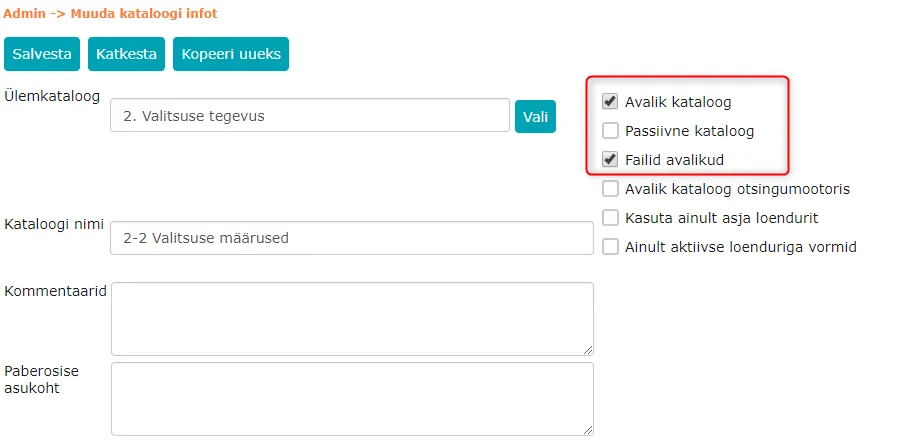
For each directory (series), it is possible to define whether it is a public directory and whether documents in this directory are public [Admin -> Directories -> select directory -> Edit].
The following criteria can be set here:
- Directory view checkbox Public directory – by marking this, document metadata registered in this series are visible in the public view. The list of metadata and their publicity can be configured in public data settings, where the publicity/non-publicity of each metadata field can be defined separately.
Important
This mark must be made for all series in any case, because the electronic document register must be public!
If the directory may contain documents with access restrictions, then the corresponding mark must be made for the document (in public view, only the basic data and access restriction info are displayed, see Access-restricted document information).
- Directory checkbox Files public – by marking this, all document files are visible in the public view. If a document with access restrictions is registered in this series, the corresponding mark must be made for the document (in public view, only the basic data and access restriction info are displayed).
Important
In normal practice, it is not necessary to mark Files public for correspondence series, because only those documents (files) that arrived at the organization in electronic form should be published from correspondence.
Such files should be added to the Additional files panel, where each file can be marked for its publicity depending on the document content and related circumstances.
Directory checkbox Passive directory marks a series that has been removed from active use; this series info is no longer usable in Amphora. Mark this only if the series is no longer in use.
 Setting up public lists
The new public view does not use this setting: the list columns are fixed per tab (see Public View - Tabs and columns). There is no need to change it.
Setting up public data
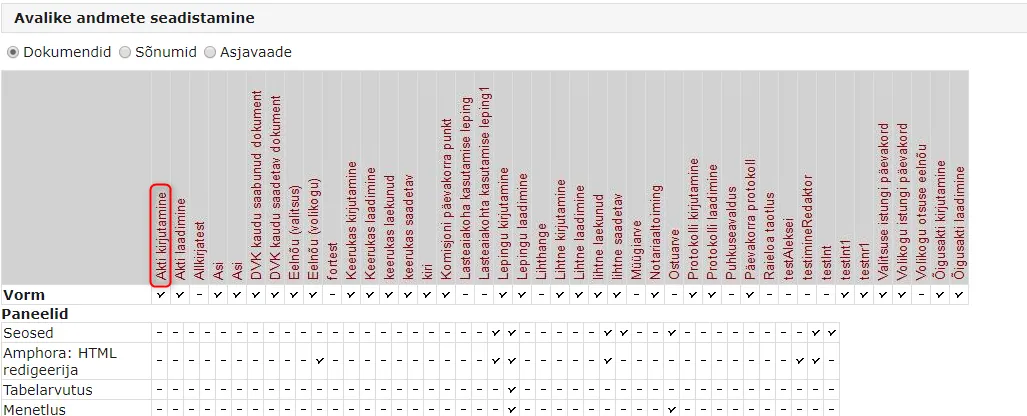
When setting up public data, you can define metadata displayed in the public view document detail view. The amount of metadata in the public view can be set separately for each document type.
In the public view, only metadata that is filled when registering the document are displayed in the detail view. It is recommended to activate the maximum amount of metadata for publishing, because the public view does not display metadata fields that are not filled. This means empty/unfilled metadata field names do not appear in the public view (for example – if the Responsible person field is unfilled in Amphora, then the "empty" Responsible person field is not displayed in the public view of the specific document's detail view).
Each form can be modified separately by clicking on the form title:
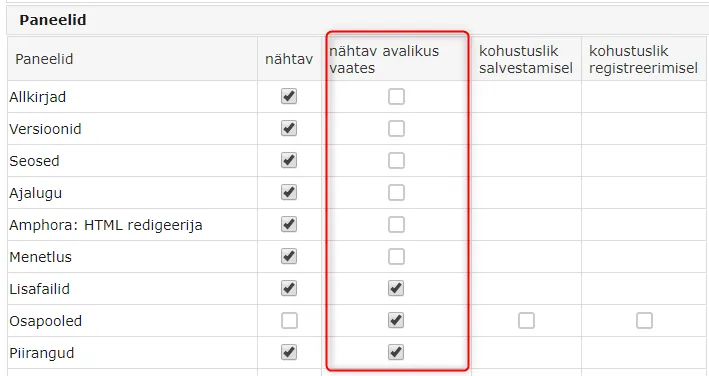
 On the document form, panels can be made public by going to the Panels panel and checking the corresponding boxes.
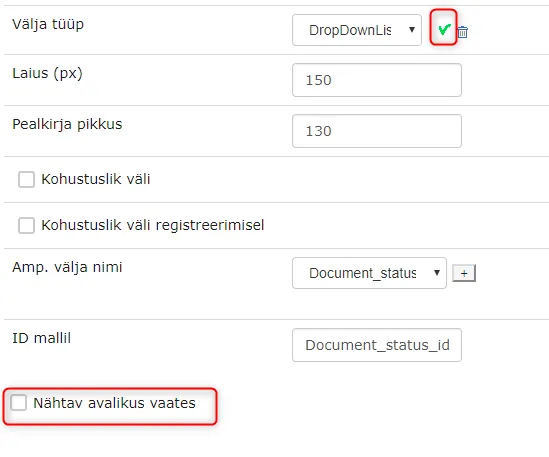
 To publish a document form static field, you need to open the field data editor by clicking on the wrench.
 Then check the Visible in public view box and click the green checkmark to save the field change.
To save form changes, you need to click Save again.
 The recommended configuration set in document detail view is as follows (open in Amphora Admin -> Public view -> Public data setup):
-
Complex incoming
Static fields: Number, Title, Sender number, Sending date, Receipt date, Response deadline, Document type, Document date, Recipient/Sender responsible person, Sending method, Recipient/sender organization, Recipient/sender person, Additional files panel, Relations panel, Restrictions panel -
Complex outgoing
Static fields: Number, Title, Sending date, Document type, Document date, Response deadline, Recipient/sender responsible person, Sending method, Recipient/sender organization, Recipient/sender person, Composer person, Composer department, Composer position, Additional files panel, Relations panel, Restrictions panel -
Document received via DHX
Static fields: Number, Title, Sender number, Sending date, Receipt date, Response deadline, Document type, Document date, Recipient/Sender responsible person, Sending method, Recipient/sender organization, Recipient/sender person, Additional files panel, Relations panel, Restrictions panel -
Document sent via DHX
Static fields: Number, Title, Sending date, Document type, Document date, Response deadline, Recipient/sender responsible person, Sending method, Recipient/sender organization, Recipient/sender person, Composer person, Composer department, Composer position, Additional files panel, Relations panel, Restrictions panel -
Legal act upload
Static fields: Title, File, Type
Form fields: Number, Date, Effective date, Valid until, Act issuer designation, Additional files panel -
Protocol upload
Static fields: Title, File, Type
Form fields: Number, Date, Organization designation, Additional files panel -
Contract upload
Static fields: Title
Form fields: Number, Contract object, Date, Effective date, Valid until, Additional files panel, Parties panel
Setting default values for access restrictions
The complete list of access restriction bases is established in the Public Information Act (PIA), which the organization administrator can pre-enter in Amphora [Admin -> Organization settings -> Choice field content].
In this case, it is possible to use pre-defined values when registering documents, which allows the document enterer to select an appropriate justification at the time of registration. Staff then pick the access restriction basis from a dropdown when they mark a document for internal use (a restricted, or closed, document) and do not have to type the reason each time. To add a new basis to the dropdown, see the FAQ.
Important
It is recommended to pre-configure bases for declaring information as internal use in the access restrictions panel, which makes the document enterer's work easier!
When entering documents with access restrictions, you need to mark the document form as For in-house use and add the access restriction basis related to the document.
By default, the following bases are entered in the access restrictions panel in Amphora (environments from January 2009):
PIA § 35 section 1 point 11 - information containing sensitive personal data
PIA § 35 section 1 point 14 - information about applying for social assistance or social services
Setting access restriction basis and deadline
Based on document content, an access restriction may be imposed on information until the need passes, but not longer than five years. After five years, the information access restriction deadline may be extended for another five years if the reason for imposing the restriction persists. Personal data is subject to access restrictions for 75 years from receipt or documentation.
Access restriction establishment bases for information intended for internal use and most commonly used in local government:
- documents and guidelines prepared by the information holder for internal workflow organization, basis PIA § 35 section 2 point 3;
- drafts of legal acts with explanatory notes before sending them for coordination or submission for adoption, basis PIA § 35 section 2 point 1;
- personnel orders, basis PIA § 35 section 1 point 12;
- information containing sensitive personal data, basis PIA § 35 section 1 point 11;
- information containing personal data if providing access to such information would significantly harm the data subject's privacy (personal code, contact data), including documents received from notaries and reflecting private life in detail, basis PIA § 35 section 1 point 12 and PIA § 35 section 1 point 14;
- information containing data about provided social services or social assistance, basis PIA § 35 section 1 point 14;
- personal names of private individuals who contacted the information holder, basis PIA § 35 section 1 point 12 (point 19 Personal Data Protection Act);
- information holder's internal documents (opinions, notices, discussions, memos, explanations, advice, reports that at least partially relate to data provided in previous points), basis PIA § 35 section 2 point 3;
- information whose disclosure may harm trade secrets, basis PIA § 35 section 1 point 17.
The information holder declares public information containing data meeting the listed criteria as for internal use, and if the information requester requests access to such information with an information request, the information holder refuses to fulfill the information request according to PIA § 23 section 1, because access restrictions apply to the requested information and the information requester has no right to access the requested information.
For so-called ordinary personal data, i.e., data that is not sensitive, when publishing information, the legislator has left the right for the information holder to assess or weigh interests whether providing access to information would significantly harm the data subject's privacy or not (PIA § 35 section 1 point 11). One must proceed from the content of requested personal data (what the disclosed information allows to know about the person, for example, residence, which kindergarten or school their children attend, where their spouse works, etc.), volume (how large amount of data subjects' data is requested, issuing any lists should be carefully considered), information requester and information acquisition purposes (who and for what wants to use the requested information) and whether data subject's or data recipient's interests are more important.
See Public Information Act and General Guide to the Public Information Act.
Titling
In the public view, document titling plays an important role in finding data in the document register. To ensure quick document finding, the information contained in the title must be marked as specifically as possible.
It is clear that if information seekers are shown a list of dozens of documents titled Contract in the register view, this information is not very useful for them.
On the other hand, the document title must not contain data that is too directly related to specific individual data. Such titling as Appointing guardian to Pilleriin Tamur is in conflict with requirements from both the Public Information Act and the Personal Data Protection Act.
Important
The individual's name must not be marked in the document title!
Some keywords for document titling:
- As short as possible
- Generally opens the document's main content
- In nominative case
- No period used at the end of the title
- Large and multi-topic documents may have subtitles
Web title - allows using an approach where in Amphora's internal view, the document can be titled as informatively as possible from a workflow aspect.
At the same time, the Web title field can be marked with the document name in a form that would be visible to citizens in the public view. Web title configuration is done in Admin -> Organization settings -> General settings panel.
Automatic conversion of published documents
This functionality allows automatic conversion of documents to .pdf/.html format when publishing. When a public document or letter is saved, Amphora converts the main file and the public additional files, so they are in .pdf or .html format in the public view, not doc, rtf, etc. A full synchronization does not convert. Automatic file conversion to .pdf or .html format is created so that viewing published documents does not require MS Office and other office software on users' computers.
Enabling conversion is done in Admin -> Organization settings, General settings panel. A converter must also be set up on the server - Amphora client support takes care of that.
Publishing archived objects
In Amphora, it is possible to define whether archived objects are visible in the public view. At the time of archiving, Amphora automatically removes objects from the public view if publishing of archived objects is deactivated in the environment settings.
NB!
By default, archived objects are not visible in Public View in any environment. This setting is designed to avoid displaying excessive data in the public view.
Since this setting cannot be changed through the user interface, you should contact Amphora client support if you wish to publish archived objects.
Document publishing rules
When publishing, Amphora checks the object's date:
- Letters are public when publishing letters is switched on in the environment and the letter is newer than the configured start date. Without a start date, the limit is the last 5 years.
- Documents are public when they are newer than the documents' start date; by default the limit is the last 50 years.
The check applies both on a full synchronization and when publishing a single document - objects older than the limit cannot be made public. This is not a scheduled unpublishing: an object that ages past the limit leaves the public view only at the next full synchronization or when it is published again.
NB!
These limits cannot be configured through the user interface. If desired, please contact Amphora client support.
Public view functionality
PDF preview
In the public view list view, PDF files can be opened in the preview window. Converted PDF file icons are visible in the list view even when the document's main file is in another format (e.g., .docx). In the document view, the PDF file can also be opened in the preview window.
Signature container in public view
The signature container is visible in the public view when the signatures panel has been made visible in the public view in form settings (Admin -> Form configuration) and the document's files are public (for example the folder's Files are public setting). The main file's visibility is separate: the container can be visible while the main file is not, and the other way round.
The public view downloads the container (.asice, .bdoc, .ddoc) whole; it does not unpack it.
NB!
If the signature container contains several files and some of them must not be visible in the public view, then once the container is public, everyone who downloads it gets all the files it contains.
Responsible person in public view
On each form, the responsible person panel can be made visible in the public view. To do this, go to Admin -> Form configuration and in the form panel settings make the Responsible person visible in the public view. In the object modification view, there is no need to separately publish the responsible person.
NB!
The new public view currently shows the responsible person even when the responsible person panel is not made public on the form. It is not shown when no responsible person is set. On a letter with an access restriction, the responsible person is shown both in the list and in the letter's view.
Case type in public view
The cases tab has a Liik (Type) column and a Dokumendi liik (Document type) filter. The type comes from the form settings (Admin - Form configuration), where a form can be given a public view type.
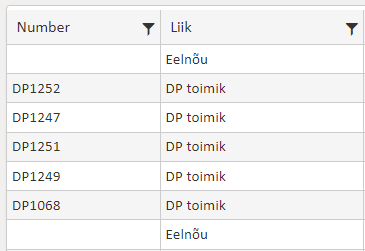
On the cases tab the filter lists all types - including those whose display in the filter is switched off elsewhere. The old public view did the same.
Access-restricted document information
A restricted record's view has a fixed set of fields that depends on the tab: registry number, type, title and date; for a legal act also the act date and valid from, for a contract valid from and to; for a letter also the other party's number, recipient/sender, delivery method, responsible person, reply deadline and direction. It also shows the folder location and the restriction's data (reason, restricted from and until, legal basis, set by, reference). Files and extra panels are not shown.
Opening public view
Amphora users can access the public view (document register) through the menu. Usually, the organization's public view web address is added to the organization's homepage (e.g., municipality, city government) so that ordinary citizens can find it more easily.
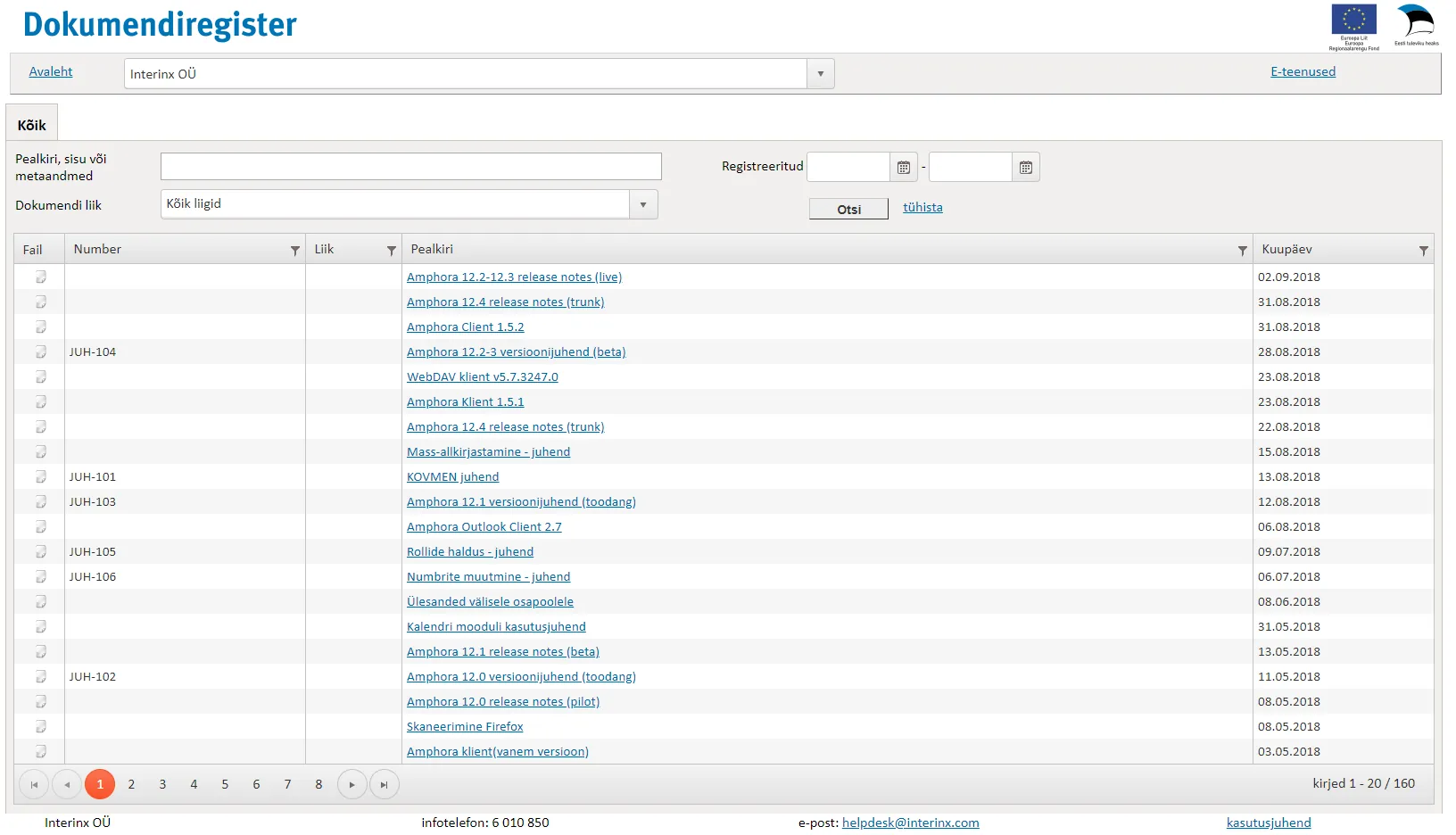 An object's public view link has the form atp.amphora.ee/organisation/Items/Detail/... and always opens the object's current version. The header's organization selector stays on the organization's default.
Filtering by folder in public view
You can open the list of one folder's documents with a link, for example from the organization's website.
-
Find the folder ID: Admin -> Directories, click the folder - its metadata, including the ID, is on the right.
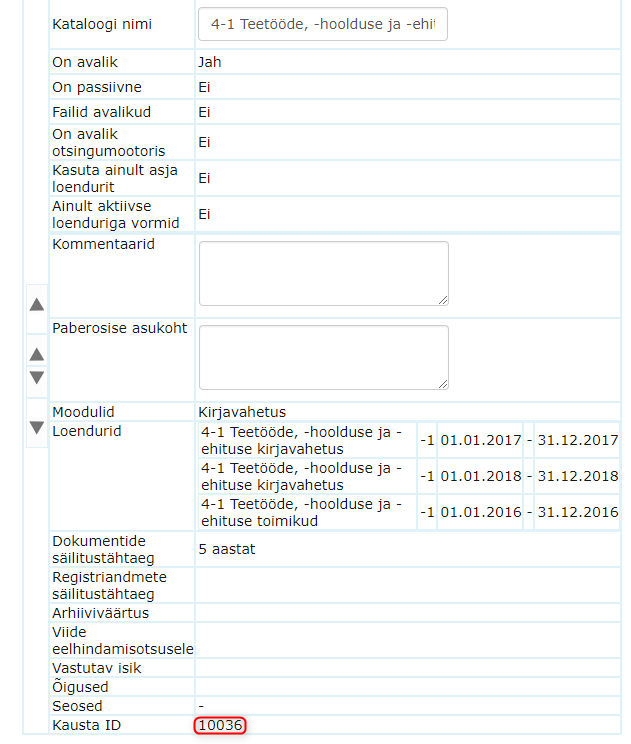
-
Add ?f=folder_ID to the public view address, for example:
atp.amphora.ee/viljandilv/?f=10036
The link can be combined with other filters, for example a tab: atp.amphora.ee/viljandilv/?f=10036&tab=all. It is easier to filter in the public view (Täpsem otsing -> Kaust) and copy the link with Kopeeri otsingu viit (Copy search link) - it carries all the selected filters.
Use the new form (?f=folder_ID) on websites. An old-style folder link (index.aspx?...&f=folder_ID) is redirected to the new public view with its folder filter.
Public view reports
Admin - Reports contains four reports showing what has actually been published in the public view:
- ATP Case - published cases and whether the public view displays them at all.
- ATP Folder - how many documents, letters and cases are published in each folder.
- ATP Document (every tab except correspondence) and ATP Letter (the correspondence tab) - published documents and letters with the title shown on the web and the internal title, date, organization, folder, registrar and a link to the public view.
When no period is chosen, the documents and letters reports show the 12 months back from the newest published object. The period can be chosen. ATP Case and ATP Folder show all data.
The reports give an overview of the state of the public view for review and assessment. They are for the administrator only - they do not need to be made visible to users separately. You can read about running them in Running reports in Admin view.
Last modified: 24 October 2026, 11:48:45