Mass Signing
- Introduction
- Mass Signing License
- Security Considerations
- Extension Installation
- Installation Process on Windows
a. Google Chrome
b. Microsoft Edge - Setting Role and Address for Signature
- Mass Signing
- Deleting Signature Container
- Possible Errors in Mass Signing
Introduction
Amphora uses an extension for web browsers that allows mass signing of documents.
Amphora uses the SiGa signing service developed by RIA for mass signing (and also regular signing). Mass signing works with both old and new ID cards.
Mass signing is currently supported in Google Chrome and Microsoft Edge web browsers on Windows operating system.
The latest software version is 1.1.0.2 and the extension version is 0.0.1.8. The new version includes the following fixes:
- During installation, the Google Chrome web browser extension is automatically added. Previously, the extension had to be added manually.
- Before entering PIN2, an error message is no longer displayed.
- Entra ID (Azure AD) Windows users can now mass sign. Previously, the error message Method C_GetTokenInfo returned CKR_TOKEN_NOT_PRESENT was displayed.
NB!
If the old mass signing software and web browser extension are installed on the computer, they must be removed before installing the new version. The old mass signing software can be removed in Windows via Settings - Apps - Installed Apps. After removal, check whether the old web browser extension is also removed. This can be done through chrome://extensions (Google Chrome) and edge://extensions (Microsoft Edge). The old extension name is Amphora Extension, version 0.0.1.5.
Important
Mass signing is only possible with ID-card. ID cards with new certificates (ESTEID2018) are also supported.
Mass Signing License
The one-time cost for implementing mass signing functionality for an institution is 240€. Each user using mass signing must then apply for a license, which costs 12€/month.
Security Considerations
Before signing, you must review the documents being signed and familiarize yourself with their content.
Your PIN2 code is never transmitted to anyone or anywhere under any circumstances. It is only used to unlock the signing certificate and is kept only in your computer's memory and only for as long as signing takes place.
Extension Installation
Admin rights are required for installation. If these rights are missing, you should contact your IT department for assistance.
Using the installer, a program that communicates with the ID card reader is installed on the computer. Program files are placed in the C:\Program Files (x86)\Amphora\Amphora Extension directory. Mass signing also requires a web browser extension to function.
Extension uninstallation works similarly to all Windows programs, i.e., through Control Panel -> Uninstall dialog.
If you have questions, you can also contact our customer support at help@amphora.ee.
Installation Process on Windows
Google Chrome
Extension installation is standard. Simply open the installer file and follow the instructions. You can find the latest and improved installer file for Google Chrome here.
During installation, the mass signing web browser extension for Google Chrome is automatically installed.
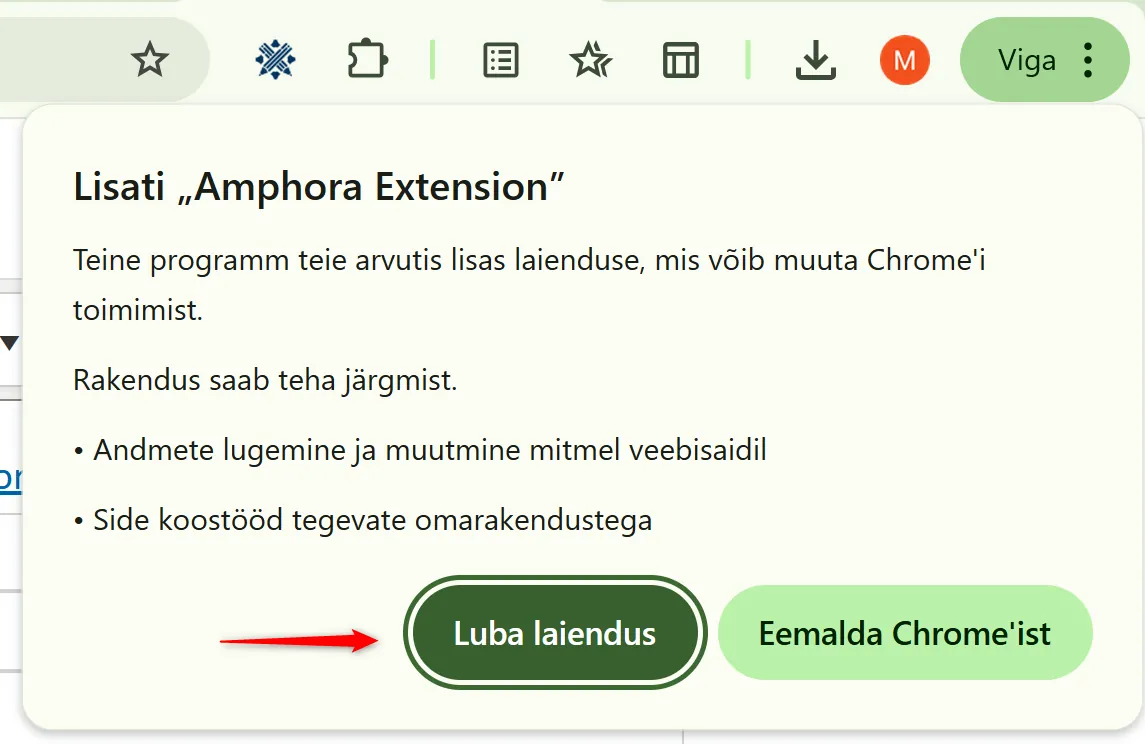
The web browser may ask permission to add the extension, click Allow extension.
Microsoft Edge
You can download the mass signing installer from Amphora public view. After downloading the file, open the installer file and follow the instructions.
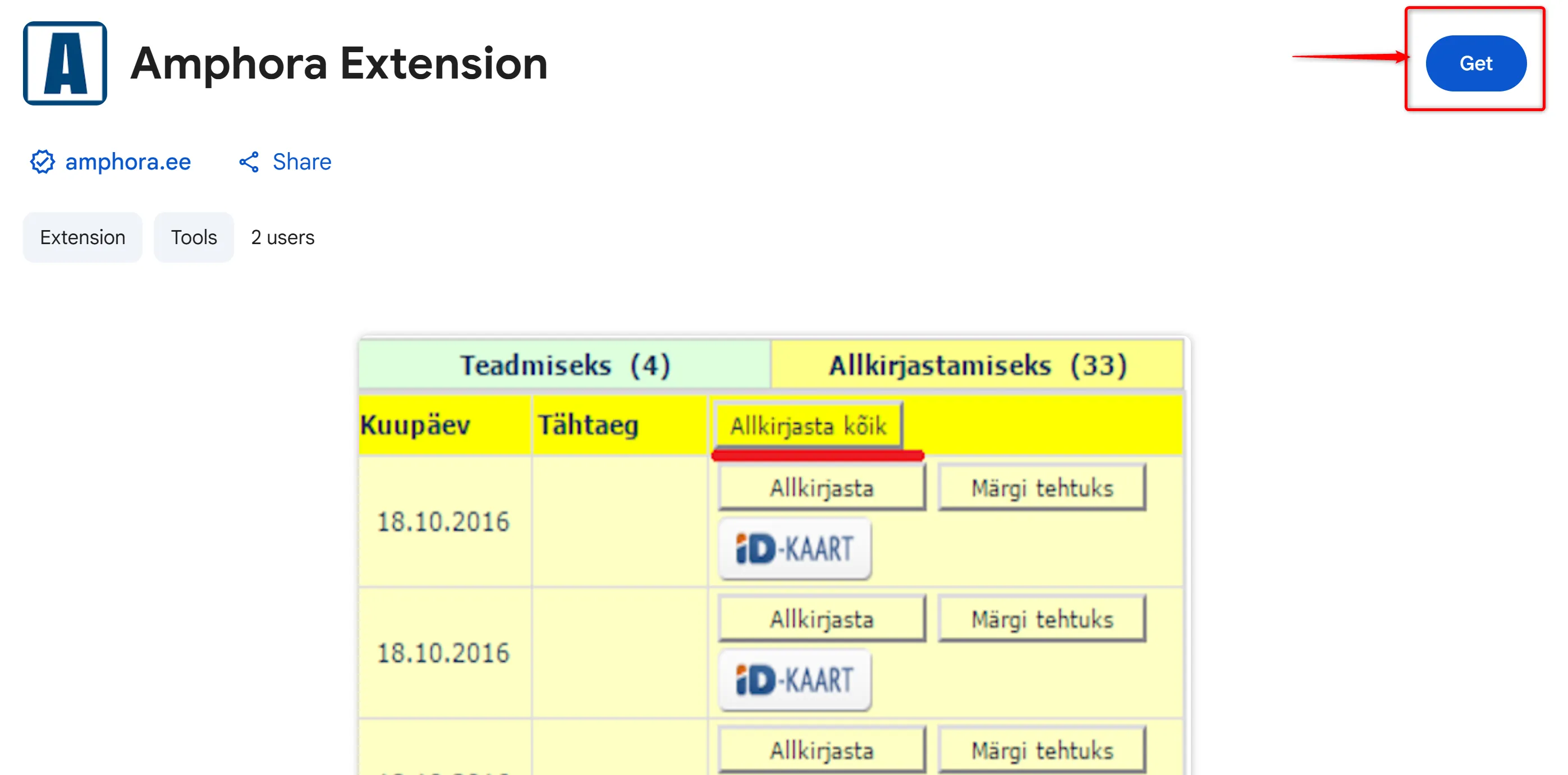
If the extension is not automatically added to Microsoft Edge web browser during installation, then install the extension from here.
Click the "Get" button in the opening window.
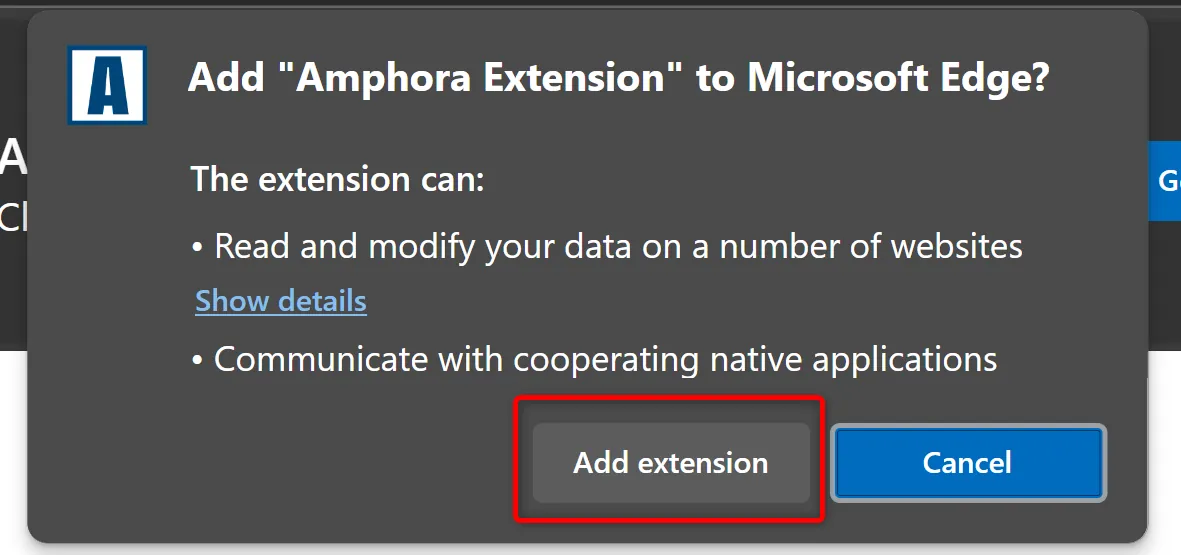
Then a notification is displayed asking permission to add the extension to the web browser. Click Allow extension/Add extension.
Setting Role and Address for Signature
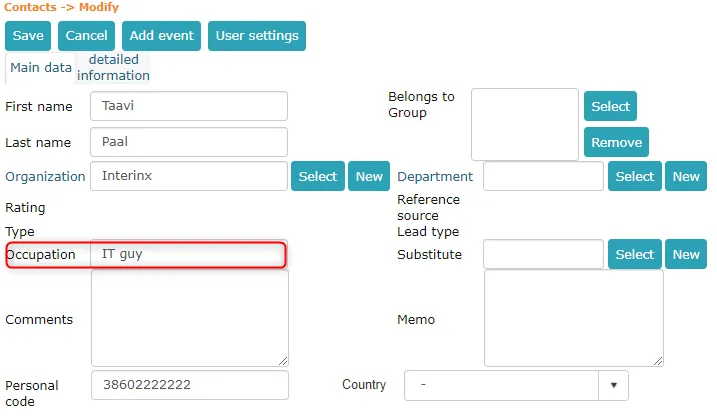
Setting role and address is done through the Persons module.
Open the Persons module and search for the correct user. If there are multiple persons with the same name, you should check that the selected person has a small x in the System column, i.e., the person is a system user.
 When signing, the value for the role field is taken from the position field.
 Address comes from the address field.
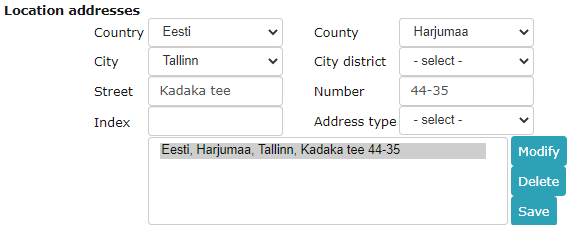 If role and/or address fields are empty, they are left empty in the signature.
Mass Signing
Mass signing can be done with a special button (Sign Selected) on Amphora homepage in the Assignments panel under the For Signing tab.
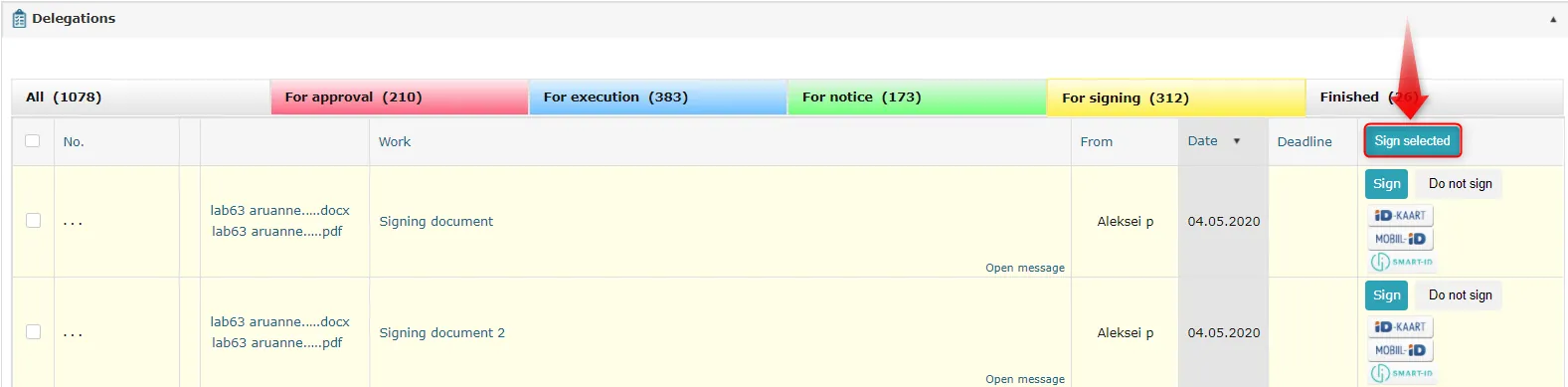 For signing, you need to check the boxes in front of tasks going for signing and then click the Sign Selected button. You can only select tasks on the current page. Currently, 100 tasks are displayed per page, but this can be increased using the Page size dropdown menu below the Assignments panel.
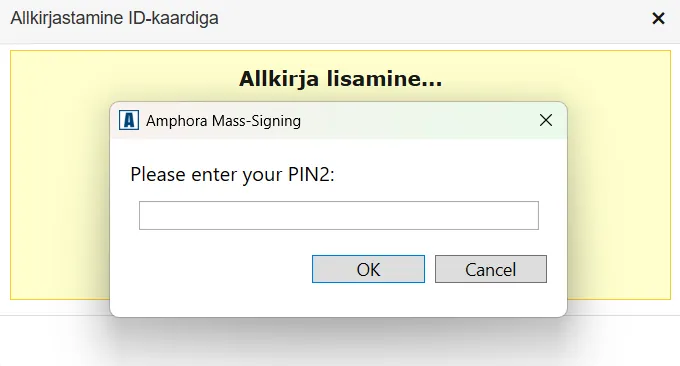
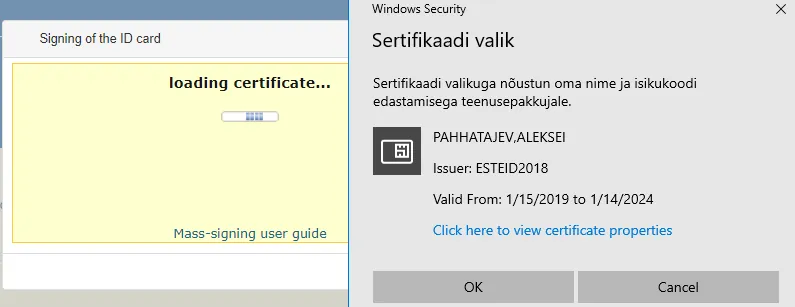
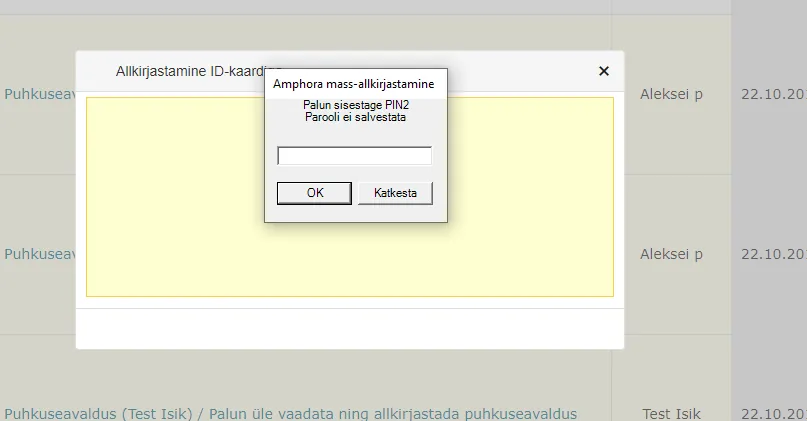
After clicking the button, a signing dialog opens (similar to regular signing). Next, the user's ID card certificate is requested and PIN2 for signing.
After successful signing, the homepage is refreshed and signed tasks disappear from the Assignments panel.
 ***
***
Deleting Signature Container
It may happen that the signature went to the wrong document or some other error occurred related to signing. For this, Amphora has the ability to delete the signature container from the document.
For this, you must first find the problematic document. You can use the My Signed Documents report or search in the Assignments panel under the Completed tab. When the document is found, open the document edit view.
In the document edit view, go to the Signatures panel located at the bottom of the page. To delete the signature container, click the Delete signature file button. After this, a confirmation window opens asking if you really want to remove the signature container. Click OK.
 In the future, the ability to delete only your own signature from the container will be added.
Possible Errors in Mass Signing
Below are some problems that may occur related to mass signing. If the problem persists, you should contact our customer support at help@amphora.ee.
Problem: Signing dialog keeps loading indefinitely (PIN2 window doesn't appear)
Solution: You should close the signing dialog and refresh the homepage. Then try again.
Problem: Some task was not signed.
Solution: You should look at each non-signed task separately. First, make sure the document has some file that can be signed. Second, check if the signature container already contains the signer's signature.
Problem: After signing, there's an empty yellow signing window without error description.
Solution: You should close the window and refresh the homepage by clicking the Amphora logo in the upper left corner or the Homepage link next to it. Then mass sign the remaining unsigned tasks again.
See also: FAQ - Why can't I mass sign?
Last modified: 07 October 2026, 15:42:46