General Settings
- General Settings
- Main Users a. Configuration b. Displaying Amphora Client Support Data
- Using unit email address for sending
- Email Domains a. Overview of Domains in Use b. Mailgun Configuration
General Settings
Starting from version 15.5.1, unit settings have been moved under a separate link in the Admin module. Since more and more configurations are appearing under unit settings, we decided to separate these configurations from the unit so that Amphora wouldn't save other unit data in addition to unit settings every time it saves.
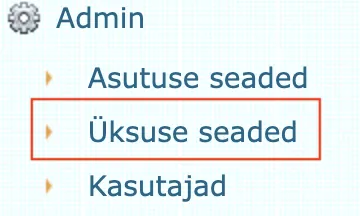
Unit settings view:
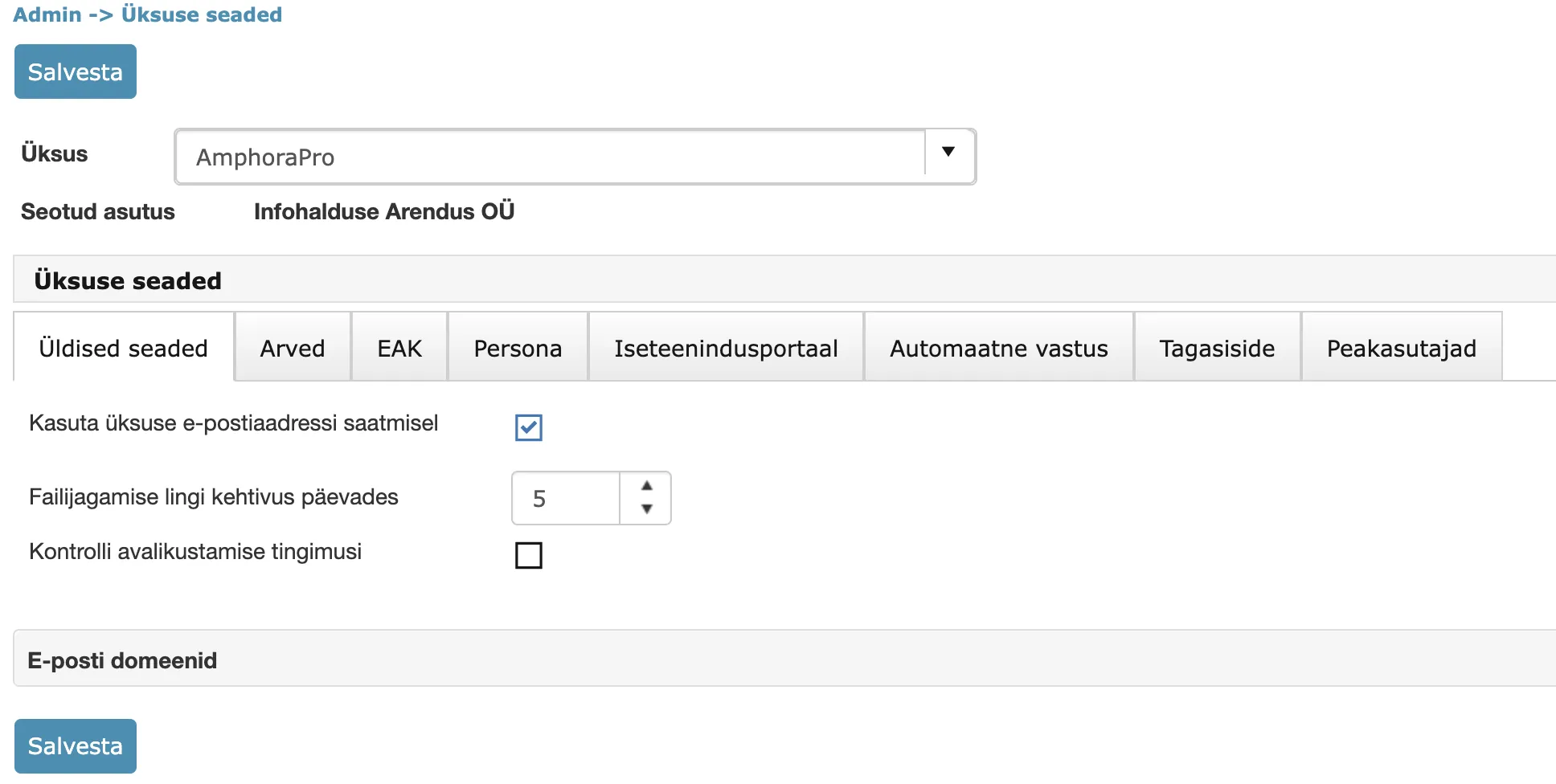
The unit selection contains only those organizations for which the user has Administration rights. The Unit Settings link is associated with the Catalog/unit modification policy. If this policy is enabled, the link is visible.
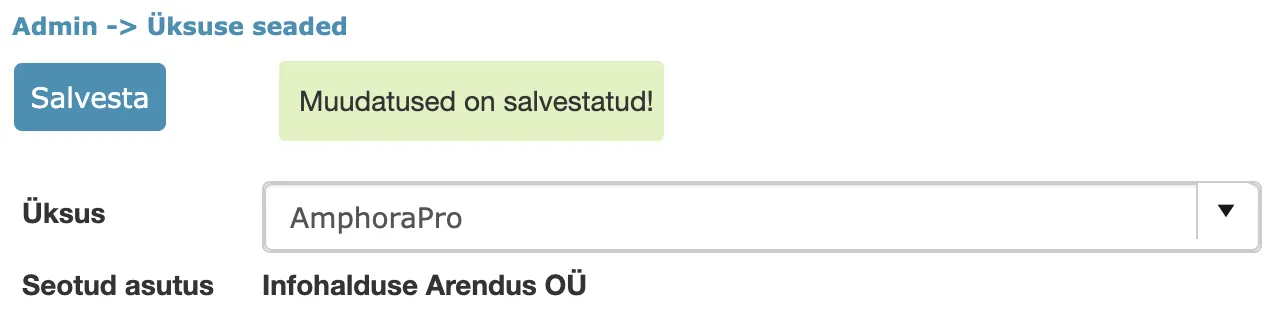
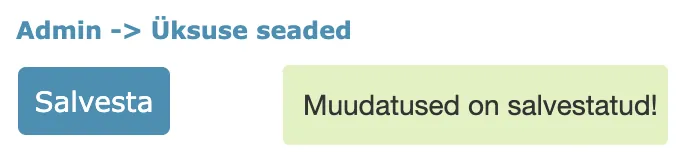
When saving data, Amphora displays Changes have been saved! text at the top, which allows the user to immediately understand that changes have been saved.
Changes made in unit settings are logged. Logs are visible in the Admin -> Organization Settings -> Logs view.
Main Users
Main users are users with administration rights who can help other users when needed.
In the Amphora environment, it's possible to display either the entire environment's (main organization's) or a specific sub-organization's Main Users. The purpose of this functionality is so that main organization regular users and sub-organization users know whom to contact with usage-related questions.
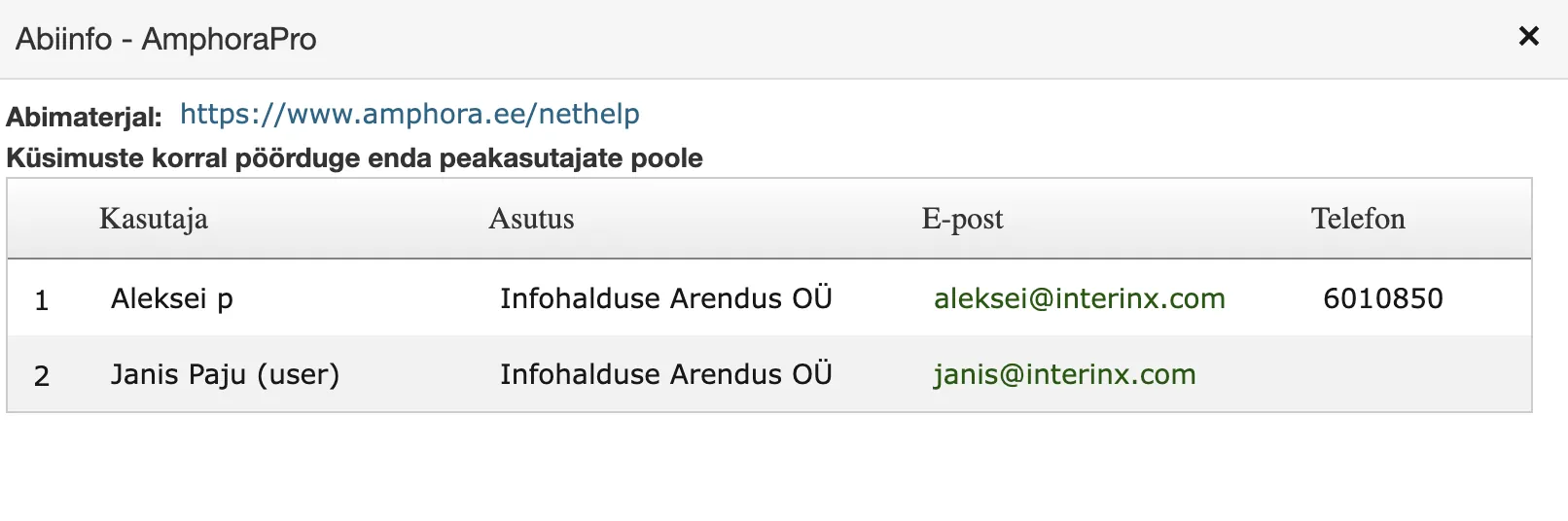
The main users list is visible to all users. The list contains the following main user data: 1. First and Last Name 2. Organization associated with the user 3. Email address 4. Phone number (Phone field, not GSM)
? icon, which can be used to open the main users list:
Main users list:
Configuration
Environment or organization main users can configure themselves whom Amphora displays in the main users list. The configuration is located in Admin – Unit Settings – Main Users tab.
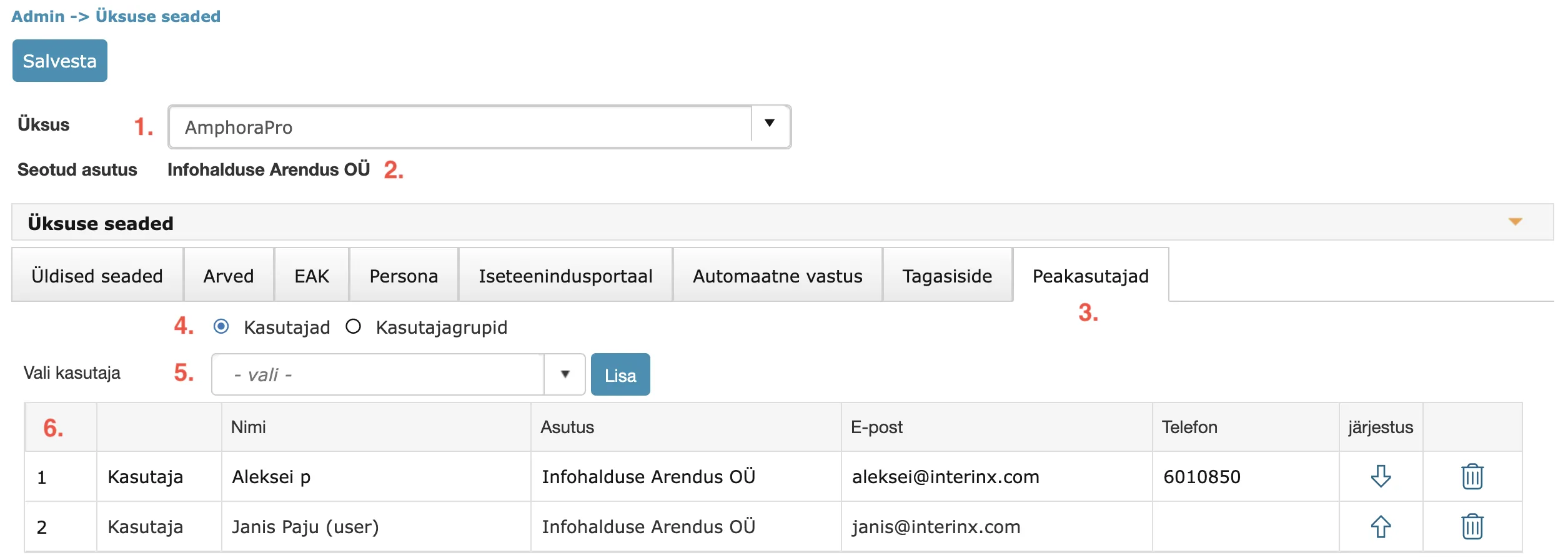
- Unit selection. Main users who administer multiple organizations have more units in the selection. You need to select the unit to which you want to add main users. The presence of Administration rights is necessary for the unit to be available in the selection.
- Organization associated with the unit.
- Different tabs for different configurations. To configure main users, you need to open the Main Users tab.
- Users or User Groups selection. You can add both individual users and user groups as main users. For user groups, all users belonging to that group are displayed in the main users list (simplifies selection, can add multiple at once).
- Users or user groups selection dropdown (depends on selection 4).
- Table with user and user group data. Using arrow icons, you can change the display order, and using the trash icon, you can delete users/user groups.
When saving data, Amphora displays a corresponding notification:
If the main organization lacks main users, then when opening the main users list, Amphora displays the following message:

Clicking on the "ORGANIZATION MAIN USERS NOT ASSIGNED! #1" link opens the main users configuration guide.
If the main organization has main users but a sub-organization lacks its own main users, then Amphora displays the main organization's main users list to that sub-organization's users. However, if the sub-organization has its own main users, then Amphora displays that sub-organization's main users list.
Displaying Amphora Client Support Data
Amphora client support data (bottom left corner) was previously visible to all users. In connection with the main users functionality, we changed the display logic of Amphora client support data. Now Amphora client support data is visible only to main users (those users who have been added under main users in Unit Settings). Regular users must now contact their main user if they have questions about using Amphora.
Regular users' view (missing phone number and email address):
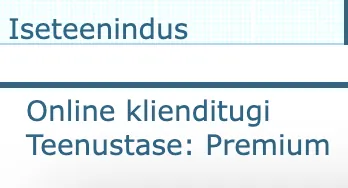
Main users' view:
Using unit email address for sending
A Use unit email address for sending checkbox has been added to the unit settings (Admin -> Directories). When this checkbox is enabled, the unit's email address (the address in the Email field in unit settings) is set as the sender when composing an outgoing response document. When the checkbox is not enabled, the user's personal email address is the default sender in the delivery panel.
This setting is useful for organizations that want response documents to always be sent from the organization's general email address.
Email Domains
For emails to reach recipients without errors, unit email sending must be configured through Mailgun. If this is not configured, emails from the Amphora environment are sent through Sendgrid. However, Sendgrid does not comply with GDPR requirements (European Union General Data Protection Regulation rules) because their servers are located in the USA.
MailGun is a certified and audited service provider that offers necessary services through API (sent email event logs, email address validation), and MailGun has servers located in the European Union.
To configure MailGun, you need to add corresponding DNS records to domain settings. DNS (Domain Name System) is like the internet's phone book that connects human-readable web addresses (e.g., google.com) to computer-understandable IP addresses (e.g., 142.250.180.14).
Overview of Domains in Use
On the Amphora homepage, there's a report Email sending domains (3 months):
 Here you can see which domains currently use Sendgrid as an intermediary and which use Mailgun. You can also see the unit that uses the respective domain. If you see that the intermediary is Sendgrid, Mailgun status is unverified, and there's no checkmark in the Mailgun DNS OK column, you should add or check Mailgun settings.
General domains (hot.ee, gmail, mail, outlook) are not configurable and you can ignore them.
 If this report is missing from the homepage, you can add it to the homepage for the user or user group. The guide for this is located here.
Mailgun Configuration
DNS records can be found in the Amphora environment from unit settings. Access to unit settings requires administrator rights.
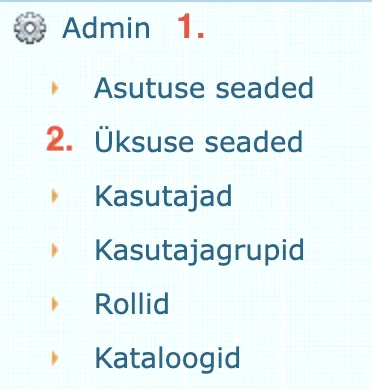
To open unit settings, go to the Admin module (1) and select Unit Settings (2).
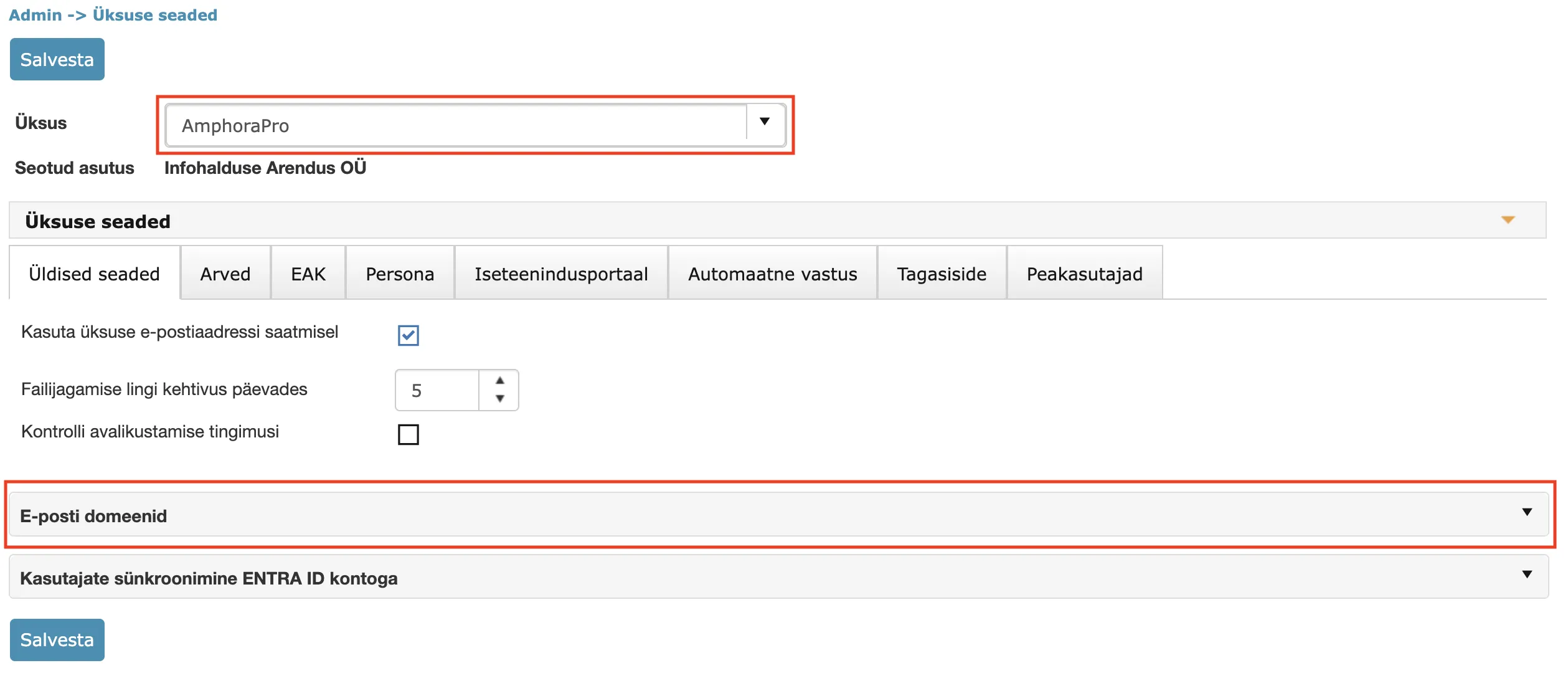
In unit settings, first select the unit/organization from the dropdown whose domain DNS records you want to add, and then open the Email Domains panel.
 This panel displays DNS records for email address domains associated with all units. Amphora automatically detects domains for both unit and unit-associated organization email addresses (e.g., tester.amphora.ee).
Important
If there are no entries in the Email Domains panel, click the Update button. After this, domains and corresponding DNS records will appear in the table.
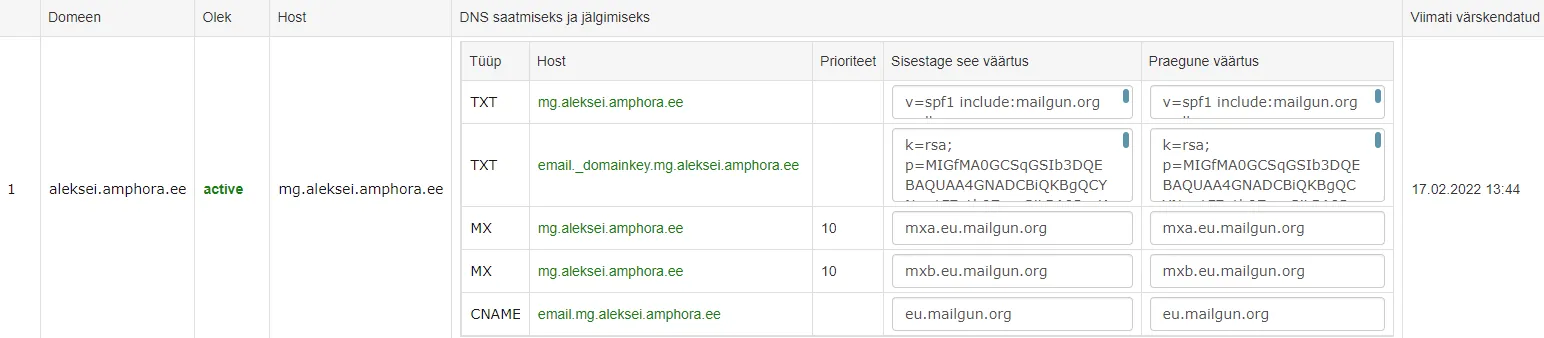
For an unconfigured system, you'll see in the Email Domains panel that Status is unverified and Current Values are missing. As long as the status is unverified, emails will continue to be sent through Sendgrid.
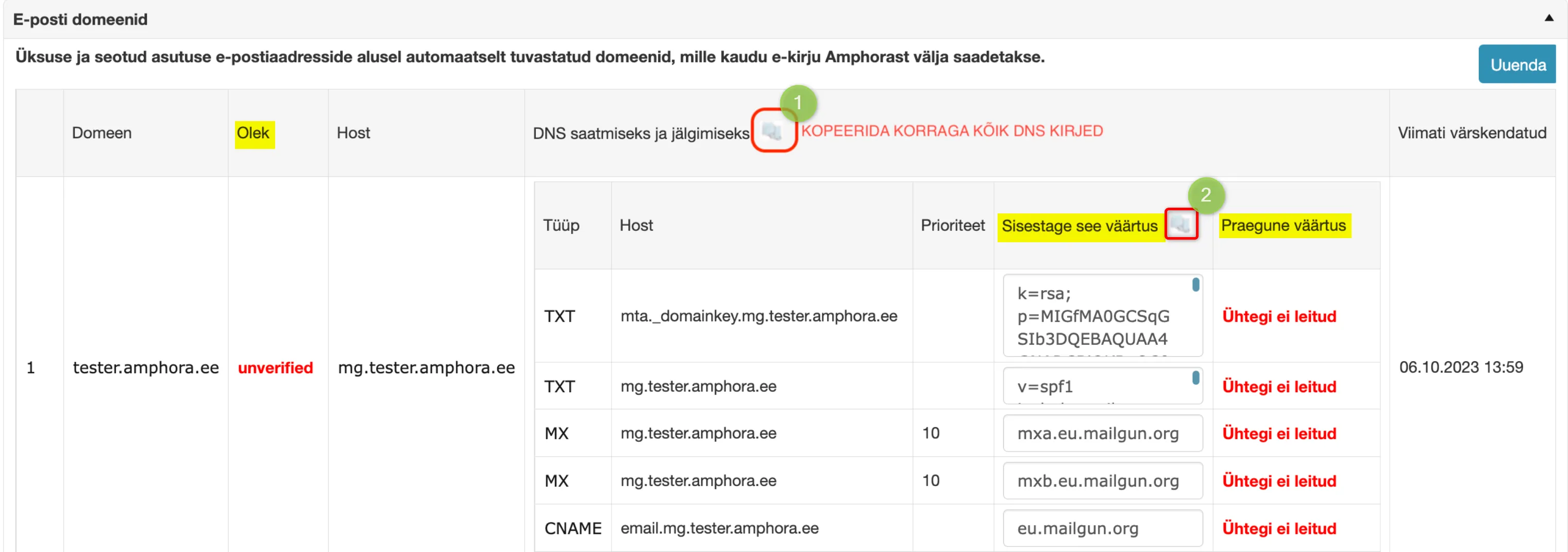 * The column "Enter this value" contains DNS records that need to be added to your email domain configuration. You can copy DNS records by clicking the copy button
  .
.
There are two options for copying:<br>
1. **Copying DNS records for all domains**<br>
The copy button in the column "DNS for sending and tracking" copies DNS records for **all domains**, from which you would then need to select records corresponding to your domain before sending to IT support.<br>
2. **Copying DNS records for one domain:** <br>
The copy button in the column "Enter this value" copies **only the DNS records for the domain in that row**.
-
We recommend also adding MX records, but when adding MX records, attention should be paid to the fact that MX records should not be added to the main domain (tester.amphora.ee). They should be added to the subdomain with "mg." prefix created for this purpose (mg.tester.amphora.ee) - in this case, it won't affect the main domain's email traffic.
-
Additionally, you need to add Amphora's dedicated IP 185.250.238.195 to the main domain's (e.g., tester.amphora.ee) SPF record. Amphora MailGun sending occurs from this IP address. Please also pass this information to your IT support.
-
After configuration, you need to wait up to 24 hours and then check in the unit settings Email Domains panel whether the configuration was successful.
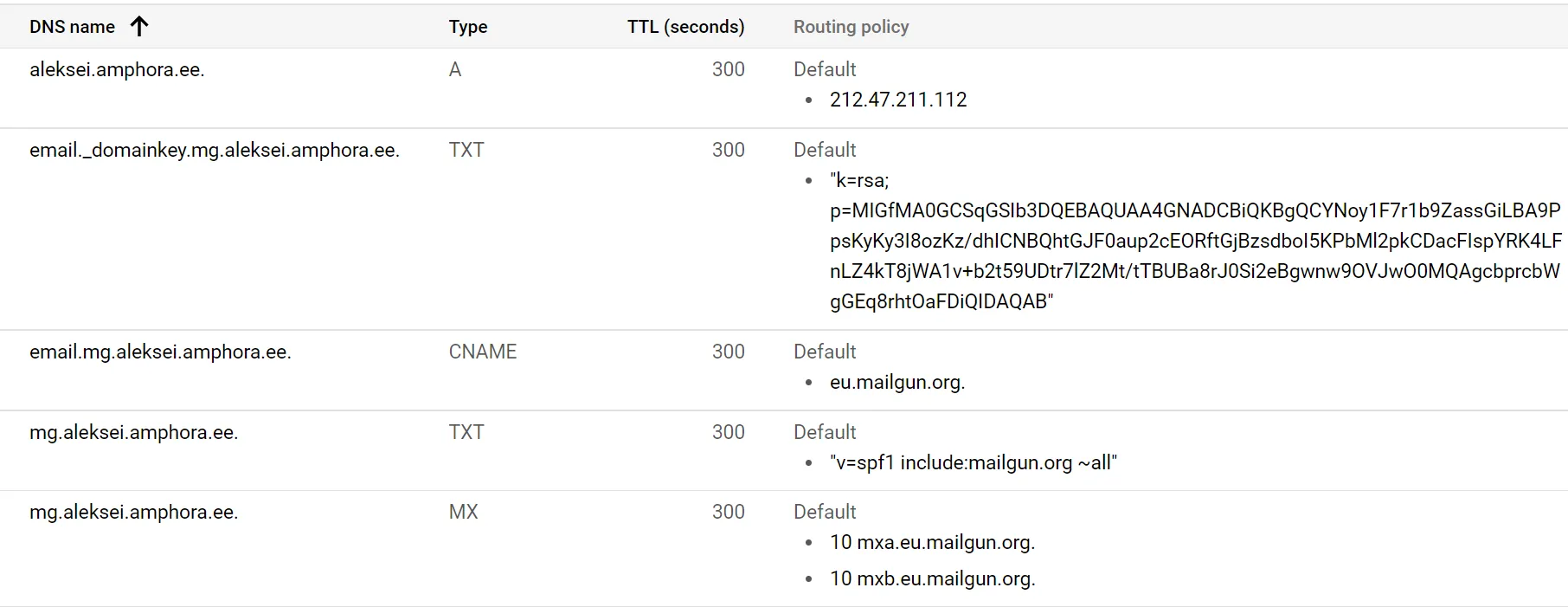
Google Cloud example configuration:
 Final result in Amphora:
 You can read more about MailGun and Sendgrid differences here.
Last modified: 09 October 2026, 15:35:15