Login
Login options to Amphora environment
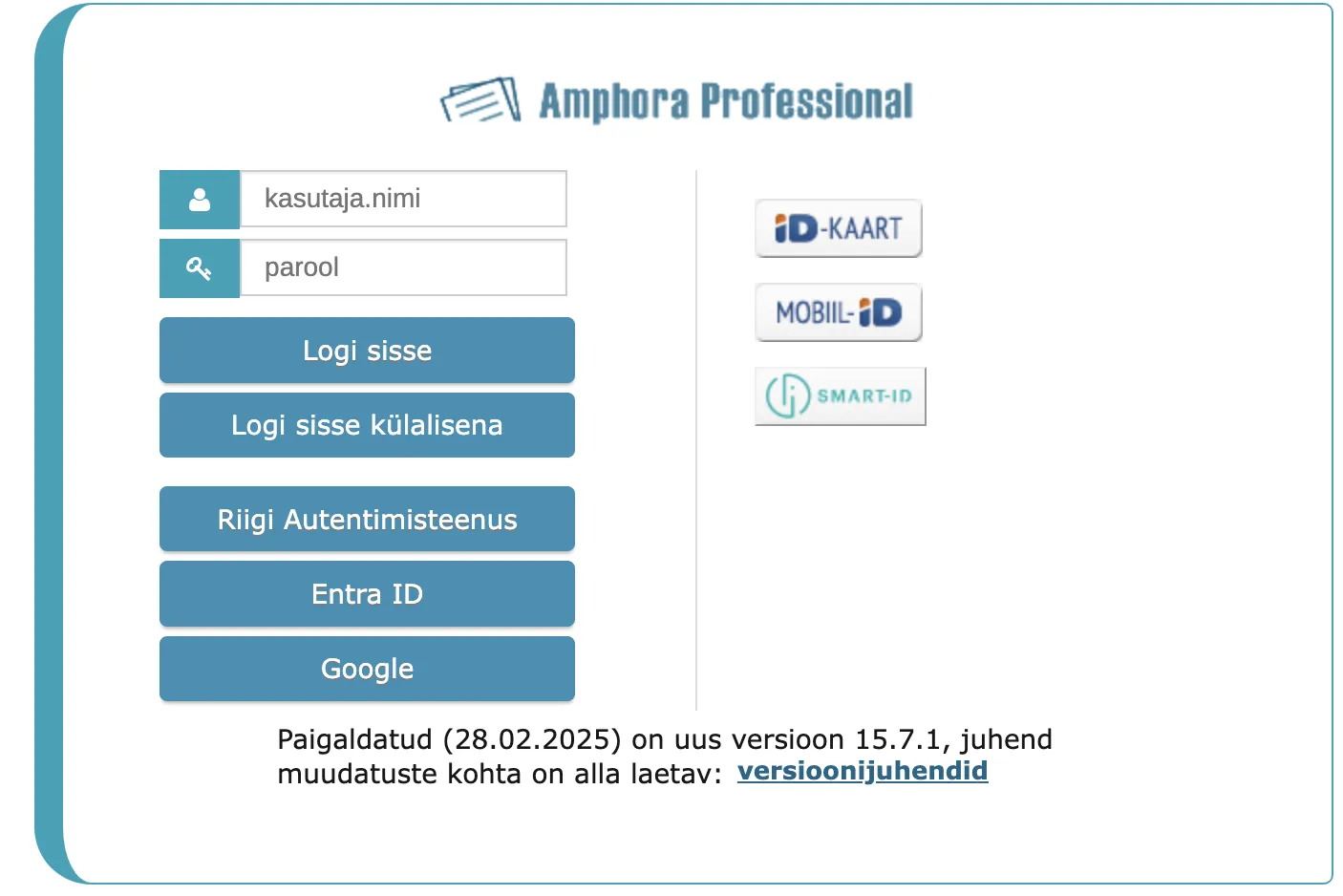
It is possible to log into the Amphora environment in several different ways:
- Government authentication service - authentication service provided by RIA for public sector organizations
- Entra-ID (formerly Azure Active Directory) - Microsoft's cloud-based identity and access management service
- Google account - available to Premium and Elite level clients
- ID-card - chip must be inserted into card reader before opening web browser
- Mobile-ID - enter username and confirm login on mobile device
- Smart-ID - enter username and confirm login in Smart-ID application
- Username and password - enter your username and password in the respective fields
Important to know
Government authentication service
- Press the button

- You will be redirected to a new page for authentication. There you can choose a suitable authentication method, enter the necessary data and after successful authentication you will be automatically redirected back to the Amphora page.
- The Government Authentication Service button is visible if the organization has joined the GovSSO service and the corresponding settings have been made in Amphora. You can read more HERE.
Entra-ID (Microsoft's cloud-based identity and access management service)
Microsoft's cloud-based identity and access management service that allows organizations to securely manage user access to applications through single sign-on.
To log in, press the button  , after which the Microsoft account login window will open.
ID-card login
- ID-card login is based on the Web-eID solution. Logging in works the same way for the user as before – the change provides more modern and more reliable ID-card support.
- Insert the ID-card into the reader before opening the web browser.
- ID-card certificates must be valid.
- Your Amphora user account must have the correct personal identification code marked.
- When logging in with ID-card, there is no need to enter username or password.
- Press the button

Mobile-ID login
- Enter your username and click on the Mobile-ID button.
- Your Amphora user account must have both personal identification code and mobile phone number marked.
- The prerequisite is that the user has activated the Mobile-ID service.
- From version 13.3, Amphora uses Mobile-ID REST API. Personal identification code is mandatory for Mobile-ID authentication. Verify that users have a personal identification code in Amphora.
- Press the button

Smart-ID login
- Enter your username and click on the Smart-ID button.
- Your Amphora user account must have the correct personal identification code marked.
- The prerequisite is that the user has activated the Smart-ID application.
- Press the button

- Mobile-ID and Smart-ID login also works when the username contains the @ symbol (e.g., email address as username).
Google account login
- Google account authentication is available only to Premium and Elite level clients. You can read more about Google account authentication HERE.
- To log in, press the button
 , after which you can log in with your Google account.
Username and password login
- If the username or password is forgotten, contact your environment administrator. If you can log in another way (ID-card, Smart-ID, Mobile-ID), you can change the password in the Amphora internal environment after logging in.
- To log in, press the button

Login page change in GovSSO environments
If the Government Authentication Service (GovSSO) is activated in the Amphora environment, the login page no longer displays ID-card, Mobile-ID and Smart-ID login buttons. Only the Government Authentication Service, Entra ID and Google buttons are visible on the login page.
Username and password fields are displayed if Admin - Organization Settings - General Settings - "Activate form-based authentication (username/password)" is enabled.
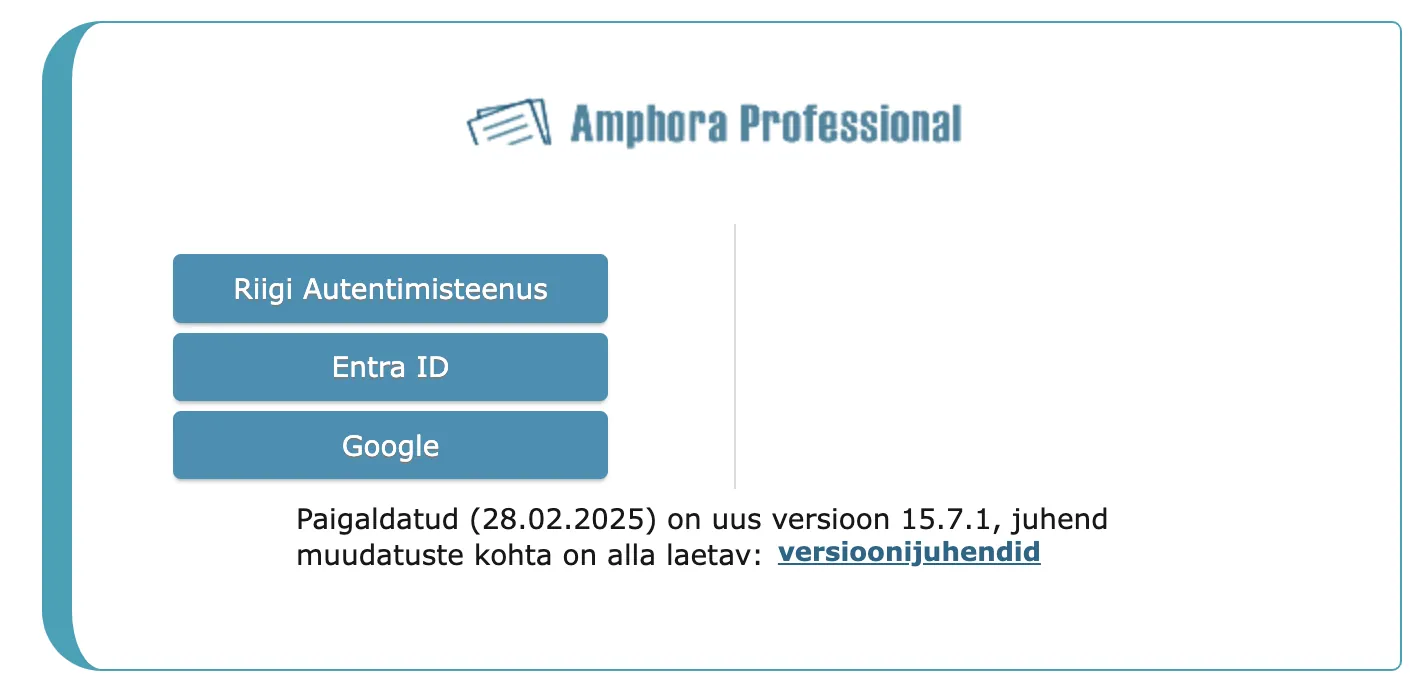
If logging in with the Government Authentication Service is not possible (for example, due to a technical failure), you can still use the old login methods. To do this, open the Amphora environment link in the format environment_url/login.aspx, for example https://server.amphora.ee/training/login.aspx.
NB!
In Amphora environments where the Government Authentication Service is not activated, the old login page remains.
Guest login
The "Log in as guest" button is only visible if the guest user is activated in the system. By default, this user is passive in all environments. The guest user belongs to the Guest user group and by default no rights are assigned to it.
Possible login problems
Multiple users with the same personal identification code
If there are 2 or more users with the same personal identification code in the environment, ID-card login is not possible. The system cannot determine which user to log in with and displays the error message "Such user does not exist!"
In such a situation, one of the users should have their personal identification code removed and the user account made passive. There can only be one active user per personal identification code in the system. If the personal identification code cannot be removed from the Amphora user account, contact Amphora customer support to remove the personal identification code.
Locked user
If you enter the password incorrectly 5 times, the system locks your user account. The message "User is locked!" is displayed. To remove the lock, contact the environment administrator.
ID-card certificate selection cancelled
Do not press the Cancel button in the certificate selection window when logging in with ID-card. If you press one of these buttons, it is not possible to log in with ID-card or Mobile-ID during the same session and the message "Certificate could not be identified! To try again, close the browser and open the page again!" is displayed.
In such a case, you can only log in with username/password or Smart-ID, or to reopen the certificate selection, close all web browser windows and reopen the browser.
Last modified: 17 October 2026, 11:05:57