Amphora 13.4 Version Guide
- Version 13.4.0
- Document first version date in public view
- DHX delivery sending icons are visible again in list view
- Email account deletion logs and email preservation
- Sent email logs are no longer duplicated
- Access restriction fixes
- Registration profile enhancements
- New Amphora service ESERVICE
- Changes when adding email account directory for emails sent via delivery
- Data display in public view fixed when pressing "Sent outside Amphora" button
- Version 13.4.1
- Added new default value formula for date fields
- Deadline field type is now visible and usable everywhere
- Mandatory registration code/personal code setting in parties panel
- Empty values are now allowed when adding conditions in registration profile
- New report "Role unaccepted processes"
- New public view functionality
- Version 13.4.2
- Version 13.4.3
- Added HTML template access control template elements
- New "My approaching deadline unanswered documents (X days)" and "Approaching deadline unanswered documents (5 days)" reports
- Default template functionality for applications received from E-service and SPOKU
- Signature container dismantling enhancements
- Version 13.4.4
Important
The purpose of this guide is to describe the changed functionality of Amphora that comes with the new version 13.4 of Amphora Professional. We continuously update the version guide.
** * Change is relevant for environments where the correspondence module is no longer used.**
Version 13.4.0
Document first version date in public view
In public view, Amphora displayed the last version date of the document in the date column if the document did not have the Document_date amp. field name field filled. This caused a situation where modifying older documents changed their date in public view.
From version 13.4.0, the first version date of the document is displayed in public view if there is no date in the Document_date amp. field name field. Therefore, modifying the document does not change the date in public view.
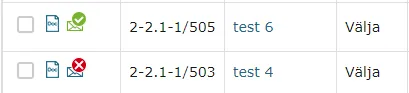
DHX delivery sending icons are visible again in list view*
In version 13.3.3, Amphora did not display failed and sent delivery icons for DHX delivery in document list view. The unsent icon was visible, but when sending the document via DHX, the icon disappeared. Now all icons are visible in document list view.
Email account deletion logs and email preservation
NB!
After deleting an email account, incoming and sent emails related to this email account are no longer visible to the user.
When deleting an email account, Amphora now adds logs of this action, so later it is easier for Amphora client support to solve problems related to email account deletion.
Additionally, handling of emails related to deleted email account has been redone. Amphora now moves all emails to system folders along with attachment relationships. Emails and related data are not lost. These emails are not visible to users, but if necessary, these emails can be restored.
Sent email logs are no longer duplicated
In recent versions, Amphora displayed sent email logs duplicated. This did not cause problems for users, but the view was not very correct. This bug has been fixed in this version and now Amphora displays sent email logs correctly.
Access restriction fixes
In some situations, when selecting access restriction basis, Amphora removed Mark made and Restriction valid until dates. The problem occurred in the document module and could happen when no directory was selected during document registration, the user selected a case and with this action Amphora added the case directory to the document. Additionally, the user had to enter the document title after adding the case and add a responsible person. Now this bug has been fixed and access restriction dates do not disappear.
Additionally, the situation where adding a case added the case directory to the document (this directory had default access restriction), but Amphora did not add default access restriction to the document has been fixed.
Registration profile enhancements
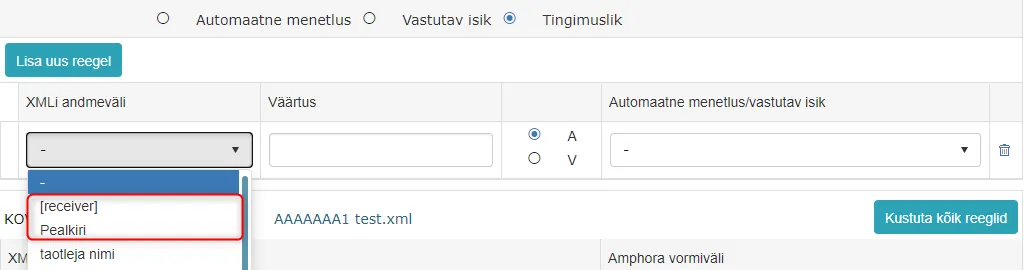
Registration profile has conditional automatic process/responsible person selection. XML data field selection now includes Title and [receiver] (recipient). In the future, it will be possible to add different conditions using Title and [receiver] XML data fields.
 ** This development was supported by Amphora client Estonian Environmental Services AS **
** Thank you! **
** This development was supported by Amphora client Estonian Environmental Services AS **
** Thank you! **
New Amphora service ESERVICE*
In this version, Amphora's new service ESERVICE was developed.
Through ESERVICE service, it is possible to send data from another information system to Amphora. The service works similarly to Spoku service. Data arrives in Amphora, Amphora can create a form with registration profile if necessary and add this data to the form (register as a document).
For example, this service can be used so that there are forms on the website that citizens can fill out and data filled by citizens is sent directly to Amphora and Amphora registers a document with this data.
Currently, only document addition is implemented.
** This development was supported by Amphora client Estonian Environmental Services AS ** ** Thank you! **
Changes when adding email account directory for emails sent via delivery*
Amphora added emails sent via delivery panel to the wrong email account directory when the user had multiple email accounts (user group or personal email accounts). Amphora did not consider the sender's email address and always added the sent email to the "Sent" directory of the first email account.
In version 13.4.0, this bug has been fixed and now Amphora adds the sent email to the correct email account "Sent" directory if the user has an account with such email address.
Data display in public view fixed when pressing "Sent outside Amphora" button*
In version 13.3.1, we added the "Sent outside Amphora" button for unsent outgoing delivery. You can read more about this HERE.
If the document was public and the user pressed this button and after that did not save the document, then in public view Correspondence tab the Recipient/Sender info was not visible. The document had to be saved for this info to be visible in public view.
This bug has been fixed in this version. Now after pressing the "Sent outside Amphora" button, Recipient/Sender info immediately becomes visible in public view.
Before
 Now
Now
 ***
***
Version 13.4.1
Added new default value formula for date fields
New default value formula =15THOFNEXTFULLMONTH has been added for date form field types (Date, DateTime, Deadline).
This default value formula works so that Amphora adds either the 15th of next month or the 15th of the month after next as the default date. If the document is added to Amphora on dates 1-15 (inclusive), then the 15th of next month is added. For dates 15-31, the 15th of the month after next is added.
This default value formula can be used in the "Document completion deadline" field.
For example, if a document is registered in Amphora on 13.11.2020, then this default value formula automatically adds the date 15.12.2020 to the deadline field. If the document is registered on 18.11.2020, then the date 15.01.2021 is automatically added to the deadline field.
** This development was supported by Amphora client Rae Municipality ** ** Thank you! **
Deadline field type is now visible and usable everywhere
Deadline form field type is now visible and usable everywhere in Amphora. In previous versions, Deadline field type was visible only in document edit view. Reading view, search, template, etc. support was missing. In version 13.4.1, this support has been added.
Deadline field:

Mandatory registration code/personal code setting in parties panel
We added a setting in this version that makes registration code/personal code mandatory when adding new institution/person in parties panel. Additionally, with this setting, Amphora displays only those institutions/persons in existing institutions/persons selection that have registration code/personal code.
The setting can be enabled in Admin -> Institution settings -> General settings. Add checkmark before Party registry code/personal code is mandatory.
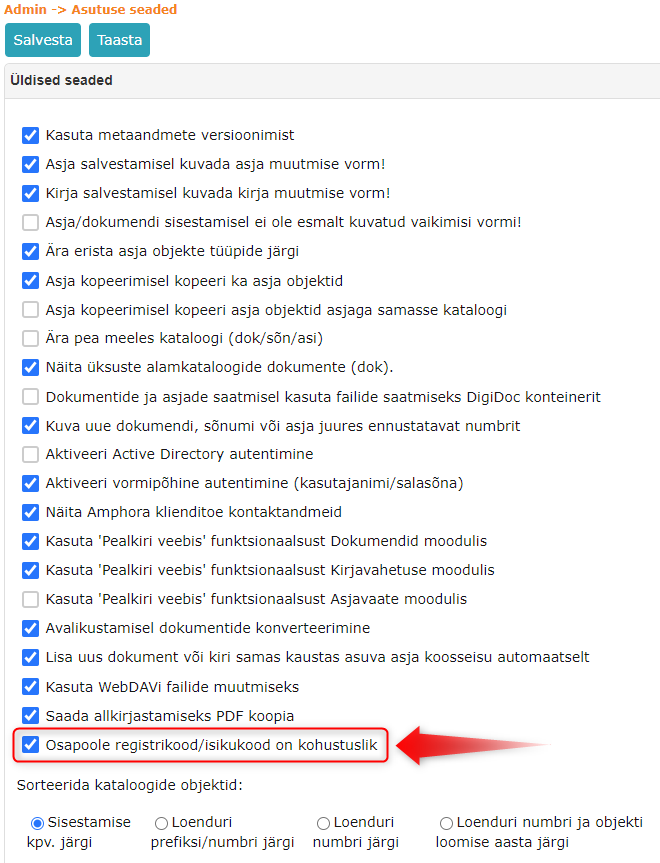 If the setting is disabled, then the Parties panel works the same way as before, where registration code and personal code are not mandatory.
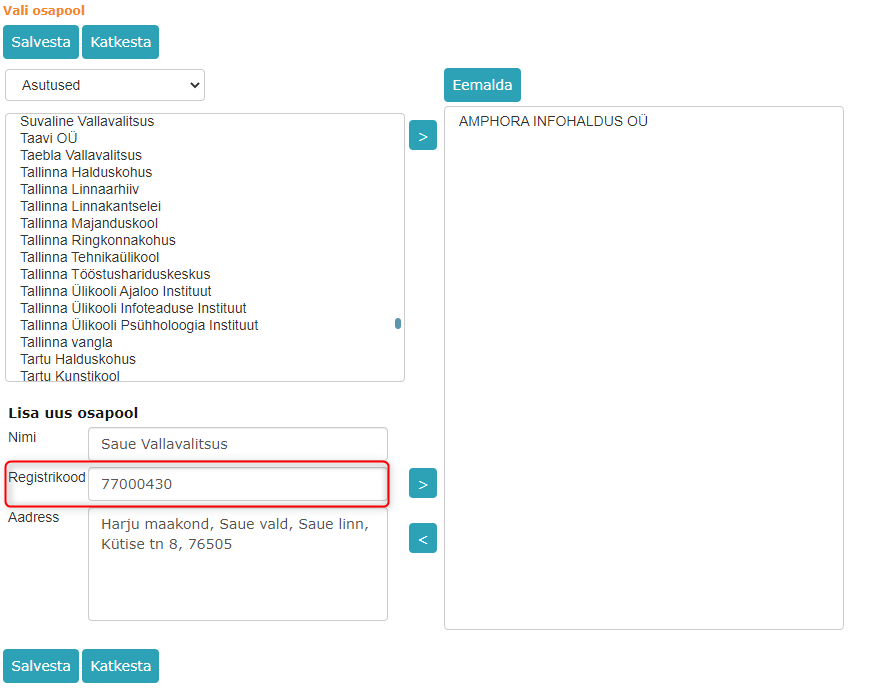
Additionally, we added registration code/personal code column to the Parties panel.
 Registration code/personal code field has also been added to the new party addition form.
 ** This development was supported by Amphora client Saue Municipality **
** Thank you! **
** This development was supported by Amphora client Saue Municipality **
** Thank you! **
Empty values are now allowed when adding conditions in registration profile
KOVMEN and Spoku registration type profiles can add conditions based on which Amphora adds the correct responsible person or automatic process.
Previously, the value field was mandatory for each condition and Amphora did not allow saving registration profile with empty value field. In this version, we made a change and now it is possible to add conditions with empty values.
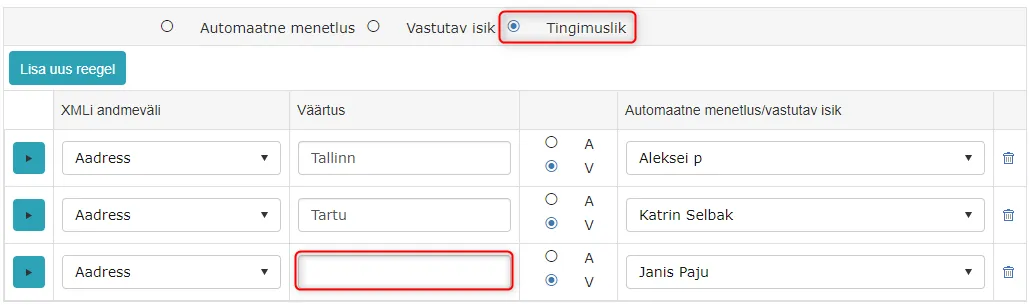 ** This development was supported by Amphora client Saue Municipality **
** Thank you! **
** This development was supported by Amphora client Saue Municipality **
** Thank you! **
New report "Role unaccepted processes"
New report "Role unaccepted processes" has been added.
If a role is added to automatic process composition, then when adding automatic process, users in the role get a possible incoming task to accept or reject. This report outputs the number of processes that no one has accepted yet. Processes are grouped by unit, role, and form.
 ** This development was supported by Amphora client Estonian Environmental Services AS **
** Thank you! **
** This development was supported by Amphora client Estonian Environmental Services AS **
** Thank you! **
New public view functionality
Currently, the old public view is still in use in every environment. We can install the new public view when everyone in the environment has switched to the new version!
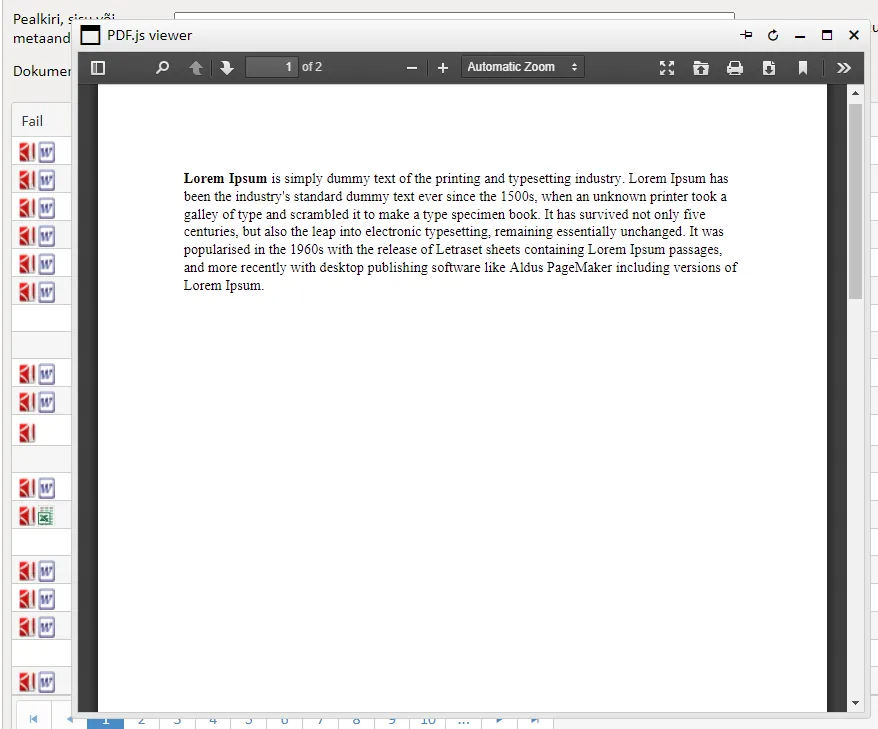
** PDF preview window **
In public view list view, it is now possible to open PDF files in preview window. Additionally, converted PDF file icons are visible in list view even when the document main file is, for example, a Word file.

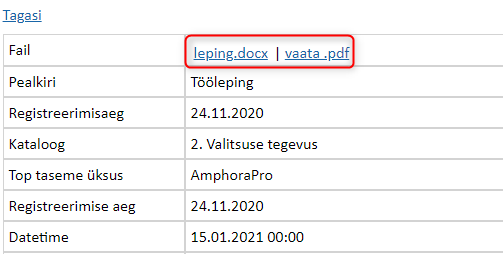
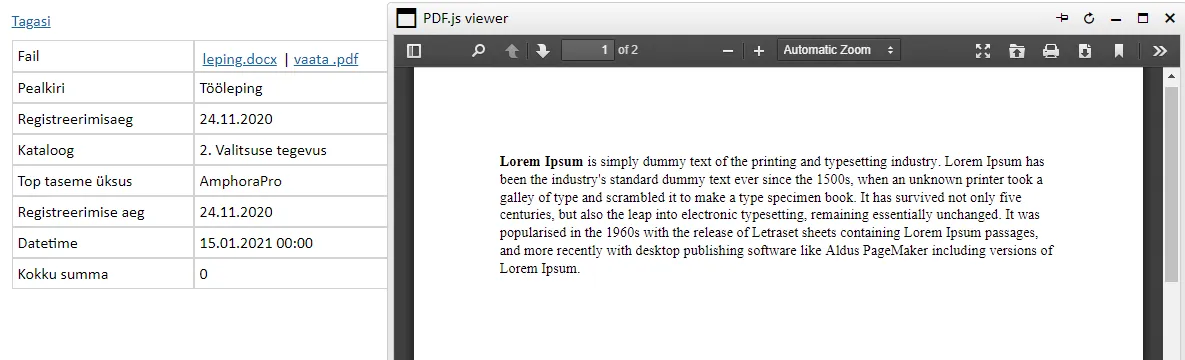
 In document view itself, PDF file preview window has been added similarly. There are two files in the file row, one is the main file and the other is the converted PDF file. Converted PDF link is visible if conversion succeeded in Amphora internal environment.
 ** Signature container **
Signature container can now be made public. For signature container to be visible in public view, you need to make signatures panel visible in public view on the form in Admin -> Form configuration.
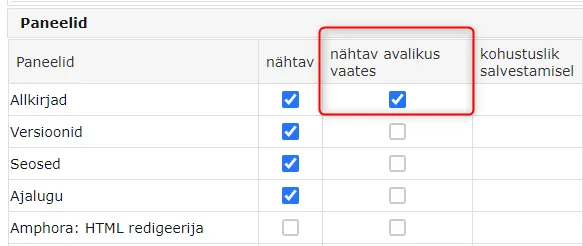 Additionally, the document itself must have the main file public. If the main file is not public, then the signature container is not visible in public view.
Signature containers in public view:
 NB! If main file is made public, then all signature containers are visible in public view, even those that do not contain the main file
Additionally, attention should be paid to the fact that if there are multiple files in signature container and for example some additional file should not be visible in public view, then making main file public makes the signature container visible in public view from where those additional files can also be accessed.
** Directories **
Directory selection dropdown appears when an institution is selected in institution dropdown. The selection contains specific institution's directories and only those directories where at least one public object exists.
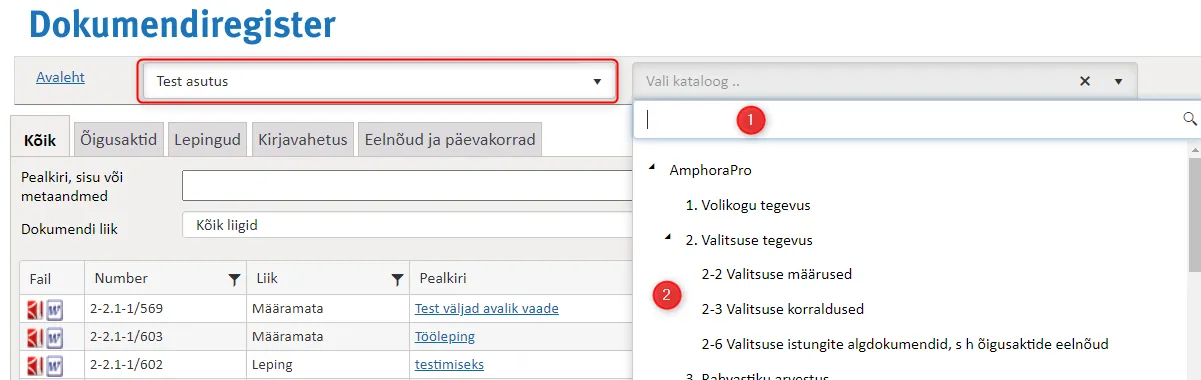 1. Search by directory name. You can write for example contract in search field and then directories with the word contract in their name are displayed.
2. Manual directory selection. Only those directories where at least one object is public are visible in tree.
1. Search by directory name. You can write for example contract in search field and then directories with the word contract in their name are displayed.
2. Manual directory selection. Only those directories where at least one object is public are visible in tree.
** Responsible person **
Every form can now make responsible person panel visible in public view. For this, go to Admin -> Form configuration and make Responsible person visible in public view in form panel settings.
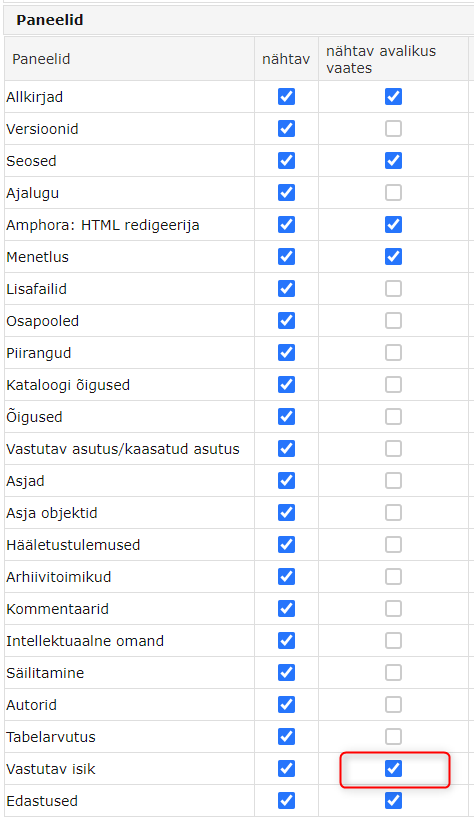 In object edit view, you don't need to separately publish responsible person.
Responsible person panel in public view:
 ** Access restricted document view data **
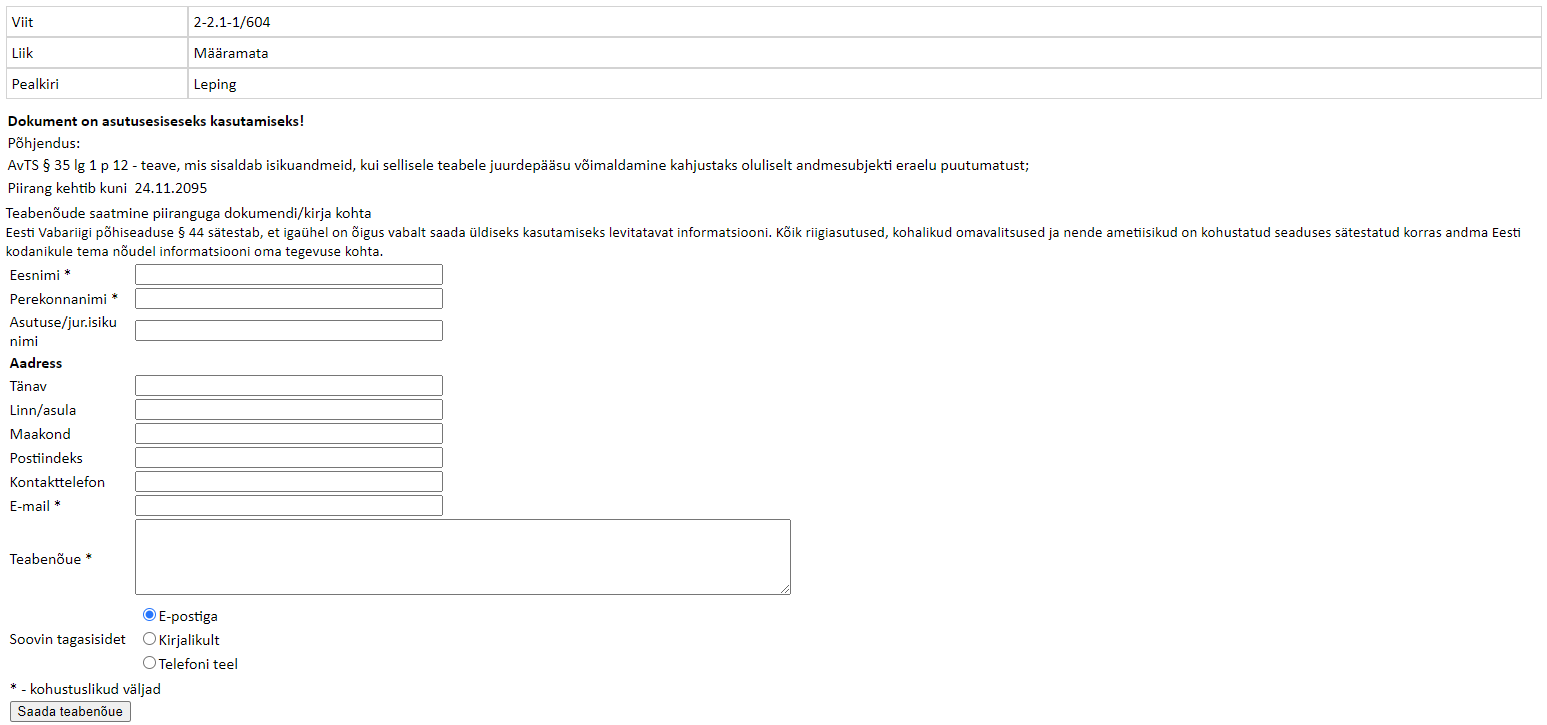
In public view, document view list view fields are made visible if the document has access restriction.
 ** Design changes **
-
New file icons have been added to public view list view. Different file format icons are taken from Amphora internal environment. Additionally, icons have been made larger.
 2. Borders have been added to object view.
 ** Fixed bugs **
 -
Process/delegation info was not visible in previous versions if the document had more than one version. This bug has been fixed in version 13.4.1.
Version 13.4.2
Email sending via @ icon
@ icon sending was somewhat broken in version 13.4.0. Namely, it was not possible to send such email that had multiple addressees in Letter recipient, CC or BCC field and a space was added after semicolon.
Example: "aleksei@interinx.com; help@amphora.ee"
This bug has been fixed in version 13.4.2.
Version 13.4.3
Added HTML template access control template elements
Added the following HTML template elements:
::ACLCAUSE:: - Access restriction basis ::ACLSTART:: - Mark made date ::ACLEND:: - Restriction valid until date ::ACLOWNER:: - Data controller
These are system template elements that do not need to be configured separately in form configuration. These template elements must be added to template in the same format.
** This development was supported by Amphora client Jõgeva Municipality ** ** Thank you! **
New "My approaching deadline unanswered documents (X days)" and "Approaching deadline unanswered documents (5 days)" reports
My approaching deadline unanswered documents (X days)
Report outputs all user's unanswered (Document response deadline is filled and response date is empty) documents whose document response deadline arrives within X days.
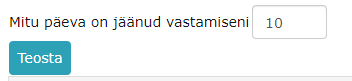
When running the report, the user is shown How many days are left until response field where the user can enter the number of X days. Within these days, Amphora searches and displays documents based on document response deadline.
 Approaching deadline unanswered documents (5 days)
Report outputs all unanswered (Document response deadline is filled and response date is empty) documents whose document response deadline arrives within 5 days. Report also outputs those documents where responsible person is missing.
** This development was supported by Amphora client Saue Municipality ** ** Thank you! **
Default template functionality for applications received from E-service and SPOKU
Applications received from E-service and SPOKU can now have default HTML templates configured. This functionality can be used so that you add application form field template elements to the template (form fields should first have ID in template added, you can read more about this HERE) and when registering application in Amphora, these template elements are replaced with field values. Data appears in text editor that is on form fields. When responding to application, this data can be transferred to response document text editor.
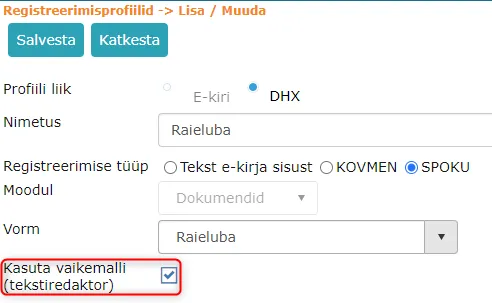
Use default template (text editor) checkbox has been added to registration profile view. This checkbox must be enabled if you want to use this functionality.
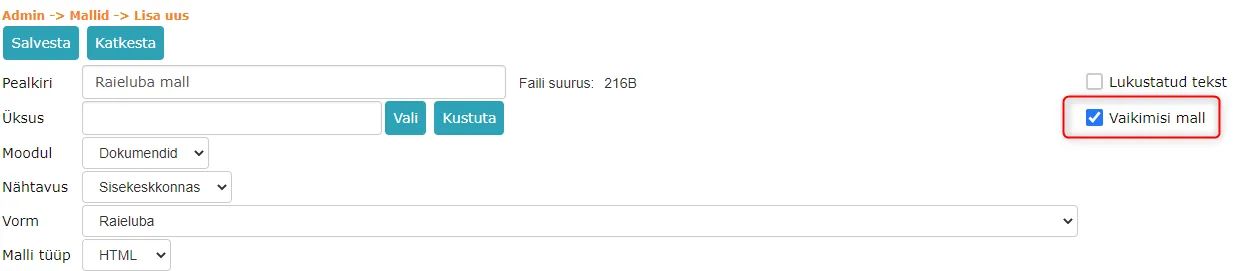
 Similarly, Default template checkbox must be enabled in template view itself.
 ** This development was supported by Amphora client Estonian Environmental Services AS **
** Thank you! **
** This development was supported by Amphora client Estonian Environmental Services AS **
** Thank you! **
Signature container dismantling enhancements
Recently, some signature containers that were signed outside Amphora could not be dismantled by Amphora. Signature container remained over main file and could not be correctly signed in Amphora.
In version 13.4.3, we made necessary enhancements and in the future Amphora can correctly dismantle such signature containers.
Version 13.4.4
Email sending change
The technical side of sending emails from Amphora has been changed in version 13.4.4. Emails are sent from Amphora via Sendgrid and in connection with this, some changes were made. Namely, now we transmit data to Sendgrid not via SMTP as before, but transmit via API. Sendgrid sends emails out the same way as before.
Nothing changes for Amphora clients. Email composition and sending in Amphora works the same way as before.
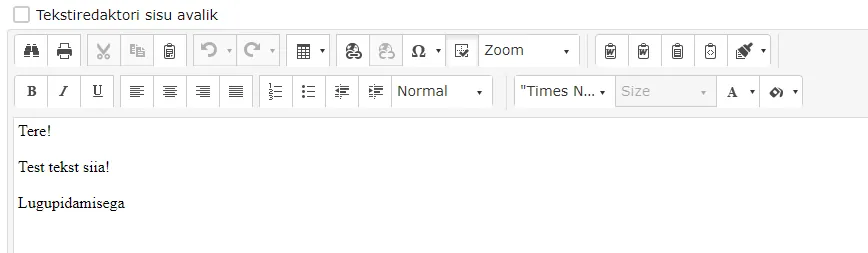
XLSM import can now import text editor content in Document module
XLSM import allows importing many different documents and letters to Amphora at once. You can learn about XLSM import HERE.
In the new version, text editor import support has been added to Document module. Previously, it was not possible to import text editor content using XLSM import functionality.
To import text editor content, the column name in XLSM file should be HtmlEditor. You can enter both regular text and text with html elements.
For example, entering such text with html elements:
<div>Hello!</div>
<br />
<div>Test text here!</div>
<br />
<div>Best regards</div>
Imported document text editor content:
 ***
***
Last modified: 17 October 2026, 11:05:57