Amphora 13.8 Version Guide
- Version 13.8.0
- When forwarding a task, it's now possible to select the task type
- Automatic replies for incoming documents
a. Setup
b. Translation setup - Archive file destruction enhanced
- In delivery window, "Comment to recipient" field made larger
- Public data synchronization now happens once a day (between 00:00 and 01:00)
- Document relationship display fixed
- Manual number change for response document number enhanced
- Merged organization public view direct links fixed
- Registration profile opening and deletion after sorting fixed
- Text editor table default style change
- WebDAV main file change and signature file deletion fixed
- XLSM import can now import additional files
- DHX sending method outgoing delivery addition problem fixed
- Default sorting in public view organized
- "Number" type field now displays integers in correct format
- Version 13.8.1
- Version 13.8.2
- Case object potential deletion fixed
- New default value formulas for data transfer when responding to document and creating document additions
- Numbers on follow-up and response documents through directory or case counter
- Fixed delivery panel e-mail sending using SMTP server
- Fixed adding two versions when changing main file with WebDAV
- HTML file is no longer selected by default for signing when adding process/delegation
- Document and Case module list view optimization
- PDF preview component updated
- E-mails module fixes
- Minor fixes
Version 13.8.0
When forwarding a task, it's now possible to select the task type
When forwarding a task, it's now possible to select the task type (Delegation or Process). Previously, it was only possible to use delegation when forwarding.
This development makes forwarding more flexible. Now it's possible to select process when forwarding and send different types of tasks to different users (For example, for Signing to the first user, for Information to the second user). Unlike delegation, process has sequential execution option.
This functionality only works with tasks that are added to Documents and Case module objects.
Currently in Amphora, it's possible to forward tasks in the Assignments panel by pressing the Forward button next to the task.
 Additionally, it's possible to do forwarding in the delegation task detail view. For this, you need to press the Forward button.
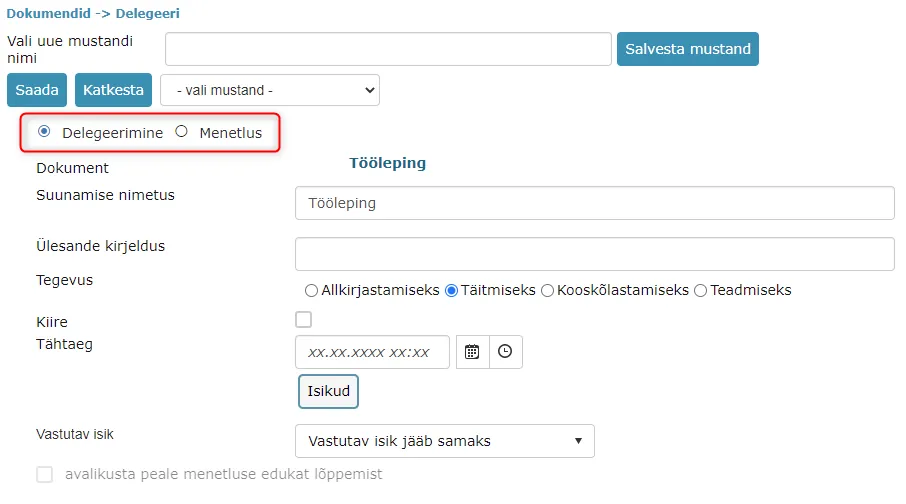
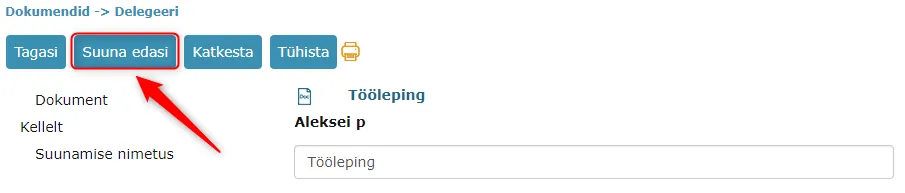 In the forwarding view, it's possible to choose between process and delegation. Initially, delegation is selected by default for all users. Amphora remembers the user's choice, so if the user selected process when forwarding, then process will be selected by default next time.
Delegation view.
 Process view.
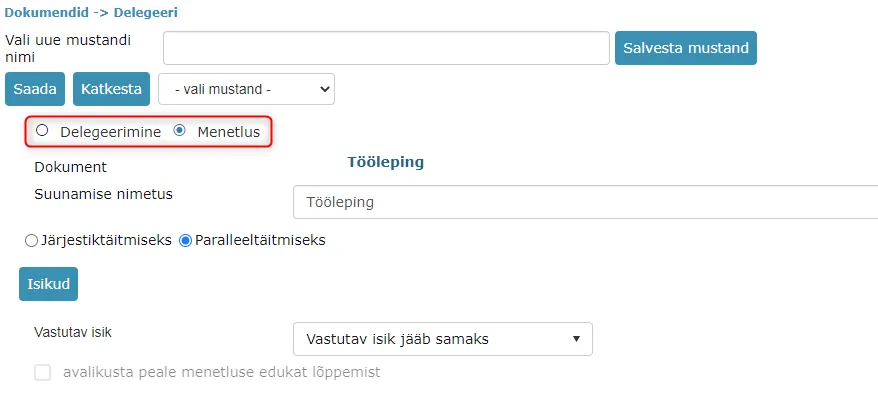 No changes have been made to the process and delegation views during this development.
When selecting delegation and process type, Amphora transfers added data correctly. Delegation -> Process transfers data correctly. Process -> Delegation takes the task type, task description, deadline, and mail and attachment checkboxes from the first added user.
NB!
During this development, invoice task forwarding has been fixed. The invoices module doesn't have delegation support and previously forwarding added a faulty delegation task that couldn't be resolved. Now Amphora adds a process task when forwarding.
** This development was supported by Amphora client Harku Municipality Government ** ** Thank you! **
Automatic replies for incoming documents
It's now possible to configure automatic replies for documents that have outgoing delivery. When an incoming document is registered in Amphora and certain conditions are met, Amphora sends an automatic reply to the sender.
Conditions that must be met for Amphora to send an automatic reply:
- The document must have incoming delivery and sender e-mail address must be present. Automatic reply functionality doesn't work with DHX delivery method.
- Automatic reply must not have been sent before.
- The document must have a document reference (number).
- The document must have a response deadline.
- The document must have a responsible person with "Create task" checkbox.
- The document must not be registered more than 30 days ago.
Not all conditions are met immediately upon document registration. When conditions are met on an already existing document and the document is saved, Amphora sends an automatic reply.
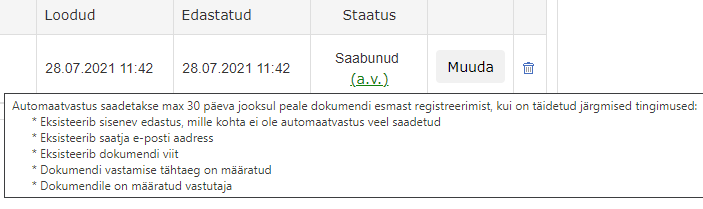
When an automatic reply is sent, an (a.r.) link appears under Incoming status, which when clicked opens a window where you can see the automatic reply content, recipient and sender e-mail addresses, and sent e-mail logs. The link name can be changed under Admin -> Translations. More details about this can be read in the Translation setup chapter.
 Additionally, sent automatic reply information is displayed in the history panel. The default event name is Automatic reply sending, but under Admin -> Translations, it's possible to change the event name if needed. More details about this can be read in the Translation setup chapter.
The automatic reply title can be configured in Admin -> Translations. More details about this can be read in the Translation setup chapter.
The automatic reply sender is either:
- E-mail address added to the unit. The prerequisite for this is the "Use unit e-mail address when sending" checkbox in unit settings.
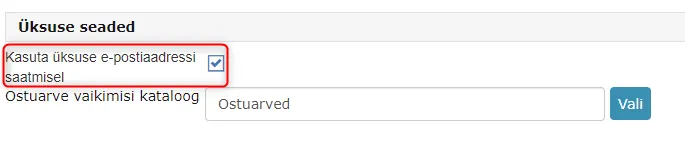 2. If the "Use unit e-mail address when sending" checkbox is not added in unit settings, then the sender e-mail address is taken from the organization associated with the unit.
NB!
Currently there are no form restrictions. This means that if the setup is done, then automatic replies work with every form.
Setup
First, you need to create a new automatic reply template. This can be done at Admin -> Templates -> Add new button.
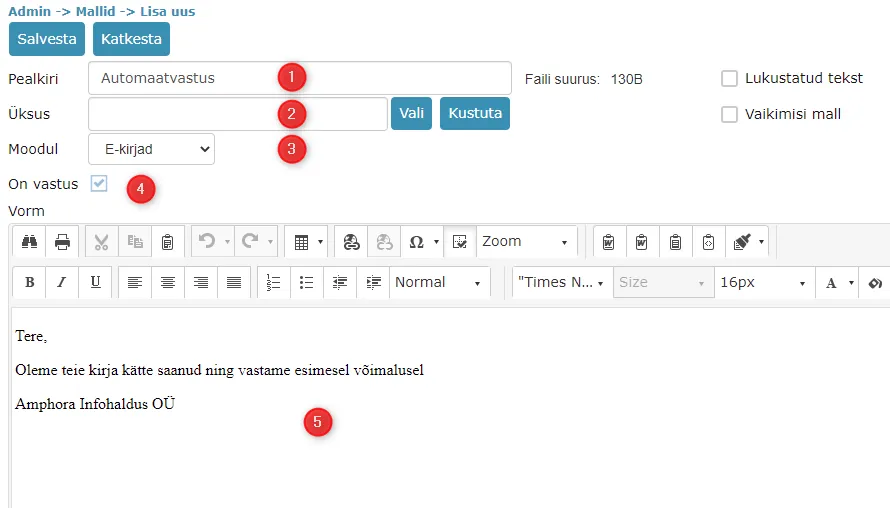 1. Template title.
2. Unit doesn't need to be selected. Leave this selection empty.
3. E-mails must be selected as the module.
4. When E-mails is selected as the module, Amphora automatically adds the Is reply checkbox. This checkbox cannot be removed.
5. Automatic reply content. This content is sent by e-mail to the sender.
1. Template title.
2. Unit doesn't need to be selected. Leave this selection empty.
3. E-mails must be selected as the module.
4. When E-mails is selected as the module, Amphora automatically adds the Is reply checkbox. This checkbox cannot be removed.
5. Automatic reply content. This content is sent by e-mail to the sender.
Template elements that can be used when creating a template:
::CAPTION:: - Document internal environment title
::PUBLIC_CAPTION:: - Document public title (Title on web)
::NUMBER:: - Document number
::ANSWER_DEADLINE:: - Document completion deadline date
::RESPONSIBLE_PERSON:: - Document responsible person's first and last name
::CREATEDATE:: - document creation date
::CURDATE:: - current date
::CURDATETIME:: - current date with time
::CURTIME:: - current time
::CURUSER:: - logged-in user's first and last name
::CURUSERPHONE:: - logged-in user's phone number
::CURUSEREMAIL: - logged-in user's e-mail address
::CURUSERORG:: - logged-in user's organization
::CURUSERJOB:: - logged-in user's job title
When the automatic reply template is added, you need to go to Admin -> Directories and open the unit for editing (click on the unit and then press the Edit button). In unit settings, there's an Automatic reply template dropdown option where all templates with E-mails selected as module are available. Select the desired template from the dropdown and then press the Save button.
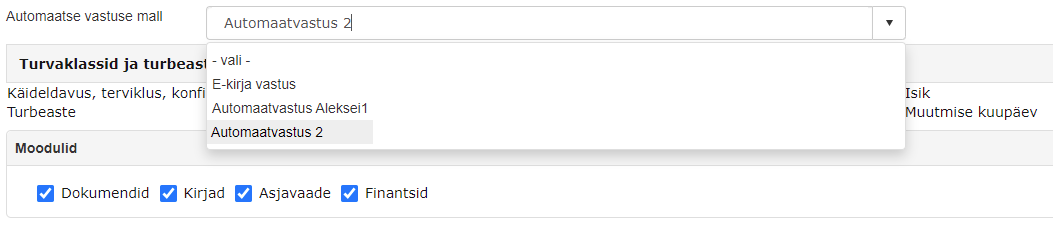 This completes the automatic reply setup.
Translation setup
All translation settings are done in Admin -> Translations. The following shows translation keywords and describes what each keyword changes.
Email_Autoreply_Subject – automatic reply title. Default is "Automatic reply".
DeliveryAutoreplyLink – sent automatic reply link name. Default is "(a.r.)".
DeliveryAutoreplyTooltip – automatic reply link help text. For the help text to become visible, you need to hover the mouse cursor over the automatic reply link name.
 HISTORY_SEND_AUTOREPLY – history panel event name. Default is "Automatic reply sending".
** This development was supported by Amphora client Harku Municipality Government ** ** Thank you! **
Archive file destruction enhanced
When destroying an archive file, Amphora checked whether objects in its composition had correct relationships with files or not. For example, if an object had a relationship with a file, but for some reason this file wasn't found in the file system, then Amphora didn't allow this archive file to be destroyed and displayed the following error message:
Error description: File not saved...
In this version, we removed archive file object file relationship checks and now such archive files can be archived.
Additionally, from now on, when archive file destruction fails, the problematic object (object ID) is displayed in the error message so that the problem can be identified more quickly.
In delivery window, "Comment to recipient" field made larger
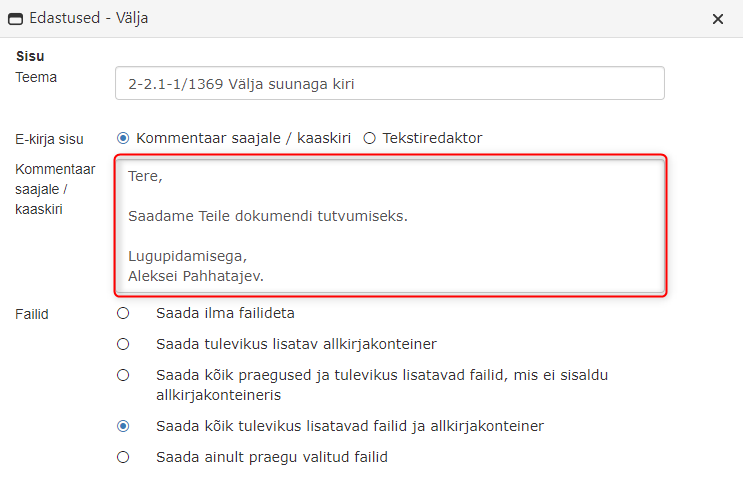
When adding outgoing delivery, it's possible to enter Comment to recipient/cover letter under Advanced settings. The comment to recipient/cover letter field has been made larger in this version, now there are 6 lines instead of 4.
Public data synchronization now happens once a day (between 00:00 and 01:00)
Public data synchronization ensures that all objects made public are correctly visible in public view.
Document relationship display fixed
There have been situations where some system document relationships that should have existed weren't visible in the Relationships panel. Such a problem could occur in situations where the user added a new document response/follow-up and previously one of the response document chain documents was modified (the document got a new version). When saving the new response/follow-up, the modified document relationship wasn't visible in the Relationships panel.
Manual number change for response document number enhanced
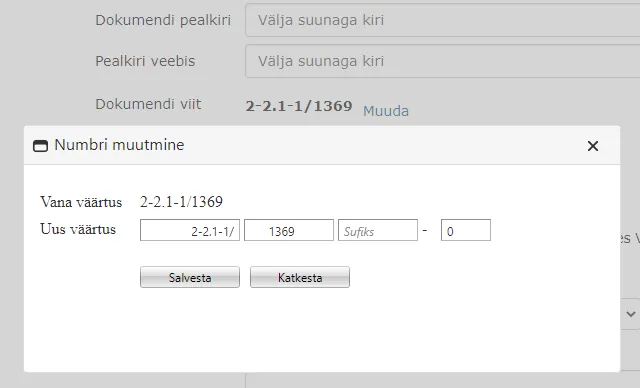
If a document has a response document or additional relationship but the number doesn't have a response document number, then when changing this document's number, a response document number field appears where the user can manually enter the response document number if needed. In previous versions, such a possibility didn't exist and the response document field didn't appear.
Merged organization public view direct links fixed
Merged organization document display in public view has been fixed. The problem occurred when opening public view with direct links where the direct link composition included the merged organization's unique identifier (direct link was created before organization merger).
Registration profile opening and deletion after sorting fixed
In registration profile settings (Admin -> Profiles), profile opening and deletion after sorting has been fixed. Previously, sorting worked correctly visually, but after sorting, Amphora couldn't open and delete the correct profile because sorting wasn't applied when opening and deleting profiles and Amphora used default sorting as the basis.
Text editor table default style change
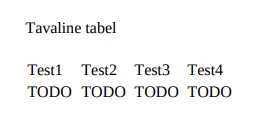
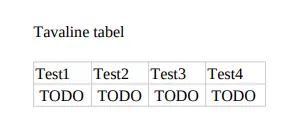
In previous versions, when adding a new table to the text editor, table borders were transparent. Borders existed in the text editor, but when sending text editor content by e-mail or converting to PDF/DOCX file, table borders were transparent.
In version 13.8.0, we changed the table default style and now table borders are visible by default.
PDF file example before version 13.8.0:
 PDF file example starting from version 13.8.0:
WebDAV main file change and signature file deletion fixed
The signature file deletion problem occurred on documents where the signature container composition included additional files and the main file wasn't in the signature container composition. When the user changed the main file on such a document with WebDAV or Amphora client, Amphora deleted the signature container when saving the document.
In this version, we added a check when saving the document, with which Amphora determines whether the main file belongs to the signature container composition or not. If the modified main file doesn't belong to the signature container composition, then the signature container remains when saving the document.
XLSM import can now import additional files
XLSM import can import various objects into Amphora. More details about XLSM import can be read HERE.
In the XLSM import file, file_name_* column names should be used for additional files, where * is replaced with a number or letter.
For example file_name_1 for the first additional file and file_name_2 for the second additional file.

DHX sending method outgoing delivery addition problem fixed
The problem only occurred with documents that had .akt file as the main file. When adding outgoing delivery with DHX sending method and pressing the Advanced settings button, Amphora didn't respond to pressing the Next button. In this version, this bug has been fixed.
Default sorting in public view organized
Default sorting works in public view in all tabs in the following order:
- Date field (amp. field name "Document_date") check.
- If the date field is not filled, then the document's initial version creation date is used.
Since most forms have the Date field as DATE type (date without time, time is added as 00:00:000), during public view sorting, a situation could occur where documents entered on the same day were in the wrong order in public view. For example, a document was entered in the morning where the Date field wasn't filled and in the evening a document was entered where the date field was filled. In such a situation, Amphora displayed the morning-added document first in public view.
To fix this problem, we added an additional parameter in version 13.8.0 that Amphora considers for public view sorting. Now public view sorting works correctly.
"Number" type field now displays integers in correct format
There has been a problem with entering integers in Number type fields. After saving the document, a comma and four zeros were added to the entered number (Example 550,0000). In this version, this bug has been fixed.
Version 13.8.1
Form versions on Spoku forms fixed
When a form is modified on Spoku side (existing field is removed or cell code is changed) and a new document with the modified form is sent to Amphora, then Amphora applies changes to the existing form and creates a new form version.
In previous versions, when adding a new form version, Amphora deleted some form settings. Specifically, field settings and panel checkboxes were lost. In this version, this bug has been fixed and when adding a new form version, all settings remain.
Sending process to groups in invoices module fixed
When creating a process, it's possible to select non-administrative user groups instead of users and persons. When creating a process for non-administrative user groups in the invoices module, Amphora didn't add task types (invoices module has only one task type - For Coordination), so a faulty process was created that users couldn't complete.
In version 13.8.1, this bug has been fixed and from now on it's possible to create processes for non-administrative user groups in the invoices module.
Mass signing logs enhanced
Some users have recently had problems with mass signing. We enhanced mass signing logs in this version so that we can better identify bugs related to mass signing in the future.
Field value summation on document forms fixed
On document forms, it's possible to sum TextBox and Number type field values with =sum(amp_field_name1, amp_field_name2, amp_field_name3) default value formula. In version 13.8.1, the following fixes have been made:
- Addition of decimal numbers has been fixed. In previous versions, Amphora didn't add a comma to the final result.
Before:
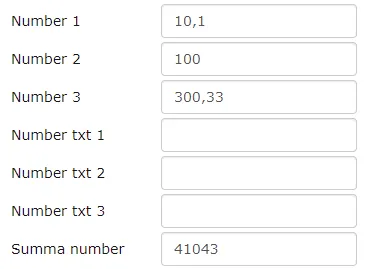 Now:
Now:
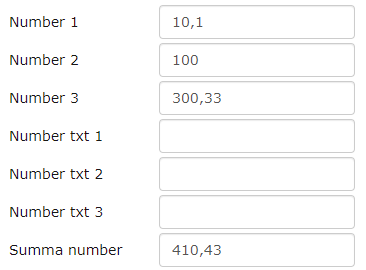 2. If Number type fields were among the fields being summed, then Amphora displayed an error message when saving the document and the document couldn't be saved. In this version, this bug has been fixed.
File display on incoming delivery fixed
When registering an e-mail from Outlook or E-mails module, Amphora displays a list of files in the attachment in delivery detail info.
The problem could only occur with incoming delivery documents that were registered either from E-mails module or Outlook. When registering an e-mail, Amphora moves the registered e-mail to the Trash module. In previous versions, if such an e-mail was deleted from the Trash module, the attachment file data in delivery detail info was lost.
Delivery detail info after deleting e-mail from Trash module.
Before:
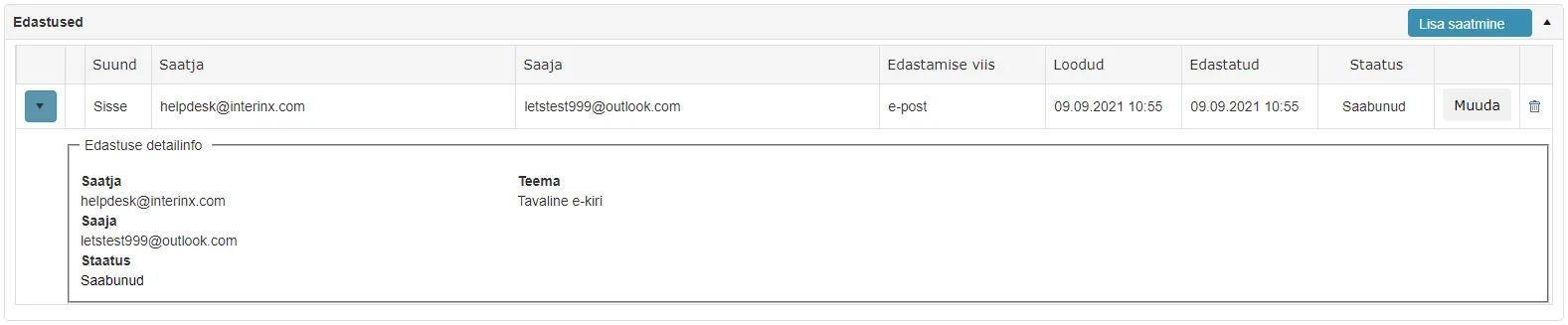 Now:
Now:
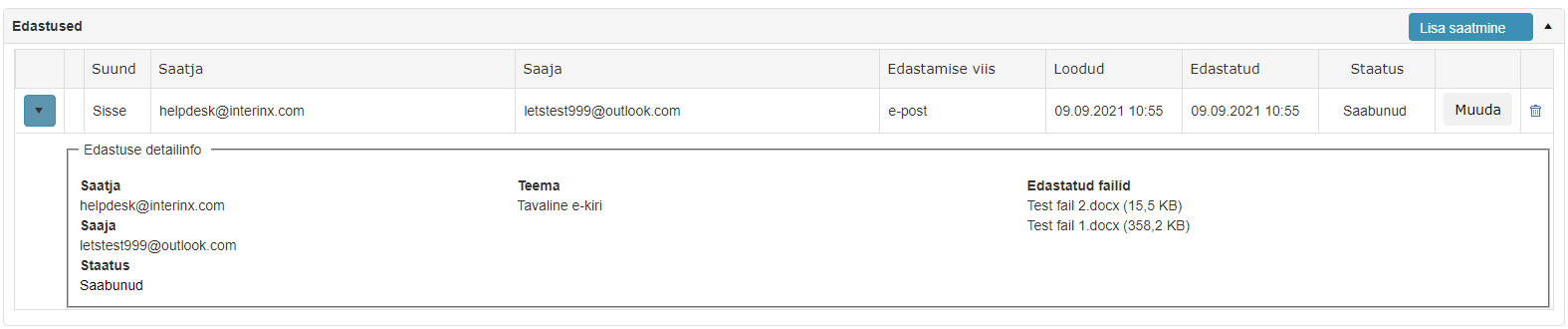
Automatic reply template responsible person template element fix
Version 13.8.0 added automatic reply functionality. On the automatic reply template, it's possible to use the responsible person template element - ::RESPONSIBLE_PERSON:: . This template element also worked in the previous version except in situations where a document from Spoku met all automatic reply conditions and Amphora sent out an automatic reply. In this version, this bug has been fixed.
Other fixes
- Translations enhanced. In document editing and reading view Processes/delegations panel, Amphora displayed "Unfinished" instead of the local language equivalent. Additionally, some Processes/delegations panel translations were missing in print view.
- Added more detailed error messages for Smart-ID and Mobile-ID signing.
Version 13.8.2
Case object potential deletion fixed
In previous versions, a situation could occur where an object added to case (file) composition was removed from the case composition without anyone actually deleting this case object. This could happen in situations where two or more users opened the same case. One of these users added a new case object and saved the case. Since the second user opened the case before the first user added the case object, the added case object wasn't visible in their view. If now the second user saved the case, the case object added by the first user was removed from the case composition.
In version 13.8.2, we added necessary checks so that such a problem wouldn't recur.
New default value formulas for data transfer when responding to document and creating document additions
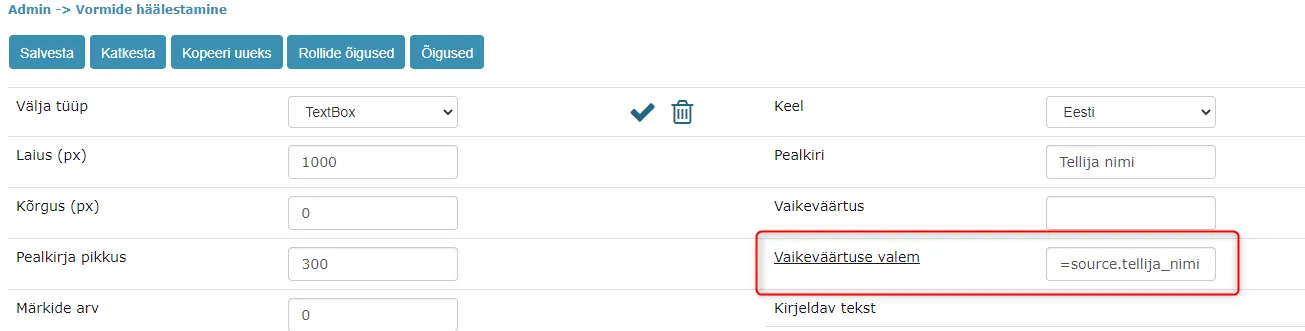
In version 13.8.2, new form default value formulas have been added that allow transferring original document data to follow-up and response documents and document additions. Only data that is located in original document form fields can be transferred.
New form default value formulas look like this - =source.amphora_field_name, where "amphora_field_name" is the original document form field "Amp. field name". For example, if the original document form has field "Amp. field name" customer_name and when responding to this document or adding document addition, it's desired to transfer this field data to follow-up document, response document or addition, then in the follow-up document, response document or addition form field settings, default value formula =source.customer_name should be added to the "Default value formula" field. The field type must be exactly the same as on the original document form.
Currently supported form field types are – TextBox, CheckBox, DropDownList, Date, DateTime, Deadline, RadioButtonList, URL, Number.
 ** This development was supported by Amphora client Viljandi City Government **
** Thank you! **
** This development was supported by Amphora client Viljandi City Government **
** Thank you! **
Numbers on follow-up and response documents through directory or case counter
In previous versions, when creating a follow-up or response document, Amphora always added a number to the new document according to the original document. For example, if the original document number was 8-6/223, then the first follow-up or response document always got number 8-6/223-1.
In version 13.8.2, a new form setting "For response documents use directory or case counter" was added. When this setting is enabled, then when adding follow-up or response documents, Amphora doesn't consider the original document number but tries to add a number to the new document through directory or case counter (depends on directory settings). The new setting is located under Admin -> Form configuration.
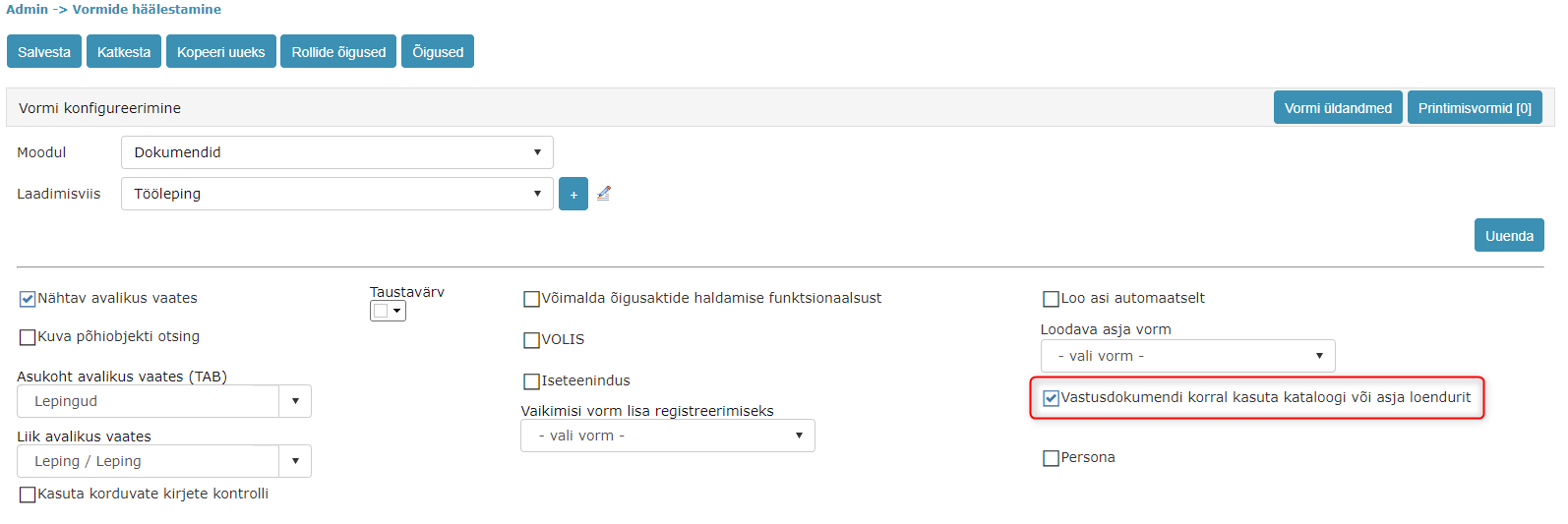 ** This development was supported by Amphora client Viljandi City Government **
** Thank you! **
** This development was supported by Amphora client Viljandi City Government **
** Thank you! **
Fixed delivery panel e-mail sending using SMTP server
This fix is relevant for users who have an e-mail account configured in Amphora with SMTP data.
When sending through delivery panel, it's possible to select either organization e-mail address or personal e-mail address as the e-mail sender. When sending out e-mail, Amphora now checks whether the user has an e-mail account configured with SMTP data and if so, then checks whether the selected sender e-mail address matches it. If the selected sender e-mail address and e-mail account are the same, then Amphora sends the e-mail out through SMTP server.
Fixed adding two versions when changing main file with WebDAV
In some situations, when changing document main file with WebDAV, Amphora added two new versions instead of one. This problem was caused by the "RegisterTime" Amp. field name field (Registration time). If this field was present on the document form and was automatically filled by Amphora, then when changing main file with WebDAV, Amphora added two new versions. In this version, this bug has been fixed and now Amphora always adds only one version.
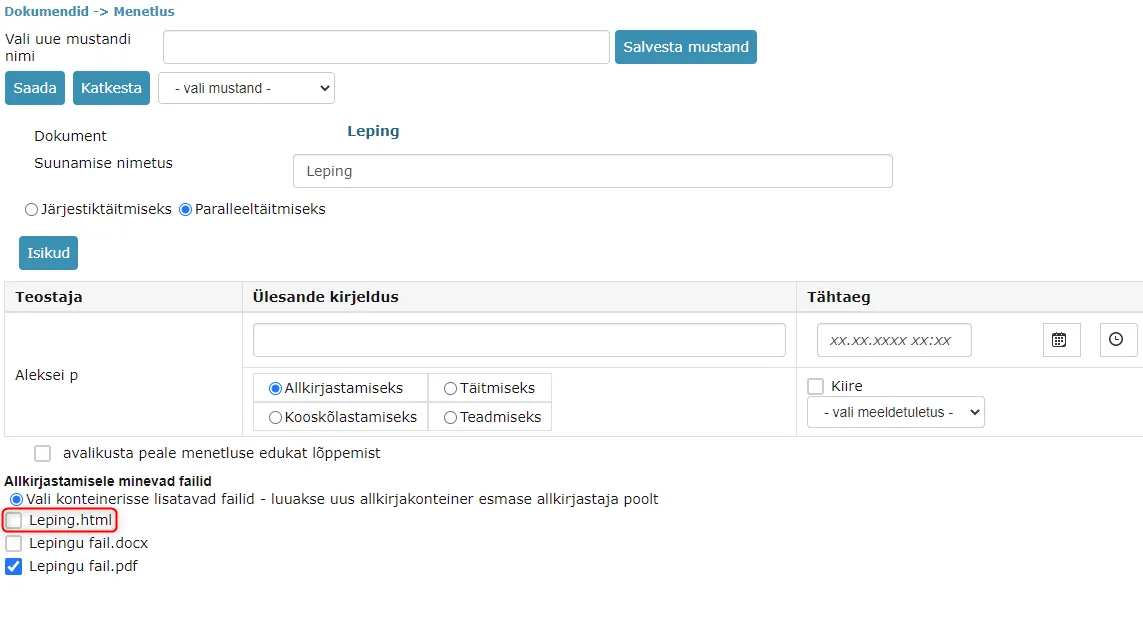
HTML file is no longer selected by default for signing when adding process/delegation
This change only applies to documents that are registered with document upload forms (forms that have main file). If a document had main file or additional file and text editor wasn't empty, then previously when adding process/delegation for signing, Amphora selected .html file in addition to main file. .html file is text editor content.
Starting from version 13.8.2, Amphora no longer automatically selects .html file if the document has main file or at least one additional file. If main file and additional file are missing, then Amphora automatically selects .html file.
Before:
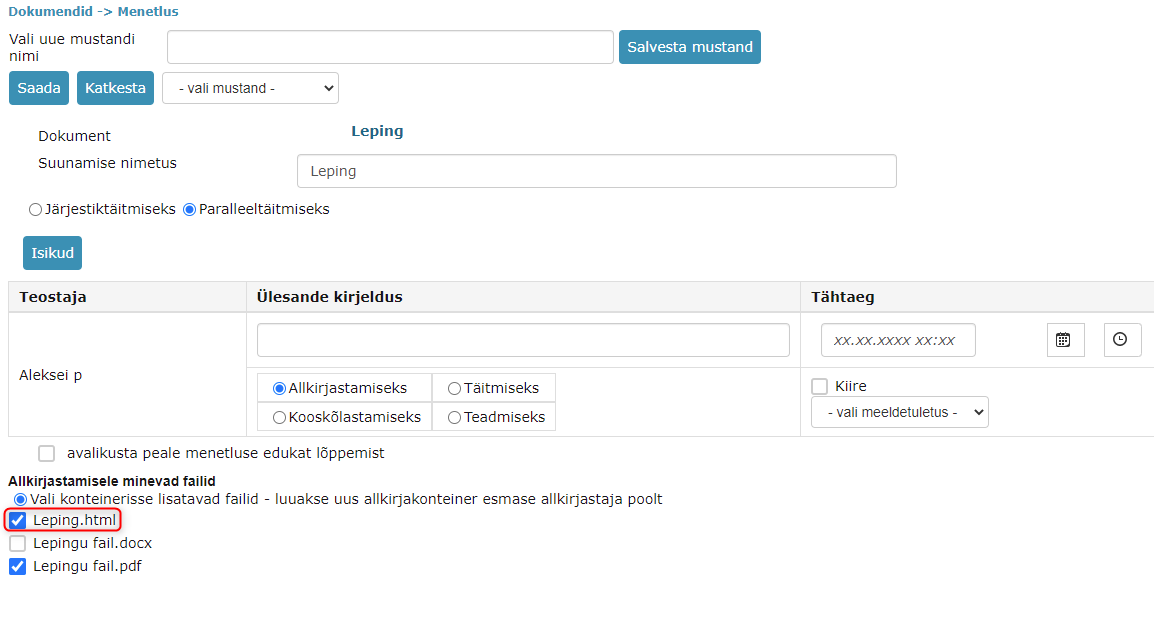 Now:
Now:
Document and Case module list view optimization
Opening directories in Document and Case modules was very slow if the directory contained many objects. For example, Amphora opened a directory with 20000 documents in about 7-8 seconds.
During optimization, database procedures were redone, which made opening directories in Document and Case modules much faster.
Test results showed that for 20000 documents, directory opening is up to 80% faster after optimization, meaning instead of 7-8 seconds, it's now on average slightly under 2 seconds.
PDF preview component updated
PDF preview component has been updated (v1.9 → v2.9). The PDF preview component update is necessary so that Amphora can correctly open PDF files. With the older component, there were problems displaying some PDF files (some data wasn't visible).
NB!
Since Internet Explorer web browser doesn't support the new PDF preview component, the older PDF preview component is used with this web browser.
NB!
If the PDF preview window doesn't open after the update, you need to clear the web browser cache!
E-mails module fixes
Some fixes have been made in the E-mails module that are primarily related to incoming e-mails.
- For e-mail accounts configured with IMAP protocol, incoming e-mail downloading has been fixed. In previous versions, problems could occur when downloading incoming e-mail attachments, which caused an error message to appear immediately when opening the E-mails module and e-mail attachments were missing. Starting from version 13.8.2, such problems shouldn't happen anymore.
- When registering incoming e-mails, Amphora adds a list of files in e-mail attachments to delivery detail info. After registering an e-mail, Amphora moves the registered e-mail to the Trash module. In previous versions, Amphora deleted the file list in delivery detail info if the user deleted the e-mail from the Trash module. Now this bug has been fixed.
Minor fixes
- Added case object deletion logs. Logs are not visible to users through the user interface but help Amphora customer support better solve problems related to case object deletion.
- When editing existing outgoing delivery, Amphora no longer overwrites Advanced settings configurations. Settings that Amphora previously overwrote include - E-mail content selection, Comment to recipient/cover letter text, file selection mode.
Last modified: 09 October 2026, 10:25:03