New self-service portal (coming soon)
Important
The new self-service portal is coming soon: this guide describes a portal that organisations will introduce step by step. Until your organisation uses it, the guide Self-service portal applies.
Contents
- What the new self-service portal is
- Logging in
- My applications
- Filling in and submitting an application
- Application status
- Documents sent to me
- Documents
- Organisation setup in Amphora
The portal's screens are in Estonian; the labels below are quoted as they appear, with an English gloss.
1. What the new self-service portal is
The self-service portal is the part of Amphora for people who have no Amphora user account. In the portal you can:
- submit applications to the organisation and follow how they are handled;
- sign documents the organisation has sent you;
- confirm that you have read a document the organisation has sent you.
The organisation gives you the portal's address.
2. Logging in
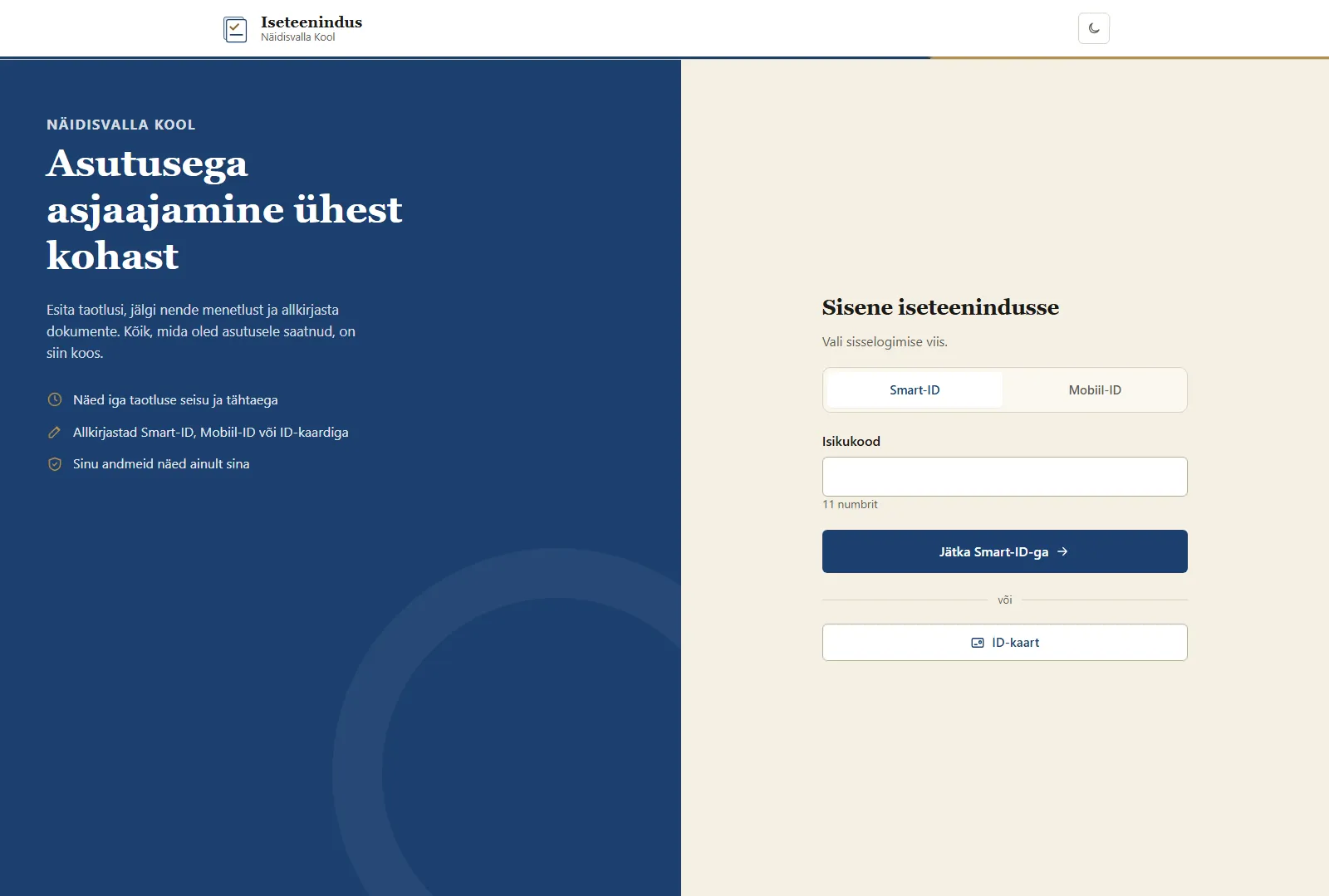
The login page is titled Sisene iseteenindusse (Log in to self-service) and says "Vali sisselogimise viis." (Choose how to log in). The options are:
- Smart-ID – enter your Isikukood (personal identification code, 11 digits) and press Jätka Smart-ID-ga (Continue with Smart-ID);
- Mobiil-ID – enter your Isikukood and Telefoninumber (phone number) and press Jätka Mobiil-ID-ga;
- ID-kaart (ID card).
A verification code is then shown. Please check that your phone shows the same code and confirm the login. Katkesta (Cancel) stops the login.
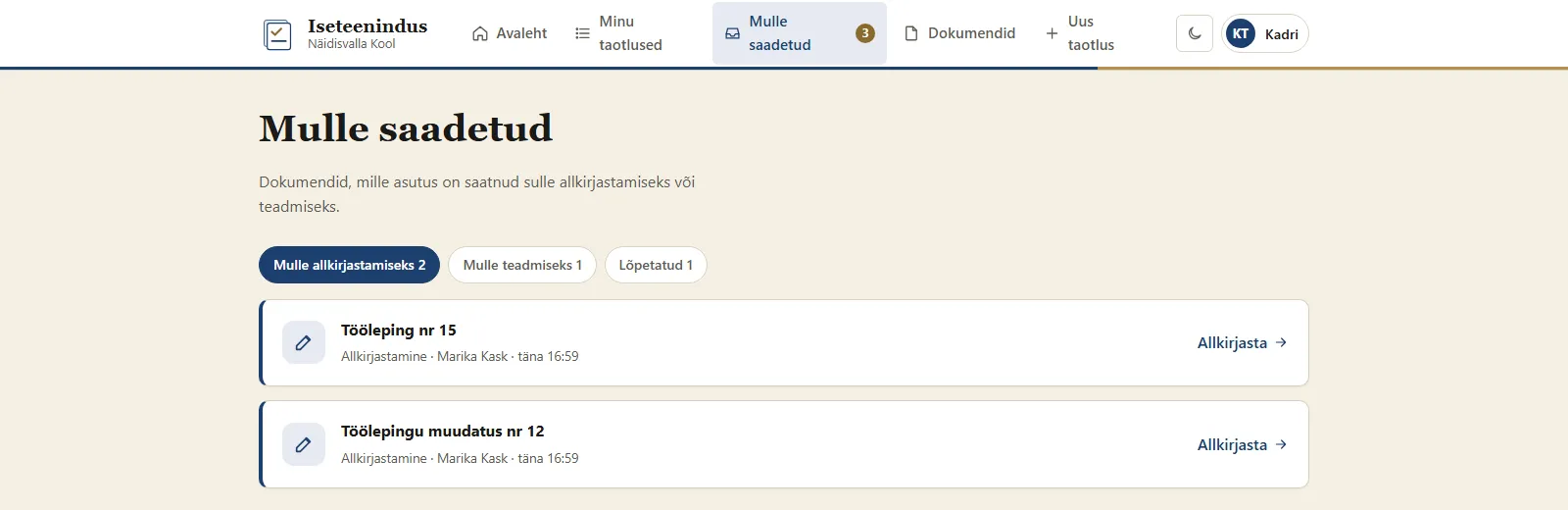
After logging in, the menu holds Avaleht (Home), Minu taotlused (My applications), Mulle saadetud (Sent to me) and Uus taotlus (New application). Mulle saadetud shows a number when a document waits for you.
3. My applications
Minu taotlused lists every application you have submitted or left unfinished in self-service. The buttons Kõik (All), Koostamisel (Drafts) and Saadetud (Sent) filter the list; each shows its count.
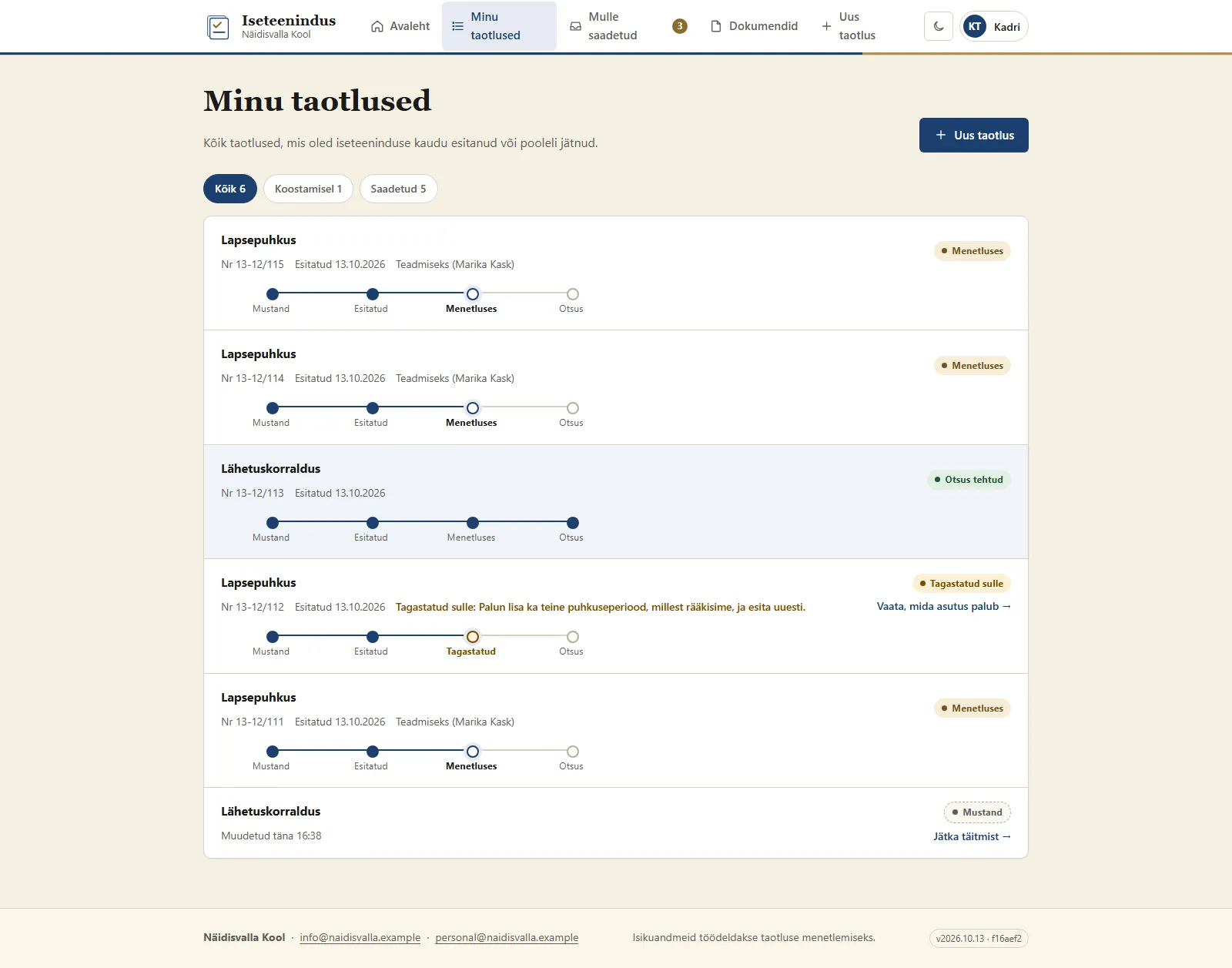
An application's row shows the form name, the application number (e.g. Nr 13-12/80), the submission date and the handling step (Mustand – draft, Esitatud – submitted, Menetluses – being handled, Otsus – decision). An unfinished application shows when it was last changed and the link Jätka täitmist (Continue).
When the list has more than one page, a search box (Otsi) appears above it. You can search by title, number or sender.
4. Filling in and submitting an application
To start, choose Uus taotlus in the menu, then the form and Alusta täitmist (Start).
Filling in the form
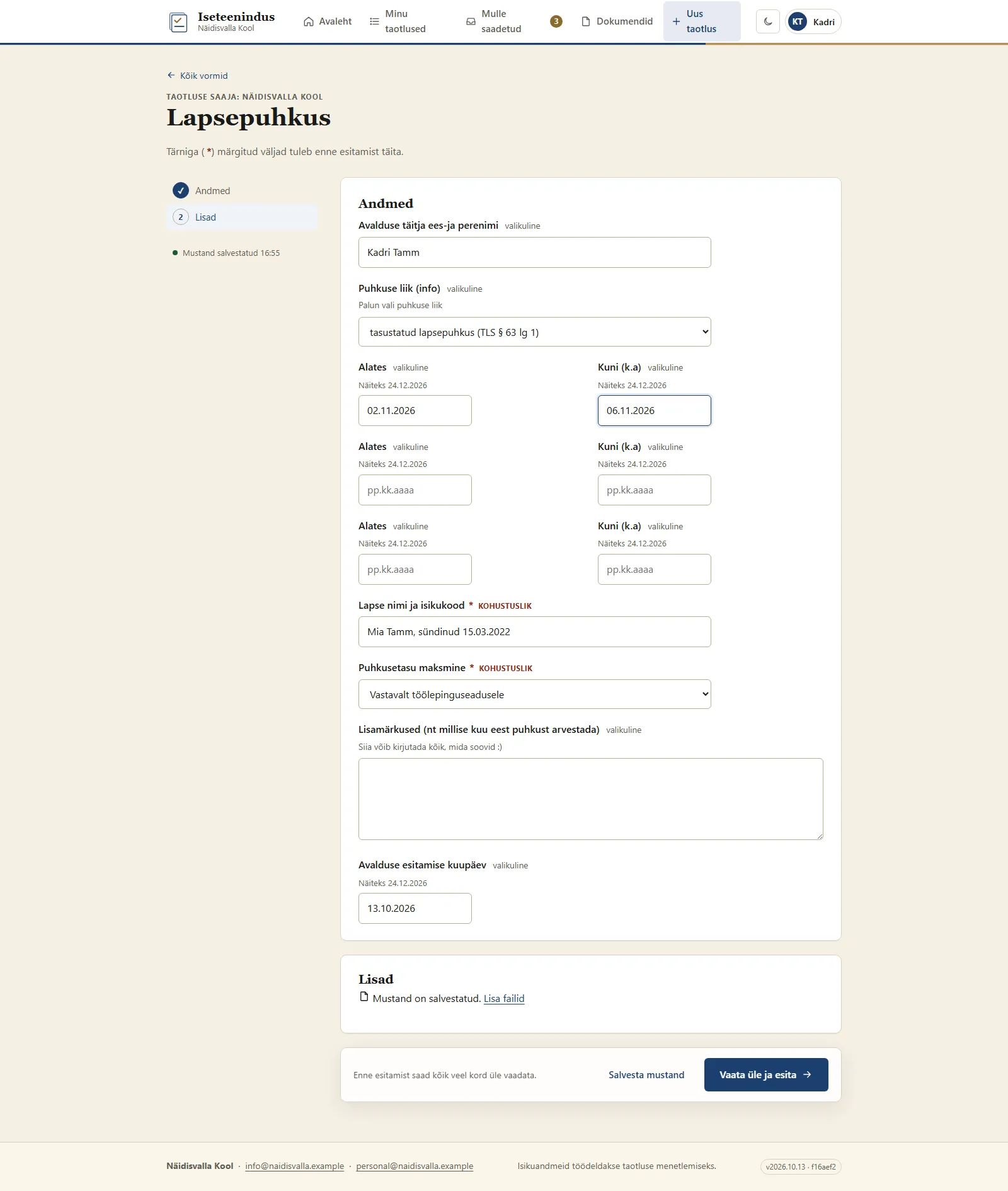
- Fields marked with an asterisk (*) must be filled in before you submit.
- Your answers are saved as you go: once the required fields are filled, the portal saves the draft by itself and shows, for example, "Mustand salvestatud 15:36" (Draft saved 15:36). You can stop and continue later; Salvesta mustand (Save draft) also saves the draft.
- Files can be added once the draft is saved. Choose a file or drag it into the box; each file may be up to 50 MB. Vaata (View) opens an added file, Laadi alla (Download) downloads it.
- If a required field is empty, the portal shows the number of errors (e.g. "Palun parandage 1 viga" – Please fix 1 error) and "See väli on kohustuslik." (This field is required.) by the field.
Submitting
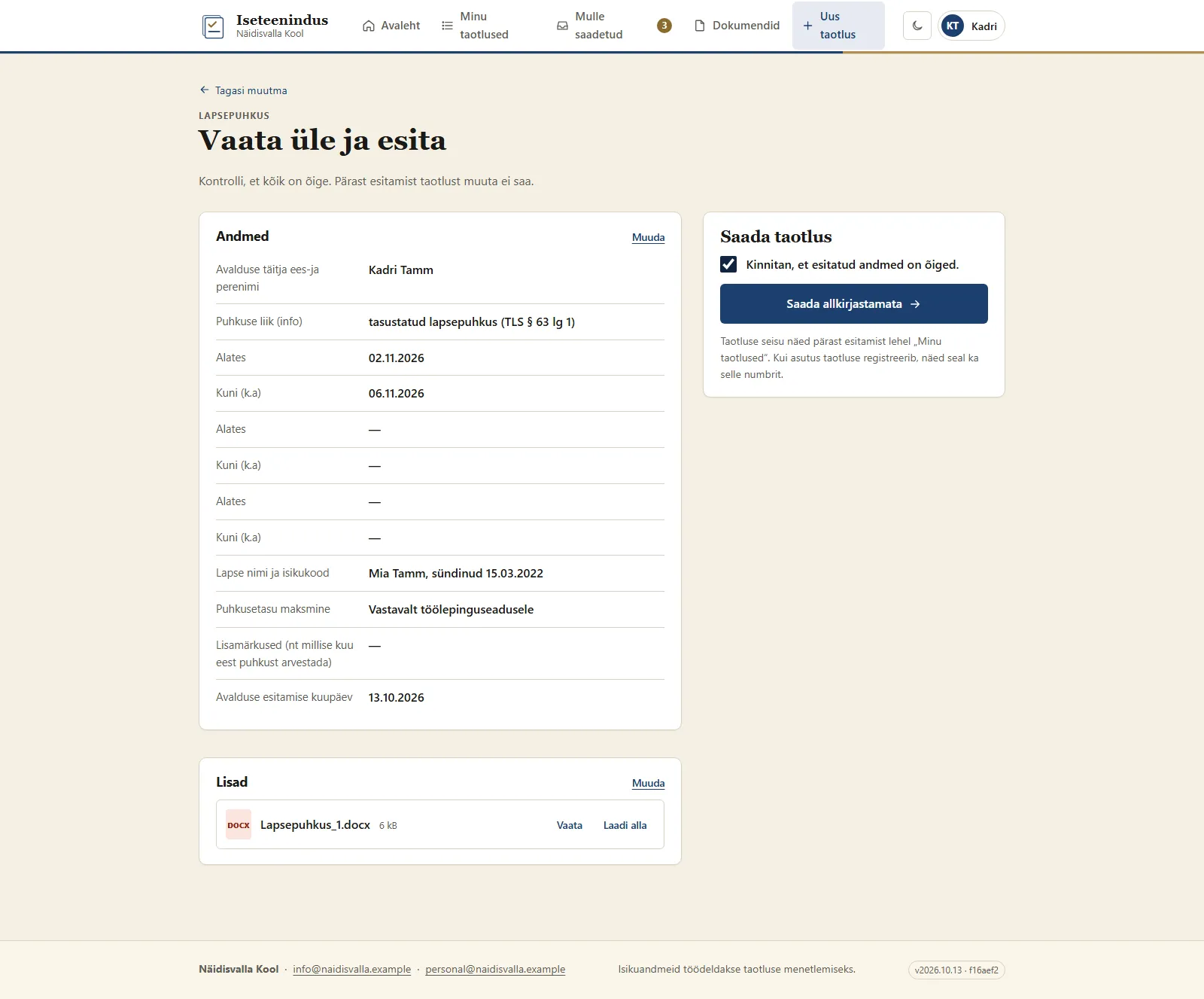
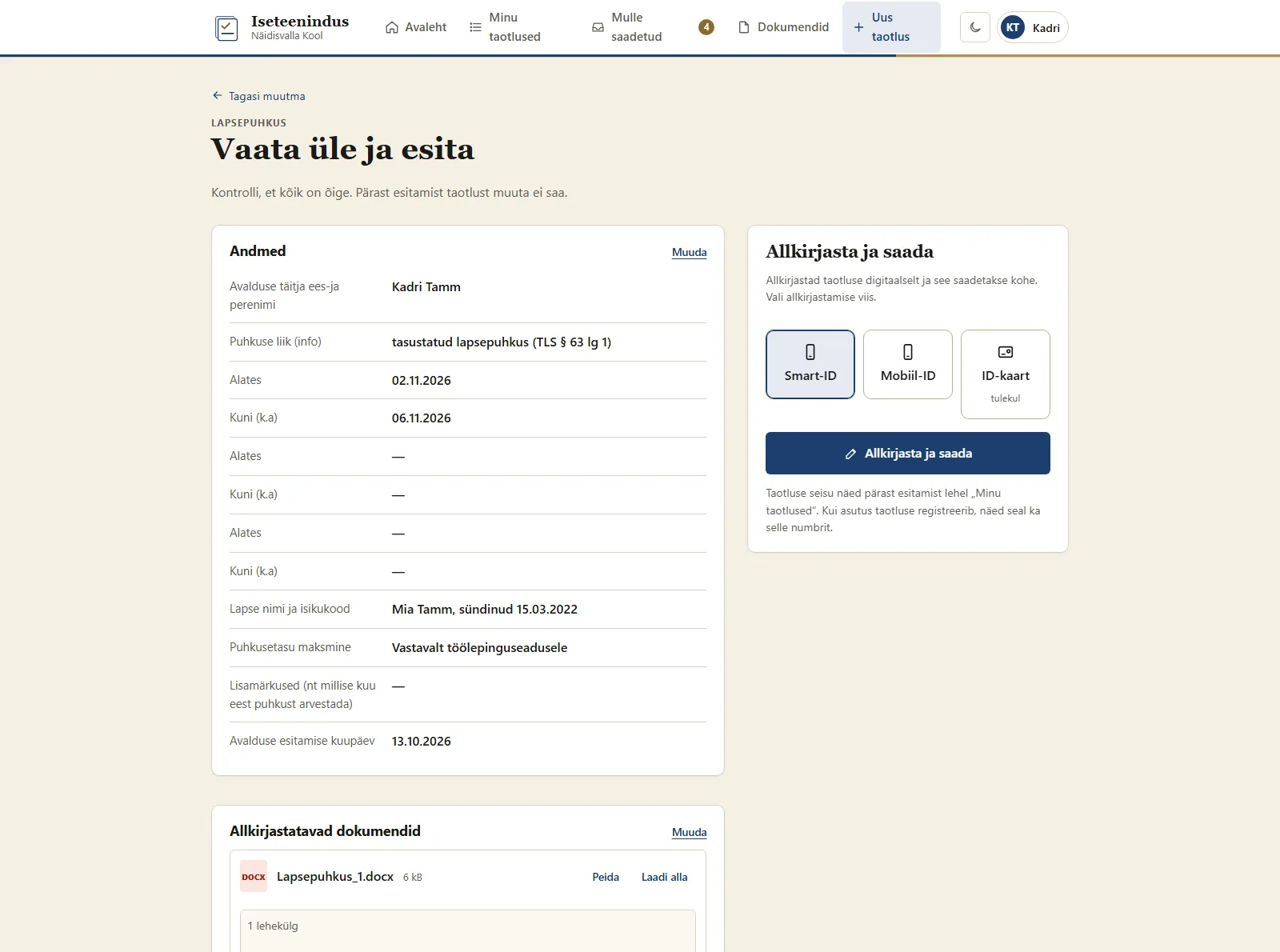
Press Vaata üle ja esita (Review and submit). Please check the data: an application cannot be changed after it is submitted.
- Without a signature (if the organisation allows it for the form): tick Kinnitan, et esitatud andmed on õiged. (I confirm the data is correct) and press Saada allkirjastamata (Send unsigned).
- With a signature: the Allkirjasta ja saada (Sign and send) block shows the documents to be signed. You can sign once every document is on the screen; you sign the documents you see. Choose the Allkirjastamise viis (signing method) – Smart-ID or Mobiil-ID – and confirm the signature on your phone with PIN2. Signing with an ID card is coming.
The organisation decides which file types are allowed.
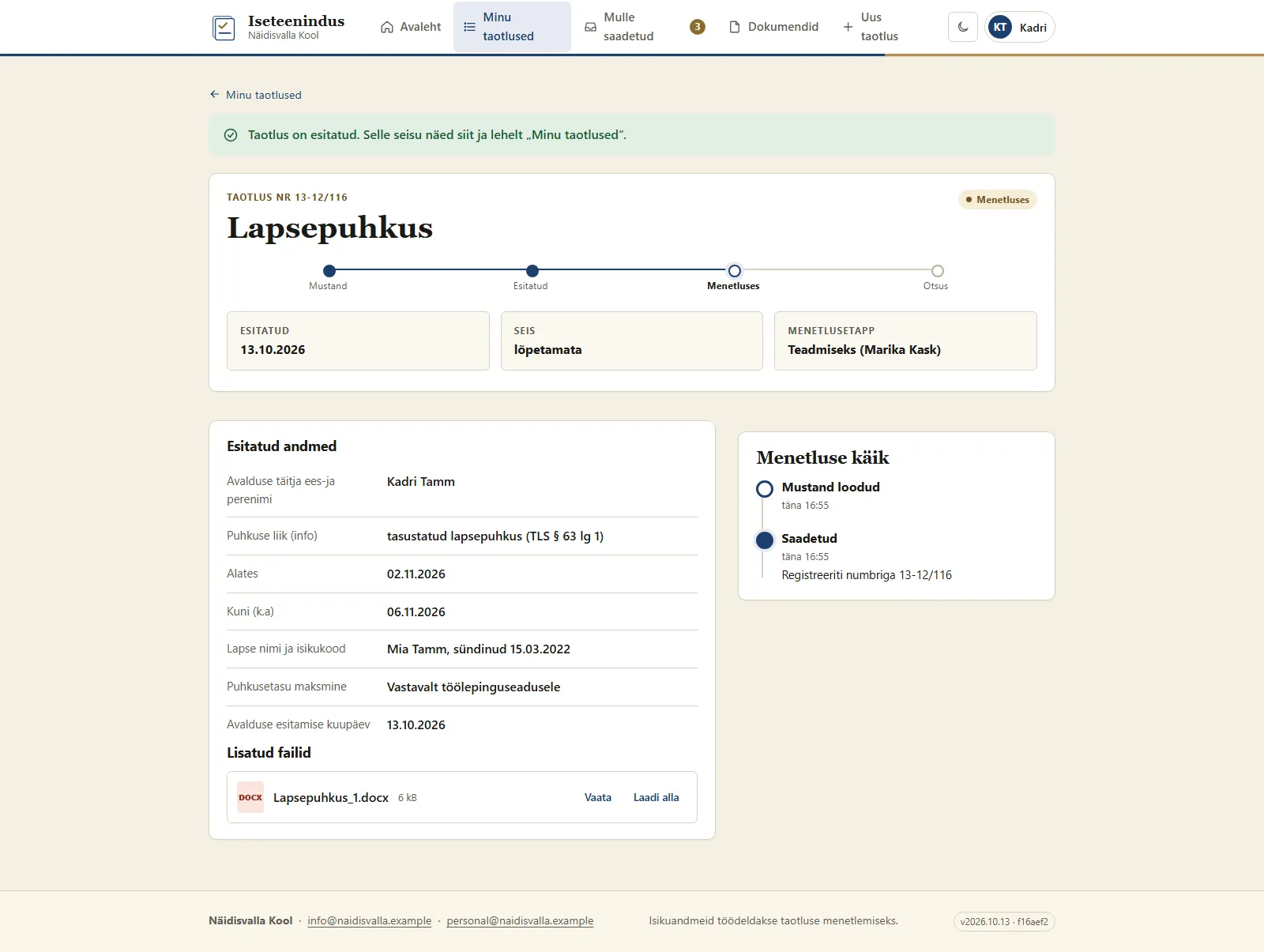
After submitting, the portal shows "Taotlus on esitatud." (The application has been submitted; for a signed one "Taotlus on allkirjastatud ja esitatud.") with the application number, status and handling step. A signed application's files include a signature container (.asice), which cannot be opened in the portal: download it and open it on your computer.
5. Application status
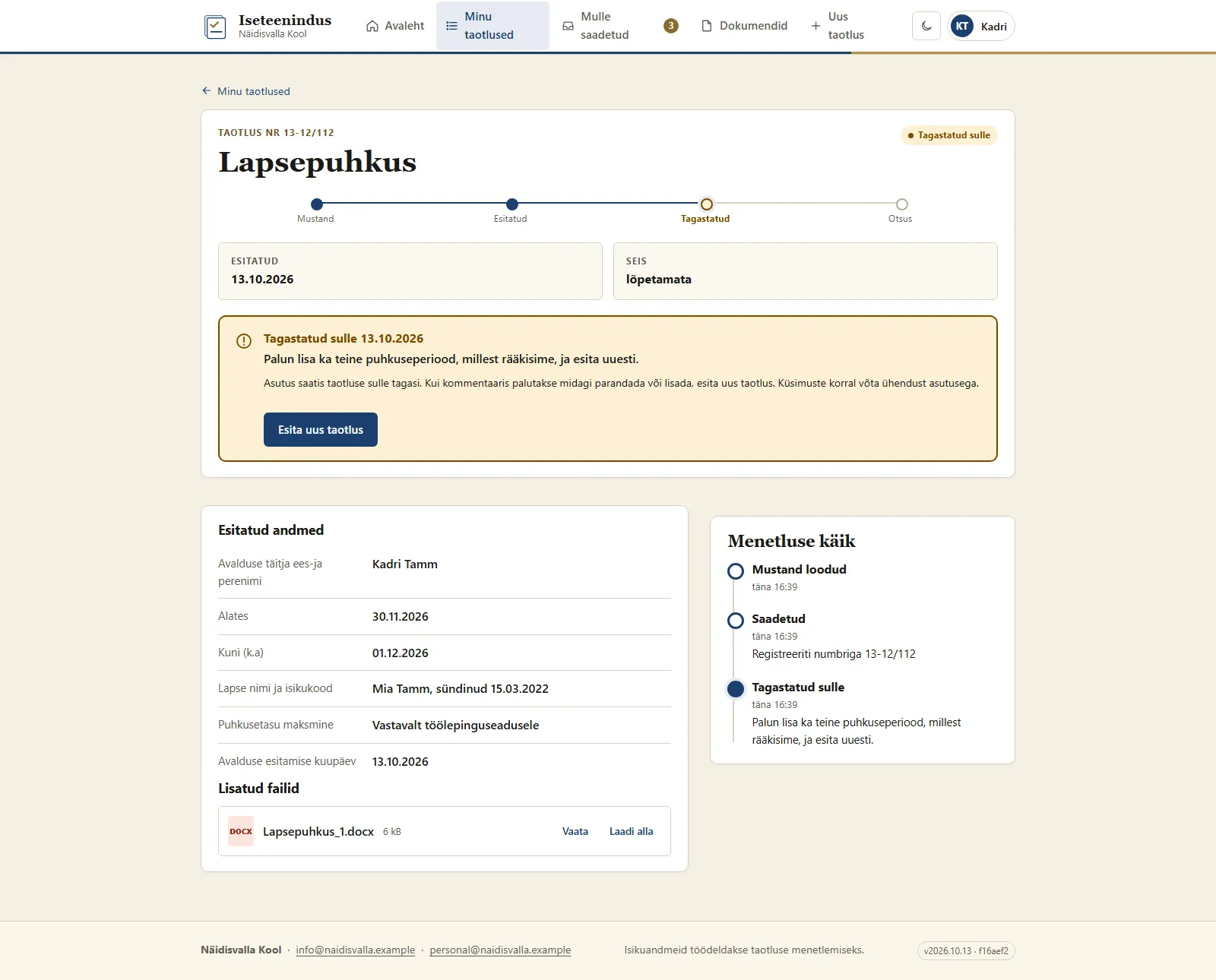
The list and the application view show the status as a label, for example Mustand (draft), Saatmisel (being sent), Esitatud (submitted), Menetluses (being handled), Tagastatud teile (returned to you), Otsus tehtud (decided) or Katkestatud (cancelled). When the organisation has finished handling the application, the status is Otsus tehtud.
Returned application
If the organisation sends an application back to you, its row shows Tagastatud teile with the organisation's comment (e.g. "Palun lisage sünnitõendi koopia." – Please add a copy of the birth certificate). A returned application cannot be changed. If the comment asks you to correct or add something, submit a new application: the application view has the button Esita uus taotlus (Submit a new application). The home page also shows a notice of the returned application with the comment and the link Vaata (View). Once you have read the comment, please press Tutvusin tagasisaatmise põhjusega (I have read the reason for the return) in the application view: the portal shows "Tagasisaatmise põhjus on teadmiseks võetud." (The reason for the return has been noted.) and the notice leaves the home page. The status stays Tagastatud teile and you can still submit a new application.
6. Documents sent to me
Mulle saadetud holds the documents the organisation has sent you, in three tabs: Mulle allkirjastamiseks (For me to sign), Mulle teadmiseks (For my information) and Lõpetatud (Done). Each tab shows its count.
You can view a document's files in the portal: Vaata (View) opens the file on the page, Ava täisekraanil (Open full screen) opens it larger.
A document sent for your information
Open the document, read the files and press Kinnitan, et olen dokumendiga tutvunud (I confirm I have read the document). The confirmation reaches the sender at once and the portal shows "Teadmiseks võetud. Täname!" (Noted. Thank you!). The document moves to Lõpetatud.
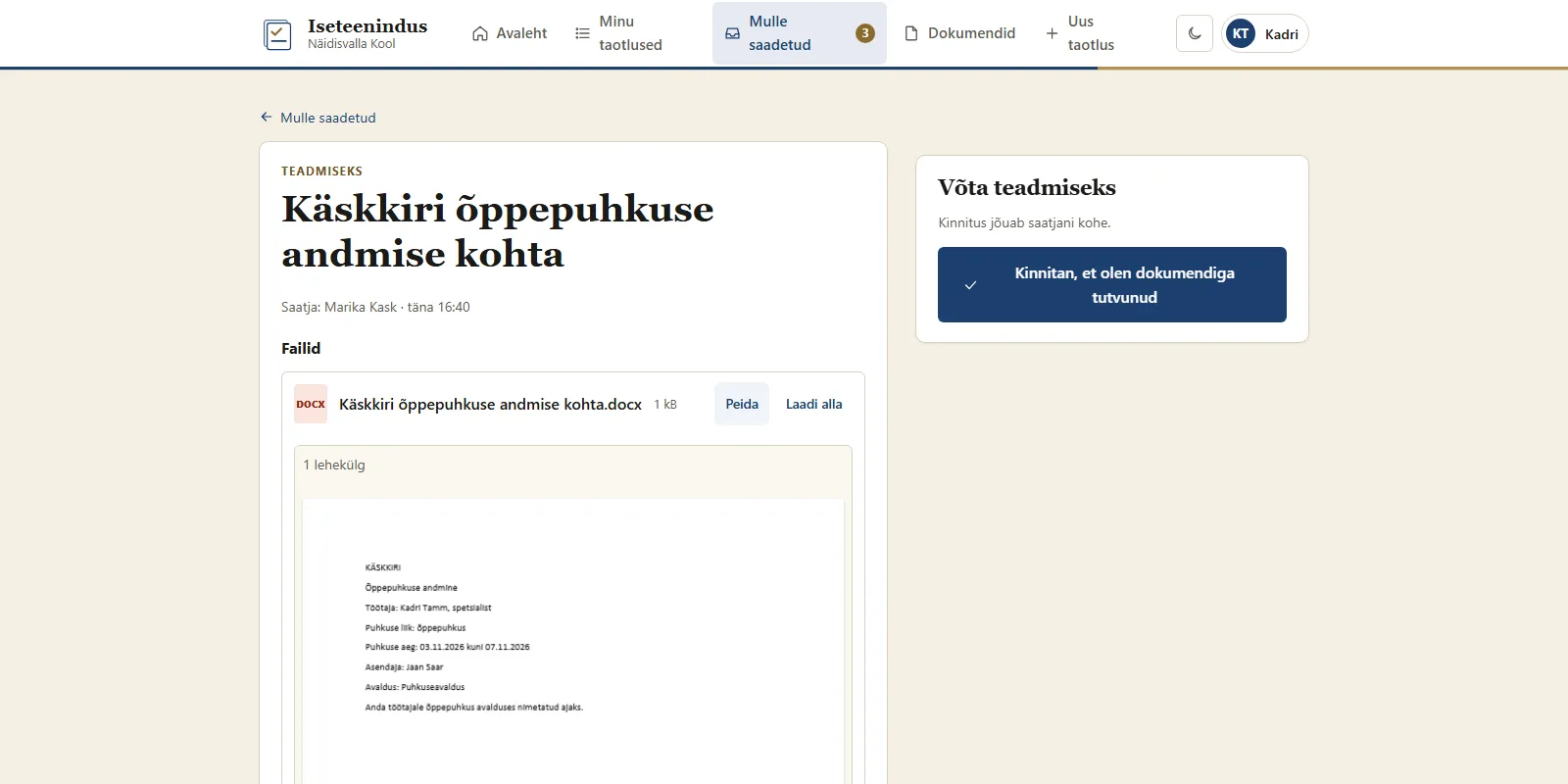
The Mulle teadmiseks tab may start with a notice from the organisation, for example within how many days the receipt must be confirmed.
A document sent for signing
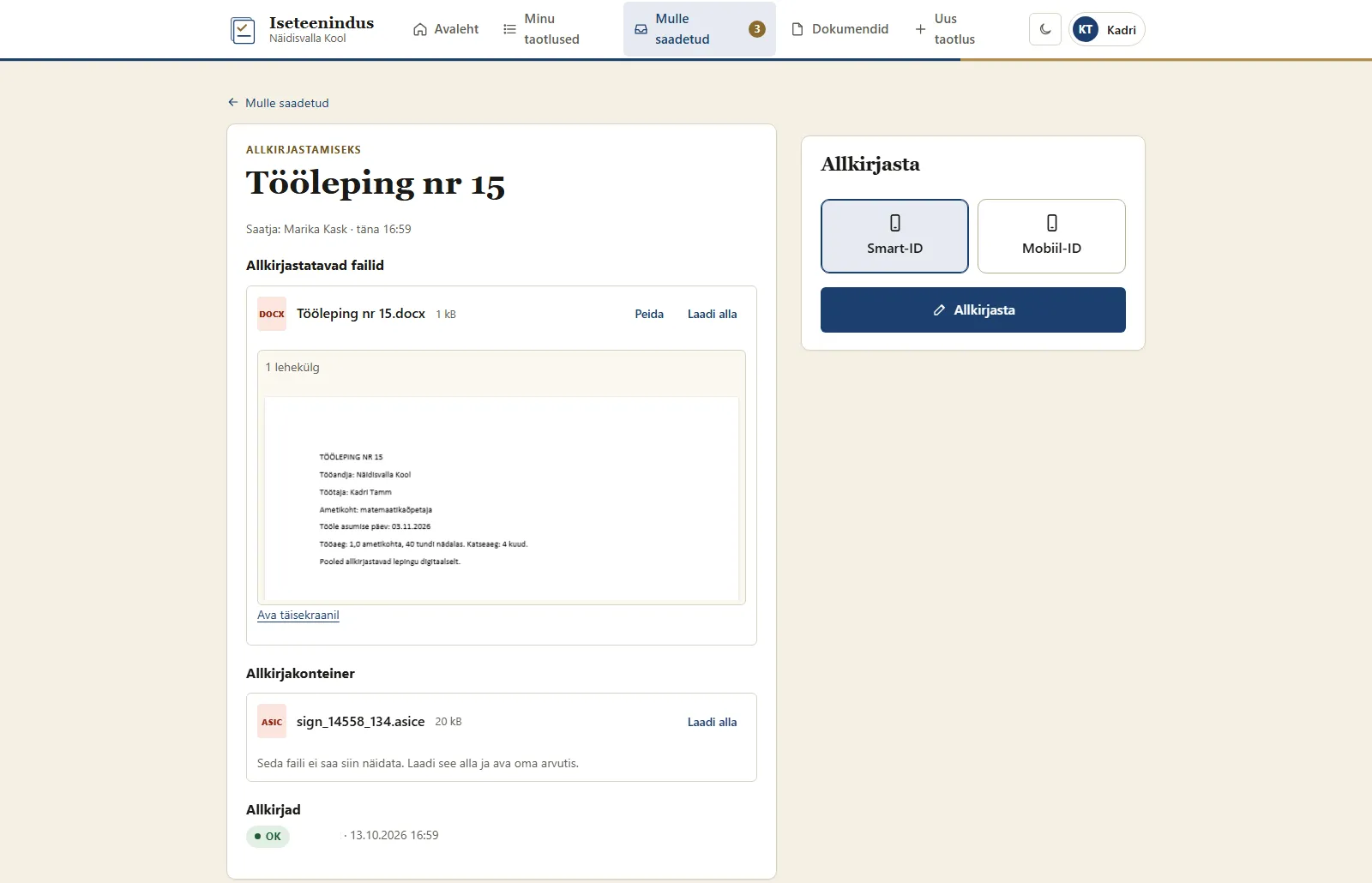
Open the document. The files to sign are open on the page; the Allkirjasta (Sign) button becomes active once the files are on the screen. Choose Smart-ID or Mobiil-ID, press Allkirjasta and confirm the signature on your phone. The portal then shows "Allkirjastatud. Täname!" (Signed. Thank you!).
If the document already has a signature container, the page shows Allkirjakonteiner (signature container) and the earlier signatures (Allkirjad). Your signature is added to the same container and the earlier signatures stay.
7. Documents
Dokumendid (Documents) holds the organisation's rules, instructions and other documents opened to you. The page is in the menu only when documents have been opened to you.
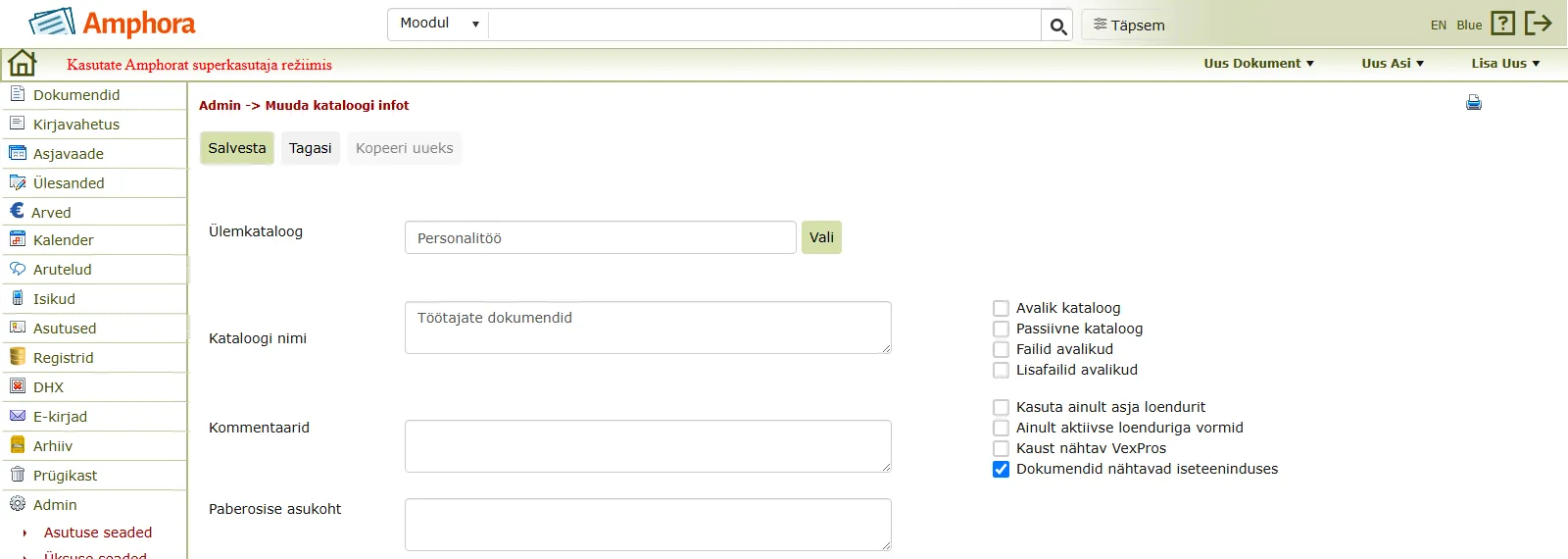
The organisation's administrator opens a folder's documents in self-service with the folder setting Dokumendid nähtavad iseteeninduses (Documents visible in self-service): Admin → Kataloogid (Folders) → choose the folder → Muuda (Edit) → tick Dokumendid nähtavad iseteeninduses → Salvesta (Save). Only employees of that folder's unit and its sub-units see them, read-only.
8. Organisation setup in Amphora
The new self-service portal uses the same Amphora settings as the current self-service portal.
- A form in self-service: the form setting Iseteenindus, if needed Kuva nupp „Esita allkirjastamata“, the form's default folder and an automatic process for that folder (see Setting up forms and Setting up the automatic process). Without a default folder and an automatic process the form is listed in self-service but cannot be used.
- Returning an application: please reject the task and write in the comment what the applicant must correct or add (see Rejecting a task). In the new portal the applicant sees this comment with the application.
- Sending a document for signing or for information: on the document's Edastused panel, delivery method Iseteenindus (allkirjastamiseks) or Iseteenindus (teadmiseks) (see Creating a task through the delivery panel). The recipient needs a personal code and an e-mail address in Amphora (see Adding a person).
- Opening the organisation's documents to employees: the folder setting Dokumendid nähtavad iseteeninduses (see Documents).
Forms and processes for a specific field have their own guides:
Last modified: 15 October 2026, 08:44:12