Event log (coming soon)
Important
The new event log view is coming soon in version Nov2. Until your Amphora uses it, the old logs view opens.
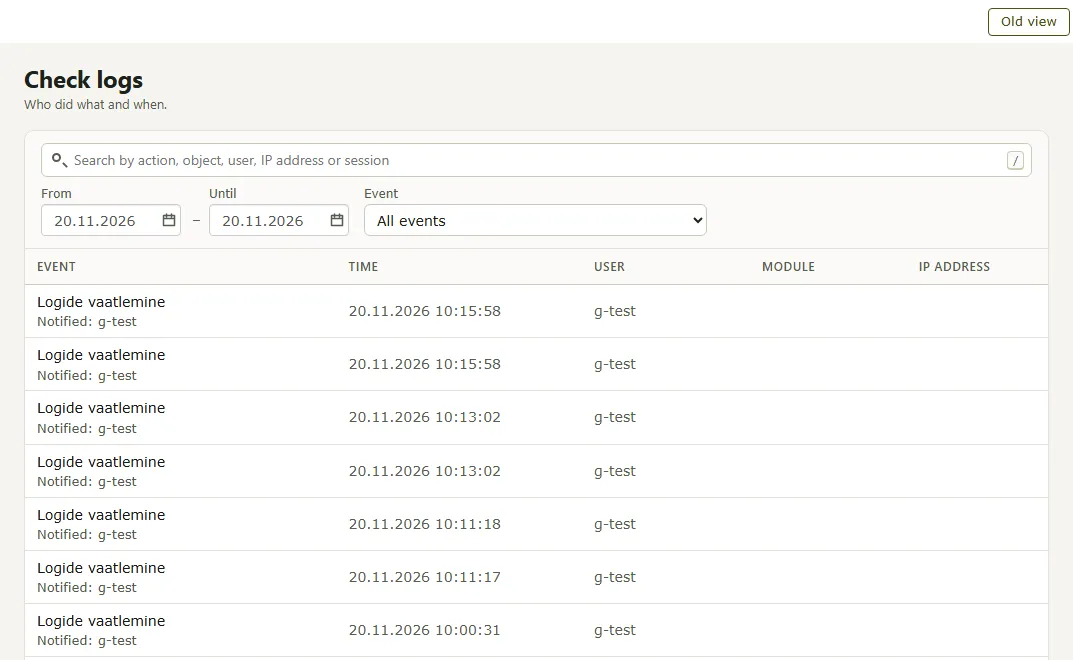
The event log shows who did what in Amphora and when. To open it, go to Admin → Organization settings and, in the Logs block, press Check logs. The Old view button at the top right of the view opens the earlier view; in the old view, New view returns.
Contents
1. Search and filters
- The search box searches by action, object, user, IP address or session.
- From and Until set the days whose events are shown. Enter a date as dd.mm.yyyy. When the view opens, both hold today's date.
- Event chooses the kind of events shown: All events or one kind.
At most the 1000 newest events of the chosen days are shown. To see older events, choose fewer days.
2. The event list
The columns are Event, Time, User, Module and IP address. The newest event is at the top.
Below the event name are the object the event concerned (for example a document title or a user name) and “Notified:” with the user. When the event changed data, Changes is below it: click it to see which value changed to which.
Below the list are the number of events (Events:) and the Rows per page choice (50, 100 or 250).
Print prints the list. To save it as a PDF, press Print and choose “Save as PDF” as the printer in the browser's print window.
3. Rights
Users with the right to the Event log module can see the event log. To see other users' events, the user group policy “Teiste kasutajate logide vaatamine” is needed; without it, users see only their own events, and the view says so.
Last modified: 21 November 2026, 04:26:19