Tables (coming soon)
Important
The Admin → Tables view is coming soon in version Nov2. Until your Amphora uses it, the old tables view opens.
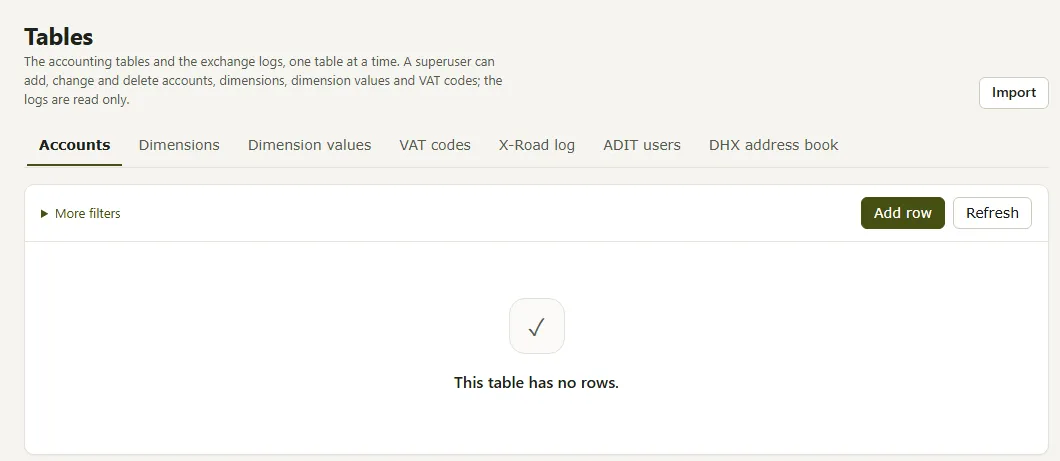
The Admin → Tables view shows the accounting tables and the exchange logs, one table at a time. The Old view button at the top right of the view opens the earlier view; in the old view, New view returns.
Contents
1. Tables and logs
The tabs at the top of the view are:
- the accounting tables Accounts, Dimensions, Dimension values and VAT codes;
- the logs X-Road log, ADIT users and DHX address book. The logs are read only.
Rows in the accounting tables can be added, changed and deleted only in superuser mode. Refresh loads the table again. Below the table are the number of rows (Rows:) and the Rows per page choice. When the table is empty, it says “This table has no rows.”
2. Filters
More filters opens the column filters. For a text column, you can choose whether the value contains or equals the text you enter. In a date column, enter a date as dd.mm.yyyy, a month as mm.yyyy or a year as yyyy.
The filters in use are shown as tags below the filters, for example “Name contains: cost”. The cross on a tag removes one filter; Clear the filters removes them all. When no row matches the filters, the table says “No row matches the filters.”
3. Adding and changing a row
- Choose a tab, for example Accounts, and press Add row. The form New row: Accounts opens.
- Fill in the fields. A field marked with an asterisk (*) is required. An account has the fields Account (required), Name, VAT code, Valid from and Valid until; enter dates as dd.mm.yyyy.
- Press Save. Cancel closes the form without saving.
To change an existing row, press Change on the row.
On save, Amphora checks that:
- the required fields are filled in and no text is longer than allowed;
- the VAT rate is a number from 0 to 100;
- Valid until is not before Valid from;
- no other row in the table has the same code.
If other entries use a row, its code cannot be changed.
4. Deleting a row
Press Delete on the row. Amphora first checks whether the row is in use:
- if nothing uses the row, Amphora asks for confirmation and removes the row from the table;
- if the row is in use, it cannot be deleted. The message says what uses it, for example the number of invoice entries or dimension values. Remove what uses the row first.
5. Import from a CSV file
Import opens the import in three steps: File, Check and Result.
- File. One CSV file holds accounts, dimensions with their values, and VAT codes, in the columns of the template. Download the template gives the template. Choose the file or drop it in the CSV file box and press Check. The file can be up to 4 MB.
- Check. For each table, Amphora shows how many rows are new, changed, unchanged and with errors, and lists the new and changed rows. Nothing has been saved yet at this step. If the file has errors, they are listed with the line number and the field; the file can be imported only when it has no errors. In that case, correct the file and choose it again.
- Result. Press Import (the button shows the number of rows). A row is added or, if the table has a row with the same code, changed. Nothing is deleted. At the end, Amphora says how many rows were added and how many were changed; Open the tables returns to the tables.
If the tables already hold everything in the file, Amphora says so and nothing is imported.
Last modified: 20 November 2026, 08:54:32