Templates
The Old view button is at the top right of the view. If needed, it opens the earlier view: it opens a window where you can write why you need the old view (this is optional). Then press Old view in the window. Amphora remembers the choice for your next login too. In the old view, New view returns to the new view. The old view is described in the Templates guide.
Contents
- Templates list
- Adding and changing a template
- Template elements
- When the template is offered, trying and saving
1. Templates list
The Templates view shows document, message, case, e-mail and archive templates. A template's title opens it.
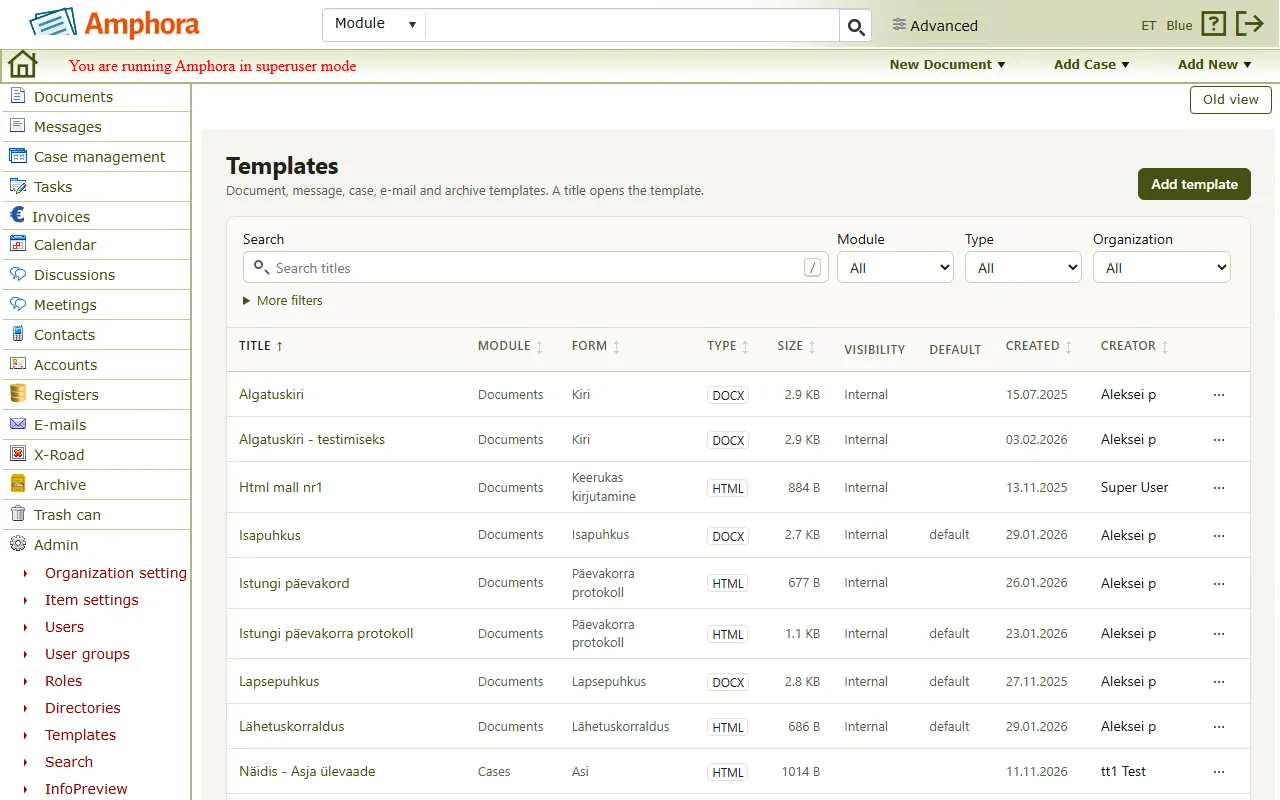
The columns of the list are Title, Module, Form, Type (for example DOCX, PDF or HTML), Size, Visibility (Internal or Public view), Default, Created and Creator.
Above the list are the filters Search titles, Module and Type; when a module is chosen, the Form filter shows too. When there are several organizations, the Organization filter shows too; No organization shows the templates with no organization. More filters adds Creator, Created from and Created until (a date as dd.mm.yyyy). The chosen filters show above the list; Clear the filters removes them all.
Each row ends with the Actions menu:
- Edit – opens the template;
- Download the file – downloads the template's file;
- Delete… – deletes the template. When documents were made from the template, Amphora asks for a confirmation (Delete anyway). A template cannot be deleted while, for example, cases, files, disposal acts, unit auto-replies or e-mail registration profiles use it; the message names them, and they must be changed first. A delete cannot be undone.
To add a new template, press Add template.
2. Adding and changing a template
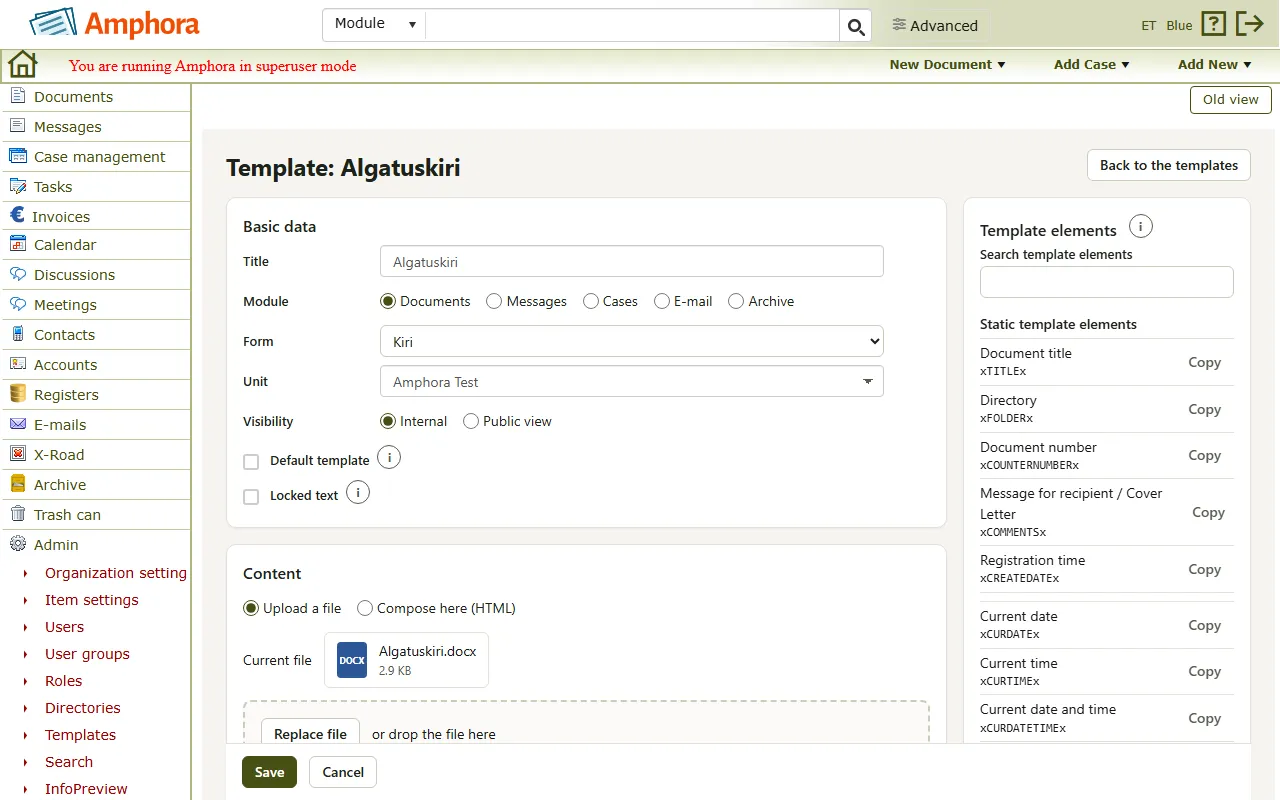
The template view has the parts Basic data, Content, Template elements, When the template is offered and Try the template. When you have the right to view only, the top of the view says so.
Basic data
- Title – up to 100 characters.
- Module – which objects the template is for.
- Form – the template is for this form; a No form template is for every form.
- Unit – the template is for this unit; a No unit template is for every unit. Only units you administer can be chosen.
- Visibility – Internal or Public view.
- Reply letter (on an e-mail template) – the template is offered when replying to an e-mail.
- Default template – chosen in advance for this form and unit; the previous default stops being one.
- Locked text – a document made from the template keeps its text unchanged.
Some settings apply only to one module. When you change the module, the settings, form or file that do not fit the new module are removed, and a message says what was removed.
Content
The template's content can be added in two ways:
- Upload a file – press Choose a file or drop the file in the box. A message says which file types this module's templates take. The file can be up to 20 MB. An existing template's file is replaced with Replace file. When a saved template's file cannot be found, the note “The template's file cannot be found. Please upload a new file to keep the template.” shows above the upload box; then upload a new file and save the template.
- Compose here (HTML) – write the template's text in the editor. The editor's Formatting bar has Format (paragraph style), Font, Size, Bold, Italic, Underline, Text colour, Background colour, Align left, Align center, Align right, Justify, Bulleted list, Numbered list, Link, Table, Find and replace, Print, Undo and Redo.
When an HTML template has formatting the text editor cannot keep, Compose here (HTML) opens it as HTML code. A message says what the editor would lose. You edit the HTML directly in the HTML code box; visual editing is off, and the images and formatting are kept when you save. You can also replace the file with Upload a file and Replace file.
3. Template elements
The Template elements part lists the template elements this template can use: first the Form fields (the chosen form's fields), then the Static template elements. To see a form's template elements, choose a form for the template. Search template elements searches them; while you search, the line Shown: says how many of all the template elements are shown (for example "Shown: 3 of 15").
- Copy copies a template element to the clipboard, so it can be pasted into the template file.
- Insert inserts a template element at the cursor in the HTML editor.
Check. When you add a file, Amphora checks its template elements and says how many the file has. Unknown template elements are listed under Unknown:, often with a hint "Did you mean …?". This is only a warning: the template can still be saved. The template elements of an e-mail template are not checked.
4. When the template is offered, trying and saving
When the template is offered
Choose when the template is offered in a reply:
- Always – the template is always offered;
- Only on the condition – the template is offered only when the initiating document meets the condition, and is then chosen in advance;
- Always, preselected on the condition – the template is always offered; when the initiating document meets the condition, it is chosen in advance.
For the condition, choose the Source form and, if needed, the Field (a drop-down list or radio buttons) and the Value. Without a source form, the condition does not apply. Under the part, a sentence says when the template is offered, for example "The template is offered in a reply to a document of the form "…", and chosen in advance." For more on the condition, see reply letter template condition.
Trying the template
A saved template can be filled with an existing document's data, and the result downloaded. Nothing is saved. The Try the template panel starts collapsed: open it by pressing its heading.
- Type the document's title or number (at least 2 characters) in Find a document and press Search. Choose the document in the list.
- Press Try. The filled file is downloaded.
Unsaved changes are not included: save first to try them. Only a document template can be tried with a document. The search does not show documents whose content you have no right to see.
Saving
Press Save; with no changes, the button is grey. After saving, the templates list opens with a message, for example "The template “Reply letter” has been saved." When something is missing, the view lists Correct these before saving:, for example a missing title or content. When you leave the template without saving, Amphora asks for a confirmation. Back returns to the list.
Last modified: 20 November 2026, 08:34:42