Amphora in AI apps
- What it is
- What you need
- Apps
- Signing in
- What you can ask
- Limits
- How long access lasts and revoking it
- For administrators
- Your data
- If something does not work
What it is
The Amphora connection (Amphora MCP) lets an AI app, such as Claude, work in Amphora on your behalf. In a chat with the app, you can ask it to find documents, read their files, register a new document with a file, or add a file to a document.
The app works on your behalf and with your rights. It sees and does only what you yourself can see and do in Amphora.
The connection address is https://mcp.amphora.ee/mcp.
What you need
- An app that supports the Amphora connection (see Apps) and an account for that app.
- An Amphora user account that can sign in with an ID card, Mobile-ID or Smart-ID. Signing in with a password does not work here.
- AmBot must be switched on for your organization. If it is not, ask your Amphora administrator.
Apps
| App | Guide |
|---|---|
| Claude Code | Claude Code and Amphora |
| Claude (claude.ai and the Claude desktop app) | coming soon |
| ChatGPT | coming soon |
An app's guide is added here once the connection has been checked in that app.
Signing in
- Start signing in from the app, as its guide describes. Amphora opens in your browser.
- Sign in with an ID card, Mobile-ID or Smart-ID.
- The page App sign-in to Amphora opens. It shows:
- which app asks for access on your behalf, and through which agent;
- your name;
- where you return after you allow; if the app is on your computer, this is this computer;
- that the app gets all of your rights and can make changes without asking each time;
- the date until which access is valid.
- If everything is right, click Allow. The page shows “Returning to the app…” and the app is connected. If you do not want to give access, click Deny.
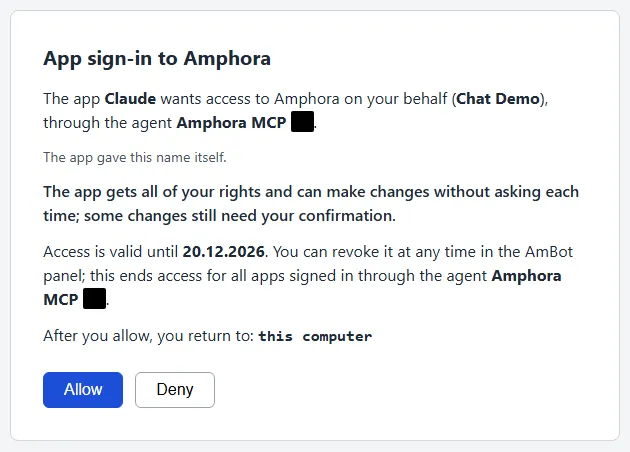
The page opens again on every sign-in.
Important
The app gave the name shown on the page itself. If you did not start the sign-in yourself, or the return place is not what you expect, click Deny.
What you can ask
Write to the app in plain words, for example:
- “Find last week's contracts in Amphora where the party is ...”
- “What does the document ... say?”
- “Register this file in Amphora as a letter in the folder ...”
- “Add this file to the document ...”
The app searches Amphora with the same search you use yourself. To read a file, the app uses the file's text that Amphora has read from the file for search.
Changes (for example a new document or a file) are made at once. For some actions Amphora still asks for your confirmation: it appears in the AmBot panel under Approvals, and the action is carried out only when you click Confirm. A confirmed action is carried out once.
If something does not work, or you have a suggestion, the app can send a note to the Amphora team (see Your data).
Limits
- The app cannot do anything you yourself do not have the right to do in Amphora.
- This connection does not do self-service portal actions.
- The app does not see a document's older versions or the list of versions.
- A file whose text Amphora has not read yet can be read by the app a little later. A file with no text in it (for example a scanned image without text) cannot be read by the app.
- A very long text comes in parts (up to 200,000 characters at a time).
- An action stops if it takes more than a minute; a file upload stops if it takes more than 5 minutes.
- One connection is one organization.
How long access lasts and revoking it
- Access is valid for 30 days and is extended on each new sign-in. During this time you do not need to sign in again.
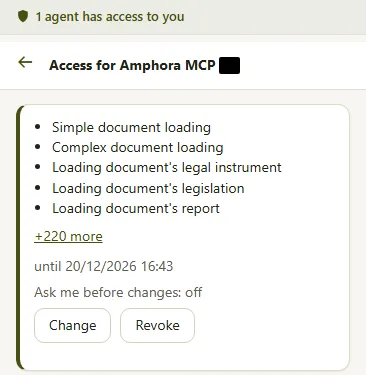
- You can revoke access at any time: in Amphora, open the AmBot panel Agents, choose the agent and click Revoke. This at once ends access for all apps signed in through that agent.
- There you also see the date until which access is valid and what the agent has done. With Change you can change the option “Ask me before changes”.
- After you revoke access, or when it ends, the app asks you to sign in again.
For administrators
- The connection works only in an organization where AmBot is switched on. Otherwise, the user sees “AmBot is not switched on for your organization.” when signing in.
- There is no separate right or user list for the connection. Each user connects the app with their own account, and the app gets only that user's rights.
- The rights of users and user groups also decide what the app can see and do.
Your data
When you ask the app to read a document or summarize it, the text of that file is sent to the app's provider (for example, for Claude, to Anthropic) to write the answer. Ask the app only for what you may show to that service.
The Amphora connection's log holds the kind of request, the time, the result and the reason for a refusal. Document contents and sign-in data are not written there.
The app can send the Amphora team a problem report, a suggestion or feedback. The note holds its kind, what was tried and what happened, your organization, and your name and user name. You may not be able to see the note before it is sent. The app is asked to leave document contents out of the note.
If something does not work
| What you see | What to do |
|---|---|
| “This sign-in needs an ID card, Mobile-ID or Smart-ID.” | Click Sign out and sign in again and sign in with one of them. |
| “AmBot is not switched on for your organization.” | Contact your Amphora administrator. |
| “This sign-in link is not valid.” | Start the sign-in again from the app. |
| The app says it has no right | You yourself do not have that right in Amphora. Ask your administrator for it. |
Last modified: 20 November 2026, 16:59:11