Counters (coming soon)
Important
The Admin → Counters view is coming soon in version Nov2. Until your Amphora uses it, the guide Folders → Counters applies.
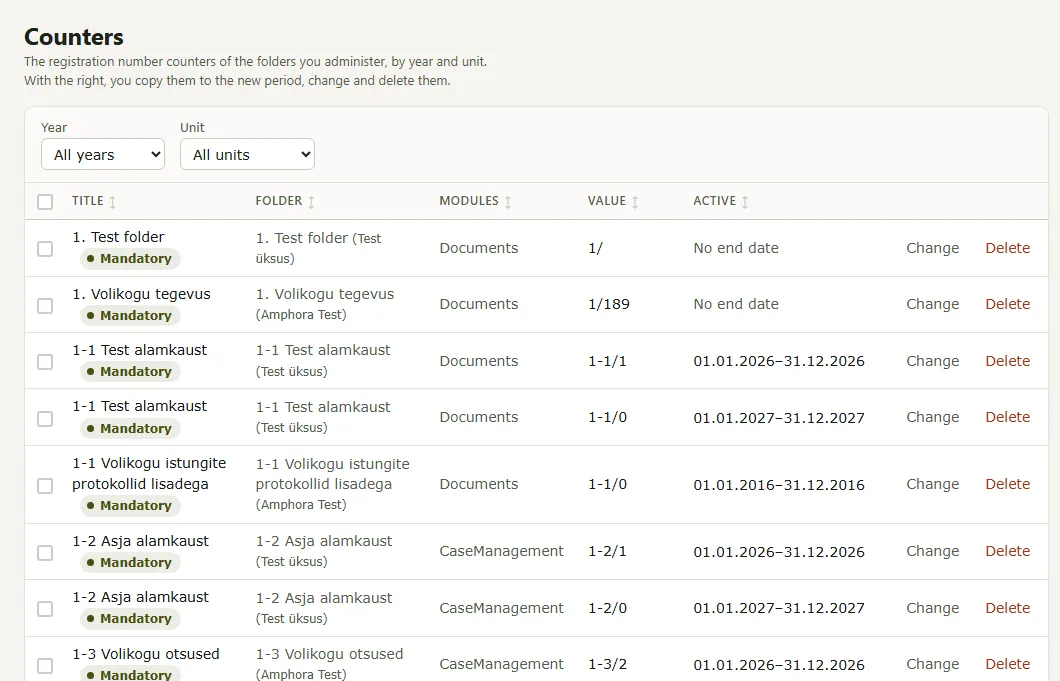
The Admin → Counters view shows the registration number counters of the folders you administer, by year and unit. With the right, you can copy counters to the new period, change them and delete them. The Old view button at the top right of the view opens the earlier view; in the old view, New view returns.
A new counter is still added on the folder, see Folders → Counters.
Contents
1. The counter list
Above the list are the filters Year (All years, the years and No end date) and Unit (All units or one unit).
The columns are Title, Folder, Modules, Value and Active (the validity period or No end date). The tags Mandatory and Drafts allowed may be shown below the title. Clicking a column header sorts the list by that column. At the end of each row are Change and Delete.
Below the list are the number of counters (Counters:) and the Rows per page choice. When no counter matches the filters, the list has a Clear the filters button.
2. Copying to the new period
- Tick the counters you want to copy. The header checkbox Select all on this page selects all counters on the page.
- Press Copy to the new period and confirm.
Each selected counter gets a copy for the next year: the value is 0, the dates are one year on, and the year in the title, prefix and suffix is updated. The old counters stay. If a counter could not be copied, the message names it. For a new records management period, see also Adding new counters.
Clear the selection removes the ticks.
3. Changing a counter
Press Change on the row. The form Change the counter opens, with the counter's folder at the top. The form has:
- Title and Module (All modules, Documents, Letters or Cases);
- Prefix, Value and Suffix. When Value is empty, the number comes from the parent counter;
- Active from and Active until (dd.mm.yyyy). When Active until is empty, the counter has no end date;
- the checkboxes Use the parent counters' prefixes, Drafts allowed (a number only when the document is registered), Expiration notice by e-mail and Number replies. For numbering replies, you can set the reply to start numbering at, the separator and the first reply number;
- Forms: the forms of the chosen module whose documents get their number from this counter. At least one form must be chosen.
Press Save. Active until must not be before Active from.
If you set the value lower than now, Amphora warns you: the counter has already issued higher numbers, and a document could get the same number twice. The warning lists the last issued numbers and the state of each item (exists, in the trash or deleted for good). Set it lower changes the value.
4. Deleting a counter
Press Delete on the row and confirm. To delete several counters at once, tick them and press Delete for the selected counters.
After deletion, documents of the counter's forms in that folder get no number from it any more. A counter whose folder you have no edit right on cannot be changed or deleted.
Last modified: 20 November 2026, 08:59:45